Use this guide if you are a ChatGPT workspace admin or a ChatGPT Plus or Pro user setting up the Databricks Genie app using built-in OAuth or your organization's OAuth client.
Built-in OAuth: When available in ChatGPT and enabled for your Databricks workspace, use the preconfigured connection. You don't need to create an OAuth app or enter a client ID or client secret. Follow the Built-in OAuth section below.
Custom OAuth client: Use this path if built-in OAuth is unavailable or your organization requires its own OAuth client. Follow the Custom OAuth client section below.
What you are setting up
You are creating a Databricks app connection for your ChatGPT account or workspace. Both paths require the Databricks provider details requested in ChatGPT and permissions for the resources you plan to use. If you use a custom OAuth client, also prepare:
A Databricks OAuth app connection created in your Databricks Account Console.
The Databricks OAuth client ID and client secret.
The exact callback URL copied from ChatGPT.
Databricks scopes that match the app capabilities you want to enable.
Any Databricks provider details requested by the ChatGPT setup flow, such as workspace host, account host, account ID, or warehouse.
Before you start
For a workspace setup, open admin console, select the intended ChatGPT workspace, and open Plugins. Select Manage Legacy Apps to open the retained Apps page. For workspace navigation and legacy app access, see Admin controls, security, and compliance for plugins and apps.
You need:
ChatGPT workspace admin or owner access, or a ChatGPT Plus or Pro account.
For a custom OAuth client, Databricks account admin access. Workspace admin access may be enough for some tasks, but custom app connections are configured from the Databricks Account Console. For built-in OAuth, a Databricks admin must check that the ChatGPT application is available and enabled for your workspace.
For a custom OAuth client, the Databricks Account Console open in a separate tab.
For a custom OAuth client, the Databricks Genie connection screen open in ChatGPT so you can copy the exact callback URL.
A decision about the capabilities the app needs: Genie and AI/BI dashboards, broader Databricks API access, or an app limited to Databricks SQL APIs. SQL-only access is not sufficient for Genie or dashboard actions.
For a custom OAuth client, a secure place to handle the Databricks client secret.
If your Databricks account or workspace restricts access through an IP access list, context-based ingress control, a firewall, or another network policy, help from a Databricks admin who can allow the current ChatGPT app egress IP ranges.
For a custom OAuth client, copy the exact Callback URL shown in ChatGPT.
Values to prepare
For a custom OAuth client, Callback URL: copy this from the ChatGPT app setup flow.
For a custom OAuth client, the Databricks OAuth client ID.
For a custom OAuth client, the Databricks OAuth client secret.
For a custom OAuth client, Databricks access scopes appropriate to the app's capabilities. For a new Genie/dashboard connection displaying
ai-gateway,dashboards, andoffline_access, prepare those scopes. ALL APIs (all-apiswithoffline_access) remains the older, broader alternative. Use SQL only for an app limited to Databricks SQL APIs.Databricks workspace or account fields requested by the ChatGPT setup flow.
Built-in OAuth
Complete the prerequisites above first. Use this path only when built-in OAuth is available in ChatGPT and enabled for your Databricks workspace.
Ask a Databricks admin to check that the ChatGPT application is available in the Account Console's app integrations settings and enabled for your workspace. If the ChatGPT application isn’t listed in your Databricks Account Console, contact your Databricks account representative to ask whether the feature is available for your account.
In ChatGPT, switch to the account or workspace where the app should be available. Go to Settings > Plugins for a personal setup or Admin console > Plugins as a workspace admin or owner for a workspace setup. The screenshots show a personal connection. In the workspace setup, look for Add App Connection and Continue instead of the personal connection buttons.
Select Databricks Genie, then select Add Databricks Genie connection.
Enter Workspace hostname without
https://or a URL path.ChatGPT derives the workspace-local Genie MCP endpoint,
https://<workspace-host>/ai-gateway/mcp-services/system.ai.genie_one_mcp, from this hostname. No separate regional MCP endpoint is needed.Select Create connection, then sign in to Databricks and review the consent request.
Next, follow the Connect and test and Manage access sections below, including the allowed-member tests and workspace access checks.
Custom OAuth client
Complete the prerequisites above first. Use this path if built-in OAuth is unavailable or your organization requires its own OAuth client. After setup, complete Connect and test and Manage access below.
Start custom OAuth setup in ChatGPT
In ChatGPT, switch to the account or workspace where the app should be available.
Go to Settings > Plugins for a personal setup or Admin console > Plugins as a workspace admin or owner for a workspace setup. The screenshots show a personal connection. In the workspace setup, look for Add App Connection and Continue instead of the personal connection buttons.
Select Databricks Genie in your installed plugins for a personal connection or the workspace directory for an admin connection.
Select Add Databricks Genie connection.
In the Set up Databricks Genie dialog, find the OAuth client ID and OAuth client secret fields. For a personal connection, enter your existing client ID to display the OAuth callback URL. If you don’t have a client ID yet, check with your Databricks admin before continuing.
Copy the Callback URL shown in your own ChatGPT dialog. Keep the dialog open.
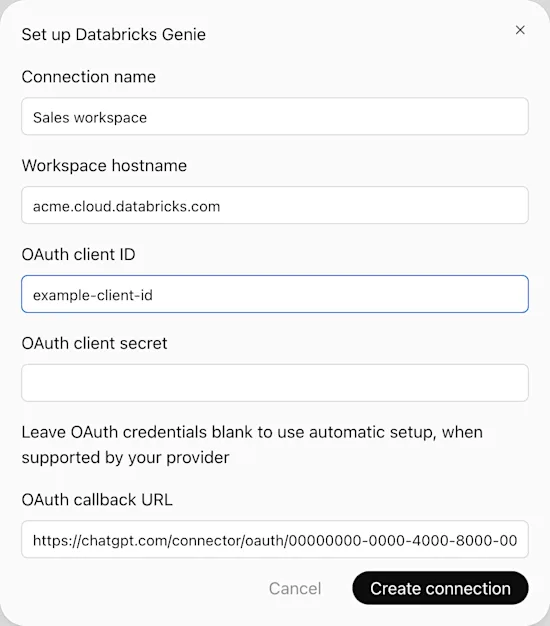
Example callback URL:
https://chatgpt.com/connector/oauth/<callback_id>
Do not remove the callback ID, add a trailing slash, or replace it with a generic ChatGPT URL. The URL registered in Databricks must exactly match the Callback URL shown in ChatGPT.
Create a custom OAuth app connection in Databricks
Open the Databricks Account Console for your Databricks account.
In the left sidebar, open Settings.
Open the App connections tab.
Select Add connection.
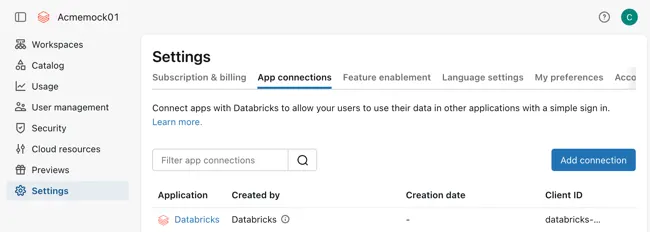
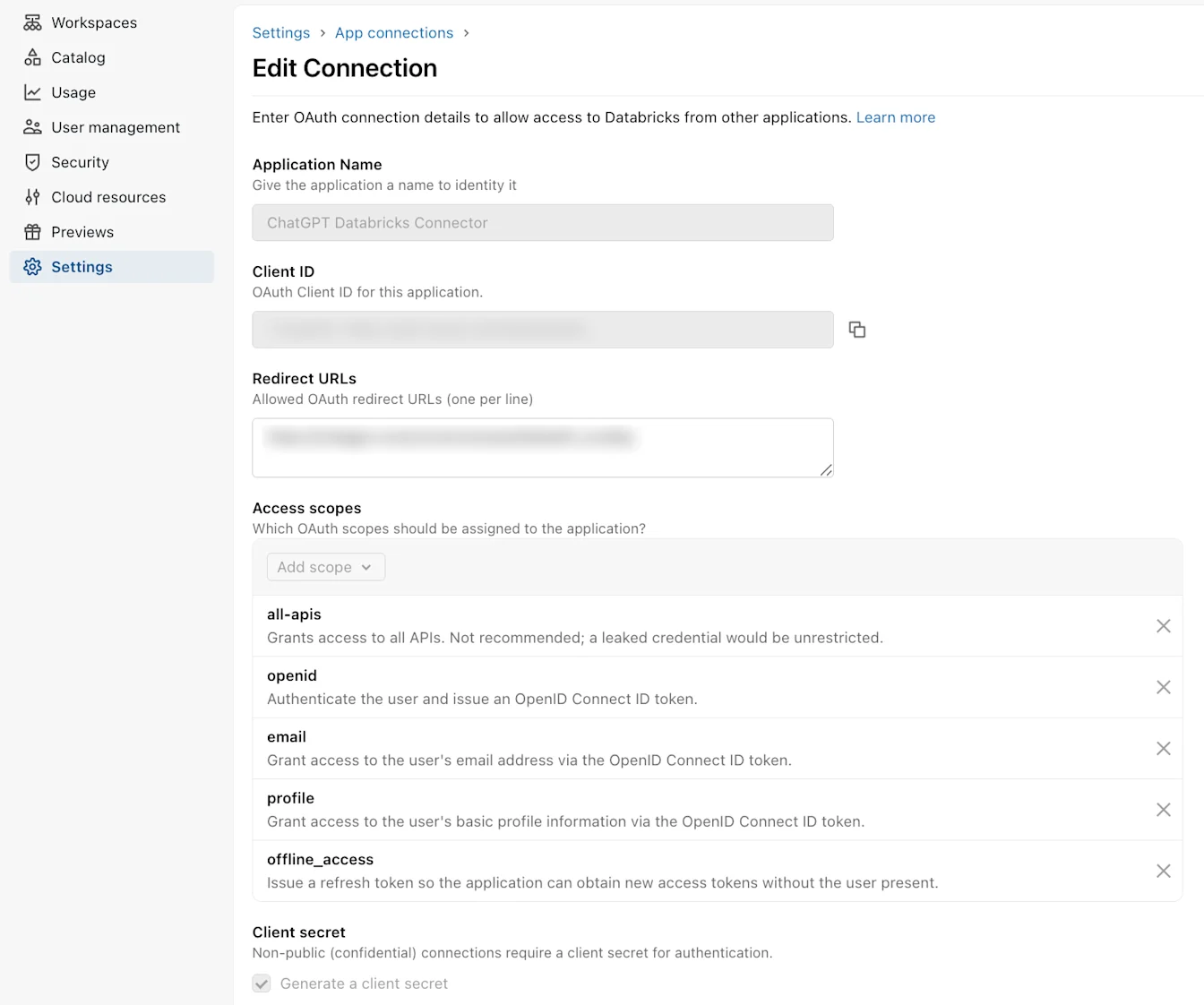
Enter an application name, such as ChatGPT Databricks.
In Redirect URLs, paste the exact callback URL copied from ChatGPT.
Under Access scopes, choose the scopes the app needs.
For a new Genie/dashboard connection displaying
ai-gateway,dashboards, andoffline_accessin ChatGPT, permit those same scopes on the Databricks OAuth app.ALL APIs remains the older, broader alternative for general Databricks API access. For this configuration, use
all-apisandoffline_accessin ChatGPT and ensure the Databricks OAuth app permits both. Prefer the displayed granular scopes for a new Genie/dashboard connection.Use SQL only for an app limited to Databricks SQL APIs. SQL-only access is not sufficient for Genie or dashboard actions.
Make sure every scope later listed in ChatGPT is enabled on this Databricks OAuth app. Databricks automatically allows openid, email, profile, and offline_access for apps created in the UI.
Leave token TTLs at the Databricks defaults unless your organization has a specific policy: 60 minutes for the access token and 10080 minutes for the refresh token.
Turn on Generate a client secret. ChatGPT needs a confidential OAuth client for this flow.
Create the connection.
Copy credentials from Databricks
In the Connection created dialog, copy the Client ID.
Copy the Client secret immediately and store it securely.
If you close the dialog before copying the secret, create or rotate the OAuth app credentials and use the new secret.
Databricks shows the secret only once. Treat it like a credential and do not include it in screenshots, tickets, comments, or chats.
Finish custom OAuth setup in ChatGPT
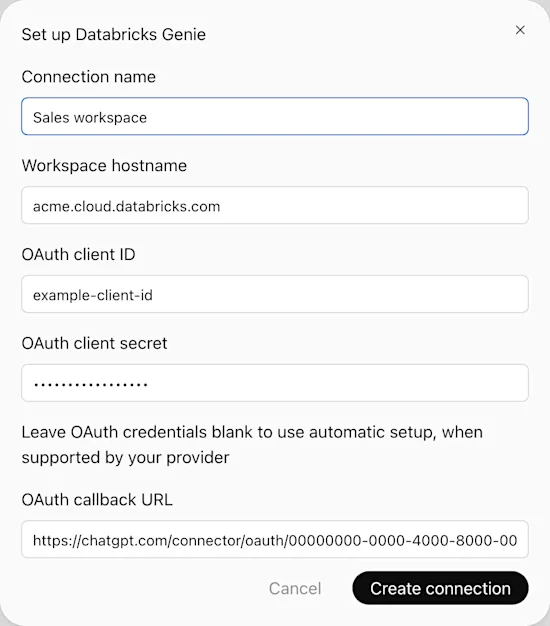
Return to the Set up Databricks Genie dialog.
Enter the Databricks client ID in OAuth client ID.
Enter the Databricks client secret in OAuth client secret.
Entering these credentials uses your custom OAuth client; no separate selector is needed.
In Scopes (optional), if this field appears, enter the scopes your app needs. For a personal connection, ChatGPT uses the template’s default scopes. Make sure your Databricks OAuth app allows them.
For a new Genie/dashboard connection displaying
ai-gateway,dashboards, andoffline_access, keep those scopes. Make sure the Databricks OAuth app permits the same scopes.ai-gatewayenables the workspace-local Genie MCP connection,dashboardsenables AI/BI dashboard actions, andoffline_accessenables refresh tokens.If your Databricks OAuth app doesn’t allow these scopes, see Troubleshooting Databricks app setup.
If you have a scopes field, enter one scope per line or separate scopes with commas. Every scope listed in ChatGPT must be enabled on the Databricks OAuth app.
Enter the Workspace hostname without https:// or a URL path. Fill any other required Databricks provider fields shown in the setup flow.
ChatGPT derives the workspace-local Genie MCP endpoint,
https://<workspace-host>/ai-gateway/mcp-services/system.ai.genie_one_mcp, from this hostname. No separate regional MCP endpoint is needed.Select Create connection.
If you see Scopes (optional), ChatGPT requests only the scopes you enter. For personal connections, ChatGPT uses the template’s default scopes. Your Databricks OAuth app must allow those defaults.
Connect and test
Complete the following connection tests and access checks for either OAuth path.
Review the app details, actions, and authentication settings.
If you are a workspace admin, enable the app for the workspace and configure who can use it according to workspace policy.
Start the connect flow from ChatGPT as an allowed test user, then sign in to Databricks.
Confirm that the browser opens the expected Databricks account or workspace.
Review the requested scopes, then select Authorize.
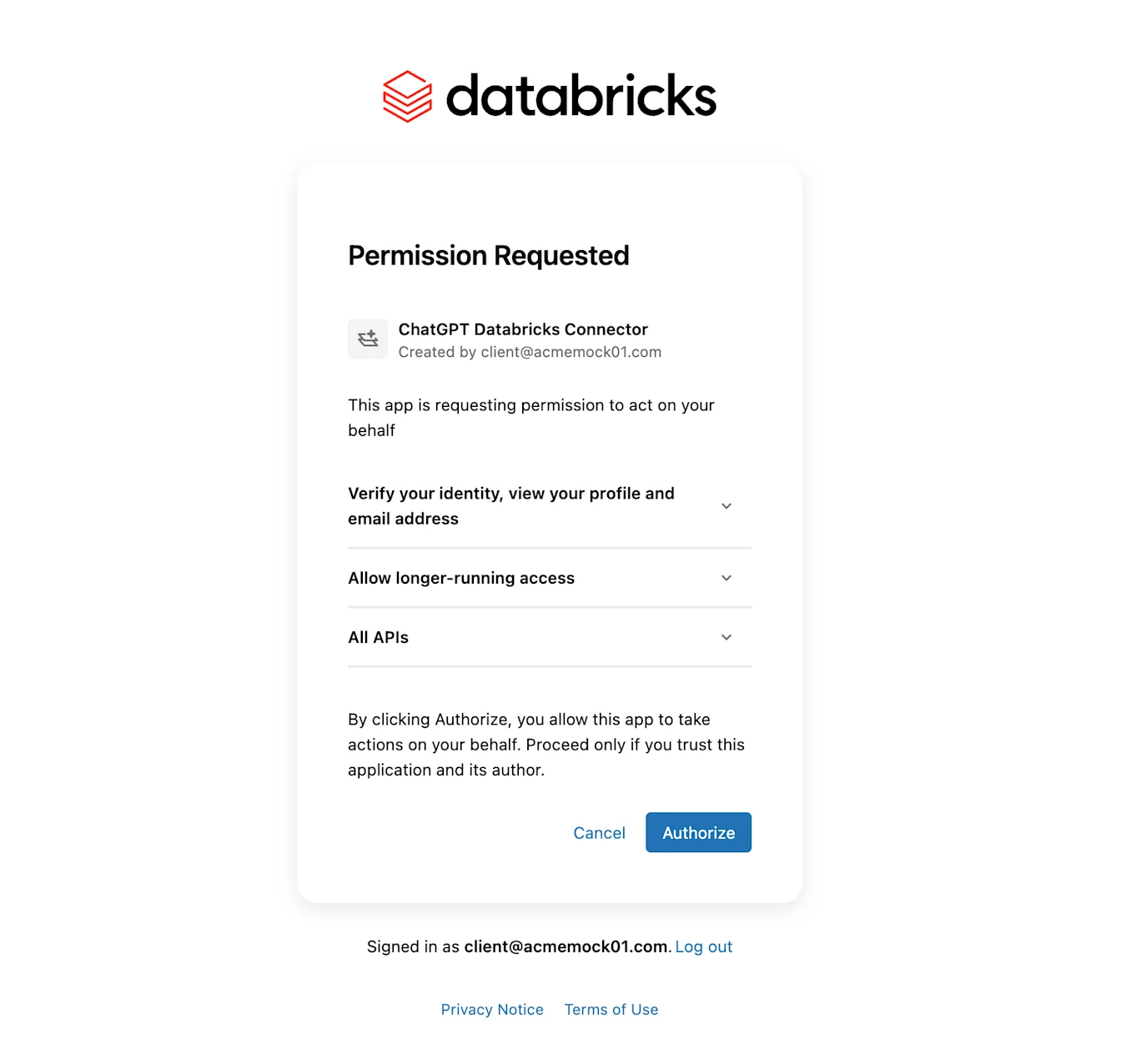
Verify that the browser returns to ChatGPT and the app shows as connected.
Run a low-risk read action that matches the connection's capabilities. For a Genie connection, send a Genie request about data the test user is permitted to access. For other supported capabilities, fetch current user information or query an approved Databricks SQL resource. Confirm that the user has the required Databricks resource permissions; OAuth scopes alone do not grant access to data.
If write actions are enabled, test with a clearly low-risk Databricks workflow before broader rollout.
For a workspace setup, ask an allowed non-admin workspace member to connect and repeat the low-risk test.
Manage access
Databricks and ChatGPT both contribute to access control.
In ChatGPT, workspace admins manage whether the app is available and how members can use it. In Business, admins manage whether the app is enabled workspace-wide. Review the Databricks apps admin controls (Workspace settings > Apps or Admin Console > Plugins > Manage Legacy Apps) for:
User access, to configure which workspace roles can use the app in supported Enterprise and Edu workspaces.
Action control, to configure which Databricks actions are enabled.
App permissions, to configure when ChatGPT asks members before using the app.
These app permissions apply to ChatGPT conversations. Workspace Agents use per-agent controls set by the agent's builder to determine which app actions are available and when end users are asked to approve them. For agent behavior, see: ChatGPT Workspace Agents for Enterprise and Business.
In Databricks, admins manage which users can authorize the OAuth app and which Databricks resources those users can access. Provider permissions still apply after the app is enabled in ChatGPT.
For workspace navigation, app access, and plan-specific app controls, see: Admin controls, security, and compliance in apps.
Troubleshooting Databricks app setup
You can’t connect or sign in to the right workspace
If Databricks opens the wrong account or workspace, check Workspace hostname in ChatGPT. Sign in again and confirm that Databricks opens the workspace you expected.
If you can’t authorize the app, ask your Databricks admin to confirm that you have access to the workspace and permission to authorize the OAuth app.
If members can’t find or connect the app, ask your ChatGPT workspace admin to check that the app was created and enabled in the workspace they use. In Business, enable it workspace-wide. In supported Enterprise and Edu workspaces, also check User access.
Custom OAuth setup fails
| What you see | What to do |
|---|---|
| Redirect URI mismatch | Copy the full Callback URL from ChatGPT into Redirect URLs in Databricks. Keep the path and callback ID exactly as shown. Don’t add a trailing slash. |
| Missing client secret | Databricks shows the secret only once. If you didn’t copy it, generate a new one. |
| Recent changes haven’t taken effect | Databricks says OAuth app updates can take up to 30 minutes. Allow that time, then try again. |
Genie or dashboard actions fail
If ChatGPT shows Scopes (optional), compare it with Access scopes in Databricks. The Databricks OAuth app must allow every scope ChatGPT requests.
If ChatGPT lists ai-gateway, dashboards, and offline_access, keep all three. If the Databricks app allows only all-apis, update or recreate it to allow those three scopes.
If those granular scopes are unavailable and you can edit the scopes in ChatGPT, use all-apis and offline_access. Allow both in Databricks. This option grants broader API access.
For a personal connection, ChatGPT uses the template’s default scopes. Check that the Databricks app allows them.
SQL actions fail
If your app uses only Databricks SQL APIs, check the SQL scope, your warehouse configuration, and your Databricks permissions. SQL access alone doesn’t support Genie or dashboard actions.
Databricks blocks the connection
Before changing OAuth scopes or generating a new client secret, ask your Databricks admin to check whether a network rule is blocking connections from ChatGPT.
If it is, your admin can take these steps:
Find the rule that blocks the connection. Check account and workspace IP access lists, context-based ingress controls, and firewall rules.
Update the rule in Databricks or your organization’s network to allow the ChatGPT app egress IP ranges.
Automate updates from the linked JSON file if possible. The ranges can change.
ChatGPT workspace IP allowlisting is a separate setting.