If you use the new ChatGPT desktop app, see how to take meeting notes with the Meetings plugin.
Overview
With ChatGPT Record in ChatGPT Classic for macOS, you can turn a meeting, brainstorm, or voice note into a transcript and a summary. After a meeting, you can ask ChatGPT to pull out decisions, list next steps, or draft a follow-up email.
Availability
Record is available on Plus, Pro, Business, Enterprise, and Edu. Workspace owners can turn Record on or off. In Enterprise and Edu workspaces, it’s off by default.
Use responsibly when recording others. Ensure to follow local laws and always get the right consents before recording others. You are responsible for making sure that your use of record mode follows applicable laws, which may vary depending on where you and the people you're recording are located.
Record and review your notes
Start recording
Open a chat in ChatGPT Classic for macOS. In the message bar, select Record meeting (the circle with a dot in the center).

The first time you record, your Mac may ask for access to your microphone and system audio.
Speak naturally
ChatGPT transcribes as you speak. The timer shows how long you’ve been recording.
Pause or stop recording
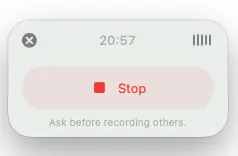
To pause or finish recording, select the Stop icon.

After you select the Stop icon, select Resume to continue recording. To finish, select Send.

Find your notes
When you select Send, the app uploads the transcript. ChatGPT summarizes it in a canvas. You’ll find the canvas in the chat where you started recording or in a new chat.
Review and edit your notes
You can edit the notes in the canvas or ask ChatGPT to turn them into a follow-up email or a project plan.
ChatGPT can make mistakes when it transcribes or summarizes a recording. Check important details, such as names and dates. Learn more about ChatGPT and accuracy.
Cancel or delete a recording
To close the recording window, select the X in the upper-left corner.
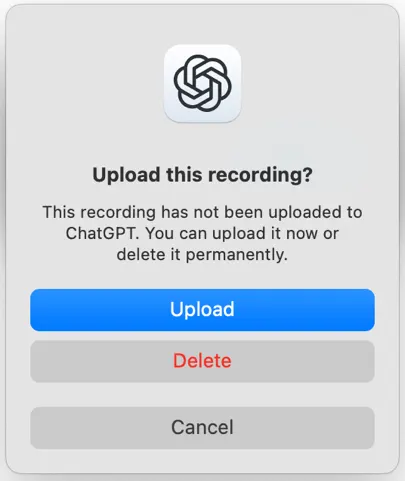
Choose what happens to the recording.
Select Upload to send the transcript to ChatGPT so it can generate your notes.
Select Delete to delete the recording.
Select Cancel to return to the recording window and resume recording.
Manage record history
Use past recordings in new chats
When Reference record history is on, ChatGPT can use notes and transcripts from past recordings in new chats. For example, you can ask, “What did we decide in Monday’s roadmap meeting?”
Turn record history on or off
On the web, open Settings > Personalization and turn Reference record history on or off.

If you don’t see the setting
Ask your workspace owner to check that you can use Record and that your workspace allows ChatGPT to reference past notes and transcripts.
Turn off recording for your workspace
If you’re a workspace owner, open your workspace permissions. Under Record, turn off Allow members to use ChatGPT record.
Manage access to past notes and transcripts
If you’re a workspace owner, open your workspace permissions. Under Record, turn off Allow ChatGPT to reference past notes and transcripts. This doesn’t turn off recording.
Compliance in Enterprise and Edu workspaces
ChatGPT deletes the audio immediately after transcription. Transcripts and summaries follow the retention policy your workspace admin sets.
The Compliance API includes canvases and transcripts created with Record. The Recordings endpoints don’t include past meetings you import into ChatGPT Meetings. For details, read the Recordings Compliance API documentation.
Recording limits
You can record for up to 2 hours per session. Pauses don’t count toward the limit. After 2 hours of recording, ChatGPT stops recording and generates your notes.
Troubleshooting
Record button missing
If you’re in a Temporary Chat, open a regular chat to see the Record meeting button.
Make sure you’re using ChatGPT Classic for macOS and you’re signed in to a Plus, Pro, Business, Enterprise, or Edu account. If you’re in a workspace, ask the workspace owner whether Record is turned on.
macOS permission errors
Give ChatGPT access to your microphone and system audio in your Mac’s privacy settings.
Open System Settings → Privacy & Security → Microphone and enable ChatGPT.
Open System Settings → Privacy & Security → Screen & System Audio Recording and enable ChatGPT.
Poor transcript quality
Try using a headset or moving to a quieter place.
Can’t find your notes
Open the chat where you started recording. If your notes aren’t there, check your recent chats. ChatGPT may have opened the canvas in a new chat.
FAQ
Does OpenAI train its models on my recordings?
We use the audio to transcribe your recording and delete it after transcription. We don’t use the audio to train our models.
If you use a personal workspace and Improve the model for everyone is on, we may use your transcripts and canvases to train our models. Our team may need to review them as part of that process.
To opt out, turn off Improve the model for everyone in your data controls. Learn how we use content to train our models and how we handle consumer data.
By default, we don’t use content from Business, Enterprise, or Edu workspaces to train our models. This includes transcripts and canvases from Record. Learn more about enterprise privacy.
How long does ChatGPT keep my notes and transcripts?
Your notes and transcript follow the same retention settings as the chat that contains them. The audio is deleted after transcription.
What happens when I delete a chat that contains a recording?
Deleting the chat removes it from your chat history. It may take a few days for ChatGPT to stop using the notes and transcript in other chats. OpenAI schedules the chat, including its notes and transcript, for deletion within 30 days. Exceptions apply if the data has already been de-identified and disassociated from your account, or if OpenAI needs to keep it for security or legal reasons. Learn more about how long ChatGPT keeps chats and files.
Can Record tell speakers apart?
Yes. If ChatGPT can’t identify a speaker by name, it uses a label such as Speaker 1. You can rename speakers after the recording ends.
Which languages does Record support?
Record works best in English. Transcription accuracy varies by language. See the list of supported languages.