
Overview
You can adjust how ChatGPT looks by changing its appearance, contrast, and accent color.
Available settings and colors can vary by platform, app version, account, plan, and rollout.

Change your appearance
The Appearance setting controls whether ChatGPT uses a light or dark interface:
System: Matches your device's current light or dark appearance.
Light: Uses a light background with darker text.
Dark: Uses a dark background with lighter text.
On the web or in the Windows app
Select your profile icon.
Select Settings.
Select General.
Under Appearance, select System, Light, or Dark.
On iOS or Android
Open your profile menu in the ChatGPT app.
Open Settings.
Select Appearance. On iOS, look under Theme. On some Android app versions, open General first.
Select System, Light, or Dark. On Android, the system option may appear as System (Default).
Your appearance preference applies to the device or platform where you set it. For example, changing the appearance on the web doesn't automatically change the appearance in the mobile app.
Adjust the contrast
The Contrast setting is available only on the web and in the Windows app. It changes the visual distinction between supported text and interface elements. You can select it with either light or dark appearance, although the most noticeable changes currently apply to light appearance.
Select your profile icon.
Select Settings.
Select General.
Under Contrast, select one of these options:
System: Follows your device's accessibility contrast preference. ChatGPT uses increased contrast when your system requests it and medium contrast otherwise.
Medium: Keeps ChatGPT at its standard contrast level, even when your device requests increased contrast.
Increased: Increases contrast for supported interface elements, primarily in light appearance, which may make them easier to distinguish.

Appearance and Contrast are separate settings. Changing contrast doesn't turn dark mode on or off.
Change your accent color
Your accent color can change the look of message bubbles, buttons, highlighted text, and other interface elements. Some parts of ChatGPT keep their own colors for readability or because they have a separate visual design.
The available accent colors can include Blue, Green, Yellow, Pink, Orange, Purple, and a neutral option labeled Black or White.
Depending on your platform, account, plan, app version, and rollout, you may also see Default, and Black or White may not be available.
On the web or in the Windows app
Select your profile icon.
Select Settings.
Select General.
Under Accent color, select a color.
On iOS or Android
Open your profile menu in the ChatGPT app.
Open Settings.
Select Accent color. On iOS, look under Theme.
Select a color from the available options.
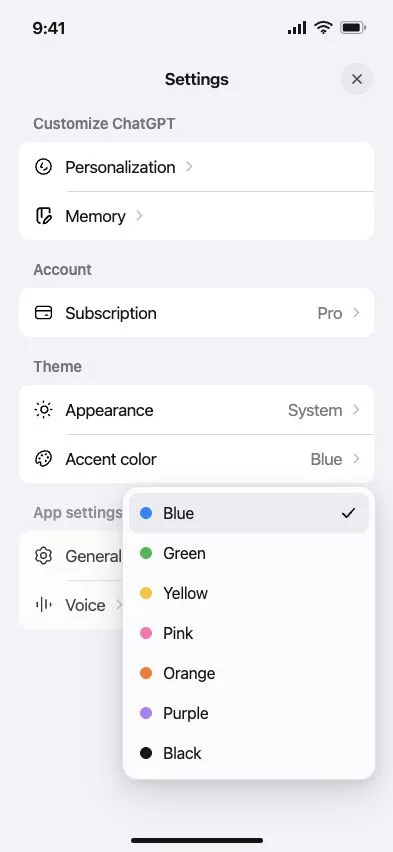
Your accent color is saved to your account and can carry across supported devices when you're signed in to the same account.
Adjust app zoom in the Windows app
ChatGPT for Windows includes a Text size setting that adjusts the zoom level of the entire app, including text and other interface elements:
Open the ChatGPT app for Windows.
Select your profile icon.
Select Settings.
Select General.
Under Text size, select the minus or plus button to zoom out or in.
Select Reset to return to the default size.
On the web, you can also use your browser's zoom controls. On iOS or Android, check your device's display and text size settings.
FAQ
Why did my accent color change to blue?
Blue may be the default accent color in ChatGPT. If the neutral option is available for your account, select Black in light appearance or White in dark appearance for a monochrome accent.
Why does Default still look blue?
On some versions of ChatGPT, Default uses blue. If Black or White is available for your account, select it to choose a monochrome accent instead.
Why does the neutral accent say Black in light mode and White in dark mode?
When available, they're the same neutral accent option. ChatGPT changes the label to match the current appearance: Black in light mode and White in dark mode.
Can I get gray or neutral message bubbles back?
Not necessarily. If Black or White is available, it selects a monochrome accent, but it doesn't guarantee that the previous gray bubble style will return. In light appearance, Black can produce black message bubbles with white text. The result can vary by platform, appearance, and app version.
Why don't I see Gray, None, or Classic in the accent color menu?
Gray, None, and Classic aren't separate options in the current accent color menus. If Black or White is available for your account, you can select it for a monochrome accent.
Why are some buttons still blue after I choose Black or White?
Some interactive elements use a contrasting color so they remain visible and readable. Choosing the neutral accent doesn't require every button, icon, or highlighted element to become gray.
Does changing my accent color turn dark mode on or off?
No. Appearance controls light and dark mode. Accent color changes selected interface colors. You can adjust either setting without changing the other.
Can I use increased contrast in dark mode?
Yes. You can select Increased with either Light or Dark appearance. However, the most noticeable increased-contrast changes currently apply to light appearance, so the effect may be limited in dark mode.
What if increased contrast makes ChatGPT harder to read?
Change Contrast to Medium, or select System to follow your device's accessibility settings. You can also adjust Appearance and Accent color separately until you find a combination that works for you.
Do my visual settings sync across devices?
Your Accent color is saved to your account and can carry across supported devices, although available colors and their appearance can vary. Appearance is device- or platform-specific, so you may need to choose it separately on the web and in each mobile app. Contrast is saved to your account on the web and in the Windows app; when you select System, it still follows the accessibility preference of the device you're using.
Why don't I see a setting or color shown in this article?
Available options can vary by platform, app version, account, plan, and rollout. Update the ChatGPT app, make sure you're signed in to the intended account, and check the settings on the platform you're using. The Contrast menu described here may not be available in the iOS, Android, or macOS app.
Can I change message bubbles without changing other accent colors?
No. Accent color applies to several supported parts of the interface, including message bubbles. ChatGPT doesn't have a separate color setting just for message bubbles.
Can I choose red or enter a custom accent color?
No. You can choose from the options shown in Accent color.