
Overview
Connect custom MCP servers to ChatGPT to use their tools in conversations. A server can expose tools without a custom interface. MCP apps add an interactive interface to those tools.
Review and publish custom MCP server connections for your company. Admins/owners and authorized developers (Enterprise/Edu only) can connect and test MCP servers privately before publishing their connections for the workspace – both servers they’ve built and servers built by others.
Take action with your company’s tools and systems from ChatGPT using tools exposed by MCP servers, including write/modify actions. MCP apps can also provide an interactive interface. Kick off workflows, create project management tasks, update your CRM, or combine apps for complex orchestrations.
Test and vet connections before you publish them - only admins/owners can publish custom MCP server connections after testing. Enterprise/Edu admins can further control developer authorization and workspace access by RBAC.
Review Apps in ChatGPT and Build with the Apps SDK for more detail on ChatGPT apps.
Availability and requirements
Custom MCP server connections and full MCP support are available for ChatGPT Business and Enterprise/Edu customers on ChatGPT web. Admins and owners can use workspace settings to create and test custom apps and publish them for their workspace.
Enterprise/Edu admins can further use RBAC to grant permission to create connections to custom MCP servers to selected members, and then choose who can access each vetted app.
To open the Apps page from Admin console, select the intended ChatGPT workspace, open Plugins, and select Manage Legacy Apps. For workspace app and plugin controls, see: Admin controls, security, and compliance for plugins and apps.
Connect a custom MCP server
Check workspace permissions
Workspace admins can manage permissions for custom MCP server connections from their workspace settings. The relevant creation permission is Create plugins with MCPs. Account and workspace policies apply to connecting custom MCP servers. See the sections below for plan-specific permissions.
Business plans
Only admins and owners can create and publish plugins for custom MCP servers for a Business workspace. To see who holds these roles, go to Workspace settings > Members.
Enterprise/Edu plans
Admins and owners can create and test connections to custom MCP servers. Admins can use role-based access control (RBAC) to grant selected members permission to create connections to custom MCP servers and manage workspace access to apps. Only admins and owners can publish apps for the workspace.
Configure the server connection
In the current Plugins experience, add a custom MCP server directly from Plugins. You don’t need to turn on Developer Mode first. Instead, review and acknowledge the risk warning for each server you add. Account and workspace policies still apply. For complete connection and testing guidance, see: Connect and test your plugin.
Go to Plugins.
Select the plus button, then select Add custom MCP server.
Enter a name and, optionally, a description.
Under Connection, enter your server’s public HTTPS MCP endpoint URL, or select Tunnel and choose an available Secure MCP Tunnel or enter its tunnel_id.
Configure authentication for your server.
Review the risk warning and select the I understand and want to continue checkbox.
Select Create as a plugin, then review the discovered tools and metadata.
Legacy custom app configuration
Confirm your account or workspace allows you to create a custom MCP app.
Admins/owners: from Workspace settings, navigate to Apps → Create.
Authorized users (including admins/owners): from user settings, navigate to Apps → Create.
Provide the endpoint and required metadata for your MCP server.
Pick the authentication mechanism, if applicable.
Click Scan Tools and wait for the scan to complete. If your server uses OAuth, complete the authorization prompt, then wait for the tool scan to finish.
Click Create.
For legacy workspace app management, the app appears as a draft in Workspace Settings → Apps → Drafts.
In legacy user settings, a draft app appears under Settings → Apps → Enabled Apps. The draft app has the label Dev next to its name.
If using OAuth for authentication
When configuring an app, confirm if your OAuth/OpenID Connect provider is configured to issue refresh tokens, as additional configurations are required in order to maintain connectivity.
For OpenID Connect providers, the standard way to request a refresh token is to include the offline_access scope in the authorization request, and for the provider to advertise support for it in its discovery metadata.
Verify the provider’s discovery .well-known endpoints (.well-known/openid-configuration or .well-known/oauth-authorization-server) list offline_access (or your provider’s equivalent) in scopes_supported or a similar capability field. If offline_access (or the equivalent refresh token scope) is not advertised or refresh tokens are not being issued, enable offline or refresh access in your provider’s admin console, tenant settings, or metadata configuration, then recreate the app so ChatGPT fetches the updated metadata.
If OAuth is configured without offline_access, ChatGPT may lose access after the original authorization expires because refresh-token renewal may be unavailable, and users may need to reauthenticate.
Test the server connection in ChatGPT
Install the resulting plugin, then start a new conversation. Type @ in the prompt box and select the plugin.
Try different prompts and use cases for your app.
Use tools exposed by the server, including write actions.
Confirm actions when prompted. ChatGPT asks for confirmation based on app permissions and the action's context. Before testing, review app permissions so testers know what to expect.
These app permissions apply to ChatGPT conversations. Workspace Agents use per-agent controls set by the agent's builder to determine which app actions are available and when end users are asked to approve them. For agent behavior, see: ChatGPT Workspace Agents for Enterprise and Business.
Publish app
Note: You are responsible for verifying the MCP server and app are safe and appropriate for your organization before publishing. Learn more
For custom apps managed through the legacy workspace Apps page, only admins and owners can publish apps. Go to Workspace settings → Apps to publish. Click on Drafts and then the Publish button. Review safety warnings (especially for write actions). Once published, apps appear in the workspace’s approved connectors list and in users’ Apps settings in ChatGPT with the label custom next to the app name.
Business and Enterprise/Edu admins can refresh an existing custom MCP server’s tool list from workspace app settings without recreating the app. To refresh the tool list, you must have permission to manage the app and a valid connection to it. The app owner can edit its name and logo from the app's Manage menu in Apps settings when those controls are available. Enterprise/Edu plans have additional controls available to them - read on to find out more.
Enterprise/Edu Admin & Owner controls
Enterprise/Edu admins/owners can further use RBAC to determine who can access the app, and control specific actions that the app or connector can take prior to publishing.
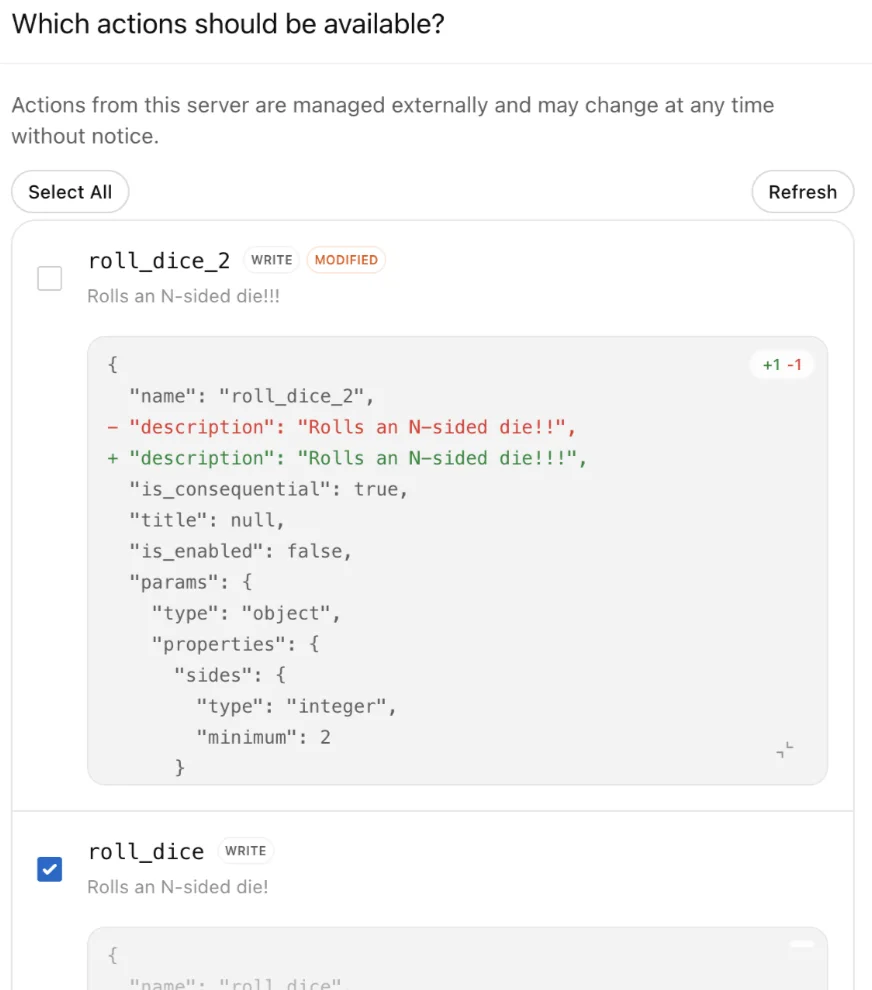
After clicking Publish (in the previous step), use Configure Actions in the modal that appears to determine what actions the app is allowed, by selecting/deselecting the action. You can also click Refresh to pull new actions (deselected by default) or updates to action definitions. Use Configure Access to select specific groups to provide access to, prior to publishing.
You can also control app actions after publishing.
Locate the app in Workspace settings → Apps, and click the ellipsis menu (...) next to the app to be configured, and click Action control.
Updates to the MCP server are not automatically enabled - you can click the Refresh button to obtain the latest set of actions, or updates to existing actions. New actions are disabled by default, and changes to existing actions are shown as a diff.
Use the new app in chats
Start a chat and select one or more apps for a single message, or use company knowledge.
You can invoke multiple first-party and third-party apps in a single prompt (e.g., retrieve internal data and then create a ticket based on the result).
App selection applies to the message where you use it, not the entire conversation. You do not need to reselect an app to discuss or reference results already in the chat.
@mention the app again when a follow-up needs new data or another app action.
Note: if you use company knowledge, only apps with search/fetch functionality are included.
For write or modify actions, ChatGPT may ask for confirmation based on app permissions and the action's context. Review app permissions before publishing so users understand when ChatGPT may ask before using the app.
Security, safety, and data considerations
Note: Connecting to unsafe or untrusted MCP servers may increase exposure to security risks (including prompt injection). Only connect servers you trust, and ensure builders understand the risks before connecting a custom MCP server. Learn more
Custom MCP server connections require responsible setup and oversight. For write or modify actions, ChatGPT may ask for confirmation depending on app permissions, the action's context, and the action's potential impact. Some especially risky actions may be blocked instead of being presented for approval. Admins/owners see risk warnings when enabling apps that can write or modify data.
You are responsible for vetting and verifying the suitability of custom apps and connectors you build, or third party apps and connectors you add for use in your workspace. Ensure all technical, usage and policy checks pass before you deploy a custom connector.
Compliance API
User conversations — including those using any app — are available in the Compliance API for Enterprise/Edu customers.
FAQ
Who can create custom MCP server connections?
Enterprise/Edu: Admins grant permission to create connections to custom MCP servers using RBAC. Authorized members can connect custom MCP servers from Plugins. Only Admins/Owners can publish. Admins can further configure who gets access by using RBAC.
Business: Only admins and owners can create and publish custom apps for the workspace. Connect a custom MCP server from Plugins subject to workspace permissions.
Are there geo restrictions?
No.
Can I test apps built with the Apps SDK?
Yes. Connect your custom MCP server and test the resulting plugin in ChatGPT.
Can I connect custom MCP servers on mobile?
No - web only.
Can apps be updated after publishing? Can I toggle on/off specific tools (read vs. write vs. fetch)?
Business and Enterprise/Edu admins can refresh an existing custom MCP server’s tool list from workspace app settings without recreating the app. To refresh the tool list, you must have permission to manage the app and a valid connection to it. Enterprise/Edu admins/owners can enable or disable app/connector actions after publishing. See the Publish app / apps section for more detail.
What safety controls are in place for write actions?
ChatGPT can ask for confirmation before important actions or other changes based on app permissions and the action's context. Admins see risk warnings when enabling apps that can write or modify data.
How does OpenAI review app safety?
OpenAI performs red-teaming, monitoring, and warnings for write actions. Apps in the OpenAI-approved registry have been reviewed before availability. You are responsible for verifying that any app or connector is appropriate for your organization, including apps and connectors you develop, or third party apps and connectors you upload.
Can I connect an MCP server someone else built?
Yes. Admins and authorized developers can connect MCP servers built by others (including open-source or vendor-built servers). Verify safety and suitability before publishing the connection.
Can ChatGPT use multiple apps at once?
Yes. You can use custom MCP servers and plugin MCP servers in the same conversation, subject to account and workspace policies.
Should I use an OpenAI-built app or a custom MCP server?
OpenAI-built apps are search-only today and do not support write actions. Use custom MCP servers for write/modify capabilities.
Can I connect to a local MCP server?
Not directly. ChatGPT connects to remote MCP servers. If your MCP server runs on a private network, on-premises, or on a developer machine, use Secure MCP Tunnel to connect it to supported OpenAI products without exposing the server to the public internet.
Are search and fetch tools required for connected servers?
No. They are no longer required.
Can deep research use custom apps?
Deep research can use custom apps, but for read/fetch actions only - not for write actions.
Are apps and full MCP beta available to Pro users?
Pro users can build apps using the Apps SDK. Full MCP is only available to Business and Enterprise/Edu users, currently. Pro users can connect custom MCP servers with read/fetch permissions.
Can I use my custom MCP server with company knowledge?
Company knowledge supports custom MCP servers with fetch/search access. Enterprise admins and owners govern who can see and access these apps using RBAC. Apps with interactive UI are not currently supported in company knowledge.
Do MCP server changes auto-update in my workspace?
No. After an admin first approves an MCP server connection for the workspace, ChatGPT uses a “frozen” snapshot of its available tools and inputs. Changes made later by the server’s developer are not applied until an admin reviews and publishes an update.
What happens if a tool definition changed after approval?
If the live app no longer matches the frozen snapshot, tool calls can error. Backward-compatible updates (for example, adding a new optional parameter) may continue to work. If the tool definition is not backward compatible, admins/owners must refresh the tool actions from Workspace settings before continuing. Review the Publish App section in this article for more information on how to publish the change.
Will users see a prompt to update or notify the admin if a call errors?
No. Error messages today do not include an auto-prompt to update, and admins are not proactively notified when an app needs review.