
Overview
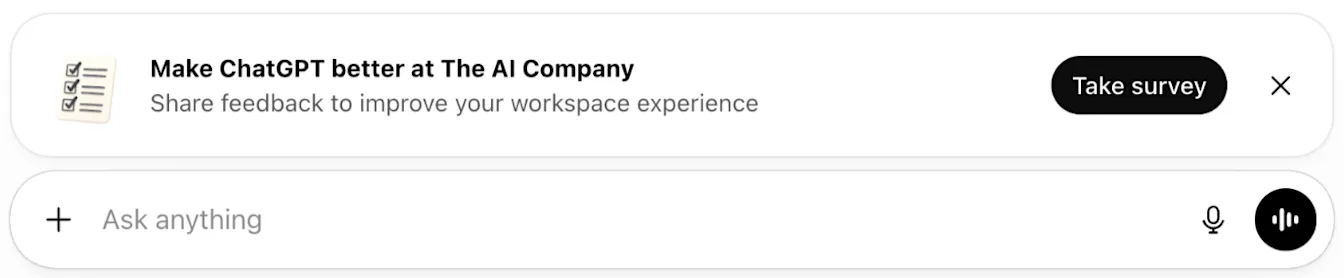
Impact surveys are in-product surveys that collect self-reported outcomes from workspace members. Responses are aggregated and displayed in User surveys under Insights in Admin Console to help admins understand adoption and organization-wide outcomes.
For a full overview of workspace metrics and features, see: Workspace analytics for ChatGPT Enterprise and Edu.
Survey types
Admin-created surveys
Workspace owners can launch an admin-created survey at any time from User surveys under Insights in Admin Console.
Admin-created surveys:
Allow you to choose the survey name and when to start it
Use predefined question sets
Do not support custom questions or answer choices
OpenAI-created surveys
OpenAI-created surveys are automatically scheduled and appear during predefined survey windows. These surveys help measure adoption at key points in a workspace’s lifecycle.
Create an admin-created survey
To launch an admin-created survey:
Open Admin Console for your workspace.
Select Insights, then User surveys.
Select Create survey.
Enter a Survey name of up to 64 characters.
Select Create and start survey, then select Yes, create survey to confirm.
Creating a survey starts it immediately and disables the previous admin-created survey. Create the survey only when you are ready to launch it.
Understand survey timing
OpenAI-created surveys are scheduled at specific milestones:
Day 120 after workspace creation (30-day response window)
Day 240 after workspace creation (30-day response window)
These timings are designed to capture impact after teams have established usage patterns, governance, and training.
In some cases, a one-time catch-up survey may be issued if a workspace missed earlier survey windows.
View survey reporting
Survey responses typically begin appearing in reporting within 1–2 days.
Results are aggregated and shown in User surveys under Insights in Admin Console. Select a survey from the Survey menu to view its status, dates, response summaries, and answer distributions.
Individual survey responses are not displayed in the dashboard.
Export results
To export impact survey data:
Open Admin Console for your workspace.
Select Insights, then User surveys.
Select Export.
The CSV includes results from all workspace user surveys, regardless of the survey selected in the dashboard. Names and email addresses are included only when Include user identifiers in impact survey exports is enabled in your workspace.
For column definitions, see the export data reference in Workspace analytics for ChatGPT Enterprise and Edu.
Review survey question sets
Impact surveys use predefined question sets. Select View questions in User surveys to preview the questions and answer choices.
Enterprise workspaces
Members are asked:
"Which of the following best reflects how ChatGPT has impacted your productivity?”
“On average, how many hours per week do you estimate ChatGPT helps you save on work-related tasks?”
Members also rate their agreement with the following statements:
"ChatGPT has improved the quality of my work."
"ChatGPT has increased my satisfaction at work."
"ChatGPT has increased my ability to complete new tasks or activities."
"ChatGPT has improved my ability to serve customers, partners, or stakeholders."
Edu workspaces
Members are asked:
"Which of the following best reflects how ChatGPT Edu has impacted your productivity in your work or studies?"
"On average, how many hours per week do you estimate ChatGPT Edu helps you save on your work or studies?"
Members also answer these agreement questions:
“How strongly do you agree or disagree with the statement: "ChatGPT Edu improves the quality of what I produce (for example: writing, analysis, studying, lesson materials, or administrative work)"?”
“How strongly do you agree or disagree with the statement: "ChatGPT Edu has increased my satisfaction with my work or learning"?”
“How strongly do you agree or disagree with the statement: "ChatGPT Edu helps me learn, teach, or apply new concepts and approaches that would otherwise be difficult for me"?”
“How strongly do you agree or disagree with the statement: "ChatGPT Edu helps me generate new ideas and approaches, and solve problems in more creative ways"?”
Disable impact surveys
Disable an admin-created survey
Workspace owners can disable an active admin-created survey:
Open Admin Console for your workspace.
Select Insights, then User surveys.
Select the active admin-created survey from the Survey menu.
Select Disable survey, then select Disable survey again to confirm.
Disabling a survey stops new responses. Existing responses remain available.
If a survey update can’t be confirmed, close the dialog and select Refresh surveys before trying another update.
Disable OpenAI-created surveys
Open Admin Console for your workspace and select Workspace settings.
Find Analytics and reporting.
Turn off Enable OpenAI-created impact surveys.