Overview
You can edit a draft, work with code, and ask ChatGPT for changes in the same conversation.
Writing blocks are editable areas for draft text, such as emails, messages, social posts, and documents.
Code blocks keep code and supported preview content separate from the rest of the response, making it easier to read, edit, copy, preview, or run.
Availability
The actions you see depend on the type of block, your device, your plan, the model, and your workspace settings. Some actions may not be available for your account.
Use writing blocks
When ChatGPT creates text that you are likely to revise or reuse, it may place the draft in a writing block. You can also ask ChatGPT to create a draft that you can edit directly in the conversation.
Create a writing block
Try prompts such as:
“Draft a reply email to my manager.”
“Write a short Slack update for my team.”
“Turn these notes into a one-page document.”
Edit a writing block
On the web, select the text you want to revise. In the toolbar, select Ask for changes. The selected text appears in the message box. Describe the change you want, then send your message.
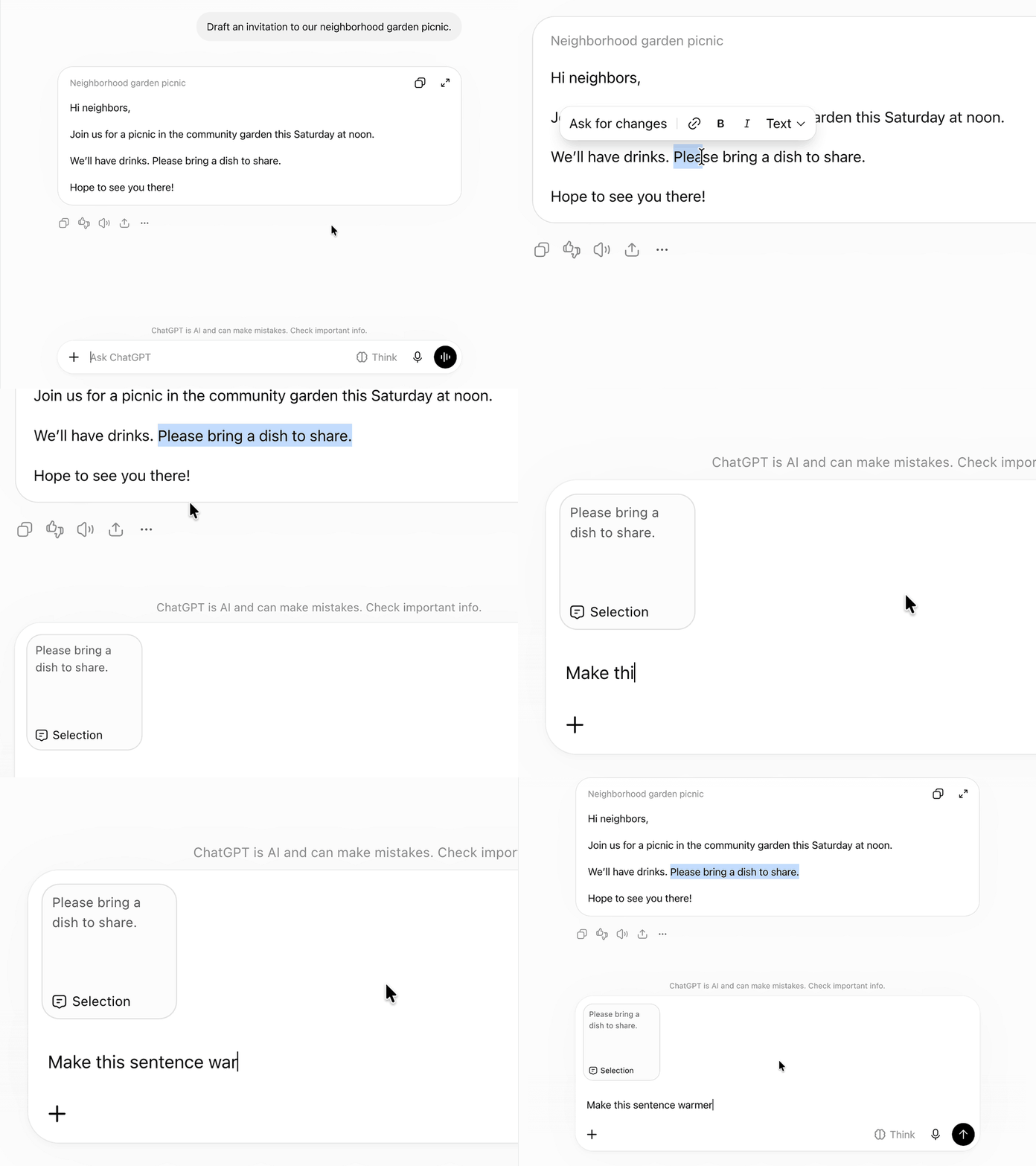
Other actions depend on the type of draft.
To edit the draft yourself, place the cursor in the writing block and start typing.
To revise the whole draft, leave the text unselected and describe the changes you want in the chat.
For more room to write, select Open editor.
Select Undo to reverse your last edit or Redo to restore it.
To use your draft in another app, select Copy on the writing block, then paste the text into the app. If you see Download, you can also save a copy on your device.
For an email draft, review the recipients and message before you send it from a connected account. To finish the draft in your email app, select Open in email.
If you see Save as Page, select it to keep an editable page in Space. If you see Add to library, select it to save the document in Library.
Format text in a writing block
On the web, select text in the writing block. Use the toolbar to apply any of these formats.
Bold and italic text.
Headings.
Links.
Bulleted and numbered lists.
Checklists.
Use code blocks
ChatGPT usually places code in a code block. A code block keeps the code separate from the rest of the response so that you can read, copy, edit, preview, or run it more easily.
Depending on the code block and the actions available to you, you can:
Copy the code.
View the language label, such as Python, JavaScript, or HTML.
Edit supported code blocks directly.
Ask ChatGPT to edit the code.
Open supported code blocks in full screen.
Switch between Code and Preview for supported previews.
Run supported Python code and view console output.
Preview supported code blocks
For supported code blocks, select Preview to view the result inside ChatGPT. Supported previews may include:
HTML pages.
React components.
SVG images.
Mermaid diagrams.
Vega or Vega-Lite charts.
If Preview doesn’t appear, the block may already be showing the preview. The code format or your workspace settings can also limit which blocks you can preview.
Run supported Python code
For supported Python code blocks, select Run to run the code. The console shows the output or any errors. To stop the code while it’s running, select Stop.
Code previews and code execution use a sandboxed environment. If a preview requires outside resources, ChatGPT may ask for permission before connecting. Workspace admins can also control whether code execution and network access are available.
Save edits
ChatGPT saves edits to supported writing blocks and code blocks with the conversation after a short delay. When you ask a follow-up question in that chat, ChatGPT can use your latest edits.
If you want to keep a draft from a Temporary Chat, copy it before you leave the chat.