
Use this guide if you are a ChatGPT workspace admin or a ChatGPT Plus or Pro user setting up the Databricks Genie app using built-in OAuth or your organization's OAuth client.
Built-in OAuth: When available in ChatGPT and enabled for your Databricks workspace, use the preconfigured connection. You don't need to create an OAuth app or enter a client ID or client secret. Follow the Built-in OAuth section below.
Custom OAuth client: Use this path if built-in OAuth is unavailable or your organization requires its own OAuth client. Follow the Custom OAuth client section below.
What you are setting up
You are creating a Databricks app connection for your ChatGPT account or workspace. Both paths require the Databricks provider details requested in ChatGPT and permissions for the resources you plan to use. If you use a custom OAuth client, also prepare:
A Databricks OAuth app connection created in your Databricks Account Console.
The Databricks OAuth client ID and client secret.
The exact callback URL copied from ChatGPT.
Databricks scopes that match the app capabilities you want to enable.
Any Databricks provider details requested by the ChatGPT setup flow, such as workspace host, account host, account ID, or warehouse.
Before you start
For a workspace setup, open admin console, select the intended ChatGPT workspace, and open Plugins. Select Manage Legacy Apps to open the retained Apps page. For workspace navigation and legacy app access, see Admin controls, security, and compliance for plugins and apps.
You need:
ChatGPT workspace admin or owner access, or a ChatGPT Plus or Pro account.
For a custom OAuth client, Databricks account admin access. Workspace admin access may be enough for some tasks, but custom app connections are configured from the Databricks Account Console. For built-in OAuth, a Databricks admin must check that the ChatGPT application is available and enabled for your workspace.
For a custom OAuth client, the Databricks Account Console open in a separate tab.
For a custom OAuth client, the Databricks Genie connection screen open in ChatGPT so you can copy the exact callback URL.
A decision about the capabilities the app needs: Genie and AI/BI dashboards, broader Databricks API access, or an app limited to Databricks SQL APIs. SQL-only access is not sufficient for Genie or dashboard actions.
For a custom OAuth client, a secure place to handle the Databricks client secret.
If your Databricks account or workspace restricts access through an IP access list, context-based ingress control, a firewall, or another network policy, help from a Databricks admin who can allow the current ChatGPT app egress IP ranges.
For a custom OAuth client, copy the exact Callback URL shown in ChatGPT.
Values to prepare
For a custom OAuth client, Callback URL: copy this from the ChatGPT app setup flow.
For a custom OAuth client, the Databricks OAuth client ID.
For a custom OAuth client, the Databricks OAuth client secret.
For a custom OAuth client, Databricks access scopes appropriate to the app's capabilities. For a new Genie/dashboard connection displaying
ai-gateway,dashboards, andoffline_access, prepare those scopes. ALL APIs (all-apiswithoffline_access) remains the older, broader alternative. Use SQL only for an app limited to Databricks SQL APIs.Databricks workspace or account fields requested by the ChatGPT setup flow.
Built-in OAuth
Complete the prerequisites above first. Use this path only when built-in OAuth is available in ChatGPT and enabled for your Databricks workspace.
Ask a Databricks admin to check that the ChatGPT application is available in the Account Console's app integrations settings and enabled for your workspace. If the ChatGPT application isn’t listed in your Databricks Account Console, contact your Databricks account representative to ask whether the feature is available for your account.
In ChatGPT, switch to the account or workspace where the app should be available. Go to Settings > Plugins for a personal setup or Admin console > Plugins as a workspace admin or owner for a workspace setup.
Select Databricks Genie, then select Add App Connection.
Enter Workspace hostname (required) without
https://or a URL path.ChatGPT derives the workspace-local Genie MCP endpoint,
https://<workspace-host>/ai-gateway/mcp-services/system.ai.genie_one_mcp, from this hostname. No separate regional MCP endpoint is needed.Select Continue, then sign in to Databricks and review the consent request.
Continue with Connect and test and Manage access below, including the allowed-member tests and workspace access checks.
Custom OAuth client
Complete the prerequisites above first. Use this path if built-in OAuth is unavailable or your organization requires its own OAuth client. After setup, complete Connect and test and Manage access below.
Start custom OAuth setup in ChatGPT
In ChatGPT, switch to the account or workspace where the app should be available.
Go to Settings > Plugins for a personal setup or Admin console > Plugins as a workspace admin or owner for a workspace setup.
Select Databricks Genie in Directory.
Select Add App Connection.
In the Connect Databricks Genie dialog, find the OAuth client ID and OAuth client secret fields. Entering credentials in these visible fields is the custom-client flow; no separate selector is needed.
Copy the Callback URL from ChatGPT. Keep this dialog open.
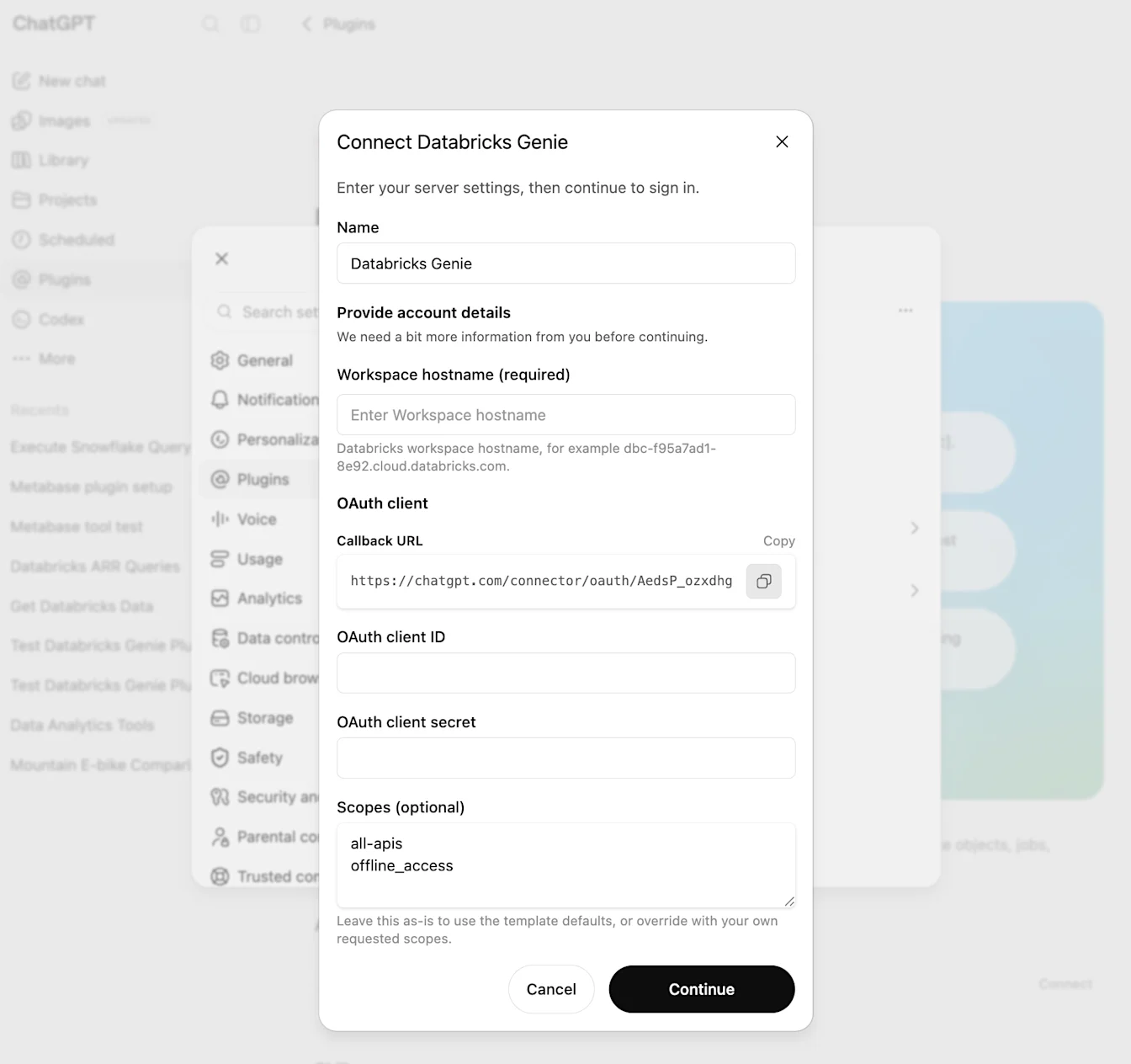
Example callback URL:
https://chatgpt.com/connector/oauth/<callback_id>
Do not remove the callback ID, add a trailing slash, or replace it with a generic ChatGPT URL. The URL registered in Databricks must exactly match the Callback URL shown in ChatGPT.
Create a custom OAuth app connection in Databricks
Open the Databricks Account Console for your Databricks account.
In the left sidebar, open Settings.
Open the App connections tab.
Select Add connection.
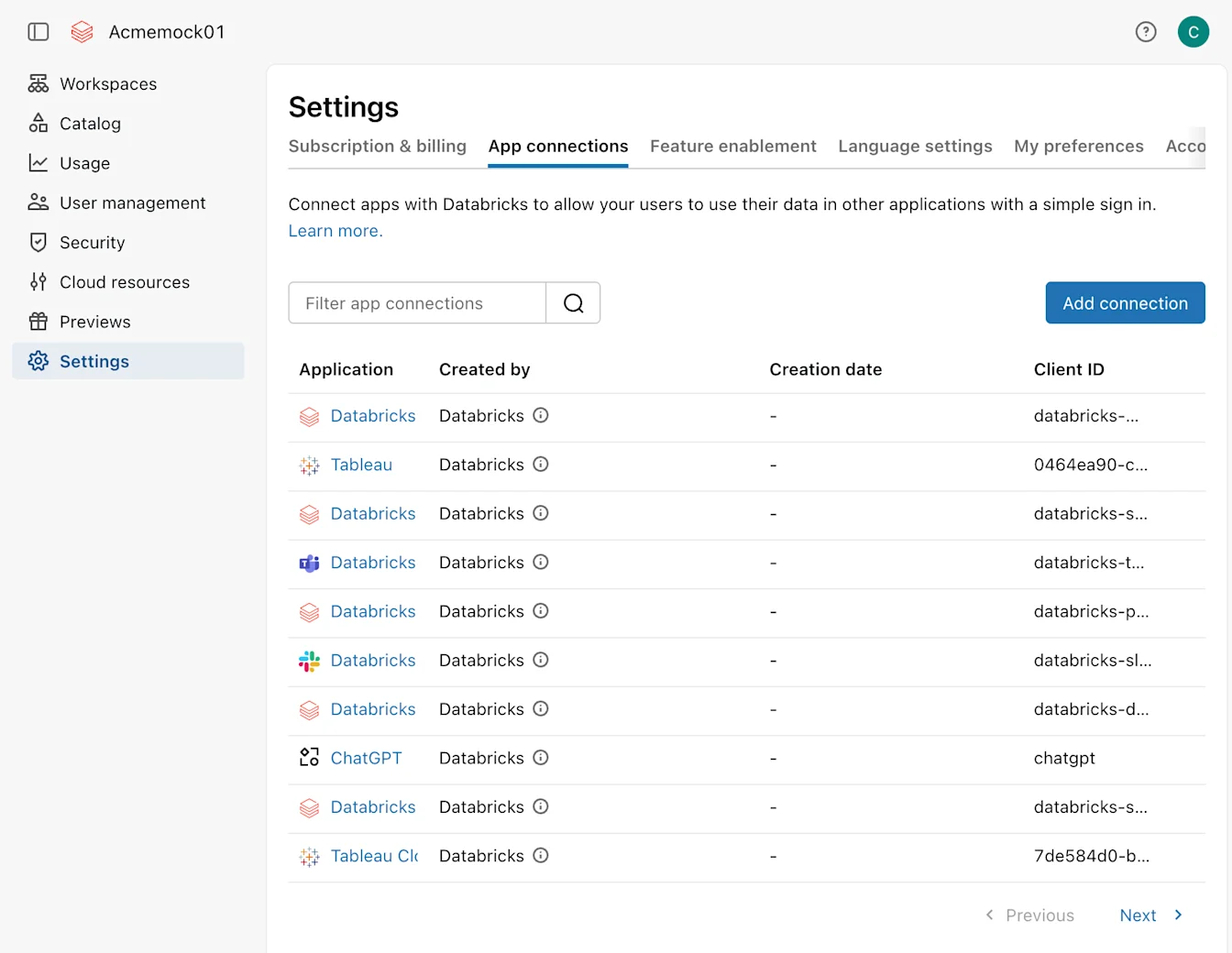
Enter an application name, such as ChatGPT Databricks.
In Redirect URLs, paste the exact callback URL copied from ChatGPT.
Under Access scopes, choose the scopes the app needs.
For a new Genie/dashboard connection displaying
ai-gateway,dashboards, andoffline_accessin ChatGPT, permit those same scopes on the Databricks OAuth app.ALL APIs remains the older, broader alternative for general Databricks API access. For this configuration, use
all-apisandoffline_accessin ChatGPT and ensure the Databricks OAuth app permits both. Prefer the displayed granular scopes for a new Genie/dashboard connection.Use SQL only for an app limited to Databricks SQL APIs. SQL-only access is not sufficient for Genie or dashboard actions.
Make sure every scope later listed in ChatGPT is enabled on this Databricks OAuth app. Databricks automatically allows openid, email, profile, and offline_access for apps created in the UI.
Leave token TTLs at the Databricks defaults unless your organization has a specific policy: 60 minutes for the access token and 10080 minutes for the refresh token.
Turn on Generate a client secret. ChatGPT needs a confidential OAuth client for this flow.
Create the connection.
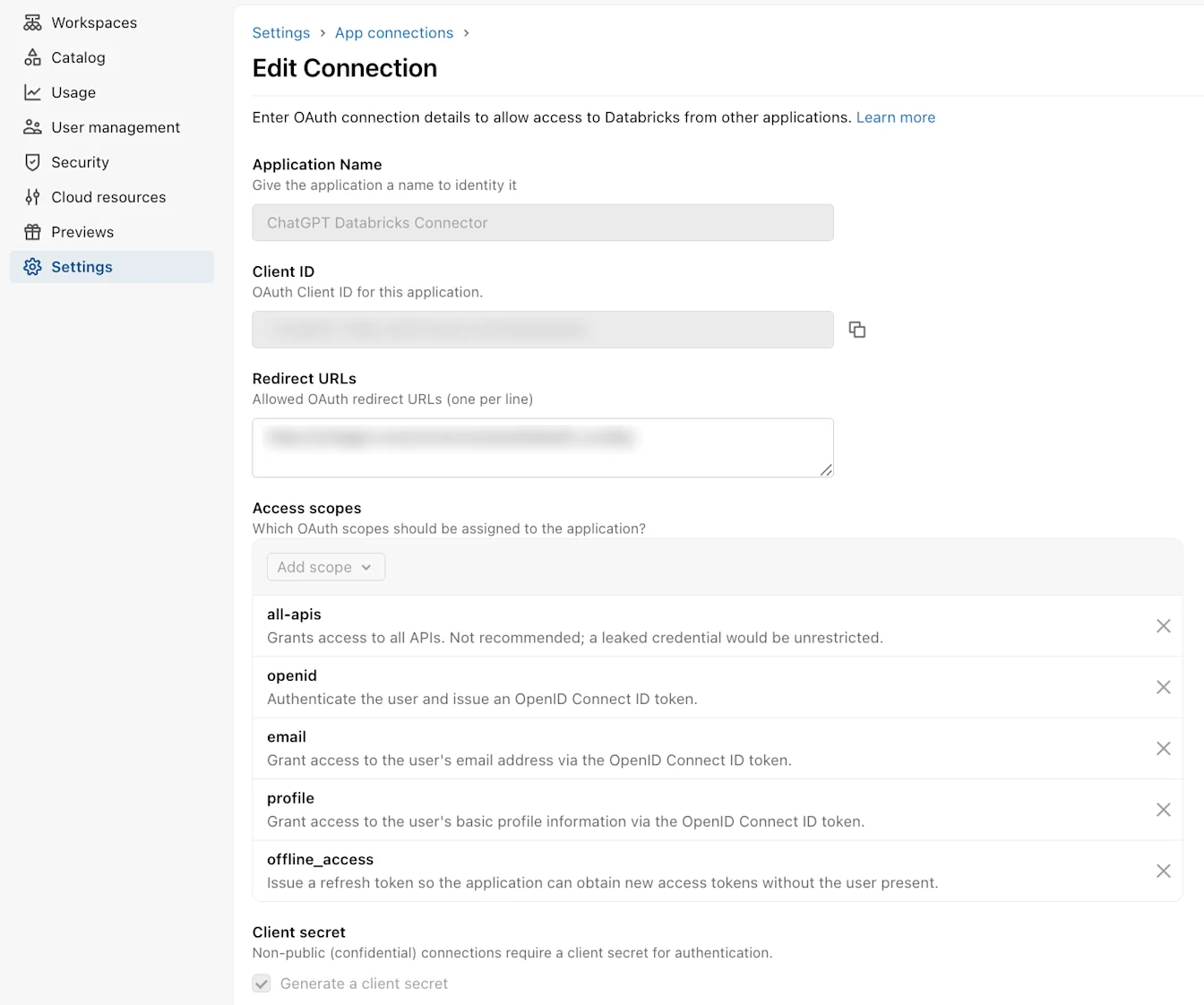
Copy credentials from Databricks
In the Connection created dialog, copy the Client ID.
Copy the Client secret immediately and store it securely.
If you close the dialog before copying the secret, create or rotate the OAuth app credentials and use the new secret.
Databricks shows the secret only once. Treat it like a credential and do not include it in screenshots, tickets, comments, or chats.
Finish custom OAuth setup in ChatGPT
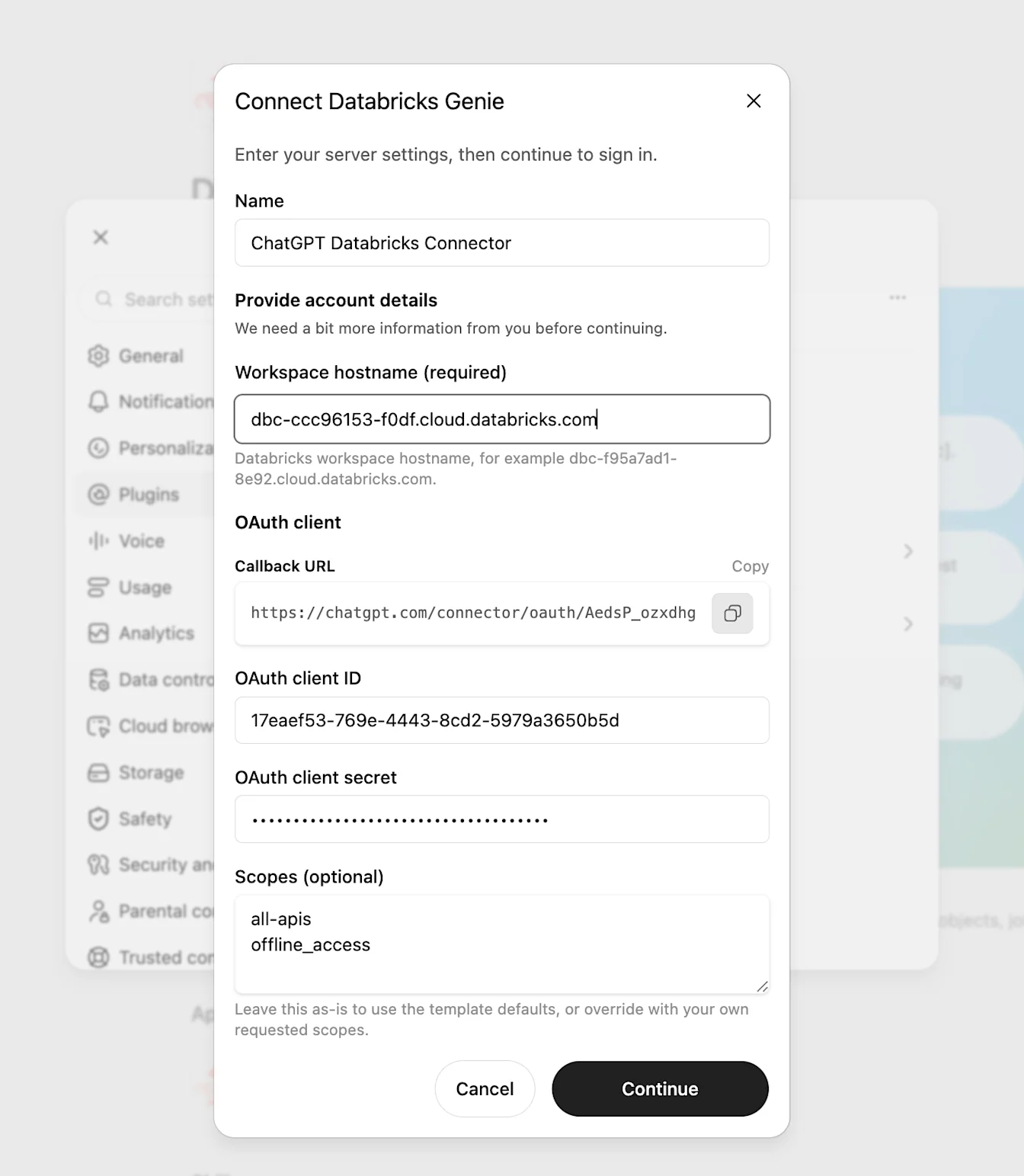
Return to the Connect Databricks Genie dialog.
Enter the Databricks client ID in OAuth client ID.
Enter the Databricks client secret in OAuth client secret.
Entering these credentials uses your custom OAuth client; no separate selector is needed.
In Scopes (optional), enter the scopes required for your app's Databricks endpoint and capabilities. Match them to the scopes enabled on the Databricks OAuth app.
For a new Genie/dashboard connection displaying
ai-gateway,dashboards, andoffline_access, keep those scopes. Make sure the Databricks OAuth app permits the same scopes.ai-gatewayenables the workspace-local Genie MCP connection,dashboardsenables AI/BI dashboard actions, andoffline_accessenables refresh tokens.The older, broader alternative,
all-apisandoffline_access, remains supported for broader API access but is not preferred for this Genie/dashboard connection. If the Databricks app permits onlyall-apis, update or recreate it to permitai-gateway,dashboards, andoffline_access. If granular scopes are unavailable, deliberately set ChatGPT toall-apisandoffline_accessand ensure the Databricks app permits both. Do not request the three granular scopes in ChatGPT while the Databricks app permits onlyall-apis.Enter one scope per line or separate scopes with commas. Every scope listed in ChatGPT must be enabled on the Databricks OAuth app.
Enter the Workspace hostname (required) without https:// or a URL path. Fill any other required Databricks provider fields shown in the setup flow.
ChatGPT derives the workspace-local Genie MCP endpoint,
https://<workspace-host>/ai-gateway/mcp-services/system.ai.genie_one_mcp, from this hostname. No separate regional MCP endpoint is needed.Select Continue.
ChatGPT requests exactly the scopes entered in Scopes (optional). It does not automatically add broader template scopes.
Connect and test
Complete the following connection tests and access checks for either OAuth path.
Review the app details, actions, and authentication settings.
If you are a workspace admin, enable the app for the workspace and configure who can use it according to workspace policy.
Start the connect flow from ChatGPT as an allowed test user, then sign in to Databricks.
Confirm that the browser opens the expected Databricks account or workspace.
Review the requested scopes, then select Authorize.
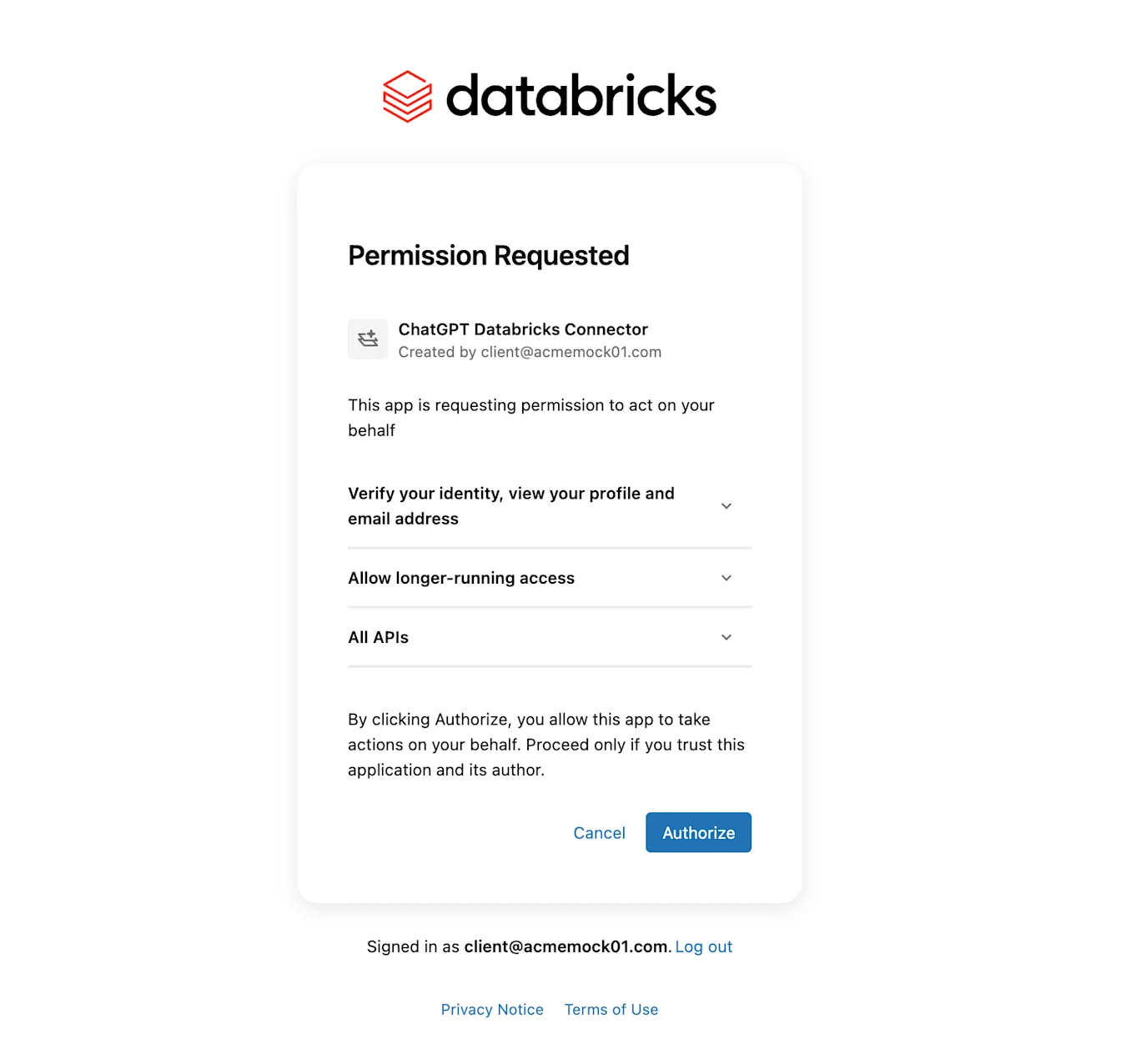
Verify that the browser returns to ChatGPT and the app shows as connected.
Run a low-risk read action that matches the connection's capabilities. For a Genie connection, send a Genie request about data the test user is permitted to access. For other supported capabilities, fetch current user information or query an approved Databricks SQL resource. Confirm that the user has the required Databricks resource permissions; OAuth scopes alone do not grant access to data.
If write actions are enabled, test with a clearly low-risk Databricks workflow before broader rollout.
For a workspace setup, ask an allowed non-admin workspace member to connect and repeat the low-risk test.
Manage access
Databricks and ChatGPT both contribute to access control.
In ChatGPT, workspace admins manage whether the app is available and how members can use it. In Business, admins manage whether the app is enabled workspace-wide. Review the Databricks apps admin controls (Workspace settings > Apps or Admin Console > Plugins > Manage Legacy Apps) for:
User access, to configure which workspace roles can use the app in supported Enterprise and Edu workspaces.
Action control, to configure which Databricks actions are enabled.
App permissions, to configure when ChatGPT asks members before using the app.
These app permissions apply to ChatGPT conversations. Workspace Agents use per-agent controls set by the agent's builder to determine which app actions are available and when end users are asked to approve them. For agent behavior, see: ChatGPT Workspace Agents for Enterprise and Business.
In Databricks, admins manage which users can authorize the OAuth app and which Databricks resources those users can access. Provider permissions still apply after the app is enabled in ChatGPT.
For workspace navigation, app access, and plan-specific app controls, see: Admin controls, security, and compliance in apps.
Troubleshooting Databricks app setup
Redirect URI mismatch: If you use a custom OAuth client, confirm that the Databricks Redirect URLs value exactly matches the Callback URL shown in ChatGPT, including its path and callback ID. Do not remove the callback ID, add a trailing slash, or substitute another ChatGPT redirect URL.
Secret missing: If you use a custom OAuth client, Databricks secrets are shown once. Generate a new client secret if it was not copied.
OAuth app not available immediately: Databricks says OAuth application updates can take up to 30 minutes to process.
Insufficient or mismatched scope: If you use a custom OAuth client, compare Scopes (optional) in ChatGPT with Access scopes on the Databricks OAuth app. Every scope ChatGPT requests must be enabled there. Confirm that the scopes support the endpoint and capabilities you use.
For a new Genie/dashboard connection displaying
ai-gateway,dashboards, andoffline_access, keep those scopes in ChatGPT and ensure the Databricks app permits all three. If the app permits onlyall-apis, update or recreate it to permit the three granular scopes.If granular scopes are unavailable, use the supported broader alternative: set ChatGPT to
all-apisandoffline_access, and ensure the Databricks app permits both. An app that permits onlyall-apisdoes not match a ChatGPT request forai-gateway,dashboards, andoffline_access. SQL-only access is appropriate only for an app limited to Databricks SQL APIs; it is not sufficient for Genie or dashboard actions.SQL actions fail: For an app limited to Databricks SQL APIs, confirm the SQL scope, warehouse configuration, and Databricks permissions.
Wrong ChatGPT workspace: Create and enable the app in the same ChatGPT workspace where users will connect it.
Wrong Databricks account or workspace: Confirm the Workspace hostname (required) value, then repeat the sign-in flow and verify that Databricks opens the expected account or workspace.
Users cannot connect: Confirm that the user has Databricks access and is allowed to authorize the OAuth app. In Business, confirm that the app is enabled workspace-wide. In supported Enterprise and Edu workspaces, also confirm that ChatGPT User access permits the app.
Databricks network policy blocks the app: If Databricks allows only specific source IPs, a Databricks admin must update the relevant account or workspace IP access lists, context-based ingress controls, firewall, or other customer-controlled network rules.
Allow inbound connections from the current ChatGPT app egress IP ranges.
Configure this allowlisting in Databricks or the customer-controlled network layer. It is separate from ChatGPT workspace IP allowlisting.
The published ranges can change. Automate updates from the JSON when possible.
Do not rotate the client secret or change OAuth scopes to work around a network block. First confirm whether Databricks is rejecting the app's source IPs.