Overview
Enable Daybreak for approved ChatGPT and Codex users and API projects.
Before you begin
When OpenAI enables Daybreak for a ChatGPT workspace or API organization, the Daybreak setting is off by default. A workspace owner or admin must configure access for approved groups, and an API organization owner must configure access for approved projects before they can start to use Daybreak.
Daybreak access is limited to high-trust internal users and authorized internal security work. Do not enable these capabilities for external users, customer-facing products, public-facing automations, or third-party workflows.
Set up ChatGPT and Codex access
For Business plans, you can configure Daybreak access for users directly in Admin Console > Models under “Specialty Models”. Choose “Set access” to enable individual users with Daybreak, and use the toggle to switch Daybreak access on or off for the entire workspace. Note that turning off full workspace access preserves each user’s Daybreak settings, so you don’t need to reconfigure them when you turn access back on.
For Enterprise plans, you can use a custom role assigned to your approved users or groups to provision Daybreak access. A workspace owner must create and assign roles; see Managing feature access with role-based access control in ChatGPT. A workspace owner or administrator can then configure an existing role’s model access through the supported Models control page.
To limit Daybreak access to selected users, keep it off under Workspace default and enable it only for the role assigned to those users.
In the approved workspace, open Admin Console > Models.
Open Workspace default and navigate to Cybersecurity. To enable Daybreak for all workspace users by default, turn Daybreak on. To control which specific users have access to Daybreak, turn Daybreak off.
Select Save changes.
Open Roles.
For the intended role, choose Edit override, or Add role override.
Under Cybersecurity, set Daybreak Blue or Red to On, as desired.
Select Save. Changes may take up to about 10 minutes to take effect.
Reopen Workspace default and the role. Check the saved settings and the role’s assigned users or groups.
To check the Daybreak status of a user on Enterprise plans, navigate to Admin Console > Models > Test, search for an approved member by name or email and check their saved model permissions. Check for a member who should and a member who should not have access. Review all direct and group roles: another role can grant access to a user even if one role is set to Off. Then, test the intended access path with the approved user.
Set up API project access
You must be an API organization owner to configure Daybreak access. Being a project owner alone does not give you permission to change these settings.
Open the approved organization in the API Platform.
Create or select a non-default project for your team’s approved internal cybersecurity work. Default projects cannot enable Daybreak.
Open Project settings > General > Daybreak model access.
Turn on each Daybreak access level approved for this project. Daybreak Red is available only if your organization is approved for it.
Select Save. Changes can take up to about 15 minutes to take effect.
Add the approved users to the project.
Use an API key from the enabled project for API requests or Codex API-key authentication. If you migrated to another organization or project, create or select a key in the destination project and update the applications or workflows that use it.
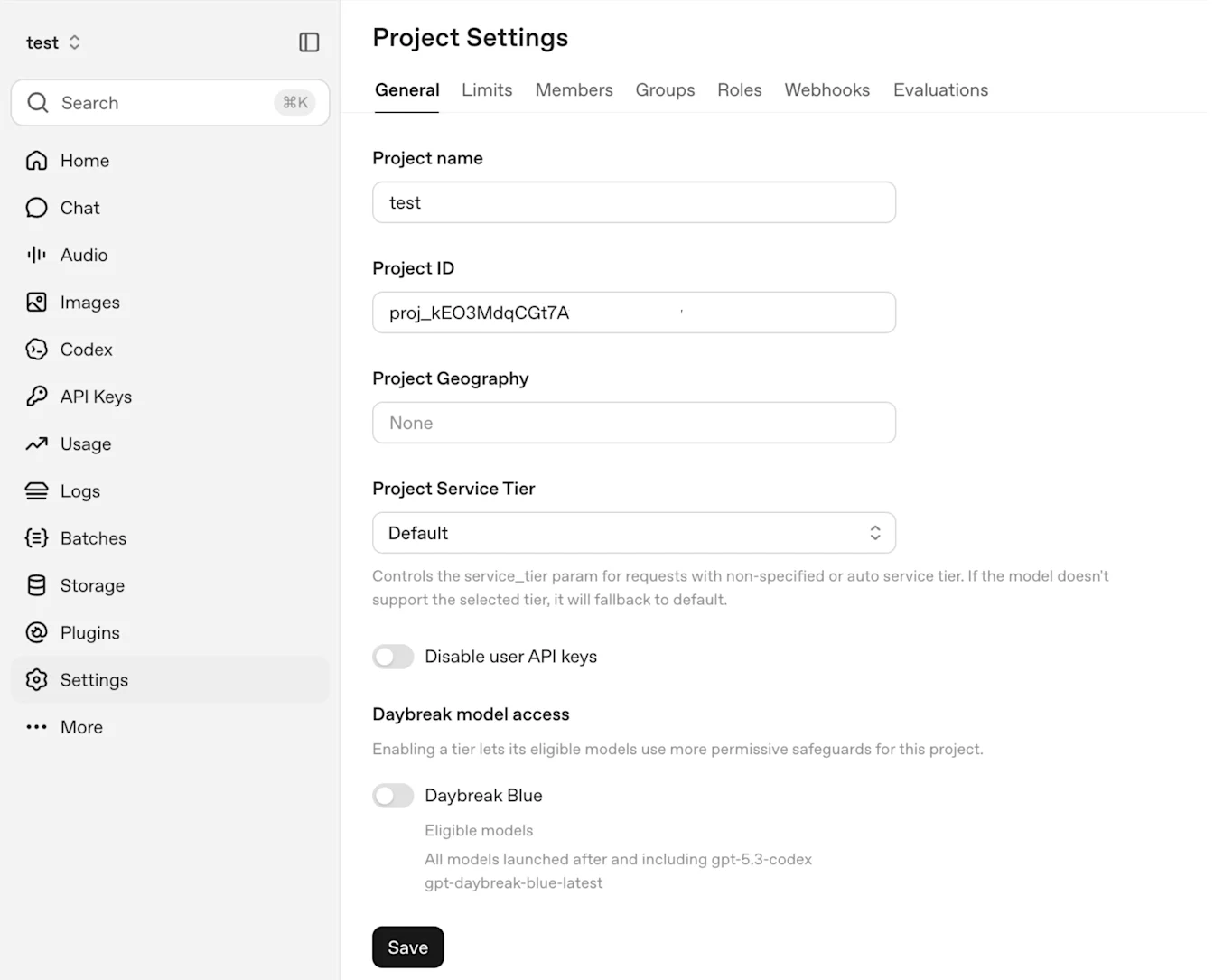
Example: Daybreak Blue is off in Project settings > General > Daybreak model access.
Repeat these steps for each project that needs access. Enabling Daybreak in one project does not enable it in other projects or configure ChatGPT/Codex workspace access.
If you migrated from a dedicated Cyber organization, API keys from the dedicated Cyber organization do not transfer to the new Organization. Create keys in the approved destination project and update the applications or workflows that use them.
For models GPT-6.1 Terra onwards, users must pass the explicit access_programs.cyber parameter to receive Daybreak treatment on a request - see more details here.
Check access after setup
Allow time for saved changes to take effect, then refresh the client.
If Daybreak controls are missing or access does not work as expected:
Check that you selected the organization, workspace, or project named in your provisioning or migration confirmation.
Check the administrator’s role. For ChatGPT, open Workspace settings > Members. Workspace owners manage defaults and custom-role assignments. For the API, select the correct organization in API Platform settings > People > Members > Roles and confirm Owner.
For ChatGPT and Codex sign-in, review the user’s group membership, role assignments, and saved model settings.
For API-key authentication, check that the key belongs to the enabled project.
If the issue continues, contact OpenAI Support with the organization or workspace ID, project ID if applicable, affected product, Daybreak access level, saved settings, and any error message. Do not include API keys.
Daybreak does not remove all safeguards. A refusal alone does not mean access is missing.