
Overview
Legal Onboarding is a plugin that guides in-house legal teams through getting started with legal workflows in ChatGPT Enterprise. It helps members choose a practice area, discover relevant plugins and legal skills, connect approved tools, and try starter tasks in ChatGPT.
These instructions are for ChatGPT Enterprise workspace admins and owners. You’ll make the plugin available for a custom role, then confirm that members assigned to that role can install and open it.
Legal Onboarding and Astra for Law have separate access requirements. Installing Legal Onboarding does not grant access to Astra for Law or partner tools. Astra for Law eligibility, a separate access agreement, workspace activation, and permissions to use Astra for Law still apply. Partner tools retain their own licensing, access, and permission requirements.
Astra for Law is a model configuration for professional legal research, analysis, and writing. To learn about the model configuration, see: Astra for Law.
Before you begin
Choose a custom role assigned to the members who need access. If you need to create a role or assign it to members or groups, ask a workspace owner.
For setup instructions, see: Managing feature access with role-based access control in ChatGPT.
Enable the plugin for the workspace
Open the Admin Console.
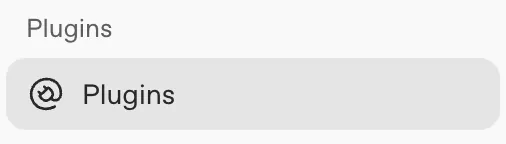
In the sidebar, select Plugins.
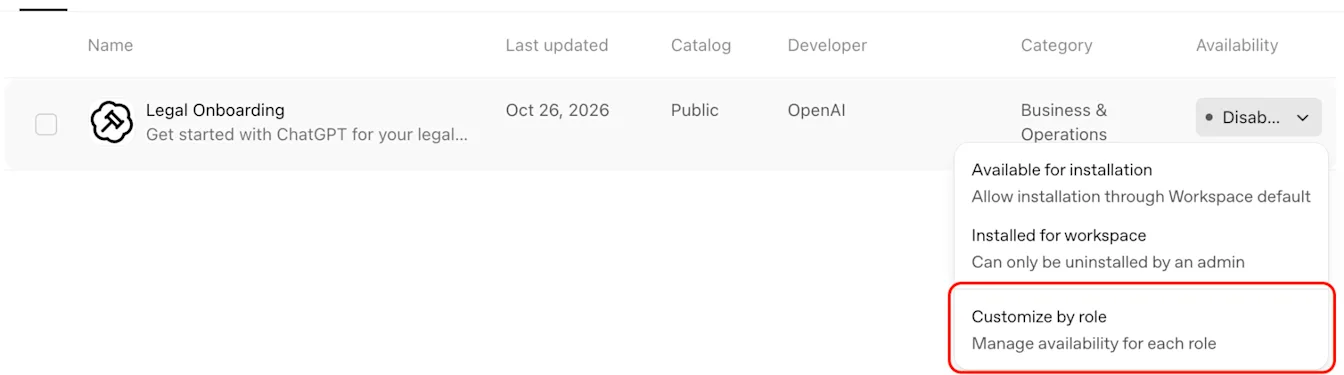
Search for Legal Onboarding. Open the Availability menu and select Customize by role.
Enable the plugin for a role
Open the Admin Console and select the intended ChatGPT workspace.
In the sidebar, select Plugins.
Search for Legal Onboarding. Open the Availability menu and select Customize by role.
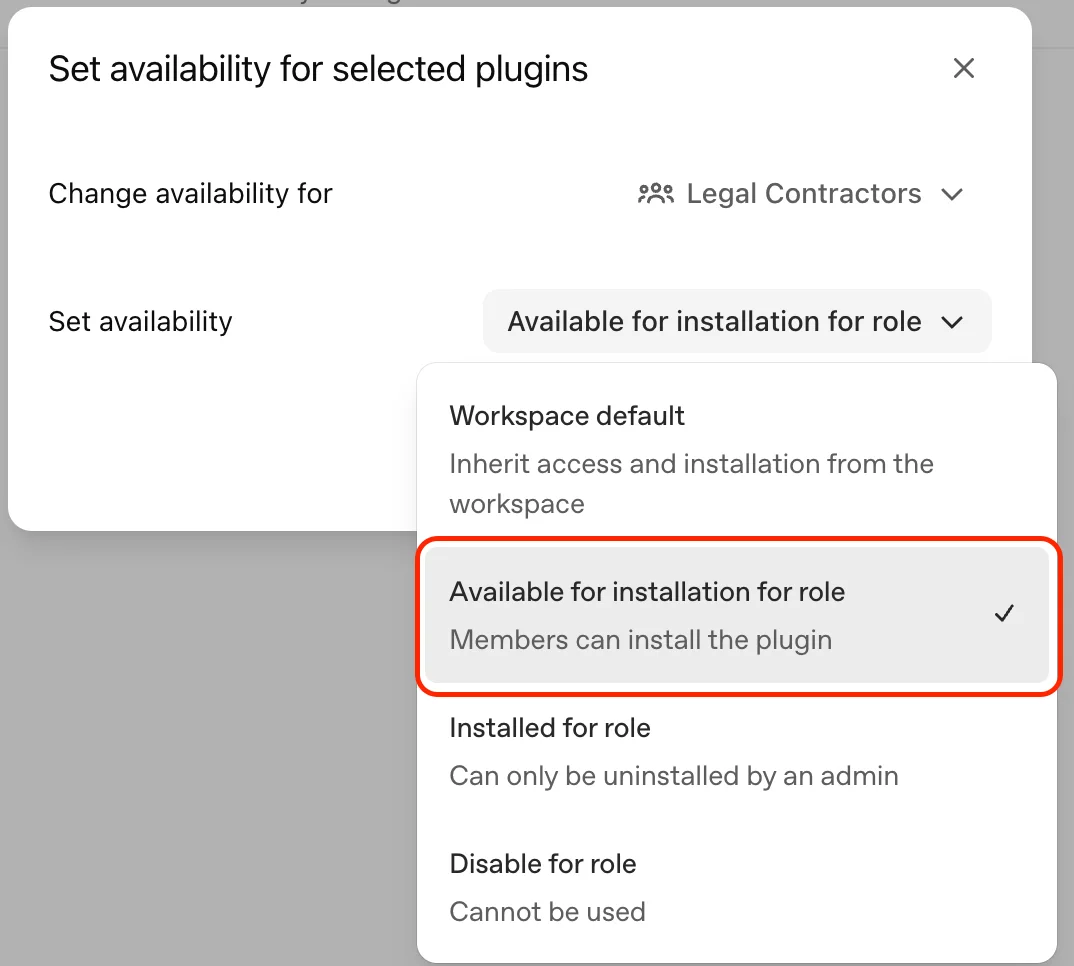
Under Change availability for, select the role you want to update. Set availability to Available for installation for role, then save your changes.
Verify access as a member of the updated role
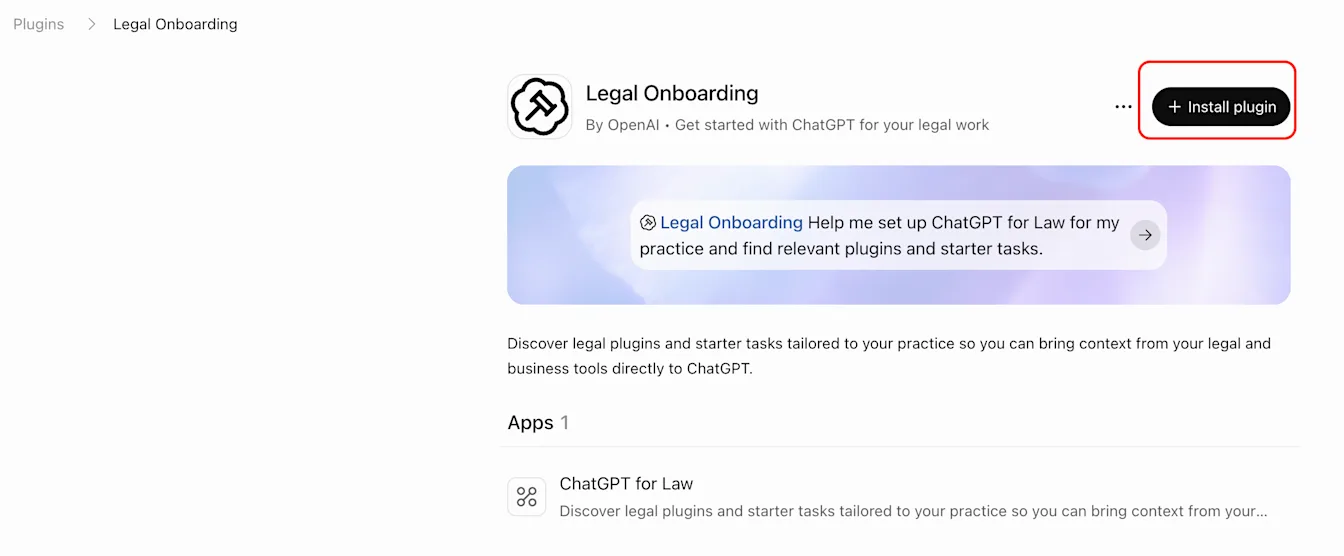
Open ChatGPT in the intended workspace as a member assigned to the role you updated. Go to Plugins, search for Legal Onboarding, and select it.
Select Install plugin and follow the steps on screen.
Select Open plugin. The welcome screen confirms that this account can open Legal Onboarding.
Access to Legal Onboarding does not confirm access to Astra for Law.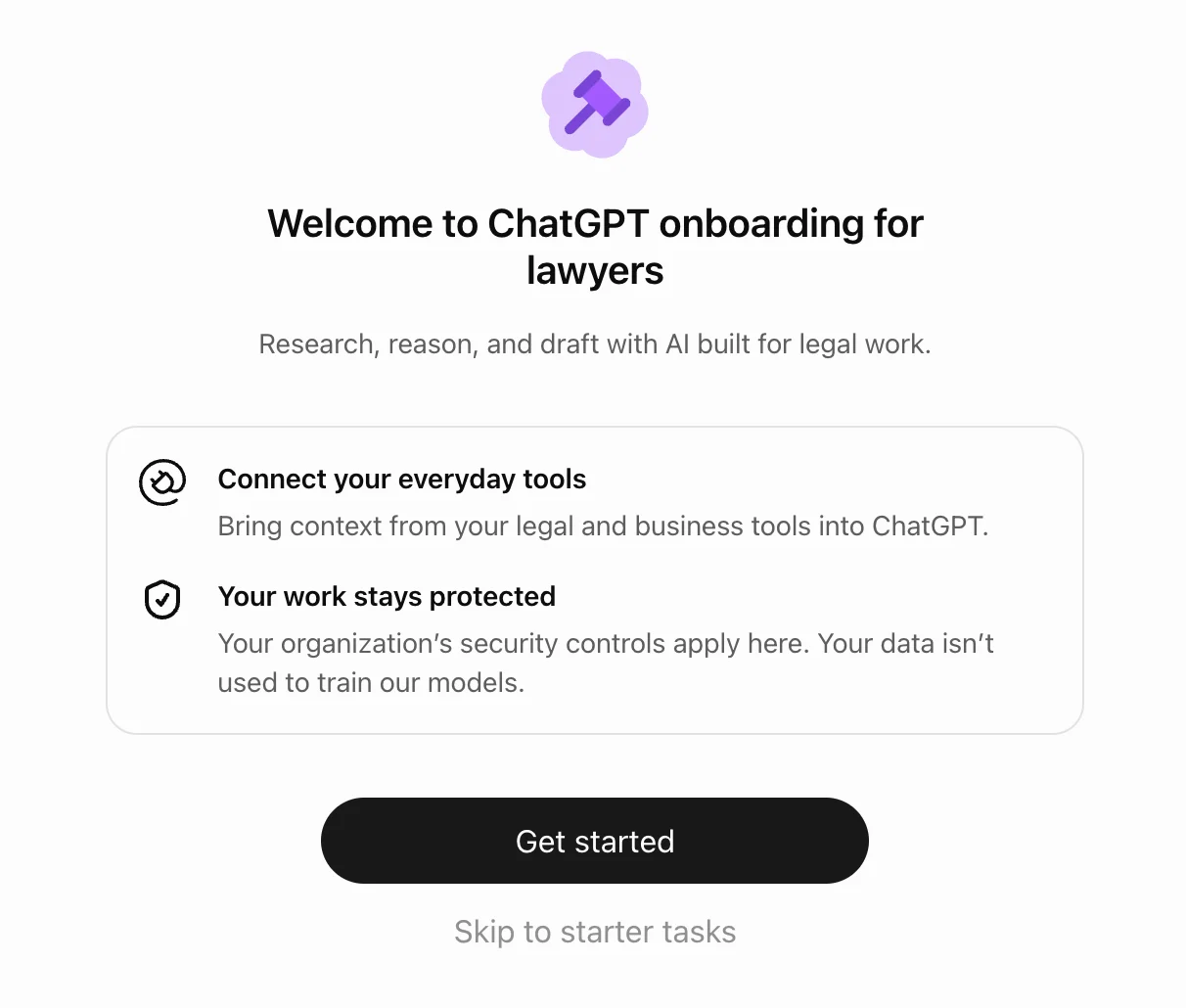
Open the plugin from a chat
In ChatGPT, mention @Legal Onboarding and ask it to open the plugin.
Troubleshooting
If a member cannot find or open the plugin:
Confirm that the member is in the correct workspace and has the role you updated.
In Admin Console, check that the role’s plugin availability is Available for installation for role.
Allow up to 5 minutes for recent role changes to take effect, then ask the member to refresh and try again.
If the Legal Onboarding screen shows Install plugin, ask the member to select it and follow the steps on screen, then select Open plugin. If installation is unavailable or fails, contact OpenAI Support.
If the issue continues, contact OpenAI Support. Include the workspace name or ID, affected account email, failed step, error message, and the date, time, and time zone. Remove confidential client information and other sensitive content from screenshots.
For contact instructions, see: How can I contact support?