
How memory works
When enabled, memory helps ChatGPT automatically remember useful context from your chats, files, and connected apps to personalize your experience, so you don’t have to repeat yourself as often.
Memory controls are available in Settings > Personalization > Memory. You can choose to enable or disable memory at any time.
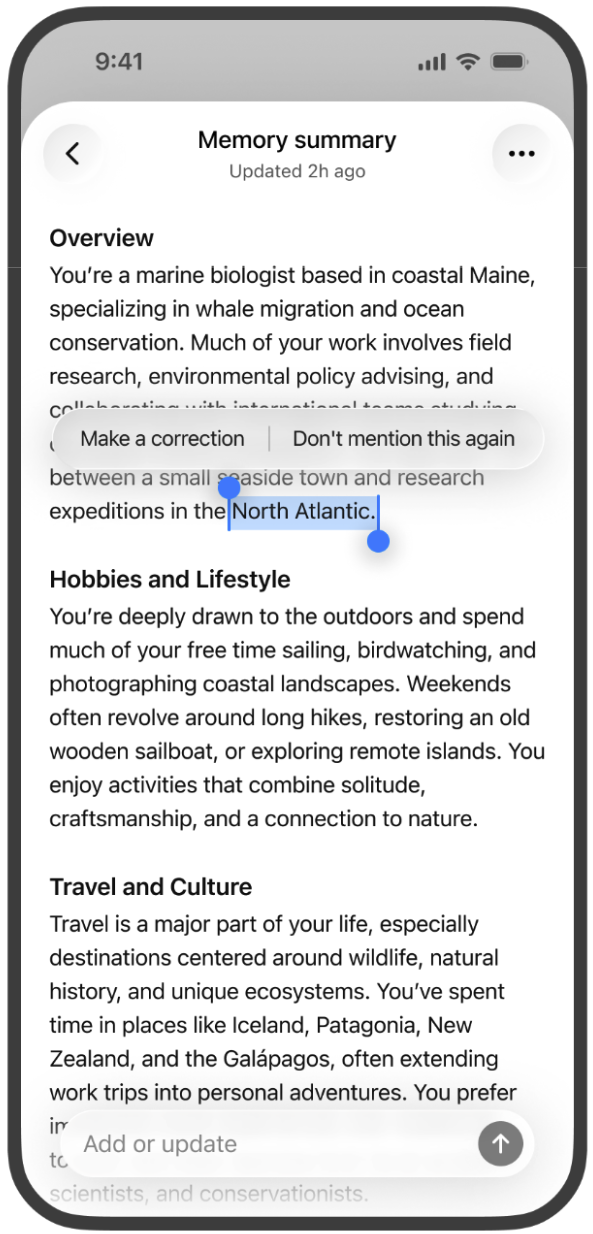
Memory summary
You can see the information that ChatGPT remembers in the memory summary. While the memory summary should capture the most important details, it will not include everything that ChatGPT remembers based on your chats. If you want to know if ChatGPT has remembered something, just ask in chat.
The memory summary is automatically updated with new context as you chat with ChatGPT. At the top of the memory summary it will indicate when it was last updated such as “2 hours ago”.
To make edits to the memory summary:
Type what you want changed into the text box at the bottom of the memory summary and it will update accordingly.
You can highlight any text in the memory summary to make a specific correction.
To fully delete something ChatGPT may know about you, you’ll need to delete every source where it appears, including past chats, archived chats, files, the memory summary, and disconnect any connected apps that may contain that information.
You can delete the memories shown on your memory summary page and turn memory off by selecting Delete and turn off memory from the three-dot menu. This does not delete your past chats. If you turn memory back on later, ChatGPT may create new memories from chats that remain in your chat history, including older chats. This control is available on the web and rolling out on mobile soon.
Memories in sources
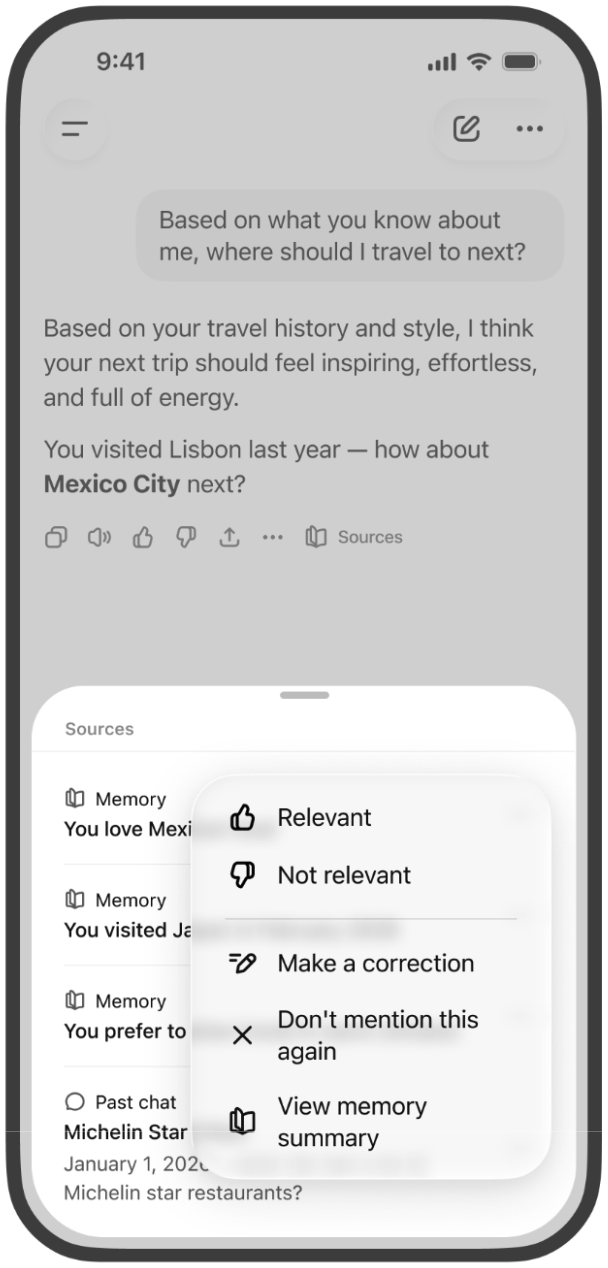
You can see what sources were used to personalize a response such as custom instructions, past chats, files, and memories by tapping the book icon below the response.
Tapping on a memory in sources will open an explanation on why that memory was used to personalize a response.
You can also make a correction by selecting the 3 dot menu (•••).
Sources are designed to make memory easier to understand and control, though they may not show every factor or source that shaped a response. Memory sources are not included in chats you share.
How we've improved upon the previous saved memories experience
The previous saved memories system often became stale and relied on users to manually manage updates. Memories could also contradict one another, such as “I’m training for a marathon” and “I sprained my ankle,” which made personalization less accurate.
The new memory system updates memories automatically with ChatGPT keeping track of the details it determines are most important so it can continue building on the context you’ve already shared. If you prefer to revert to the legacy saved memories system, go to Settings > Memory > and click the “saved memories” link below “Memory summary”.
Will sensitive information appear in memory
Sensitive information may appear in memory if you share it with ChatGPT. If you don’t want information from a chat to be used to personalize responses, you can turn off memory or use Temporary Chats. Temporary Chats do not use existing memories or create new memories.
Why don’t I see anything in my memory summary
You may not see a memory summary yet if your account is new, you recently enabled memory, or there isn’t enough chat history. As you use ChatGPT more, your memory summary should populate over time. You can refresh your memory summary any time Settings > Personalization > Memory Summary -> Manage then going to the triple dot menu and selecting “Refresh”.
Does the memory summary include all my memories?
Not necessarily. ChatGPT’s memory is based on a continually updated synthesis of context from your past chats, which may be broader than what can be shown as individual items in a summary. The memory summary gives you a high-level view of that synthesis to help you review and manage what ChatGPT remembers.
Some details may not appear in the summary, including when ChatGPT determines they are less relevant or not appropriate to show in this view.
Is memory different from Custom Instructions?
Custom Instructions continue to allow you to provide ChatGPT with direct guidance on what you’d like it to know about you and how you’d like it to respond. For explicit information or instructions, you can add it to your Custom Instructions. For information shared via conversations, ChatGPT can remember relevant details for you.
Legacy memory system
How do I switch back to the legacy saved memories system?
Go to Settings > Memory > Saved memories to revert to the legacy saved memories system. From saved memories, you can select “Try improved memory” to return to the updated memory experience.
How does “saved memories” work?
Saved memories are details you’ve directly told ChatGPT to remember. You can add a new saved memory at any time – for example: “Remember that I am vegetarian when you recommend a recipe.” Saved memories work similarly to custom instructions, except our models update them automatically rather than requiring users to manage them manually. If you share information that might be useful for future conversations, ChatGPT may save those details as a memory without you needing to ask. Like custom instructions, saved memories are part of the context ChatGPT uses to generate a response. Unless you delete them, saved memories are always considered in future responses.
ChatGPT can manage saved memories on its own, updating, combining, or removing them when asked. You’re in control of ChatGPT’s saved memories. You can delete individual memories, clear all of them, or turn memory off completely in settings. To chat without using saved memory, use Temporary Chat.
How do I enable or disable saved memories?
To disable saved memories, turn off “Enable memory” in Settings >Memory
How long does ChatGPT keep saved memories?
The “notepad” of your saved memories are stored separately from your chat history. This means even if you delete a chat, any saved memories from it can still be used in future conversations.
We may retain a log of deleted Saved Memories for up to 30 days for safety and debugging purposes.
Saved memories can show up in past conversations. For example, if ChatGPT remembers that you live in San Francisco, it might say “Since you live in San Francisco…” when answering a weekend plan question. You can delete that memory anytime, but it won’t remove mentions from past chats. To clear that, you will need to delete the specific chat where it was shared.