Overview
ChatGPT Images lets you create new images and edit existing images in ChatGPT. ChatGPT Images 2.6 generates images faster and does a better job of keeping details consistent from one edit to the next. You can ask ChatGPT to create or edit an image in a chat. You can also open Images. If you don’t see Images in the sidebar, look under Explore.
After you enter your prompt, ChatGPT Images generates the image you described. Image generation may take a few minutes, depending on the complexity of your request. You can keep using ChatGPT while the image is being created.
ChatGPT Images can follow instructions to add text, add details within the image, or make the background transparent.
You can also upload an existing image and describe the changes you want ChatGPT to make.
Availability
All ChatGPT plans include image creation in supported countries and territories. You can create and edit images on the web and in the desktop, iOS, and Android apps. In Enterprise and Edu workspaces, access depends on your workspace permissions.
Images with thinking is available on ChatGPT Plus, Pro, and Business.
How many images you can create depends on your ChatGPT plan. If you reach your limit, try again at the time shown in ChatGPT. If no time is shown, try again later.
Create and edit images
To create an image, describe what you want in a chat. You can also open Images and enter your prompt there. If you see Create, select it first. You can choose an aspect ratio from the menu or describe the shape you want in your prompt. If you’re signed out when you send your prompt, ChatGPT may ask you to log in or create a free account.
To edit an image, open one you created in ChatGPT or upload one. Describe what you want to change and where.
If you can’t create images in your workspace, ask your workspace admin to check your access.
Use the editor
On the web, open an image from your chat or from Images. To change a specific detail, add a comment. Edits may extend beyond the area you select.
Select Comment in the image toolbar. If you don’t see the toolbar, select Enter full view first.
Select the spot on the image you want to change.
Describe the change. For example, type “Make the butterfly blue.”
Select Add comment (the up arrow) or press Enter. You can add more comments before you send them.
Select Send to ask ChatGPT to edit the image.
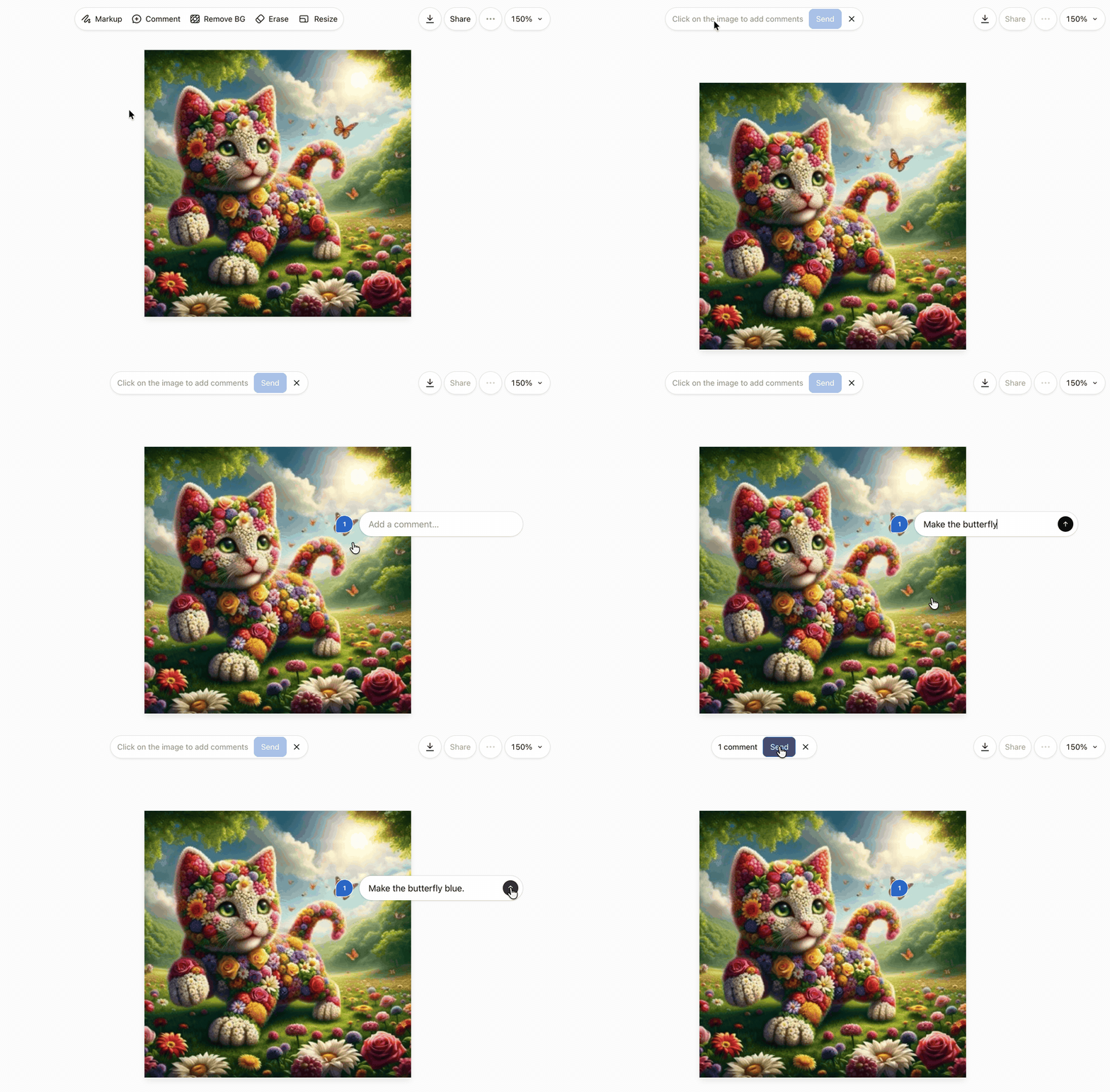
You can also describe an edit in the message box without adding a comment. To change the image’s aspect ratio, select Resize and choose a ratio.
Edit images on mobile
In the ChatGPT app on iOS or Android, open an image you created and select Edit. To change a specific detail, select the spot and describe what you want to change. Select the checkmark to save your comment. Add any other comments, then select the up arrow or Send. Your changes may extend beyond the area you selected.
To remove something, select Remove and brush over it. Use the slider to adjust the brush size. You can undo or redo brush strokes before you send your changes. Select Send. ChatGPT removes what you brushed over. You don’t need to enter a prompt.
To change the image’s aspect ratio, select Resize.
Save and reuse a reference photo
To save a reference photo, you need to have memory turned on. You can’t save reference photos in Temporary Chat. If the feature is available to you, upload a photo in a regular chat and ask ChatGPT to save it as a reference. For example, try “Can you save this photo of my dog as a reference named Pepper?” ChatGPT may also offer to save a photo. If you see Add reference, select it. Check the name, choose a category if prompted, and select Save.
To use a saved photo in another chat, type @ followed by the first few letters of the photo’s name. For example, type “Make a watercolor portrait of @Pep” and select Pepper from the suggestions. Then send your prompt. If the photo doesn’t appear in the suggestions, attach it to the new chat instead.

Create an image from a template
Templates give you a starting point for creating an image, such as a poster or logo. Choose a template, then customize the details for the image you want to create.
Choose and customize a template
Open the sidebar and select Images.
Select Templates to see the available designs.
Choose a template.
Customize the template with details about what you want to create, then send your request.
If ChatGPT asks follow-up questions, choose from the options shown or type your own answer. These questions can help you specify details such as the visual style. If an upload option is available, you can add a reference image.
Be specific about the details that matter. For example, if you’re creating a poster, describe what it’s for and any text you want it to include.
Edit your image
After ChatGPT creates the image, describe any changes you want in the chat. To edit a specific area, open the image and use the editor.
Create an image from a sketch
On the ChatGPT mobile app, you can draw a sketch and use it with written instructions to create an image.
In the message box, type @ and select Sketch.
Draw your sketch. You can choose a color, erase parts of the drawing, or undo a stroke before continuing.
Select the checkmark to confirm your sketch.
Add instructions describing the image you want ChatGPT to create from your sketch. Include details such as the subject, colors, or style.
Send your message to generate the image.
For example, you could sketch a house and write: “Turn this sketch into a watercolor painting of a red house surrounded by trees.”
After the image is generated, you can ask ChatGPT to make further changes in the conversation.
Edit an image from a sketch
To change a specific detail, open the image from your chat or from Images.
For example, follow the steps in “Edit images on mobile” to change the color of the roof without redrawing the house.
Create and edit a GIF
Ask for a looping GIF and describe what should move. For example, try “Make a looping GIF of a paper boat bobbing on the water.” You can also upload a still image and ask ChatGPT to animate it.
To change a GIF ChatGPT created, describe the edit in the conversation. Open the GIF to adjust its playback speed, save it to your device, or share it. ChatGPT can’t edit an animated GIF you upload.
Manage your images
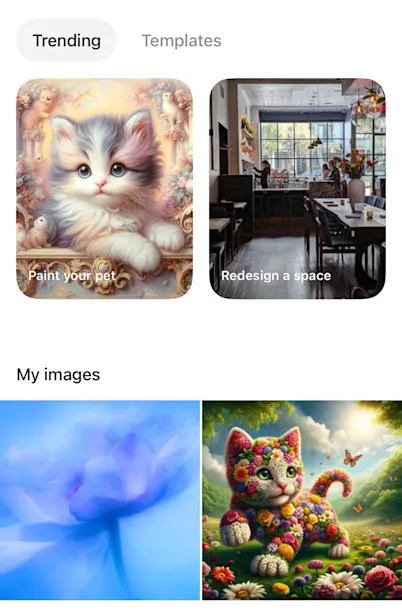
On the web or in the mobile app, open Images to find and reuse images from your chats. You can also create a new image there. On iPhone, if you see Trending and Templates, scroll down to My images.
To copy an image on the web, select Copy image in the chat. On mobile, press and hold the image in the chat, then select Copy.
To save an image to your device, open it and select Download on the web or Save (the down arrow) on mobile.
To share an image, open it and select Share if available. Choose how you want to share it.
To remove an image without deleting the chat, open Images in the mobile app and press and hold the image. If you see Remove from library, select it, then select Remove. The image stays in the chat.
To delete the chat, follow the steps for your device. This also removes the images you created in that chat from Images. If you saved a copy in Library or Space, deleting the chat doesn’t delete that copy. Learn how to delete the saved file.
On the web, hover over the chat title, open the more options menu (•••), and select Delete. Confirm that you want to delete the chat.
On iOS and Android, press and hold the chat title, select Delete, then confirm.
Share an image prompt
You can share the prompt you used to create an image so someone else can make their own version. On mobile, open the image and select Share. If you see Prompt template, select it, then select Copy link.
Image uploads and parental controls for teens
If you have the ChatGPT for Teens experience, a reminder may appear before some image uploads. The reminder encourages you to avoid sharing sensitive personal information and does not mean that a parent or guardian can view your images or conversations.
For a linked teen account, a parent or guardian may be able to control whether the teen can create or edit images in ChatGPT. Learn more about Parental controls in ChatGPT.
FAQ
Can I still generate images with DALL·E on ChatGPT?
No. The official DALL·E GPT has been retired. You can create and edit images directly in ChatGPT.
Can I create images with a custom GPT?
Yes. If you have access to a custom GPT with image generation enabled, you can use it to create images until that GPT retires.
How can I report images generated by ChatGPT?
If you think an image violates OpenAI’s usage policies, you can report it in ChatGPT or use the reporting form. Learn how to report content.
Can GPTs use the new ChatGPT image generation model?
Yes. GPTs with Image Generation enabled in Capabilities can create images using the new generation model.