
Overview
ChatGPT can search the web to answer questions with current information and links to relevant sources. It can also use location information to find local results, including restaurants, news, and weather.
Web search is different from sidebar search, which helps you find existing chats, projects, and files in your ChatGPT account. To search your saved content, see: Finding your chats, projects, and files in ChatGPT.
Availability
Web search is available on ChatGPT Free, Go, Plus, Pro, Business, Enterprise, and Edu. People who are not signed in can also use web search.
You can search the web on chatgpt.com and in the ChatGPT desktop and mobile apps. Searches are subject to your plan’s usage limits. Some features, such as restaurant reservations, have additional eligibility requirements.
Search the web
ChatGPT may search the web automatically when your question would benefit from current information.
To start a web search manually:
Open a conversation in ChatGPT.
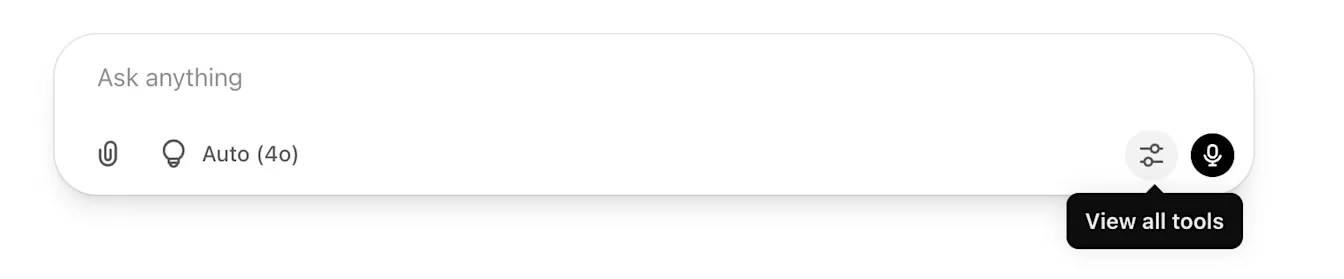
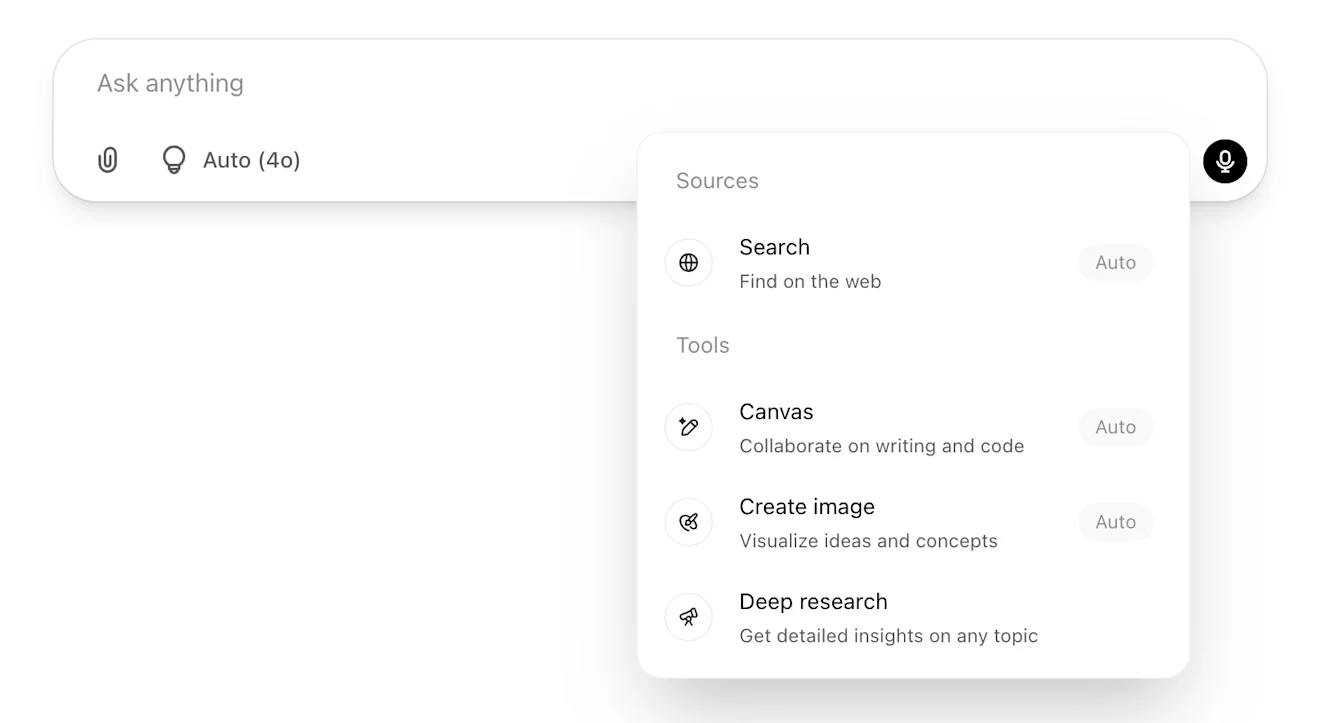
Select View all tools.
Select Search.
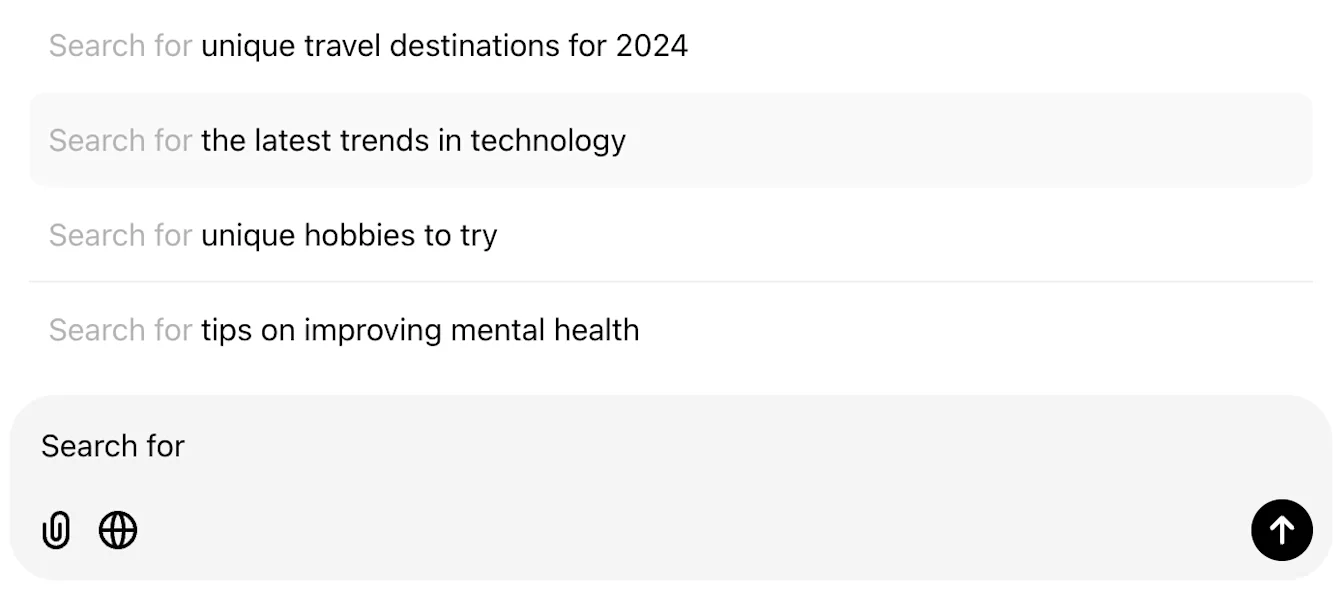
Enter your question and send it.
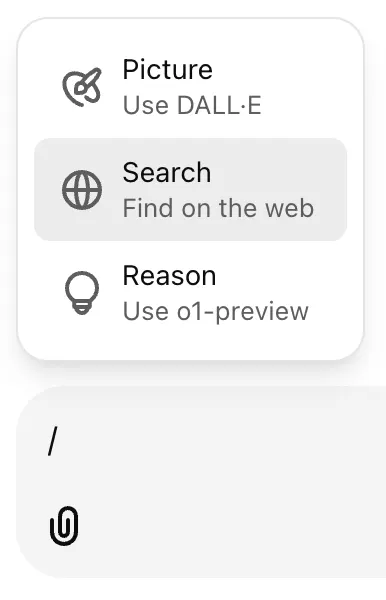
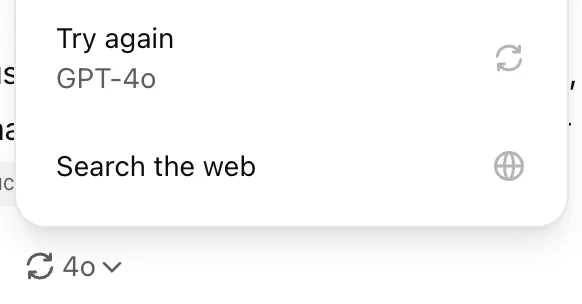
You can also enter / in the message composer and select Search. To regenerate an existing response with web results, select the refresh control and choose Try again or Search the web, when available.
Troubleshoot web search
If Search is missing or ChatGPT says it cannot search the web:
Start a new conversation and check the tools menu for Search.
Update the ChatGPT app or try chatgpt.com in your browser.
Check that you are using the intended account or workspace and have not reached your plan’s usage limit.
In a managed workspace, ask your administrator whether web search is enabled for your role.
If search is still unavailable, contact OpenAI Support and include your plan, device, app or browser version, and the exact error message.
Review sources and results
Responses that use web search may include citations. Select a citation to open its source. On desktop web, you can also point to a citation to preview it.
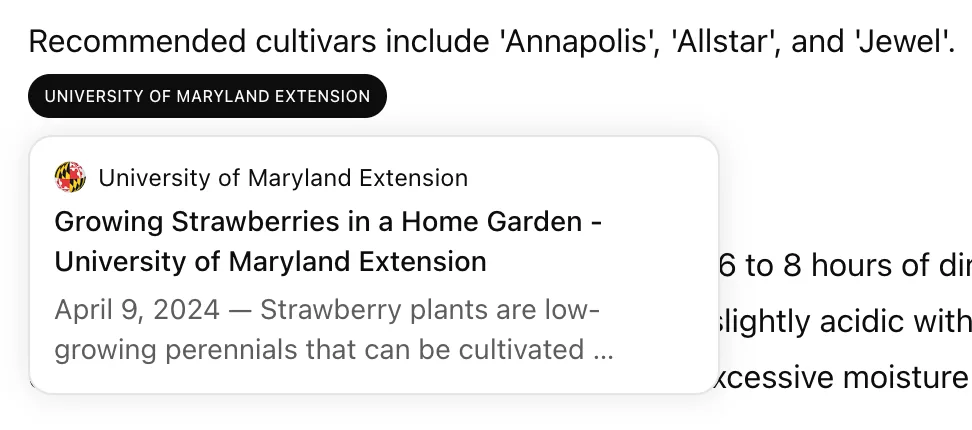
Select Sources, when available, to view cited sources and other relevant links. If a response includes images, select an image to view its source. On iOS and Android, relevant results may also include a map.


Search results and citations can be incomplete, outdated, or incorrect. Open a cited source to check that it supports the answer, review when it was published or updated, and use an authoritative source when accuracy matters. If a result looks wrong, ask ChatGPT to search again using a specific source, date, or location.
Information shared with search providers
To provide relevant responses to your questions, ChatGPT search sometimes partners with other search providers. When it does, ChatGPT search typically rewrites your query into one or more targeted queries that it sends those providers. For instance, if a biotech researcher asked ChatGPT, “what’s the latest on the development of drugs that target CCR8 for cancer?” ChatGPT might initially query a search partner using “CCR8 immunotherapy drug development 2025.” After reviewing the initial results, ChatGPT search may send additional, more specific queries to other search providers, like “CHS-114 conference 2025.” ChatGPT also collects general location information based on your IP address and may share that general location with third-party search providers to improve the accuracy of your results. For example, if you type into ChatGPT “What are some good restaurants near me?” and ChatGPT determines from your IP address that you are in the San Francisco area, ChatGPT may rewrite your prompt into the search query “top restaurants San Francisco.” ChatGPT does not share the IP address itself, or any of your ChatGPT account information, with third-party search providers in order to run the search.
For more information about how search providers may process queries, review their privacy policies:
If memory is enabled, ChatGPT may use relevant saved memories when rewriting a search query. For example, if you have shared that you are vegan and live in San Francisco, ChatGPT may search for “good vegan restaurants San Francisco” when you ask for nearby restaurants you might like.
For more information about managing saved memories, see: Memory in ChatGPT.
Location
ChatGPT may use an approximate location based on your IP address to provide relevant local results. Device location sharing is optional and off by default.
If you choose to share your device location, ChatGPT can use more specific information to answer questions about nearby businesses, local news, and weather. On iOS and Android, you may be able to turn off precise location separately while continuing to share an approximate device location.
Manage location sharing
To manage location sharing in ChatGPT:
Open Settings.
Select Data controls.
Select Location.
Review or update the available location permissions.
When you enable location sharing, your browser or device may ask you to allow access once, allow access while using ChatGPT, or deny access. You can also manage ChatGPT’s location permission in your device settings.
If your browser previously denied access, open its site settings for chatgpt.com, set Location to Allow, and refresh the page.
Parents who have set up parental controls can turn off location sharing for their teen. For more information, see: Parental controls on ChatGPT.
Improve local search results
If local results show the wrong area:
Include your city, neighborhood, or postal code in your question.
If you choose to share your device location, check your location permissions in ChatGPT and your browser or device settings.
Ask your question again after updating a location permission.
A VPN or network location may affect the approximate location inferred from your IP address. If memory is enabled, saved location information may also influence search results.
Information used and stored
ChatGPT does not separately save or store your precise location outside of what information is included in your ChatGPT conversation and context. Information included in ChatGPT’s response, such as nearby places, will remain in your chat history until you delete it.
Maps shown in a response remain in your conversation history, but your precise location is removed from the map.
To generate more tailored results, ChatGPT may share your location with trusted third-party providers that help provide more local information, such as nearby business listings or weather reports. Location information is shared only to provide you with more relevant responses, and we take steps to minimize the amount of information shared for that purpose.
Find and reserve a restaurant
ChatGPT can help you find restaurants and available reservation times based on your location, date, time, party size, and preferences. Depending on the restaurant, it may show availability from OpenTable, Resy, or Yelp.
Reservation search is available on eligible consumer plans on web, mobile, and desktop when using GPT-5.6 Sol or GPT-5.6 Luna. It is not available in ChatGPT Work or on Business, Enterprise, or Edu plans.
OpenTable reservations are available globally, Resy reservations are available in the United States, and Yelp reservations are available in the United States and Canada. Availability varies by restaurant and location.
Check availability and book a reservation
Ask ChatGPT for a restaurant, date, time, and party size.
Review the available restaurants and reservation times.
Select a restaurant or Reserve, when available.
Confirm your reservation details and complete the booking flow.
You can also include preferences such as cuisine, budget, dietary needs, or atmosphere, or ask about a specific restaurant. Reservation availability can change, so review the details before you book.
Depending on the provider, you may complete a reservation in ChatGPT or continue with the reservation provider. If an OpenTable or Yelp reservation requires a credit card, you will be directed to OpenTable to complete the reservation.
Review information shared with reservation partners
When booking a reservation, ChatGPT may ask for permission to share your name and email address with the reservation provider. If you allow it, ChatGPT can fill visible, empty name and email fields in the reservation flow.
You can allow this once, allow it for future bookings, or decline and enter the information yourself. Resy uses its own account sign-in, so ChatGPT does not fill these fields for Resy.
To review permissions you have granted:
Open Settings.
Select Data controls.
Select Information shared with apps.
Review or update the available app permissions.
Manage an existing reservation
After you complete a booking, the reservation provider sends a confirmation email. ChatGPT does not save, modify, cancel, or display existing reservations.
To change or cancel a reservation, use your confirmation email or contact the reservation provider directly.
Search during a voice conversation
During a voice conversation, you can ask ChatGPT to search the web. Web searches in voice are subject to your plan’s usage limits.
Restaurant reservation search is not available in voice conversations.
For more information, see: ChatGPT Voice.
Set ChatGPT as your browser’s default search engine
You can set ChatGPT as the default search engine in Google Chrome by installing the ChatGPT search extension.
After you install the extension, enter a search in Chrome’s address bar to start a ChatGPT conversation. To send a search to Google instead, enter !g followed by your search terms.
Make your website available in search results
ChatGPT ranks search results using multiple factors intended to help users find relevant, reliable information. Placement is not guaranteed.
To make a website eligible for inclusion, allow OAI-Searchbot to crawl the site and confirm that the website host or content delivery network allows traffic from OpenAI’s published searchbot IP addresses.
FAQ
Is precise location required for web search?
No. You can search the web without sharing your device’s precise location, but local results may be less specific.
Does ChatGPT use my IP address to estimate my location?
ChatGPT may use your IP address to estimate your general location, such as your country, state, or city. This approximate location can improve results for nearby restaurants, local news, and weather.
ChatGPT does not share your IP address itself, or your ChatGPT account information, with third-party search providers to run a search.
Can I turn off location sharing later?
Yes. You can review or update location sharing in ChatGPT settings or in your browser’s or device’s location permissions.
Why don’t I see a reservation time or Reserve button?
Reservation times and Reserve appear only when a supported provider has information for that restaurant. Try a different date, time, party size, or location.
When is a restaurant reservation confirmed?
A reservation is confirmed after you complete the booking flow and receive a confirmation from OpenTable, Resy, or Yelp. ChatGPT does not save the reservation after you place it.
Where can I get help with a reservation?
Contact OpenAI Support if a restaurant result, restaurant page, or Reserve button in ChatGPT is not working.
For confirmation emails, changes, cancellations, or provider account issues, contact the reservation provider.