
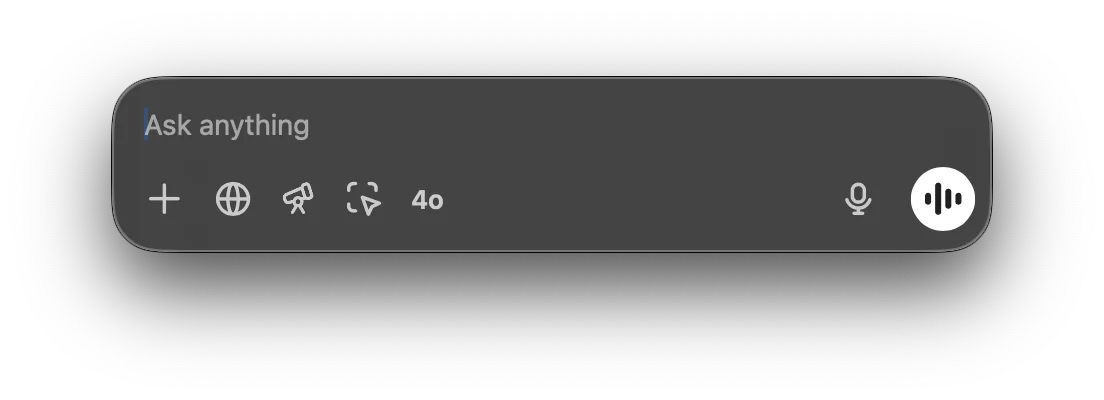
You can use the Chat Bar to instantly ask ChatGPT anything, upload files, take a screenshot, or take a photo. By default, to open the Chat Bar using your keyboard, press ⌥+Space:
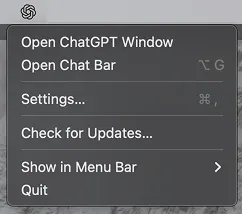
You can click and drag the Chat Bar window anywhere on the desktop and you can also open the Chat Bar from the menu bar icon:
You can start a new conversation with ChatGPT directly in the Chat Bar. To submit your prompt, click the arrow or press the Return button.

You can attach a file, photo, take a screenshot, or take a photo when you start a new conversation by clicking on the plus sign:

You can start a conversation by requesting data analysis on a CSV file, or ask a question about an attached image directly from the launcher.

You can change the Chat Bar shortcut in the Settings menu:
