
Overview
Our latest Playground update introduces a structured, rollback-friendly workflow so you can iterate confidently, validate changes, and move from experiment to production in fewer steps. Below is a quick tour of what’s launching and how to get started.
What’s new
Project-level prompts
Prompts are now Project level, and are no longer user-level.
Version history with one-click rollback
Publish any draft to create a new version, then restore an earlier version instantly. Behind the scenes, a single Prompt ID always points to the latest published version, and you are also able to specify a specific version if you want a pinned reference.
Prompt variables
Add placeholders such as {user_goal} to help separate the static prompt from the instance-specific information (inputs).
Prompt ID
Publishing locks the current draft to an ID that downstream tools can call reliably while you keep iterating in new drafts.
Side-by-side comparison
Visually compare outputs from two versions to decide which performs better before you ship.
Variables recognized in API & SDK
The Responses API and Agents SDK now accept the same {variables} you define in Playground, so the prompt you test is the one you invoke programmatically—just pass the rendered text for now.
Built-in Evals integration (manual runs)
Link an Eval to pre-fill variables and view pass/fail results right on the prompt detail page. The link is saved with the Prompt ID for repeatable tests.
Optimize
Optimize is a new tool available in the Playground and Logs pages that automatically improves prompts by detecting and fixing contradictions, unclear instructions, and missing output formats.
When run, it returns an improved version of your prompt or helpful suggestions, along with a summary of the changes made. You can preview the revisions and apply them directly in the Playground with a single click.
---
Quick-start guide
Create a prompt
Go to Playground → Prompts → Create New, draft your text, and add {variables} if needed.
You can use the generate feature to have ChatGPT suggest a prompt, function definition, or output schema based on your task description.
Use the optimize feature to review and suggest improvements.
Add a function (optional)
Function calling lets you wire your prompt to real‑world actions or data without leaving Playground.
For additional instructions on using functions, please refer to our article: Function calling in the Chat Playground
Attach an Eval (optional)
Choose Link Eval to generate test data, run graders, and review pass/fail results. Re-run the Eval after each publish to catch regressions until automatic runs arrive.
Publish
Click Publish to create a Prompt ID. Continue experimenting in a new draft and restore any published version from History with one click.
Iterate
Test your new prompt, review the results, and iterate as needed.
Tips for crafting great prompts
Put overall tone or role guidance in the System message; keep task-specific details and examples in User messages.
Combine few-shot examples into a concise YAML-style or bulleted block so they’re easy to scan and update.
Mirror your project structure with clear folder names so teammates can locate prompts quickly.
Re-run your linked Eval every time you publish—catching issues early is far cheaper than fixing them in production.
---
FAQ
Will my existing presets break?
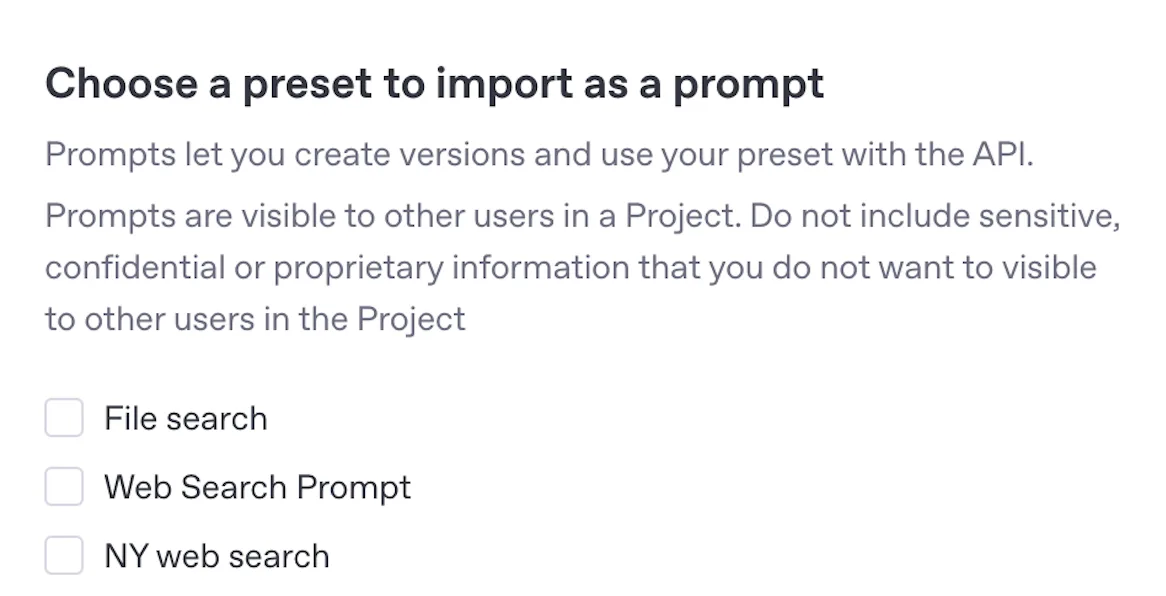
Prompts are a more powerful way of managing configuration with support for Versioning and Template variables. All of your existing presets can be imported to Prompts using the "Import preset" option in the Playground Prompt dropdown.
Do I need to specify a version in code?
Only if you want to pin an older version. Calling the Prompt ID by itself always uses the latest.
Can I automate Eval runs?
Currently, only manual re-runs are available today.