
Please note that canvas is available on Web, Windows, and MacOS. Coming soon to mobile platforms (iOS, Android, mobile web).
Canvas is a new interface for working with ChatGPT on writing and coding projects that require editing and revisions.
With canvas, ChatGPT can better understand the context of what you’re trying to accomplish. You can highlight specific sections to indicate exactly what you want ChatGPT to focus on. It can also give in-line feedback and suggestions with the entire project in mind.
You control the project in canvas. You can directly edit text or code. You can use the shortcuts to have ChatGPT to adjust writing length, debug your code, and quickly perform other useful actions. You can also restore previous versions of your work by using the back button in canvas.
Please note that Canvas is not available with pro-series models.
How does React/HTML rendering work?
React/HTML code is rendered in a sandbox environment, allowing you to view the output of the code. Many npm packages and JavaScript libraries will work, but previews that need to load external packages or web resources may depend on your workspace’s canvas network access settings.
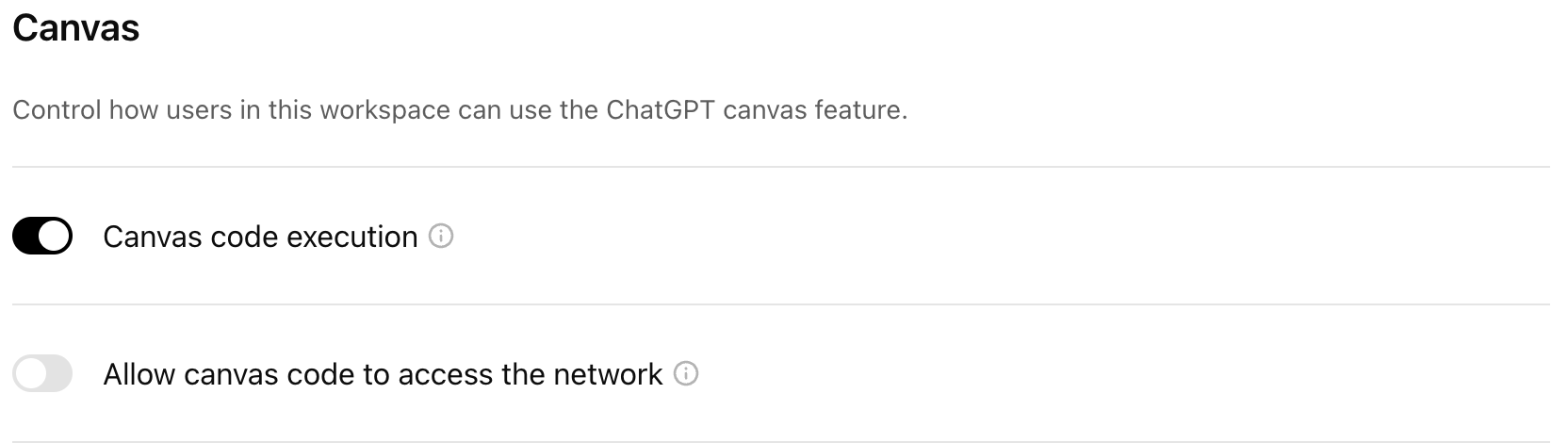
Canvas code execution and network access toggles
Please note that code execution and React/HTML rendering can result in external network requests to be made. Enterprise workspace admins can control whether canvas code execution is available for users in the workspace along with the default network access behaviors. By default, canvas code execution is turned on while Allow canvas code to access the network is turned off for enterprise workspaces but these toggles are configurable in the Admin settings of your workspace.
Accessing canvas on ChatGPT
ChatGPT may open a canvas when it grasps what you’re trying to accomplish. For example, you can ask ChatGPT to generate a piece of writing (eg. "let’s write a long essay about why a strawberry is a pseudocarp") or draft code for you (eg. “write a web server in python”) and it will respond with a canvas. You can typically expect ChatGPT to open a canvas automatically when ChatGPT generates content greater than 10 lines or detects a scenario where it would be helpful to have an interface for writing or code. Additionally, you can include “use canvas…” in your prompt to ask ChatGPT to open canvas.
Responses with canvas will automatically open a window on the right-hand side that contains your requested content.
You can also get started with a blank canvas with ChatGPT on web by saying things like, “open a canvas”, or “open a coding canvas”. With a blank canvas, you can work on an existing project by pasting it into the blank canvas, or by just typing in the canvas.
You can also paste content into ChatGPT and instantly open it in canvas via a shortcut in the upper right corner of the composer.
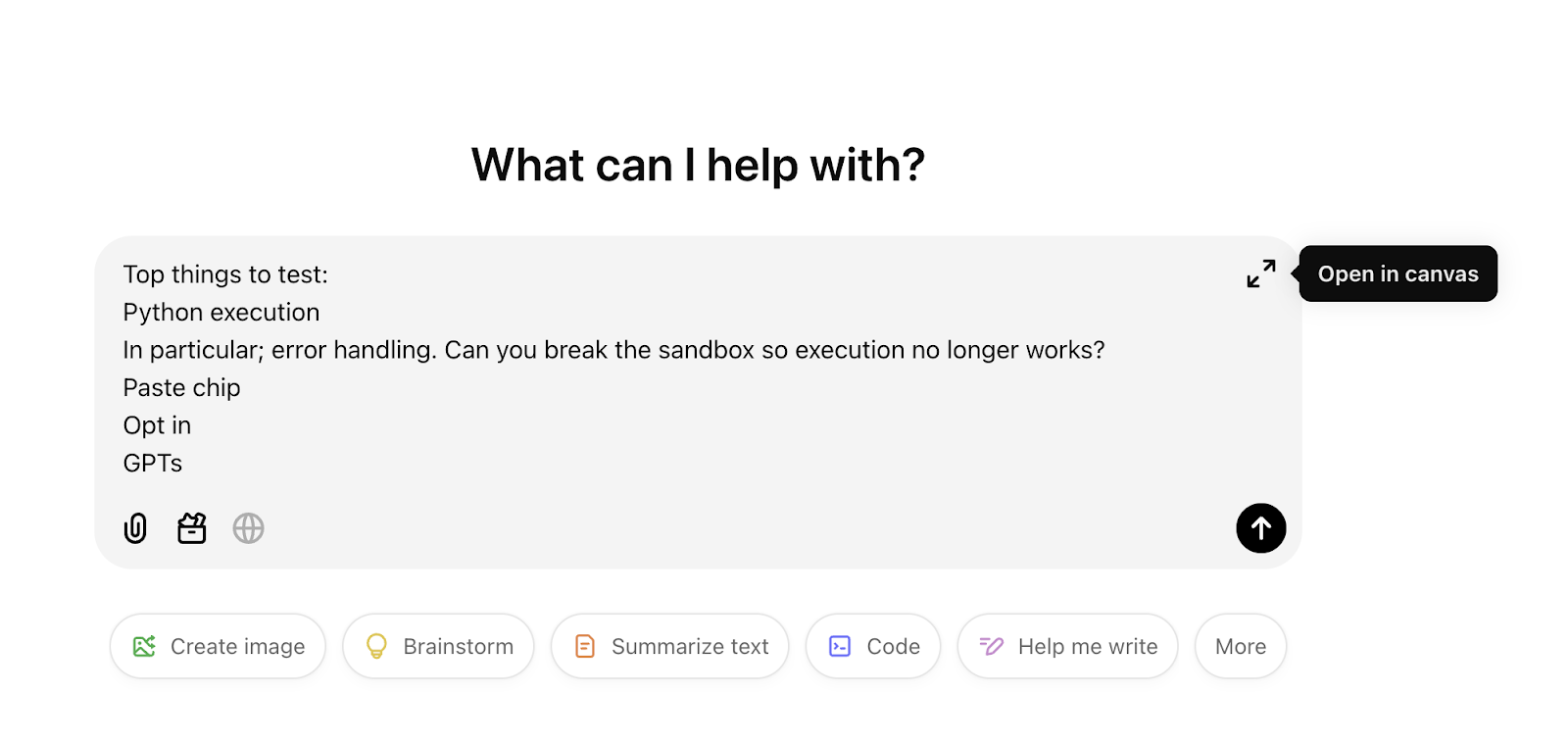
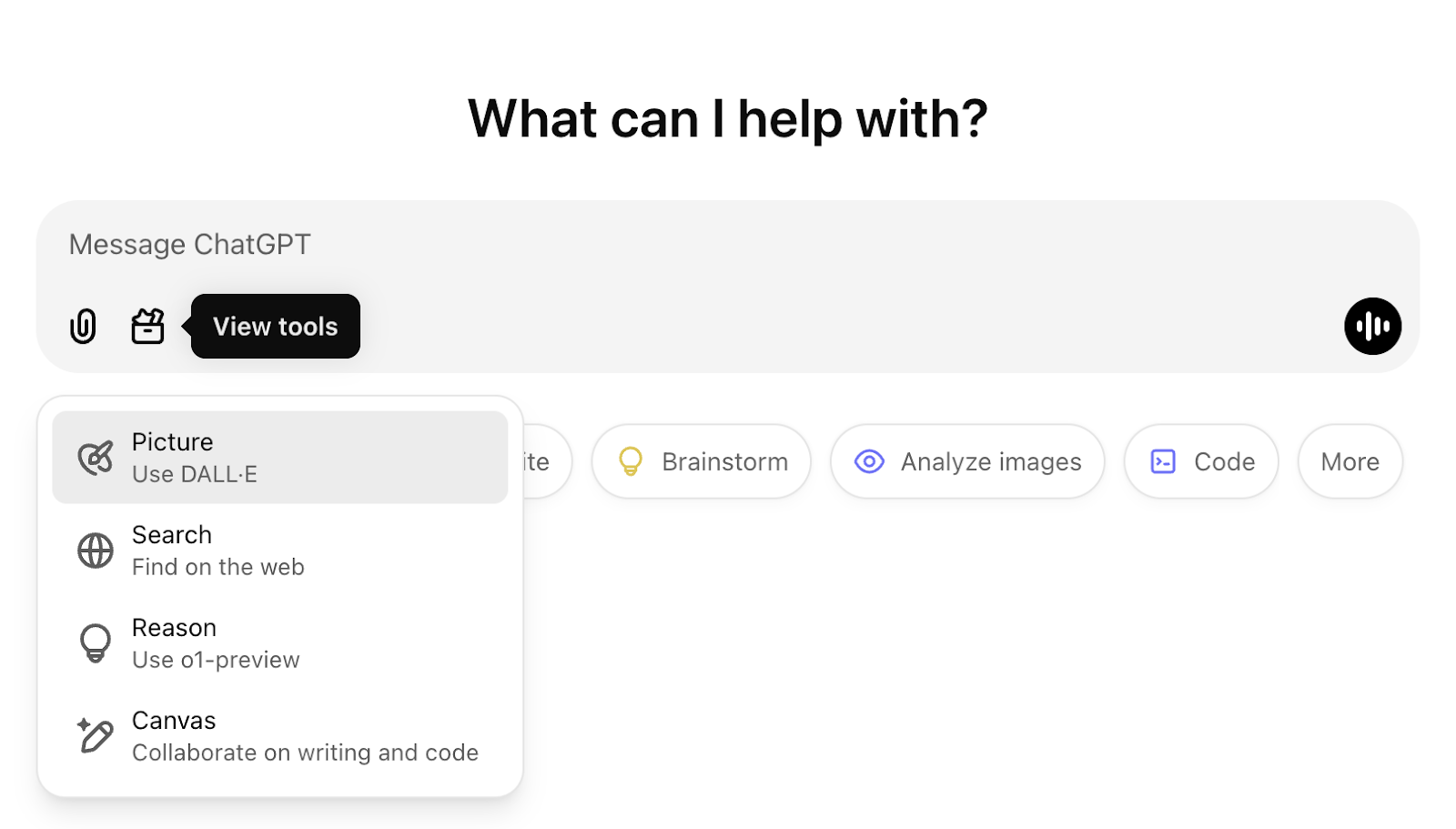
Additionally, the toolbox in the prompt composer also enables you to ask ChatGPT to create a new canvas in your prompt. This can also be triggered by typing a backslash (“/”) and then using the “canvas” command.
Editing your project with canvas
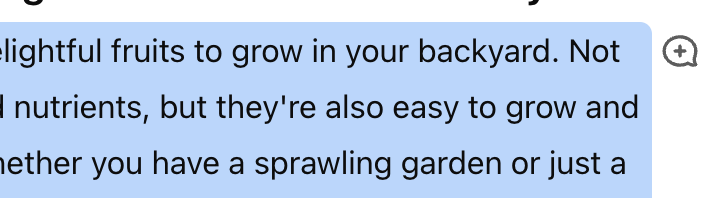
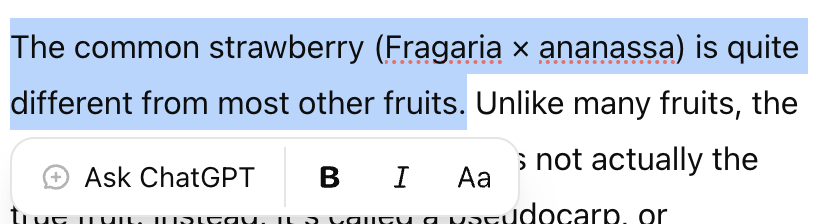
You can make edits with canvas by simply asking for them in the chat. Additionally, you can select part of the content by highlighting the text or use the block comment icon to select an entire paragraph block. This will open an input where you can provide guidance on what to explain or edit in the selected section.
You can also directly edit the canvas content by clicking into the canvas and typing. Please note that only basic markdown formatting options are supported, including bold, italic, headers, bullet points, and numbered lists. We don’t currently offer more advanced formatting options in canvas.
You can get targeted comment suggestions from ChatGPT by simply selecting the Suggest edits or Review code shortcuts. By clicking on the comment bubble, you can see the specific suggestion provided by ChatGPT. You can either directly edit the flagged item and close the comment, or select Apply to have ChatGPT automatically generate content to address the comment.
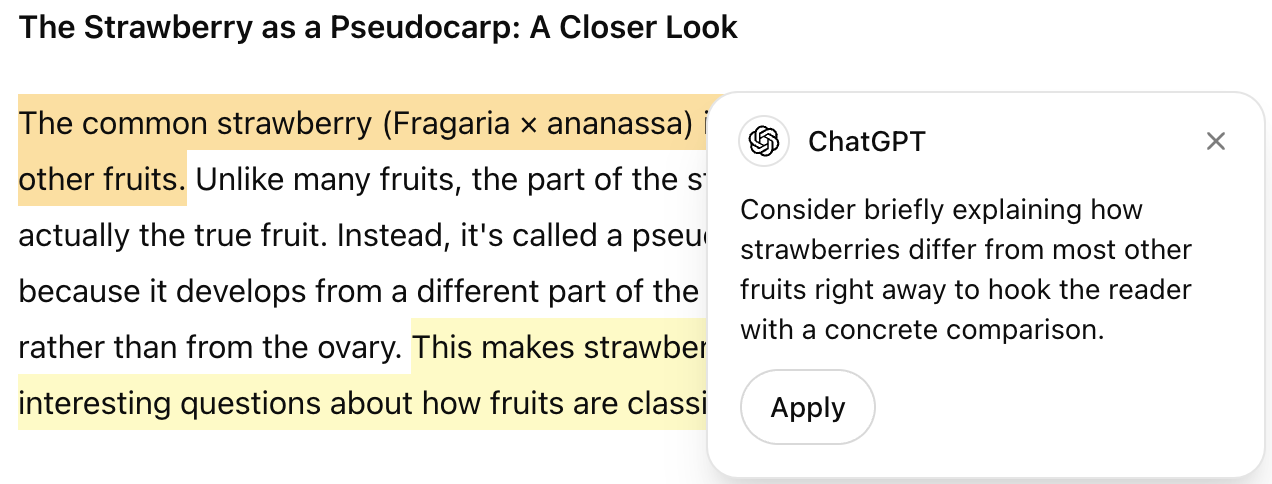
When working on a writing task, you also have the option to highlight specific portions of your text or code and ask ChatGPT to either request edits to that section or ask a question about it. Formatting options can also be accessed by highlighting a piece of text. Basic markdown formatting is supported, including bold, italic, headers, bullet points, and numbered lists. We don’t currently offer more advanced formatting options in canvas.
Shortcuts on canvas for writing and coding
Canvas with ChatGPT provides access to a bundle of writing shortcuts that enable you to ask for suggested edits, adjust the length of the output, update the intended reading level, and add emojis or a final polish to your piece. To find these shortcuts, hover over the shortcuts menu on the bottom-right of the page.
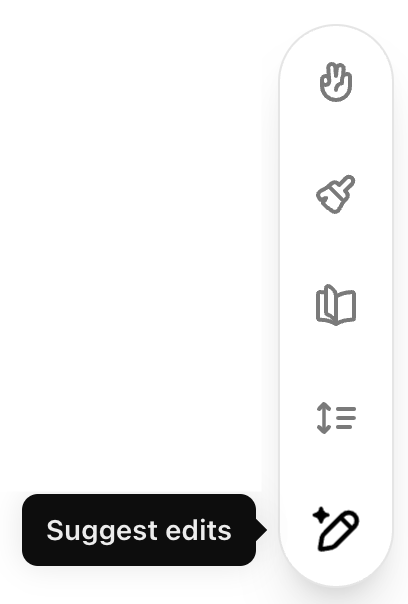
For writing documents, you can use the following shortcuts:
Suggest edits: ChatGPT will add inline suggestions to improve your writing.
Adjust the length: shortens or expands the length of your document.
Change reading level: adjusts the reading level from Kindergarten to Graduate School.
Add final polish: checks for grammar, clarity, and consistency.
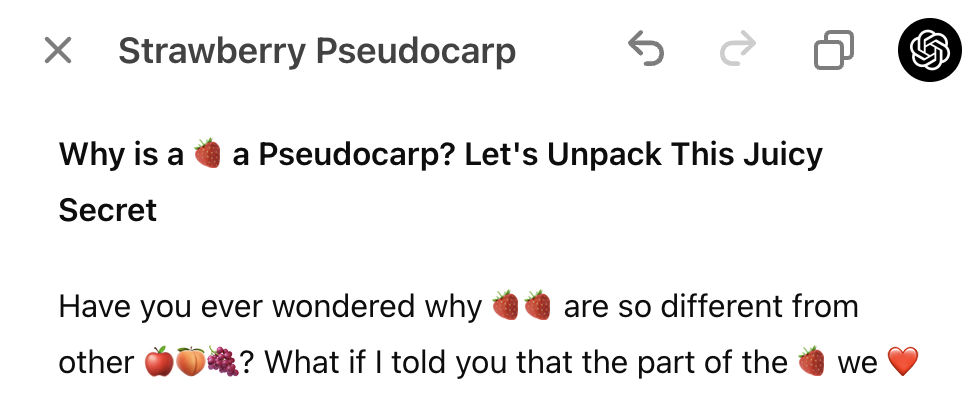
Add emojis: replaces words with emojis or adds them for extra emphasis and color.
For coding, you can use the following shortcuts:
Add logs: inserts print statements to assist with debugging and tracking execution.
Add comments: adds comments to explain the code and improve readability.
Fix bugs: detects and rewrites problematic code to resolve errors.
Port to a language: translates your code into languages like JavaScript, Python, Java, TypeScript, C++, or PHP.
Code review: provides inline suggestions to optimize and improve your code.
Some shortcuts will immediately update the contents of your project, like Add emojis, Add final polish, Fix bugs, and Port to a language.
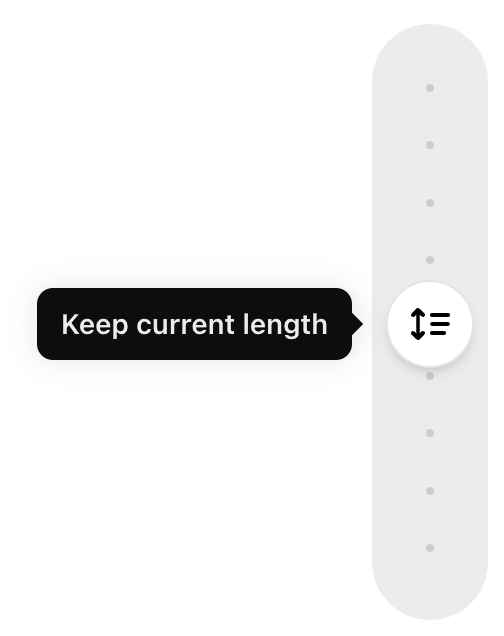
Other shortcuts can be tweaked with a slider. For instance, the Adjust the length shortcut gives you the flexibility to select options between Shortest to Longest length. The Reading level shortcut enables you to adjust the reading level from Kindergarten to Graduate School.
Version history and show changes
You can navigate versions of your canvas document or code by using the version history via the arrows in the top toolbar. This allows you to see previous versions as well as restore these versions if you so choose. You can also copy the contents of your project by selecting the copy button.
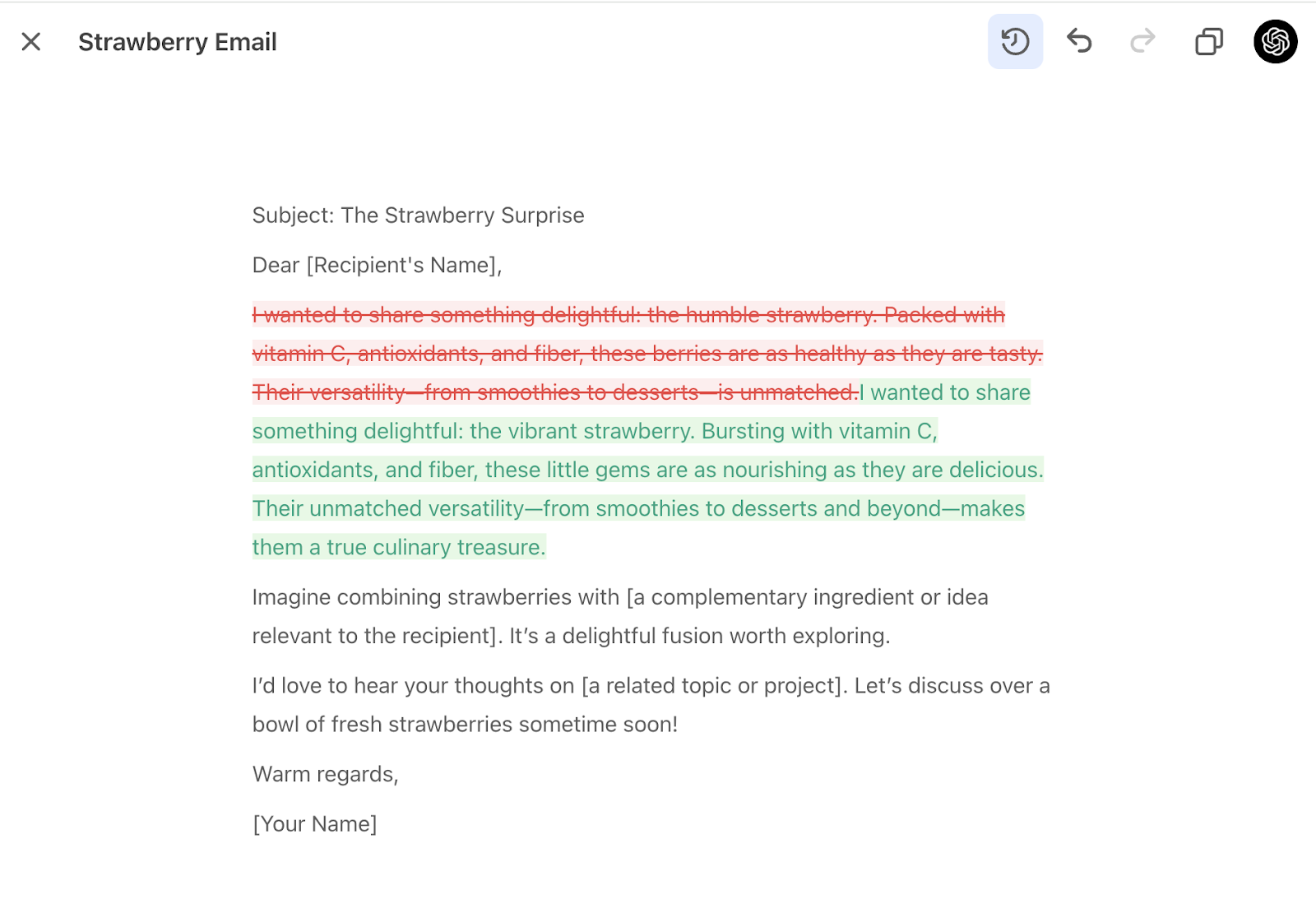
Additionally, you can see changes between canvas versions by using the Show changes button at the top toolbar. This will show additions and deletions for both documents and code.
Executing Python code with canvas
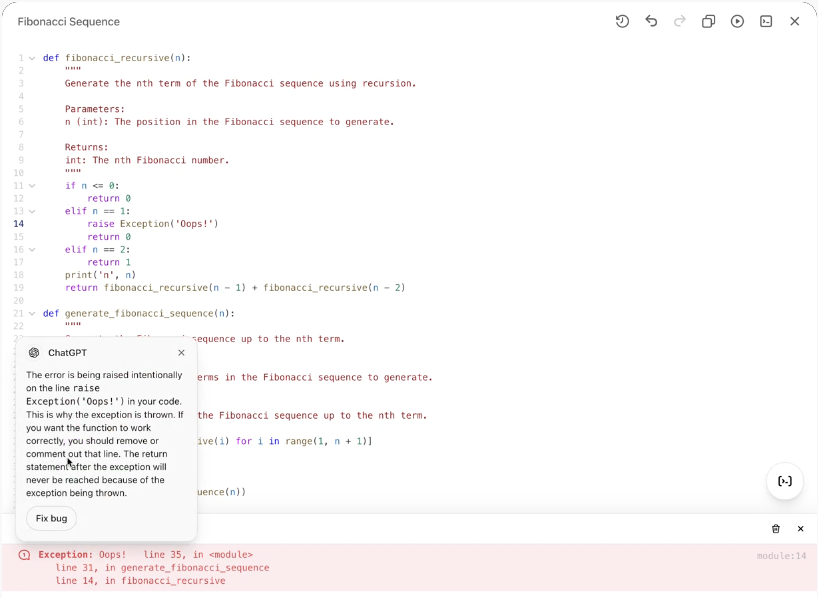
You can execute code canvas files for Python directly on your browser when you are using canvas by selecting the Execute button in your canvas. When executing Python code, the output will appear in the console at the bottom of the screen. When there are errors that appear in the console, ChatGPT will provide a suggestion about the error – click the Fix bug button to have ChatGPT attempt to fix it for you!
This feature is currently only available for Python code but we plan to extend access to other programming languages in the future.
Enabling canvas for your GPT
Canvas now works with GPTs. You can enable canvas access to GPTs by enabling the canvas capability in the GPT Builder. This enables your GPT end users to open a canvas while having a chat with your GPT.
Model compatibility: Canvas is not supported by GPT-5.5 or later models. When Canvas is enabled for a Custom GPT, choose a recommended model that supports Canvas. Models that do not support Canvas will be unavailable while the capability is enabled.
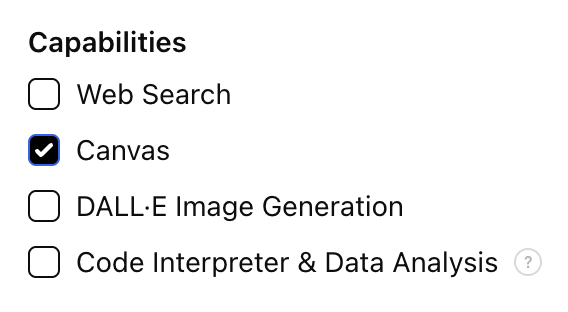
Please note that this capability is off for all existing GPTs and on by default for any newly created GPTs. You can modify this at any time in the GPT Builder.
Learn more about the GPT Builder.
Sharing a canvas with others
Sharing a canvas is available for all plans including Free, Plus, Pro, Team, Enterprise, and Edu.
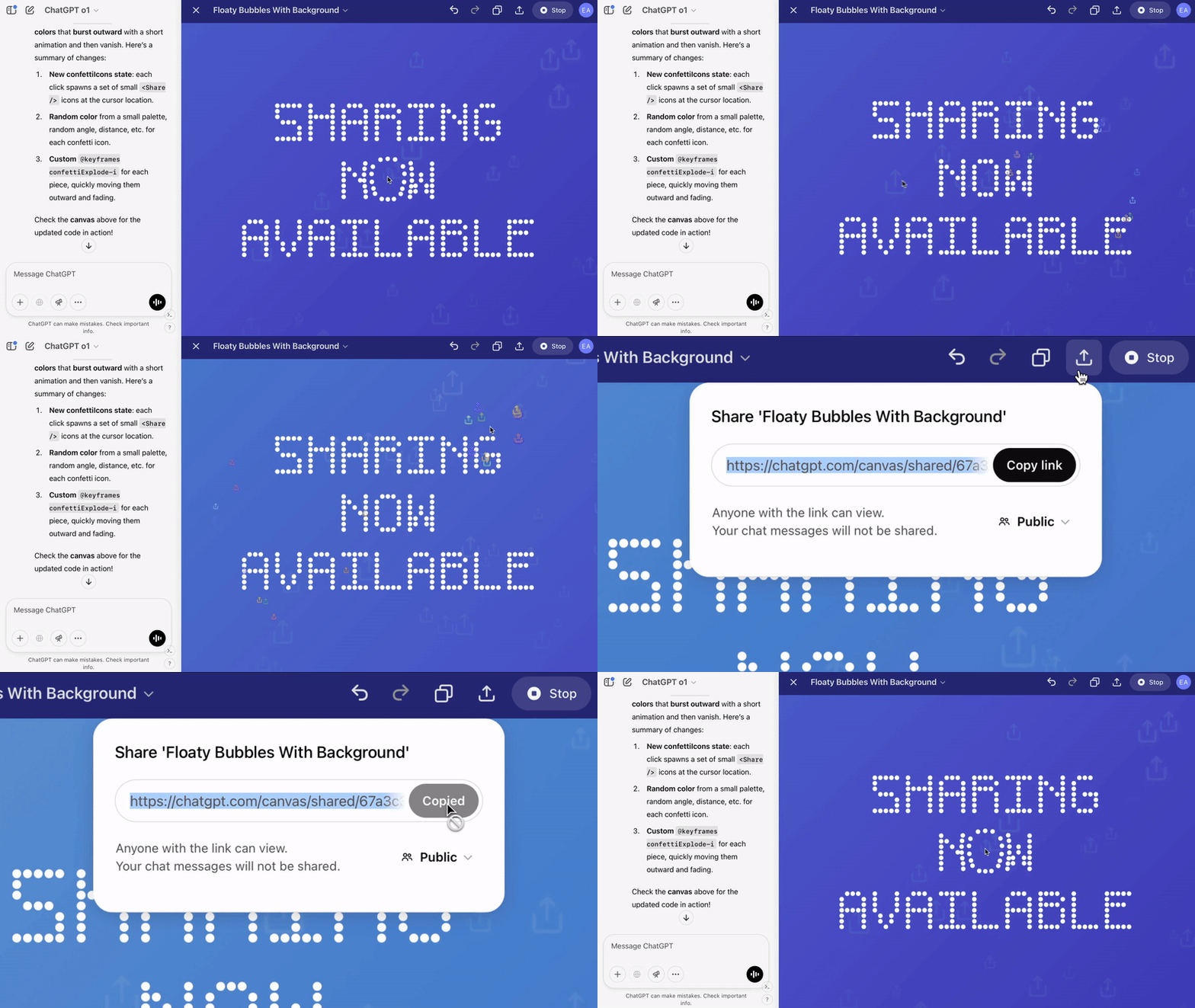
Users can now share a canvas asset such as rendered React/HTML code, document, or code with another user, similar to how you share a conversation. You can do this from the canvas toolbar when canvas is open.
Downloading your canvas file
You can now export your canvas documents in multiple formats depending on the type of content. Look for the Download button in the top-right corner of your canvas to try it out.
For general documents (like essays or blog posts), canvas supports exporting to PDF, Markdown (.md) and Word (.docx) formats.
For code-based canvases, canvas intelligently detects the language and exports it in the appropriate file extension (e.g., .py, .js, .sql, etc.), preserving formatting and syntax.
This feature makes it easy to archive your work, share drafts, or continue editing in external tools.
Canvas preview does not finish loading during “Installing Packages”?
Some JS/HTML Canvas previews need the user’s browser to load external packages or other web resources before they can render. If Allow canvas code to access the network is turned off, or if browser or organization network controls block a required external domain, the preview may not finish loading.
Check the browser console for errors such as Failed to fetch, Refused to connect, or Content Security Policy errors. If canvas code network access is already enabled, check whether browser, proxy, firewall, or endpoint controls are blocking the required domain.
Canvas and web safety
Canvas can preview websites and other web content. Web content is necessarily online and has the ability to communicate with third-parties that are not OpenAI.
Communication that web preview makes can be as simple as using the internet to access an image — but it can also be as dangerous as sending information you have entered or shared with ChatGPT to a third-party.
ChatGPT takes the information you provide as you talk and uses it to make informed responses. In some cases, like if you paste information from the internet, or when news or search results are retrieved, ChatGPT will use other information for its responses including in code generation with canvas.
When you interact with canvas web preview, ChatGPT will ask you to confirm communications with third-parties OpenAI doesn’t know about. If you confirm this communication, we allow the preview to communicate with that third-party.