System Requirements: Windows 10 (x64 and arm64) version 17763.0 or higher
These instructions cover ChatGPT Classic for Windows. If you see both desktop apps or want to install ChatGPT, see Moving to the new ChatGPT desktop app.
Use ChatGPT instantly with a companion window
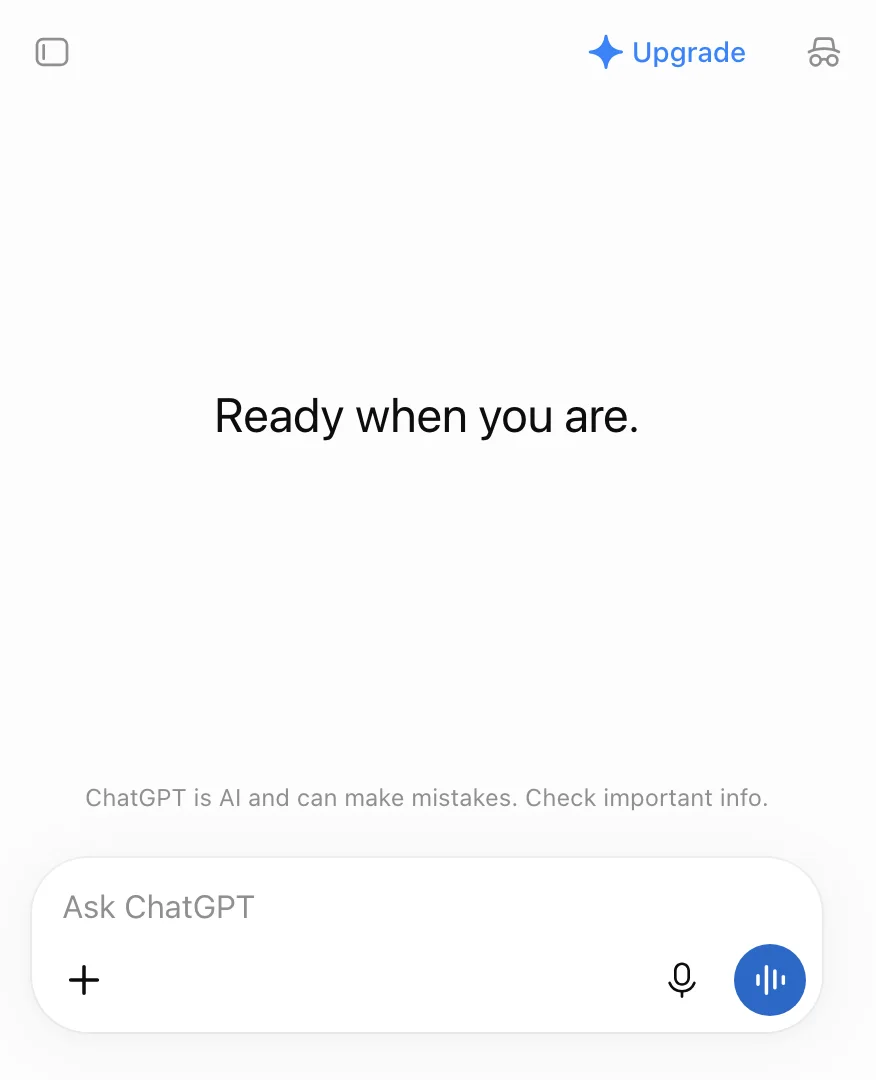
With ChatGPT Classic open, press Alt+Space to open the companion window. You can ask a question, upload files, create an image, or start a new chat.
The companion window remembers where you placed it. If you reset the app, the window returns to the bottom center of your screen.
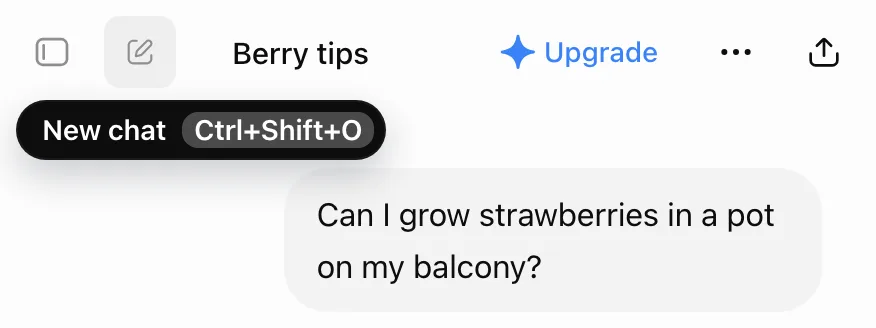
To start over in the companion window, select New chat at the top of the window.
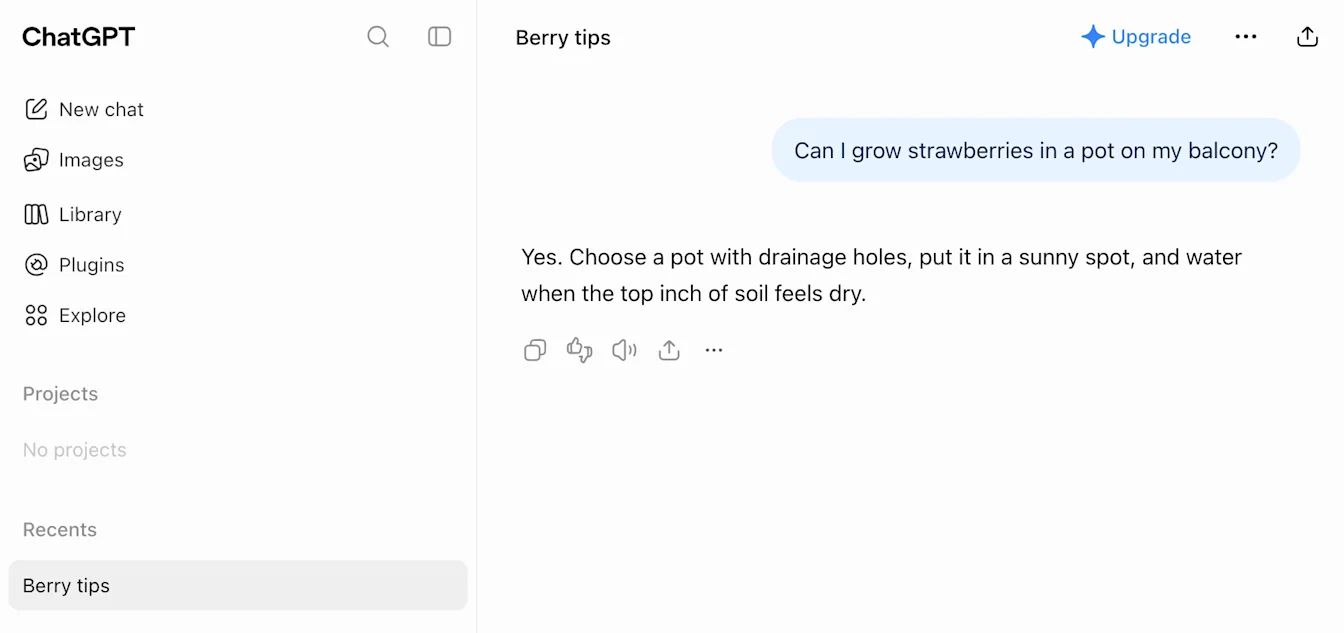
If you accidentally close the companion window, you can reopen it with the keyboard shortcut or continue the conversation in the main ChatGPT window by opening it from chat history on the sidebar.
Please note that the companion window shortcut will not work if it is already registered with another Windows application. If you need to update the companion window shortcut, it is located under Settings > App > Companion window hotkey.
Distributing access to your organization (ChatGPT Enterprise & Edu)
Because ChatGPT is distributed on the Microsoft Store, access to the Windows app will follow the policies set by your IT admin for all apps in the Store. For instance, if employees can’t download apps directly from the Store, IT admins may choose to deploy the app to their devices using MDM/MAM tools like Microsoft Intune.
Our Enterprise and Edu Retention Policy
Please note that by default we do not use content submitted by customers to our business offerings such as our API and ChatGPT Enterprise to improve model performance. If you have explicitly opted in to share your data with us (for example, through feedback) to improve our services, then we may use the shared data to train our models.
Check out our Enterprise Privacy page for information on how we use business data.
Other installation methods
IT departments managing ChatGPT Enterprise workspaces may prefer to install ChatGPT Windows app using winget.
winget.exe install --id=9NT1R1C2HH7J --source=msstore --accept-package-agreements --accept-source-agreements --silentReset the Windows app
If you need to reset the Windows app, follow these steps:
Open the Settings app
Go to Apps > Installed Apps
Locate ChatGPT
Click the three-dot menu next to it
Select Advanced Options
Click Reset