
Overview
Sign in with ChatGPT lets you sign in to participating apps and sites with your ChatGPT account. If you have a Plus or Pro plan, you can also choose to use your ChatGPT plan for AI requests there.
Start in the participating app or site, select Continue with ChatGPT or Sign in with ChatGPT, and sign in to your ChatGPT account. You can then choose whether to let that app or site use your ChatGPT plan. You don’t need to create or share an OpenAI API key.
When you turn this on, eligible AI requests count toward the ChatGPT Work and Codex usage included in your plan. You can set a weekly usage limit for each app and review app usage in ChatGPT settings. How quickly you use your included usage depends on the app and the tasks you run.
If you reach your plan limits, an app or site can also use available ChatGPT credits if you’ve explicitly allowed apps to use credits. The app may charge separately for its subscription, infrastructure, services, or premium features.
Anyone can sign in to participating apps and sites with ChatGPT, but the option to use your ChatGPT plan is only available with Plus and Pro. Participating apps and sites may offer this option only on certain plans. Their subscriptions and charges are separate from your ChatGPT plan and credits.
Availability
All users can connect their account with supported open source tools. If you are a Plus or Pro user, you can also connect your ChatGPT account with eligible commercial tools.
For the current list of participating apps and tools, see: Sign in with ChatGPT partners. The directory lists apps that support ChatGPT plan usage, sign-in-only apps, and open-source integrations.
Connect a participating app or site
Open the participating app or site. In its sign-in flow, select Sign in with ChatGPT or Continue with ChatGPT, if offered.
Sign in to the ChatGPT account that you want to use.
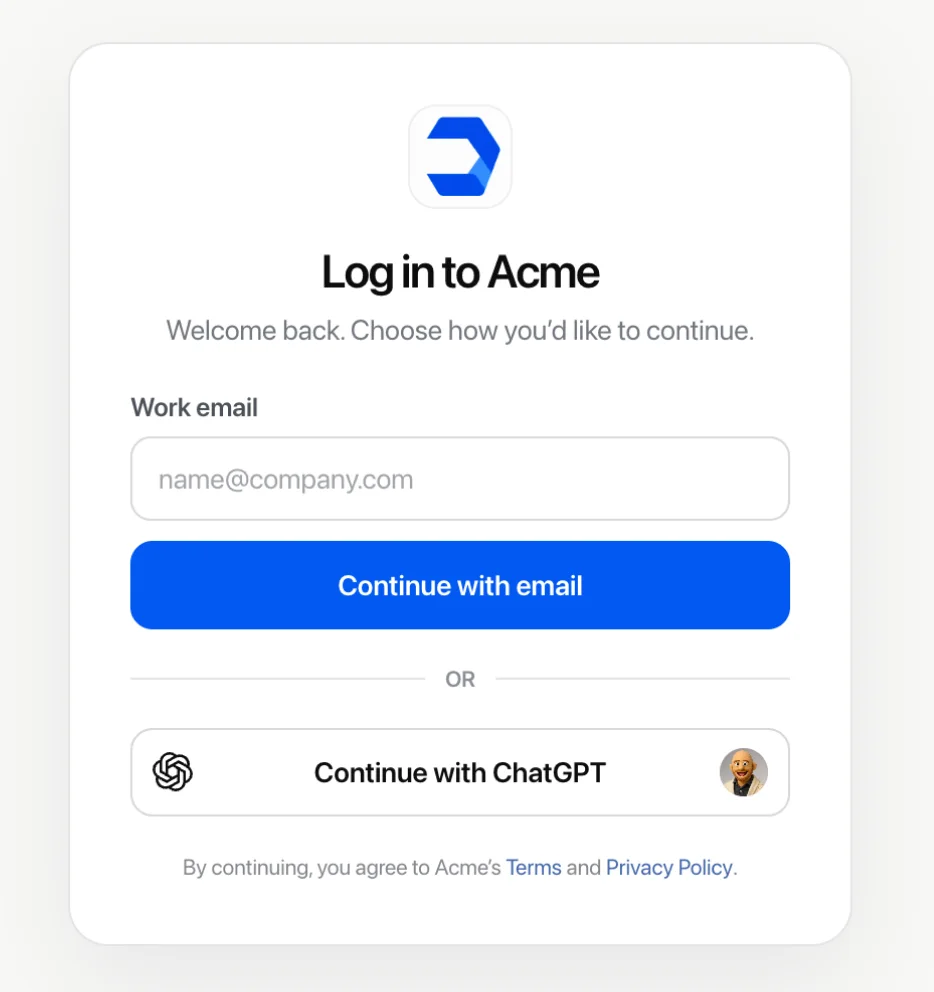
Review the basic account info the app or site will receive. If offered, you can separately choose whether to use your ChatGPT plan for AI requests in that app. Then continue to the app or site.
If you already use the app, look in its account or billing settings for an option to use your ChatGPT plan.
You can sign in with ChatGPT without letting the app use your ChatGPT plan. If you turn this off, AI requests in the app won’t count toward your ChatGPT plan through this sign-in connection. The app may offer another payment option; review its terms before choosing it.
Login connections in ChatGPT shows apps and sites where you’ve already signed in with ChatGPT. It isn’t a directory of all participating apps and sites.
For more information about identity sign-in, see: Sign in with ChatGPT.
Understand what you share
Signing in with ChatGPT shares your basic account info with the app or site: your name, email address, and profile picture. Sharing your ChatGPT plan lets eligible AI requests in the app count toward the ChatGPT Work and Codex usage included in your plan.
Using your ChatGPT plan does not by itself give the app or site access to your ChatGPT conversations or memories, and it does not share an OpenAI API key. Review any other requested permissions and the app’s privacy information separately. Only sign in to apps and sites you trust.
View app usage and manage limits
In Settings > Usage, you can see how much ChatGPT usage came from each app and set a weekly usage limit for that app. An app limit is a cap, not a separate pool of usage. It does not reserve usage for the app or increase your overall plan limits.
To review and manage app usage:
In ChatGPT, go to Settings > Usage.
Under App limits, find the app and select Manage limits.
Review or change the app’s weekly usage limit.
Select Save.
An app’s weekly usage limit controls the percentage of your overall weekly ChatGPT usage that app can consume. The app can reach its limit while you still have ChatGPT usage remaining.
If you reach your overall plan limits, the app stops using plan usage unless you’ve allowed apps to use credits and have credits available.
Your usage settings show how much of the app’s limit it has used during the current period.
If you reach a usage limit, check your usage settings to see when it resets. Signing in again or repeatedly retrying does not restore your usage.
Usage settings do not show details about your actions in the app. Usage rates may differ between an app and ChatGPT. Keep the task details if you need help investigating unexpected usage.
Let apps use credits after reaching plan limits
If this option is available, you can allow apps using your ChatGPT plan to use available credits after you reach your plan limits. This is off by default and applies across participating apps, subject to each app’s limit.
In ChatGPT, go to Settings > Usage.
Review the option to allow apps to use credits after included usage runs out, if available for your account.
Choose whether to allow credit use, then check the saved preference.
If the switch does not appear, credit use may not be available for your account.
An app must have its usage limit set to 100% to be able to use credits after included usage runs out. Setting an app limit to 100% does not, by itself, turn on credit use. A lower app limit prevents credit use for that app.
Credit use also depends on your account's eligibility, available credits, and any overall sharing limit. Review the credit-use preference separately from automatic credit purchases: allowing apps to use credits and buying more credits are different actions.
Before enabling credit use, review your automatic credit-purchase settings. If automatic purchases are enabled, continued usage can result in automatic charges. You may not receive a separate notice when your included usage limit is reached.
If an app can’t use your plan or credits, it won’t automatically switch to another paid option. Review any separate pricing from the app before choosing it.
Disconnect an app or site
In ChatGPT, go to Settings > Security and login.
Under Login connections, select Sign in with ChatGPT.
Select the app or site, then under Manage connection, select Disconnect.
Confirm by selecting Disconnect again.
Signing out of the app ends your session there, but does not disconnect the app from ChatGPT or stop its authorized use of your plan. To end the connection, follow the steps above.
Disconnect the app when you no longer want it to use your basic account info or ChatGPT plan. The app may remain signed in to its own account until you sign out there.
If you sign in with ChatGPT again later, review the requested permissions before continuing. Disconnecting does not reverse usage already recorded.
Disconnecting an app and deleting information it already received are separate actions. Review the app’s data controls or contact the app provider about its deletion process.
For interested developers
We’ve launched with a limited set of partners. If you’re an open source developer, explore our developer docs. If you’re a commercial partner interested in integrating Sign in with ChatGPT, with or without token sharing, please complete this interest form.
Troubleshooting
The app says your account is not eligible
Check that you’re signed in to the intended ChatGPT account. Anyone can sign in to participating apps and sites with ChatGPT, but only Plus and Pro users can use their ChatGPT plan there. Also confirm that the app offers this option on your app plan. If you use multiple ChatGPT accounts or workspaces, check which one is active before trying again.
If your account and the app meet the published requirements but plan use is still unavailable, contact OpenAI Support with the app name and the error you see. Buying credits or signing in again does not make an account eligible.
You can sign in, but the app can’t use your ChatGPT plan
Check whether you chose to use your ChatGPT plan during sign-in. If not, you may still be signed in while AI requests in the app do not count toward your ChatGPT plan’s usage. If you turned it on, the app may have reached the weekly usage limit you set, even if you still have ChatGPT usage available.
If you previously chose not to use your ChatGPT plan, look in the app’s settings for an option to turn that feature on, or sign in with ChatGPT again and review your choices. Signing in again may not change your previous choice automatically. If sign-in itself did not finish, restart the sign-in flow from the app.
For other sign-in problems or organization restrictions, see: Sign in with ChatGPT.
You've reached a usage limit
Check your remaining plan usage and the weekly usage limit set for the app. An app can reach its own limit even when your ChatGPT plan still has usage available. The limit you set and the percentage already used are different values.
Wait for the applicable limit to reset, using the reset information shown in your usage settings. Signing in again or repeatedly retrying does not restore your usage. You don’t need to buy credits just because an app reached the lower limit you set.
If you choose to change a limit, review the saved value before trying again. If the change fails, do not assume the new limit took effect.
You have credits, but the app still can’t continue
If app credit use is available for your account, it requires a separate opt-in and an available credit balance. The preference applies across participating apps, while each app’s weekly usage limit still applies. An app limit below 100% prevents that app from using credits. Setting the limit to 100% does not turn on credit use by itself.
Check these controls before changing them. Enabling credit use or automatic credit purchases is a choice, not a required troubleshooting step.
Usage is temporarily unavailable
If your available usage can’t be checked, try again later. A usage-service error or missing usage display does not necessarily mean you’ve reached your limits.
An error with using your ChatGPT plan does not automatically move the request to another paid option. The app may offer a separate option with its own pricing; review it before continuing.
The app asks you to reconnect
Your sign-in connection may need to be renewed after it expires or is disconnected. If the app asks you to connect again and you still want to use this connection, follow its connection flow and review the permissions again.
If you disconnected the app intentionally, don’t follow its connection flow unless you want to restore the connection. The app may keep its own account session signed in after it is disconnected from ChatGPT.
The app requests an unsupported feature
Some capabilities available in ChatGPT or through the OpenAI API may not be available when you use your ChatGPT plan in another app. If the app reports that a feature isn’t supported, contact the app provider about the feature it is requesting.
Usage is higher than you expected
Usage depends on the tasks the app runs and how the app is configured. Compare the app, time period, and limit shown in your usage settings.
Contact the app provider to identify the activity behind an unexpected task or usage amount. For a possible error in a ChatGPT usage limit or recorded usage, contact OpenAI Support and include any explanation or case reference the app provider has given you.
If you don’t want further usage from an app, stop using it and disconnect it from ChatGPT. Disconnecting does not reverse usage already recorded. Usage settings may not show a complete action-level history, so include what you asked the app to do and what it returned.
The app was slow or a task failed
If an answer starts and then stops, check the final error message and your usage limits. Receiving part of an answer does not mean the task completed.
Contact the app provider for problems with its app or a task that failed, stalled, or returned an unexpected result. Include what you tried, when it happened, and whether you received any output.
If usage was also recorded and you believe the ChatGPT usage amount is wrong, contact OpenAI Support with the task details and any investigation from the app provider. Tell Support if the provider has already issued a refund or credit.
If the issue continues
Before contacting support
Include:
The app’s name, the ChatGPT account, and plan you used.
The approximate date, time, and time zone of the problem.
What you tried, what happened, and whether the app returned a result.
The error message or a screenshot with private information removed.
The relevant usage period and limit, if the problem concerns usage.
A request ID, app job reference, or existing support case reference, if available.
A request ID helps when available, but you don’t need one to report a problem. Do not share passwords, API keys, access or refresh tokens, or local files containing sign-in credentials.
Contact OpenAI Support
For help with your OpenAI account, usage settings, or a possible error in recorded usage, see: Contacting OpenAI Support.
If you believe someone used your account without permission, follow the account-security guidance in How can I report fraud or suspicious activity? and report the activity to OpenAI Support.