OpenAI
이 페이지는 기계 번역되었습니다. 영어 원문 보기

Chat Bar 실행 방법

macOS 앱에서 ChatGPT에 무엇이든 즉시 물어보세요

마지막 수정: 12 days ago

Chat Bar를 사용하면 ChatGPT에 무엇이든 즉시 물어보고, 파일을 업로드하고, 스크린샷을 찍거나 사진을 촬영할 수 있습니다. 기본적으로 키보드로 Chat Bar를 열려면 ⌥+Space:를 누르세요.
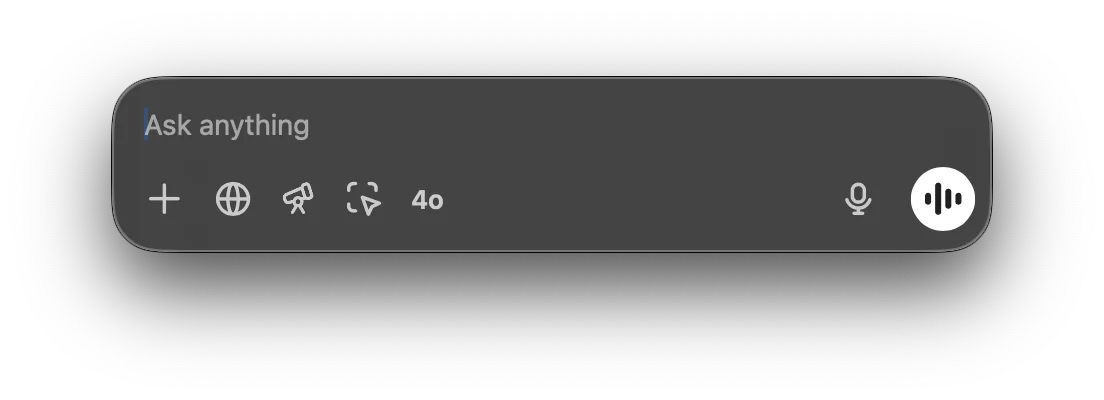
Chat Bar input field with Ask anything placeholder and voice mode button

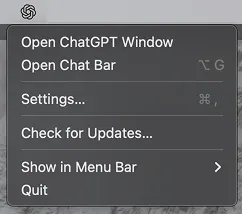
Chat Bar 창은 데스크톱 어디로든 클릭한 채 드래그해 옮길 수 있으며, 메뉴 막대 아이콘에서도 Chat Bar를 열 수 있습니다:

ChatGPT desktop app menu with Open Chat Bar option

Chat Bar에서 바로 ChatGPT와 새 대화를 시작할 수 있습니다. 프롬프트를 제출하려면 화살표를 클릭하거나 Return 키를 누르세요.

Chat Bar prompt field with a typed question and quick action icons including 4o and voice input

새 대화를 시작할 때 더하기(+) 아이콘을 클릭하면 파일을 첨부하거나, 스크린샷을 찍거나, 사진을 촬영할 수 있습니다:\g

Chat Bar plus menu opened with Upload File, Upload Photo, and Take Screenshot options

CSV 파일에 대한 데이터 분석을 요청해 대화를 시작하거나, 런처에서 첨부된 이미지에 대해 바로 질문할 수도 있습니다.

Chat Bar with data-report.csv attached and the prompt Can you summarize this report?

설정 메뉴에서 Chat Bar 단축키를 변경할 수 있습니다:

Chat Bar settings with the keyboard shortcut set to Option+Space

이 문서가 도움이 되었나요?