
Overview
For eligible Enterprise/Edu workspaces, ChatGPT Desktop provides two ways of tracking your Codex usage within the app.
In the Settings pane, Usage & billing shows credit usage for individual chats, your monthly usage limit, usage history, and high-usage chats.
Personal Analytics lets you ask questions about your Codex activity and get suggestions based on your usage patterns. It is available when the plugin is enabled for your account and workspace.
Use Usage & billing for direct usage and limit information. When Personal Analytics is available, use it to explore patterns and ask follow-up questions.
Ensure that your ChatGPT Desktop app is upgraded to at least version 26.812.10818 before the full feature set described in this Help Article is made available.
Availability and prerequisites
Usage & billing is available in eligible Enterprise workspaces that use credit-based billing. A workspace owner or admin can control whether members see usage in credits and dollars.
To configure usage visibility as a workspace owner or admin:
Open Admin Console.
Select Usage limits.
Select Workspace.
Select Usage visibility and requests.
Enable Allow users to see usage in credits and dollars.
When Personal Analytics is available for your workspace, a workspace admin must enable it before members can install and connect it from Plugins in Codex Desktop. If you do not see Personal Analytics in Plugins, it is not yet available for your account or is not enabled for your workspace.
Review usage and billing
Review overall usage
Open the account menu in Codex Desktop.
Select Settings.
Select Usage & billing.
Check monthly usage
Under General usage limits, Monthly usage shows your personal credit limit, credits used, remaining allowance, and available reset information for the current monthly period.
Use the monthly-usage meter to check what remains before starting larger tasks. If the page shows percentages instead of exact amounts, your workspace admin controls whether detailed values are available.
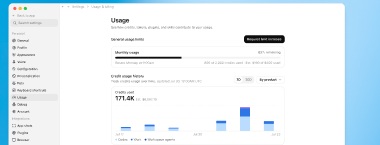
Monthly usage shows the used and remaining allowance for the current period.
Request a higher usage limit
If Request limit increase is available, select it, explain what you need, and submit the request for workspace-admin review.
Review usage history
Select 7D or 30D to set the reporting period. You can group credit usage by Surface, Model, Reasoning, or Speed to compare where work happened and which settings contributed to usage.
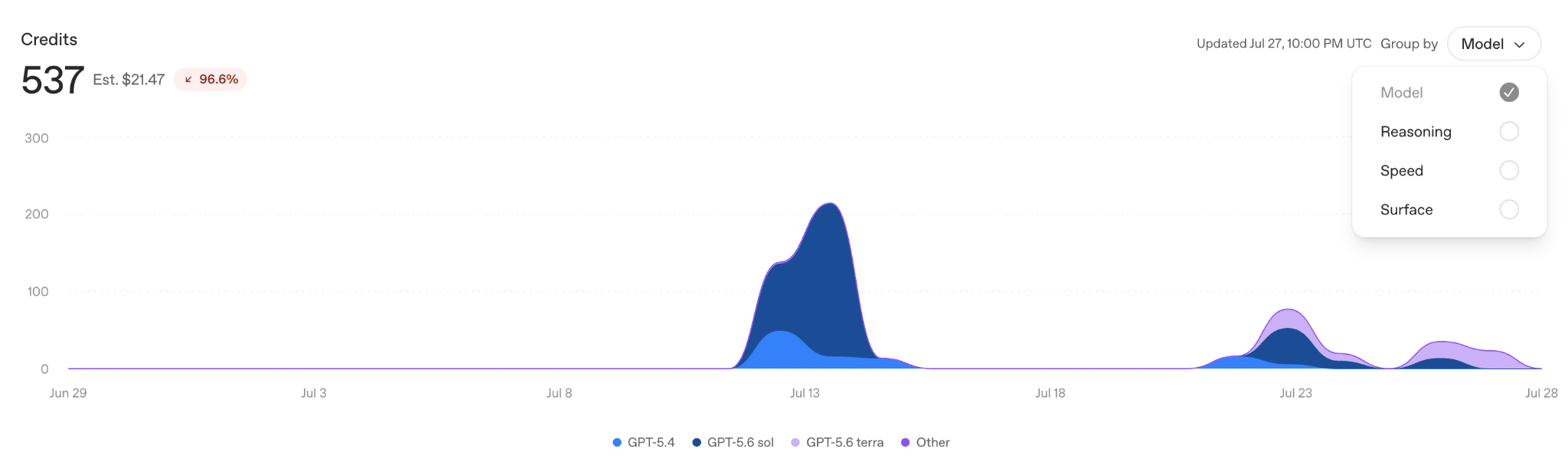
Group credit history by surface, model, reasoning, or speed.
Credit history shows credit usage over time. Token history separates uncached input, cached input, and output tokens. These views can help explain why chats with similar tasks use different amounts.
Plugin activity counts calls by plugin. Skill activity counts invocations by skill. Use these views to understand which workflows contributed to recent activity.
Find high-usage chats
Top consuming chats lists locally available chats that were active in the past 30 days and ranks them by lifetime credit usage. The 30-day period determines which chats appear; each total covers that chat's full available history.
Open a chat to review its model, reasoning, and speed breakdown.
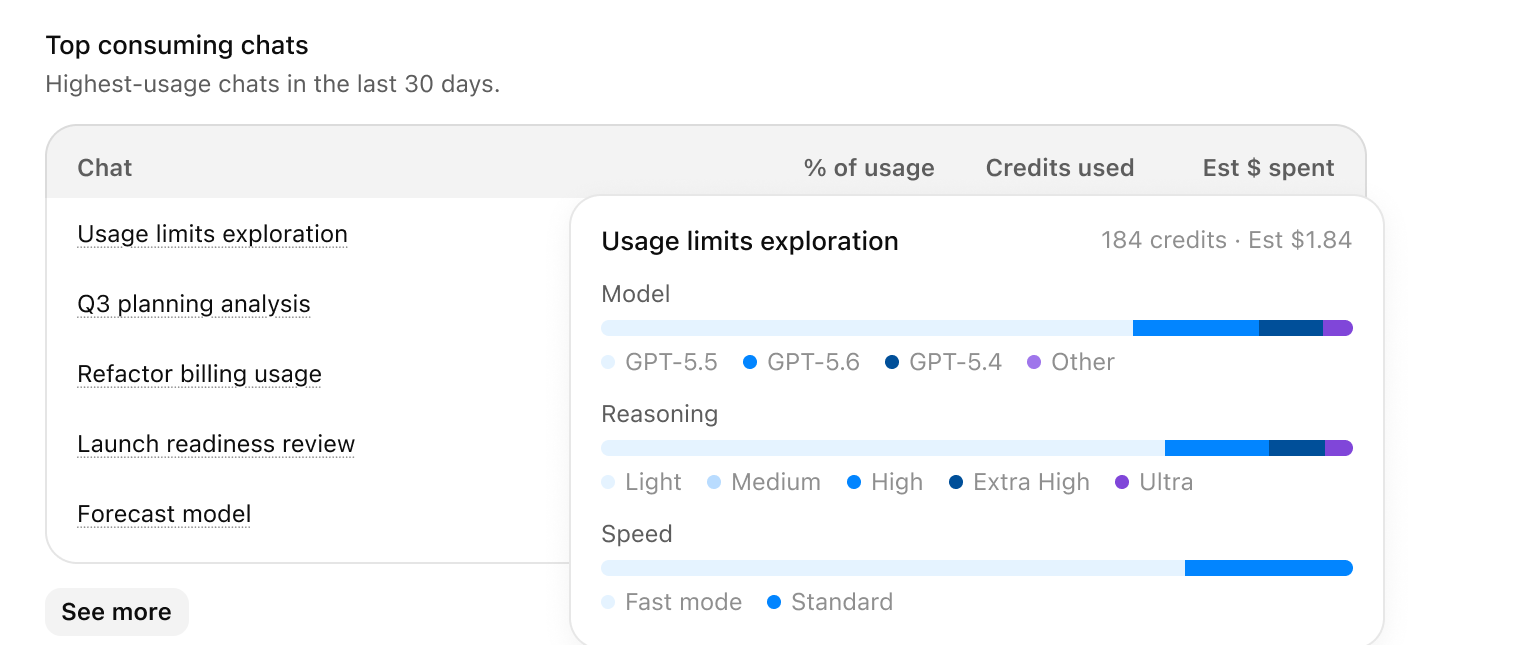
Top consuming chats ranks recently active chats by lifetime credit usage.
Review usage for a single chat
Open a chat and select the usage indicator in the chat header. The usage details can include:
Lifetime credits used by the chat.
An estimated cost, when available.
The model, reasoning effort, and speed associated with the usage.
Current-chat totals generally refresh about once per minute.
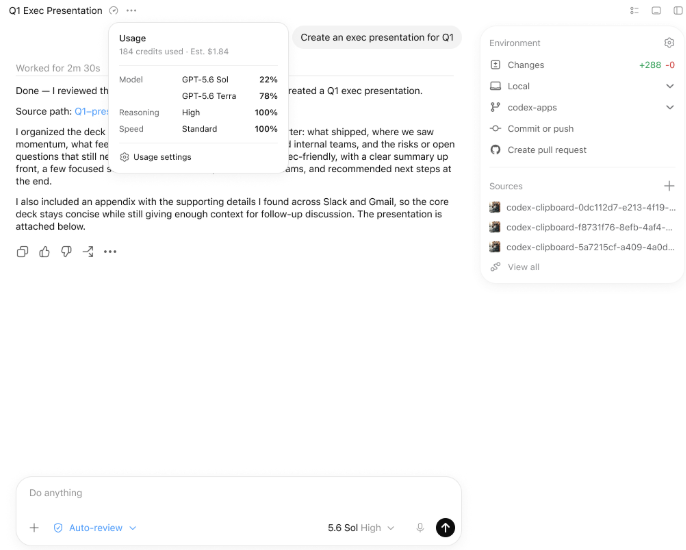
Chat usage details show credits, an estimated cost when available, and the settings associated with the usage.
What chat-level usage may not include
A chat’s displayed usage is an estimate for the main conversation - not a complete record of every billable action associated with that chat.
Sub-agents and separate tasks: Work delegated to sub-agents or run in separate tasks may not be included in the main chat’s total.
Image generation and other tools: Images and certain separately billed tool activity may not appear in the chat’s displayed usage.
Background activity: Some automated or system-generated work associated with a task may not be included in its total.
Reporting delays or incomplete data: Recent activity may take time to appear, and some chat-level usage records may be unavailable.
Usage that does not appear in a chat’s total or Top consuming chats may still consume credits and count toward your usage limits. For complete spend information, refer to your workspace’s billing and usage records.
Understand cost estimates and data freshness
Usage is displayed in credits, which are billing units. Note that this view is not an invoice - refer to your invoice to track specific dollar spend. Included usage, prepaid usage, and the amount billed to the workspace can differ from the estimate.
Current-chat usage and monthly usage generally refresh about once per minute. Historical charts refresh less frequently, and current-day activity may take longer to appear.
A 7D or 30D chart covers the selected reporting period. Top consuming chats uses the 30-day period to select chats, then ranks those chats by lifetime usage.
Set up Personal Analytics
Enable Personal Analytics for a workspace
To enable Personal Analytics as a workspace owner or admin:
Go to Workspace settings -> Plugins.
Find Personal Analytics, then enable it.
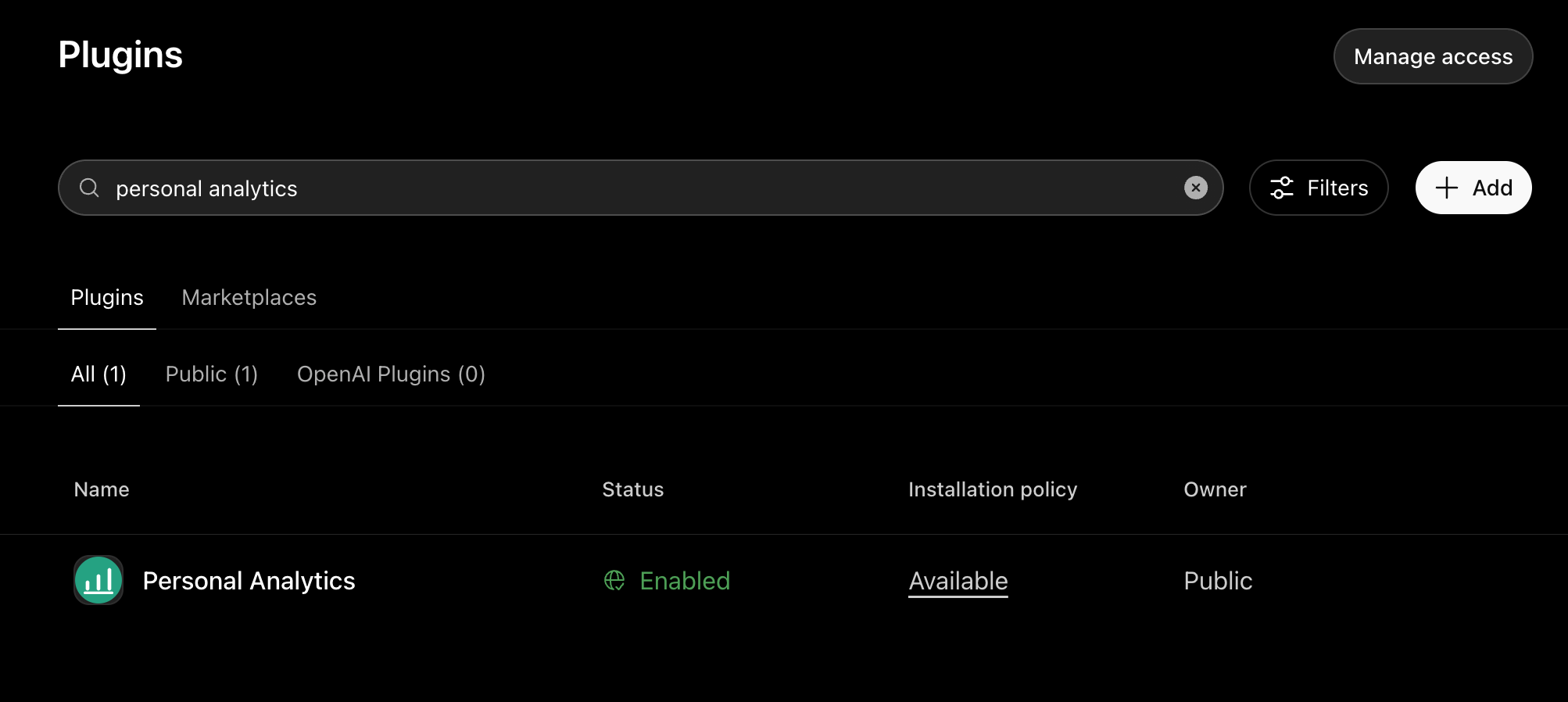
Workspace admins enable Personal Analytics from the plugin catalog.
Install and connect Personal Analytics
To install Personal Analytics in Codex Desktop:
Select Plugins in the sidebar.
Select Personal Analytics.
Select Install. When installation finishes, the button changes to Try now.
Select Try now.
Confirm that Personal Analytics shows Connected.
Use Personal Analytics
Open Personal Analytics or mention @personal-analytics in a chat, then ask questions in plain language.
Review personal usage
Example prompt:
@personal-analytics analyze my Codex usage over the past week
A personal usage summary can include turns, tokens, credits, models, task types, accepted code, code-review activity, skills, plugins, and current usage limits when available.
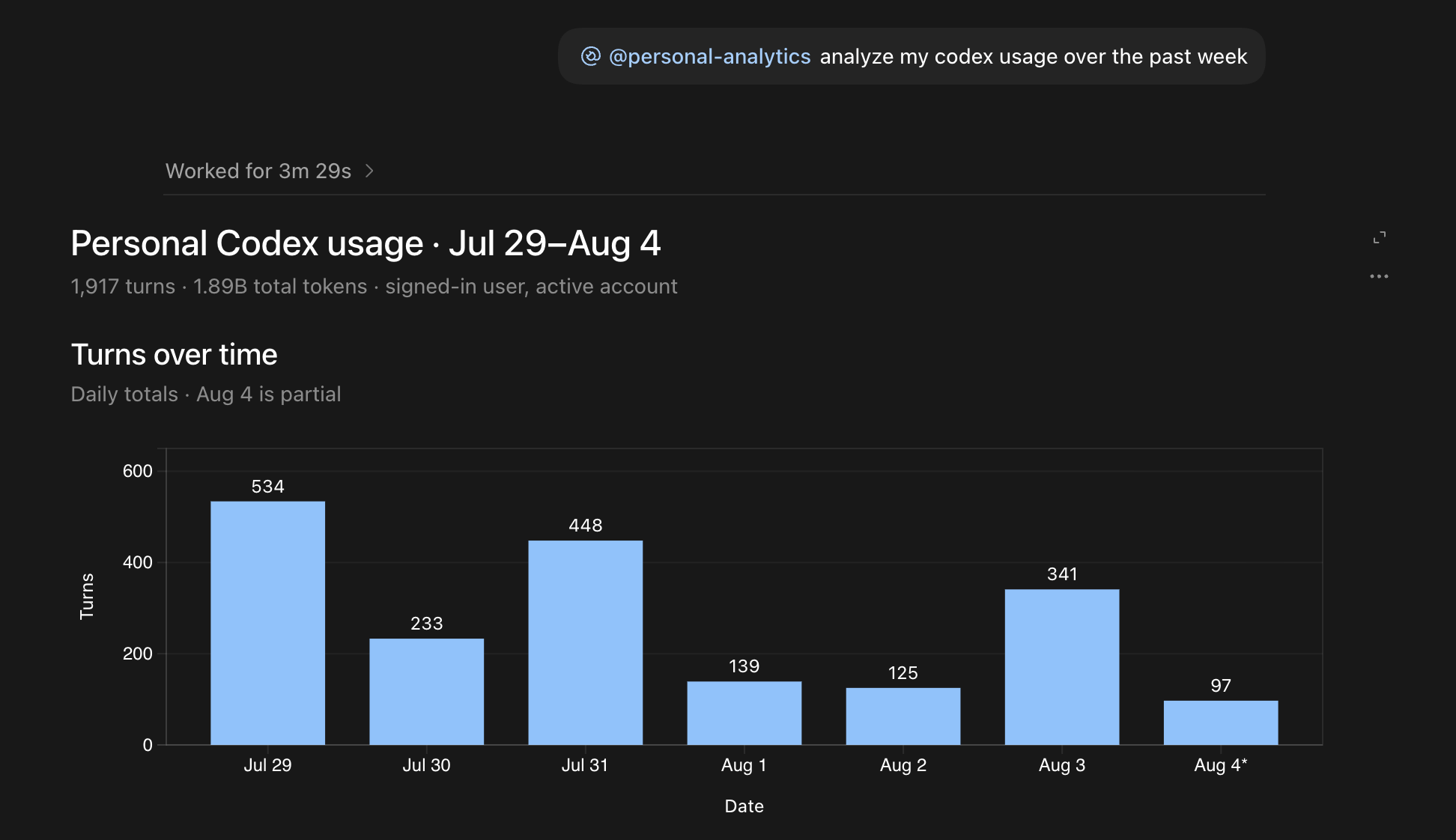
A personal usage summary can include turns, tokens, credits, models, task types, and other recent activity.
Explore specific breakdowns
Example prompts include:
@personal-analytics show my usage this week by reasoning effort and speed
Which models, plugins, and task types are most common in my workspace?
Get usage suggestions
Example prompt:
Compare my plugin mix with workspace trends and suggest gaps.
Personal Analytics can provide suggestions based on your activity and available workspace trends.
Understand Personal Analytics data
Personal Analytics uses a read-only connection to OpenAI's ChatGPT backends. It can show activity associated with your signed-in identity and aggregated workspace trends.