
Pelanggan yang hanya menggunakan Iklan kini boleh mengurus pengguna Iklan pada peringkat penyewa dalam Konsol Pentadbir Global. Pentadbir boleh menjemput pengguna, menetapkan peranan, mengurus kumpulan dan menyediakan peruntukan SCIM dari tempat yang sama yang telah digunakan untuk SSO dan pengesahan domain.
Peranan peringkat penyewa yang tersedia untuk Iklan ialah:
Pentadbir Iklan: boleh mencipta akaun iklan dalam penyewa.
Pentadbir Akaun Iklan: akses penuh kepada data akaun iklan
Ahli Akaun Iklan: boleh membaca dan menulis entiti iklan tanpa kawalan pentadbiran akaun iklan
Pelihat Akaun Iklan: boleh melihat data akaun iklan tanpa kawalan penulisan atau pentadbiran
Kemas kini ini adalah untuk pelanggan yang hanya menggunakan Iklan. Jika organisasi anda turut menggunakan ChatGPT, API, Codex atau produk OpenAI yang lain, jangan anggap ini sebagai pengurusan pengguna dan peranan merentas produk yang menyeluruh. Sokongan yang lebih luas merentas produk OpenAI dirancang untuk kemas kini akan datang.
Batasan semasa
Global Admin Console belum menyediakan pengurusan pengguna dan peranan merentas produk yang lengkap.
Pada masa ini:
Peranan ChatGPT, API, Codex dan produk lain tidak dipaparkan atau diurus dalam Global Admin Console.
SCIM dalam Global Admin Console hanya menyokong pengguna Ads.
Peranan tersuai tahap tenant tidak disokong.
Anda mungkin melihat pengguna merentas produk OpenAI dalam Global Admin Console. Walau bagaimanapun, pengurusan pengguna dan peranan merentas produk yang lebih luas belum tersedia.
Mengkonfigurasi SCIM
Global Admin boleh mengkonfigurasi SCIM dengan pergi ke tab Directory pada halaman Access dan mengklik butang “Enable Directory Sync (SCIM)”:

Ini akan mengubah hala anda ke wizard persediaan, yang menyediakan panduan langkah demi langkah untuk mengkonfigurasi aplikasi SCIM dalam IdP anda. Untuk maklumat lanjut, sila lihat halaman dokumentasi kami tentang Soalan Lazim SCIM.
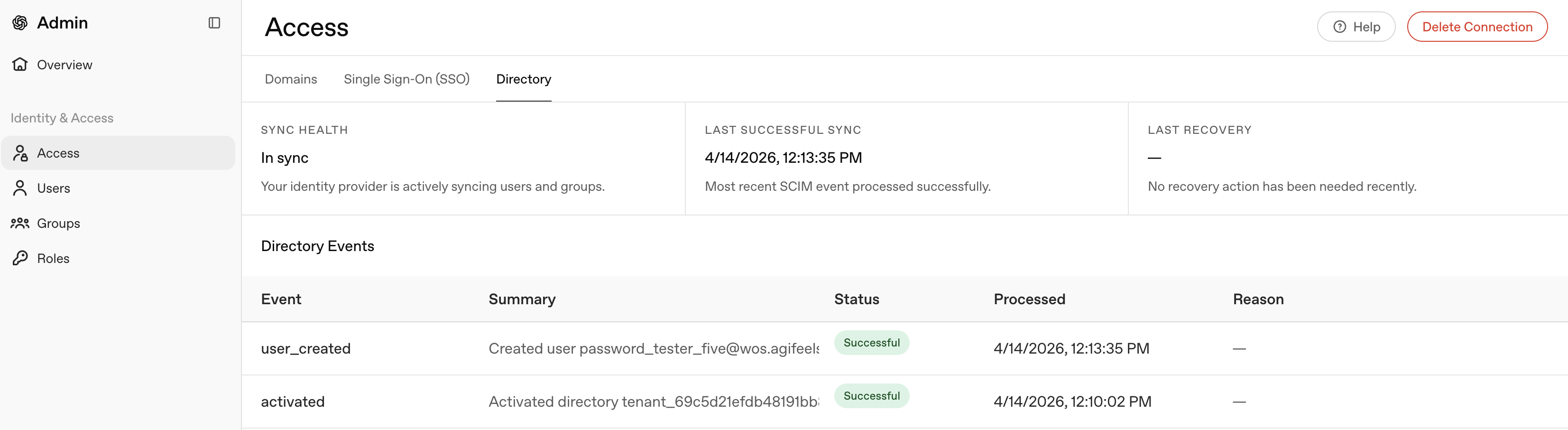
Sambungan SCIM boleh mengambil masa hingga 5 minit untuk diaktifkan, dan hingga 5 minit untuk memaparkan peristiwa terkini yang dikeluarkan oleh IdP anda. Selepas sambungan berjaya, anda boleh mula melihat peristiwa anda semula pada tab Directory:
Menambahkan Pengguna ke Akaun Iklan melalui SCIM
Setelah SCIM dikonfigurasikan, terdapat dua pilihan utama untuk memperuntukkan akses pengguna kepada Akaun Iklan anda.
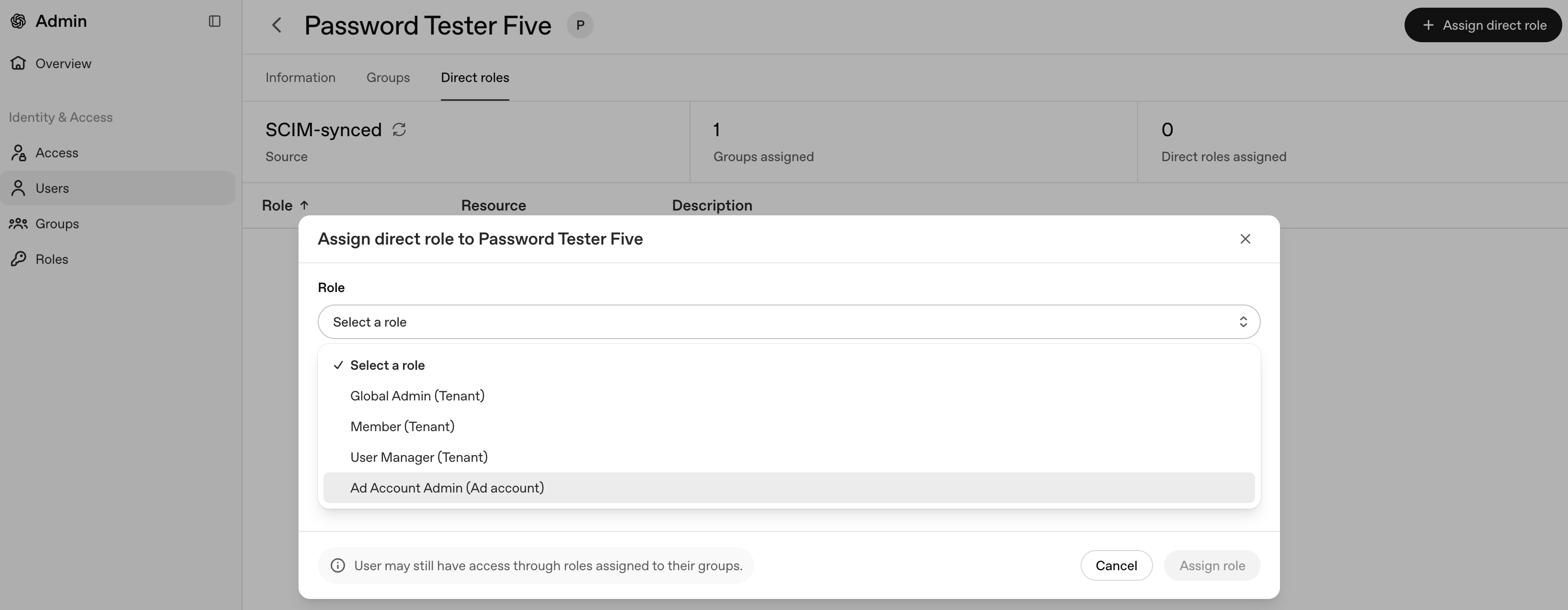
Pilihan pertama ialah peruntukan langsung. Pada halaman Pengguna, anda boleh mengklik baris pengguna berkenaan untuk membuka panel pengurusan mereka. Dari sini, anda boleh menetapkan pengguna tersebut terus kepada kumpulan yang mempunyai peranan “Pentadbir Akaun Iklan” atau menetapkan peranan ini terus kepada pengguna seperti yang ditunjukkan di bawah:
Pilihan kedua adalah melalui kumpulan SCIM. Jika anda menyegerakkan kumpulan SCIM daripada IdP anda ke Konsol Pentadbir, anda kemudiannya boleh menetapkan peranan tertentu kepada kumpulan tersebut. Dalam hal ini, tetapkan peranan “Pentadbir Akaun Iklan” kepada kumpulan anda seperti yang ditunjukkan di bawah:
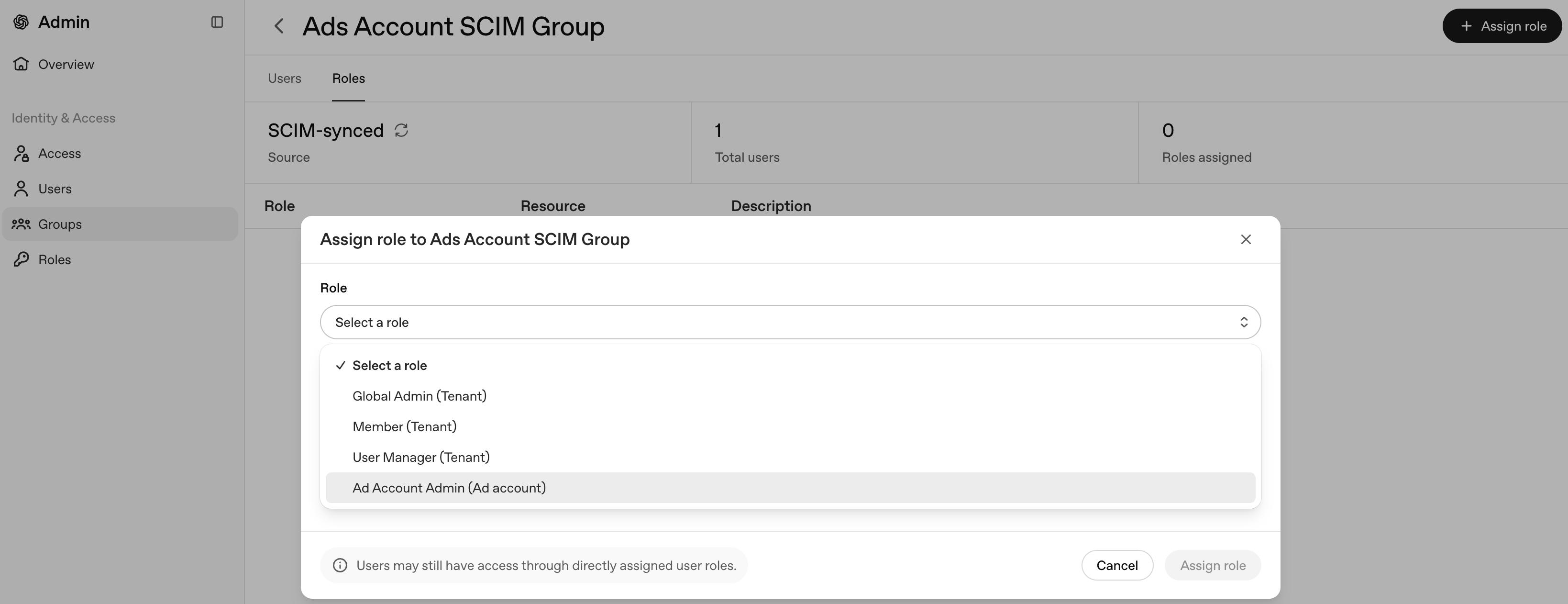
Selepas itu, semua pengguna dalam kumpulan SCIM anda akan dapat log masuk ke Akaun Iklan anda.
Menetapkan Peranan Pentadbir Iklan
Begitu juga, setelah terdapat pengguna dalam Penyewa anda, anda boleh menetapkan Peranan Pentadbir Iklan kepada mereka. Pada halaman Pengguna, anda boleh mengklik baris pengguna berkenaan untuk membuka panel pengurusan mereka. Dari sini, pilih tab Peranan langsung, kemudian klik butang + di penjuru kanan atas.

Tindakan ini akan membuka dialog modal yang ditunjukkan di bawah, tempat anda boleh menetapkan peranan Pentadbir Iklan. Harap maklum bahawa peranan berikut tidak akan dipaparkan jika tiada Akaun Iklan dalam Penyewa:
Pentadbir Akaun Iklan
Ahli Akaun Iklan
Pelihat Akaun Iklan
Sebaliknya, anda hanya akan melihat peranan "Pentadbir Iklan" seperti yang ditunjukkan di bawah:
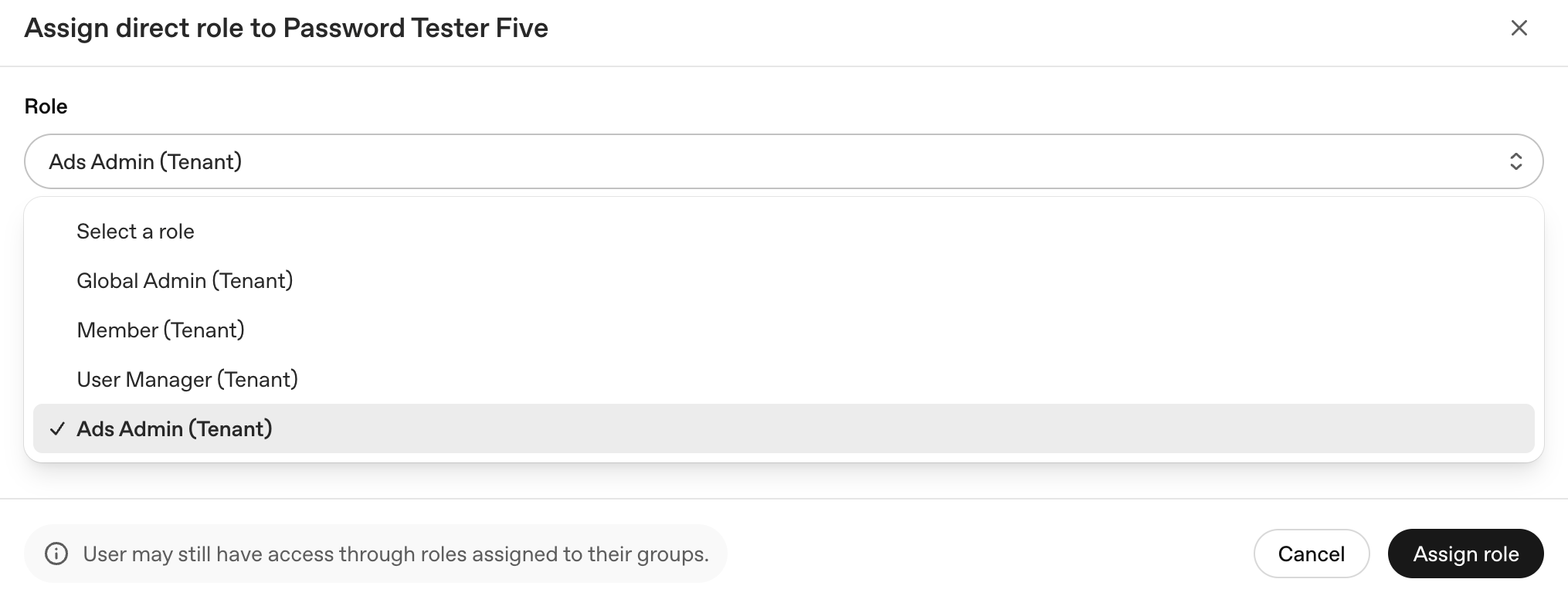
Setelah peranan ini diberikan, penggunanya boleh mencipta Akaun Iklan dalam Penyewa, sekali gus membolehkan peranan Iklan yang lain digunakan.
Soalan lazim
Adakah pelancaran ini akan menyebabkan sebarang perubahan yang menjejaskan keserasian?
Tidak. Pelancaran ini tidak memperkenalkan perubahan yang menjejaskan keserasian.
Mengapa ini hanya tersedia untuk pelanggan Ads sahaja?
Semasa pelancaran, Global Admin Console belum menyokong paparan atau pengurusan peranan ChatGPT atau API. Sokongan yang lebih luas merentas produk OpenAI dirancang untuk kemas kini akan datang.
Adakah SCIM menyokong semua produk?
Tidak. Semasa pelancaran, SCIM tahap tenant dalam Global Admin Console hanya menyokong pengguna Ads. Pengguna ChatGPT dan API masih perlu menyediakan SCIM pada tahap produk.
Bagaimana jika saya perlu mengalih keluar pengguna daripada peranan Ad Account Admin?
Disarankan untuk memastikan sekurang-kurangnya seorang Ad Account Admin kekal pada akaun iklan; jika anda perlu mengalih keluar satu-satunya Ad Account Admin, tambahkan Admin lain terlebih dahulu.
Bolehkah saya mencipta peranan tersuai tahap tenant?
Tidak. Peranan tahap tenant yang tersedia ialah Global Admin dan Member.
Soalan lazim akses Ads dan SSO
Apakah perbezaan antara Ads Admin dengan peranan akaun iklan?
Ads Admin mengurus pengguna Ads, kumpulan, SSO dan tetapan SCIM dalam Global Admin Console. Peranan akaun iklan mengawal perkara yang boleh dilakukan seseorang dalam akaun Ads Manager tertentu, seperti melihat atau mengurus kempen. Pengguna mungkin memerlukan akses tahap tenant yang betul dan peranan akaun iklan yang betul sebelum mereka boleh bekerja dalam Ads Manager.
Mengapa saya tidak dapat mencipta akaun iklan?
Jika syarikat anda sudah mempunyai tenant OpenAI, anda mungkin memerlukan Ads Admin untuk memberikan akses Ads kepada anda dalam Global Admin Console sebelum anda boleh mencipta atau mengurus akaun iklan. Jika anda dijemput ke akaun iklan sedia ada, sahkan bahawa anda menerima jemputan menggunakan alamat e-mel yang sama dan pemilik akaun telah menetapkan peranan akaun iklan yang betul.
Bagaimanakah SSO Required, Optional dan Off mempengaruhi pengguna Ads?
Apabila SSO ditetapkan kepada Required, pengguna mesti mengesahkan identiti melalui penyedia identiti anda dan juga ditetapkan kepada aplikasi IdP yang betul. Apabila SSO ditetapkan kepada Optional, pengguna yang layak boleh menggunakan SSO atau kaedah log masuk lain yang disokong. Apabila SSO ditetapkan kepada Off, pengguna Ads log masuk tanpa SSO. Jika pengguna tidak dapat log masuk selepas SSO didayakan, semak domain, penetapan IdP, e-mel pengguna dan penetapan peranan Ads.
Adakah keahlian ruang kerja ChatGPT memberikan akses Ads secara automatik?
Tidak. Keahlian ruang kerja ChatGPT dan akses Ads diurus secara berasingan. Pelanggan Ads sahaja perlu mengurus pengguna Ads dalam Global Admin Console, dan akses akaun iklan masih perlu ditetapkan dalam Ads Manager.
Adakah peruntukan SCIM terpakai kepada semua produk OpenAI?
Bagi tenant Ads sahaja, peruntukan SCIM dalam Global Admin Console mengurus pengguna Ads untuk tenant tersebut. Konfigurasi SCIM untuk produk OpenAI lain mungkin diurus secara berasingan, jadi pastikan anda mengkonfigurasikan aplikasi dan tenant OpenAI yang betul.