
The ChatGPT macOS app enables you to start new conversations with photos from your computer, or new photos you take.
To get started, access the prompt window by opening the ChatGPT macOS app or opening the launcher. Click on the plus icon to access the photo tools.
You can select Upload file to upload photos directly from your Photo library. You can also select Upload File to upload the photo or image from your file system instead.
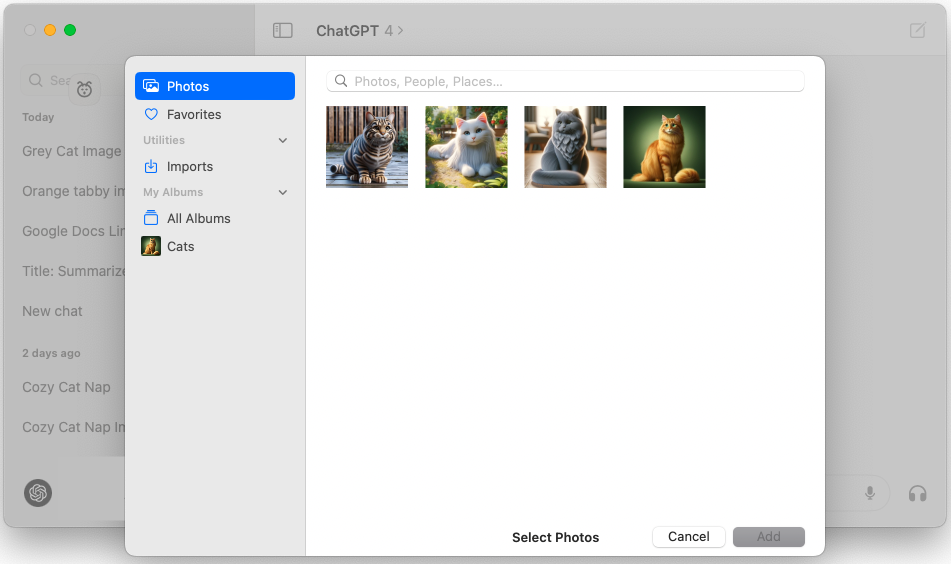
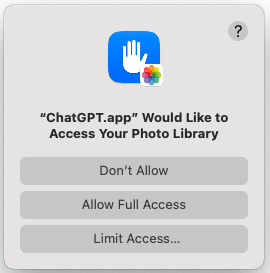
Please note that you’ll need to grant the ChatGPT app access to your photo library to use this feature.
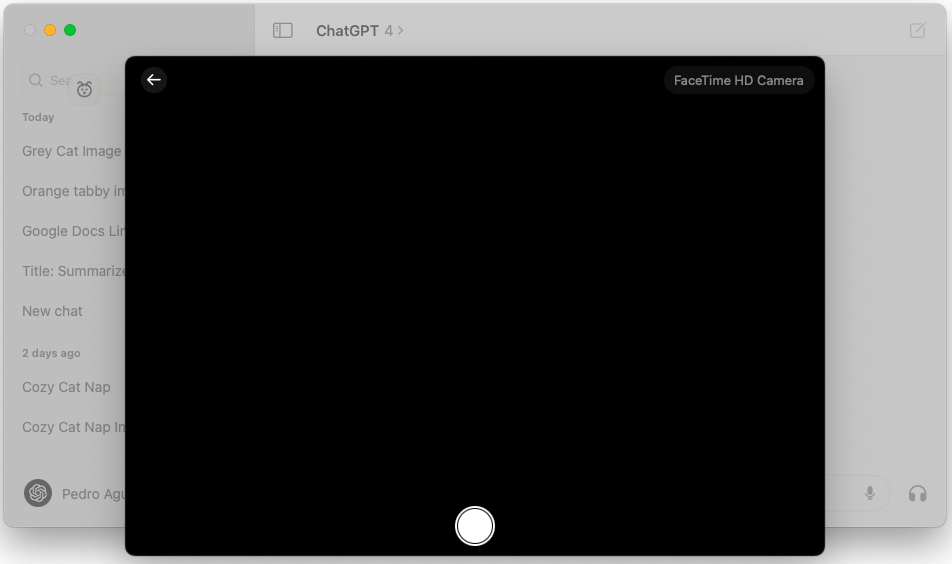
You can also select Take Photo, which uses your webcam to take a picture and upload it to your conversation.
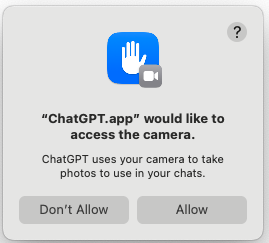
Please note that you’ll need to grant the ChatGPT app access to your camera to use this feature.
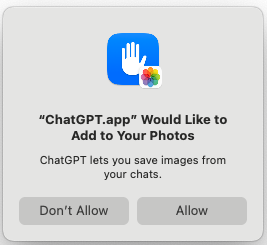
To add any photos you take with this feature, you’ll need to grant the ChatGPT app access to add photos.
Once the photo has been attached, you can start a new conversation or continue a conversation with the photo.