
Overview
Delete a chat when you no longer need it. Archive a chat when you want to remove it from your regular sidebar without deleting it.
Deleting is permanent. Archiving keeps the conversation in your account under the same retention rules as other saved chats.
Delete a chat
Open your ChatGPT chat history.
Select the more options menu (•••) for the chat you want to delete.
Select Delete.
Confirm the deletion.
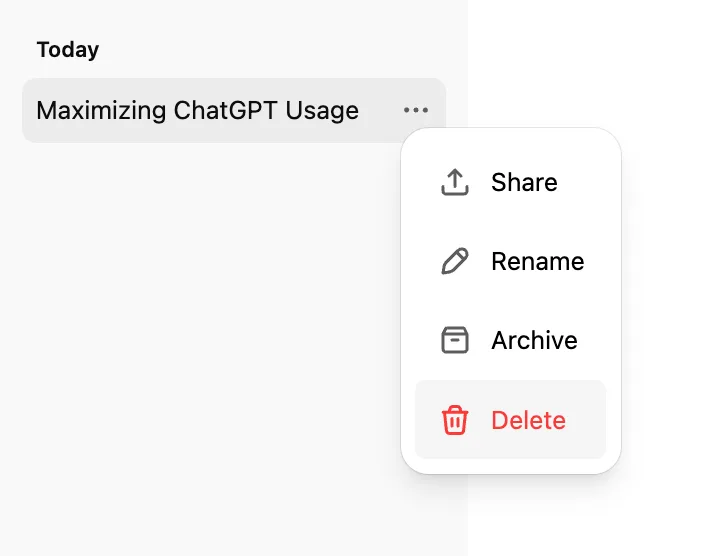
When you delete a chat:
ChatGPT removes it from your account view immediately.
OpenAI schedules it for permanent deletion from its systems within 30 days, unless it was already de-identified and disassociated from your account or OpenAI must retain it longer for security or legal obligations.
You cannot restore a deleted chat in ChatGPT or through OpenAI Support. Authorized compliance tools may still access eligible workspace data under your organization’s retention policy.
Archive a chat
Open your ChatGPT chat history.
Select the more options menu (•••) for the chat you want to archive.
Select Archive.
No confirmation is required.
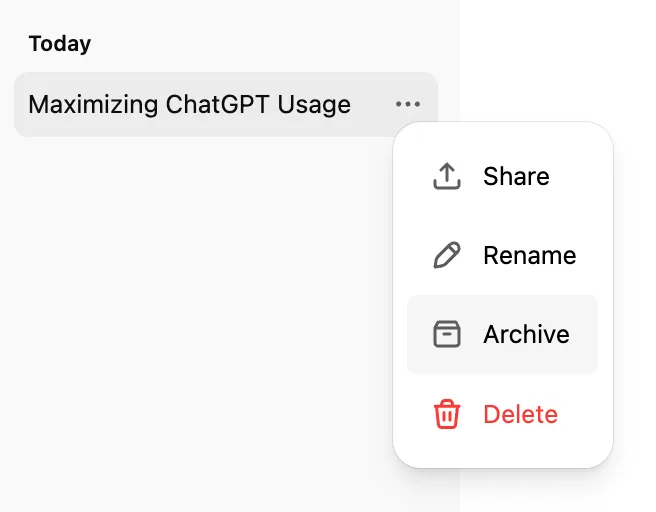
Archiving removes the chat from the regular sidebar but does not delete it. Archived chats remain searchable.
Manage archived chats
Open Settings.
Select Data controls.
Select Archived chats or View archived chats, depending on your device. If Manage appears, select it.
Select Unarchive to return a chat to regular history, or select Delete to delete it.

Archive or delete all chats
ChatGPT includes controls to archive or delete chats in bulk.
Open Settings.
Select Data controls.
Select Archive all chats or Delete all chats.
Review the confirmation message, then continue.
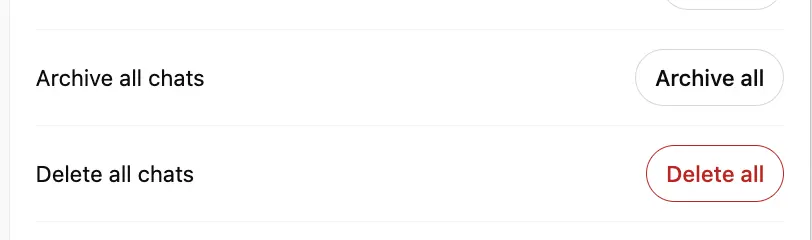
These actions can affect chats in your current account or workspace, including chats in projects. The Delete all chats action cannot be undone.
Chat retention
Regular and archived chats remain saved to your account until you delete them or an applicable workspace retention policy removes them.
Archiving a chat does not change its retention period.
Deleted chats are removed from your account view immediately and scheduled for permanent deletion within 30 days, subject to the exceptions described above.
For more information about chat retention, see: Chat and file retention in ChatGPT.
Deleting a chat does not delete files saved separately in Library. Delete the files from Library if you also want to remove those saved copies.
Connected app data
If a conversation used data from a connected app, archiving the chat keeps the conversation and any connected-app data retained within it.
Deleting the chat removes the conversation and connected-app data retained within that conversation from your account, subject to standard retention and legal obligations.
Deleting a chat does not delete the original data from the connected app. Disconnecting an app prevents future access but does not delete past conversations that already used app data.
Troubleshooting missing chats
If a conversation is missing:
Confirm that you are signed in to the correct OpenAI account and workspace, including the correct email address or single sign-on (SSO) method.
Use Search to look for the conversation.
Go to Settings > Data controls, then select Archived chats or View archived chats, depending on your device.
Refresh ChatGPT, or sign out and sign in again.
Check OpenAI Status for an active incident.
Request a data export if you need to review data currently associated with an eligible account.
Deleted chats, including chats removed with Delete all chats, cannot be restored.
When contacting OpenAI Support, include your account email and sign-in method, workspace name when applicable, the approximate date of the missing conversations, and the checks you completed.