OpenAI
此頁面由機器翻譯。查看原始英文文章

如何啟動聊天列

使用 macOS App 立即向 ChatGPT 詢問任何問題

更新日期:12 days ago

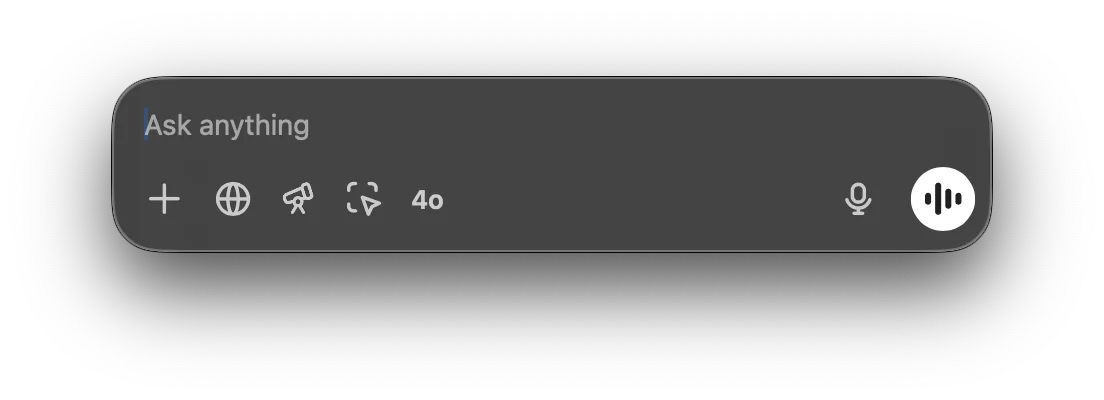
你可以使用聊天列即時向 ChatGPT 詢問任何問題、上傳檔案、擷取螢幕畫面,或拍照。預設情況下,要用鍵盤開啟聊天列,請按下 ⌥+Space:

Chat Bar input field with Ask anything placeholder and voice mode button

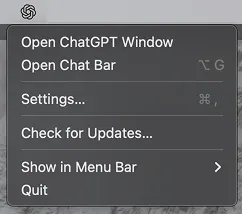
你可以將聊天列視窗點住並拖曳到桌面上的任何位置,也可以從選單列圖示開啟聊天列:

ChatGPT desktop app menu with Open Chat Bar option

你可以直接在聊天列中與 ChatGPT 開始新的對話。要送出你的提示,請點擊箭頭或按下 Return 鍵。

Chat Bar prompt field with a typed question and quick action icons including 4o and voice input

你可以在開始新對話時,點擊加號來附加檔案、照片、擷取螢幕畫面,或拍照:\g

Chat Bar plus menu opened with Upload File, Upload Photo, and Take Screenshot options

你可以從啟動器直接開始對話,例如請求對 CSV 檔案進行資料分析,或直接針對已附加的圖片提問。

Chat Bar with data-report.csv attached and the prompt Can you summarize this report?

你可以在「設定」選單中更改聊天列的快捷鍵:

Chat Bar settings with the keyboard shortcut set to Option+Space

這篇文章有幫助嗎?