Work with Apps is available in ChatGPT Classic for macOS, version 1.2025.057 or later.
Overview
ChatGPT Classic on macOS can read and edit content in your coding apps, bringing you smarter answers tailored to your work, and helping you stay in flow.

Getting Started
Open ChatGPT Classic on your Mac and sign in. Keep the app running while you work. If you have both desktop apps installed, see Moving to the new ChatGPT desktop app.
Enterprise & Edu users
If the steps below are not appearing for you, please contact your enterprise admin. Enterprise admins can flip the "Allow code edits on macOS" toggle off in their Admin Settings to disable this functionality, which is why it would not be appearing for some users.
How to work with plugins
Press Option+Space to open the chat bar, or click the ChatGPT icon in the menu bar. To change the shortcut, find Keyboard shortcut under Chat bar in Settings.
You can also select Work with Apps in the ChatGPT window to connect a supported app. Grant the permissions or install the extension your app needs.

You’ll see a banner over the chat bar indicating which apps ChatGPT is working with, and what content ChatGPT recognizes. When you send a message, ChatGPT will include that content with your message. If you don’t see this banner, ChatGPT is not working with any of your apps and will not include any additional content with your message.
Once you hit send, ChatGPT will reply using any additional content and selection included from Work with Apps. You can see what ChatGPT looked at in your chat:
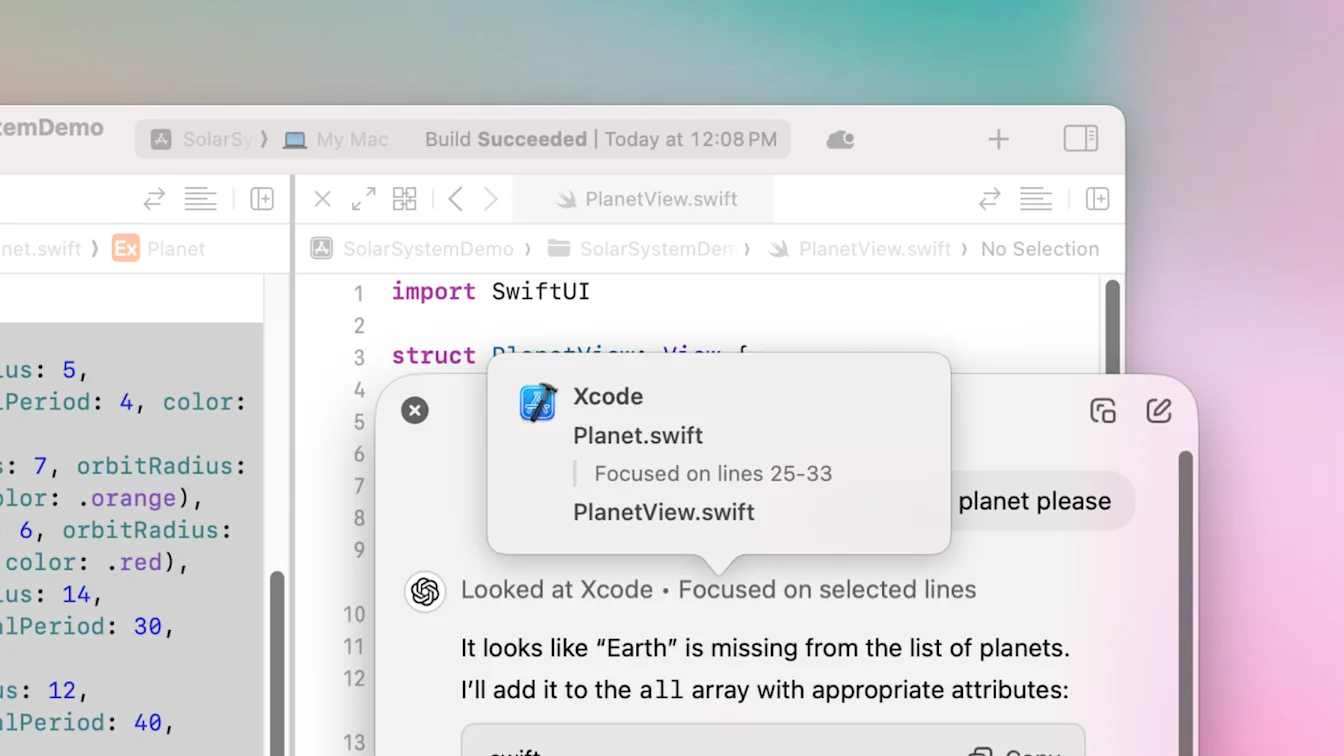
This content becomes part of your chat history and is saved in your account until you delete it. Once you delete a chat or delete your account, chats are deleted from our systems within 30 days, unless they have previously been de-identified and disassociated from your account, or we have to keep them for security or legal reasons. To learn more about data controls, see the Data Controls FAQ.
Code edits
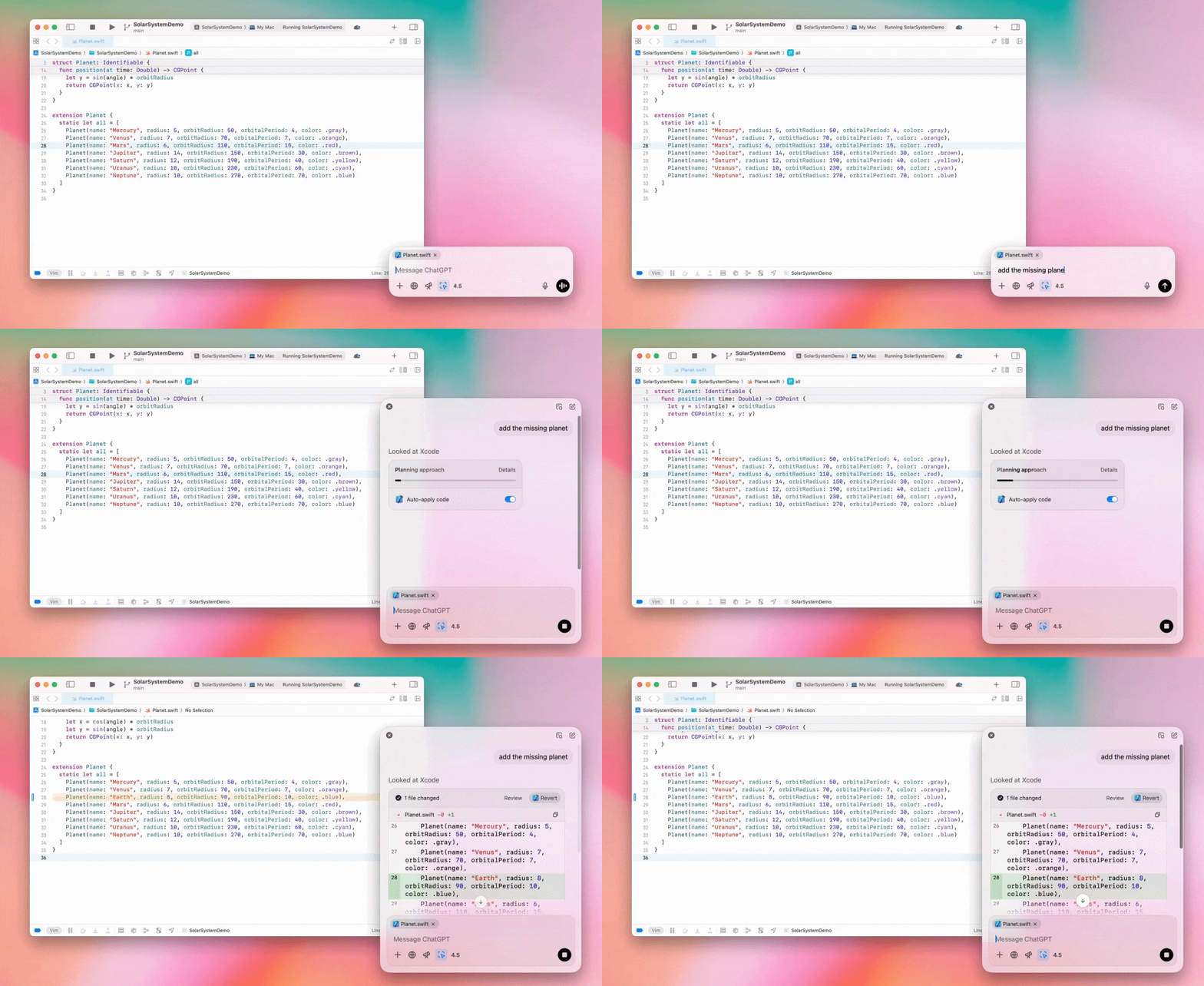
When working with IDEs, you can ask ChatGPT to edit open files directly - no copy-pasting required. When you ask for an edit, ChatGPT will generate a diff that you can review and apply, and there’s also an option to automatically apply edits. Diffs are easy to revert in the ChatGPT UI, or by using CMD+Z in your editor.
Voice mode
Voice is no longer available in ChatGPT Classic for macOS. To use voice on your Mac, open ChatGPT on the web.
What content is included along with messages?
When working with text editors: Apple Notes, Notion, TextEdit, Quip
When working with code editors: Xcode, VS Code (including Code, Code Insiders, VSCodium, Cursor, Windsurf), JetBrains (including Android Studio, IntelliJ, PyCharm, WebStorm, PHPStorm, CLion, Rider, RubyMine, AppCode, GoLand, DataGrip), TextEdit
When working with terminals: Terminal, iTerm, Warp, Prompt
ChatGPT includes the last 200 lines of open panes.
If you select text in a pane, ChatGPT focuses on the selection and includes neighboring text up to a truncation limit.
You can see which of your apps on your computer are compatible by going to ChatGPT > Settings > Work with Apps > Manage Apps.
How does it work?
Enabling ChatGPT to work with most compatible apps requires the macOS Accessibility API to query content (System Settings - Accessibility). This also means you can disable the feature for those apps by disabling Accessibility permissions for ChatGPT in settings.
Enabling ChatGPT to work with VS Code requires installing a VS Code extension to
query content. You can install the extension in VSCode itself (extension name is ChatGPT – Work with Code on macOS).
You can see which of your apps on your computer are compatible, and what is required to work with each, by going to Settings > Work with Apps > Manage Apps.
Can I disable ChatGPT from working with apps?
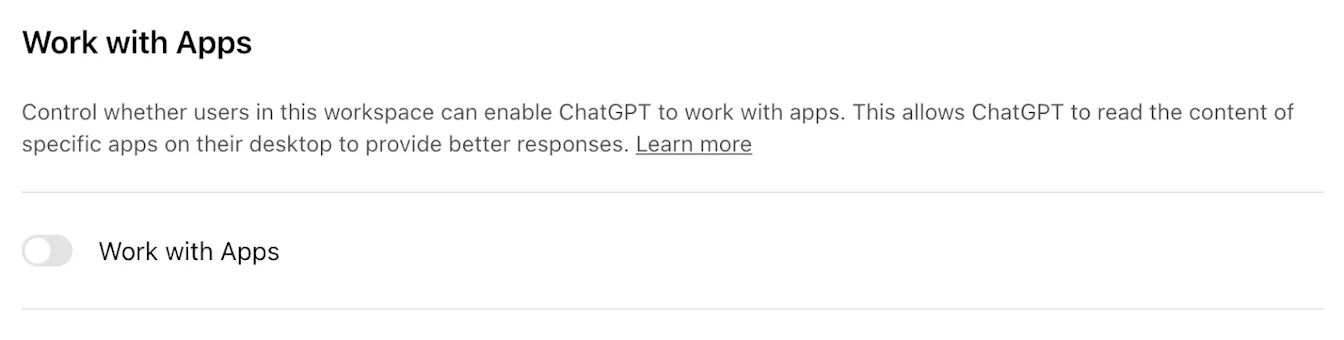
Yes, just flip the “Enable Work with Apps” switch in ChatGPT settings on macOS. This will fully disable the functionality and remove the icon from the prompt window.

Enterprise admins can turn off Allow code edits on macOS in workspace settings.
Will OpenAI use content included from working with apps to train its models?
Content included from working with apps is part of your account’s chat history and works in the background to provide more helpful answers. We may use the content included to improve our model performance. You have control over how your data is stored and used:
You can easily choose whether your conversations with ChatGPT can be used to improve and train our models by toggling the “Improve the model for everyone” setting.
If you enable Temporary Chat, your conversations with ChatGPT will not be saved in your ChatGPT account or used for improving OpenAI’s models.
You can access other settings and data controls, such as to export your chats from ChatGPT, or delete your ChatGPT account entirely.
Please note that we do not use content sent by customers to our business offerings such as our Business and Enterprise plans to improve model performance. Please see our Enterprise Privacy page for information on how we use business data.
What is your full list of supported apps?
Apple Notes
Notion
TextEdit
Quip
Xcode
Script Editor
VS Code (including Code, Code Insiders, VSCodium, Cursor, Windsurf)
JetBrains (including Android Studio, IntelliJ, PyCharm, WebStorm, PHPStorm, CLion, Rider, RubyMine, AppCode, GoLand, DataGrip)
TextEdit
Terminal
iTerm
Warp
Prompt
Note that editing is only available with IDEs.