
Overview
Projects keep related chats, files, and instructions together. ChatGPT can use that context to support ongoing work, such as writing, research, or planning.
Projects and project sharing are available to signed-in ChatGPT users, subject to plan availability and workspace settings.
Get started with projects
Benefits of using a project
Keep related chats, files, and instructions together so ChatGPT can use the same context.
Start on one device and continue on another.
Reuse a project for recurring tasks, such as weekly research or content drafts.
Example projects
School: Add class materials and ask ChatGPT to create a study guide or practice questions.
Work: Collect project details and use ChatGPT to draft briefs, plans, or other materials.
Personal: Track vendors, budgets, and timelines for an event or other personal project.
Create a project
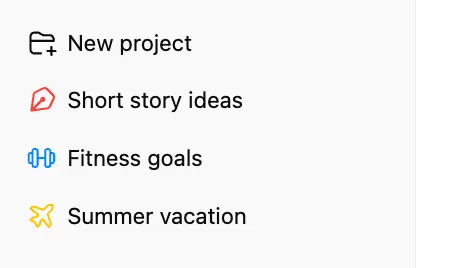
Select New project in the sidebar.
Enter a project name, then select an icon and color.
Add context to guide responses
Add files
Add reference material to your project by uploading PDFs, spreadsheets, docs, images, or by pasting text. ChatGPT can use what you add to provide more informed answers.
The number of files you can upload depends on your plan. For details, see: Plans and limits.
After a file is added to a project, you can open it from the project sources list to preview, download, or delete it. In a shared project, deleting a file removes it from the project for everyone, but it can be added again later.
If you upload a file that has the same name as an existing project file, choose Upload anyway to add it or Skip to skip that file. In a multi-file upload, Skip only skips the conflicting file and the remaining files continue uploading.
Add project instructions
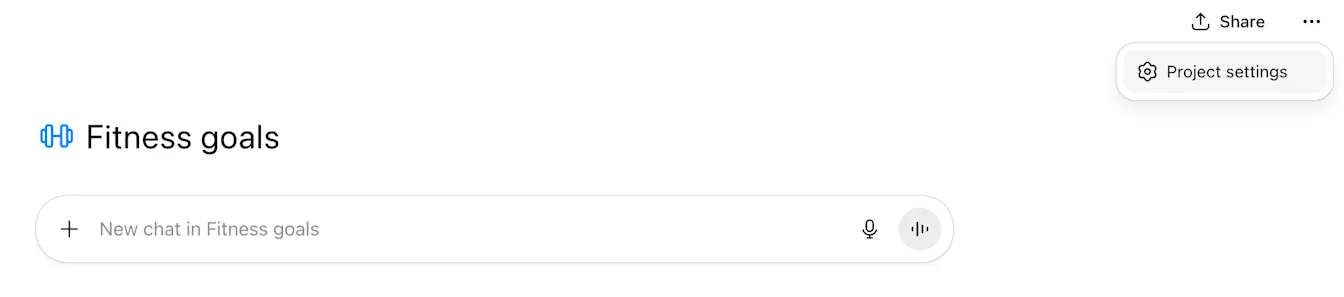
Select the more options menu (•••), then select Project settings to add instructions for the project. For example:
“Act like my marketing mentor. Be concise. Use bullet points. Ask clarifying questions.”
Project instructions apply only within that project and override your global custom instructions.
Add links from apps
You can paste links from supported apps to add them as project sources. ChatGPT can use these sources as context for project chats.
Supported links:
Google Drive (files and folders)
Slack (channels)
To add an app link:
Open your private project.
In the project’s sources area, select Add sources.
Select Slack or Google Drive. If prompted, connect the app and approve access.
Paste the Slack channel or Google Drive file or folder link, then select Add.
Save a chat response to your project
If ChatGPT produces something you want to reuse (a summary, decision note, draft, or analysis), you can save that response as a project source.
To save a response:
In a project chat, open the message menu on the response you want to keep.
Select Add to project sources.
Find the saved item later in your project sources and reuse it in future project chats.
Use connected apps in projects
You can use connected apps in project chats. Select the tools menu (+) to choose an app or refer to the app by name. You can also use the menu to find and connect new apps. Before an app searches outside the project, ChatGPT may ask you to confirm.
Note: The Google Drive app does not support sync when added within a project. You can still use the app to search and access relevant files, but content will not be synced in advance for retrieval.
Project memory
Projects can use their chats and files as context for future responses. For more information, see: Memory in projects.
Move an existing chat into your project
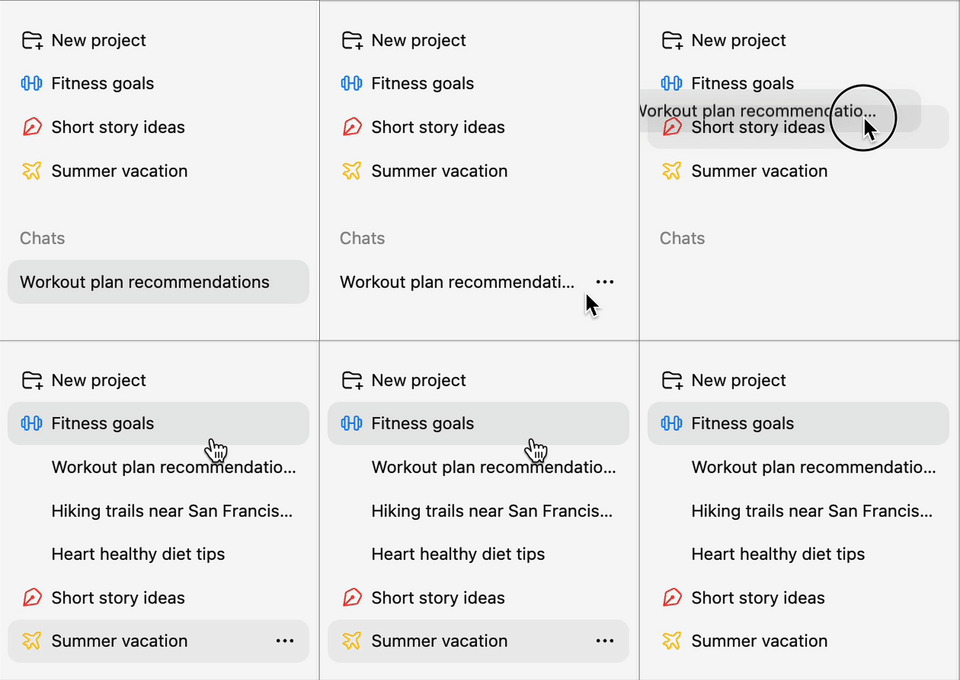
If you’ve already used ChatGPT and would like to move select chats into a project, drag a chat onto your project, or open a chat’s menu and select Move to project. Pinned chats can be moved when Move to project is available.
Chats created with a GPT can’t be moved into a project. If you don’t see Move to project for a chat, the chat may not be eligible; start a new chat in the project instead.
After moving, the chat inherits the project’s instructions and file context.
When the option is available, select Remove from project from the chat’s more options menu (•••) to move it back to your chat history.
Use tools in projects
Use all the same tools you’re familiar with outside of projects, including:
Use Canvas to draft documents, code, or layouts.
Generate images to explore visual ideas.
Use voice for hands-free conversations.
Search the web for current information and sources.
Study mode and scheduled study hours do not apply to project conversations.
Paid plans may include additional tools, such as agent mode and deep research, depending on your subscription.
Share a project
Project sharing is available on ChatGPT Free, Go, Plus, Pro, Business, Enterprise, and Edu across the web and mobile apps.
You can share a project with your team and others. ChatGPT can draw from anything in the shared project – including chats, uploaded files, and custom instructions – so responses are informed by your group's internal knowledge, and you can pick up where others left off.
Shared projects are ideal for:
Group work: Upload notes, proposals, and contracts so collaborators can draft deliverables faster and stay in sync.
Content creation: Apply project-specific instructions to keep tone and style consistent across contributors.
Reporting: Store datasets and reports in one project, and return each week to generate updates without starting over.
Research: Keep transcripts, survey results, and market research in one place, so anyone in the project can query and build on the findings.
Share a project with others
Select Share to open the sharing pane. Depending on your plan and workspace settings, you can invite people individually, invite a group, or share a project link. Invitees receive either chat or edit access.
Edit access allows members to update instructions, upload or remove files, and invite others (but not remove existing members)
Chat access lets members see and interact with the project’s chats, files, and instructions (but not invite others)
As the project owner, you can create chats, update instructions, add files, invite/remove members, set member permissions, modify the project name, and delete the project.
In a managed workspace, project invitations may be limited to members of your workspace. Depending on workspace settings, you can invite people individually, invite a group, or share a workspace link.
Invite individuals or groups
ChatGPT Free, Go, Plus, and Pro users can invite individuals using Only those invited. ChatGPT Business, Enterprise, and Edu users can invite individuals or workspace groups. Enter a name, email address, or group, then choose chat or edit access. After you select Invite, you and each invitee receive a confirmation email.
In workspaces that use SCIM, workspace owners can control whether SCIM-managed groups are discoverable in the sharing pane for projects. If a SCIM-managed group does not appear, contact a workspace owner.
When group members accept the invitation, the individual is shown on the sharing pane (along with the group), with the access level (chat/edit) set for the group. Note that while you can change the individual’s access level to be different from the group’s access level, the higher of the two will be applied for the users.
For example, if you invite a group with chat access level, you can then provide edit permissions to specific members of the group by updating their individual access level in the sharing pane. If you invite a group with edit access level, all members who join will be able to edit, even if you set specific individuals to chat access.
When sharing a project with the group, all users in the group at the moment of sharing will get a notification and will see a new project on their sidebar. Users added to the group later won't be notified and will not see the shared projects automatically, but will be able to open project URLs shared with them manually - after interacting with the URLs, projects will be pinned to their sidebar as well.
Share a project with a link
Owners can choose to share a project with “Only those invited” or “Anyone with a link.”
If set to “Anyone with a link,” any logged-in ChatGPT user who has the link can join the shared project. Only the owner can decide whether a link is open to “Anyone with a link.” The maximum number of collaborators is determined by the owner’s subscription plan.
Collaboration limits
Pro users: up to 40 files and 100 collaborators
Plus and Go users: up to 25 files and 10 collaborators
Free users: up to 5 files and 5 collaborators
Owners can change visibility settings at any time, including switching back to invite-only.
For Business, Enterprise, and Edu customers, you can invite all members of your workspace by generating and sharing a link. Invitees using a workspace link join the project by default with chat access; you can update their access to edit afterwards, if desired, from the sharing pane. Unlike group links, you cannot provide edit access generally to all members of the workspace.
A workspace project can include up to 100 collaborators, regardless of how they were invited. Business, Enterprise, and Edu projects support up to 40 files. For more information, see: Plans and limits.
Enterprise workspace owners and admins can disable View workspace members and groups for the entire workspace or specific roles. Affected members cannot select workspace members when sharing GPTs, projects, or chats.
Access control
Project owners have full visibility and control over everyone that was invited, and can modify their access levels, or remove them from the project anytime, even before the individual has joined the project.
Enterprise workspaces can apply additional project-sharing permissions. For more information, see: Admin controls, data, and compliance API.
Workspace owners can control project sharing and use role-based permissions to decide which members can create or share projects. Manage these permissions in workspace settings.
Collaboration in shared projects
After joining a shared project, members can create new chats and branch existing conversations. Members can move eligible chats when the relevant action is available. Project memory settings and workspace restrictions can limit which chats can be moved.
Shared projects automatically use project-only memory and cannot access an individual member’s memories or context from outside the project. For more information, see: Memory in projects.
Members can archive or delete chats they own. If a chat can be removed from the project, other members, including the project owner, can no longer see it.
As with all OpenAI products, we aim for our tools to be used safely and responsibly, while maximizing your control over how you use them.
Branch a chat
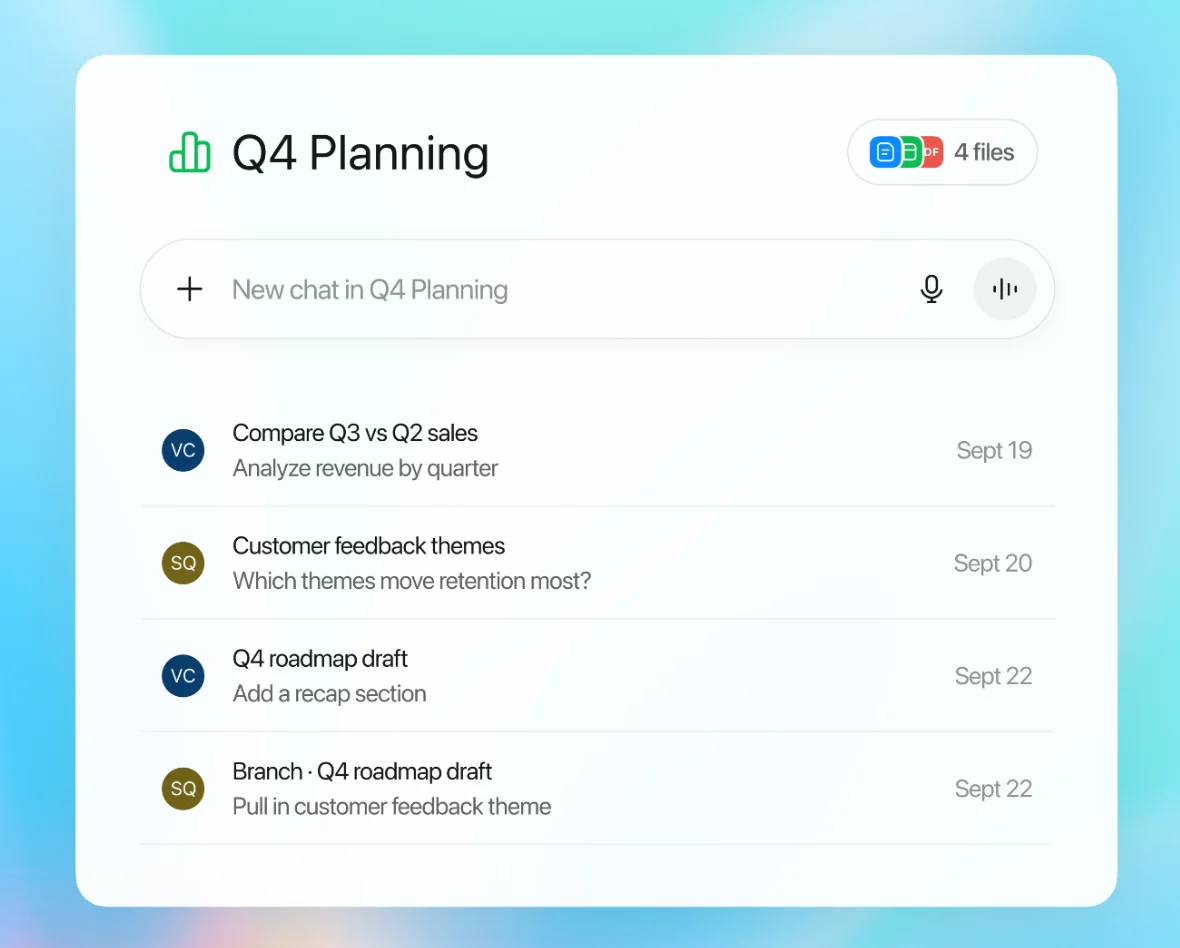
Users can open an existing chat and continue the conversation to explore a new idea without losing the original thread. For example, a data scientist might branch a teammate’s chat to test a new hypothesis while preserving the original chain of thought.
Branched chats appear in the project alongside the original conversation. To see who started a chat, select the profile icon next to it.
Leave a shared project
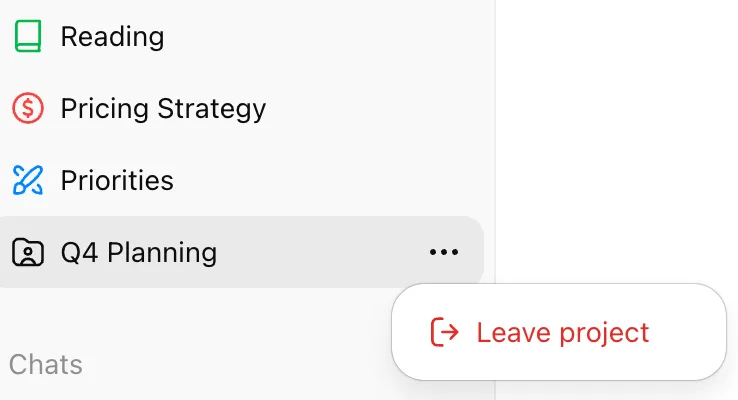
Users can leave a shared project from the sidebar and will be given the option to make a copy of their chats within the project prior to leaving. Copied chats are moved to a new project in their sidebar, named after the original project with ‘Copy’ prepended to the project name.
Workspace owners may also remove collaborators from a project at any time. Owners can also delete the project entirely, which will make all chats, files, and resources in the project unavailable to collaborators unless previously copied (see Delete a project below).
Workspace owners can remove all collaborators from a project, effectively stopping the sharing process. However, project memory will continue to be project-only (limiting context to resources within the project) and cannot be changed to default for access to other non-project memories.
If the project was shared by workspace link, new users may still be able to join the link, unless the share setting is modified to Only those invited in the sharing pane.
Authorized ChatGPT Enterprise compliance tools can access eligible project data. For more information, see: Admin controls, data, and compliance API.
Share a single chat from your project
You can share an individual chat from a private project. Select Share to create a link to that conversation. People with the link can view only the shared chat, not the project’s other chats, files, instructions, or history. For more information, see: Sharing conversations from ChatGPT.
If you share a chat from your shared project, your recipient will not be able to view that chat until they join the project.
Delete a project
Select the more options menu (•••), then select Delete project. Deleting a project permanently removes its chats and instructions, along with files stored only in the project. Files saved separately in Library or Space are not deleted. Members of a shared project lose access to the project. This action cannot be undone.
How shared project data is used to improve models
For personal ChatGPT accounts, shared project data may be used to improve models only when the project owner and every contributor have Improve the model for everyone turned on. By default, OpenAI does not use content from ChatGPT Business, Enterprise, Edu, or ChatGPT for Healthcare workspaces to train its models.
Memory in projects
Projects can use either default memory or project-only memory. You can select a memory setting when you create a project and change it later from the project’s settings.
Shared projects are automatically set to project-only memory and cannot be switched to default memory. Shared projects do not have access to an individual member’s context, custom instructions, or memories outside the project.
Change a project’s memory setting
Open the project.
Select the more options menu (•••), then select Project settings.
Under Memory, select Default memory or Project-only memory.
Select Save.
Changes may take a few hours to take effect.
When you switch a project to project-only memory, information from that project is removed from memory used outside the project. The project’s chats and files remain in the project and can continue to provide context there.
When you switch to default memory, memory behavior depends on your plan and personal or workspace settings. See Default memory below for details.
Project-only memory
When you use project-only memory—either when creating a project or by changing its setting later:
Your previously saved memories are not referenced in project chats.
Chats can reference other conversations within the same project.
Chats cannot reference conversations outside the project, such as general ChatGPT conversations or conversations in another project.
Chats outside the project cannot reference conversations from the project.
ChatGPT Work is not available in the project.
Settings requirements
If your settings show Enable memory, turn it on. If your account uses separate saved-memory and chat-history controls, use the settings below. In a managed workspace, your organization must also allow memory.
Enterprise users:
Enable Reference saved memories in your personal settings.
Memory must be enabled in your Workspace settings.
All other subscriptions:
Enable Reference saved memories and Reference chat history in your personal settings.
Default memory
With default memory, your saved memories are referenced and chats can draw on other conversations within the same project. However, whether conversations outside the project can be accessed depends on plan:
Enterprise and Edu
Chats remain contained within the project. They cannot reference conversations outside the project (such as general ChatGPT or another project), nor can they be referenced by conversations outside the project.
Please reference the following table to understand how context works in projects with ChatGPT Enterprise and Edu workspaces:
| Custom instructions | ChatGPT memory | Reference to other chats | |
|---|---|---|---|
| Chats outside projects | Available | Available | Not available |
| Temporary chat | Available only with personalization | Existing memories only with personalization | Not available |
| Chats inside projects (Memory: default) | Not available (only project instructions) | Available | Available (only within a project) |
| Chats inside projects (Memory: project-only) | Not available (only project instructions) | Not available | Available (only within a project) |
Personalization is on by default for temporary chats. You can choose Personalized or Unpersonalized before you begin, and ChatGPT remembers your choice for your account or workspace. Temporary chats do not create or update memories. Account and workspace restrictions still apply.
Other plans, including Business
Chats can reference both project and non-project conversations (general ChatGPT or other projects), unless the other project is set to project-only memory. These chats can also be referenced by conversations outside the project.
If memory for your account is enabled, it remains active across all chats, including chats in your projects.
For Plus and Pro users: In addition to saved memories, ChatGPT can reference previous chats within a project to deliver more relevant, focused responses. When you ask a question in a project, ChatGPT prioritizes the project chats and files.
For Business users: shared projects are set to project-only memory at the time of sharing, regardless of any previous memory setting.
Plans and limits
Users can create an unlimited amount of projects.
File upload limits vary by subscription type. Note that only 10 files can be uploaded at the same time.
Free: 5 files per project
Go, Plus: 25 files per project
Edu, Pro, Business, Enterprise: 40 files per project
Admin controls, data, and compliance API
Workspace-level feature controls
Projects inherit all toggles and restrictions that apply to your Business, Enterprise, or Edu workspace:
Tool availability – If deep research, voice mode, memory, or any other feature is disabled at the workspace level, it is automatically disabled inside every project.
Data controls – Retention windows, data-residency locations, and memory settings continue to apply without extra configuration.
Security – Projects use the same encryption, access controls, and audit logging as standard chats; no new surface area is introduced.
Workspace owners can manage project access in Workspace settings > Permissions & roles.
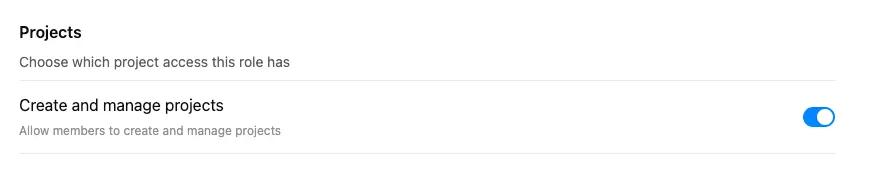
Under Projects, use role-based permissions to control who can create or share projects.
Use Create and manage projects to control who can create projects.
Use Share projects to control who can share projects.
Compliance API
Project information, including control over shared projects, is available in the Compliance API. For more information about compliance tools, see: OpenAI Compliance Platform for Enterprise and Edu customers.
Data retention and residency
All messages created in a project inherit the retention duration and residency region configured for your workspace. No separate retention policy is required. Deleted projects and their chats, files stored only in the project, and custom instructions are removed from OpenAI systems within 30 days unless OpenAI must retain them for legal or security reasons. Files saved separately in Library or Space follow the retention rules for saved files.
For more information, see: Chat and file retention in ChatGPT.
Projects FAQ
Does using projects change how my data is handled?
By default, OpenAI does not use data from ChatGPT Business, Enterprise, Edu, or ChatGPT for Healthcare workspaces to train its models. For more information about how business data is handled, see: Enterprise privacy.
For ChatGPT Free, Plus, and Pro users, we may use information accessed from projects to train our models if your “Improve the model for everyone” setting is on. You can read more about how your data is stored and used in this article in our help center: Data controls in ChatGPT
Do projects cost extra?
No, access to projects is included with every qualifying ChatGPT plan. Any credits or usage charges—such as those for models or tools—apply to project chats the same as they do to regular chats.
What happens if I hit my file limit?
Remove older or unnecessary uploads, combine file data, or split work into multiple projects.
Are apps supported in projects?
Apps in projects are available on ChatGPT Free, Go, Plus, Pro, Business, Teachers, Enterprise, and Edu plans.
How can I search for a chat I had within a project?
Use the search chats feature to locate past chats within a project. It lets you quickly find and revisit discussions you've had in that project, and others.
Are there any rate limits for chats within projects?
Rate limits are based on your subscription level.
Is there a global setting to make all project memory project-only?
No. Each project’s memory must be set individually, and also respects your personal and workspace memory settings.
If I made a project before project-only memory was introduced, can I change it?
Yes. Open the project’s settings, select Project-only memory under Memory, and save your changes. It may take a few hours for the new setting to take effect.
Shared projects already use project-only memory and cannot be switched to default memory.
Why don’t I see project-only memory available?
If you use ChatGPT Business or Enterprise, project-only memory is available when Memory is enabled for both your workspace and your account.
Can I see a list of my project memories?
No. Project memory does not show a list of memories like personal memory. ChatGPT may use context from other conversations in the same project. To stop it from using a specific conversation, delete the chat or, when the project’s memory settings permit, move it to another project.
Can I add a temporary chat into a project?
You cannot add a chat to a project while it is temporary. Saving it converts it into a regular chat that follows your account’s personalization and model-improvement settings. For more information, see: Temporary chat in ChatGPT.
Shared projects FAQ
Project sharing is available on ChatGPT Free, Go, Plus, Pro, Business, Enterprise, and Edu on the web and in the mobile apps.
How is a shared project different from a GPT?
Projects and GPTs are both ways to bring more context into ChatGPT, but they serve fundamentally different purposes.
GPTs are:
A custom version of ChatGPT, connected to your data sources and tools
Single player (just you and chat)
Static content, curated by an expert and discoverable in a GPT store for your workspace
Scale knowledge, expertise org-wide
Best for reusable knowledge that spans functions and contexts
Example: HR Benefits GPT
In contrast, shared projects are:
A shared space for teams to organize chats, files, and instructions
Multi-player - members can see others’ contributions
Evolve over time due to sustained user contributions – files, chats, instructions
Shared context for recurring work on a topic
Best for team alignment, faster onboarding, and knowledge capture
Example: Q4 planning hub (analyze quarterly data with your team)
What’s visible in a shared project?
Project members can view the project’s chats, files, and member list. Select Share to see members’ names, email addresses, and any invited groups. Each chat shows the profile icon of the person who created it.
How can I tell if a project is shared?
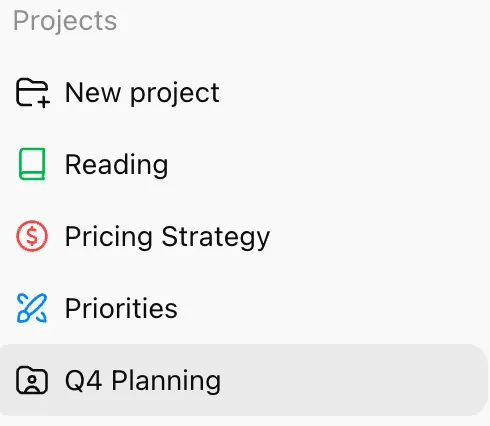
If you used the default icon when creating the project, sharing updates the sidebar icon to show that the project is shared.
The shared-project indicator appears only when a project uses the default icon. If you chose a different icon or color, open the project and select Share to review its members.
Can members download files from the shared project?
All members of a project can view and download files added to the project.
Can workspace owners control access to shared projects?
Yes. Workspace owners can enable or disable project sharing and use role-based permissions to decide who can share projects.
Can ChatGPT’s responses in shared projects include private or internal data?
Chat responses will only reference uploaded files and content shared directly in the project. If a member adds a file or context to a shared project, ChatGPT may use that information in responses visible to other members to make responses more relevant.
How does sharing a chat link differ from sharing a project?
When you share a project, members can view its chats, files, and other members, and they can create or branch conversations. Members can move eligible chats into the project when Move to project is available.
A shared conversation link does not give recipients access to the rest of the project. For personal accounts, it includes the content available when the link was created or updated. Links from managed workspaces can include later messages, subject to workspace access and sharing settings.
Note that if you share a single chat from a shared project, users will not be able to access that chat until they join the project.
For more information about shared links, see: Sharing conversations from ChatGPT.
Can I use a custom GPT in a project?
Yes, for messages in an existing project chat. If the first message uses a custom GPT, the conversation starts as a chat with that GPT and appears outside the project.
Is the compliance API supported for shared projects?
The compliance API includes the following shared projects information:
Isolate project: Removes all users except the owner
List Project Shared Users: See who is in a shared project
Can members work together on the same chat?
Chats in shared projects can be branched, not collaborated on synchronously.
Branching lets you explore a different direction or “remix” the thread without changing the original conversation—especially useful for testing alternate drafts, refining logic, or building on a teammate’s work.
Members can see a branched chat while it remains in the shared project. Whether the chat can be moved elsewhere depends on the project’s memory settings and available actions.
How can I un-share a project?
Project owners can remove members individually. Editors can add members, but not remove them. The Compliance API supports isolate project. For more information about compliance tools, see: OpenAI Compliance Platform for Enterprise and Edu customers.
For enterprise users, sharing can be turned off entirely from workspace settings.