
Overview
To use Ads Manager, a person needs both a permitted sign-in method and a role for the correct advertising account. Joining an OpenAI tenant, using single sign-on (SSO), or appearing in a synchronized directory does not automatically provide Ads access.
Understand Ads administrator and account roles
Open Admin Console and select the tenant associated with the advertising account. Your role determines which settings you can manage.
| Role | Scope | What it allows |
|---|---|---|
| global admin | Tenant | Manages tenant-wide domains, identity providers, sign-in policies, and directory connections; can create eligible advertising accounts. |
| Ads admin | Tenant | Creates eligible advertising accounts. Does not manage tenant-wide identity or automatically access existing accounts. |
| ad account admin | One advertising account | Manages the account and supported user or group access. At least one effective account admin must remain. |
| ad account member | One advertising account | Uses and updates supported advertising resources without full account-administration permissions. |
| ad account viewer | One advertising account | Views advertising resources without write or account-administration permissions. |
A person who manages tenant identity, creates an account, and administers that account may need more than one role. A ChatGPT workspace or API Platform organization role does not grant Ads permissions.
Within an advertising account, a person receives the highest role granted directly or through a group: Admin, then Member, then Viewer. Changing or removing a direct role does not reduce access if a group still grants a higher role.
Check the Ads sign-in policy
In Admin Console, open Global settings, then Access. Review Ads SSO settings for the selected tenant. Activating a shared identity-provider connection or another product’s SSO policy does not automatically enable SSO for Ads.
| Policy | What it means |
|---|---|
| Required | SSO is available as a sign-in method. However, someone who is already signed in may be able to access an advertising account with a Required policy without signing in again through SSO. |
| Optional | Eligible users can use the configured identity provider or another permitted sign-in method. |
| Off | SSO is unavailable for the selected product or resource. Users must use another permitted sign-in method. |
Keep SSO Optional while testing when that setting is available. Before selecting Required or Off, confirm that users can access their accounts and that an authorized administrator has a recovery path.
Configure applicable multi-factor authentication (MFA) and conditional-access requirements in your identity provider.
For connection and domain setup, see: Single sign-on (SSO) setup for OpenAI products.
Give someone access to an advertising account
In Admin Console, select the correct OpenAI tenant.
Select the advertising account.
Open Users & groups, where available.
Find the user or supported account-specific group.
Assign the appropriate Admin, Member, or Viewer role.
Ask the person to sign in with the work email associated with the tenant.
If the person is missing, confirm that an authorized administrator has invited or synchronized the user. A ChatGPT workspace invitation does not provide advertising-account access.
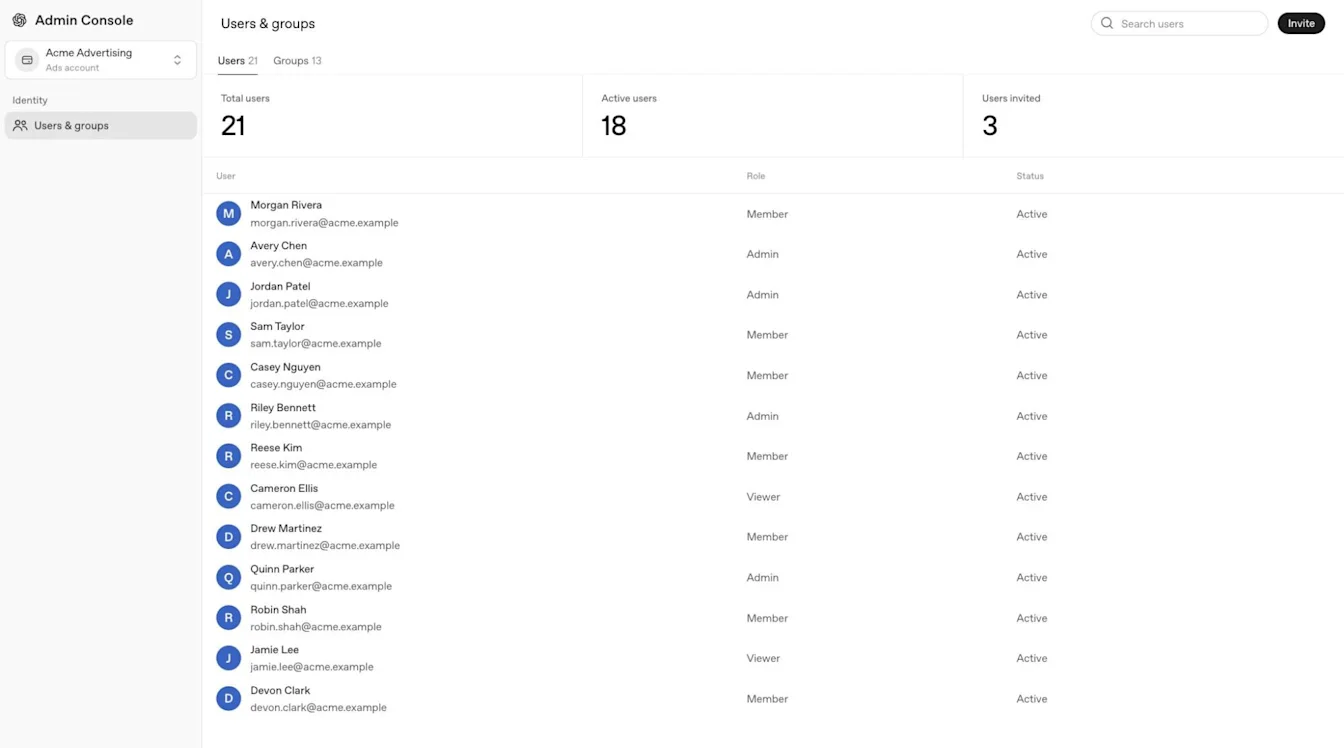
Assign the appropriate role separately for each advertising account a person needs to access.
Assign the Ads admin role and create the first account
Open Admin Console and select the intended tenant.
In Global settings, open Users & groups, select Users, and open the person’s profile.
Open Access & roles or Direct roles, depending on which tab is available.
Choose the option to add or edit tenant-level access. If you are asked to select a product, select Cloud Console.
Select Ads Admin and save the assignment.

A user profile may show Access & roles; other configurations show Direct roles.
If no advertising account exists, a global admin or Ads admin can create the first account. Account-specific roles may not appear until that account exists.
To create an additional advertising account, start from Ads Manager with the required permissions. A direct onboarding link can reopen an existing advertising account if you already have an active Ads Manager session.
If Ads Admin does not appear, confirm that you selected the correct tenant and, when prompted, Cloud Console. Ask a global admin or your OpenAI account team to check your access and Ads eligibility.
Manage synchronized users and groups
Ads accounts use a tenant-wide SCIM directory, not a separate directory for each advertising account. Eligible tenants, including Ads-only tenants, can synchronize users and groups, but access to each advertising account must still be assigned separately.
Tenant-wide SCIM can update a synchronized user’s primary email on their existing OpenAI account when both the current and new email domains are verified for the directory’s tenant. Update the existing user in your identity provider and coordinate the SSO mapping. The change signs the user out, so they must sign in again with the updated address. If the new address belongs to another OpenAI account or the update remains blocked, contact OpenAI Support.
Manage synchronized users and group membership in your identity provider. You cannot manually add a synchronized user to an advertising-account group or change synchronized group membership in Admin Console.
To give a synchronized group access to an Ads account, open the group’s Product access settings, select the account, and save your changes. The initial account role is Member. An authorized administrator can change the synchronized group’s advertising-account role without changing its identity-provider membership.
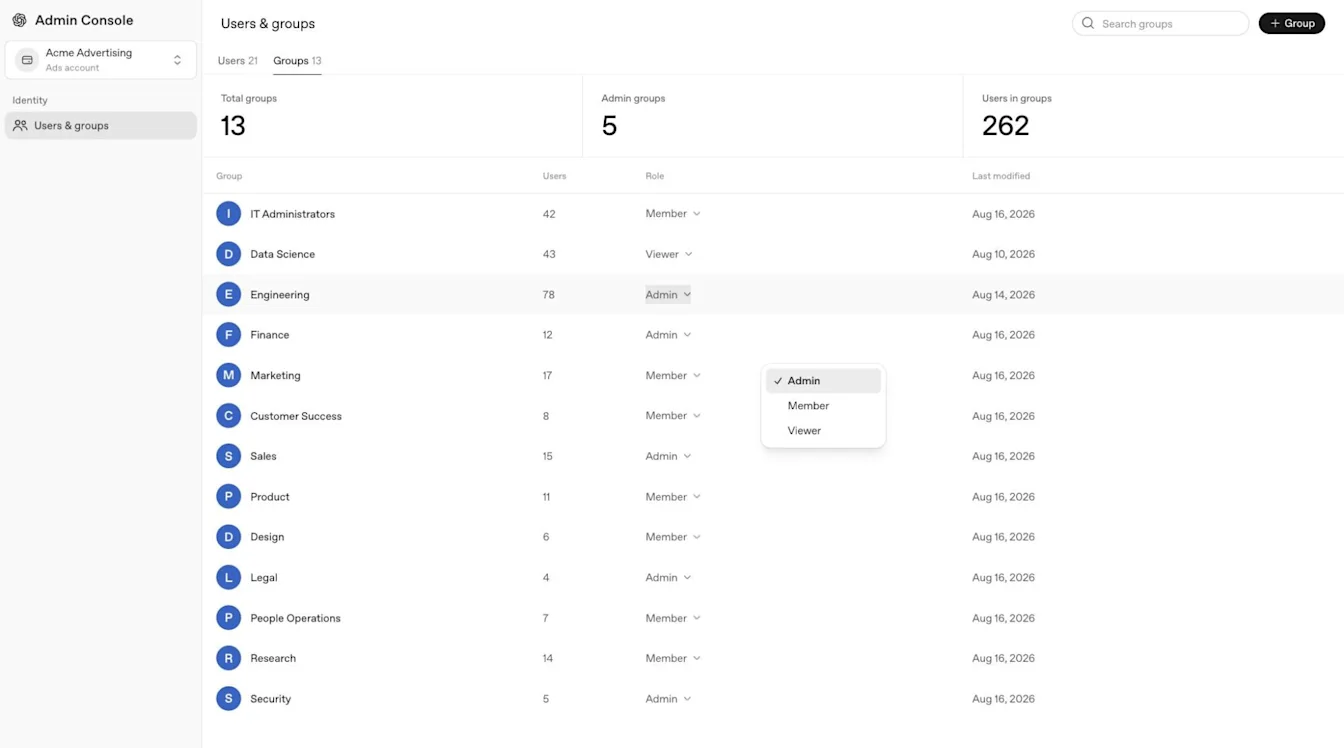
For directory eligibility, setup, and troubleshooting, see: SCIM provisioning and management.
Remove or change advertising-account access
Before removing the only effective ad account admin, assign another administrator. Each advertising account must retain at least one effective admin.
Select the advertising account and open Users & groups.
Review the person’s direct role and account-specific group assignments.
Remove or change the direct role, or update the relevant group membership.
Update synchronized group membership in your identity provider when applicable.
Confirm that another account administrator remains and the person’s resulting access matches your intent.
Manage synchronized group membership in your identity provider. For SCIM-managed users, review direct advertising-account roles and synchronized group assignments. For manually managed users, review direct roles and manually managed group assignments. Removing one access path may not remove another, so confirm the person’s remaining access to each advertising account.
Resolve Ads-specific access problems
If someone cannot open Ads Manager, check:
The selected OpenAI tenant and advertising account.
The person’s work email and applicable Ads sign-in policy.
Whether the person accepted the correct invitation.
The account-specific role and any direct or group-based access.
Recent directory changes or identity-provider assignments.
Whether a global admin or Ads admin must create the first advertising account.
For sign-in errors, see: Troubleshooting SSO, workspace access, and domain verification.
────────────────────────────────────────────────────────────