Manage your Codex chats
Archive a chat
Open the ChatGPT desktop app.
Open the Codex chat history sidebar.
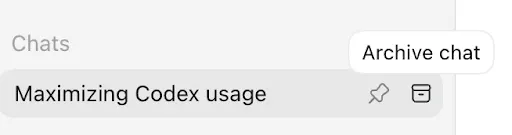
Hover over the chat you want to archive.
Select Archive chat. If you see the more options menu (•••) instead, open it and select Archive chat.
If a confirmation appears, review the warning before continuing. Archiving stops a running chat and removes any scheduled task attached to it. Select Stop and archive or Archive and remove, as shown.
Permanently delete an archived chat
To delete an archived local chat, use the computer where you saved it.
Open Settings.
Select Archived chats.
Find the local chat you want to delete.
Select Delete next to the chat.
Review the warning, then select Delete to permanently delete the chat and any attached side chats.

Effects of deleting a Codex chat
When you delete a Codex chat locally:
The conversation is immediately removed from your Codex chat history.
It is scheduled for permanent deletion from OpenAI's systems within 30 days, unless:
You allow us to use your content to improve our models, and your conversation has already been de-identified and disassociated from your account, or
OpenAI must retain it for security, safety, or legal obligations.
You cannot recover a chat once it’s deleted. Deleted chats are not retrievable through the UI, APIs, or support.
Options for deleting all archived chats
In Settings > Archived chats, select the Local filter. Clear any search or project filter, then select Delete all. Review the warning and select Delete to confirm.
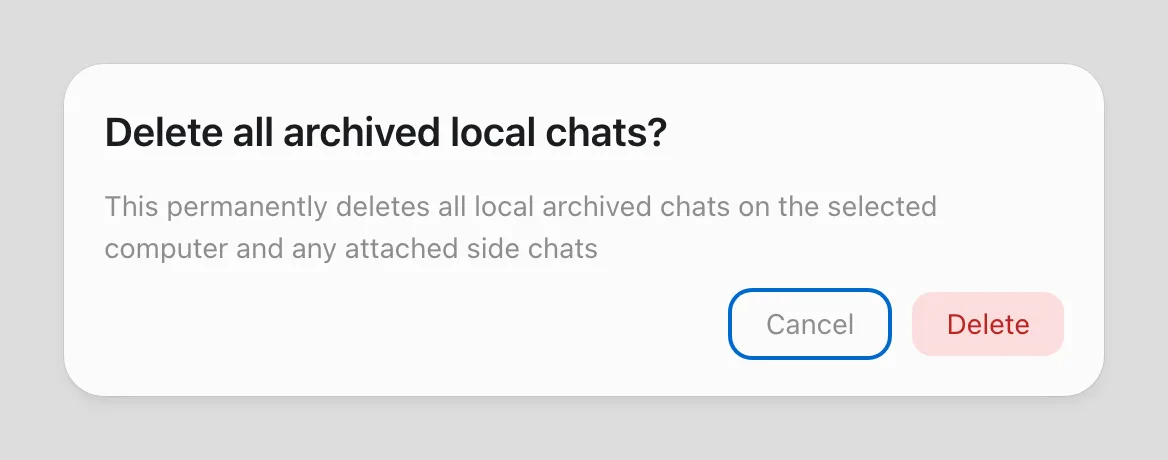
This deletes all archived local chats on the selected computer, including archived chats in projects and any attached side chats.
Retention overview
If you are signed into ChatGPT, chats you keep (unarchived or archived) are saved in your account until you delete them.
Deleted chats are removed from your view immediately and permanently deleted from OpenAI’s systems within 30 days, unless one of the exceptions described above under “Effects of deleting a Codex chat” applies.
For information on our approach to data retention, see: Chat and file retention policies in ChatGPT.
If you archive a conversation that used connected app data, the conversation remains stored in your account, and any connected app data referenced in that conversation may also remain stored. To remove both the conversation and any connected app data used within it, you must delete the conversation.
Disconnecting an app will stop future access to that data, but does not delete conversations that already used it.
Connected app data after chat deletion
If you’ve connected apps such as Google Drive, Gmail, or Calendar, ChatGPT may use synced app data to help generate responses in your conversations and provide helpful information to you.
Deleting a chat removes both the conversation itself and any synced app data retained within that conversation from your account, subject to our standard retention and legal obligations.
Deleting synced data from connected apps
Deleting a conversation deletes any connected app data that was retained within that conversation.
Disconnecting an app:
prevents Codex from accessing new data from that app,
but does not delete past conversations that used that data.
To remove connected app data from your account, delete any conversations that referenced it.
Troubleshooting missing chats
If your chat history appears empty or conversations are missing, the steps below resolve most issues before you need to contact Support.
Make sure you’re signed into the correct OpenAI account or workspace (including the right email, SSO method, or team).
In ChatGPT, open Settings and check Archived chats — the conversation may have been archived rather than deleted.
Refresh the page or sign out and back in to reload your history.
Check status.openai.com for any active incidents that might hide chat history.
If data export is available for your account or workspace, request an export to review the conversation data it includes. For instructions on requesting and viewing an export, see: Exporting your ChatGPT history and data.
Deleted chats (including those removed with Delete all) cannot be restored.
When you contact Support, include your account email and sign-in method, workspace or organization name (if applicable), approximate time frames of the missing conversations, and confirm which of the above checks you’ve already completed.