
Overview
The Data plugin helps you investigate business questions in ChatGPT Work and Codex. It can use connected company data and business context to analyze what changed, explain findings, and create interactive dashboards and reports. You can refine, validate, and publish your analyses by asking follow-up questions in the same conversation. It also integrates well with your existing BI tools, data enrichment connectors, and more. You can install the plugin in the Plugin directory
Before you begin
Before you can use the Data agent, the Data plugin must be available in your ChatGPT Work or Codex account or workspace. To analyze information from a connected service, the relevant data-source plugin and any included app must also be available. The Data plugin will prompt you to install necessary third-party plugins from within your conversations as well, so you don’t need to do any other setup up front, as long as the relevant plugins are enabled in your workspace.
Set up Data for your workspace
If you’re a workspace administrator:
Go to Admin Console and select the intended ChatGPT workspace.
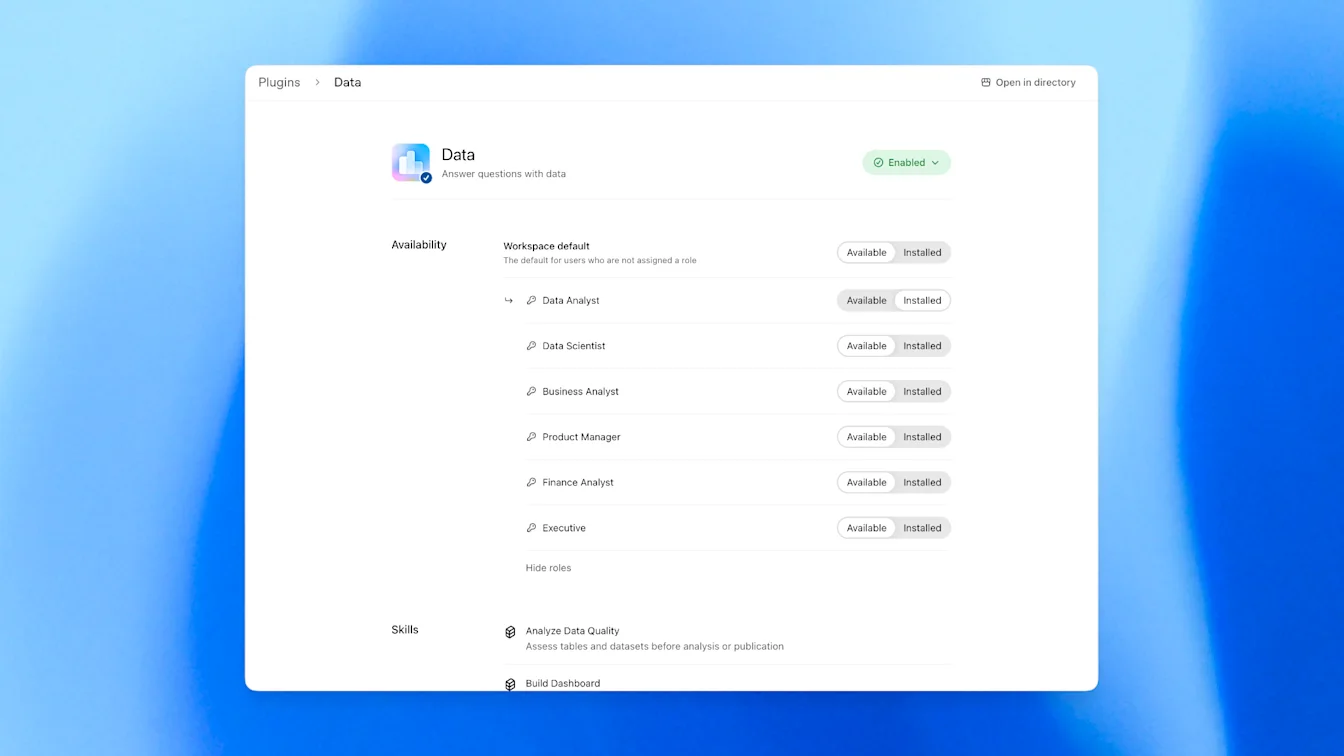
Open Plugins and select Data.
Review its installation policy: Available lets members install it themselves, while Installed installs it by default.
Enable and configure the relevant data-source plugins and manage access to their included apps.
In Enterprise and Edu, configure plugin installation policy and each app’s role access for the roles assigned to the members or groups who need access. In Business, manage plugin installation policy and app availability across the workspace. See Role-based access controls.
For best results with the data plugin, it’s strongly recommended to at least set up the following:
A data warehouse plugin, like Databricks or Snowflake
A data semantic layer, which contains authoritative definitions and queries to keep the model on track
ChatGPT Sites, which allows you to publish and share your new dashboards and reports with your team
Optionally, a BI tool, which can provide more useful context and provide a familiar visualization service
Some apps require an administrator to configure an app template before members can use it. For existing setup guidance, see: ChatGPT app templates, Set up the Snowflake app template in ChatGPT, and Set up the Databricks app template in ChatGPT.
Get started
Open Plugins in ChatGPT Desktop, or the plugin directory in ChatGPT Web.
Find and select Data.
If it is not already installed, select Install plugin.
Complete any required account-connection or setup steps for the data sources you want to use.
Start a conversation with @Data and describe your business question.
Include the source, metric, time period, and comparison you want when you know them. For example:
“@Data Compare revenue this quarter with last quarter and explain the largest changes.”
“@Data Investigate why customer retention declined last month. Show the data and definitions you used.”
“@Data Build a dashboard showing sales pipeline by region, and call out the biggest changes.”
For general installation and account setup, see: Plugins in ChatGPT and Codex and Connecting and managing app accounts in ChatGPT.
Triggering the plugin
Note that the data plugin can be triggered implicitly, so it’s not always necessary to add “@Data” to your prompts. We’d recommend starting out with the explicit mention, including mentions of specific skills, to build familiarity, and then moving to rely more on implicit invocations. If you’re ever unsure, you can always ask ChatGPT Work or Codex if the data plugin was used.
Installing Third-Party Plugins
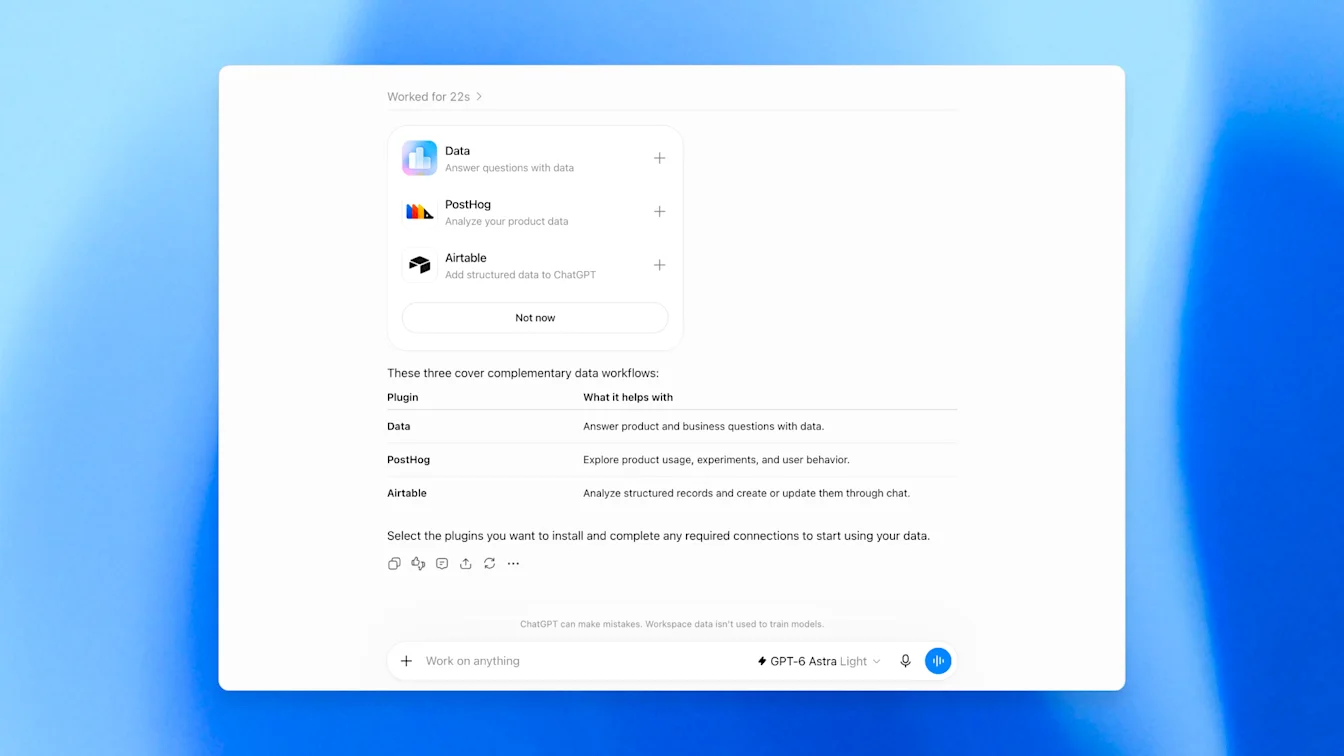
As you’re working with the Data plugin, it will proactively search for available plugins in your workspace, and offer to install them if they’d enhance the utility for your query. This includes OpenAI plugins and plugins on your internal company marketplace.
Work with your data and business context
Data can work with approved sources such as Amazon Redshift, ClickHouse, Databricks, Google BigQuery, MongoDB, and Snowflake. It can also bring files and documents from services such as Google Drive and SharePoint into the analysis, when those connections are available.
Your organization's business definitions (sometimes called a “Semantic Layer”) help Data improve accuracy of its analyses. These may include metric definitions, custom calculations, and relationships between datasets from semantic layers, documentation, or trusted dashboards. Tell Data which definition or source to use when your team has a preferred one.
After an initial answer, ask follow-up questions to compare groups, examine a change, or review the evidence. Check the source, time period, filters, and metric definition before relying on a result. If a result differs from an existing report, ask Data to compare those details.
Create and refine dashboards
Ask Data to turn an analysis into an interactive dashboard. Describe the metrics, breakdowns, and comparisons you want to see. You can ask it to adjust the charts or layout and provide brand guidelines to tailor the dashboard's appearance.
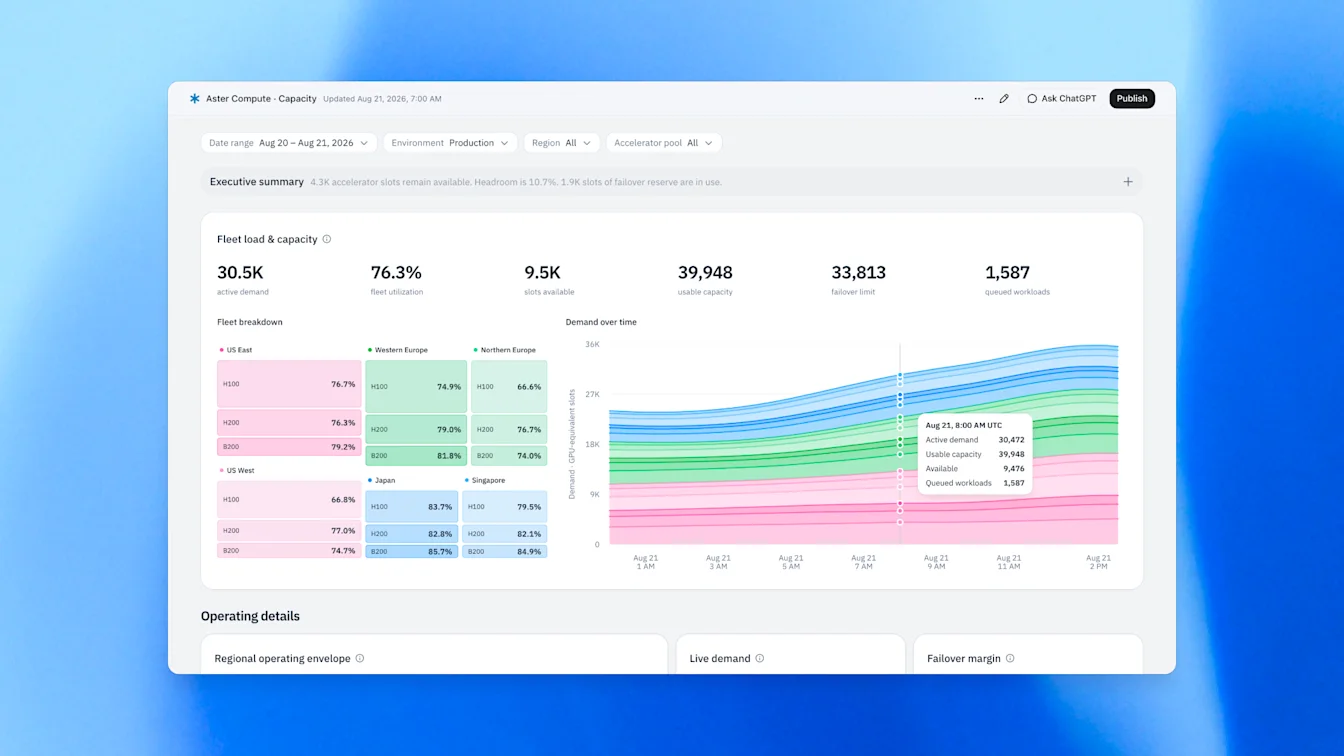
You can edit, share, and refresh dashboards as needed. Ask Data to explain which information supports a chart and to refresh the analysis when you need updated results.
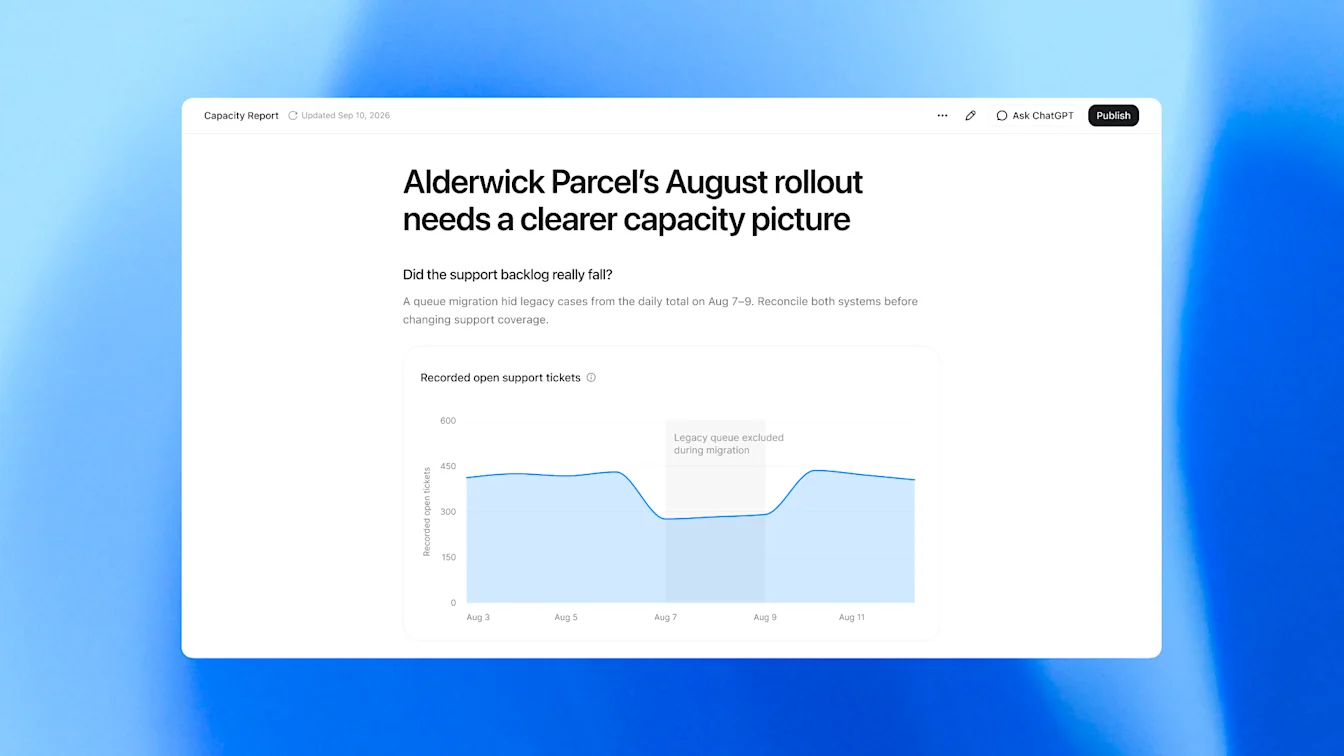
Data can also work with connected business intelligence tools, including Omni, Oracle BI, Power BI, Sigma, Tableau, and ThoughtSpot. Available dashboard actions depend on the connected tool, its supported capabilities, and your access.
Publishing, Sharing, and Maintaining Dashboards
If you have OpenAI Sites installed, you can easily and securely share the site with individuals in your workspace. Just click the Publish button in the top right corner of your locally generated artifact, enter the prompt, and choose who you’d like to share it with. Note that the data used in the analysis is copied into the published site, so be mindful of data permissions when choosing who to share it with.
Once published, you can keep your dashboard up to date by setting up a cloud automation, which the data plugin can also help with.
Understand access and actions
Workspace administrators control which connections are available and who can use them. Queries use the connected account's existing permissions, including applicable table, row, and column restrictions.
Plugin installation and access to the underlying apps are separate. A plugin can be installed while a required app still needs setup, authorization, or workspace access.
You can also ask ChatGPT Work or Codex to recommend next steps or prepare findings for others. Sharing through Slack or email and taking actions in connected tools depends on the tools' supported actions, your permissions, and applicable approval requirements. Review the destination and content before approving an action.
For workspace controls, see: Admin controls, security, and compliance for plugins and apps.
Customize for your Team or Organization
The Data plugin provides useful default behavior, and will try to use your business context to improve output quality. You can customize how it works for your team or organization with templates and context skills.
Templates
The first is to use templates. Just like with documents, presentations, or spreadsheets, you can create a template from Sites as well. These are great for repeatable and standardized analyses, dashboards, and reports that you want to re-use or have your team follow.
Here’s how it works:
Say “@Template Creator please make a template from <url>”. This will create a skill, for example “$product-feature-deepdive”
In the future if you want to use that for a new analysis, you can prompt “Use $product-feature-deepdive on the new image carousel feature”
To share with your team, you can share the skill directly with your team as a zip, or package it in a plugin and ask your administrator to share it with your team. If you’d like to standardize this template, your administrator can choose to have that plugin auto-installed for users in your workspace. More native sharing features are coming soon.
Context Skills
Skills are great for providing context about a specific topic that the model can choose to trigger when it’s applicable. We recommend using skills to hold any instruction that modifies the default behavior of the data plugin, from analysis best practices to new design systems to customize overall dashboard look and feel.
Steps:
Say “@Data I’d like to make a new context skill”
Go through the guided flow to populate the context you’d like ChatGPT Work or Codex to use in the future. This can also include creating a lightweight Data Semantic Layer as well for key definitions.
Review and accept the skill, and specify the target audience (can be self, team, or even whole company).
This will be saved as a local skill, and will be used automatically by ChatGPT Work or Codex when needed for future data work.
To share with your team, you can share the skill directly with your team as a zip, or package it in a plugin and ask your administrator to share it with your team. If you’d like to standardize this template, your administrator can choose to have that plugin auto-installed for users in your workspace.
Troubleshooting
Data or a required source is unavailable
Check that you are using the intended account and workspace. Review the plugin's availability and setup requirements. In a managed workspace, ask an administrator to check Data's installation policy and access to the underlying apps.
A connection works, but information is missing
Confirm that the intended provider account is connected and can access the information directly in the provider's service. A successful connection does not create additional source permissions. Include a specific dataset, report, or metric in your request to help identify what is missing.
A dashboard or action cannot be completed
Check whether the connected tool supports the requested action, the account can perform it, and workspace settings allow it. ChatGPT may also be waiting for approval. If an analysis looks incorrect, review the underlying sources and definitions before sharing or taking action.
For additional connection, permissions, and action troubleshooting, see: Troubleshooting apps in ChatGPT.