
We’re making scheduled tasks easier to create and manage in ChatGPT, with a dedicated Scheduled page, improved task creation and editing flows, more flexible scheduling options, and better notifications. Users can schedule one-off and recurring tasks, and also ask ChatGPT to check for changes and notify them when there’s a meaningful update.
Setting up scheduled tasks
You can create a scheduled task from the Scheduled page in the ChatGPT sidebar on web or mobile. From there, you can create a new task and choose when it should run.
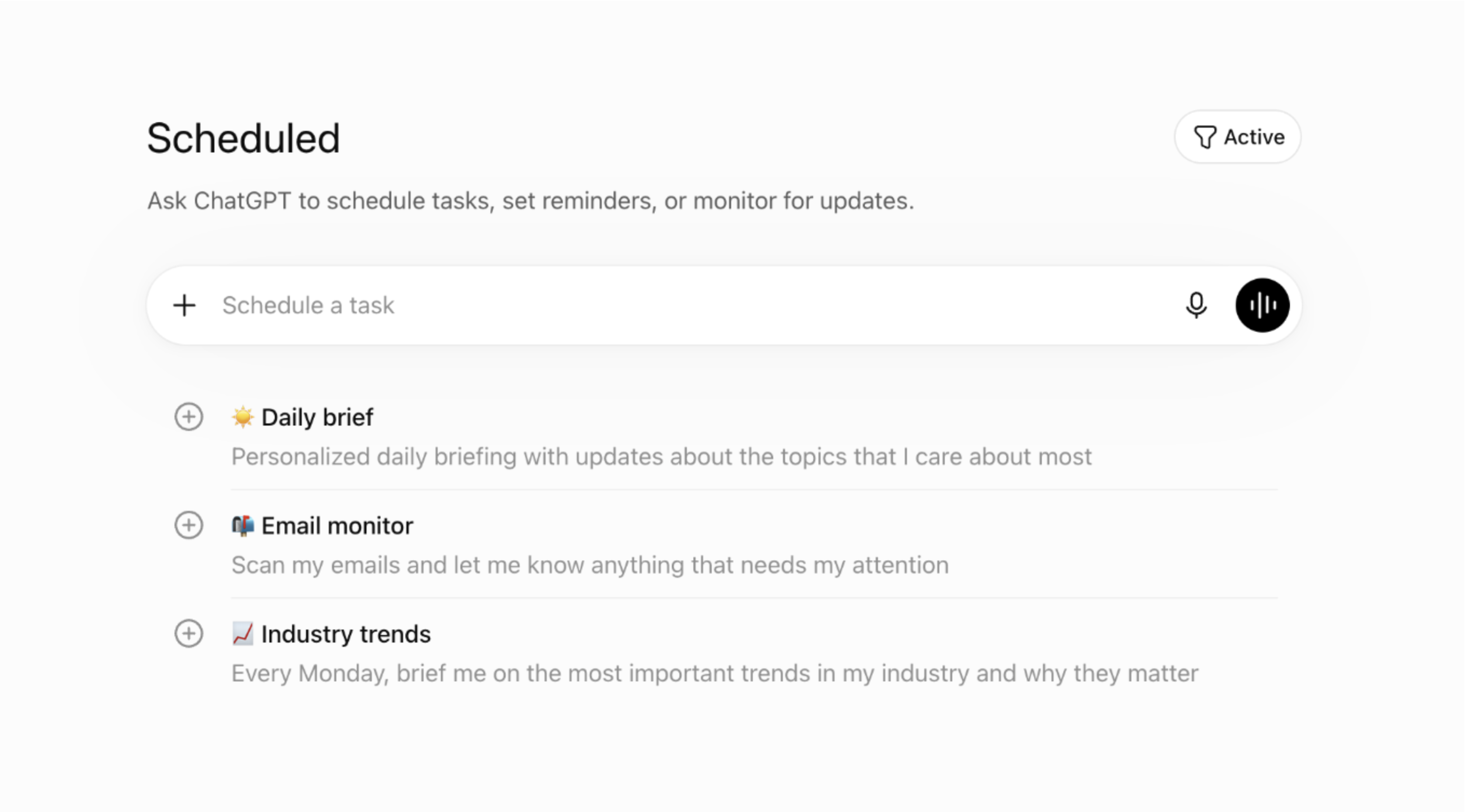
You can also create a new task by asking ChatGPT, such as “Let me know when my package gets delivered”. If you create a task in a project that has files, the task won’t be able to access those project files.
Once you submit your task to ChatGPT, you’ll be provided with the following confirmation:
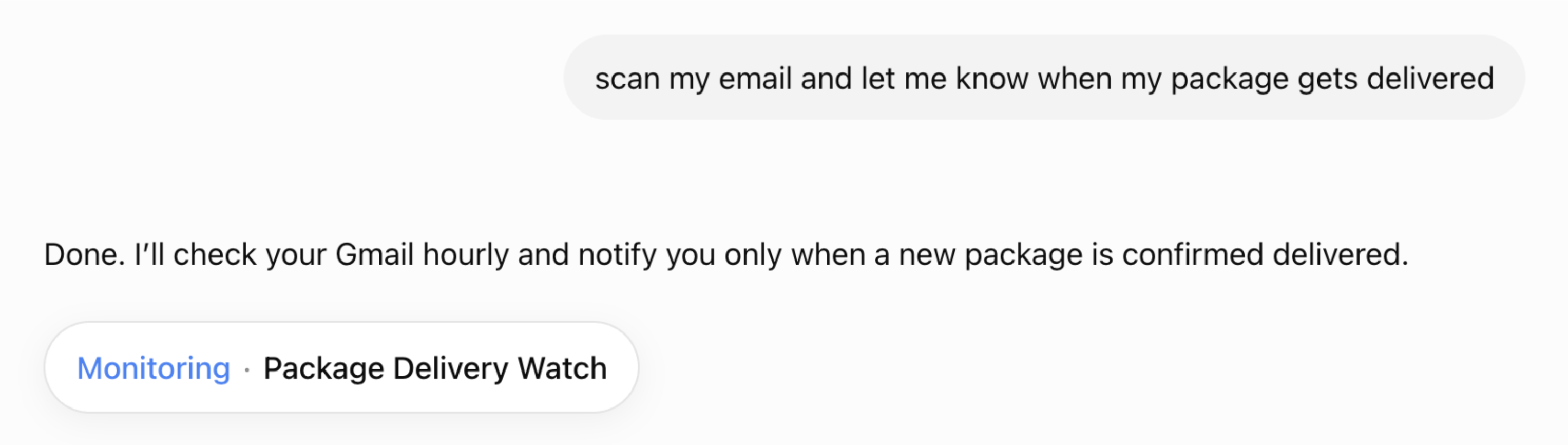
If you need to disable or enable notifications on any of the mobile or desktop apps, you can do so from your Notifications settings on ChatGPT Web including Push notifications, Email, or both.
Please note that you may need to update additional browser settings to enable Desktop notifications. If we detect that the necessary permissions are not enabled, you will see the following notice in your conversation:
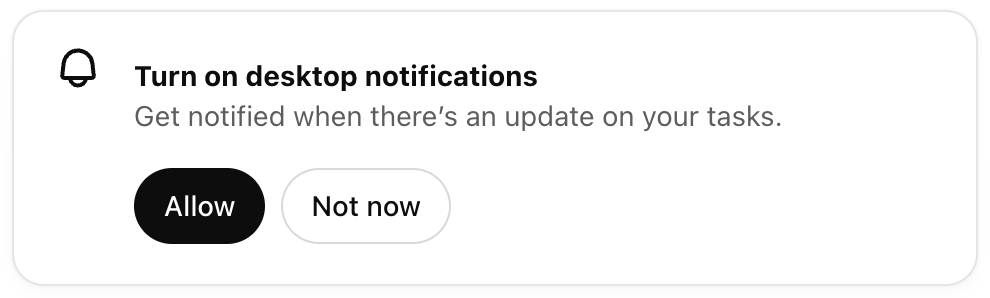
Once you click Allow, your browser may provide a notification to enable necessary permissions. On Chrome, you will see the following:
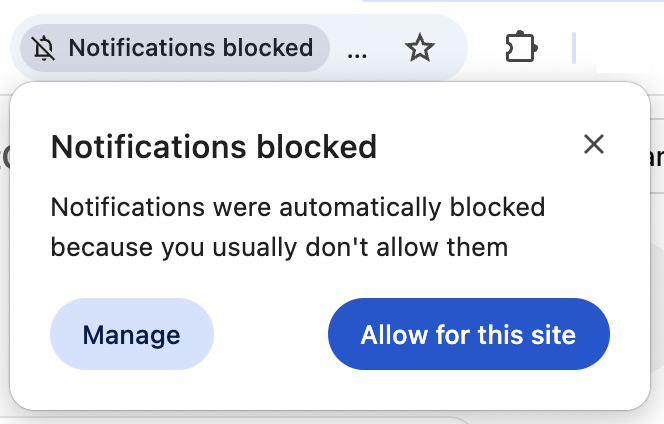
If you would like to receive mobile push notifications on iOS or Android, try creating a task on your mobile device. Then, after you have created your first task, ChatGPT will ask you for notification permissions.
Once you have granted mobile notification permission, task notifications will be delivered on any platform that you use ChatGPT.
ChatGPT Pulse does asynchronous research on your behalf once a day based on your past chats, memory, and feedback to help you get things done. The research is delivered to you proactively the next day as a series of visual summaries that you can scan at a glance, expand for more detail, save for later, or ask follow up questions.
You can manage your tasks directly in Pulse:
See all tasks in one place in Pulse, including tasks you create in chat.
Create tasks in chat or in Pulse, whatever’s easier in the moment.
Edit and review tasks in Pulse anytime after you create them.
Viewing all tasks
You can view and manage your tasks directly from your Settings:
Open Settings → Notifications
Next to the task notification setting, select Manage tasks to see a list of all your tasks.
You can also access the full task list from any individual task. When viewing a task in chat, click the three dot menu then Manage tasks to open the complete list and manage other tasks.
Editing a task
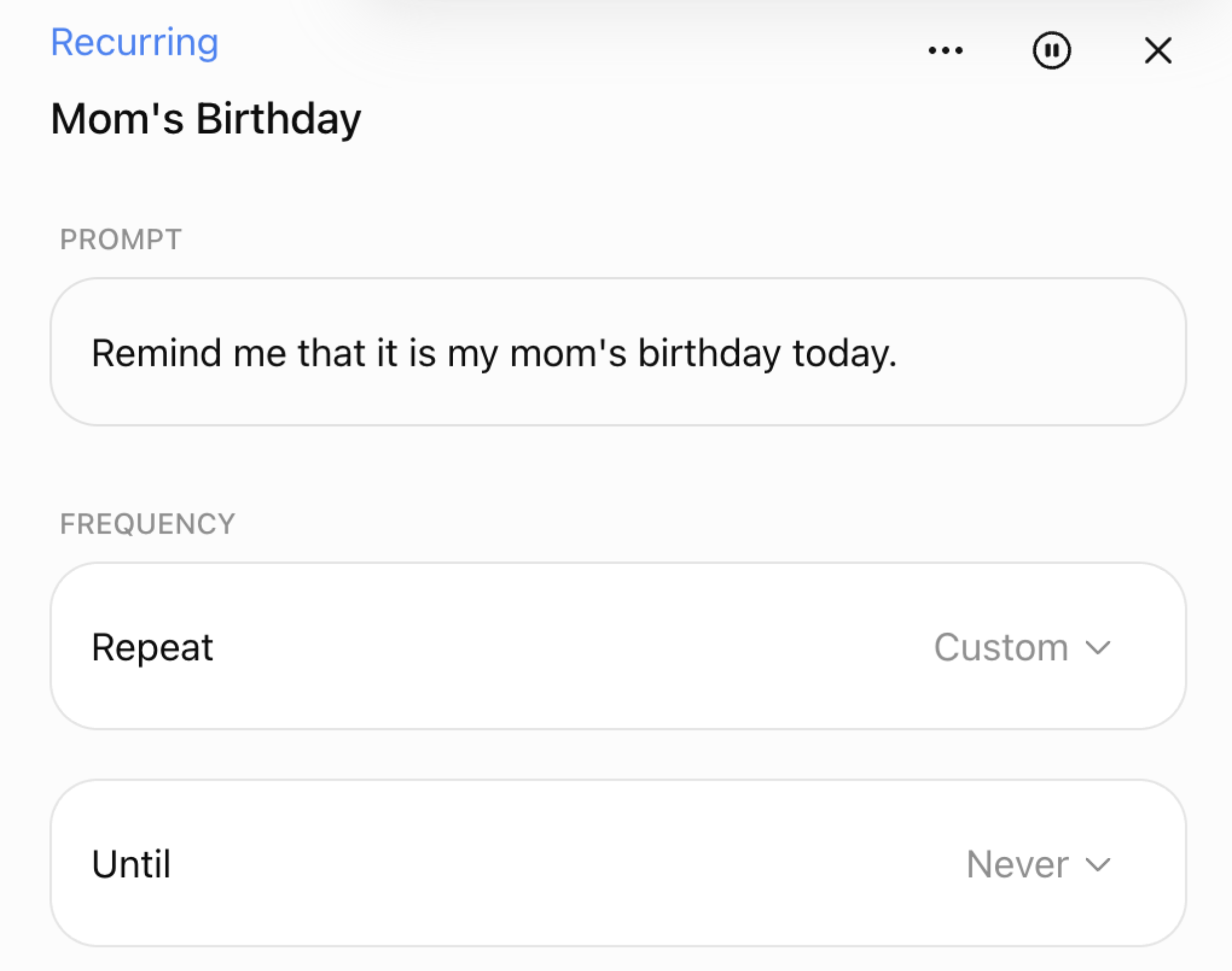
To edit or pause the task you created, click on the task pill or task title in your chat. This will open a sidebar where you can edit, pause, manage, or delete tasks.
Updating your task’s schedule and notifications
If you need to disable notifications on any of the mobile or desktop apps, you can do so from your Notifications settings on ChatGPT.

Usage limitations for Scheduled Tasks
Tasks in ChatGPT are supported by all ChatGPT models except Pro models. Your ChatGPT plan’s usage limits will also apply to tasks.
Active task limits vary by plan: Go users can have up to 3 active tasks, Plus users up to 5, Business and Edu users up to 10, and Pro and Enterprise users up to 15. If you reach this limit, ChatGPT will not be able to create a new task unless you pause or delete an existing active task or it completes per its scheduled time.
The following features and tools are not supported with Tasks:
Voice chats
GPTs
Are tasks included in the Compliance API?
Yes, and further details can be found in our Compliance API for Enterprise Customers help doc.
FAQ
We’re making scheduled tasks easier to create and manage in ChatGPT, with a dedicated Scheduled page, improved task creation and editing flows, more flexible scheduling options, and better notifications. Users can schedule tasks for broader windows like morning, afternoon, or evening, and ask ChatGPT to check for changes and notify them when there’s a meaningful update.
Who can use scheduled tasks?
The scheduled tasks are available for Plus, Pro, Business, and Enterprise users globally in the ChatGPT mobile app and on the web.
Is the Scheduled tab available on the ChatGPT desktop app or Codex app?
The Scheduled tab is available on the ChatGPT mobile app or on the web. It is not available on the ChatGPT desktop app or Codex app at this time.
What can I do from the new Scheduled page?
You can view and manage all of your scheduled tasks in one place. From there, you can create new tasks, open existing tasks to see responses, check when they’ll run next, and pause, resume, edit, or delete them.
What happens if I delete a chat associated with a task?
If you delete a chat associated with a scheduled task, the task will automatically pause. You can also delete a task directly from the Scheduled page; deleting the task won’t delete the associated chat.
What are monitoring tasks?
Monitoring tasks let ChatGPT periodically check for a change and notify you only when there is something worth reporting. Previous runs are remembered, and monitored tasks can stop when the end condition is met.
How often can tasks run, and is there a limit?
Tasks cannot run more than once per hour. Users on the Go plan can have up to 3 active tasks, Plus users can have up to 5, and Pro, Business, and Enterprise users can have up to 15 active tasks.Unattended tasks may automatically pause after a period of inactivity.
What’s the difference between scheduled tasks and automations in Codex?
Scheduled tasks are a ChatGPT feature for proactive work such as reminders, recurring tasks, daily briefings, and monitoring. Codex automations are focused workflows that run in Codex.
Why did my task pause?
A scheduled task may pause if it’s been inactive or needs additional action from you. Tasks will also pause automatically if the associated chat is deleted. You can review paused tasks from the Scheduled page, where you can resume, edit, or delete them.
Do tasks work with apps like Gmail?
Tasks can use apps like Gmail when they’re available for your account or workspace. You can go to the Apps tab to see what’s connected or install a supported app. For Business and Enterprise users, app availability may also depend on your workspace settings and what your admin has enabled.
How do app permissions work with tasks?
Apps let ChatGPT read information or take actions in connected services, depending on the permissions you’ve set. If you use a personal account, you can manage app permissions yourself. If you use a Business or Enterprise workspace, available apps and permission options may depend on your workspace settings and what your admin has enabled. In managed workspaces, admins may control persistent permissions or limit certain app actions, so a task may need approval before using an app or may not be able to take some actions.
Do tasks work with information from ChatGPT Health and Finances?
If you’ve set up ChatGPT Health and Finance, scheduled tasks can work with that information. For example, you could use scheduled tasks for portfolio updates after market close or a biweekly spending review. Scheduled tasks don’t currently support webhooks, so they’re better suited for scheduled or recurring check-ins than event-triggered automations.