
We’re retiring Pulse in the next 14 days, but you can keep getting daily updates.
Use scheduled tasks to get a daily briefing based on your interests and past chats.
Why are you removing Pulse?
Proactive work remains an important part of making ChatGPT more useful. With Pulse, we learned that proactive experiences are most useful when they’re personalized, action-oriented, and steerable by the user. We also saw strong engagement with tasks after introducing them into the Pulse surface, showing that people value having a dedicated place for proactive work. We’re bringing those learnings back into scheduled tasks so users can keep getting useful updates and recurring help in a more focused experience.
What happens to Pulse after this launch?
Pulse is being sunset as proactive updates move into scheduled tasks. Pro users will continue to have access to Pulse for the next 14 days. Any undeleted Pulse chats or saved Pulse cards will still be available as chats.
Can I still get a daily briefing after Pulse goes away?
Users who liked daily updates from Pulse can ask ChatGPT to schedule a daily briefing based on their interests and past chats.
Ask ChatGPT "give me daily suggestions based on my past chats and emails that I might find useful or interesting.” ChatGPT will create a daily morning digest with useful ideas drawn from your recurring interests, upcoming life logistics, and any email signals like errands, travel, school, bills, or appointments.
ChatGPT Pulse is being retired
For recurring briefings, reminders, and monitoring, use Scheduled Tasks.
The information below applies while Pulse remains available.
Overview
ChatGPT Pulse is a new experience where ChatGPT can now do asynchronous research on your behalf once a day based on your past chats, memory, and feedback to help you get things done. The research is delivered to you proactively the next day as a series of visual summaries that you can scan at a glance, expand for more detail, save for later, or ask follow up questions.
Availability
Pro users can access ChatGPT Pulse on Web, iOS and Android. Pulse is not available on our desktop apps. It is currently a product preview and has some limitations that we’ll improve with your feedback. It requires memory to be turned on, and you can switch memory or Pulse off anytime in settings.
How ChatGPT Pulse works
ChatGPT does research on your behalf referencing past chats to identify what you might find useful. Memory, including both reference saved memories and reference chat history, must be enabled to use ChatGPT Pulse. Learn more about memory.
Research is done overnight and delivered in the morning so you can start the day with new insights and suggestions. For example, if you had asked ChatGPT about ways to improve your urban garden, Pulse may show you additional tips as the season changes or it may remember you love tomatoes and give you research on the best variety you can grow in your space, anticipating you might be interested in planting them.
What you see in Pulse refreshes every day, but you can save anything you see as a chat by tapping the “save icon” in any of the visual summaries to keep or revisit later.
Every summary in Pulse gives you the option to expand it to give it more information or ask follow up questions. For example, if you get an update about new hiking trails to explore, you could ask a follow up question about the weather in the area that weekend.
Curating topics in ChatGPT Pulse
Pulse surfaces suggested topics by drawing on several signals, including:
ChatGPT memories – personalized insights based on what the user has saved or referenced.
Card interactions – e.g., thumbs up/down.
Curate feedback – direct input from the user.
Connected apps – if the user has chosen to enable them.
News & trends – timely, relevant topics, including adjacent content related to what the user has previously explored.
The goal is to balance personalization with discovery, so you see not only familiar topics, but also new, relevant information.
Every topic shown in Pulse passes through layered safety checks to avoid showing harmful content that violates our model or usage policies.
Control what you see in ChatGPT Pulse
You’re always in control of what you can see in Pulse:
Curate: To get the most of Pulse, you can share what you want to see or not want to see the next day. Tap curate to give feedback or ask for specific research such as “local events in my area this weekend that are rain or shine and free”. If you curate for tomorrow before 10pm local time, we aim to include it the next morning, though timing may vary.
Give feedback: To give feedback on a specific topic, tap to open and select the three dot menu in the upper right corner, and select “Give feedback” and share your feedback in the text field. You can also give quick feedback tapping thumbs up or thumbs down.
Reporting: You may also report topics that may violate OpenAI’s Terms of Use by selecting the three dot menu and selecting “Report conversation”.
Feedback history: View all the feedback you’ve provided by tapping “Feedback history” from Curate. You can delete your feedback history if it’s no longer useful or relevant.
How ChatGPT Pulse works with apps
We’re building ChatGPT Pulse to work with your connected apps, starting with Gmail and Google Calendar. They will both be off by default but if you choose to opt-in, ChatGPT can proactively read them in the background to provide helpful insights. For example, if you have upcoming travel to a new city, you may see suggested local restaurants or events where you are visiting. Learn more about apps.
To enable, toggle on “Allow proactive activity” in the app's settings. Content from Gmail and Calendar will not be used to train the model and you can disconnect the connection anytime in settings.
Turning off ChatGPT Pulse
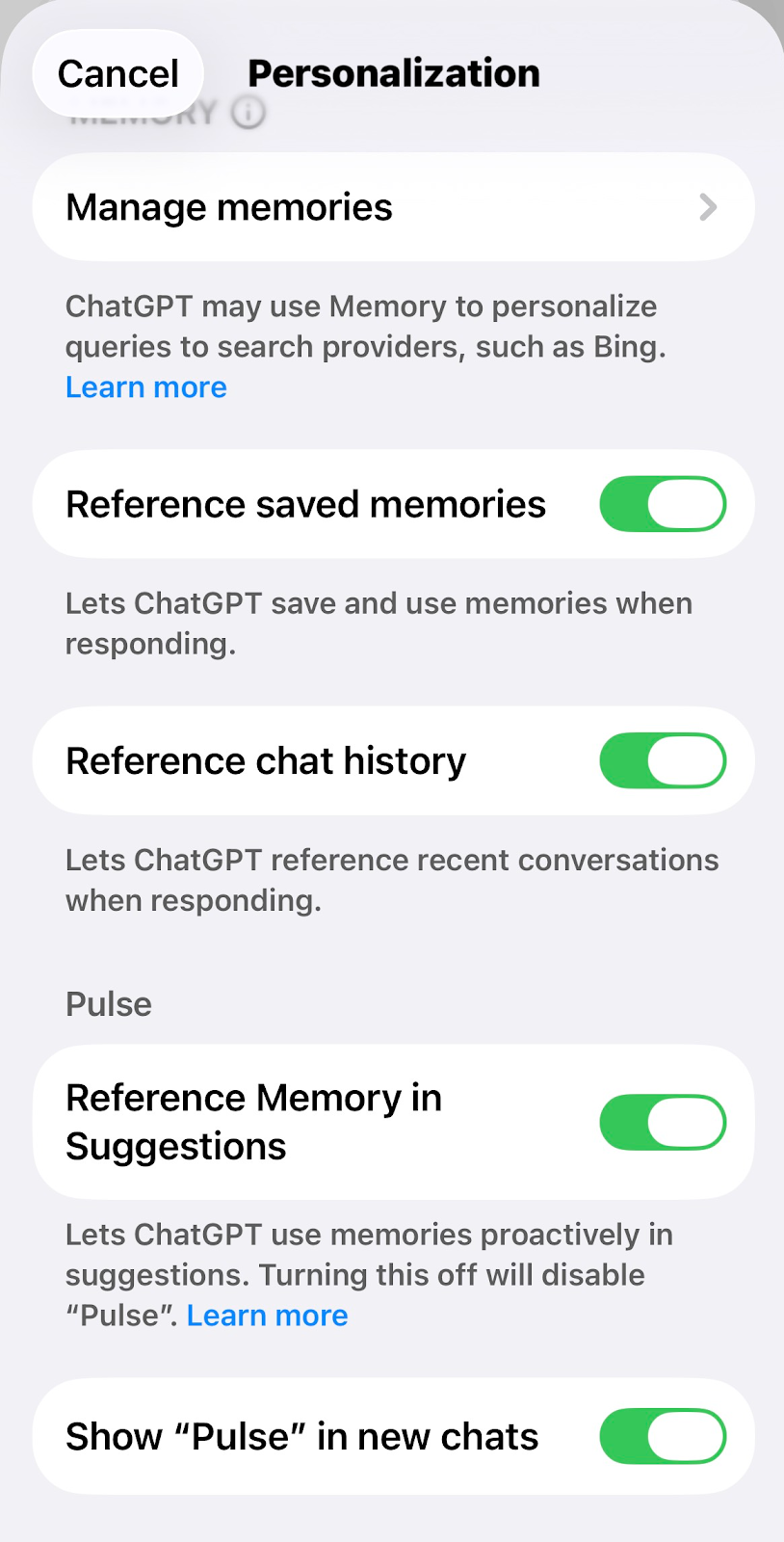
You can turn off Pulse any time in Settings. Visit Personalization and toggle off Reference memories in Suggestions. This will turn off the use of memories in proactive suggestions, including disabling Pulse.
You can also choose to remove Pulse from showing up in the main conversation window by toggling off Show Pulse in new chats. Pulse would still be available to use from the entry point in the side bar.
Pulse FAQ
How can I delete what I see in Pulse?
What you see in their Pulse is only available for one day and subsequently deleted unless saved as a chat, or if you engage with it and it is now present in your conversation history.
If you save or interact with any of the visual summaries as a chat, you can delete that chat at any time and it will follow the same process for deleting chats from your conversation history. Learn more about deleting chats in ChatGPT.
How is the information I see and interact with in Pulse used to train the model?
If you have “Improve the model for everyone” enabled, interactions and conversations from Pulse that form part of your conversation history will be used to improve ChatGPT. Learn more about data controls.