
Overview
Before inviting employees who already use ChatGPT, confirm which account they will use and explain your workspace’s sign-in requirements. Review any migration choices with them so they understand what will happen to their personal content, subscriptions, and access.
Check existing accounts before sending invitations
Ask whether employees already use a personal, Plus, or Pro ChatGPT account with their company email address. Confirm the exact email address receiving the invitation and the intended company workspace.
Employees should accept the invitation and sign in with that same email address. Creating a replacement account or using a different address can make the expected workspace or existing history appear missing.
If an invitation is missing, ask a workspace owner to check pending invitations and select Resend invite, where available. SCIM-managed invitations cannot be resent directly. Verify any unexpected invitation with your IT team before signing in. If a ChatGPT Business invitation is still pending, see: workspace invitation troubleshooting.
An account is what an employee uses to sign in to ChatGPT. A workspace contains their chats, content, and settings. One account can access separate personal and company workspaces. Joining a company workspace and migrating personal content are separate actions.
Understand what employees will see
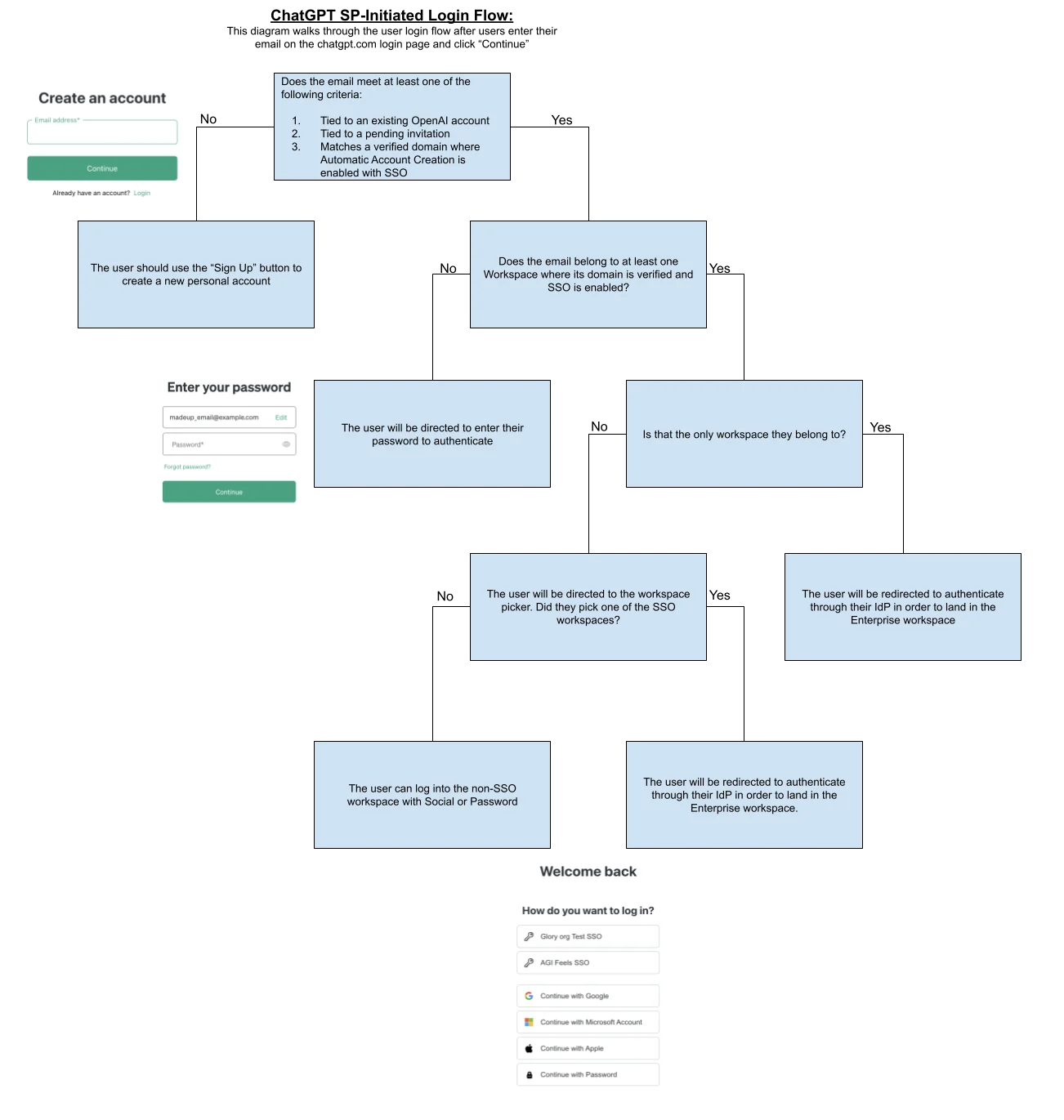
Employees may see different sign-in and onboarding options depending on their invitation, workspace plan, and existing account. Use the table below to explain the experience that applies to them.
| Situation | Workspace sign-in | Expected experience |
|---|---|---|
| Invited to an eligible Enterprise or Edu workspace | Single sign-on, when required. | Join the company workspace; eligible users with an existing personal workspace may see a migration prompt. |
| Invited to a ChatGPT Business workspace | The workspace’s permitted sign-in method. | Join the Business workspace. Employees can keep their personal workspace separate or choose to merge it into Business; admins cannot require a merge or deletion. |
| No workspace invitation or approved enrollment | The employee’s existing sign-in method. | A personal workspace generally remains separate; sign-in alone does not create workspace membership. |
Review sign-in and provisioning
Changing the email address on a personal account does not necessarily make its previous work email available for a new account or SCIM provisioning. Previous SSO use can also continue to affect access after a verified domain is removed. Contact OpenAI Support before making changes. Do not remove a verified domain or create a replacement account as a workaround.
Where automatic account creation is available for Enterprise or Edu, signing in with a verified company email can trigger the same migration experience. For Enterprise plans, automatic account creation is on by default for the first eligible workspace created in a new tenant. Review it and prepare affected employees before applying a verified domain to the workspace. For workspace defaults and controls, see: Managing your tenant in Admin Console.
Automatic account creation does not reactivate a removed or deactivated workspace membership. If you see “No eligible ChatGPT account found,” ask a workspace owner or admin to confirm your authorization and invite you again.
On Enterprise plans, automatic account creation provisions full workspace seats under your organization’s normal billing terms. A user added to the workspace can consume a seat even if their identity-provider access prevents sign-in. If the same verified domain is mapped to multiple workspaces, automatic account creation may invite the person to more than one workspace. Review domain mappings and enabled settings before rollout.
Review migration choices and implications
Choose how to handle personal content
Before employees migrate personal content, explain the options available for their destination workspace. Confirm whether they can keep their personal workspace separate or need to complete a migration step. If employees keep their personal workspace separate, any personal subscription continues until canceled. Review the supported content, exclusions, and access implications with them before they continue. For details, see: personal-workspace migration options.
If a Business workspace upgrades to Enterprise, the Business workspace itself is not merged. An employee may still receive a separate personal-workspace migration prompt during Enterprise onboarding.
When an Enterprise or Edu invitation uses a verified company domain, an employee with an existing personal workspace under the same account email may need to complete a migration step before joining. Depending on the available options, the employee can merge their personal workspace to copy supported content into the company workspace or export and delete their personal data. An invitation using an unverified or external domain generally does not trigger migration.
Review content and subscriptions
Chats and data residency: Data-residency requirements may prevent personal chats from transferring to the company workspace. If transfer is unavailable, export important data from the personal workspace before starting the migration and confirm that the downloaded file opens. Self-service data export is not available in ChatGPT Business or Enterprise workspaces. If the export fails, stop and contact OpenAI Support.
GPTs: Migrated GPTs are private and are not automatically shared with other workspace members. If a GPT was previously shared through a public link or published in the GPT Store, its migrated copy must be shared again for others to use it. Available sharing options depend on the destination workspace’s settings and the user’s permissions.
Subscriptions: An eligible web-billed Plus or Pro subscription may be canceled and refunded through the migration flow shown. A subscription purchased through Apple or Google may require separate cancellation.
Personal content: Confirm which account and personal workspace contain the chats and GPTs affected before accepting a migration prompt. Employees cannot select individual chats, projects, or files to transfer.
Sites: Sites do not transfer in personal-to-Business or personal-to-Enterprise migrations.
For the complete list of supported content and exclusions, see: personal-workspace migration guidance.
Understand access after migration
Migration copies supported personal content into the company workspace and deactivates the personal workspace. There is no undo option that moves company-workspace content back into a personal workspace. If a Business workspace is later deactivated, a separate recovery flow can reactivate the original personal workspace and its data. This does not restore Business access or copy Business activity back.
After migration, chats and GPTs are subject to the company workspace’s access and retention policies. If an employee leaves or loses workspace access, they may also lose access to that content.
Plan for personal account access
Account access also matters after onboarding. A personal workspace under a work email is not the same as a separate account using an email address the employee personally owns. Keeping workspaces separate does not make the employee’s access to that account independent of the company email address.
For personal use, recommend a separate account with an email address the employee personally owns and controls. Employees should keep personal conversations and data in that account rather than one tied to a work or corporate email address.
When employment ends, employees can lose access to the affected account or workspace and its data if they lose access to their company email account or corporate workspace. Company-workspace content does not move back into a personal workspace. Explain these access consequences before employees complete onboarding or migration.
Tell employees what to expect
Before the rollout, tell employees:
Which email address will receive the invitation.
Which company workspace to select.
Which sign-in method to use if the workspace requires SSO.
Whether a personal-workspace migration prompt could appear.
Whom to contact before making decisions about chats, GPTs, or subscriptions.
Do not assume every invitation email, delivery time, or migration prompt can be customized.
Test your rollout with a small group
Invite a small group that includes employees with existing personal, Plus, or Pro accounts when relevant. Check the invitation, account email, company workspace, sign-in method, migration choices, data-residency restrictions, and subscription guidance before inviting everyone.
For company sign-in, see: Single sign-on (SSO) setup for OpenAI products.
For ChatGPT Business workspace sign-in, see: Setting up single sign-on for ChatGPT Business.
If you plan to synchronize users from your identity provider, see: SCIM provisioning and management.
If a workspace or account history appears missing, see: Troubleshooting SSO, workspace access, and domain verification.