If you see Space instead of Library, you can find your saved files there. On the web, open Space and select All > Your items. For more information, see: Getting started with Space in ChatGPT.
Overview
With Library, you can find files you’ve uploaded to ChatGPT and reuse them in a new chat without uploading them again. For example, you can ask ChatGPT to make a chart from last week’s spreadsheet or download a presentation you made in an earlier chat.
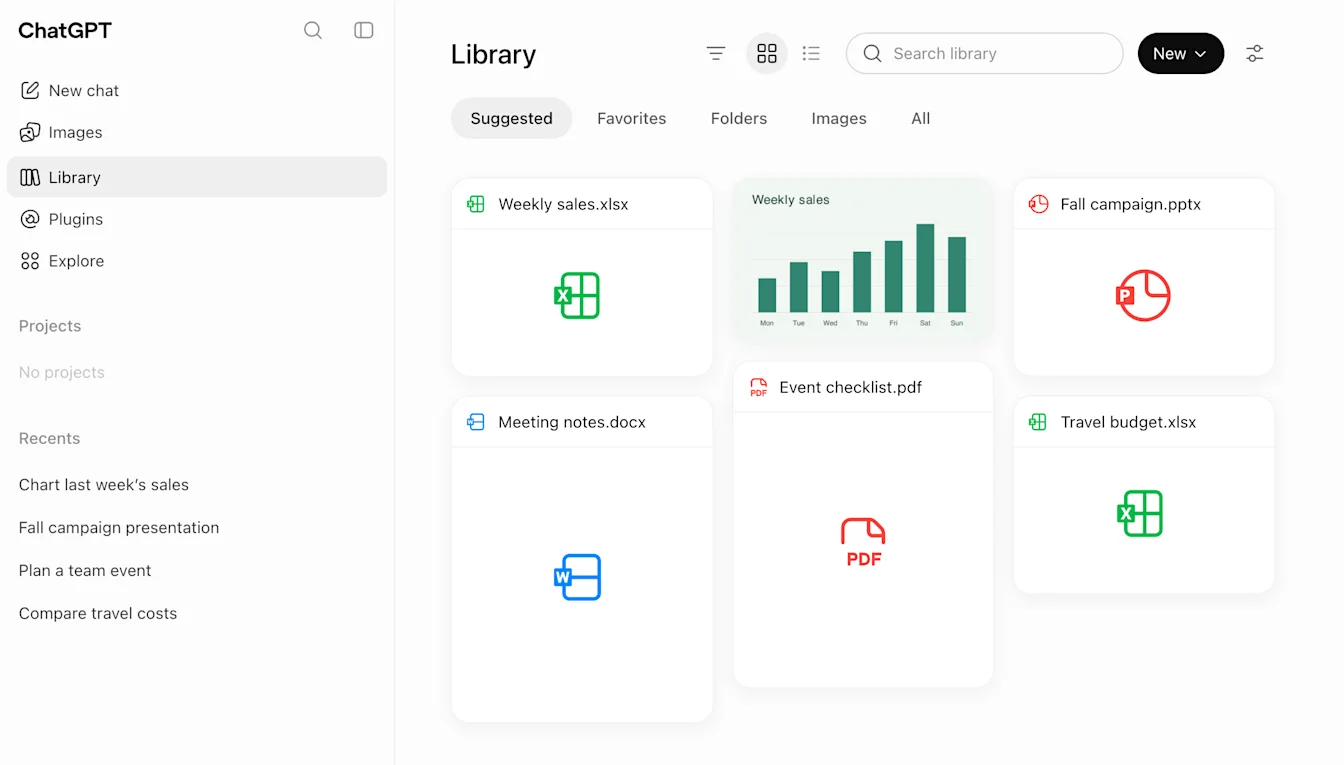
You can also find images you have generated in Images.
Your Library storage limit is separate from limits on how often you can upload files or send messages.
Availability
You can access your saved files on the web, iOS, and Android, including in the European Economic Area, Switzerland, and the United Kingdom.
On ChatGPT Free and Go, open Library.
On eligible ChatGPT Plus and Pro accounts, Space replaces Library. There’s no separate Library page on the web. You can still select Add from library in a chat to attach a saved file.
In a Business, Enterprise, Edu, or ChatGPT for Healthcare workspace, open Space if you see it. Otherwise, open Library.
In Space, select All > Shared with you to find files shared with you or your team. For files in a shared space, open that space. Your projects are still available separately.
Find and use files
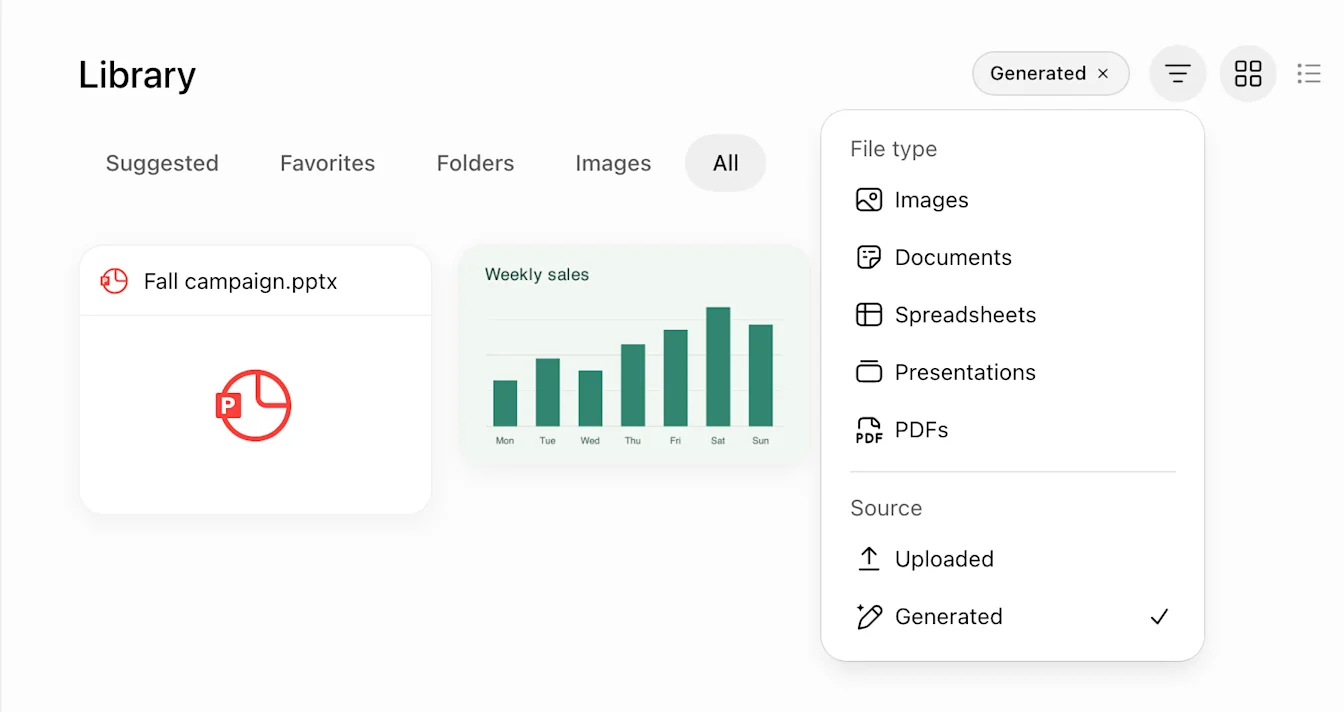
Open Library to browse your files or search by name. On the web, select Filters to narrow your results.
Under Source, select Uploaded or Generated.
Under File type, select Images, Documents, Spreadsheets, Presentations, or PDFs.
To include files whose names start with a period, open Settings in Library on the web. Turn on Show hidden files if it’s available.
Add a saved file to a chat
In a chat on the web, select +.
Select Add from library. If you see Recent files instead, select Recent files > Add from library.
Select the file, then select Add to chat.
If the file appears in Recent files, you can select it there to attach it directly.
Download files
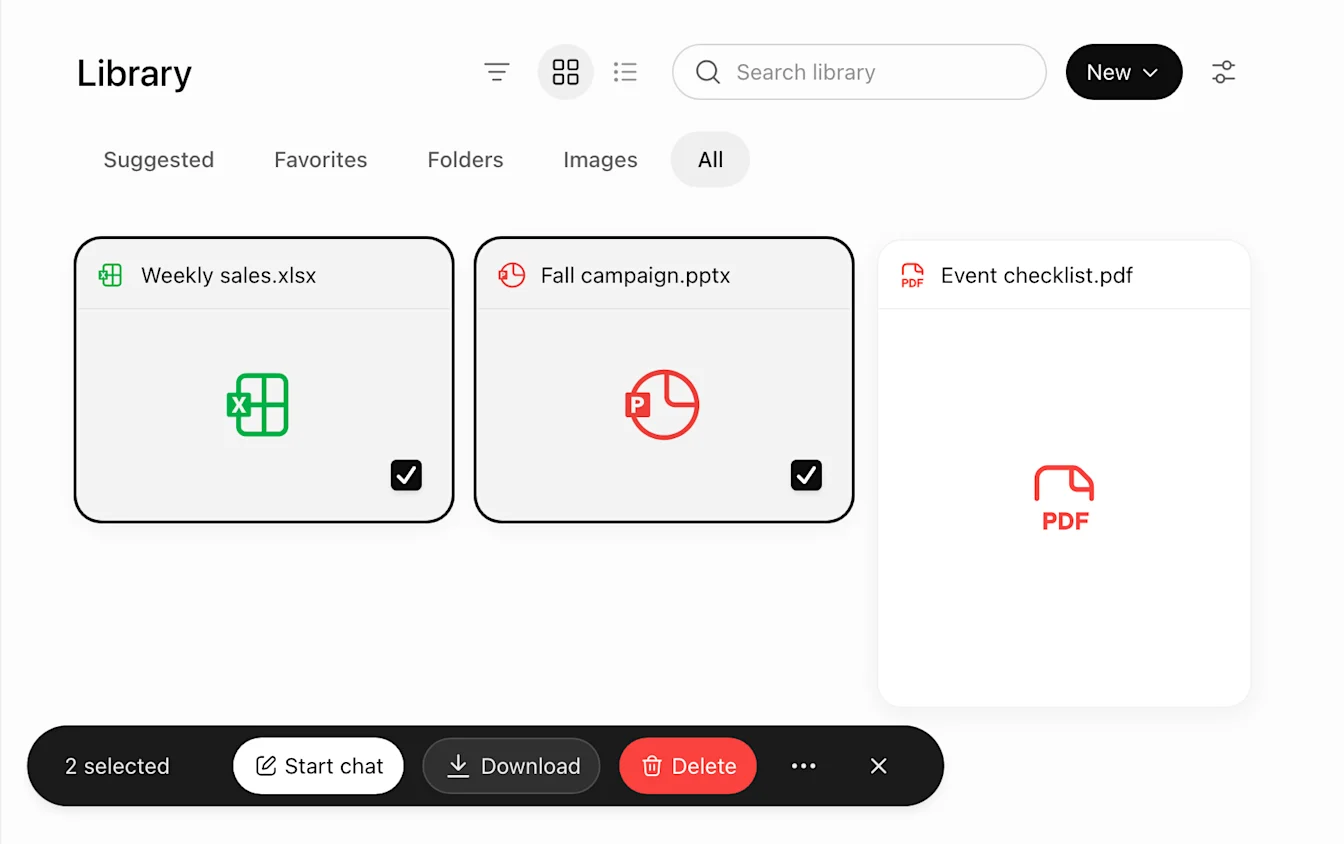
In Library, select one or more files, then select Download.
If a file ChatGPT created won’t download from the chat, check whether it was saved to Library. On the web, filter by Generated and file type to find it. If it’s there, try downloading it from Library.
Find files from locked chats
Locked chats aren’t available in ChatGPT for Healthcare.
When a chat is locked, files you uploaded or created in it are hidden from Library or Space. You can open them only in that chat. Files you added from elsewhere in Library, Space, or a connected service keep their existing access rules.
Go to Projects > Locked chats. On mobile, you may need to go to Explore > Projects first, then select Locked chats.
Enter your account PIN or use your device’s authentication method, if available.
If you permanently unlock the chat, files previously saved to Library or Space reappear there.
Resetting your account PIN permanently deletes files protected only by that PIN. OpenAI Support is unable to recover content deleted by a PIN reset.
Organize favorites
You can add files, including generated images, to Favorites in Library. To save a product or place there, select its bookmark icon in ChatGPT.
On the web, you can select a folder when you bookmark a product or place. To move a saved item, open its more options menu (•••) in Library. Select Move to folder or, if the item is already in a folder, Move. Select the destination folder.
Shopping with ChatGPT Search explains how to shop from images and try on products.
Share files and folders
If sharing is available in your Library, open the more options menu (•••) for the file or folder and select Share.
To invite specific people, enter their names or email addresses, select Viewer or Editor, and select Invite. They can find the file or folder in Shared with me.
To share a workspace link, select your workspace under Link access and select Viewer or Editor. Select Copy link and send the link to the workspace members who need it.
You can change access in the sharing dialog.
Save files and manage storage
ChatGPT automatically saves eligible files you upload or create in a chat. To upload a file directly to Library on the web, drag it into Library or select New > Upload.
If there isn’t enough space for a file, you can’t upload it directly to Library. You may still be able to attach it to a chat without saving it to Library.
Files in temporary chats
While a chat remains temporary, ChatGPT doesn’t save your uploads to Library or Space. If you save the chat to your history, ChatGPT may also save eligible files to Library or Space, depending on which features you have and how much storage you have left.
File size limits
Files you upload to a GPT or a chat can be up to 512 MB each. Some file types have additional limits.
| File type | Limit per file |
|---|---|
| Text files and documents | 2 million tokens. This limit doesn’t apply to spreadsheets. |
| CSV files and spreadsheets | About 50 MB, depending on the size of each row. |
| Images | 20 MB |
Check your Library storage
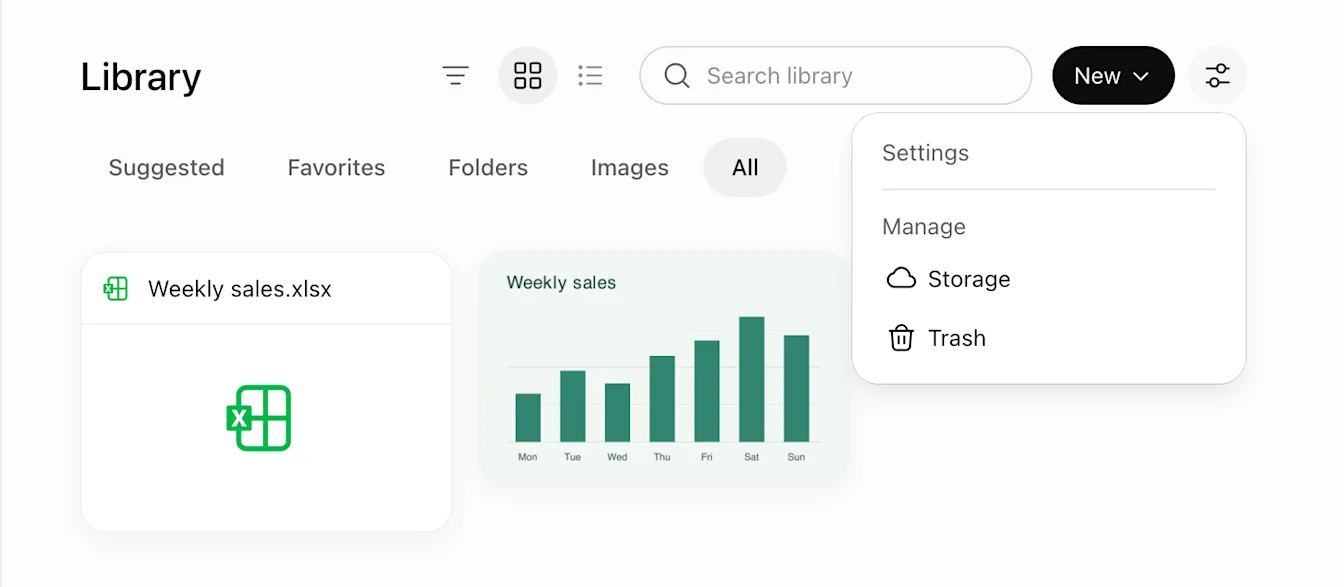
On the web, open Library and go to Settings > Storage to see how much space you’ve used and how much you have left. If a storage warning shows Manage, you can also select it to check your usage.
| Plan | Library storage |
|---|---|
| Free | Up to 512 MB |
| Go | Up to 4 GB |
| Plus and Business | Up to 20 GB |
| Enterprise, Edu, and ChatGPT for Healthcare | Up to 25 GB per user |
| Pro | Up to 100 GB |
You can reach an upload limit even if you have storage space left. If the message tells you when to try again, wait until then. Deleting saved files won’t reset the upload rate limit. Troubleshoot file uploads.
Delete saved files
Deleting a chat doesn’t delete a file saved separately in Library. To remove the saved copy, delete it from Library.
Deleting a file from Library also removes it from projects that use it. Content from the file may remain in chats. If you restore the file, you may need to add it back to a shared project.
In Library, select the file you want to delete. On the web, you can select several files by hovering over each file and selecting its checkbox.
Select Delete, review your selection, and confirm.
Deleted files disappear from your main Library view immediately. When Library updates your storage total, it excludes files in Trash. You don’t need to empty Trash to free up space.
You can’t delete connected Google Drive files or folders from Library. To manage or delete the original, open it in Google Drive.
Restore files or delete them permanently
If Trash is available, you can restore a file for up to 30 days after you delete it. Your workspace’s retention policy may shorten that time.
On the web, open Library and go to Settings > Trash.
To restore a file, open the file’s more options menu (•••). Select Restore, then select Restore again to confirm.
To permanently delete a file, open the file’s more options menu (•••). Select Delete forever, then select Delete forever again to confirm.
To permanently delete all files in Trash, select Empty trash, then select Delete forever to confirm.
OpenAI schedules deleted files for permanent deletion from its systems within 30 days. The following exceptions apply.
The file’s content has already been de-identified and disassociated from your account.
OpenAI must retain the file longer for security or legal obligations.
Learn more about deleting and archiving chats and how long ChatGPT keeps chats and files.
Use files from connected apps
You can browse folders from Google Drive, Box, Dropbox, or SharePoint in Library. Connect the app in ChatGPT and allow access to your files. In a workspace, your admin may also need to allow specific actions.
If OneDrive is available in your workspace, you can browse its folders in Library on the web. Your SharePoint connection needs access to your work or school OneDrive. You can’t use a personal OneDrive account with this connection.
Connect Google Drive
Google Drive browsing is available to eligible Plus, Pro, Business, Enterprise, Edu, and Healthcare users on the web and on supported versions of the iOS and Android apps. If you have both Chat and Work on the web, you can browse Google Drive in either one.
If you’re in a workspace, your admin needs to allow the Google Drive actions required for browsing.
Connect Google Drive in ChatGPT and grant permission to browse your files.
Open Library and select Google Drive.
In Library, you’ll find files and folders from My Drive alongside files you’ve uploaded or created in ChatGPT. Under Shared with me, you can find items shared directly with you, including individual files and folders from a shared drive. You can’t browse an entire shared drive as a separate location in Library.
What you can see depends on the Google account you connected and your workspace’s access settings. Your files stay in Google Drive.
Work with Google Drive files and folders
Browse or search for a Drive file in Library. You can add it to a chat from the message box or use an @mention without uploading the file again.
Ask ChatGPT to summarize a file, compare files, or create something new.
On the web, you can start a chat with a Google Drive folder.
In Library, select the checkbox next to the folder.
Select Start chat.
Tell ChatGPT what you’d like to do with the files.
If you don’t see Start chat, add the individual files to a chat instead.
Where supported, you can keep Google Docs, Sheets, or Slides open alongside your chat. If editing is supported and you have permission, ChatGPT can update the original file. For editing and collaboration features that aren’t available in ChatGPT, open the file in Google Drive.
The Google app data controls FAQ explains how OpenAI uses data from Google Drive files and folders.
Reconnect an app
You may need to reconnect an app to give Library permission to browse its files. If your organization requires admin approval for new permissions, contact your workspace or IT admin.
Go to Settings > Plugins. If you see Apps instead, go to Settings > Apps.
Select the app you want to reconnect.
Under Connected accounts, select Reconnect next to the account. If you see Connection instead, look for Reconnect there.
If prompted, sign in and approve the requested permissions.
If you don’t see Reconnect, follow the instructions shown for your app. Learn more about connecting and managing app accounts.
Reconnecting updates permissions for Library. It doesn’t delete files or folders from the connected service.
Manage app permissions for your workspace
Workspace admins can turn individual actions on or off for some apps. If you turn off an action required for browsing, members can’t browse folders from that app in Library.
Other actions affect features such as search, previews, downloads, and recent files. For example, members can still browse Google Drive folders if you turn off recent_documents and leave the actions required for browsing on.
Public actions for connected apps
| App | Required to browse folders | Other actions |
|---|---|---|
| Google Drive | list_folder, search, get_file_metadata | fetch, recent_documents |
| Box | list_folder_content_by_folder_id, get_folder_details | get_file_details, search_files_keyword, search_folders_by_name |
| Dropbox | list_folder, get_file_metadata | download_link, fetch, file_preview, get_shared_link_metadata, search |
| SharePoint | No public actions are required. | — |
Members in read-only workspaces can browse connected folders without private upload or write actions. They may be unable to upload files or save changes.
Privacy and workspace settings
OpenAI uses your files and chats according to your settings and data controls. For example, if you have Memory turned on, files and chats may be used to help ChatGPT remember useful details about you between chats.
Model training
OpenAI may use content (including files you upload) submitted to ChatGPT and other services for individuals to improve model performance if you have Improve the model for everyone turned on. You can turn it off anytime in Settings > Data Controls.
Learn more about how your data is used to improve model performance.
File retention in Enterprise, Edu, and Healthcare workspaces
Files uploaded to or created in ChatGPT and saved to Library are retained according to the workspace’s retention policy.
For existing files saved in Library in an Enterprise, Edu, or Healthcare workspace with a retention policy, opening a project, opening or downloading a file, or adding the same Library file to another chat does not restart the file’s retention period. A file can expire under your workspace’s policy even if you use it regularly.
This applies to access to an existing Library file. Temporary uploads and files that remain stored in connected services follow different rules.
Control when ChatGPT references Library files
Where this setting is available, workspace owners can choose whether to allow ChatGPT to reference Library files automatically. Members’ own settings still apply. If a workspace owner turns this off, members can still browse, search, open, and attach files themselves.
In workspaces with a HIPAA compliance policy, ChatGPT can’t reference Library files automatically. Workspace owners can’t turn this on.
Compliance admin access
Compliance admins can export and delete Library files through the Library-specific Compliance API endpoints. Learn more about the OpenAI Compliance Platform for Enterprise and Edu customers.
Troubleshooting Library
Find a missing file
Check that you’re signed in to the account and workspace where you used the file. If you don’t see Library or can’t find the file in Space, try searching for the file from the sidebar.
If you uploaded or created the file in a locked chat, open that chat.
If you deleted the file, check Trash in Library on the web, if it’s available.
If the file is in a connected app, check that you still have access to it in that app.
If you’re looking for an image you created, check Images. Learn more about managing generated images.
Check why a deleted file still appears
If you see the file only in Trash, you’ve already removed it from your main Library view. Emptying Trash won’t delete a file that’s still in the main view.
If the file reappears in the main view or you see an error, tell OpenAI Support which step failed and whether it happened with one file or several.