
Note: Admins need to set up Slack before workspace members can create workspace agents.
The ChatGPT Agents app brings the power of ChatGPT workspace agents to Slack. This allows you to build a ChatGPT workspace agent and interact with it from Slack by deploying it to Slack channels. It can respond to your teams’ questions, perform productive tasks using connections to other systems, and output files to you in Slack.
Slack Enterprise Grid organizations can use ChatGPT Agents across multiple workspaces. After connecting Slack through an approved workspace, users can invoke any agent added to one of their Slack workspaces.
What you can do
Access your agents in private channels: You can interact with your agents in private settings — connect them to your private systems and use them to send emails, update documents, and more without ever leaving Slack.
Configure your agent to respond in public channels: You can configure your agents to automatically respond to messages in public channels. For example, you could configure a company knowledge agent to automatically respond in a help channel.
Schedule your agent to send messages in Slack: You can set up your agent to operate on a schedule, and send its results to a Slack channel.
Responses from ChatGPT Agents may be inaccurate.
ChatGPT Agents app installation
Note, installation instructions are different for Slack organizations that use Slack Enterprise Grid. See instructions below for these organizations.
Pre-requisites
Your Slack workspace must allow installation of the ChatGPT Agents app for Slack
You must be using a paid Slack plan.
Your Slack workspace permissions must allow all members to create user groups.
You must have a Business, Edu, or Enterprise ChatGPT account.
Enterprise admins must additionally enable the Workspace agents in Slack app from Admin app settings, including any RBAC configuration required to control user group access. Note that the Slack app in ChatGPT is enabled by default for Business accounts.
To open the Apps page from Admin console, select the intended ChatGPT workspace, open Plugins, and select Manage Legacy Apps.
Installation
Start installing the ChatGPT Agents app in Slack by clicking on this link. You will be required to sign into your ChatGPT account, if you haven’t already signed in. Then, you will be presented with the Add ChatGPT to Slack modal, shown below. Review the information presented and click Continue to Slack to proceed.
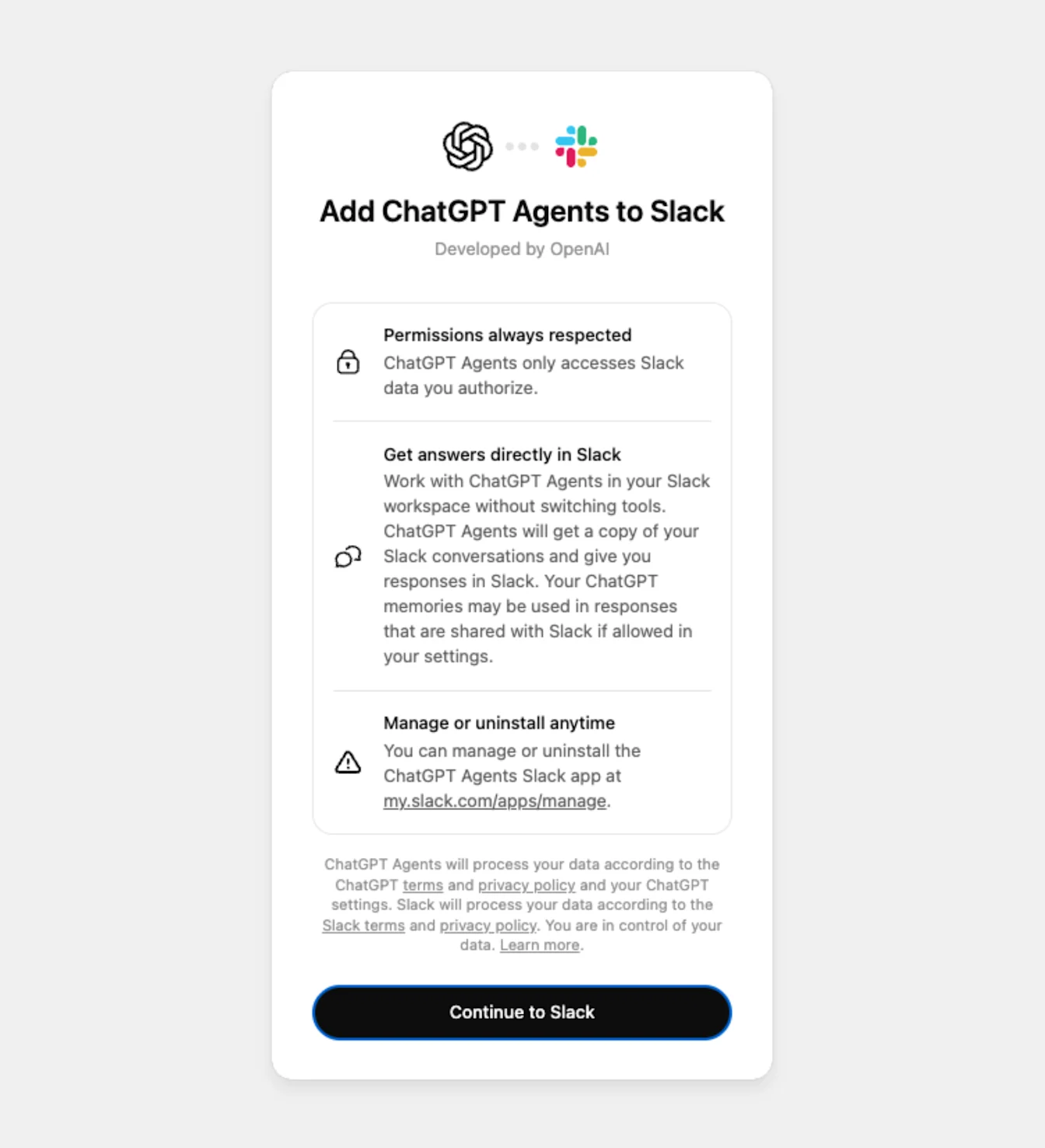
You will then be directed to the Slack authentication flow, where you can review and grant the app the required permissions. Depending on your workspace settings, this may require an approval from a Slack admin.
Once the app has been successfully installed, you can navigate to the “Agents” tab in the ChatGPT sidebar to create agents. Note that this feature is gated by admin-controlled permissions, so if you don’t see this tab, you may need to ask your workspace admin to enable Agents.
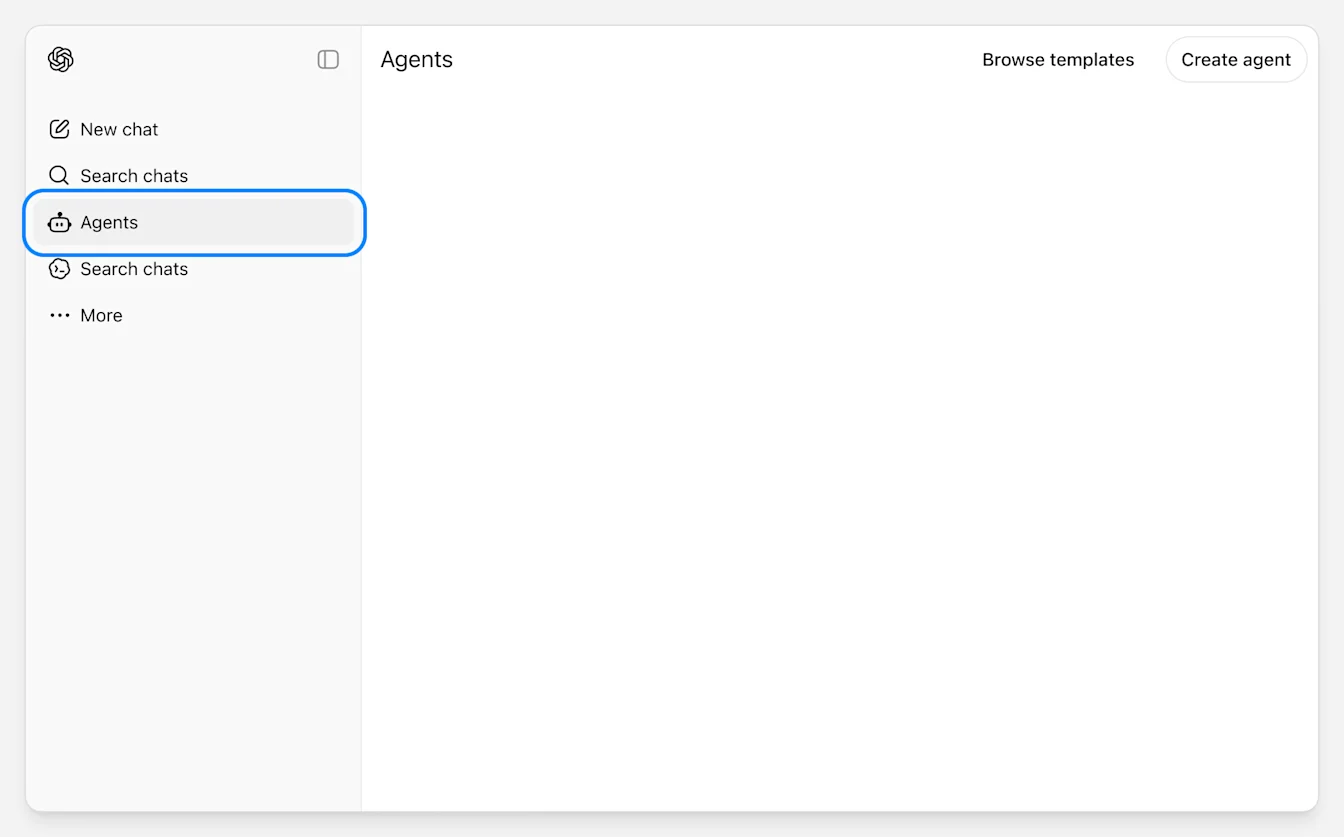
Once you’ve built an agent, you can enable your agent to interact in Slack by clicking the “Add channel” button. If you’re collaborating on an agent someone else owns, you can publish changes that keep the existing Slack channel setup unchanged, but the agent owner must add, remove, or change Slack channels.
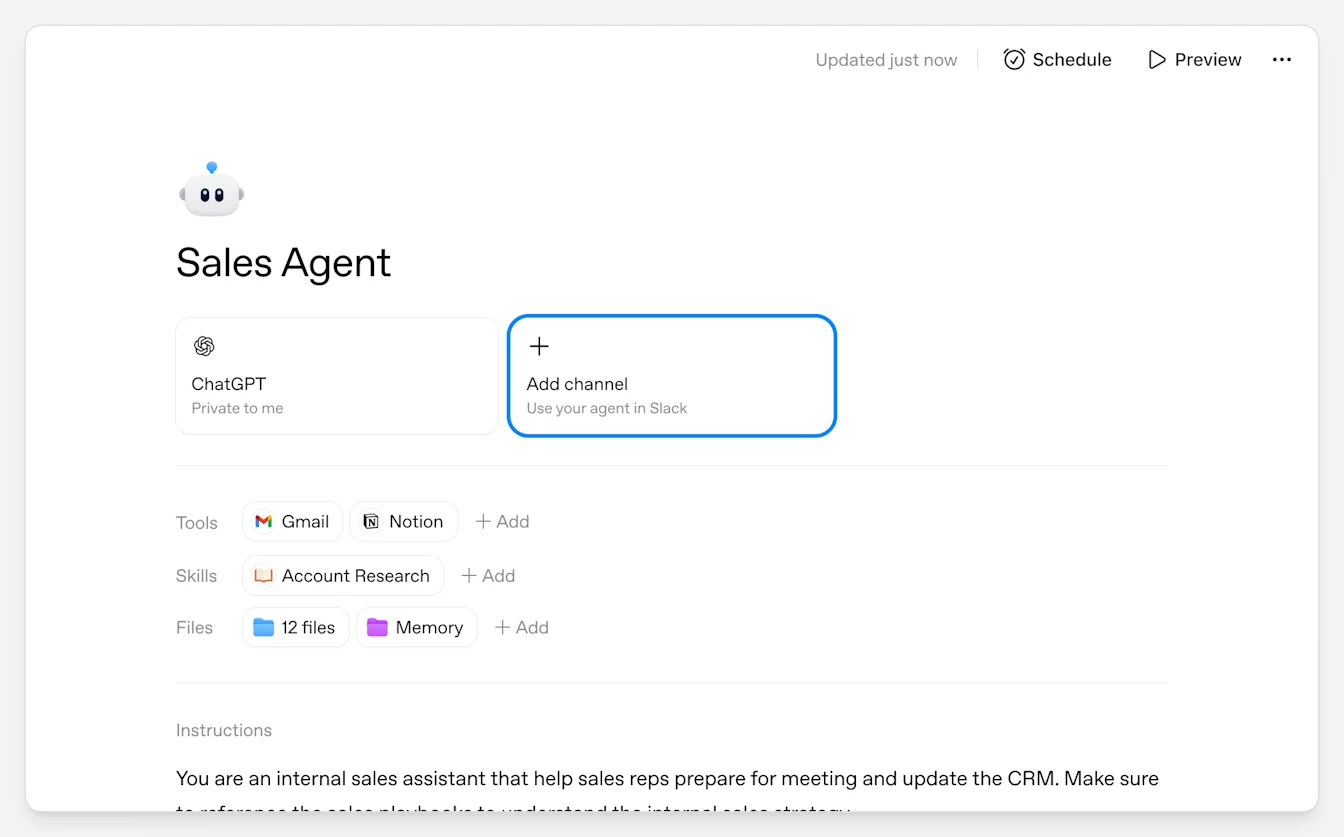
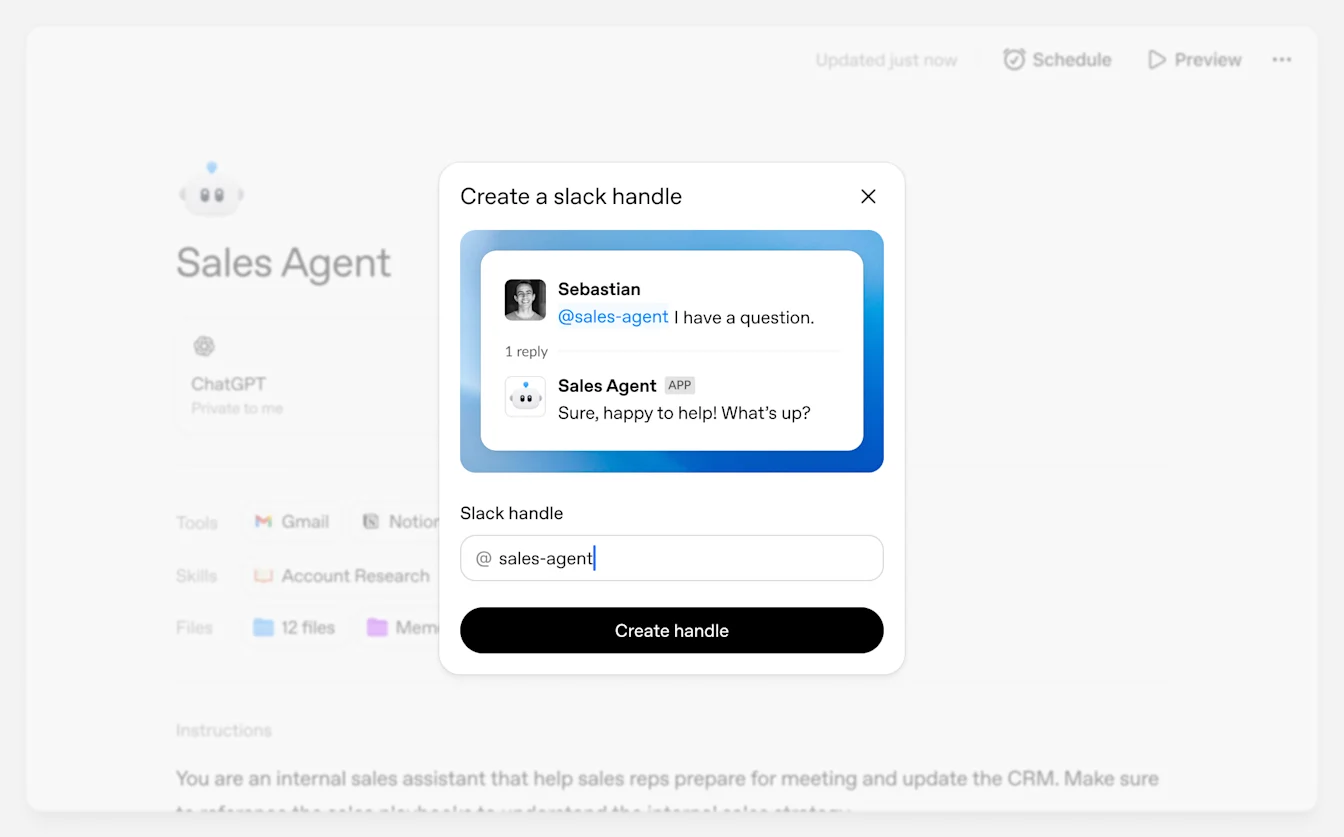
You’ll be asked to select a handle that will be used to let you chat with your agent from Slack. This handle will need to be unique from other user groups in your Slack workspace.
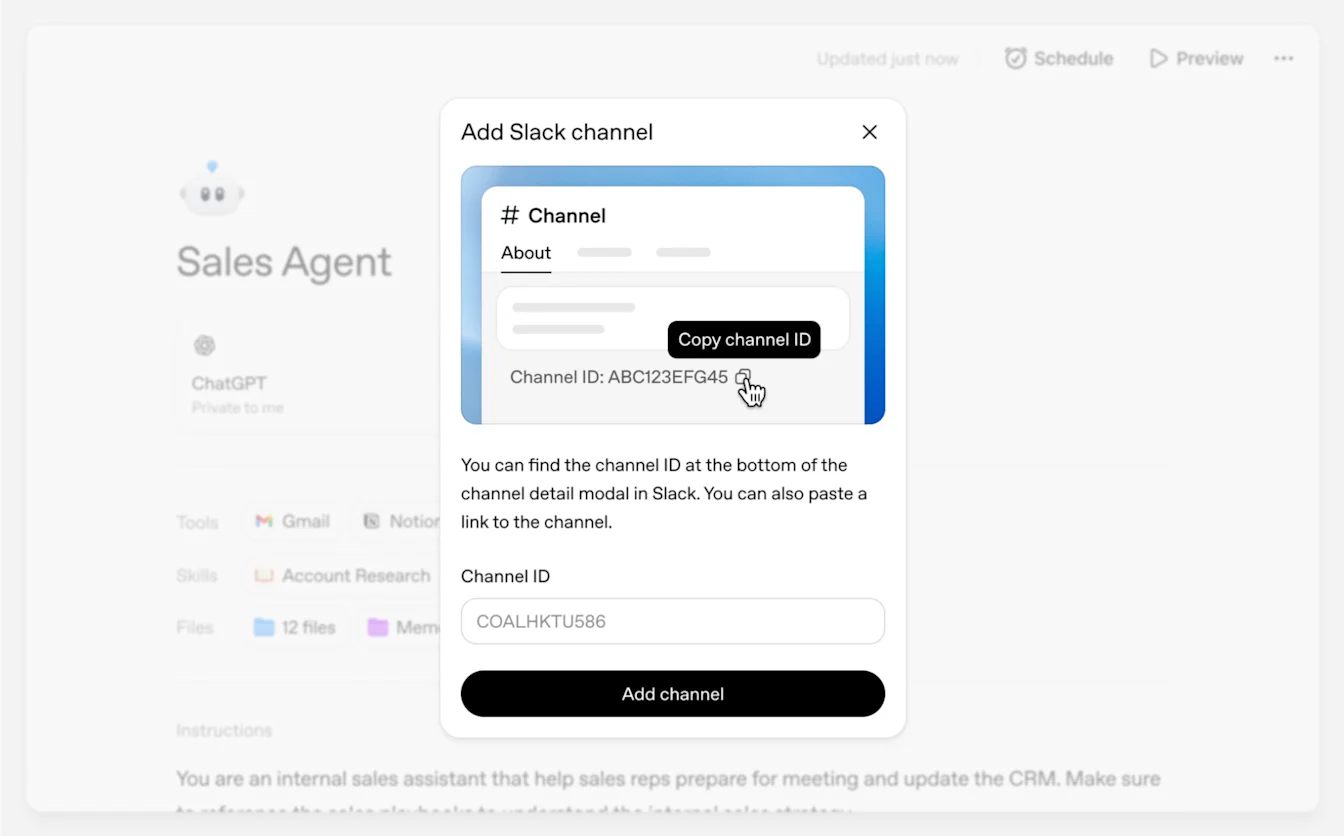
Next, provide the channel where you want to interact with your agent. If you wish to deploy your agent to a private Slack channel, you need to add the ChatGPT Agents Slack app to the Slack channel by navigating to Slack channel > Integrations > Add apps
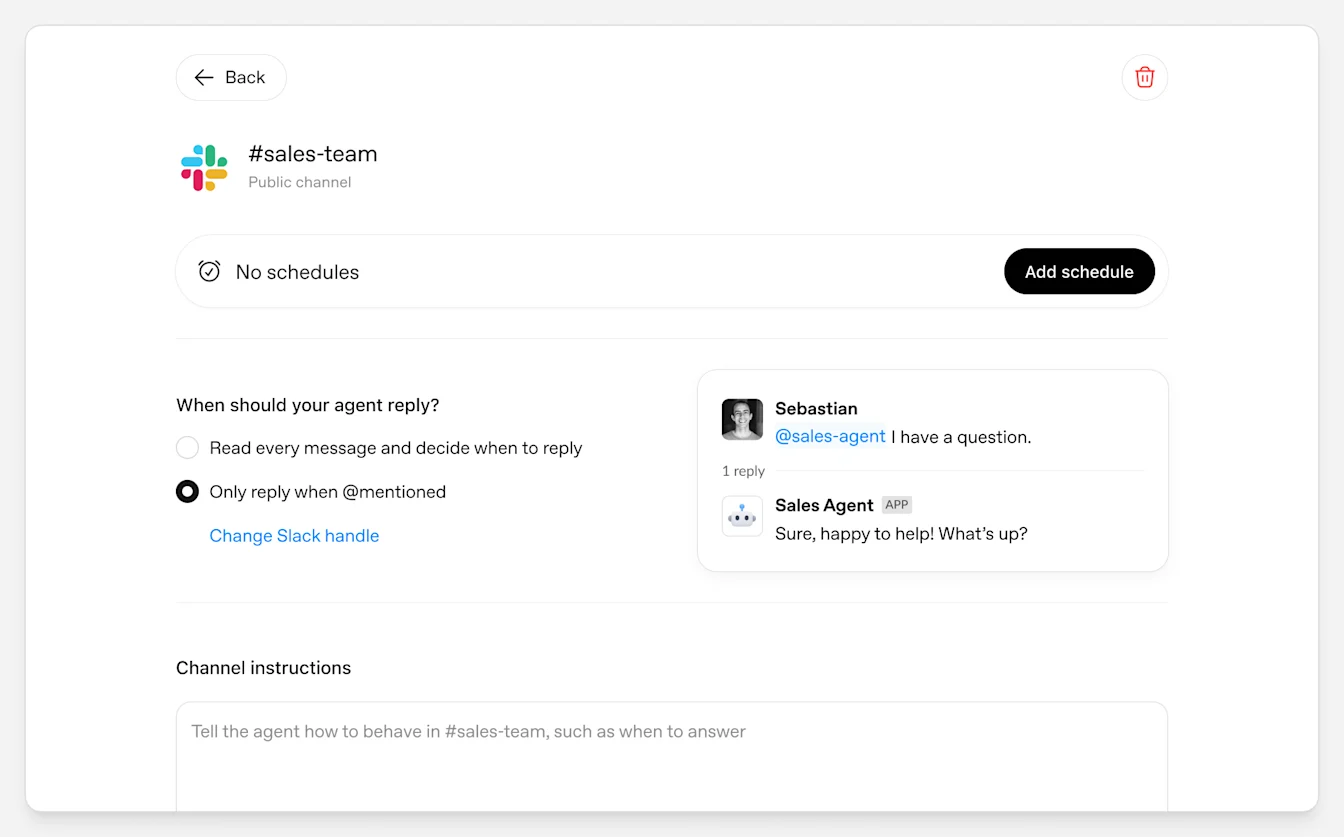
After this is complete, you can click into the channel button to configure schedules, choose how your agent responds, and give your agent additional instructions for the Slack channel. Under “When should this agent respond?”, choose “Respond to all relevant messages” or “Only reply when @mentioned.” If you select “Only reply when @mentioned” and see “Agent will follow up in the thread when there are relevant replies,” the agent can continue in that Slack thread when relevant replies are added after it has been mentioned.
Installation for Slack Enterprise Grid organizations
For Slack Enterprise Grid organizations, ChatGPT workspace agents on Slack require both org-level Slack approval and a workspace-level Slack connection. After setup, users can invoke any agent added to one of their Slack workspaces.
Setting this up requires three stages:
A Slack admin must approve and configure the ChatGPT Agents Slack app at the Enterprise Grid organization level.
A Slack admin must add the app to one or more Slack workspaces.
Team members must connect Slack from inside ChatGPT through one approved workspace.
If you skip the workspace step, Slack handle creation for your agents may fail. If you do not provide org-level approval, workspace agents may function with reduced capabilities.
Pre-requisites
You must have a Slack admin account for your organization
You must be using a paid Slack plan with Enterprise Grid.
You must have a Business, Edu, or Enterprise ChatGPT account.
Enterprise admins must additionally enable the Slack app from Admin app settings, including any required RBAC. Note that the Slack app in ChatGPT is enabled by default for Business accounts.
Slack admin installation
Step 1: Approve the ChatGPT Agents Slack app at the org level through OAuth
Use a Slack Org Admin, Org Owner, or Integrations Admin account to complete the ChatGPT Agents Slack app installation from the Enterprise Grid org context, not from an individual workspace selector. This can be initiated in ChatGPT by navigating to the ChatGPT Agent builder, creating a dummy agent, and creating a Slack channel. Docs for this are here.
This gives Slack the org-level approval required for the app to work on channels and workspaces across the org.
Step 2: Add the app to the workspaces where people will actually use it
After the org-level install is complete, go back to Slack Admin and add the app to every workspace where ChatGPT workspace agents should be available.
Step 3: Ensure members can manage user groups
As a Slack admin, navigate to: https://app.slack.com/admin/permissions/account-types
Confirm the permission for creating and editing user groups is available to members in the workspaces where ChatGPT workspace agents will run.
This is required because ChatGPT Agents creates and manages Slack user groups for agent handles. If this permission is blocked, builders will hit an error stating “Ask a Slack admin to allow members to manage user groups. Open Slack settings”
Step 4: Verify the app is available in the intended workspace
Before telling team members to connect, sanity-check that:
the ChatGPT Agents Slack app is approved for the Enterprise Grid org
the app has been added to the intended workspace
user-group permissions are enabled in that workspace
If you want a short admin checklist, it is:
Org-level OAuth approval first
Add to one or more workspaces second
Enable member management of user groups third
Slack team member installation
Step 1: Open ChatGPT from your workspace context
Make sure you are using ChatGPT inside the workspace where you want to build and run agents.
Note: ChatGPT workspace agents aren’t currently available on personal accounts.
Step 2: Connect Slack on an allowed workspace
When ChatGPT prompts you to connect to Slack, choose the specific Slack workspace that you want your agents on.
Ensure you connect a Slack workspace and not a Slack organization.
Step 3: Finish agent Slack setup
Once Slack is connected at the workspace level, you can:
Give your agent a Slack handle in the ChatGPT Agent builder
Add the agent to multiple Slack channels
Interact with and schedule your agents on Slack channels.
If you see a permissions error while creating the Slack handle, that usually means the Slack admin still needs to allow members to manage user groups in Slack.
Step 4: If you experience an error, reconnect the correct workspace
If Slack was previously connected to a different workspace or to an organization, reconnect and select the admin-approved Slack workspace in the workspace dropdown when completing the Slack authorization flow.
A connection that points at the org instead of a specific workspace can look valid at first, but still fail when ChatGPT tries to create the Slack handle or sync the Slack user group.
Troubleshooting
If the builder sees “Reconnect Slack and choose the Slack workspace where you want to create this handle,” the Slack connection is likely tied to the org instead of a specific workspace.
If the builder sees “Your workspace is not set up to use Slack with ChatGPT Agents. Ask your admin to set it up,” the admin needs to update Slack’s Account types permissions.
If Slack works when connecting but not for handle creation, check both of these:
the app was added to the desired workspace
the workspace allows members to create and edit user groups
Recommended rollout note
For Enterprise Grid organizations, admins approve the app once at the organization level, then add it to the workspaces where agents should be available.
Team members connect Slack from ChatGPT through one approved workspace. After connecting, users can invoke any agent added to one of their Slack workspaces.
Slack docs:
Privacy and security
ChatGPT respects Slack’s existing permissions — only the messages and files you already have access to in Slack are searchable.
Note that Enterprise admins may use the compliance API to access user conversations synced to your ChatGPT account from the ChatGPT app for Slack. See the Compliance API section below.
See more details on our privacy policy here.