
Composer predictions is in beta for users aged 18 and older on personal ChatGPT Pro plans in all supported regions. It’s available in local and SSH threads in the Codex desktop app with GPT-6 Astra, GPT-6.1 Sol, and GPT-6.1 Terra.
Overview
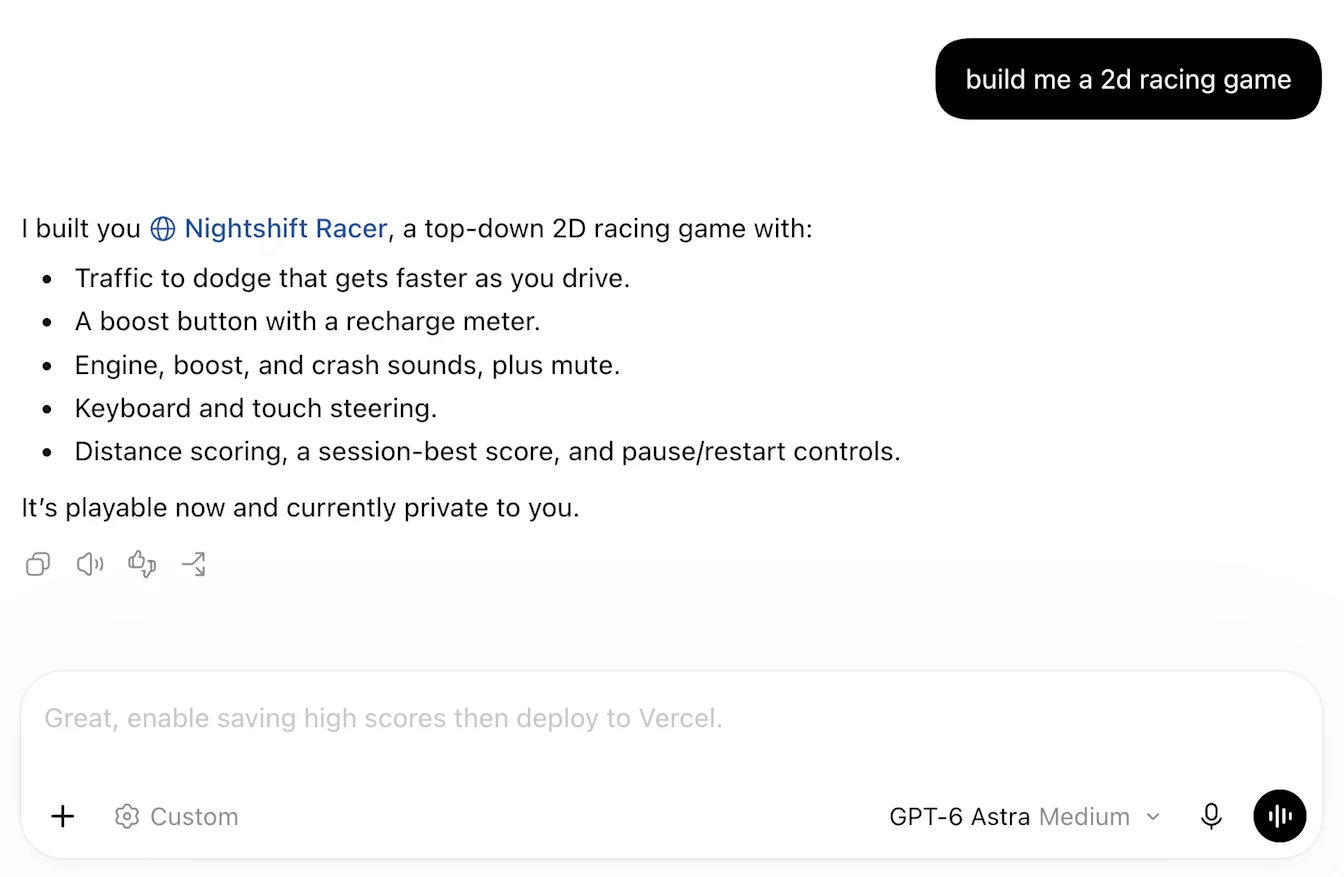
Composer predictions is a beta feature that suggests what you might want to say next, based on the conversation in your current Codex thread. After Codex finishes a response, a suggestion may appear in the message box. The composer may choose to skip a prediction.
You can accept a suggestion, edit it, or write your own message. Predictions may not always match your intent, so review them before sending.
Availability
Composer predictions is currently in beta and is available in all supported regions for adults aged 18 and older using a personal ChatGPT Pro account in the Codex desktop app. It is available in local and SSH threads with supported models.
Predictions are not available in Chat on web or Desktop. In Work, predictions may appear if you use local Work threads and conversations.
Supported models
Predictions are supported when using GPT-6 Astra, GPT-6.1 Sol, and GPT-6.1 Terra in local and SSH threads. Select one of these models in your local or SSH thread to use the feature.
Use Composer predictions
Update the Codex desktop app and sign in to your personal ChatGPT Pro account.
Open a local or SSH thread with a supported model and send a message.
When Codex finishes responding, look for a suggestion in the message box.
Press Tab to accept a suggestion. Review or edit the text, then send it when you’re ready.
To write something else, start typing your own message. You can keep typing without waiting for a prediction. Accepting a prediction adds text to the message box - it does not send the message for you.
Turn predictions off
Composer predictions are on by default for eligible users. To turn them off:
Open Settings in the Codex desktop app.
Go to General, then Composer.
Turn off Show predictions.
You can turn Show predictions back on in the same place.

How predictions use context
Predictions use the conversation in your current thread. If context from past work or connected apps is already in that thread, it can inform a prediction. Predictions don’t look up memories or retrieve information from connected apps on their own. You can use predictions with memory off.
To enable memory, go to Settings → Personalization and turn on Enable Codex memories. Memory context already in your thread can personalize predictions. Learn more about Codex memories.
Troubleshooting
If predictions aren’t appearing, check that your app is up to date, Show predictions is on, and your account, model, and thread type are supported.
A prediction won’t appear after every response. This alone does not mean something is wrong. You can continue by typing your own message.
If a suggestion doesn’t match what you want to do, ignore it and write your own message. You can also turn predictions off.
FAQ
How do I accept predictions?
Press Tab to accept a prediction, review or edit it, then send. Accepting doesn’t send automatically.
Do composer predictions cost extra?
During the beta, composer predictions are included at no additional cost for eligible Pro users.
Do predictions count toward my usage limits?
During the beta, generating predictions doesn’t count toward your Codex usage limits or consume credits. When you send a message, including an accepted prediction, normal Codex usage limits and billing apply.
How long does a prediction take to appear?
Predictions can take several seconds to appear after Codex finishes responding, and longer in long conversations. You don’t need to wait before typing your own message.
Do I need to use a prediction?
No. Predictions are optional. You can edit an accepted suggestion before sending it, ignore it, or turn predictions off.
What data retention and privacy policies apply?
Messages you send follow Codex’s retention and deletion policies. For details, see Data controls in ChatGPT and How your data is used to improve model performance.
Can I use predictions on Work or other clients?
During the beta, predictions are available only on personal ChatGPT Pro plans in the Codex desktop app. They aren’t available on other plans on the web, or in Chat.
How are composer predictions different from suggestions on the new conversation page?
Suggestions on the new conversation page help you start a task. Composer predictions suggest your next message in an existing conversation, after Codex finishes responding. Show predictions controls composer predictions.
Can predictions finish a message I’ve already started typing?
During the beta, composer predictions suggest a complete next message. They don’t update word by word as you type. You can accept a prediction and edit it, or continue writing your own message.
Do I need to start a new conversation to get predictions?
No. Predictions can appear in existing conversations that meet the feature’s eligibility requirements. Continue the conversation as usual. Predictions may take longer to appear in long conversations.
Can I keep a prediction to use later?
You can copy a prediction yourself. Press Tab to add it to the message box, then copy the text somewhere you can refer to later. Accepting it does not send it. You can replace the text in the message box with the message you want to send now.
Can composer predictions continue a task automatically?
No. Composer predictions don’t automatically accept or send follow-up messages. You should review each prediction before choosing to send it.
Do composer predictions require additional keyboard permissions on macOS?
No. Composer predictions don’t require additional keyboard permissions. If macOS displays a permission request, check which app feature is requesting access.
How can I report an issue with a prediction?
You cancontact OpenAI Support. Include what the prediction suggested, what you expected instead, the model you were using, and your desktop app version. If you include a screenshot, remove personal or sensitive information.