
Overview
System for Cross-domain Identity Management (SCIM) synchronizes users and groups from your identity provider. SCIM manages provisioning; single sign-on (SSO) manages how people authenticate. You can configure SCIM independently of SSO.
Check availability and choose a provisioning scope
Your options depend on your products, plan, existing directory connections, and administrator role.
| SCIM scope | Eligible products or plans | Required administrator | Where to manage it |
|---|---|---|---|
| Tenant-wide | Eligible tenants, including Ads-only tenants, can assign supported ChatGPT workspaces and Ads accounts. Enterprise and Edu tenants can also assign API Platform organizations. | global admin | Admin Console. |
| ChatGPT workspace | Eligible ChatGPT Enterprise or Edu workspaces. | workspace owner | The selected workspace. |
| API organization | Eligible API organizations with a supported Custom or Unlimited billing plan. | API organization owner | API Platform. |
| Not available | Standalone ChatGPT Business and ChatGPT for Teachers plans; use another supported onboarding method. | workspace owner or admin | The relevant ChatGPT workspace. |
A standalone ChatGPT Business plan and ChatGPT for Teachers do not include SCIM. Tenant-wide SCIM requires at least one verified domain and an eligible ChatGPT Enterprise workspace, ChatGPT Edu workspace, or Ads account. A Business workspace can be included only when the same tenant also has an eligible ChatGPT Enterprise workspace and the Business workspace is available under Product access. Automatic account creation is separate from SCIM and does not require SSO or synchronize directory users and groups.
For ChatGPT Business workspace setup and plan limits, see: Setting up single sign-on for ChatGPT Business.
For employees who already use a personal ChatGPT account, see: Onboarding employees with existing ChatGPT accounts.
Choose tenant-wide or product-level SCIM
Tenant-wide SCIM can provision supported ChatGPT workspaces and Ads accounts. Enterprise and Edu tenants can also provision API organizations through synchronized group assignments. Existing product-level connections continue to manage one eligible ChatGPT workspace or one eligible API organization.
If your ChatGPT workspace offers a choice:
Use SCIM only for this workspace creates a workspace-specific connection.
Keep the option to expand across products opens tenant-wide setup in Admin Console.
Using Admin Console does not require you to replace an existing product-level SCIM connection. Tenant-wide and product-level SCIM connections can both be enabled. However, you can't change a tenant-wide Product access assignment for a ChatGPT workspace or API organization while that resource has product-level SCIM enabled. Coordinate any migration with your OpenAI account team before changing a working connection.
Before changing scopes, review existing users, groups, product assignments, and roles. Coordinate any migration with your OpenAI account team. Do not delete a working connection to clear a setup error.
Tenant-wide SCIM can synchronize a managed user’s primary email with their existing OpenAI account when both the current and new email domains are verified for the directory’s tenant.
Connect a tenant directory
A global admin can use Admin Console to connect a shared, tenant-wide directory for eligible Enterprise or Edu workspaces and Ads accounts. Enterprise and Edu tenants can also use this directory to assign synchronized groups to API organizations. Before you begin, verify at least one domain for the same tenant. Individual Ads accounts do not have separate SCIM directories.
Sign in to Admin Console as a global admin.
Select the correct OpenAI tenant and open Global settings.
Select Access, then open Directory.
Select Enable Directory Sync (SCIM).
Configure the identity-provider application with the values shown for this tenant.
Assign one or two clearly named pilot groups or users in your identity provider.
Return to Directory and confirm that the connection becomes Active.
Initial setup can take up to 5 minutes. If setup is incomplete, select Continue setup. Select Cancel setup only if you intend to discard the unfinished connection.
Review the connection status and recent directory events to check the connection or investigate a missing user or group. To review group assignments, open Manage directory and select Manage product access.
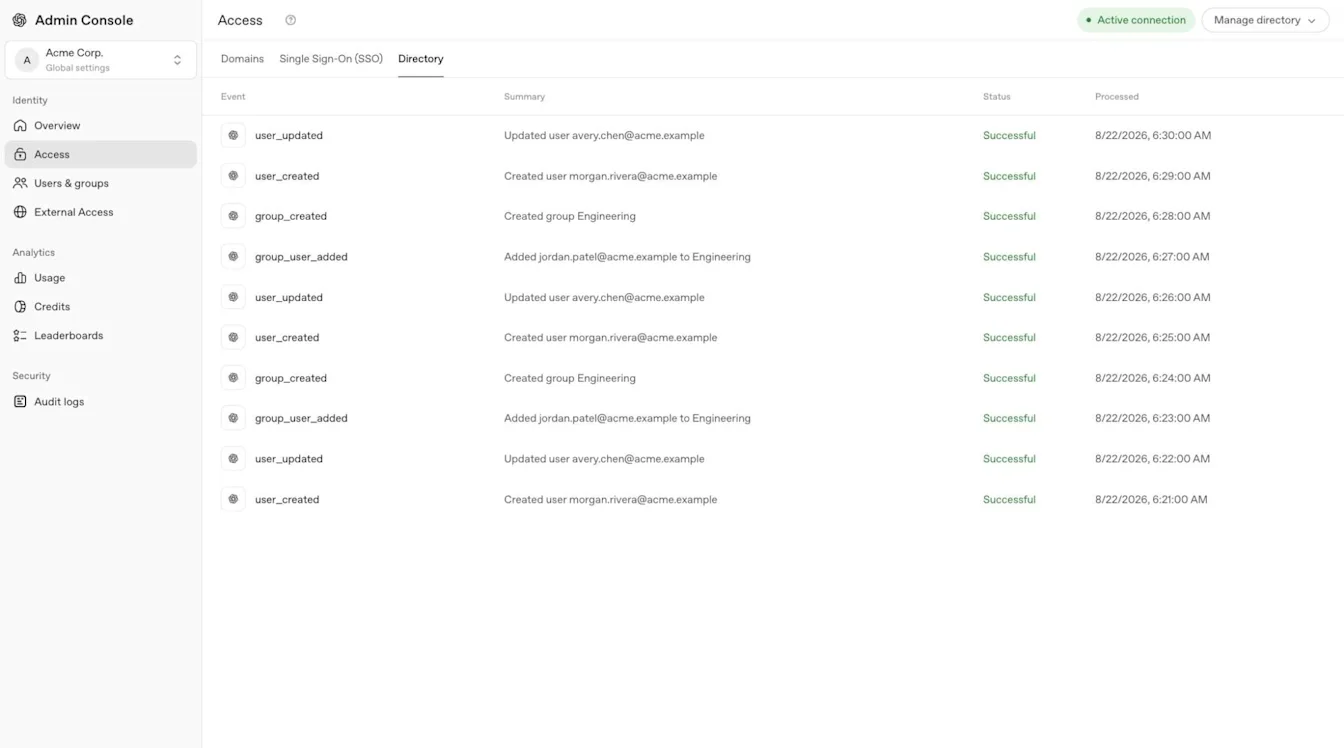
Depending on your identity provider, SSO and SCIM can share one application or require separate applications. Follow the provider-specific instructions, and do not reuse another workspace’s or API organization’s connection values.
Supported integrations can include Okta, Microsoft Entra ID, Google Workspace, PingFederate, OneLogin, and Rippling. Additional custom SCIM or SFTP-based options depend on the integrations available to your tenant.
Connect a ChatGPT workspace directory
Sign in as the workspace owner of an eligible Enterprise or Edu workspace.
Open Workspace settings, then select Identity & access.
Find Directory Sync (SCIM) and select Enable Directory Sync.
If a choice appears, select Use SCIM only for this workspace.
Complete the provider-specific setup and assign the intended users or groups.
Confirm that synchronized users or groups appear in the selected workspace.
If the workspace’s directory controls are read-only, select Cloud Console ↗ when shown and ask a global admin to manage the tenant-wide connection in Admin Console.
Connect a product-level API organization directory
Sign in to the API Platform as an owner of an eligible API organization.
Select the correct API organization and open Identity settings.
Start the available directory-sync setup.
Configure the identity-provider application using the values for that API organization.
Assign the intended users or groups in your identity provider.
Confirm that invited users join the correct API organization.
These steps configure a product-level API SCIM connection in the API Platform. For tenant-wide SCIM, assign synchronized groups to API organizations through Product access in Admin Console. If API identity settings are unavailable, ask your API organization owner or OpenAI account team to confirm your eligibility and setup.
API organization members, projects, billing, and API-specific roles remain managed in the API Platform.
API organization SCIM can also synchronize groups from your identity provider. Manage those groups and assign supported API roles in the API Platform.
Assign synchronized groups and product access
In Admin Console, open the tenant’s Global settings, then select Users & groups > SCIM Groups.
Select the synchronized group.
Under Product access, select Configure access or open the existing assignment.
Select a supported ChatGPT workspace, API organization, or Ads account.
Review the resource, existing assignments, and available role information.
Select Save.
Open the selected workspace or Ads account, or inspect the API group in the API Platform. Confirm that the group appears. If a new ChatGPT workspace member is missing, check pending invitations.
Assigning a synchronized group to a ChatGPT workspace creates a corresponding workspace group. If someone is not already a workspace member, OpenAI creates an invitation with the Member role.
The person joins the workspace group after accepting the invitation. Depending on workspace settings, the invitation may not generate an email. Existing workspace members keep their current role and seat type.
You can assign the same synchronized group to multiple supported ChatGPT workspaces, API organizations, and Ads accounts. Assign each resource separately; access to one does not grant access to another.
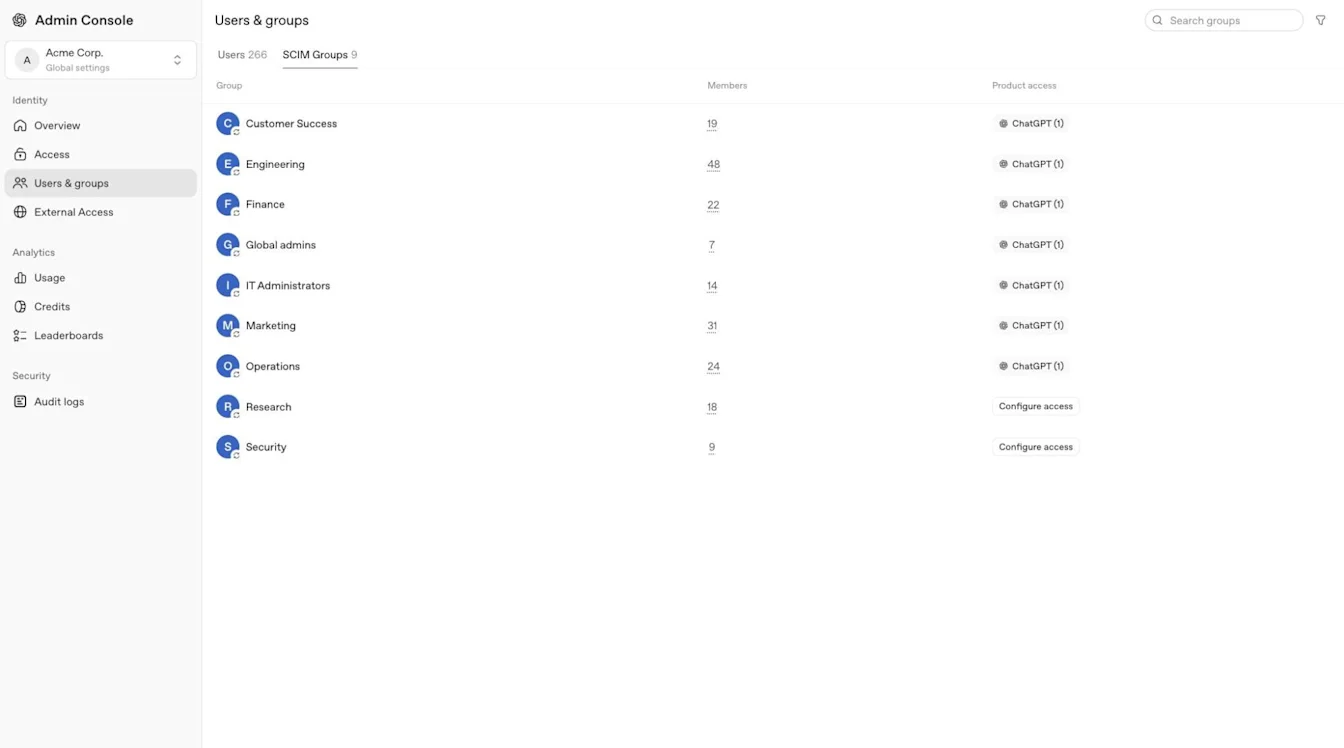
The Product access editor supports ChatGPT workspaces and Ads accounts, and API organizations for Enterprise and Edu tenants. It does not assign the ChatGPT workspace owner role or custom ChatGPT workspace roles. Review Ads account roles in the selected advertising account and configure custom roles inside the selected ChatGPT workspace.
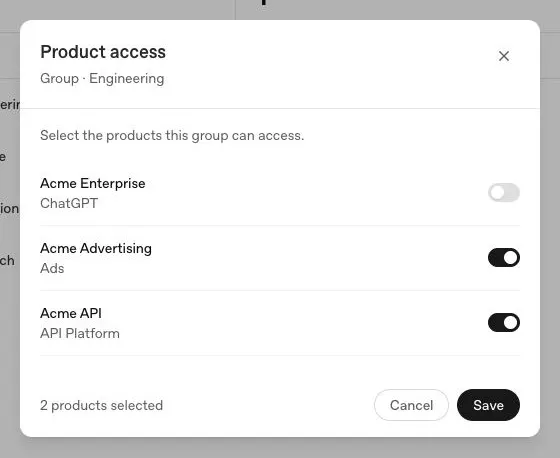
Review existing permissions before expanding access. A synchronized group may already have access to a ChatGPT workspace, API organization, or Ads account. Use the least-privileged role required, and ask a global admin to investigate unexpected access.
When you give a synchronized group access to an Ads account through Product access, its initial account role is Member. Review the account-specific role and use the least-privileged access required.
For Ads-specific permissions, see: Managing identity and access for Ads Manager.
Manage API organization access
Assigning a synchronized group to an API organization adds its users directly, without requiring them to accept an invitation. SCIM creates missing organization memberships and takes over eligible existing memberships. Existing members keep their organization role.
OpenAI creates a separate SCIM-managed group in the API organization. An existing manual API group with the same name stays separate. Manage synchronized group membership in your identity provider and inspect the corresponding group in the API Platform.
SCIM manages the memberships it creates or takes over. Removing the last qualifying group assignment can remove an organization membership, including one that was originally added manually. Another qualifying assignment can preserve access. Manual memberships that SCIM has not taken over remain separately managed.
An API organization assignment does not grant access to every API project. Review project membership and permissions separately in the API Platform. Test with a small group and review existing memberships before assigning access.
Manage user records, invitations, and groups
A synchronized directory record does not automatically grant access to every ChatGPT workspace, API organization, or Ads account. Product membership, group assignment, sign-in policy, and product-specific roles still apply.
Match existing users
Provisioning matches an existing OpenAI account using its configured work email. Confirm that the identity-provider email, invitation address, and intended OpenAI account identify the same person. Configure your identity provider to send exactly one primary email address for each user.
If an existing tenant user or tenant group matches a synchronized directory record, it can become managed by your identity provider. Existing manually created ChatGPT workspace invitations and memberships do not automatically become SCIM-managed.
An existing workspace member can join a synchronized workspace group without changing their existing membership, role, or seat type. Remove manually granted workspace access separately when offboarding.
Update a managed email address
Tenant-wide SCIM can update the primary email on a user’s existing OpenAI account. The user must already be synchronized through that tenant’s directory. Both the current and new email domains must be verified for the tenant that manages the directory. You can change an address within one verified domain or between two domains verified for that tenant. A secondary email or alias does not replace the primary email used for synchronization.
Before making the change, confirm that the new address does not belong to another OpenAI account. If it does, stop and contact OpenAI Support.
Confirm that the existing synchronized user identifies the intended OpenAI account.
Ask a global admin to confirm that both email domains are verified for the directory’s tenant.
Update the primary email on the existing user in your identity provider. Keep the existing directory record and send exactly one primary email address.
If the user signs in through SSO, update the sign-in mapping to use the same address.
Wait for a successful synchronization and confirm that the existing OpenAI account shows the new email address.
Ask the user to sign in again with the updated address and the sign-in method required by the product, then confirm their product access.
The email change updates the existing account and signs the user out. It does not merge separate OpenAI accounts. Tenant-wide SCIM email changes remain subject to account eligibility and email-change limits.
OpenAI Support cannot manually change the email address of an account managed through tenant-wide SCIM.
An eligible ChatGPT workspace-level SCIM connection may update an accepted, SCIM-managed member’s email when email changes are enabled for that workspace. Both the current and new email domains must be verified for the same workspace and its tenant, the new address must not be linked to another OpenAI account, and the SSO mapping must use the updated address. Update the existing SCIM user and test one account first.
Product-level API organization SCIM does not currently support changing an existing OpenAI account’s email address.
If a synchronized invitation uses an outdated email address or an email update does not reach the intended account, do not delete the account, remove and recreate the directory record, invite the new address as a replacement, or disconnect the directory. These actions can create a separate OpenAI account and leave existing projects, agents, and conversation history attached to the original account. Ask your administrator to confirm the existing directory record, primary email, domain verification, and latest synchronization result. Contact OpenAI Support if the records disagree, an account conflict appears, or the update remains blocked.
Understand invitations and automatic account creation
A newly provisioned ChatGPT user, or a user provisioned through a product-level API SCIM connection, may need to accept an invitation before joining the product. Tenant-wide SCIM adds users directly to assigned API organizations without requiring invitation acceptance. Some SCIM flows create a pending invitation without sending an email. An existing ChatGPT workspace member does not receive another workspace invitation when the matching tenant user becomes SCIM-managed.
Ask a workspace owner to review pending invitations. For a manual invitation, the owner can select Resend invite, where available. SCIM-managed invitations cannot be resent directly; an API may return 409 scim_managed_resource. If Invite member is available, the owner can enter the same email again without changing the existing role or seat type. Contact OpenAI Support if the invitation remains blocked.
Automatic account creation can add eligible ChatGPT users when they sign in with a verified-domain email. It is separate from SCIM and does not require SSO. If the workspace requires SSO, employees must still use it to sign in.
Before setting up SCIM, review automatic account creation for each workspace. The setting may already be on when you create a workspace. Turn it off if you plan to manage access through SCIM. Users added through automatic account creation may not be SCIM-managed, so removing them from the identity provider may not remove their product access. Review seat use, remove unmanaged users separately, and check every access path during offboarding.
For workspace defaults and controls, see: Managing your tenant in Admin Console.
Manage group ownership, roles, and visibility
Manage synchronized group membership in your identity provider. Workspace admins can maintain separate manually managed groups.
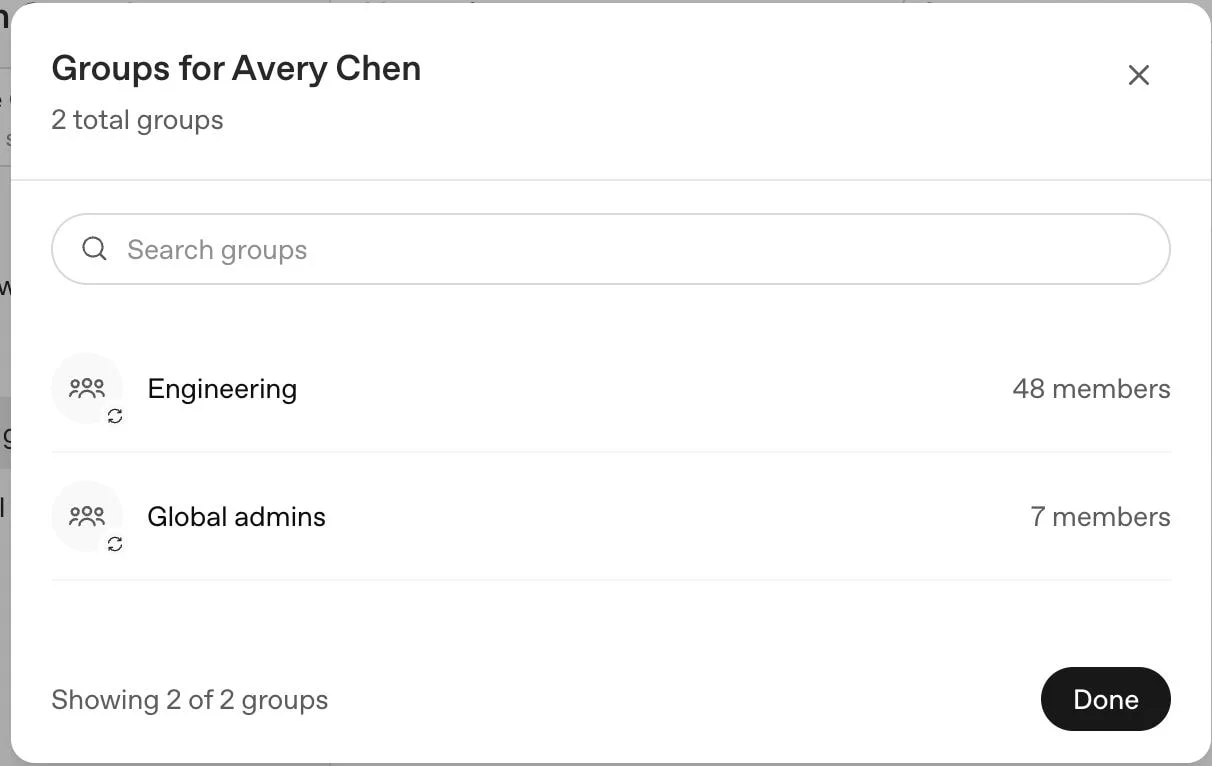
When migrating a ChatGPT workspace to tenant-wide SCIM, an existing workspace group can be adopted when its name exactly matches the synchronized group. Review duplicate group names and existing members with your OpenAI account team before assigning access. This ChatGPT behavior does not apply to manual API groups.
If you rename a synchronized group in your identity provider, its corresponding synchronized workspace group is renamed.
Workspace-level SCIM uses a separate connection. Depending on its configuration, a synchronized group with the same name as a manual workspace group can place that group’s membership under identity-provider control.
Where supported, a workspace owner can use Permissions & roles in the selected ChatGPT workspace to assign eligible custom workspace roles. Synchronized groups can also support workspace analytics when available.
Where available, Discoverable by workspace users in the workspace’s Identity & access settings controls whether SCIM-managed groups appear when people share GPTs or projects. Turning the setting off can hide those groups and remove existing group shares the next time a GPT or project is updated. Changing discoverability does not stop synchronization or remove the group. If the workspace uses tenant-wide SCIM and its identity settings are read-only, this control may be unavailable. Ask your OpenAI account team about supported options.
Test onboarding and offboarding
Add one test user to the intended identity-provider application or assigned group.
Wait for a successful synchronization.
Confirm that the user appears in the intended tenant or product and receives only the expected role.
Remove the user from the provider assignment or provisioning group.
Wait for the next successful sync and confirm that group-derived access is removed.
Check direct invitations, other groups, and product-specific roles that could preserve separate access.
Removing someone only inside ChatGPT may be temporary if the identity provider still assigns that person. Disabling a user in the provider does not always remove the application assignment. Deprovisioning a ChatGPT workspace member does not delete the person’s OpenAI account or personal workspace. After a successful sync, confirm that the person is no longer an active workspace member and review the workspace’s seat allocation. If the person remains active, cannot be removed, or cannot regain access after being added back, contact OpenAI Support. ChatGPT workspace data retention follows the selected workspace’s policy.
Troubleshoot directory-sync problems
| Issue | What to check |
|---|---|
| Directory setup is missing or blocked | Confirm the plan, administrator role, selected tenant, and whether tenant-wide or product-level SCIM is already active. Coordinate migration before changing a working connection. |
| A user or group does not appear | Check identity-provider application assignments, group-push settings, the selected tenant, recent directory events, and the provider’s normal synchronization interval. |
| A synchronized user cannot access a product | Check the group’s Product access assignment, product invitation or membership, required sign-in method, and product-specific role. The editor can assign supported ChatGPT workspaces and Ads accounts, and API organizations for Enterprise and Edu tenants. For an API assignment, inspect the group and organization membership in the API Platform. |
| A removed user still has access | Review the identity-provider assignment, direct invitations, other synchronized or manual groups, and roles in each product. One removed access path does not remove another. If the user is still active after a successful sync and no other access path remains, contact OpenAI Support. Do not disconnect the directory to fix one account. |
| A managed email address has not updated | Check the existing synchronized user, the primary email sent by the identity provider, verification of both email domains for the directory’s tenant, and the latest sync result. A ChatGPT workspace-level connection also requires both domains to be verified for that workspace. Contact OpenAI Support if the update remains blocked. |
| An email update creates an account conflict | If the destination email already belongs to another OpenAI account, stop and contact OpenAI Support. Do not delete either account or create a replacement user. |
Many identity providers synchronize changes every 30 to 40 minutes, while others send updates sooner. There is no general OpenAI control to force an immediate directory sync.
For authentication or sign-in errors, see: Troubleshooting SSO, workspace access, and domain verification.
Remove a directory connection safely
Removing an active tenant-wide directory connection cannot be undone. Before disconnecting it, review product assignments with your OpenAI account team and confirm how existing memberships will be handled. Do not disconnect the directory to remove or restore one person's access.
In Admin Console, open the tenant’s Global settings.
Select Access, then open Directory.
Review the connected provider and affected users, groups, and product assignments.
Select Delete Connection.
Confirm the change only if you intend to stop synchronization.
Review the remaining users, groups, product access, and administrator roles.
Removal can take up to 5 minutes. Contact your OpenAI account team before replacing a working connection or moving between product-level and tenant-wide SCIM.