
Es posible que Personal Analytics aún no esté disponible para todos los Espacios de trabajo Enterprise y Edu.
Descripción general
En los Espacios de trabajo Enterprise/Edu que cumplen los requisitos, ChatGPT para escritorio ofrece dos formas distintas de consultar el uso de Work y Codex:
En Configuración, Uso y facturación muestra los límites mensuales y el historial de uso de Work y Codex, además de los chats de alto consumo disponibles localmente y los detalles de cada chat, cuando están disponibles.
Análisis personal es un complemento independiente que permite a los miembros que cumplen los requisitos hacer preguntas sobre su propia actividad en Work y Codex y las tendencias agregadas disponibles del Espacio de trabajo.
Usa Uso y facturación para consultar información sobre el uso y los límites de Work y Codex. Cuando Análisis personal esté disponible, úsalo para explorar patrones y hacer preguntas de seguimiento. El uso habitual de Chat no se incluye en estas vistas de uso de Work y Codex.
Asegúrate de actualizar tu aplicación de ChatGPT para escritorio al menos a la versión 26.812.10818 antes de que estén disponibles todas las funciones descritas en este artículo de ayuda.
Disponibilidad y requisitos previos
En los Espacios de trabajo Enterprise que cumplen los requisitos y tienen facturación basada en tokens, las vistas de uso dentro del producto muestran el uso en dólares estadounidenses en lugar de créditos. Para obtener orientación sobre la facturación y los límites de uso, consulta Administrar los límites de uso y los excedentes en ChatGPT Enterprise y Edu.
Las etiquetas y los ejemplos de uso en créditos que aparecen a continuación se aplican a los Espacios de trabajo Enterprise que cumplen los requisitos y usan facturación basada en créditos. El uso mensual y el historial abarcan Work y Codex. Un propietario o administrador del Espacio de trabajo puede controlar si los miembros ven el uso en créditos y dólares.
Para configurar la visibilidad del uso como propietario o administrador de un Espacio de trabajo:
Abre la Consola de administración.
Selecciona Límites de uso.
Selecciona Espacio de trabajo.
Selecciona Visibilidad del uso y solicitudes.
Habilita Permitir que los usuarios vean el uso en créditos y dólares.
En los Espacios de trabajo que cumplen los requisitos, un administrador debe habilitarlo antes de que los miembros puedan instalarlo y conectarlo desde Complementos en ChatGPT para escritorio. Si no ves Análisis personal en Complementos, es posible que todavía no esté disponible para tu cuenta o que no esté habilitado para tu Espacio de trabajo.
Revisa el uso y la facturación de Work y Codex
Revisa el uso general
Abre el menú de la cuenta en ChatGPT para escritorio.
Selecciona Configuración.
Selecciona Uso y facturación.
Consulta el uso mensual
En Límites generales de uso, Uso mensual muestra tu límite personal de créditos para Work y Codex, los créditos consumidos, el saldo restante y la información disponible sobre el restablecimiento del límite para el período mensual actual.
Usa el medidor de uso mensual para consultar cuánto te queda antes de iniciar tareas más grandes. Si la página muestra porcentajes en lugar de cantidades exactas, el administrador de tu Espacio de trabajo controla si los valores detallados están disponibles.
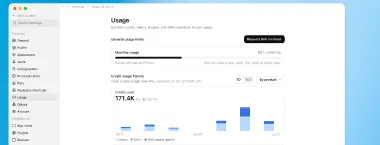
Uso mensual muestra cuánto de tu asignación has consumido en Work y Codex y cuánto te queda para el período actual.
Solicita un límite de uso más alto
Si la opción Solicitar aumento de límite está disponible, selecciónala, explica lo que necesitas y envía la solicitud para que la revise un administrador del Espacio de trabajo.
Revisa el historial de uso
Selecciona 7 días o 30 días para establecer el período del informe. Puedes agrupar el consumo de créditos por Interfaz, Modelo, Razonamiento o Velocidad para comparar el uso entre Work y Codex y ver qué configuraciones contribuyeron al consumo.
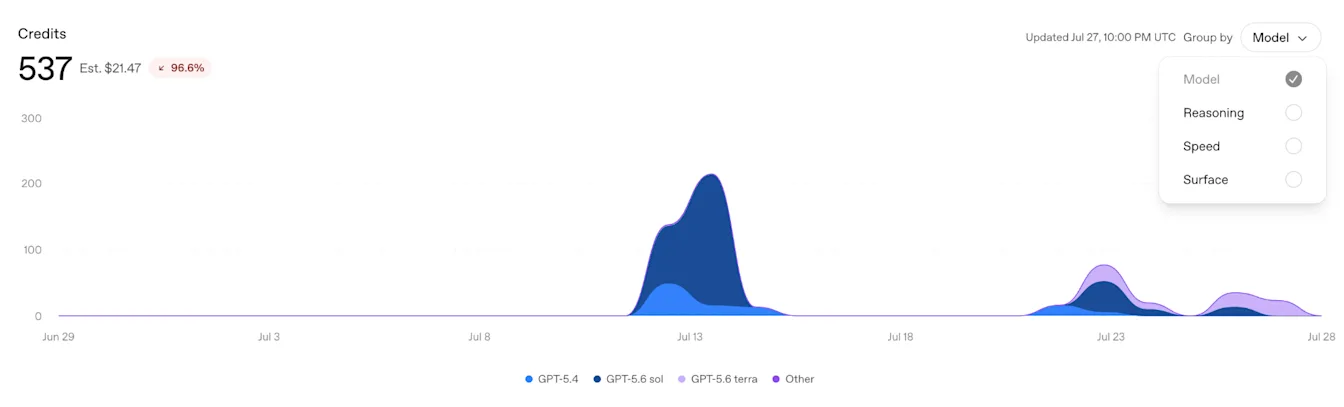
Agrupa el historial de créditos de Work y Codex por interfaz, modelo, razonamiento o velocidad.
Historial de créditos muestra el consumo de créditos de Work y Codex a lo largo del tiempo. Historial de tokens distingue entre tokens de entrada sin caché, de entrada en caché y de salida. Estas vistas pueden ayudar a explicar por qué tareas similares consumen cantidades diferentes.
La actividad de complementos contabiliza las llamadas por complemento. La actividad de habilidades contabiliza las invocaciones por habilidad. Usa estas vistas para comprender qué flujos de trabajo de Work y Codex contribuyeron a la actividad reciente.
Encuentra chats de Work y Codex de alto consumo
Chats de mayor consumo muestra los chats de Work y Codex disponibles localmente que estuvieron activos en los últimos 30 días y los ordena por su consumo total de créditos desde su creación. El período de 30 días determina qué chats aparecen; el total de cada chat abarca todo su historial disponible.
Abre un chat de Work o Codex para revisar su desglose por modelo, razonamiento y velocidad.
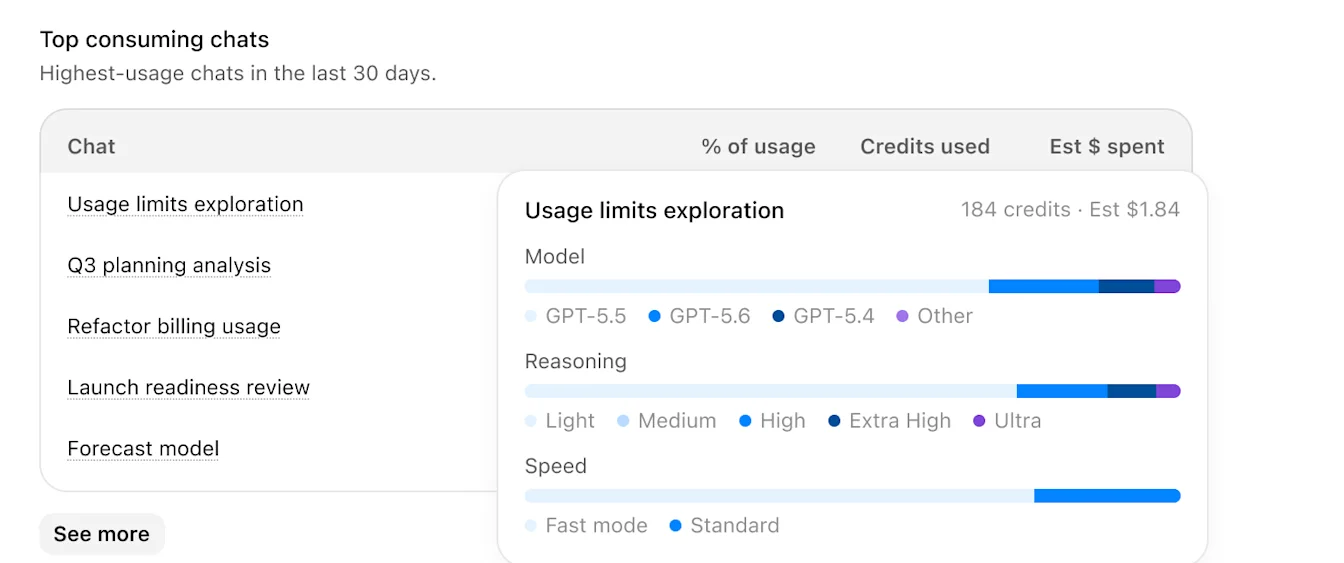
Chats de mayor consumo ordena los chats de Work y Codex con actividad reciente por su consumo total de créditos desde su creación.
Revisa el uso de un chat individual de Work o Codex
Abre un chat de Work o Codex y selecciona el indicador de uso en el encabezado del chat. Los detalles de uso pueden incluir:
El total de créditos consumidos por el chat de Work o Codex desde su creación.
Un costo estimado, cuando esté disponible.
El modelo, el esfuerzo de razonamiento y la velocidad asociados con el uso.
Los totales del chat actual de Work o Codex suelen actualizarse aproximadamente una vez por minuto.
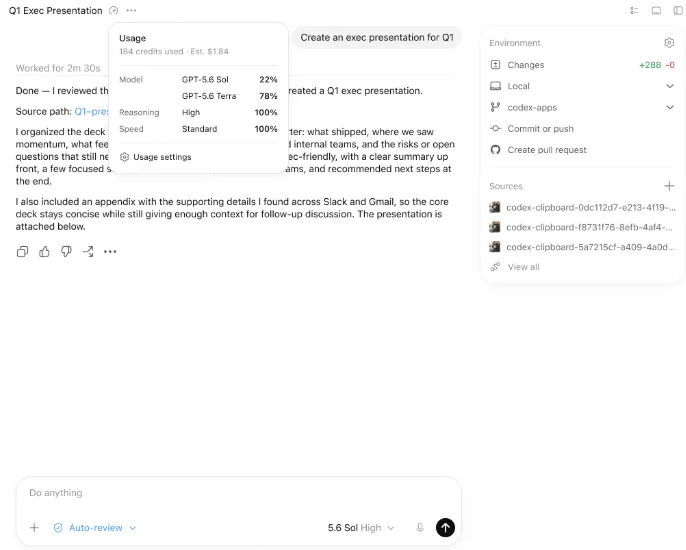
Los detalles de uso de los chats de Work y Codex muestran los créditos, un costo estimado cuando está disponible y las configuraciones asociadas con el uso.
Qué puede quedar fuera del uso registrado por chat en Work y Codex
El uso que se muestra para un chat de Work o Codex es una estimación de la conversación principal, no un registro completo de todas las acciones facturables asociadas con ese chat.
Subagentes y tareas separadas: es posible que el trabajo delegado a subagentes o ejecutado en tareas separadas no se incluya en el total del chat principal de Work o Codex.
Generación de imágenes y otras herramientas: es posible que las imágenes y cierta actividad de herramientas facturada por separado no aparezcan en el uso que se muestra para el chat de Work o Codex.
Actividad en segundo plano: es posible que parte del trabajo automatizado o generado por el sistema asociado con una tarea no se incluya en su total.
Demoras en los informes o datos incompletos: la actividad reciente puede tardar en aparecer y es posible que algunos registros de uso por chat de Work y Codex no estén disponibles.
El uso que no aparece en el total de un chat de Work o Codex ni en Chats de mayor consumo puede consumir créditos de todos modos y contar para tus límites de uso. Para obtener información completa sobre el gasto, consulta los registros de facturación y uso de tu Espacio de trabajo.
Comprende las estimaciones de costos y la actualización de los datos
En los Espacios de trabajo con facturación basada en créditos, el uso se muestra en créditos, que son unidades de facturación. Ten en cuenta que esta vista no es una factura. Consulta tu factura para conocer el gasto exacto en dólares. El uso incluido, el uso prepagado y el monto facturado al Espacio de trabajo pueden diferir de la estimación.
El uso de los chats de Work y Codex y el uso mensual suelen actualizarse aproximadamente una vez por minuto. Los gráficos históricos se actualizan con menor frecuencia, y la actividad del día en curso puede tardar más en aparecer.
Un gráfico de 7 días o 30 días abarca el período seleccionado para el informe. Chats de mayor consumo usa el período de 30 días para seleccionar los chats de Work y Codex disponibles localmente y luego los ordena por su uso total desde su creación.
Configura Análisis personal
Habilita Análisis personal para un Espacio de trabajo
Para habilitar Análisis personal como propietario o administrador de un Espacio de trabajo:
Ve a la Consola de administración, selecciona el Espacio de trabajo de ChatGPT correspondiente y abre Complementos.
Busca Análisis personal y habilítalo.
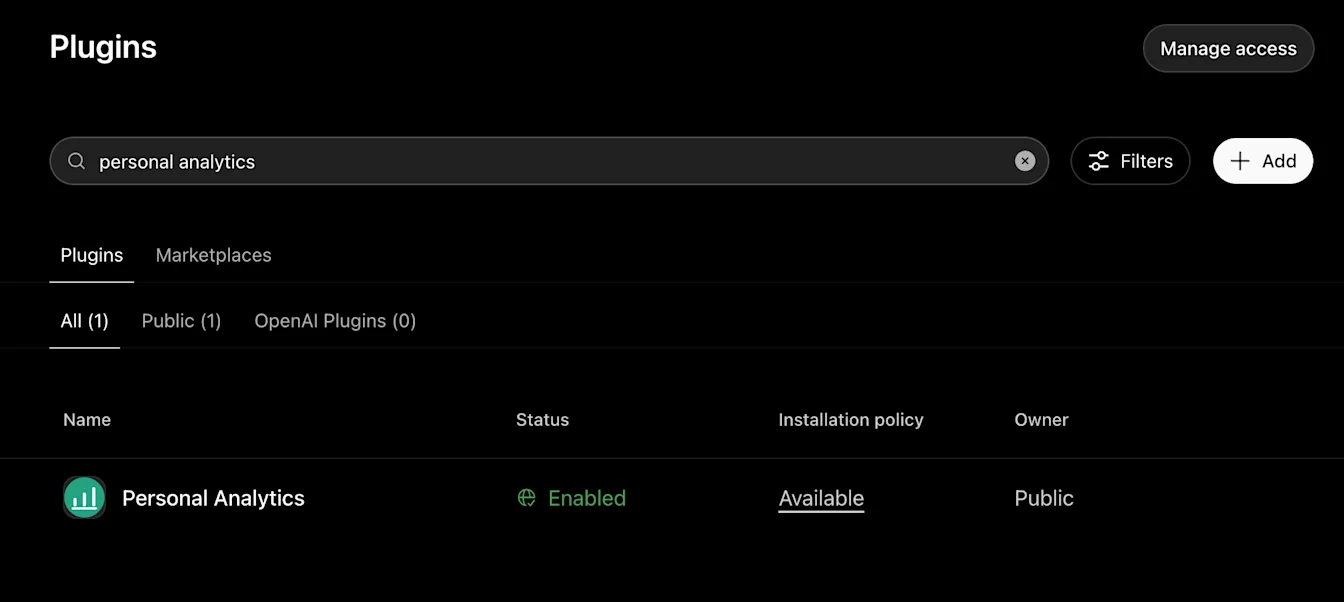
Los administradores del Espacio de trabajo habilitan Análisis personal desde el catálogo de complementos.
Instala y conecta Análisis personal
Para instalar Análisis personal en ChatGPT para escritorio:
Selecciona Complementos en la barra lateral.
Selecciona Análisis personal.
Selecciona Instalar. Cuando finaliza la instalación, el botón cambia a Probar ahora.
Selecciona Probar ahora.
Confirma que Análisis personal muestre el estado Conectado.
Usa Análisis personal
Abre Análisis personal o menciona @personal-analytics en un chat de Work o Codex y luego haz preguntas en lenguaje natural.
Revisa tu uso personal
Ejemplo de prompt:
@personal-analytics analiza mi uso de Work y Codex durante la última semana
Un resumen de tu uso personal de Work y Codex puede incluir turnos, tokens, créditos, modelos, tipos de tareas, código aceptado, actividad de revisión de código, habilidades, complementos y límites de uso actuales, cuando estén disponibles.
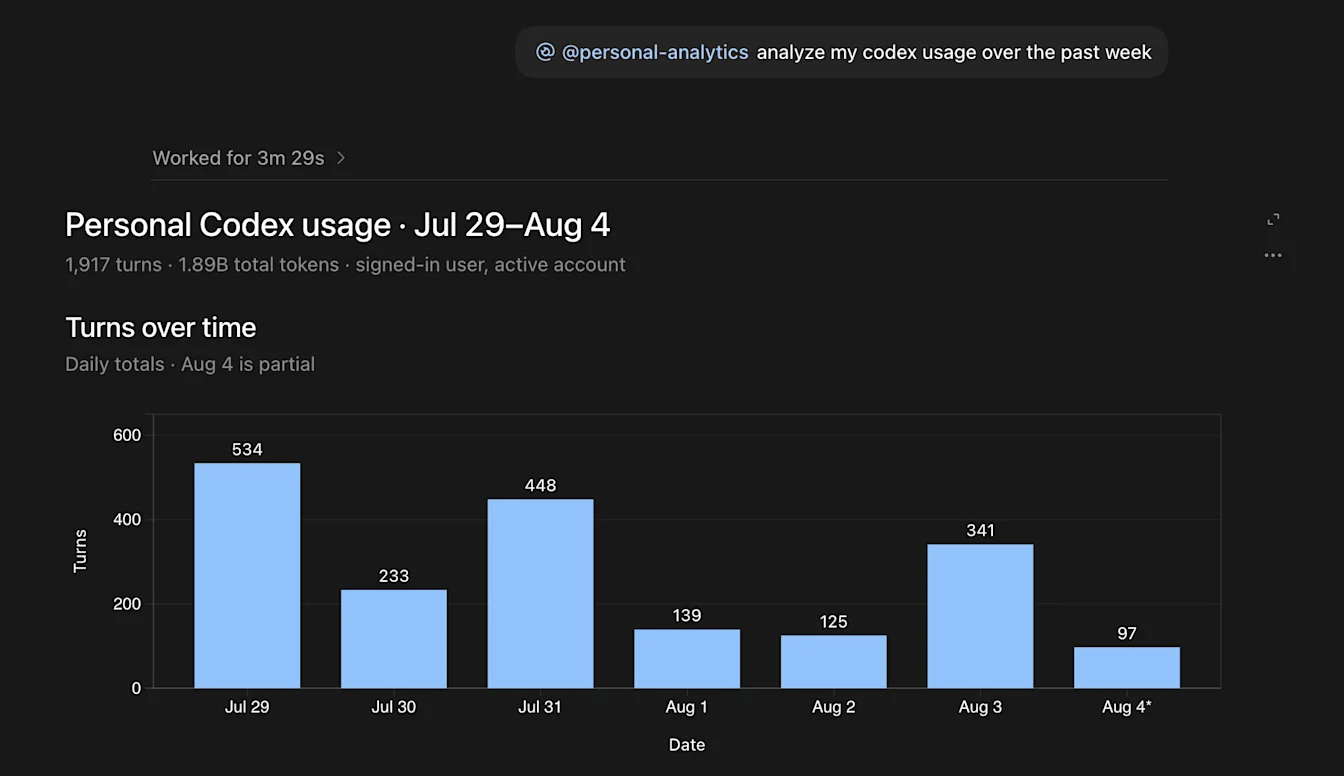
Un resumen de tu uso personal de Work y Codex puede incluir turnos, tokens, créditos, modelos, tipos de tareas y otra actividad reciente.
Explora desgloses específicos
Ejemplos de prompts:
@personal-analytics muestra mi uso de Work y Codex esta semana por esfuerzo de razonamiento y velocidad
¿Qué modelos, complementos y tipos de tareas son los más comunes en el uso de Work y Codex en mi Espacio de trabajo?
Obtén sugerencias de uso
Ejemplo de prompt:
Compara los complementos que uso con las tendencias de uso de Work y Codex en mi Espacio de trabajo e identifica posibles oportunidades que no estoy aprovechando.
Análisis personal puede ofrecer sugerencias basadas en tu actividad en Work y Codex y en las tendencias de uso de Work y Codex disponibles en tu Espacio de trabajo.
Comprende los datos de Análisis personal
Análisis personal usa una conexión de solo lectura a los sistemas de backend de ChatGPT de OpenAI. No comparte datos con servicios externos y puede mostrar la actividad de Work y Codex asociada con la identidad con la que iniciaste sesión, así como las tendencias de uso agregadas de Work y Codex en tu Espacio de trabajo.
La conexión se limita a la identidad con la que iniciaste sesión y a tu cuenta activa. No puedes seleccionar otro usuario ni otro Espacio de trabajo, y Análisis personal no brinda acceso a la actividad individual de otros usuarios.
Los resúmenes del Espacio de trabajo siempre abarcan los últimos 30 días. Solo están disponibles cuando tanto el Espacio de trabajo activo como cada categoría de los resultados tienen al menos 5 usuarios activos de Codex.