
Archive a Codex Chat
How to archive a chat
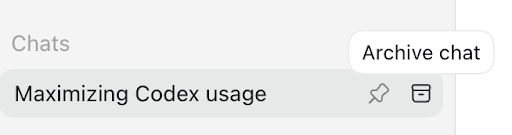
Go to your Codex App chat history sidebar.
Hover over the conversation you want to archive.
Click the three dots (⋯) next to the chat title.
Select “Archive chats” from the menu.
Confirm “Archive all” when prompted.
How to permanently delete an archived chat
Go to your Codex App chat history sidebar.
Navigate to Settings page
Go to the "Archived chats" tab on the Settings page
Hover over the conversation you want to delete.
Click the trash icon next to the chat title.
Confirm “Delete archived chat”

What happens when you delete a Codex chat?
When you delete a Codex chat locally:
The conversation is immediately removed from your Codex chat history.
It is scheduled for permanent deletion from OpenAI's systems within 30 days, unless:
You allow us to use your content to improve our models, and your conversation has already been de-identified and disassociated from your account, or
OpenAI must retain it for security, safety, or legal obligations.
You cannot recover a chat once it’s deleted. Deleted chats are not retrievable through the UI, APIs, or support.
Options for deleting all archived chats
“Settings > Archived chats” contains options to delete all chats at one time.
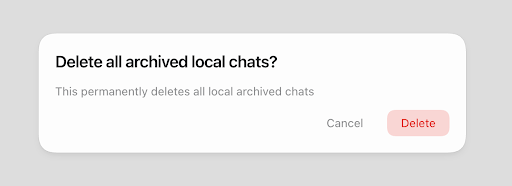
Note that these actions will apply to all archived chats, including those contained within projects.
Retention Overview
If you are signed into ChatGPT, chats you keep (unarchived or archived) are saved in your account until you delete them.
Deleted chats are removed from your view immediately and permanently deleted from OpenAI’s systems within 30 days, unless one of the exceptions described above under “What happens when you delete a Codex chat?” applies.
For information on our approach to data retention, please visit this page.
If you archive a conversation that used connected app data, the conversation remains stored in your account, and any connected app data referenced in that conversation may also remain stored. To remove both the conversation and any connected app data used within it, you must delete the conversation.
Disconnecting an app will stop future access to that data, but does not delete conversations that already used it.
What happens to connected app data when I delete a chat?
If you’ve connected apps such as Google Drive, Gmail, or Calendar, ChatGPT may use synced app data to help generate responses in your conversations and provide helpful information to you.
Deleting a chat removes both the conversation itself, and any synced app data retained within that conversation from your account, subject to our standard retention and legal obligations.
Does deleting a chat delete synced data from connected apps?
Deleting a conversation deletes any connected app data that was retained within that conversation.
Disconnecting an app:
prevents Codex from accessing new data from that app,
but does not delete past conversations that used that data.
To remove connected app data from your account, delete any conversations that referenced it.
Troubleshooting missing chats
If your chat history appears empty or conversations are missing, the steps below resolve most issues before you need to contact Support.
Make sure you’re signed into the correct OpenAI account or workspace (including the right email, SSO method, or team).
In ChatGPT, open Settings and check Archived Chats — the conversation may have been archived rather than deleted.
Confirm the Chat history & training toggle in Settings is turned on.
Refresh the page or sign out and back in to reload your history.
Check status.openai.com for any active incidents that might hide chat history.
Request a data export via Settings > Data controls to confirm which chats are still stored in your account.
Deleted chats (including those removed with Delete all chats) cannot be restored.
When you contact Support, include your account email and sign-in method, workspace or organization name (if applicable), approximate time frames of the missing conversations, and confirm which of the above checks you’ve already completed.