
Kanggo nyambungake Google Workspace menyang ChatGPT nganggo setelan sing dikelola admin, sampeyan kudu nyetel akses luwih dhisik ing konsol admin Google:
Gawe akun layanan kanthi akses mung diwaca menyang Google Drive, pangguna, lan grup.
Disaranake banget supaya akun layanan iki digawe ing sangisore akun Google sing padha karo sing digandhengake karo Papan Kerja ChatGPT sampeyan. Yen akun ing papan kerja ChatGPT nduweni domain email beda karo sing digunakake ing Google Workspace, ana langkah tambahan sing kudu sampeyan tindakake supaya konektor iki bisa diaktifake kanggo pangguna sampeyan.
Gawe akun admin sing bakal diwakili dening akun layanan.
Banjur, rampungna setelan ing konsol admin ChatGPT:
Unggah kunci pribadi akun layanan (file JSON saka Google)
Temtokake akun admin (ora perlu kredensial).
Pilih file sing arep diselarasake lan pilih pangguna sing bakal nduweni akses menyang sambungan.
Pandhuan iki nuntun sampeyan liwat 6 langkah kasebut.
Nyetel Akun Layanan
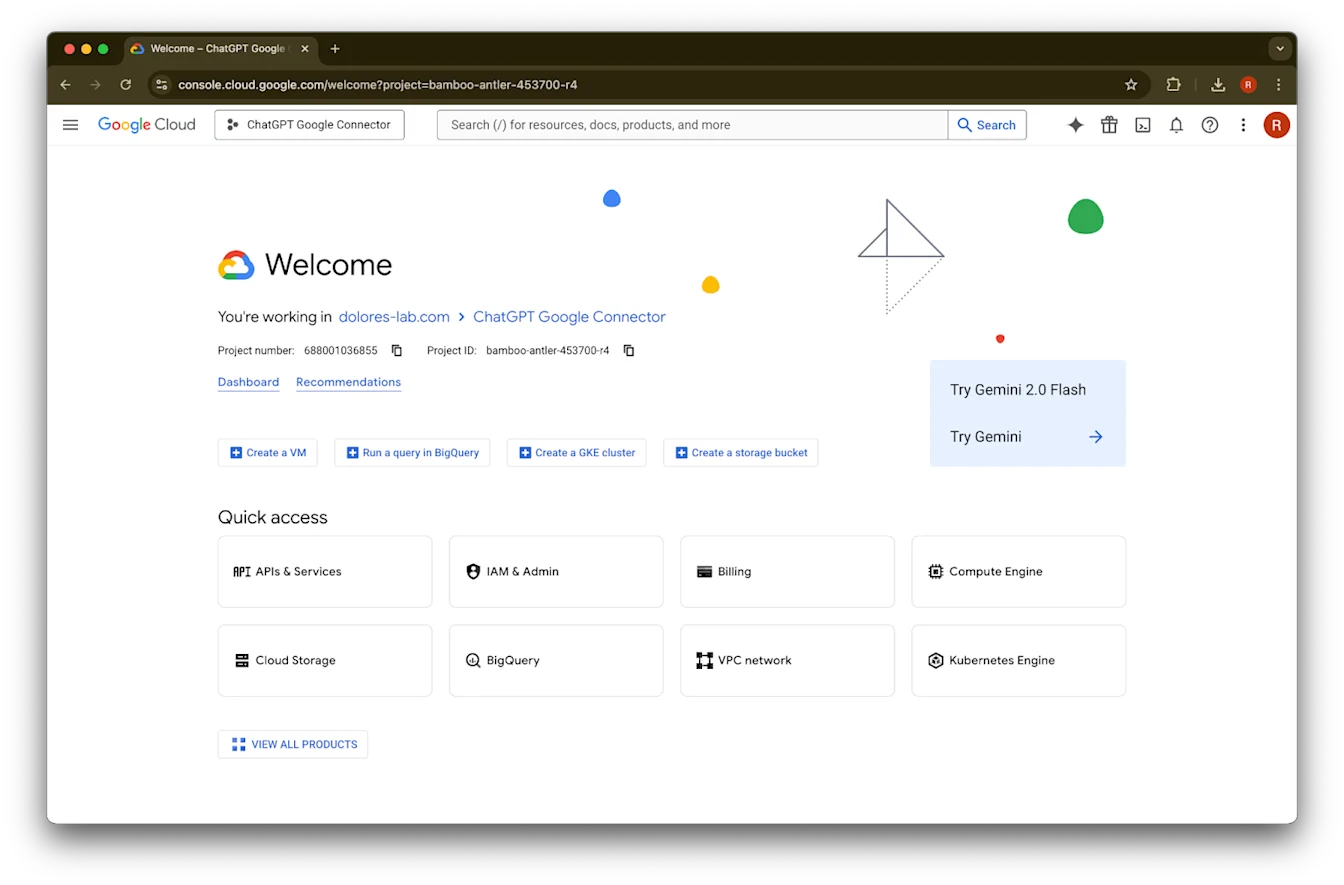
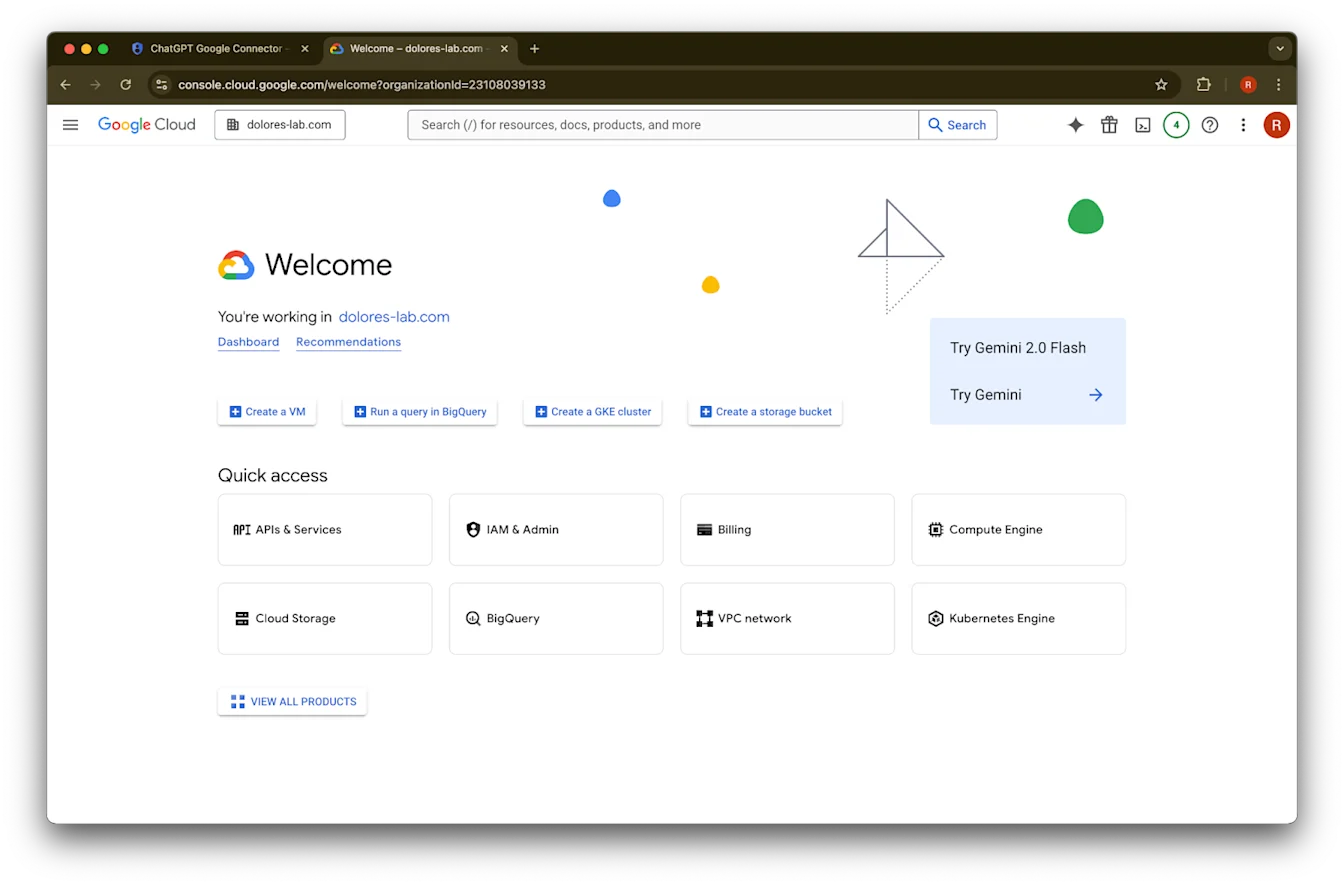
Bukak console.cloud.google.com.
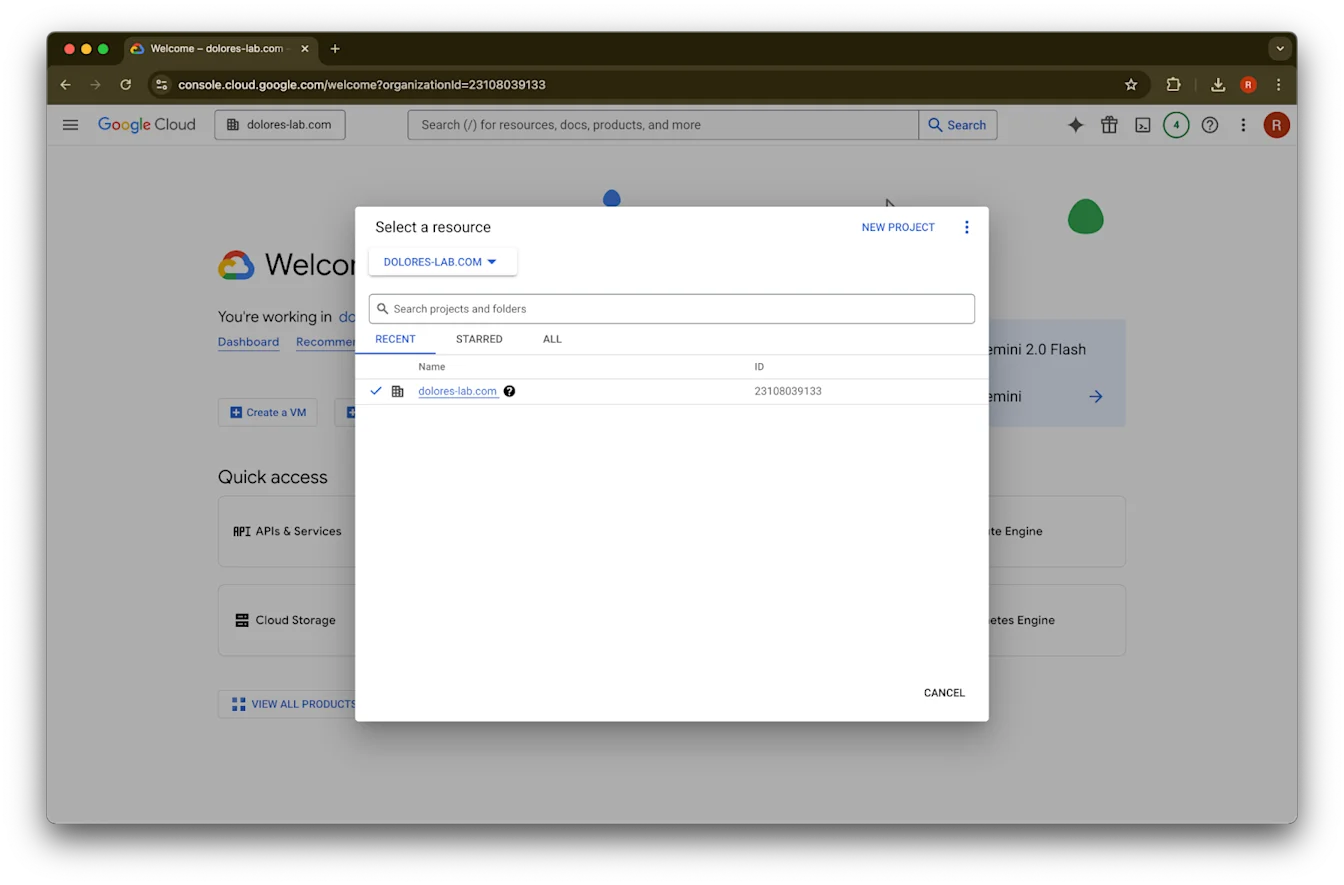
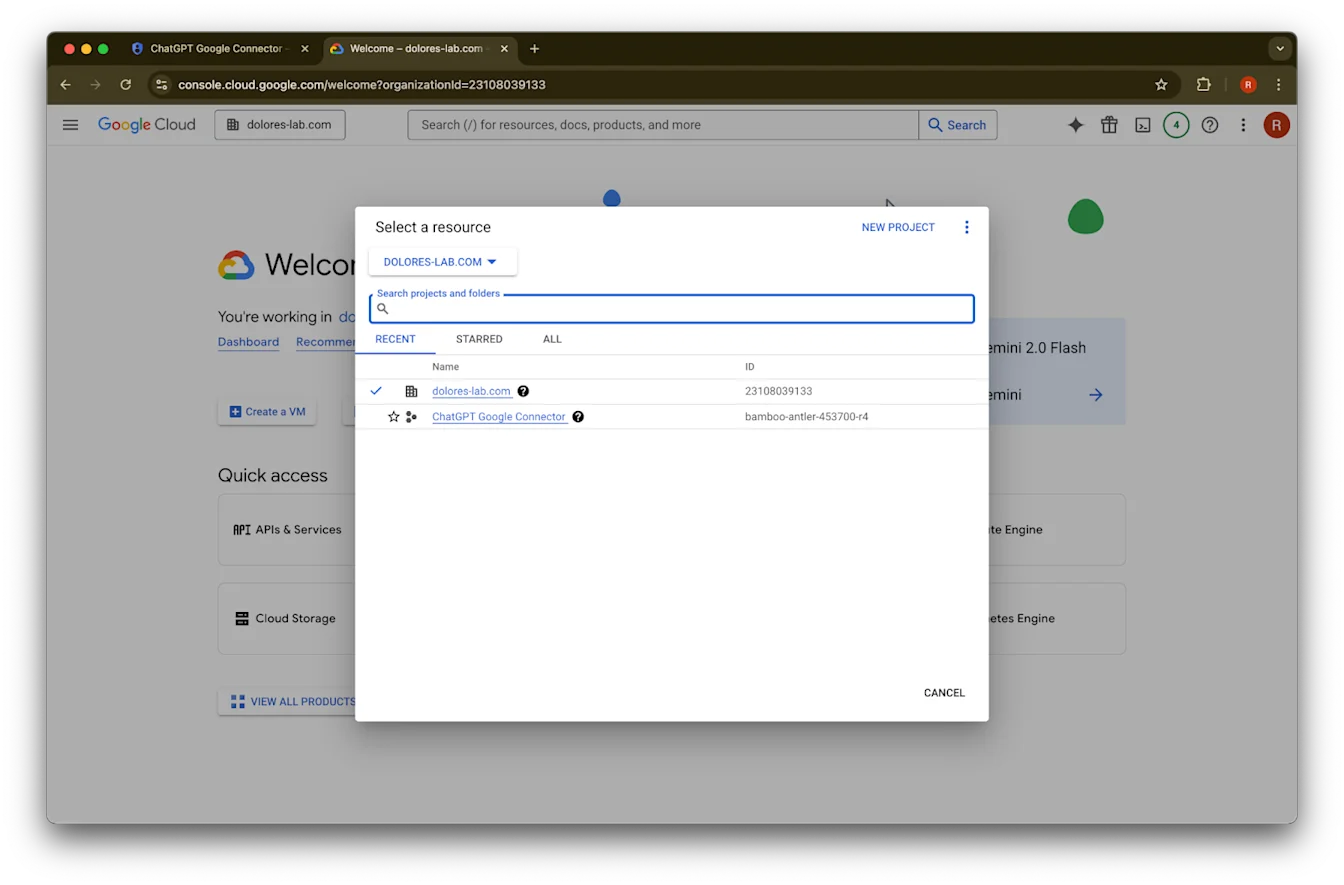
Klik menu gulung mudhun proyek.GambarPriksa manawa sampeyan mlebu nganggo papan kerja Google sing padha karo sing digandhengake karo papan kerja ChatGPT sampeyan (yen sampeyan ora duwe papan kerja Google sing digandhengake karo papan kerja ChatGPT lan loro-lorone nggunakake email sing beda, sampeyan kudu ngetutake langkah tambahan, yen ora pangguna sampeyan bisa uga ora bisa nggunakake konektor sing diselarasake Google Drive).
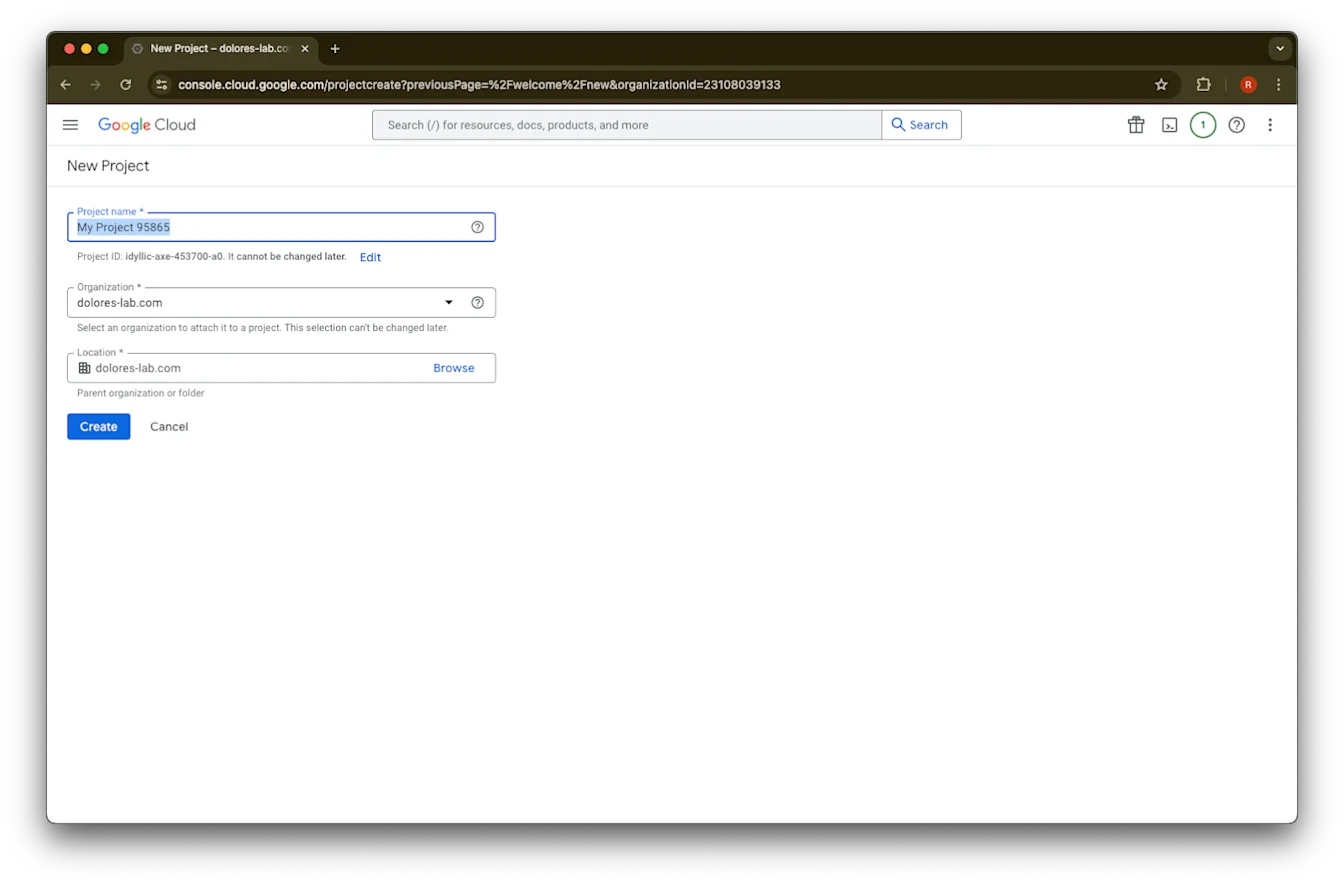
Pilih Proyek Anyar
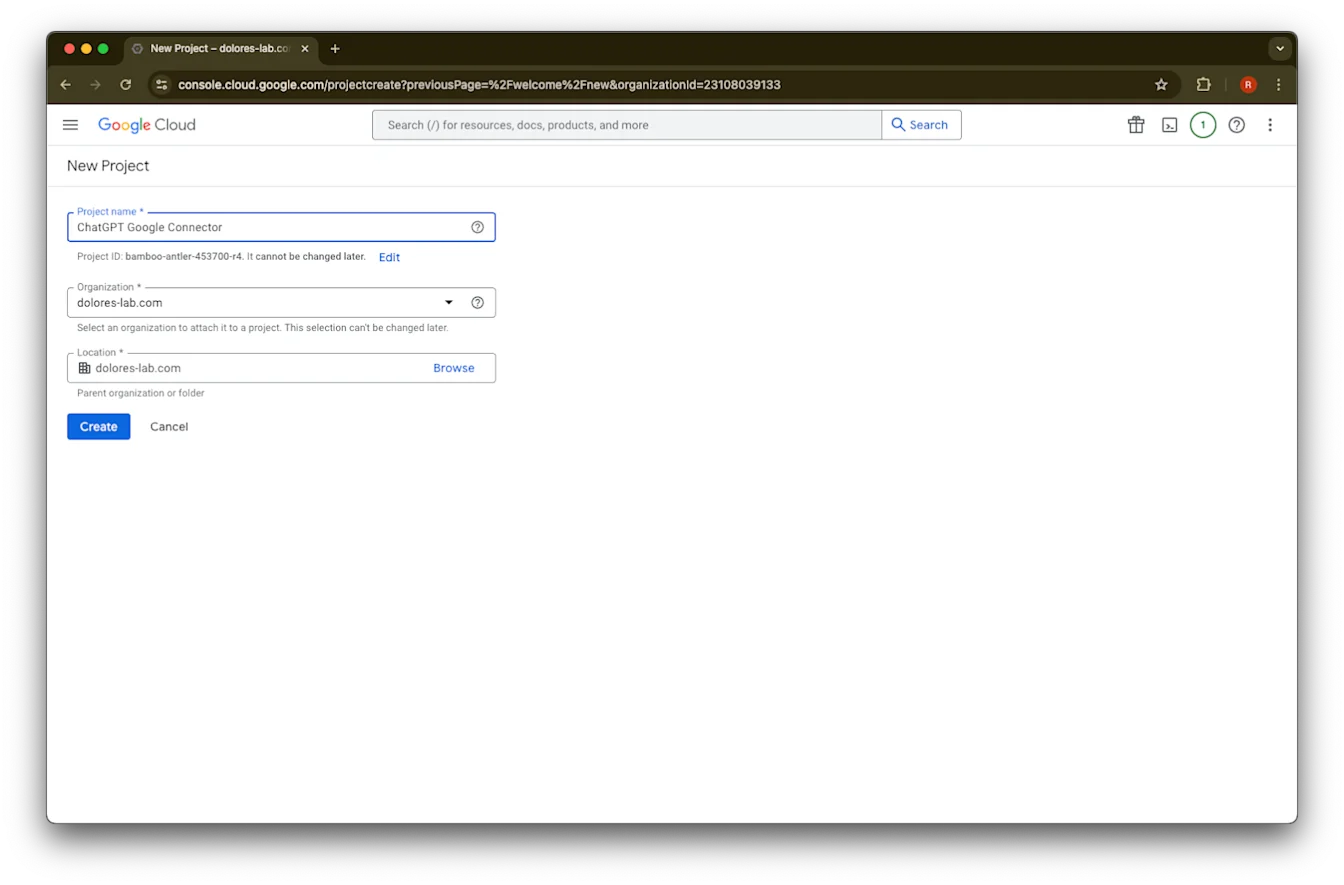
Lebokna Jeneng Proyek
Gawe proyek
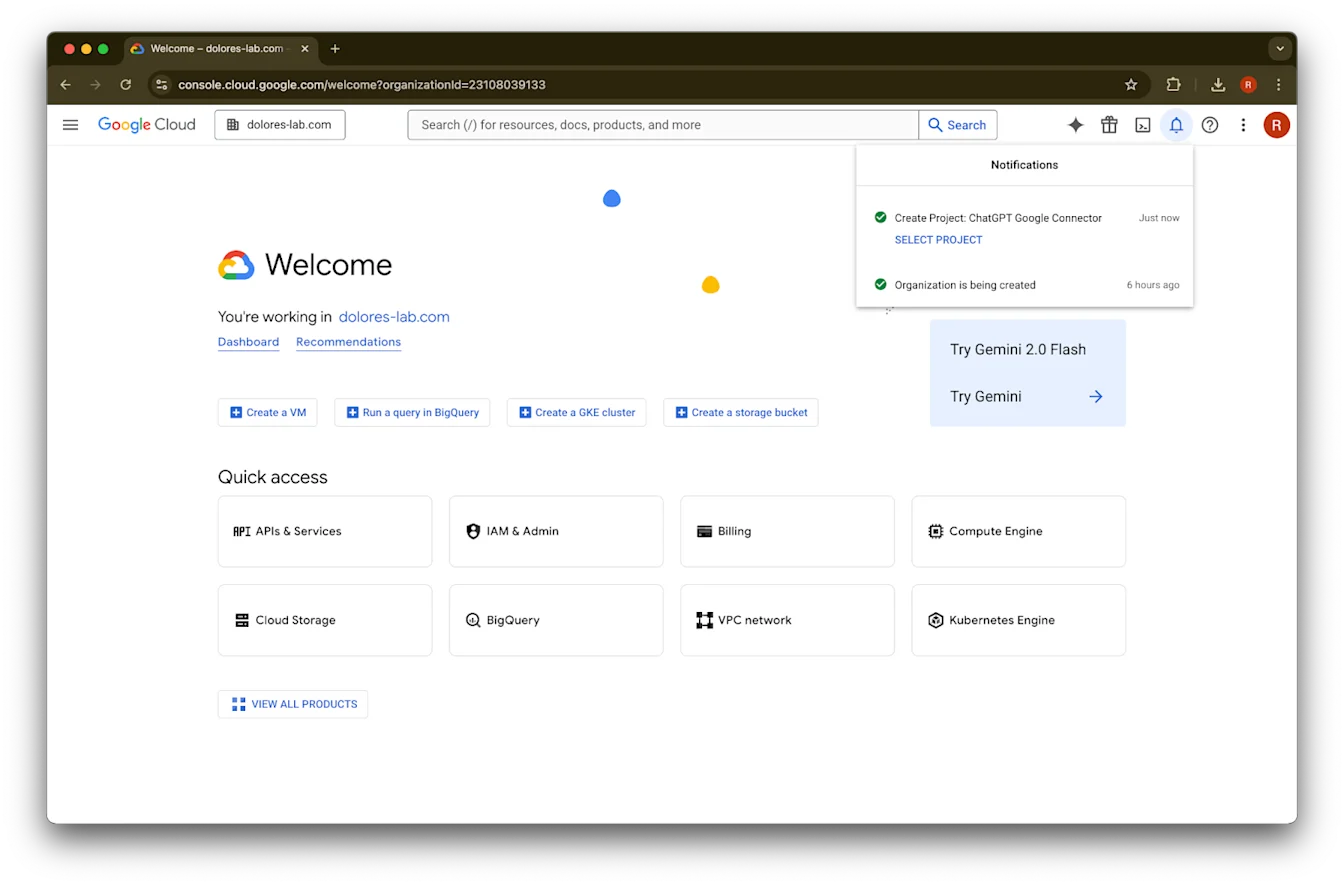
Tunggu nganti proyek digawe, banjur klik Pilih Proyek
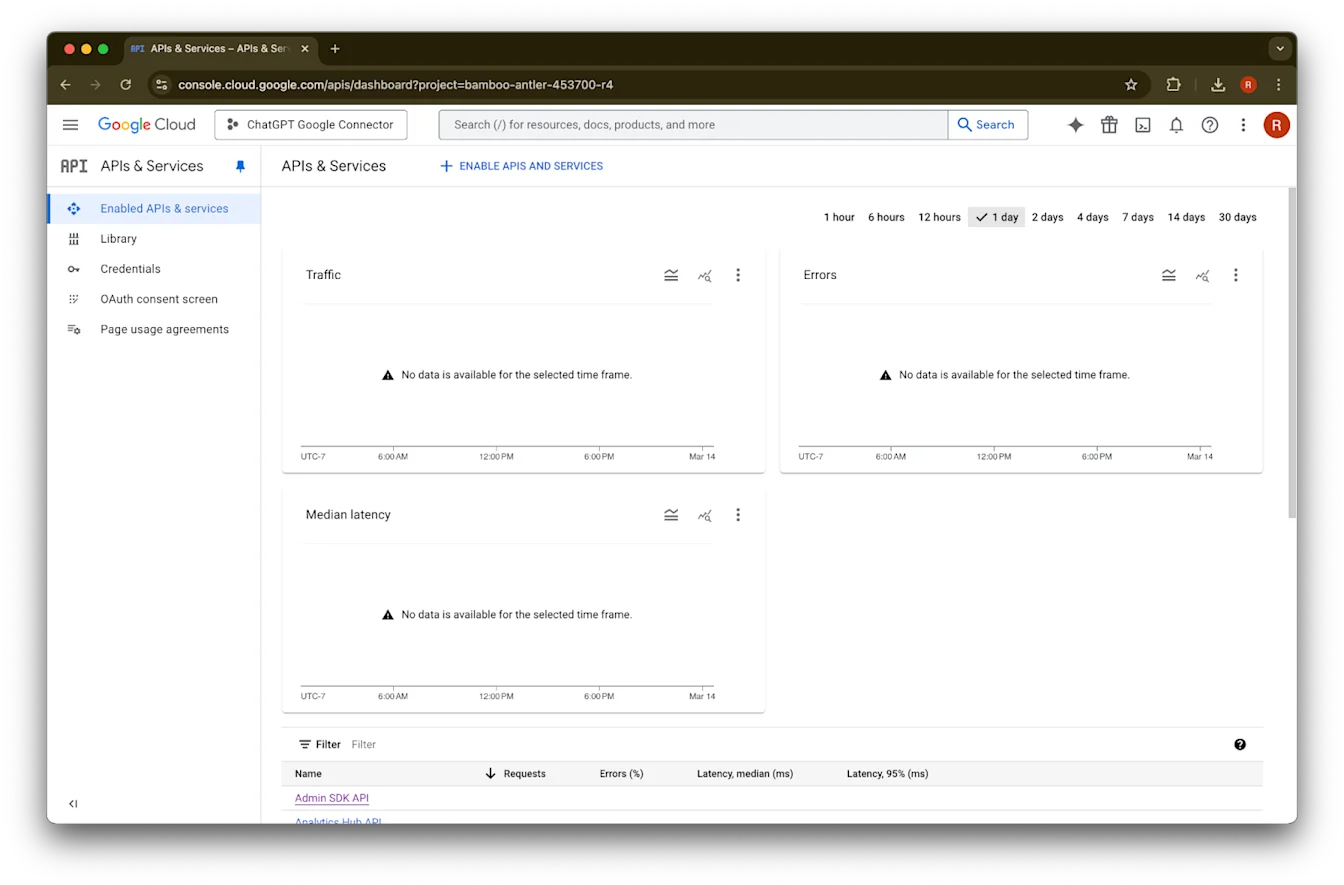
Klik APIs & Services
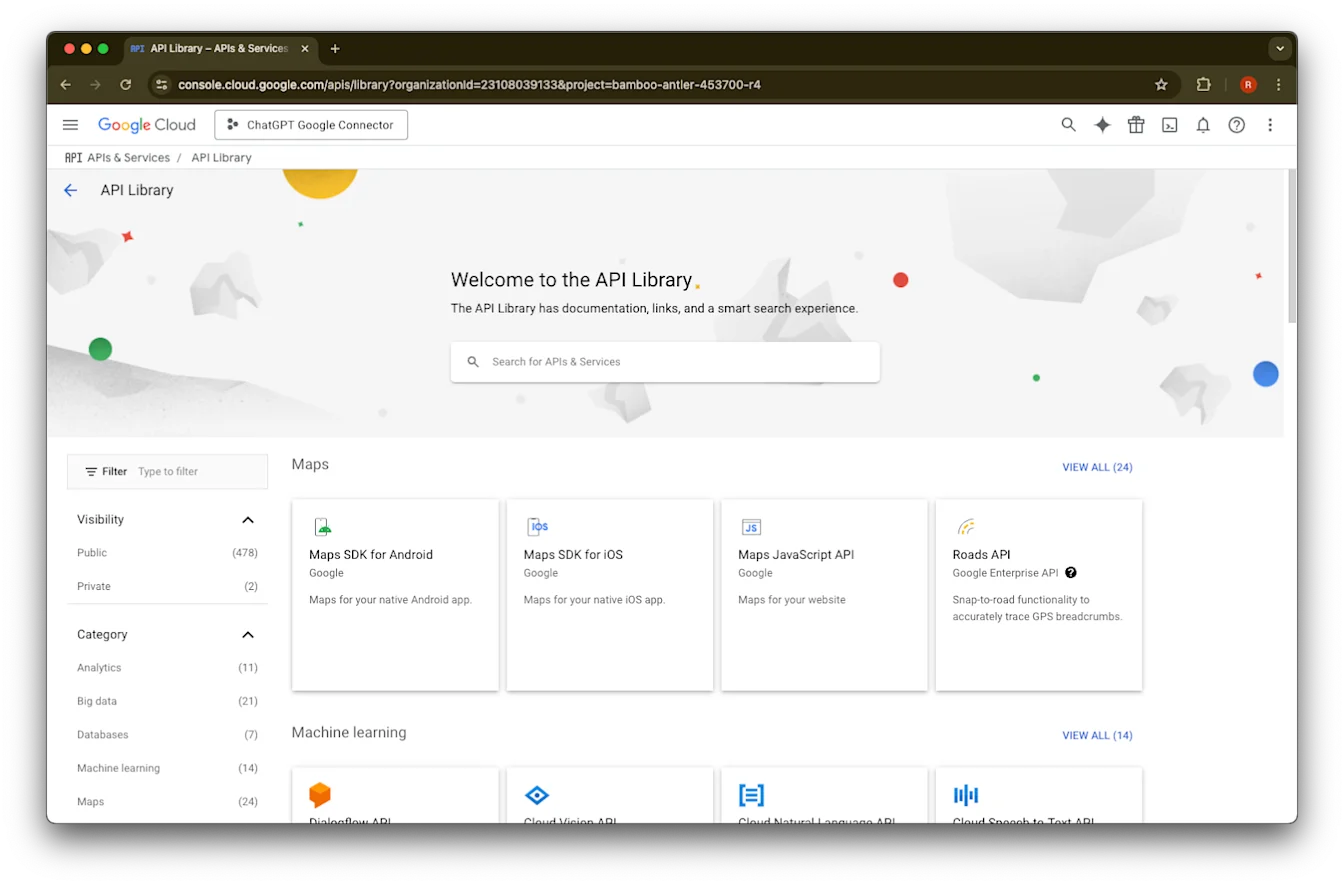
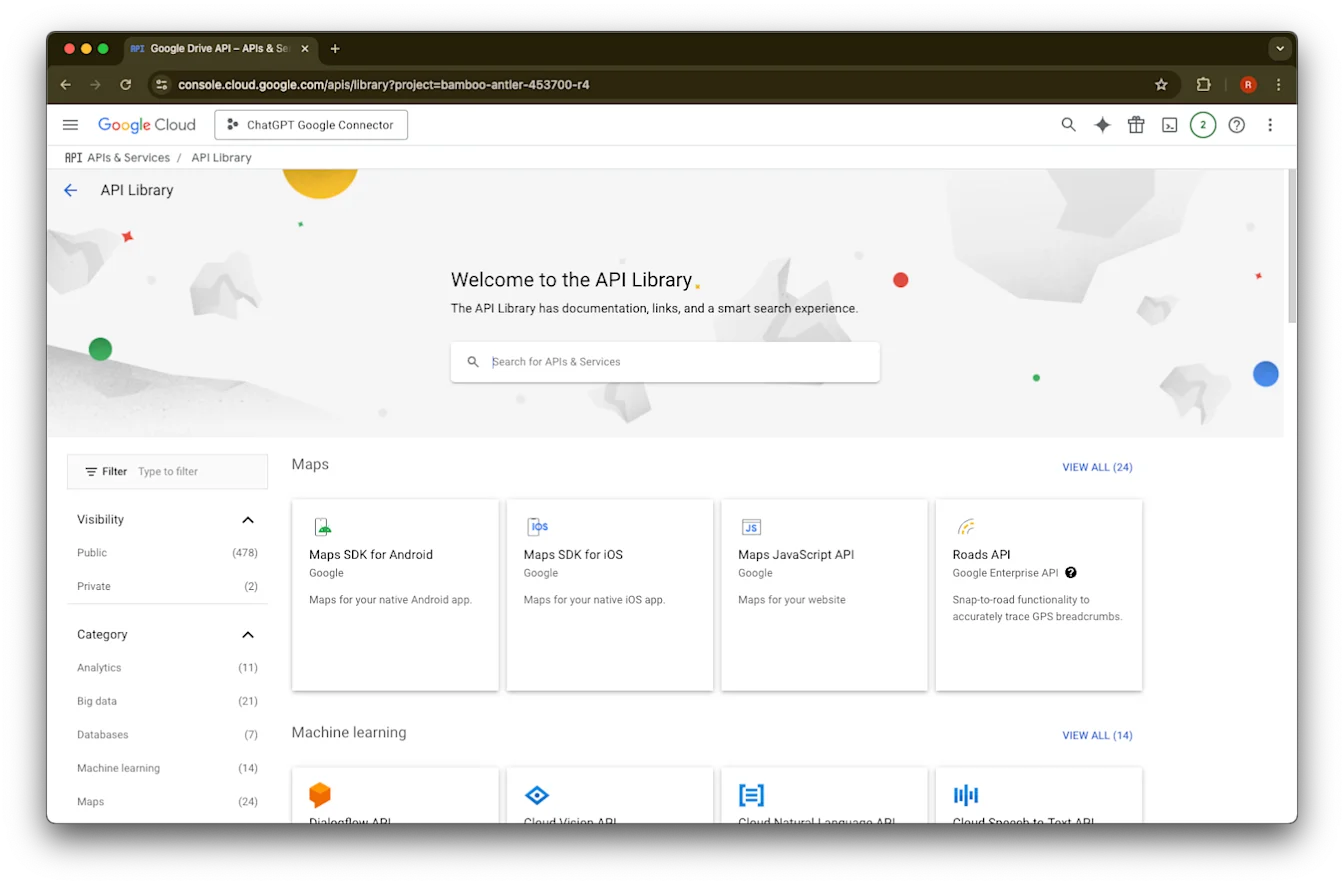
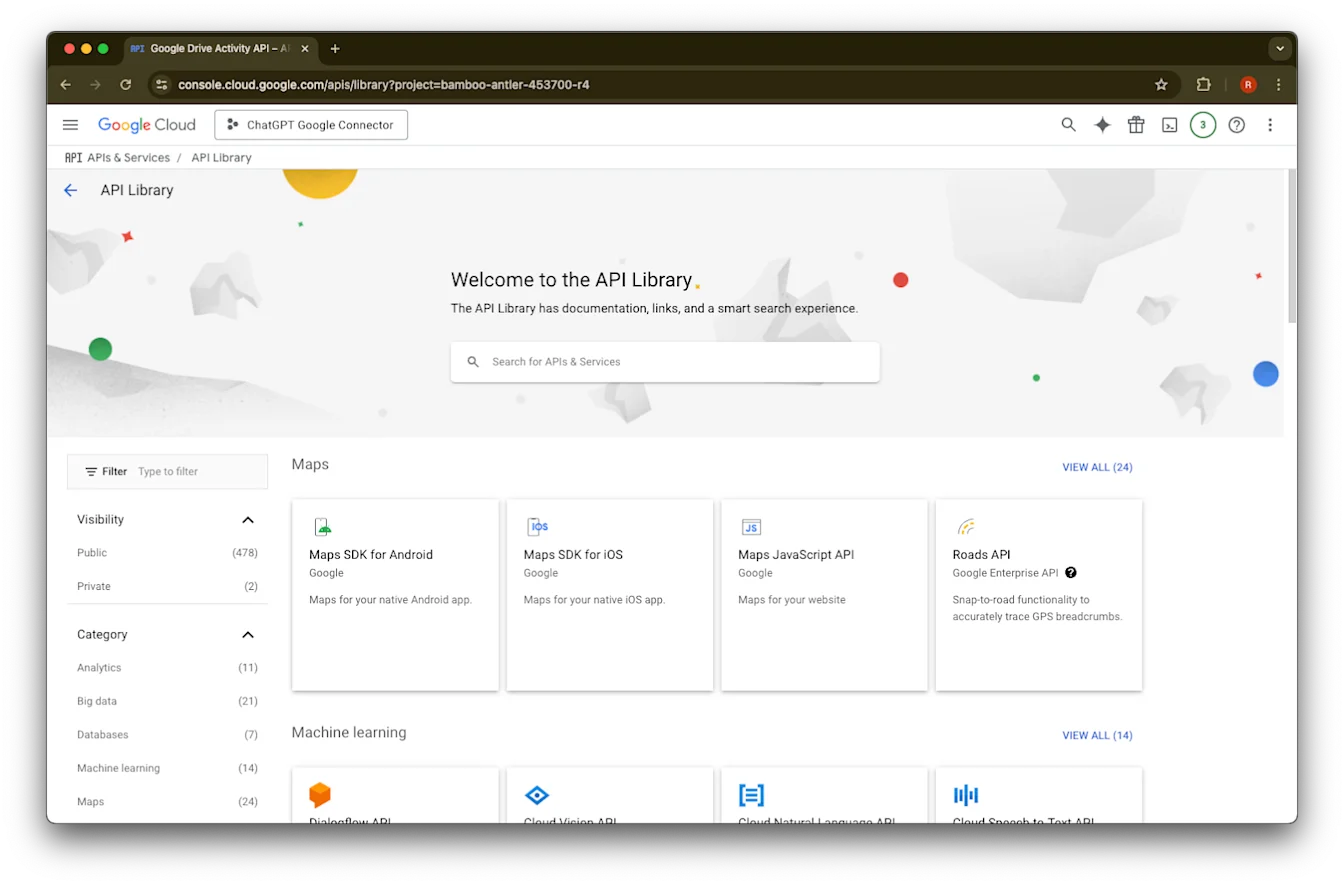
Klik Library
Saiki kita bakal nambah telung API, nganggo kothak telusur kanggo nemokake
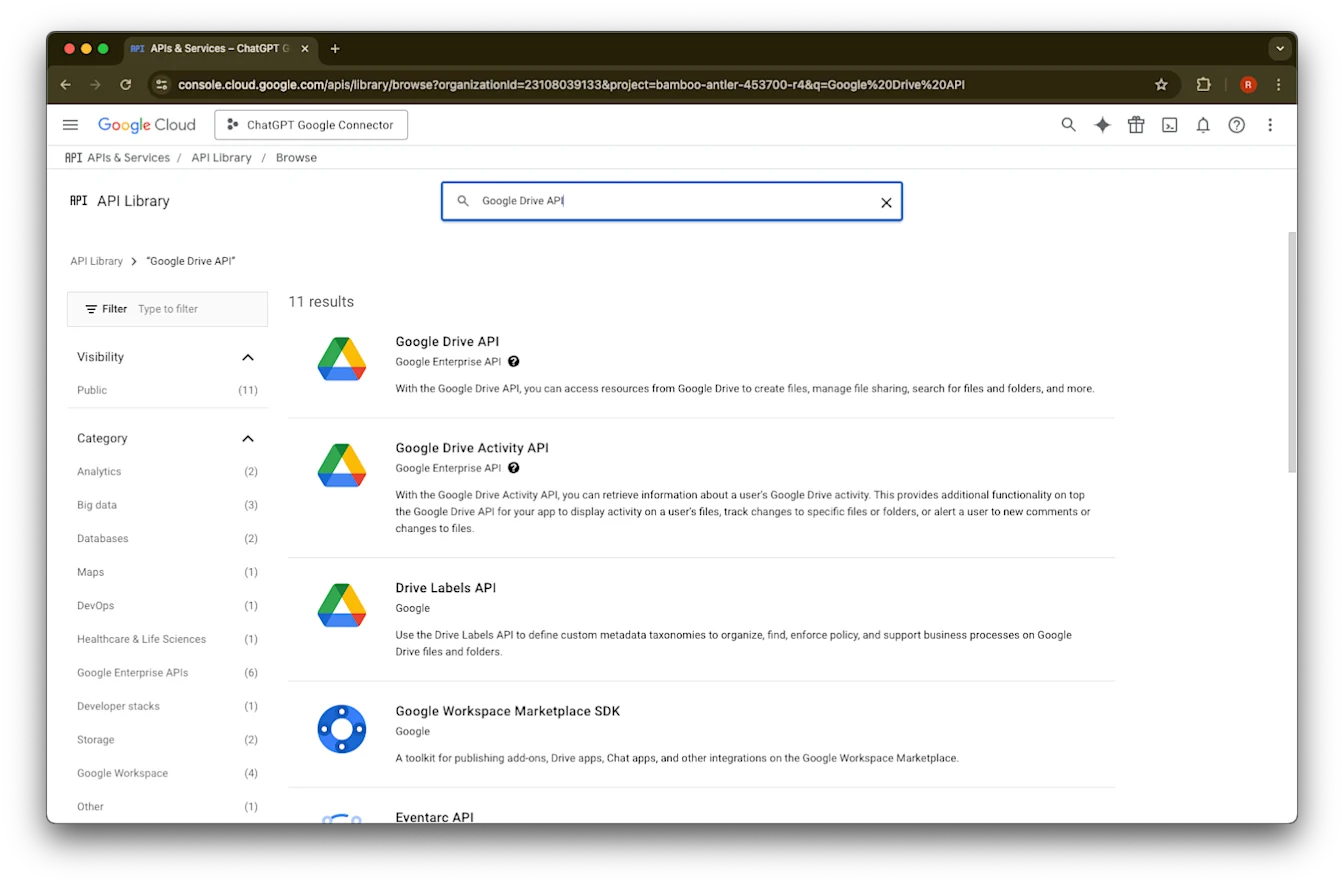
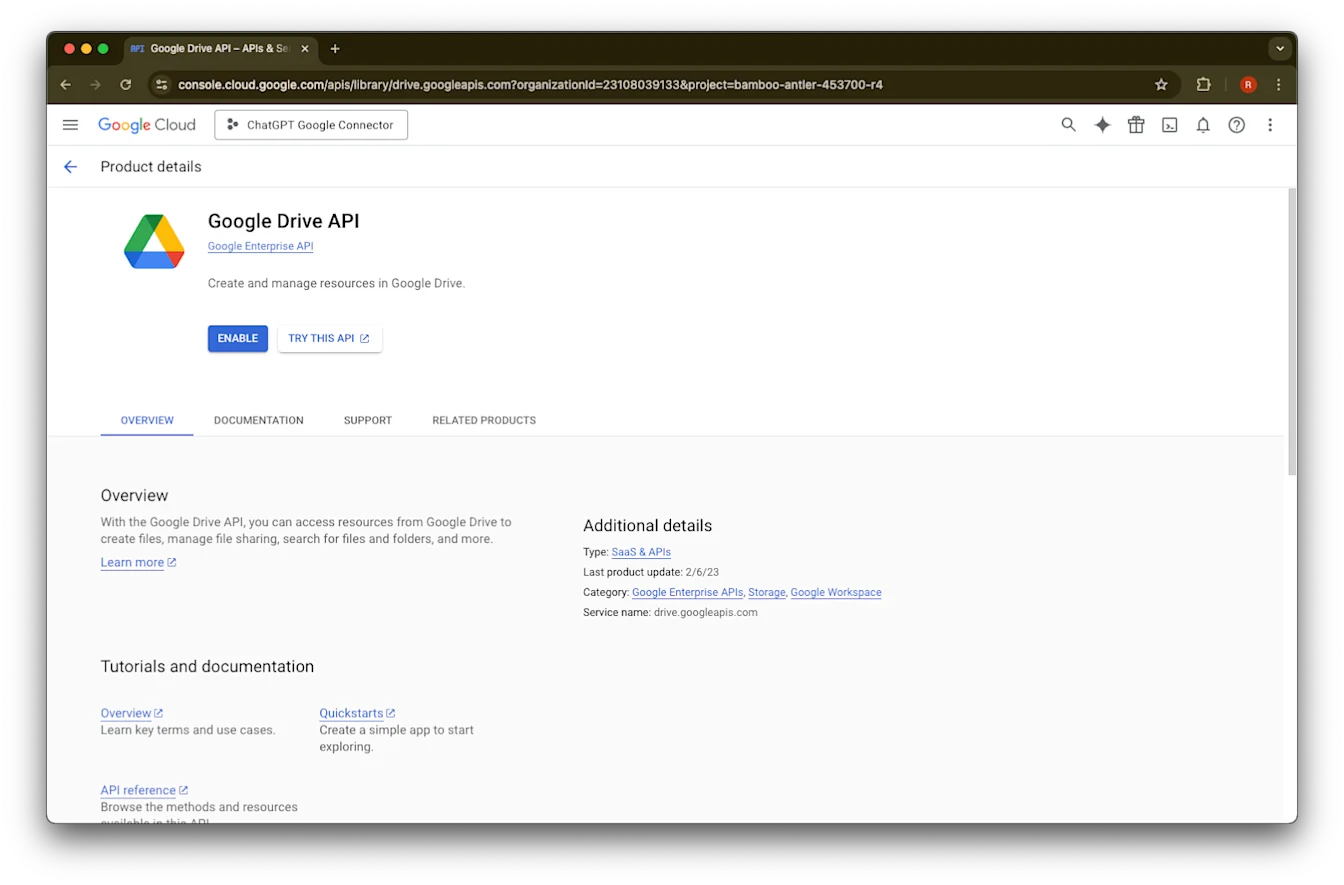
Telusuri lan pilih Google Drive API
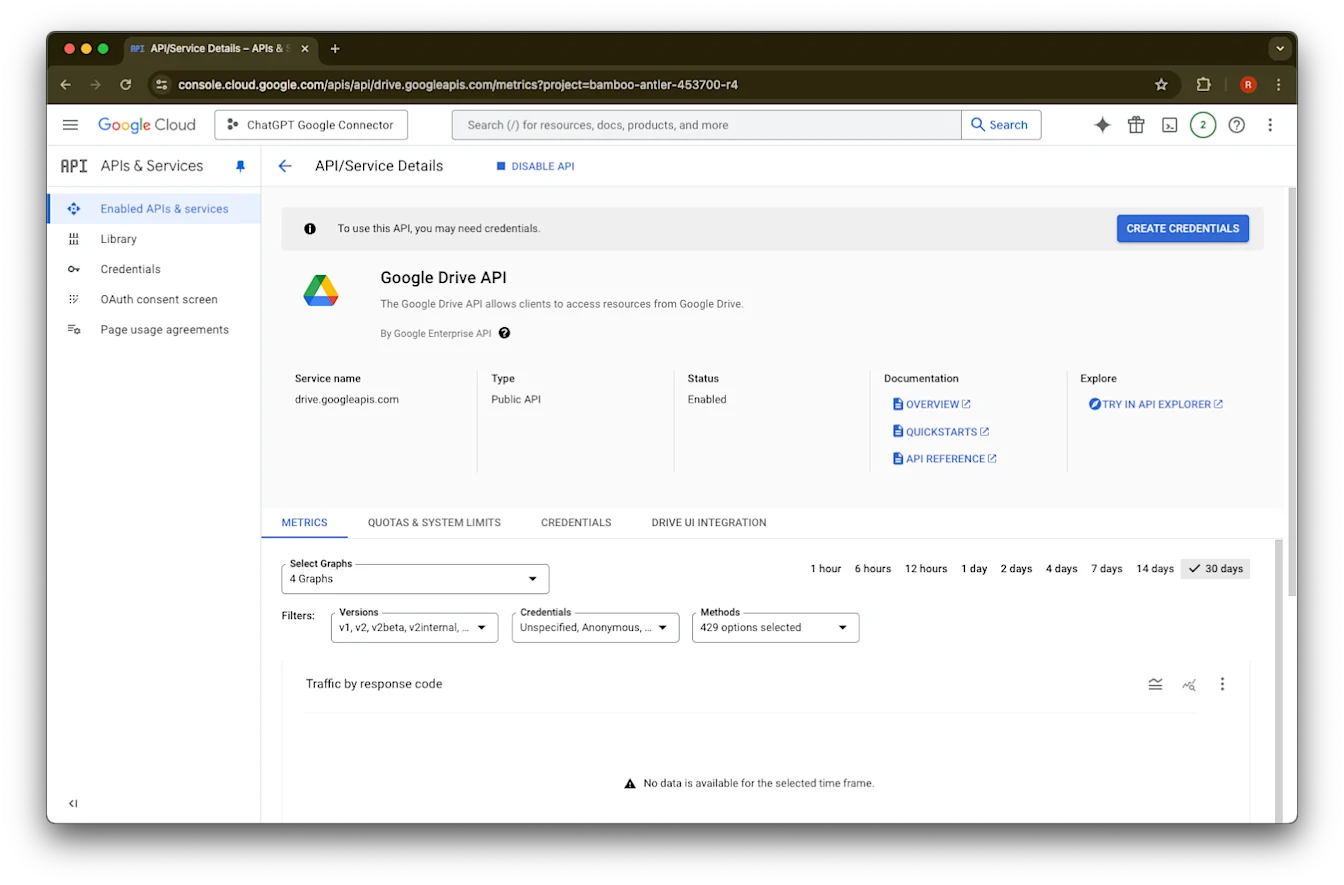
Klik Enable
Klik Library
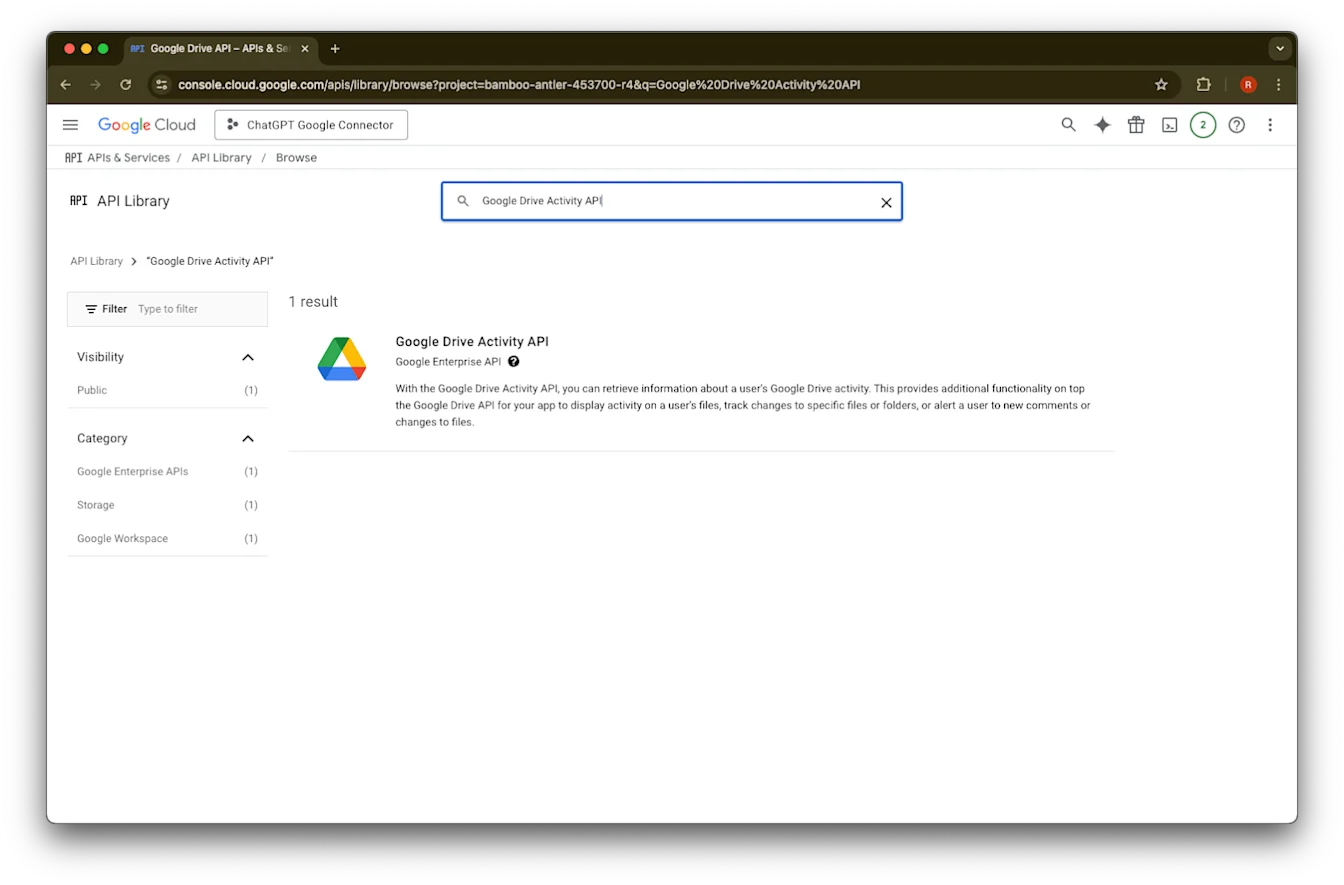
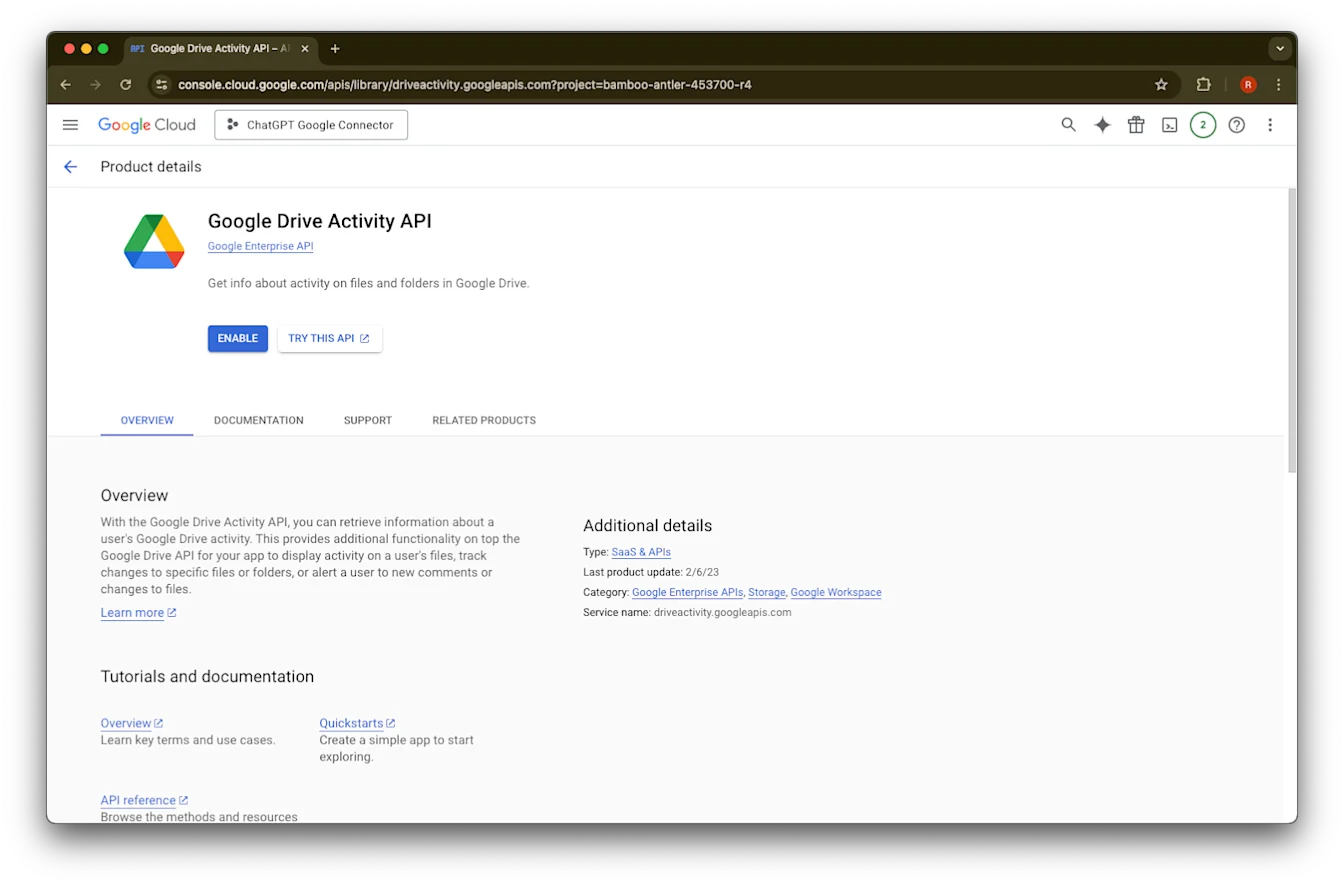
Telusuri Google Drive Activity
Pilih Google Drive Activity API
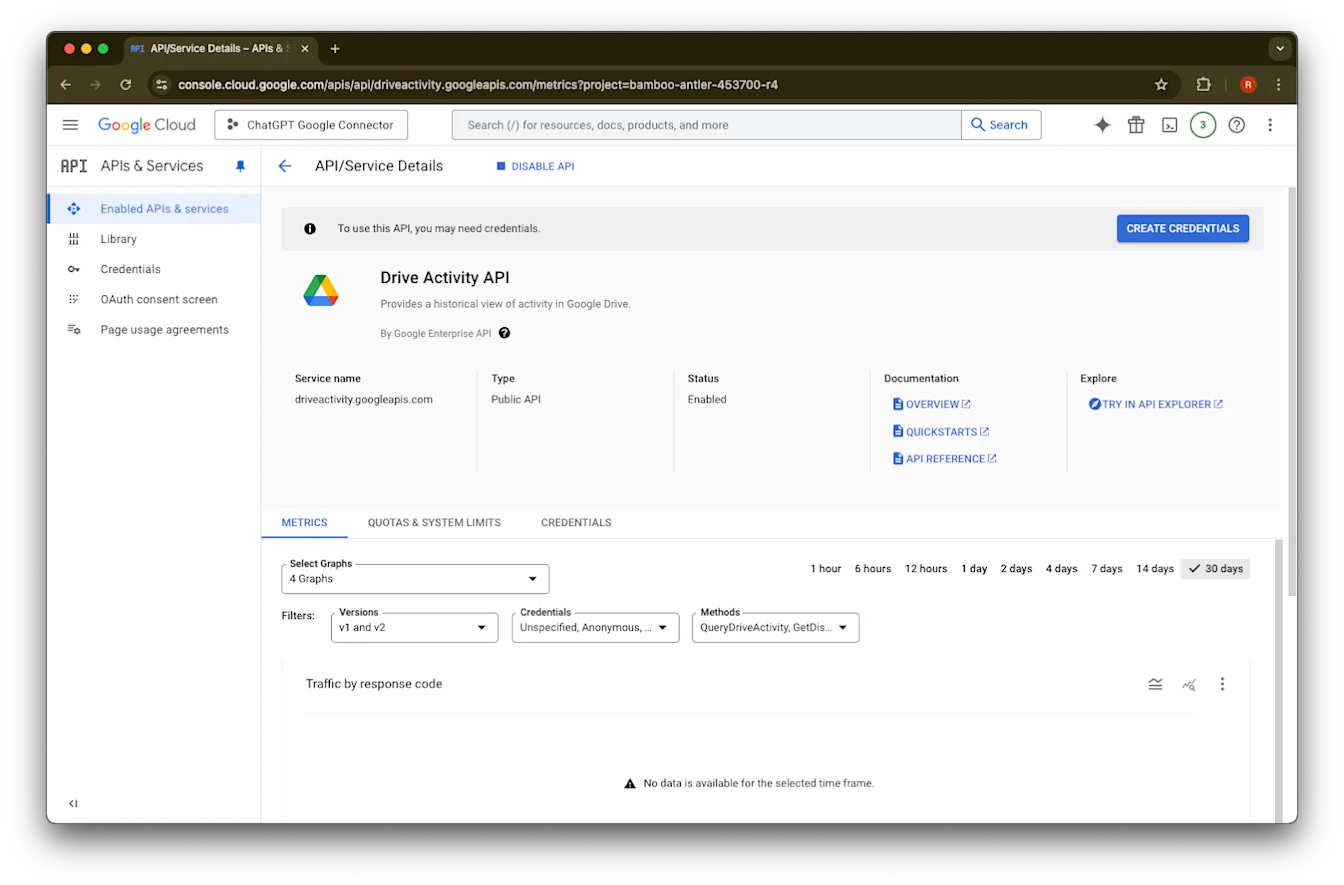
Klik Enable
Klik Library
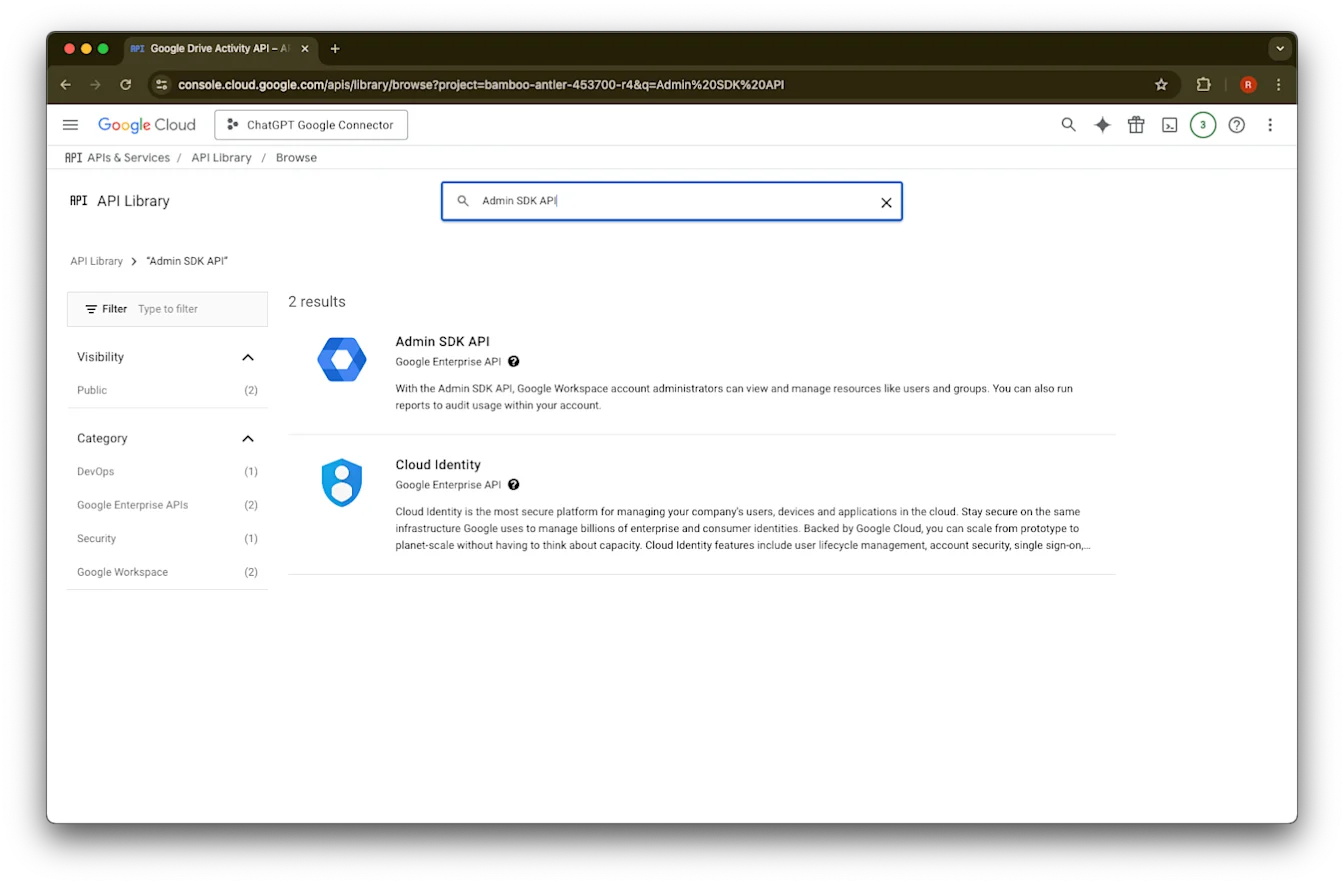
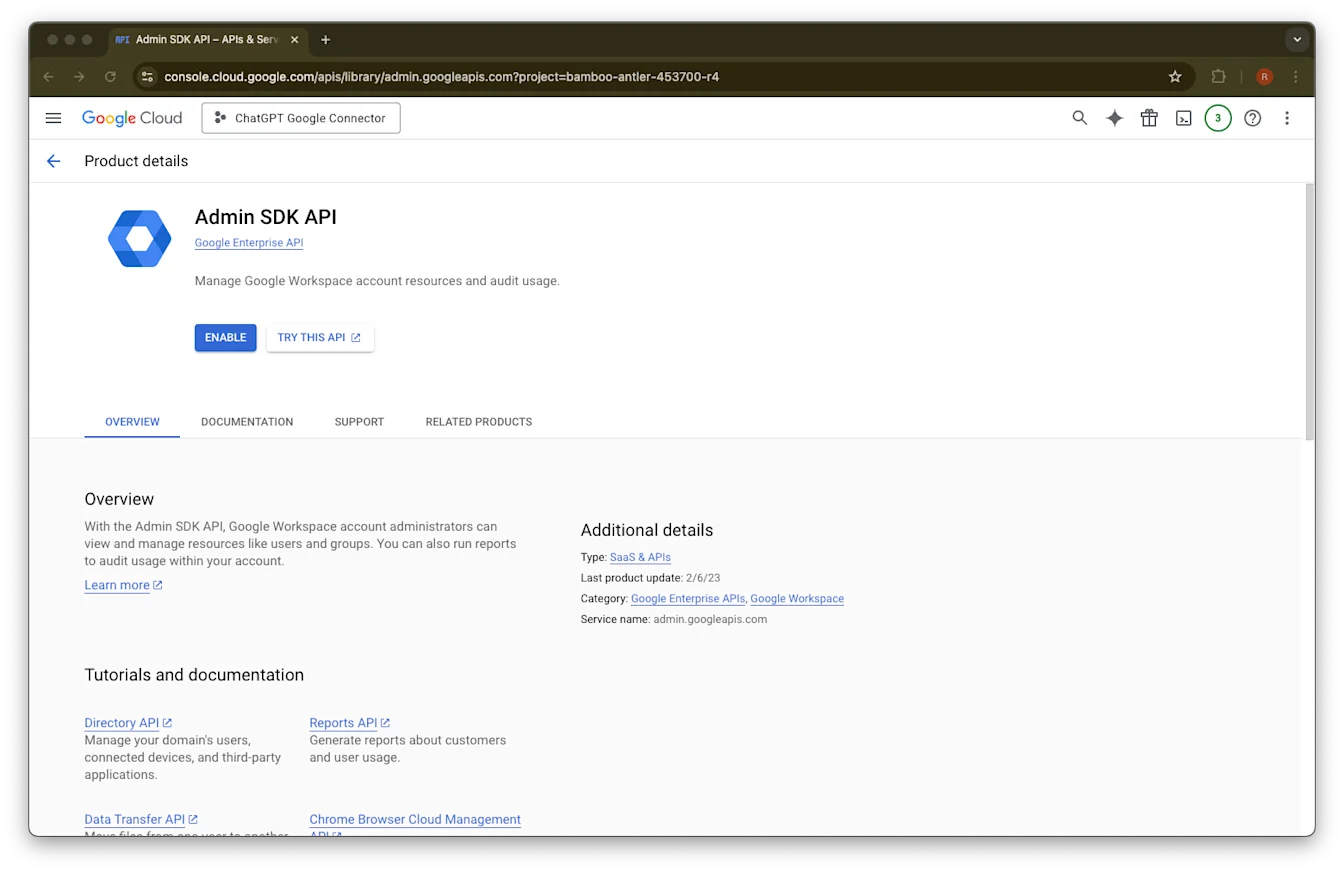
Telusuri Admin SDK API
Pilih Admin SDK API
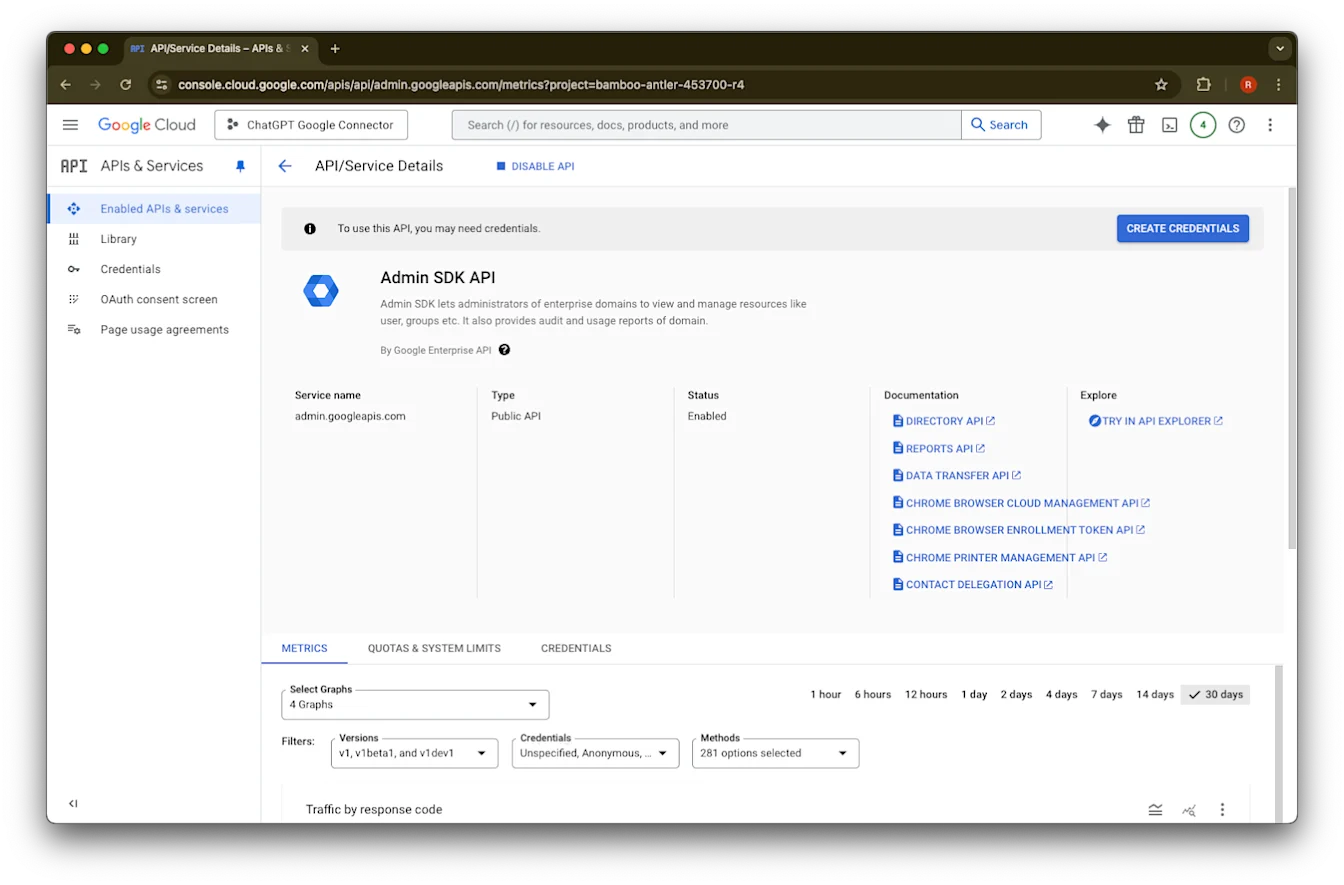
Klik Enable
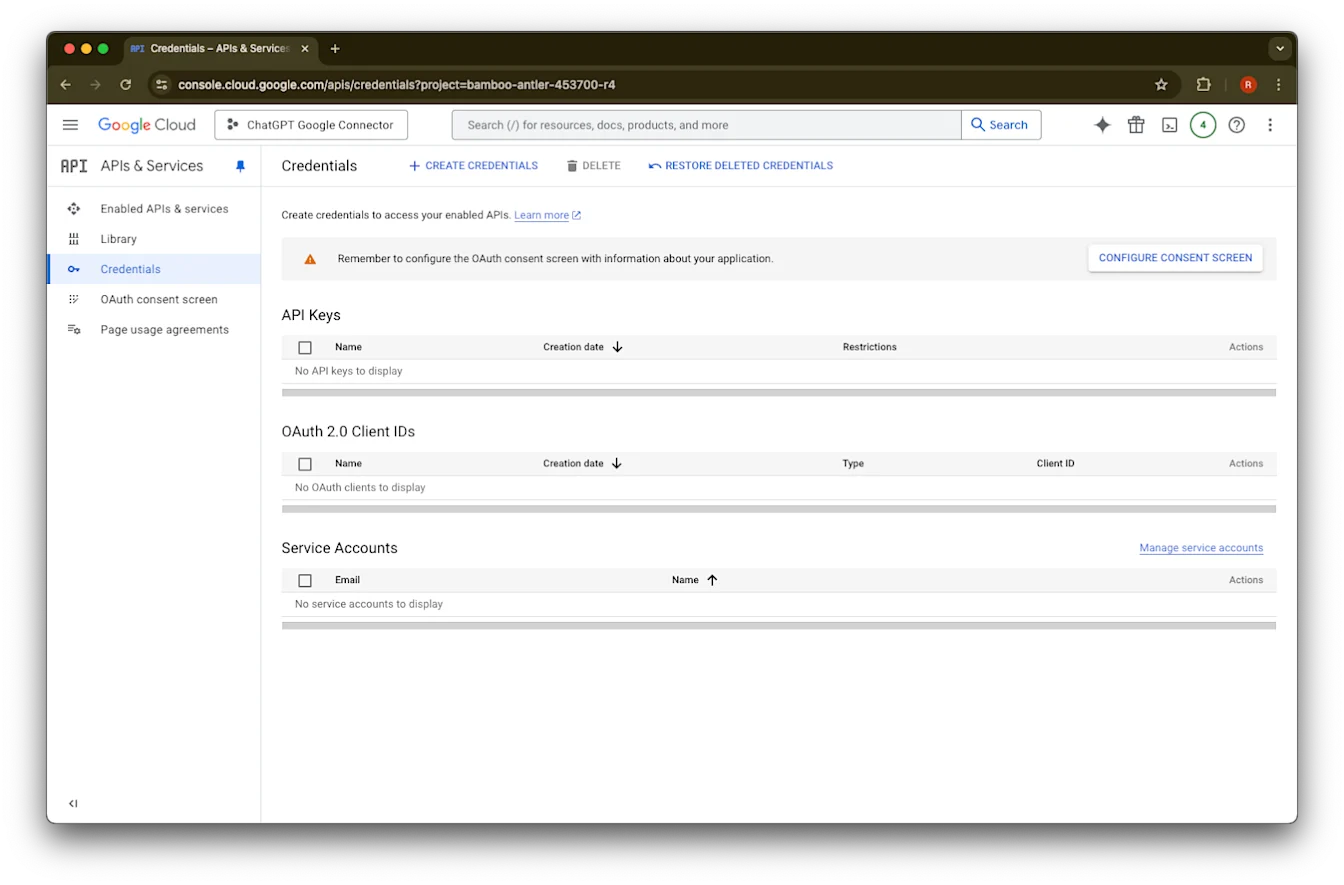
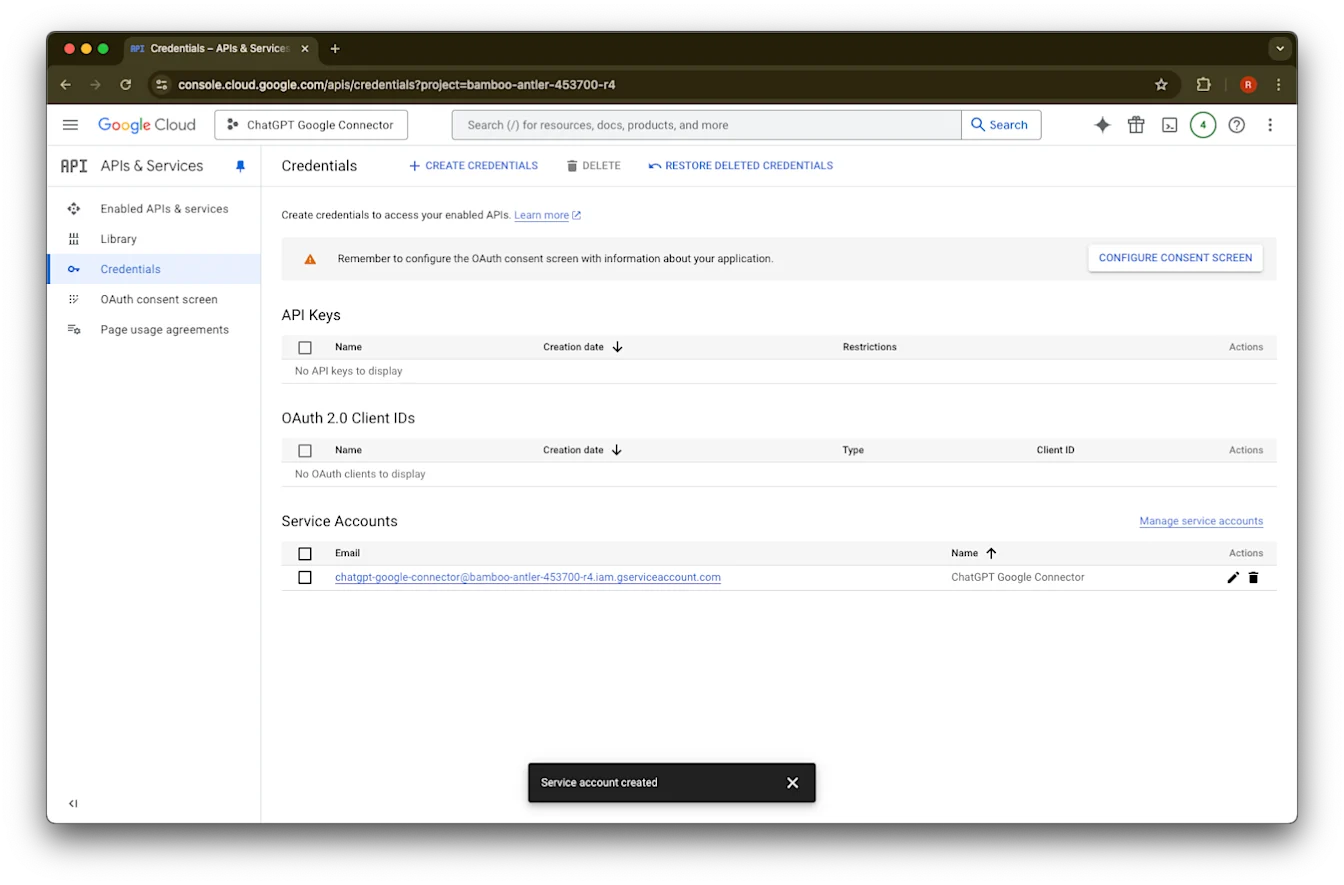
Klik Credentials
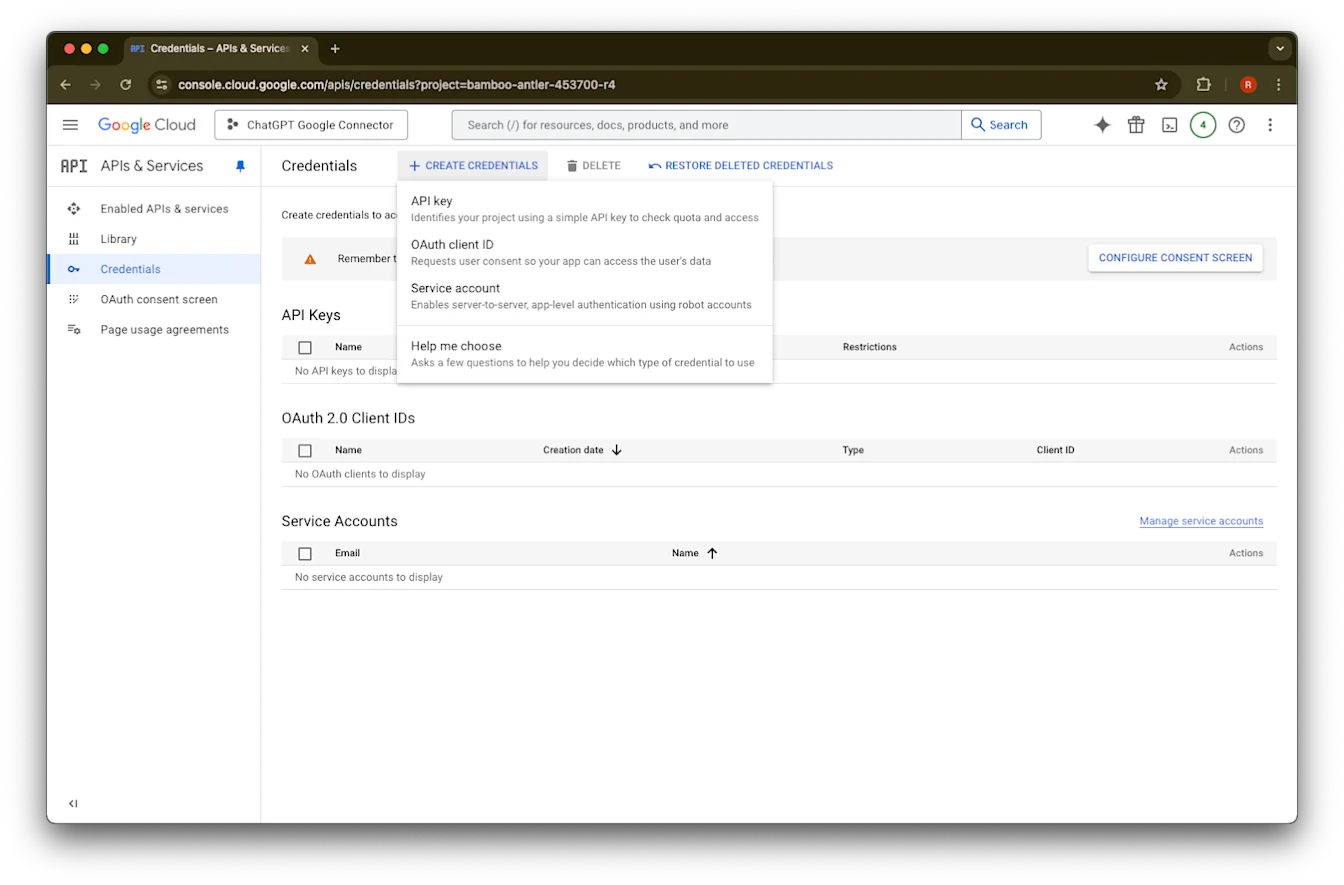
Klik Create Credentials
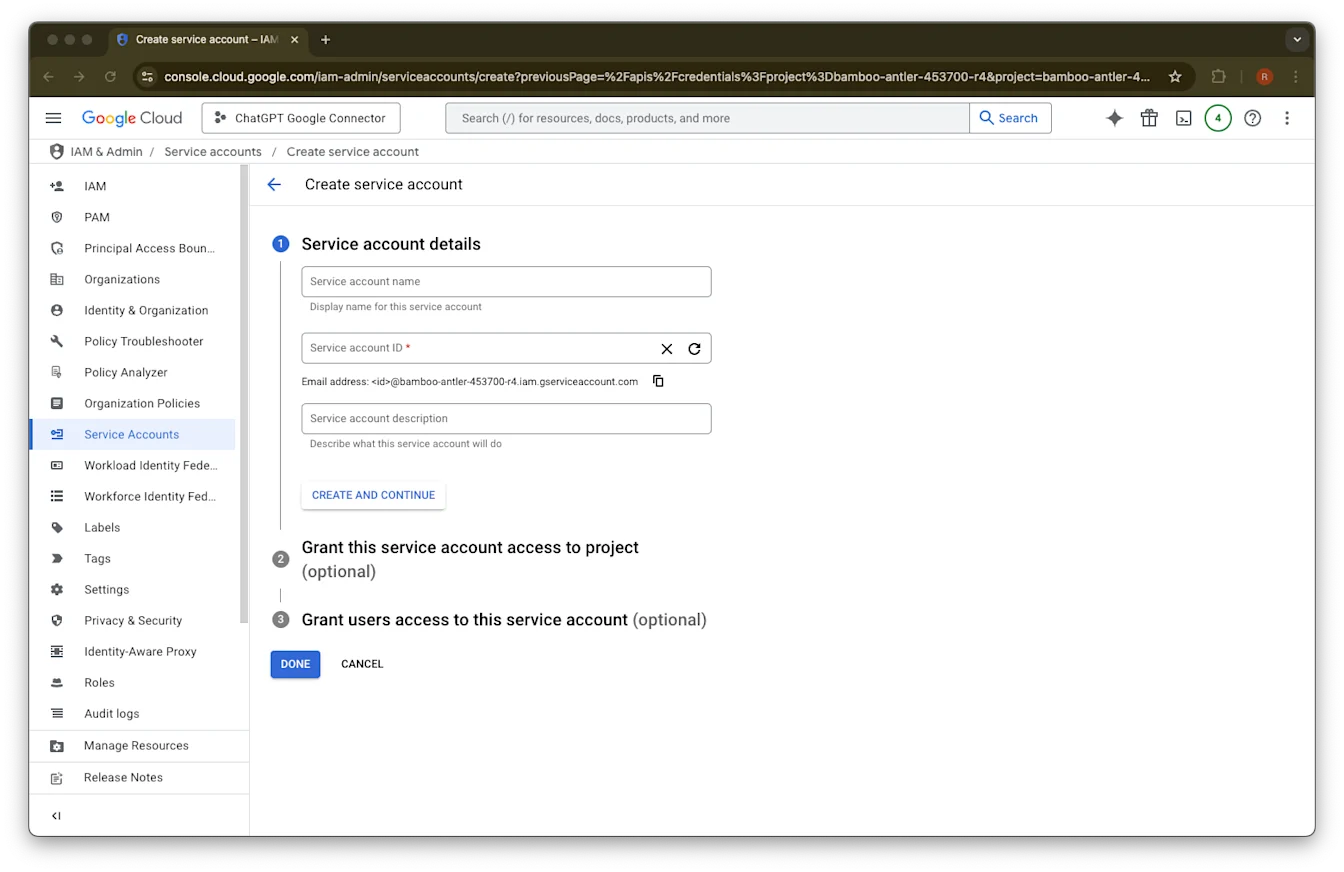
Klik Service account
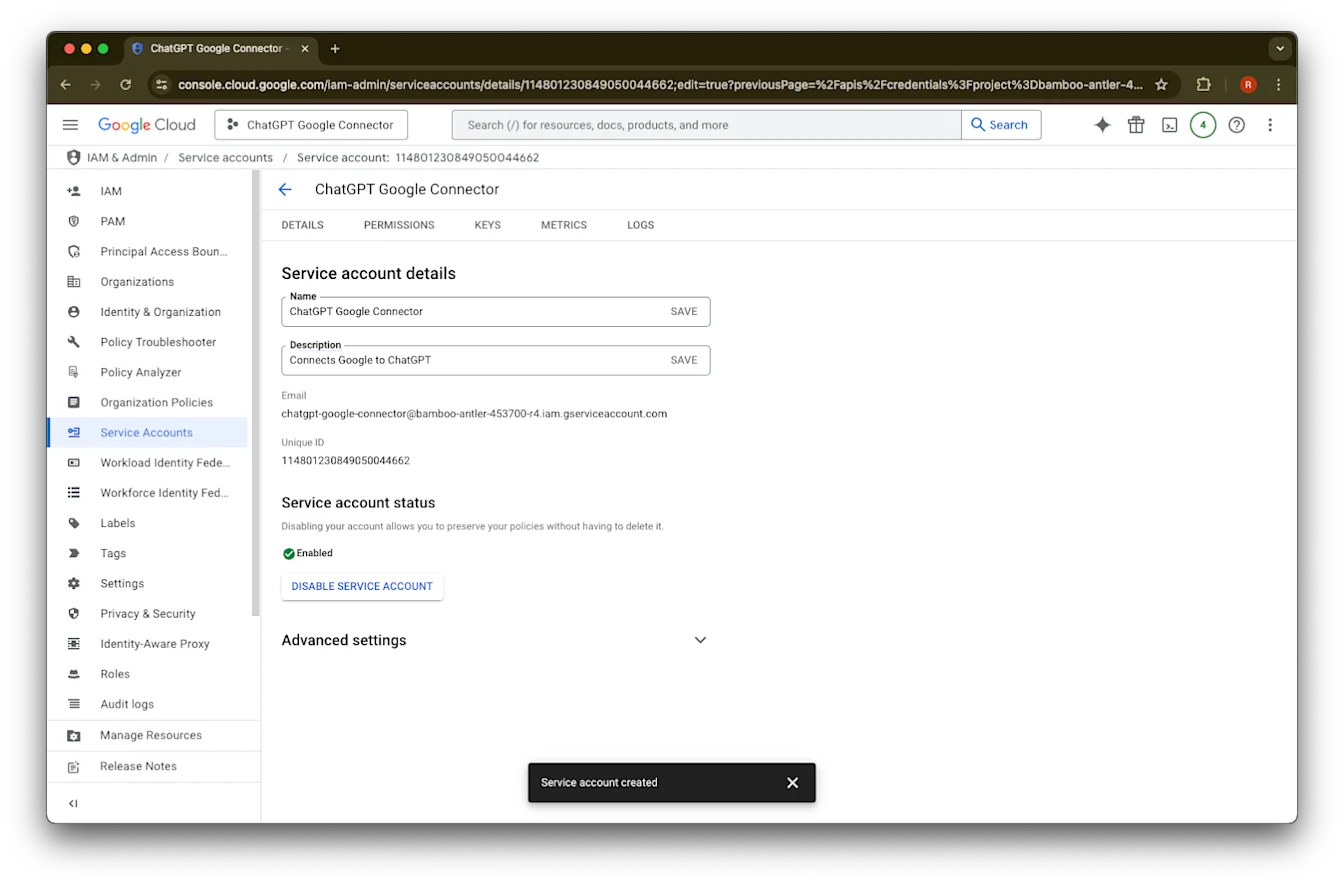
Wenehna jeneng lan deskripsi sakarepmu kanggo akun layanan iki
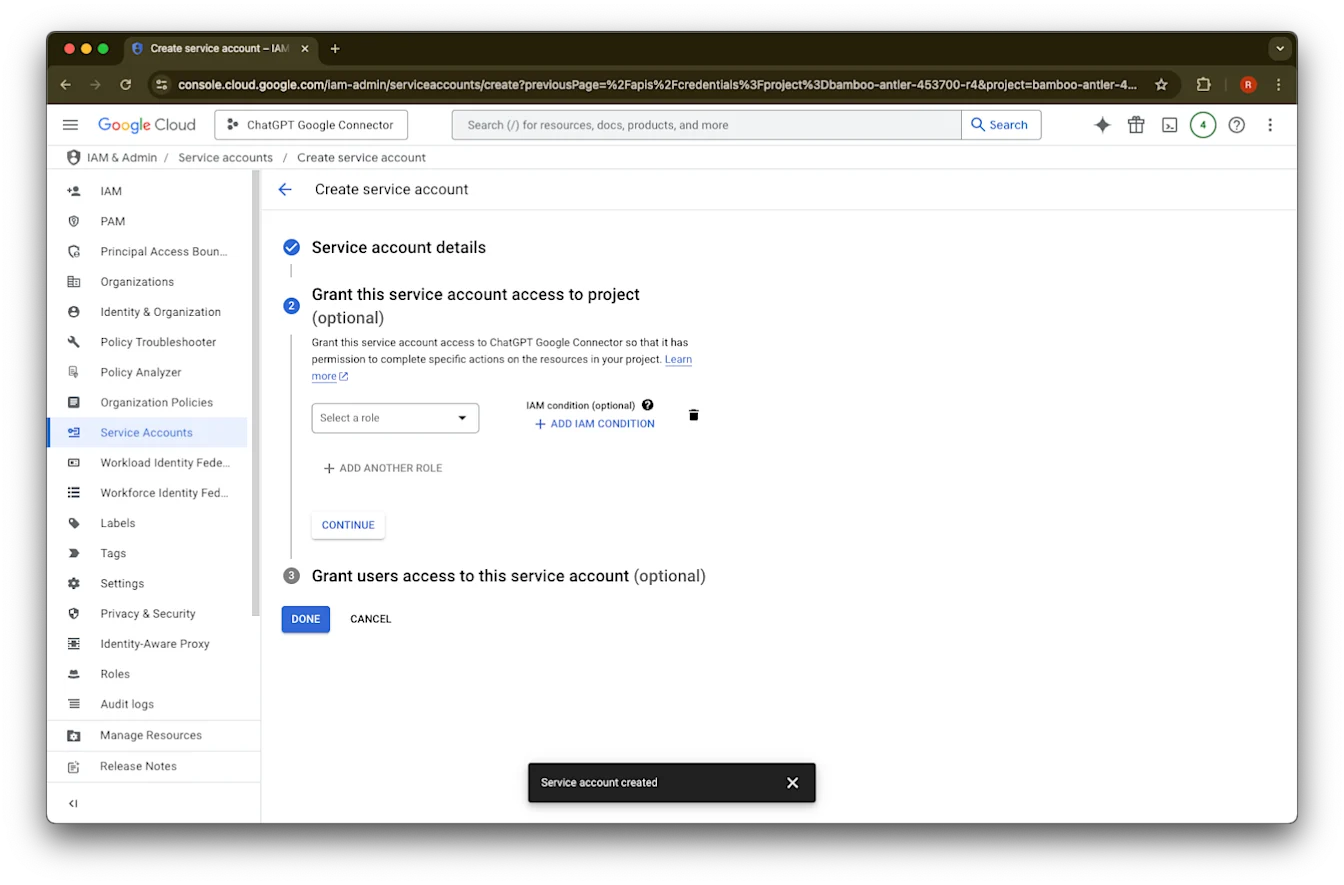
(Opsional) Sampeyan bisa menehi peran - iki ora dibutuhake dening ChatGPT.
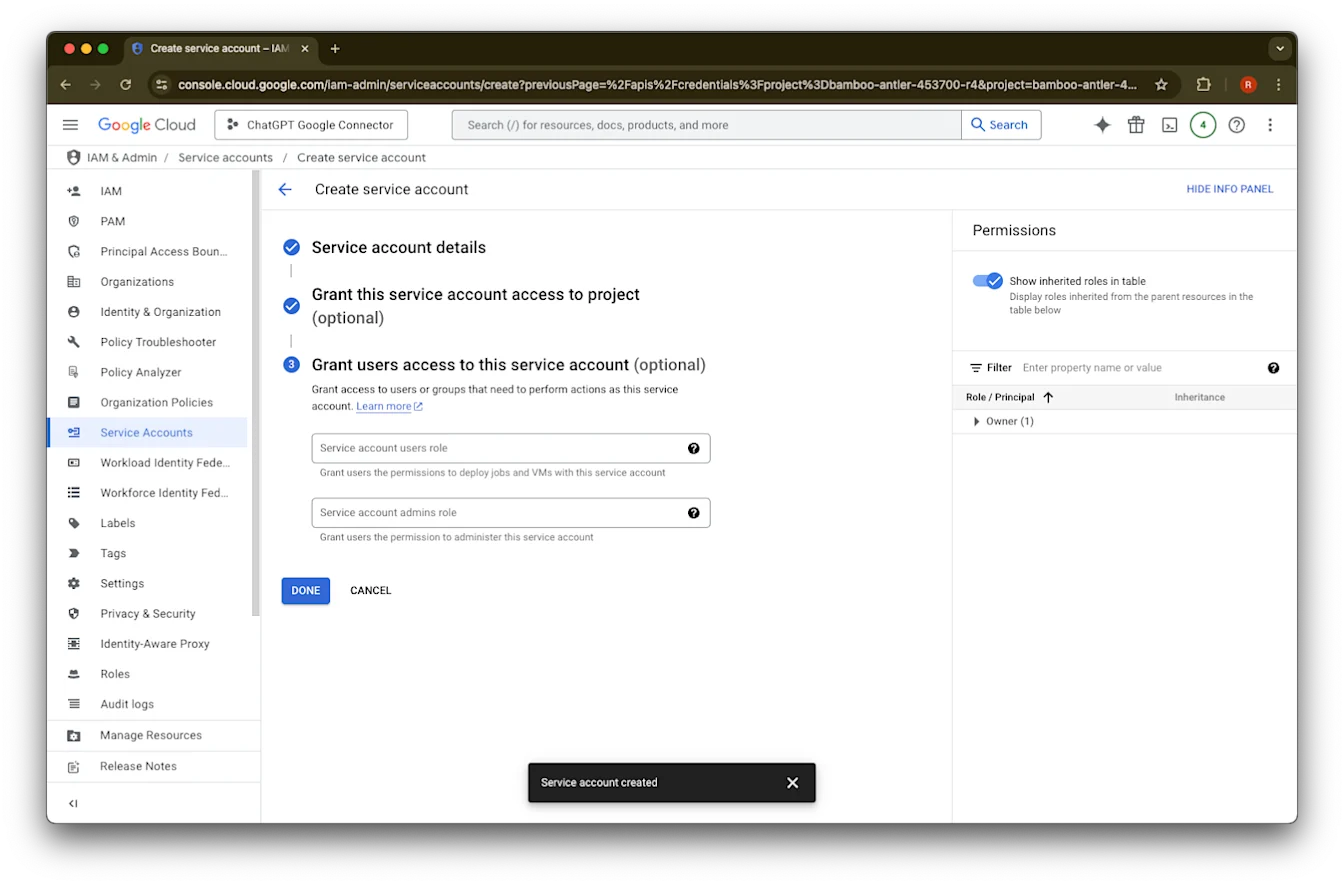
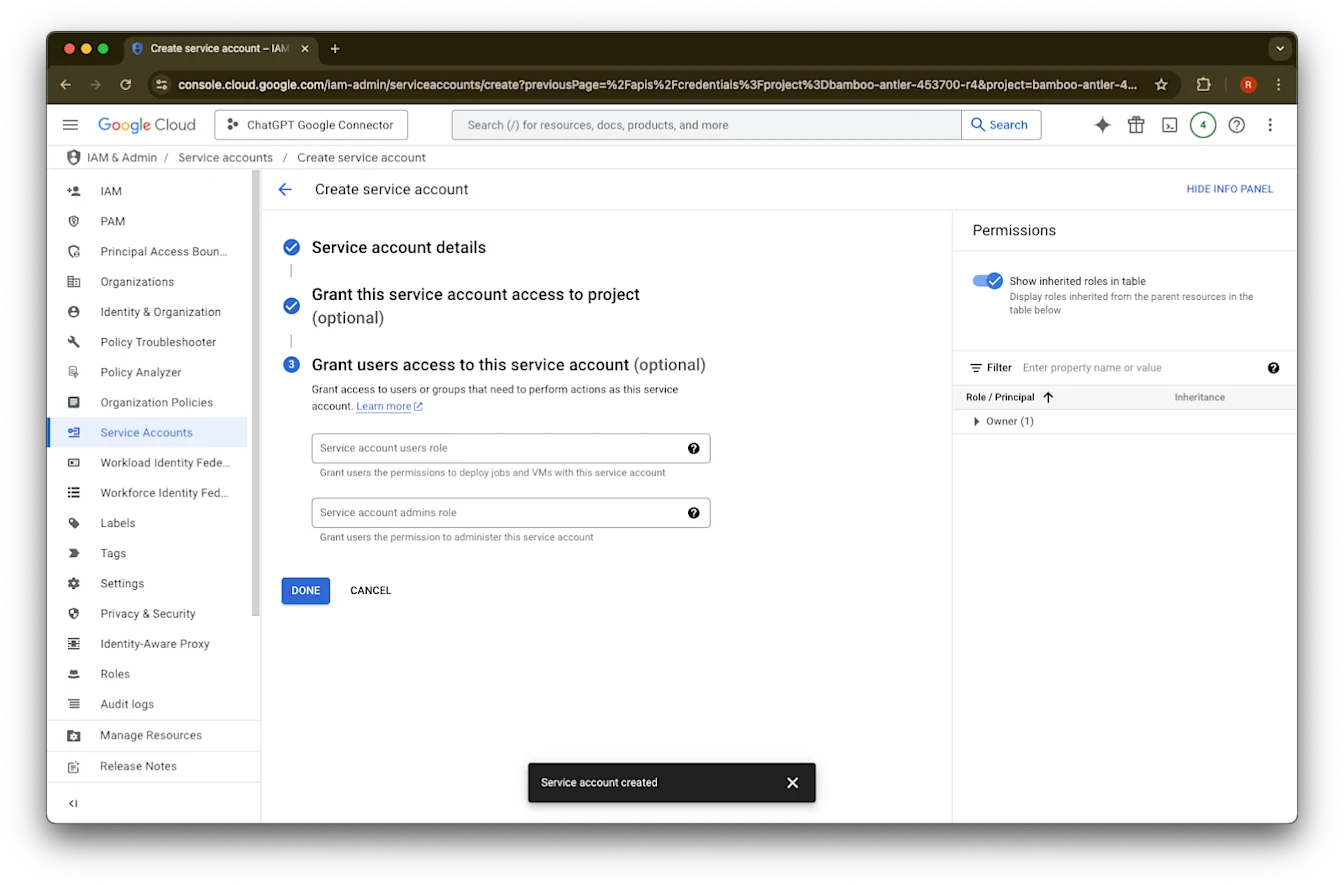
(Opsional) Sampeyan bisa menehi akses menyang akun layanan - iki ora dibutuhake dening ChatGPT.
Klik Done.
Klik akun layanan sing saiki wis digawe.
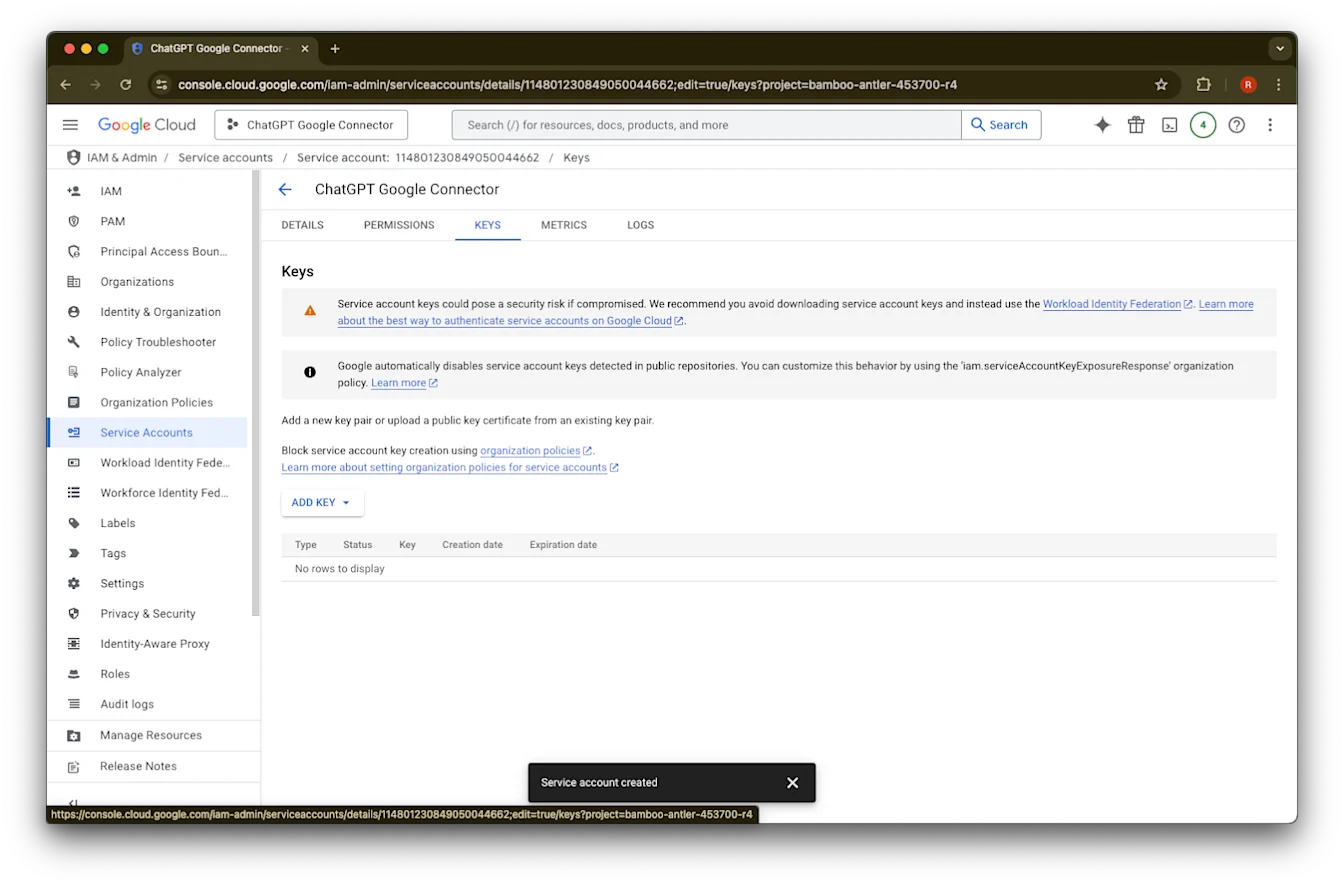
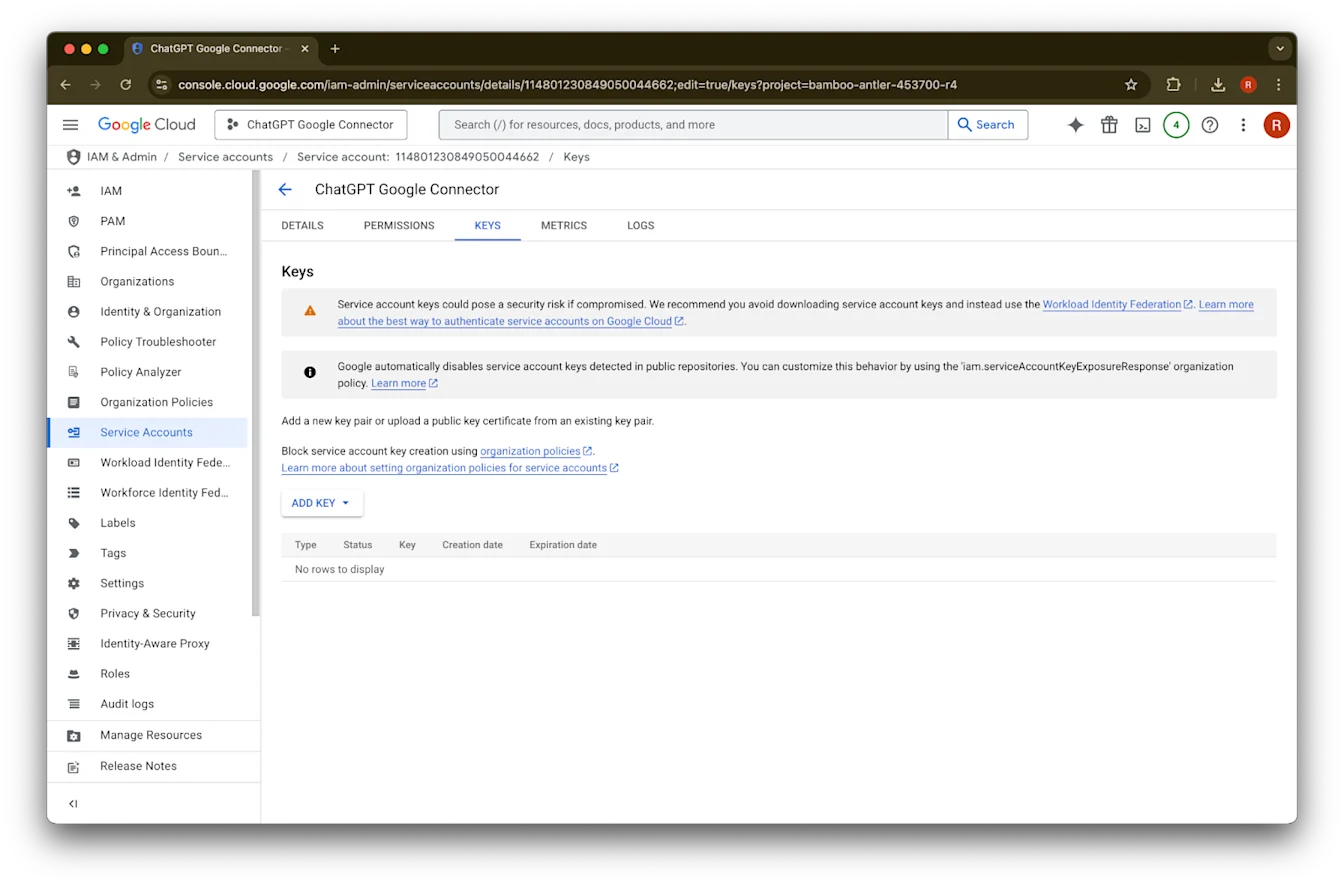
Klik keys.
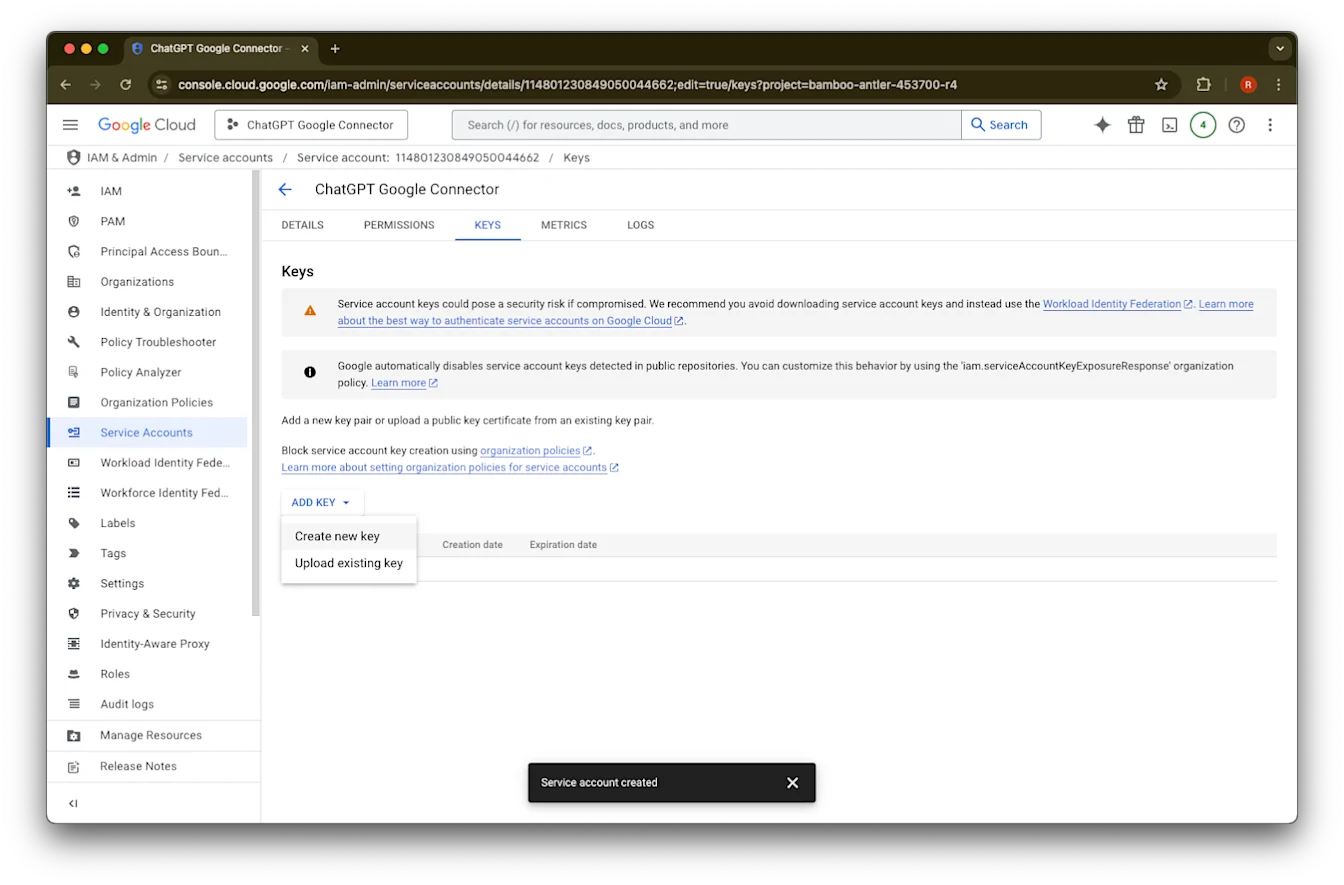
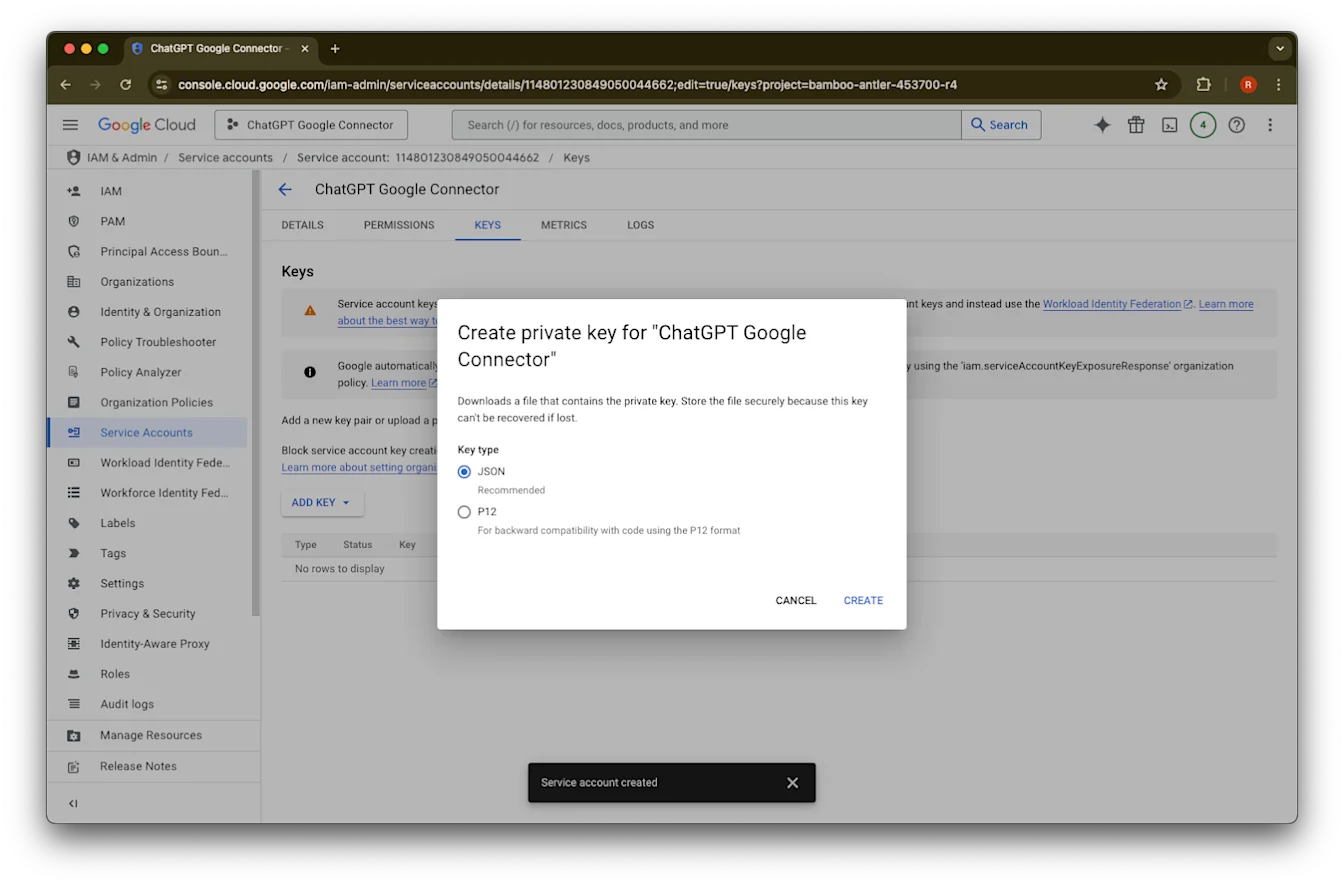
Klik Add Key
Klik Create new key
Tetepna jinis kunci JSON standar lan klik Create
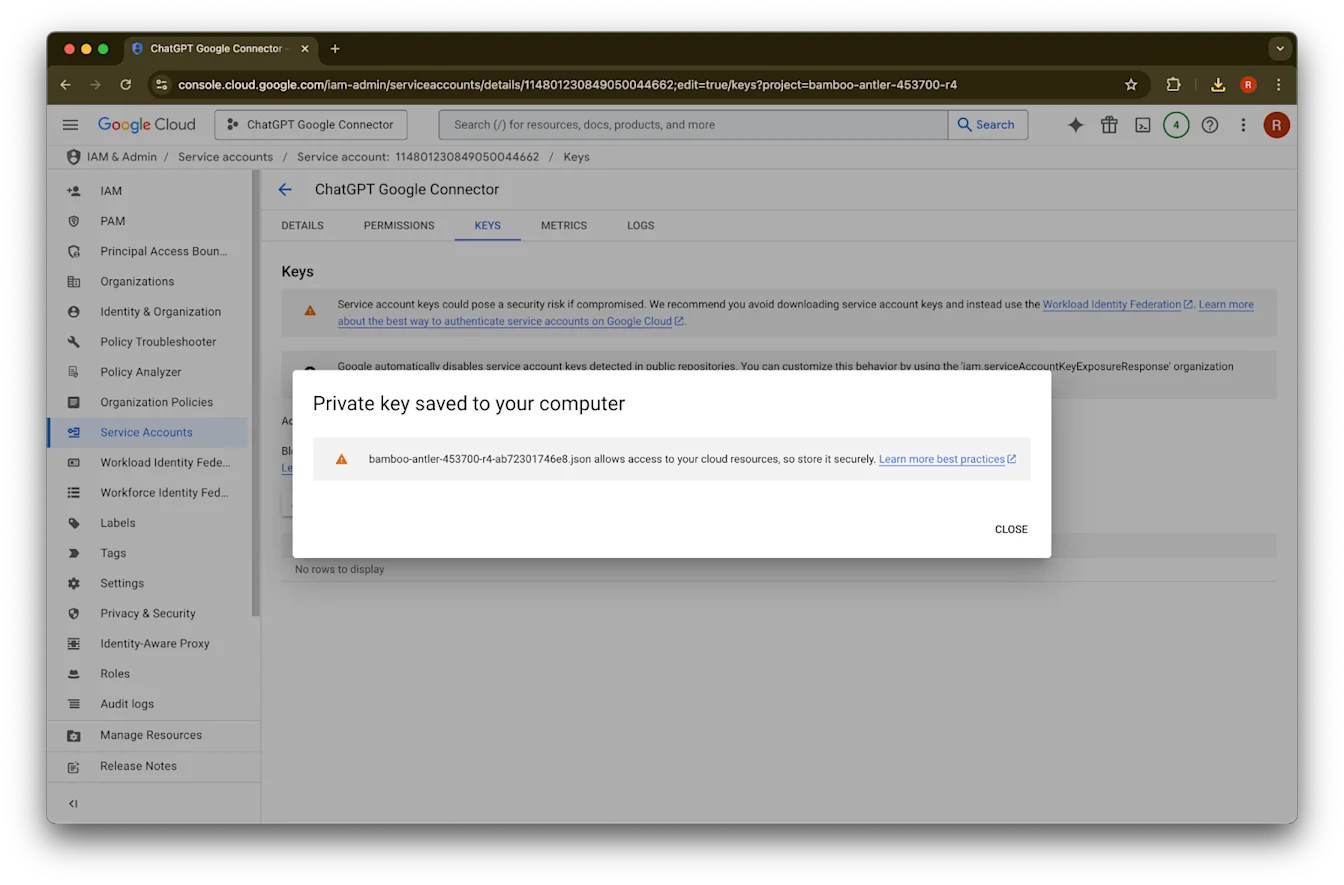
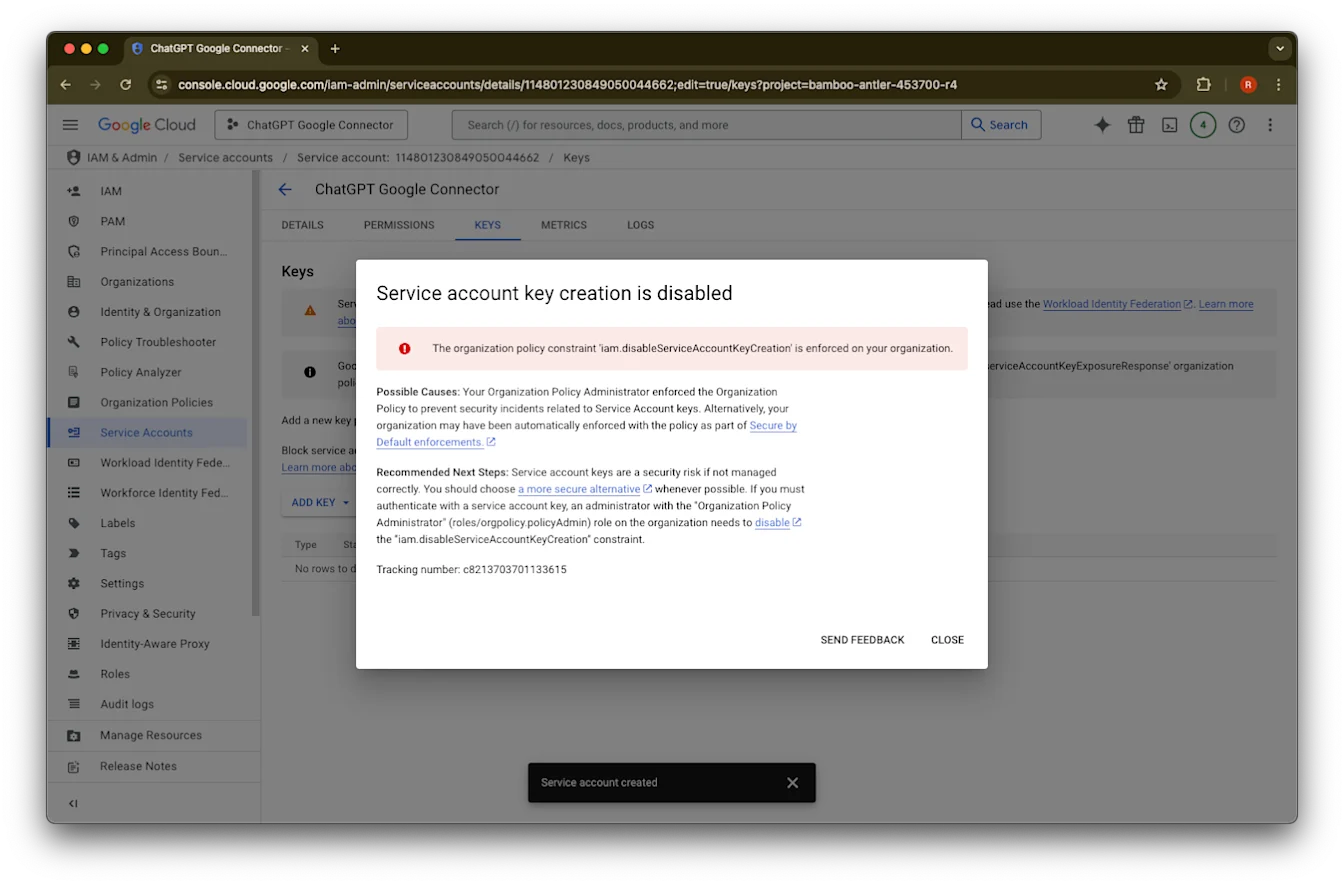
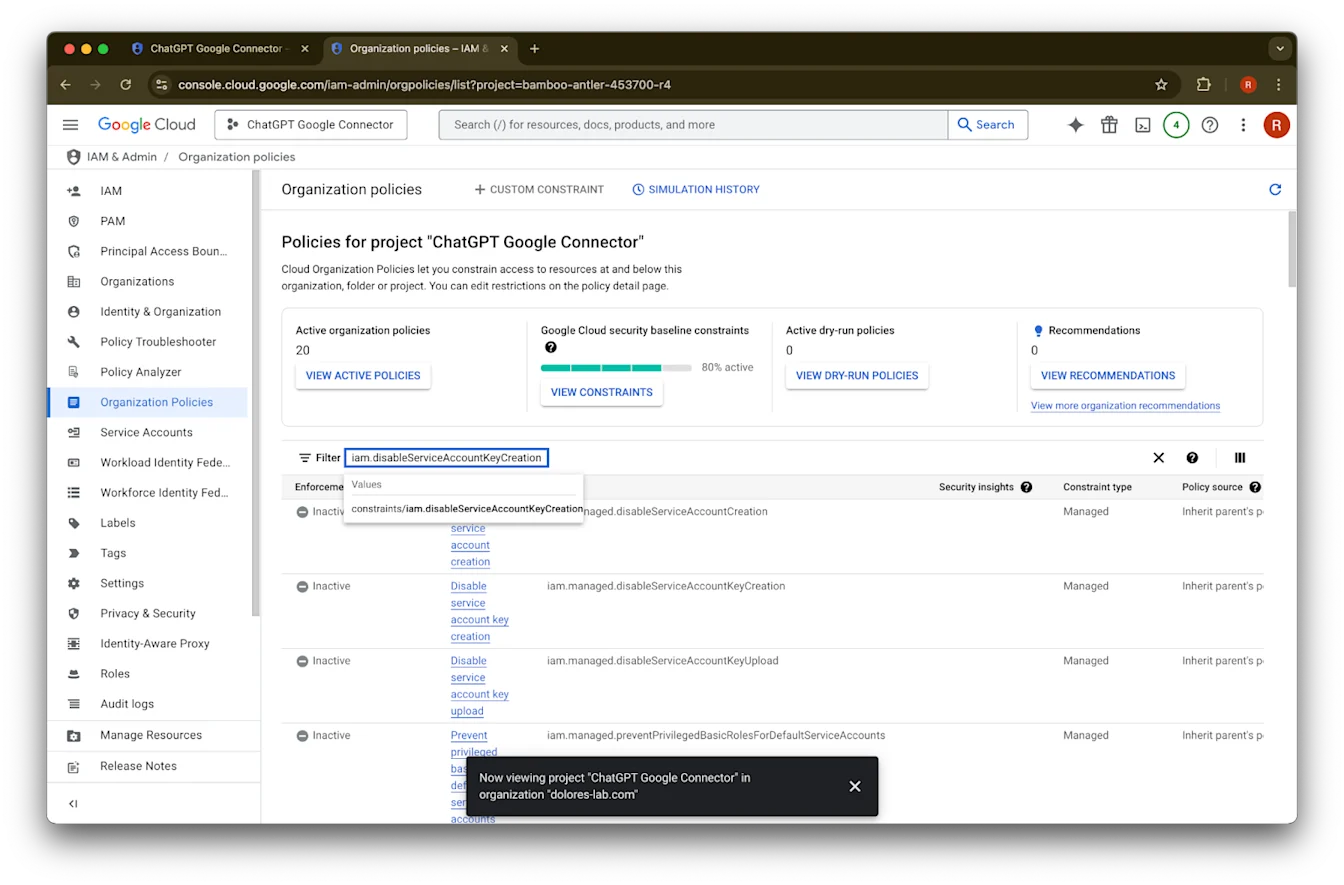
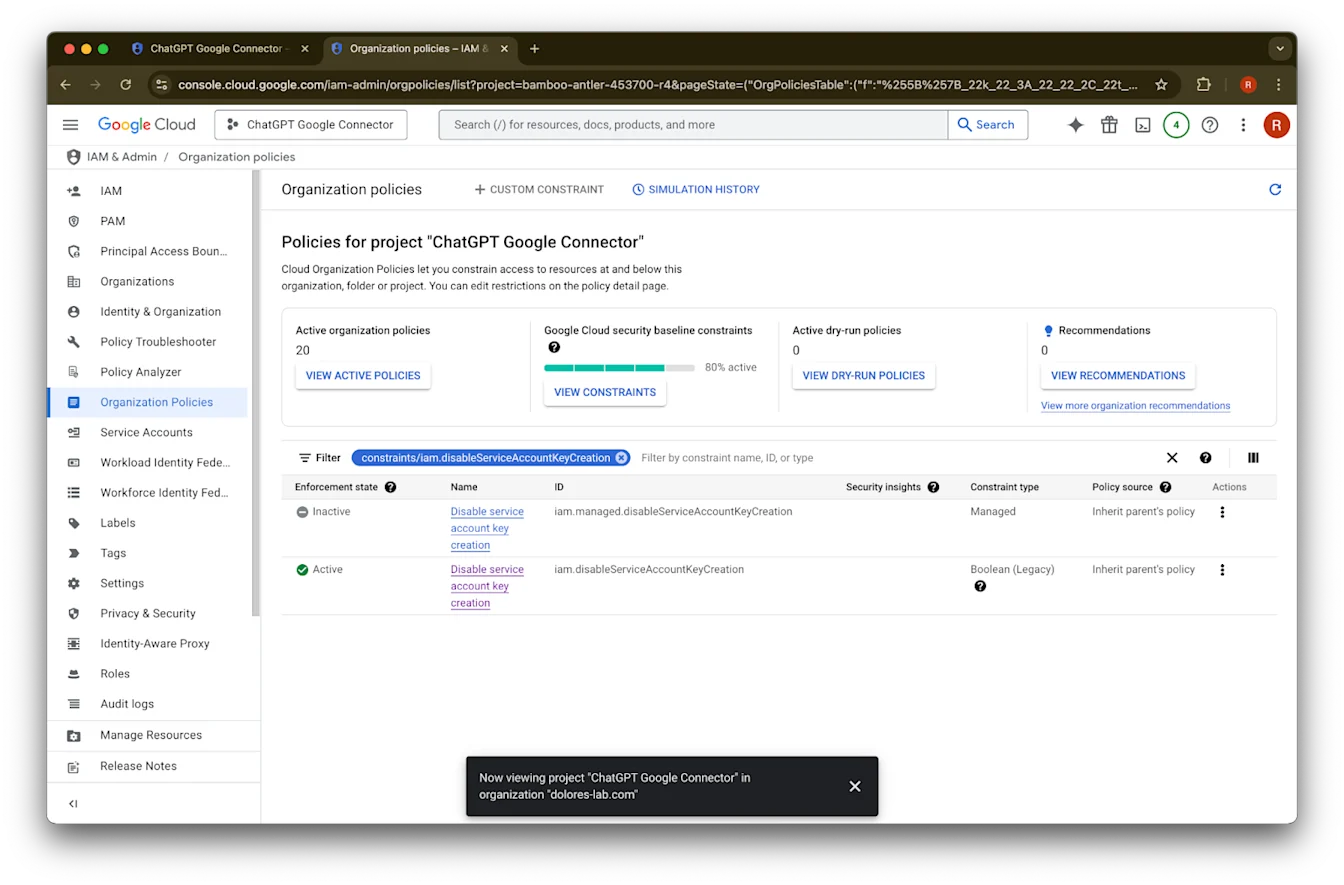
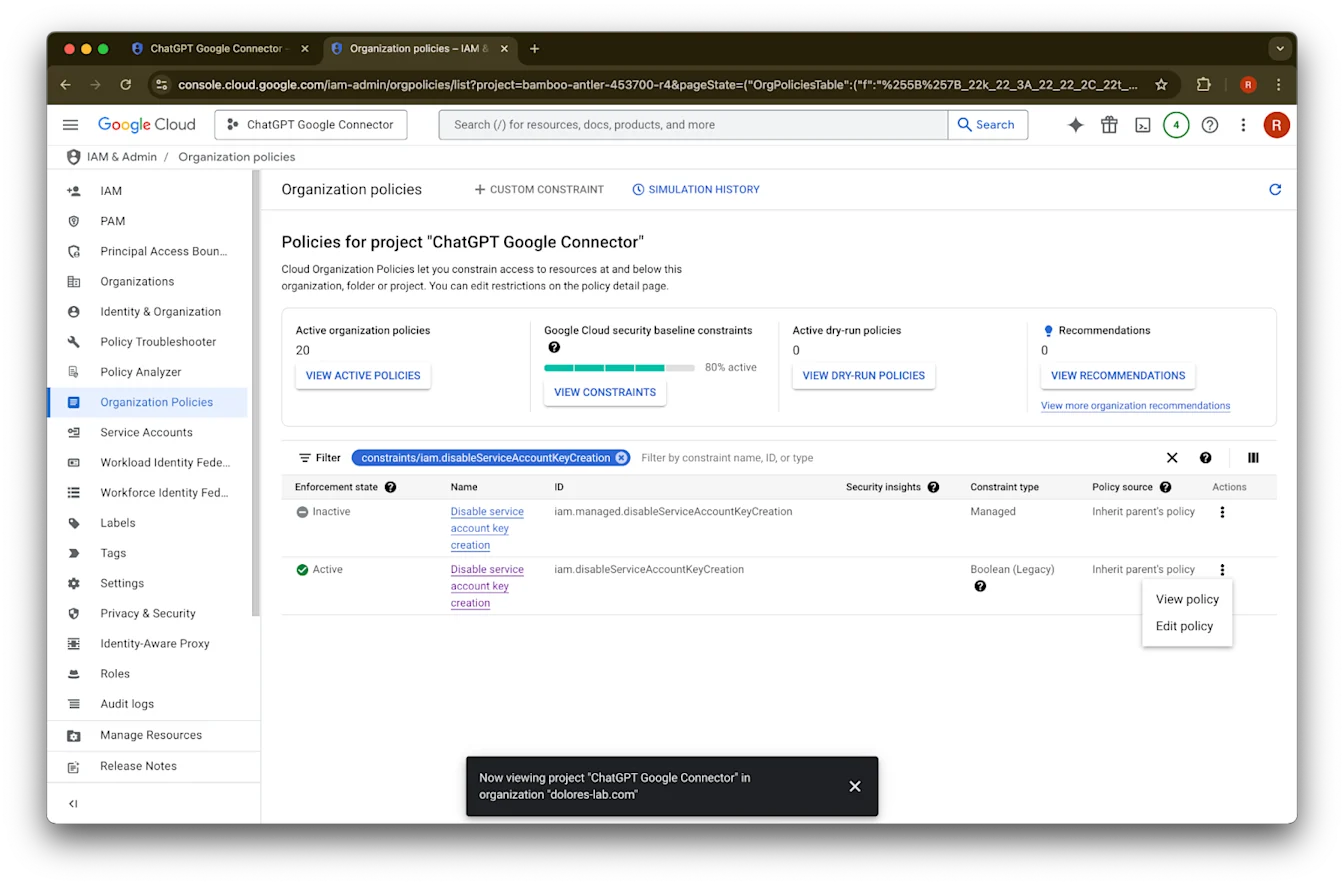
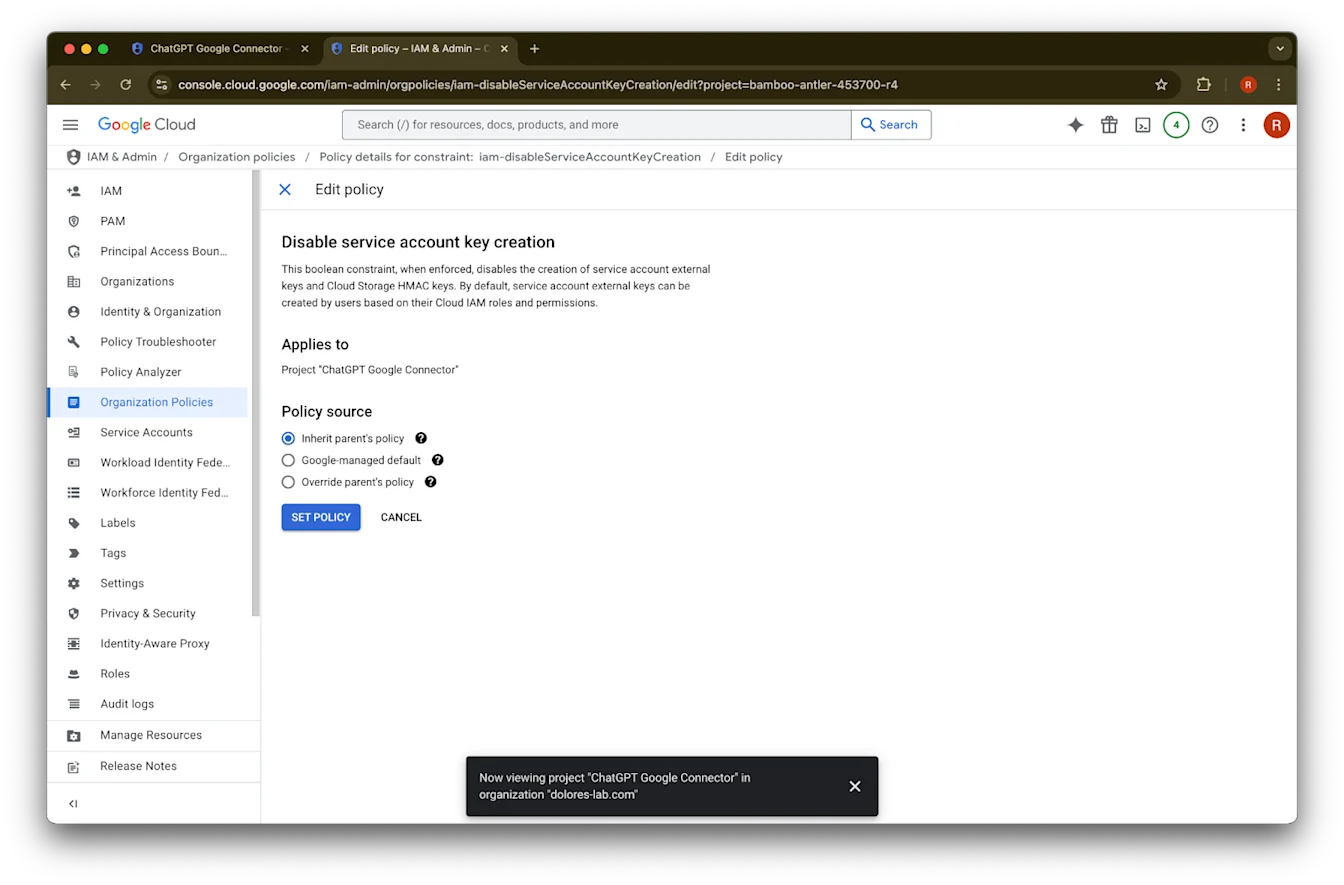
Yen sampeyan ndeleng pesen kesalahan “Service account key creation is disabled” tindakake langkah iki kanggo ngaktifake.Klik Close. Kunci saiki wis diundhuh menyang komputer sampeyan. Mengko sampeyan bakal ngunggah iki menyang konsol admin ChatGPT.
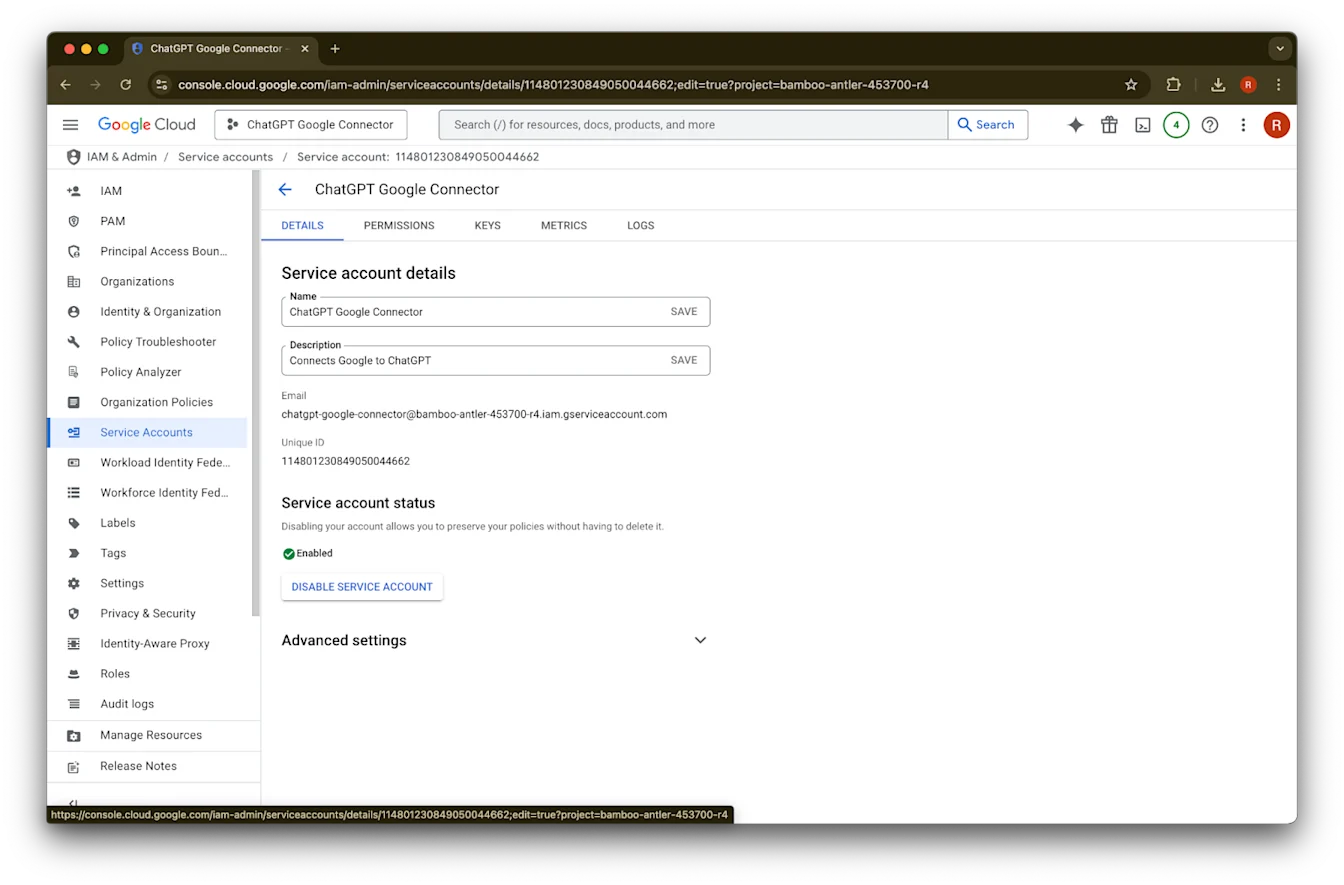
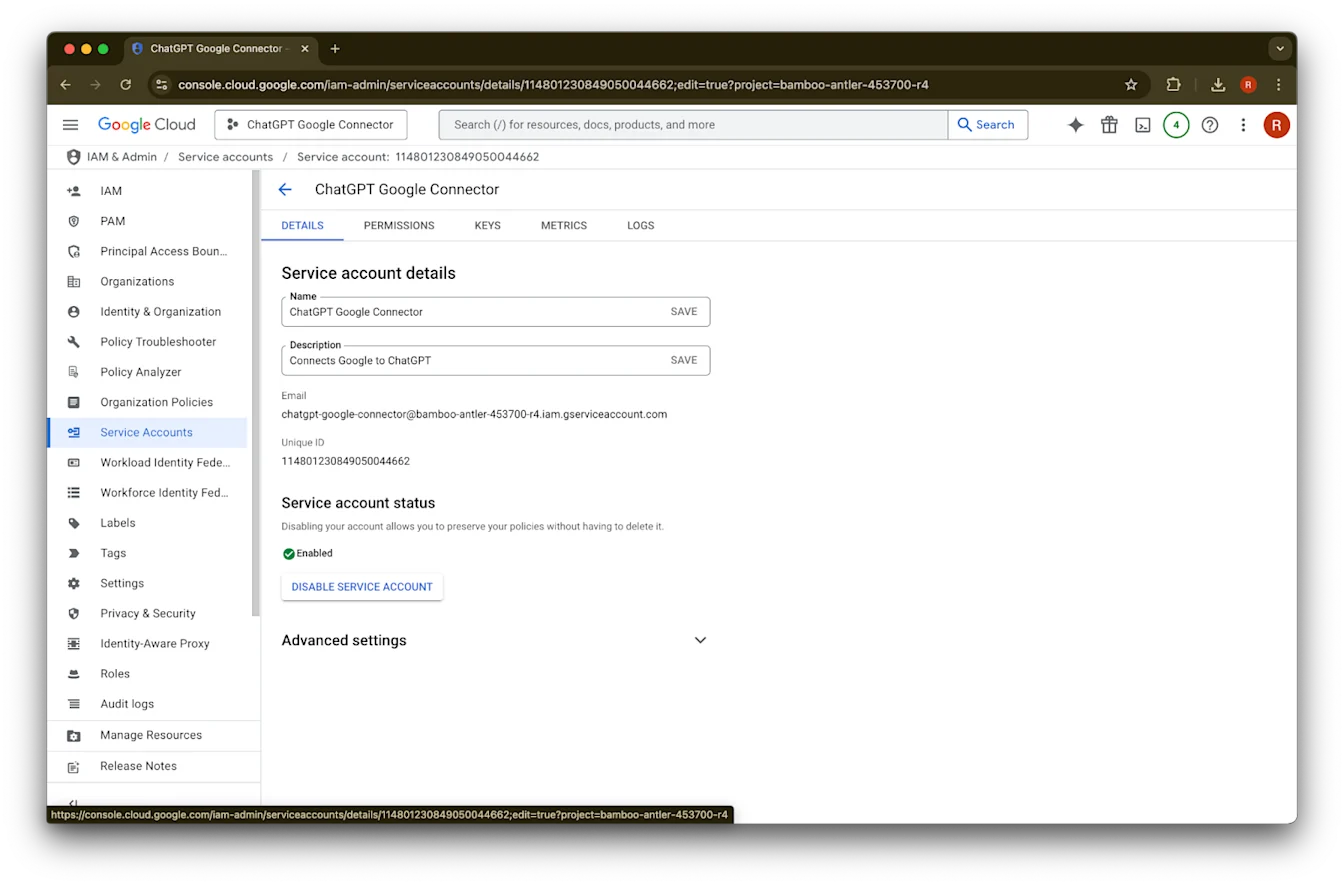
Klik details
Elinga Unique ID. Iki bakal dibutuhake ing Langkah 42.
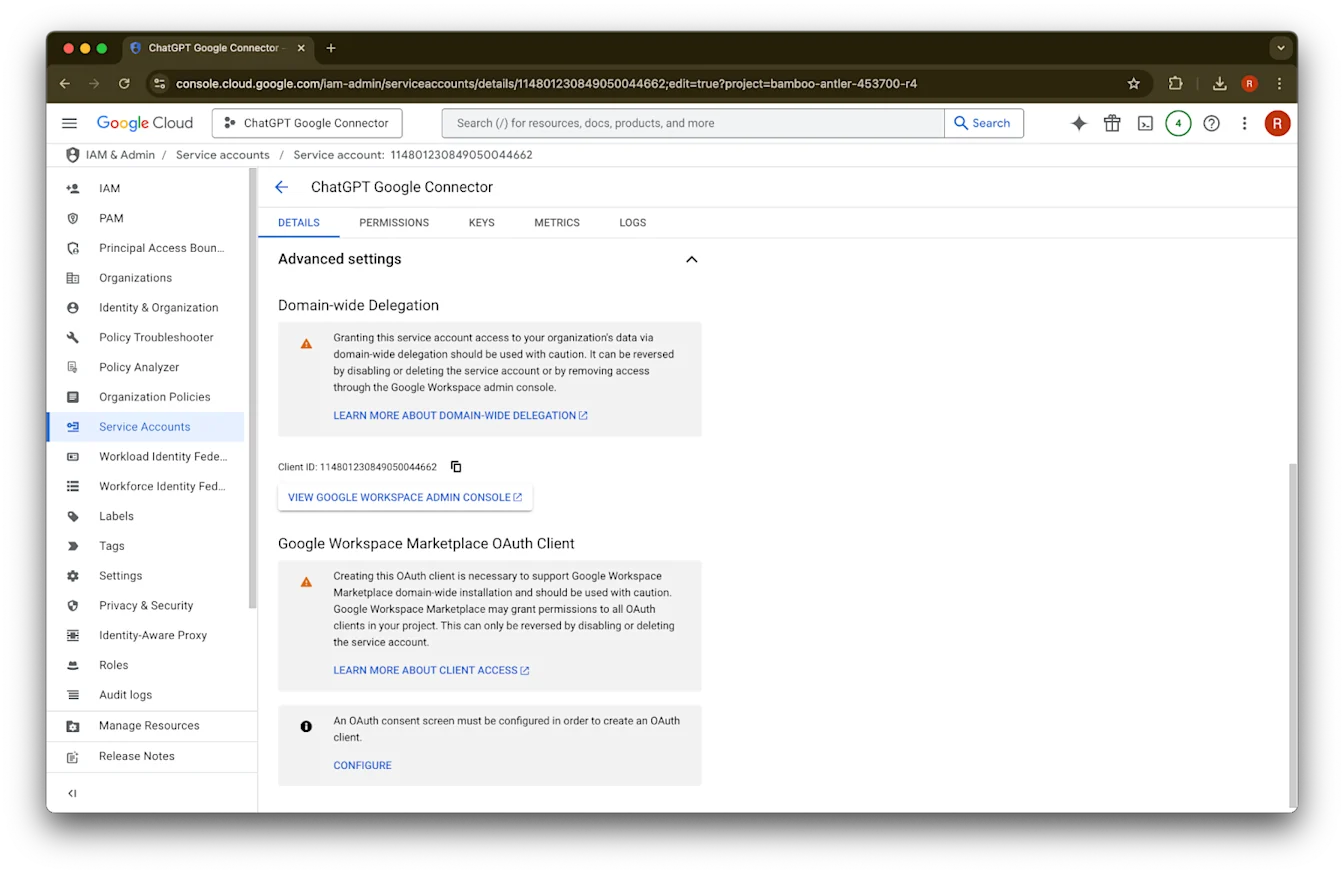
Jembarna Advanced settings
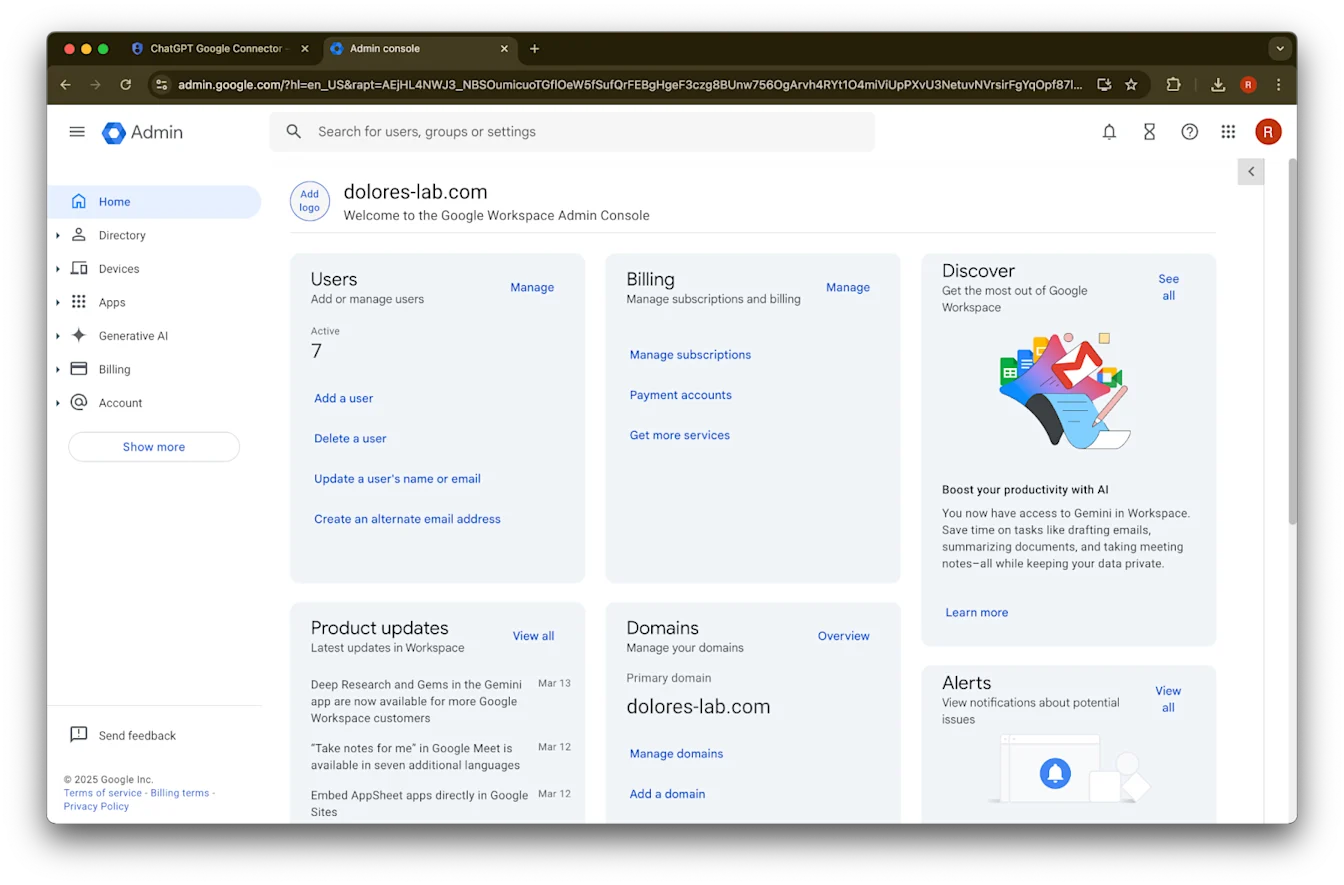
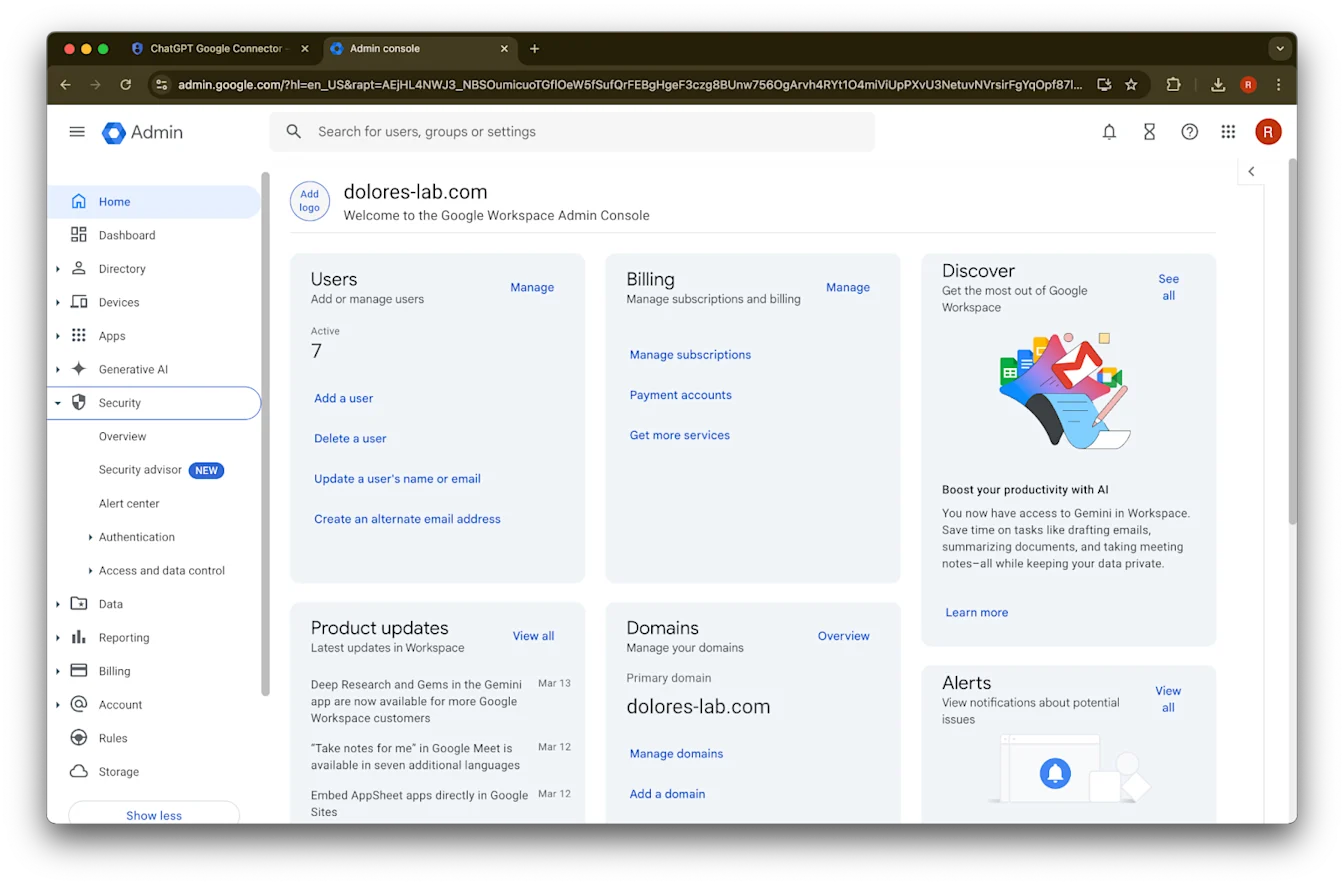
Gulung mudhun lan klik View Google Workspace Admin Console. Konsol Google Workspace bakal kabuka ing tab anyar.
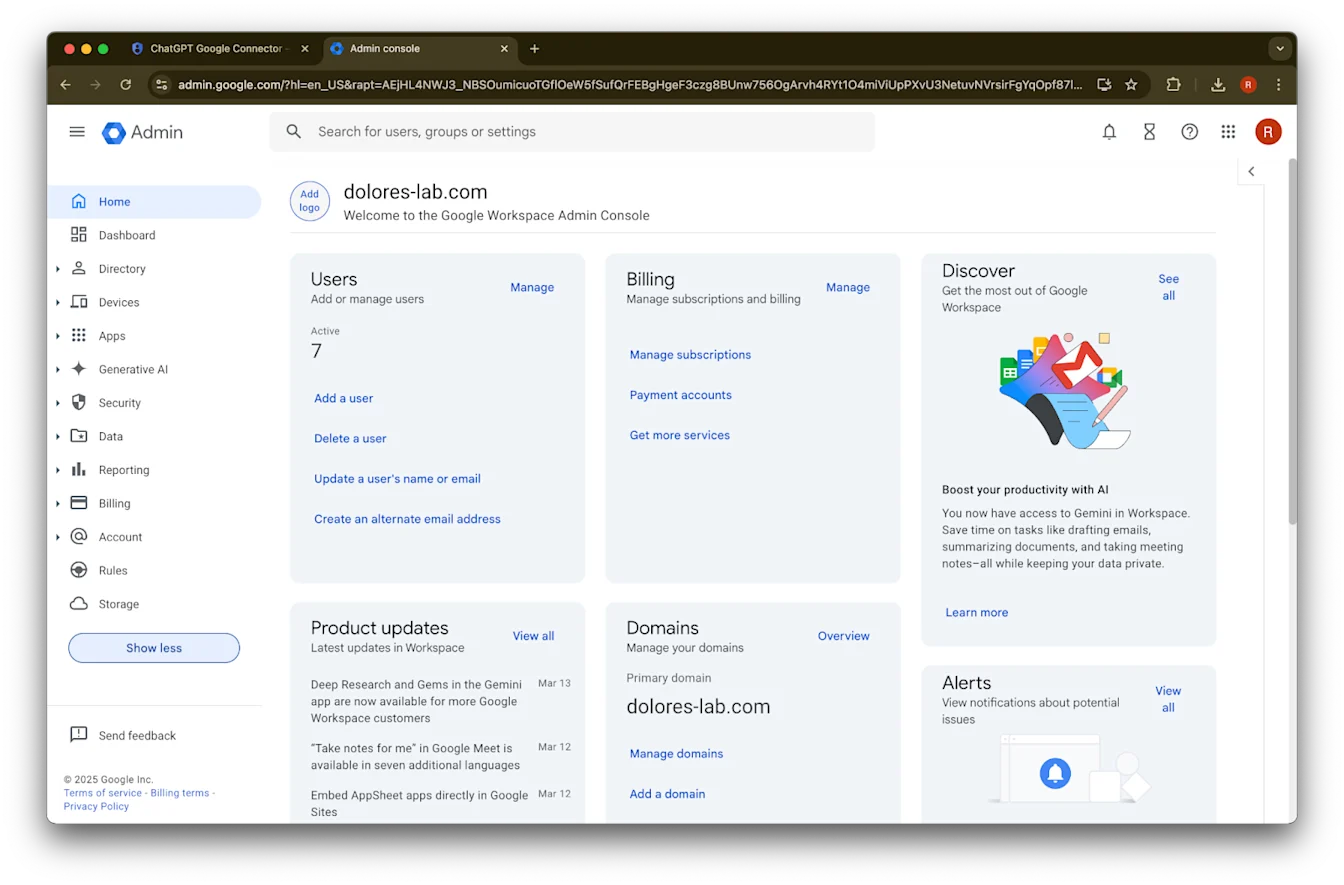
Klik Show more
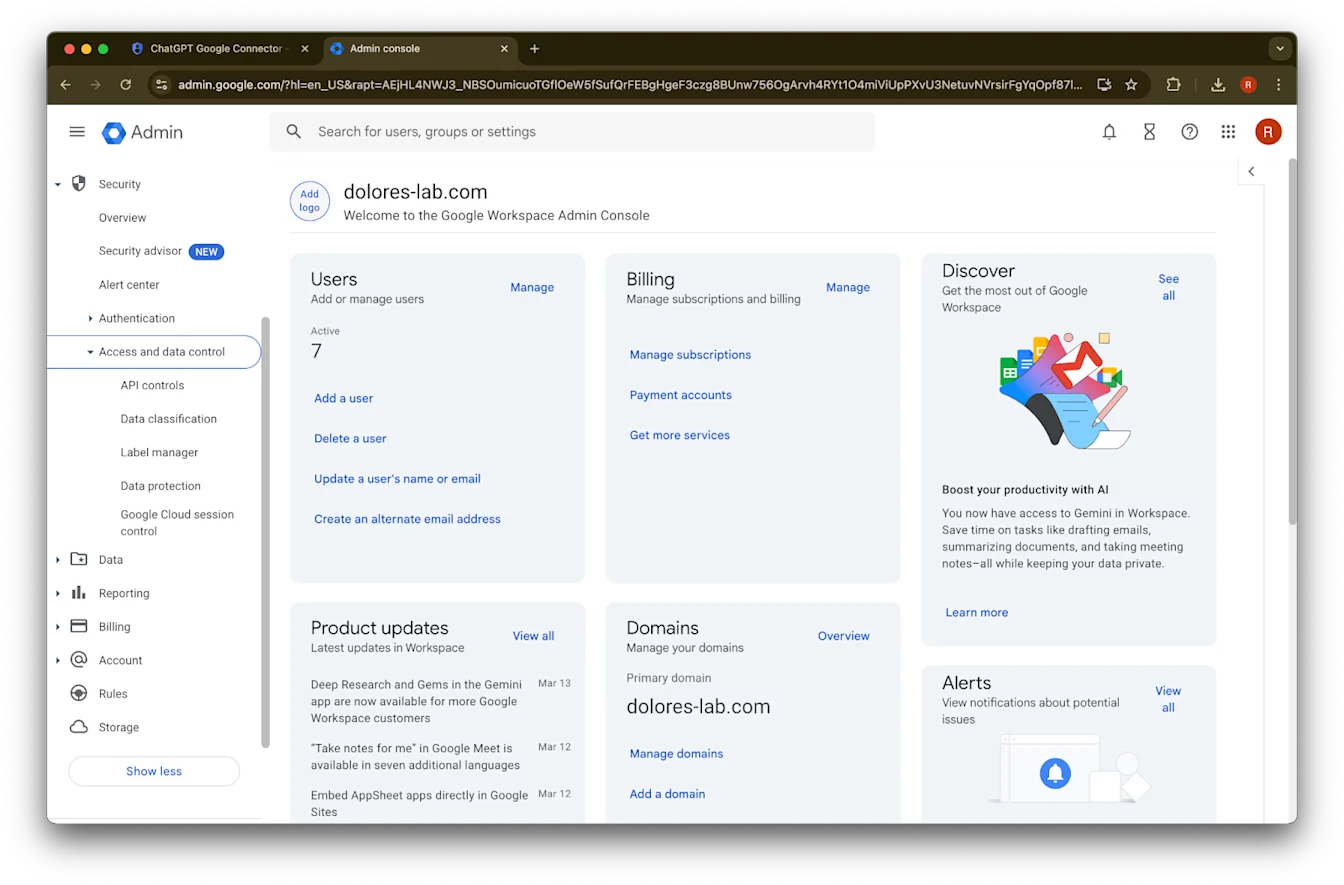
Jembarna bagean Security
Jembarna bagean Access and data controls
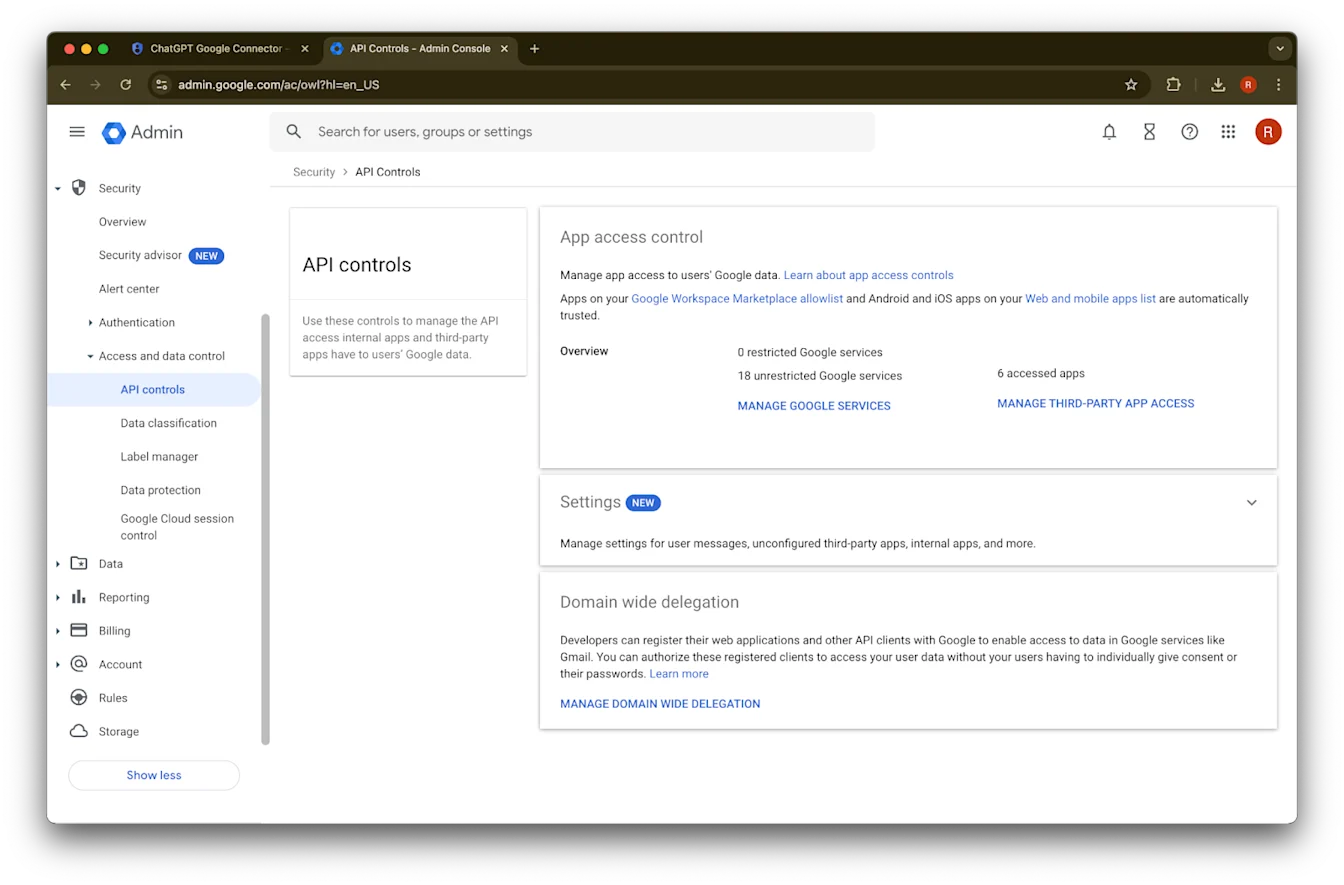
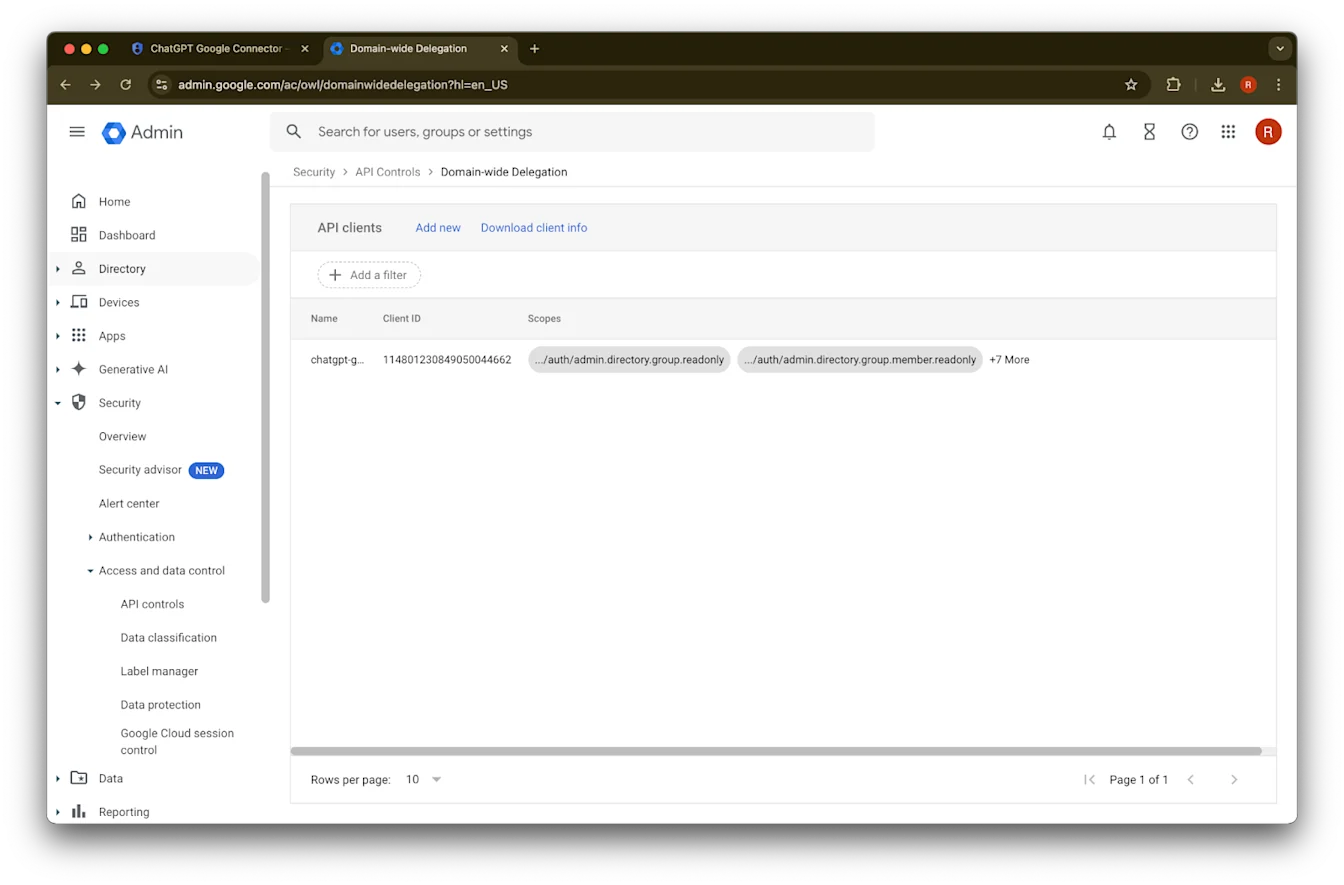
Klik bagean API controls
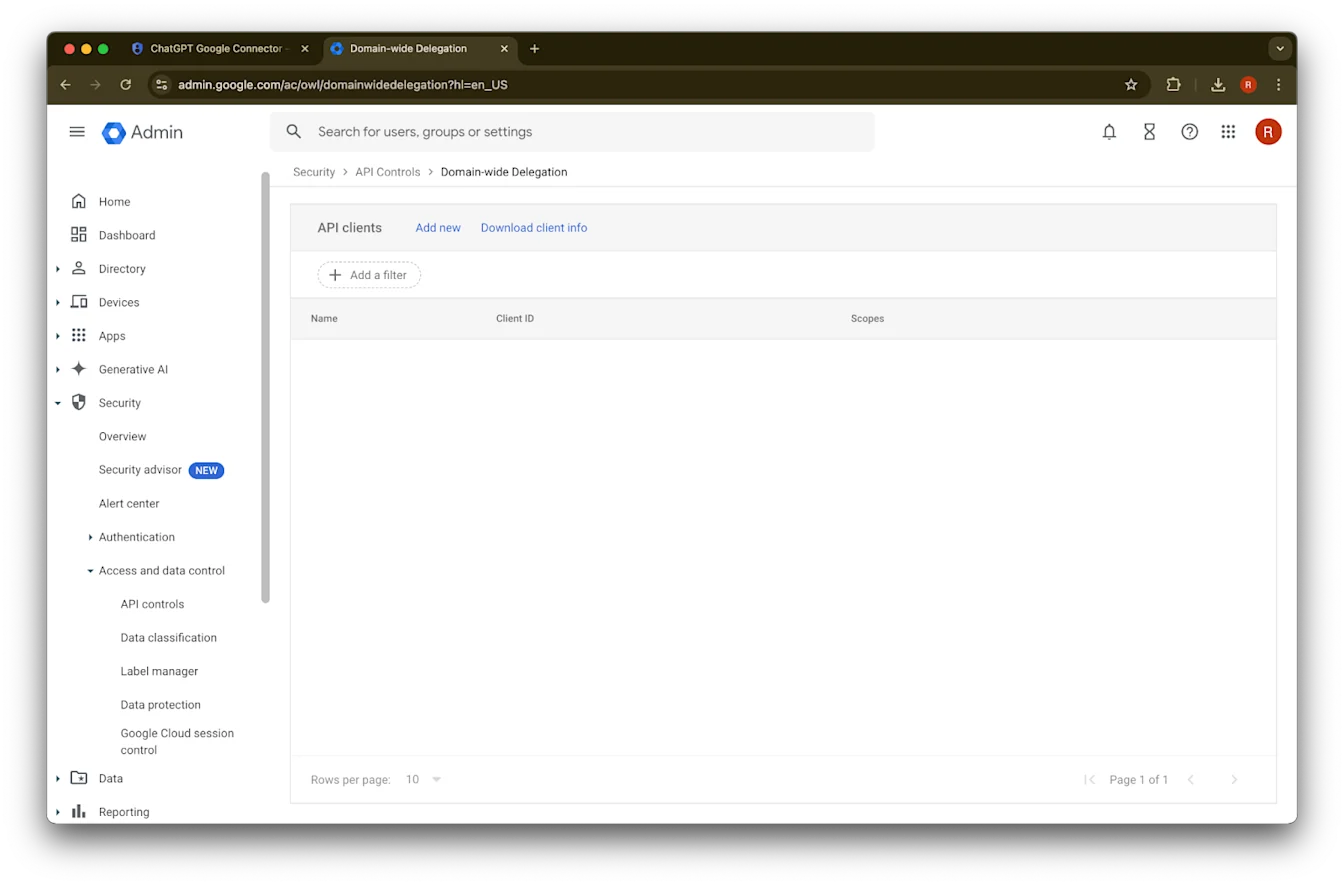
Klik Manage Domain Wide Delegation
Klik Add new
Gunakake Unique ID sing wis dicathet sadurunge minangka nilai kanggo Client ID iki
Kanggo OAuth scopes, delengen nilai auth scopes sing dipisah nganggo koma ing ngisor iki sing kudu sampeyan salin lan tempel:
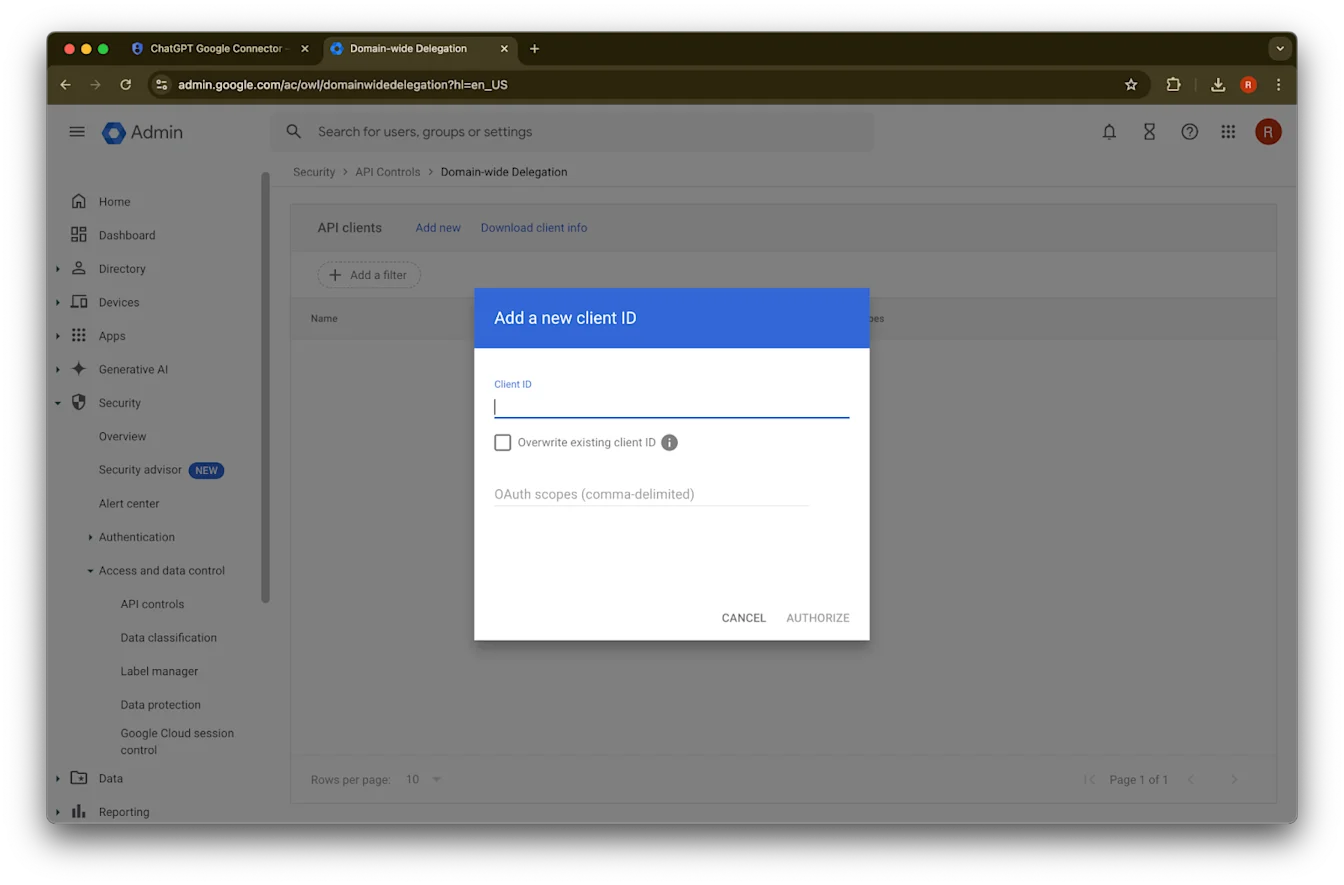
https://www.googleapis.com/auth/admin.directory.group.readonly, https://www.googleapis.com/auth/admin.directory.group.member.readonly, https://www.googleapis.com/auth/admin.directory.user.readonly, https://www.googleapis.com/auth/admin.directory.user.alias.readonly, https://www.googleapis.com/auth/drive.activity.readonly, https://www.googleapis.com/auth/drive.metadata.readonly, https://www.googleapis.com/auth/drive.readonly, https://www.googleapis.com/auth/userinfo.profile, https://www.googleapis.com/auth/userinfo.email| Ruang lingkup | Nalar |
| admin.directory.group.readonly | ngetrapake idin adhedhasar grup |
| admin.directory.group.member.readonly | ngetrapake idin adhedhasar grup |
| admin.directory.user.alias.readonly | nangani kasus nalika pangguna diwenehi idin liwat alias |
| drive.activity.readonly | supaya diwenehi kabar nalika ana owah-owahan ing file |
| drive.metadata.readonly | nyelarasake isi file lan metadata sing gegandhengan (cth. tanggal pungkasan diowahi) |
| drive.readonly | nyelarasake isi file lan metadata sing gegandhengan (cth. tanggal pungkasan diowahi) |
| userinfo.profile | nemtokake pangguna sing file-ne diselarasake |
| userinfo.email | nemtokake pangguna sing file-ne diselarasake |
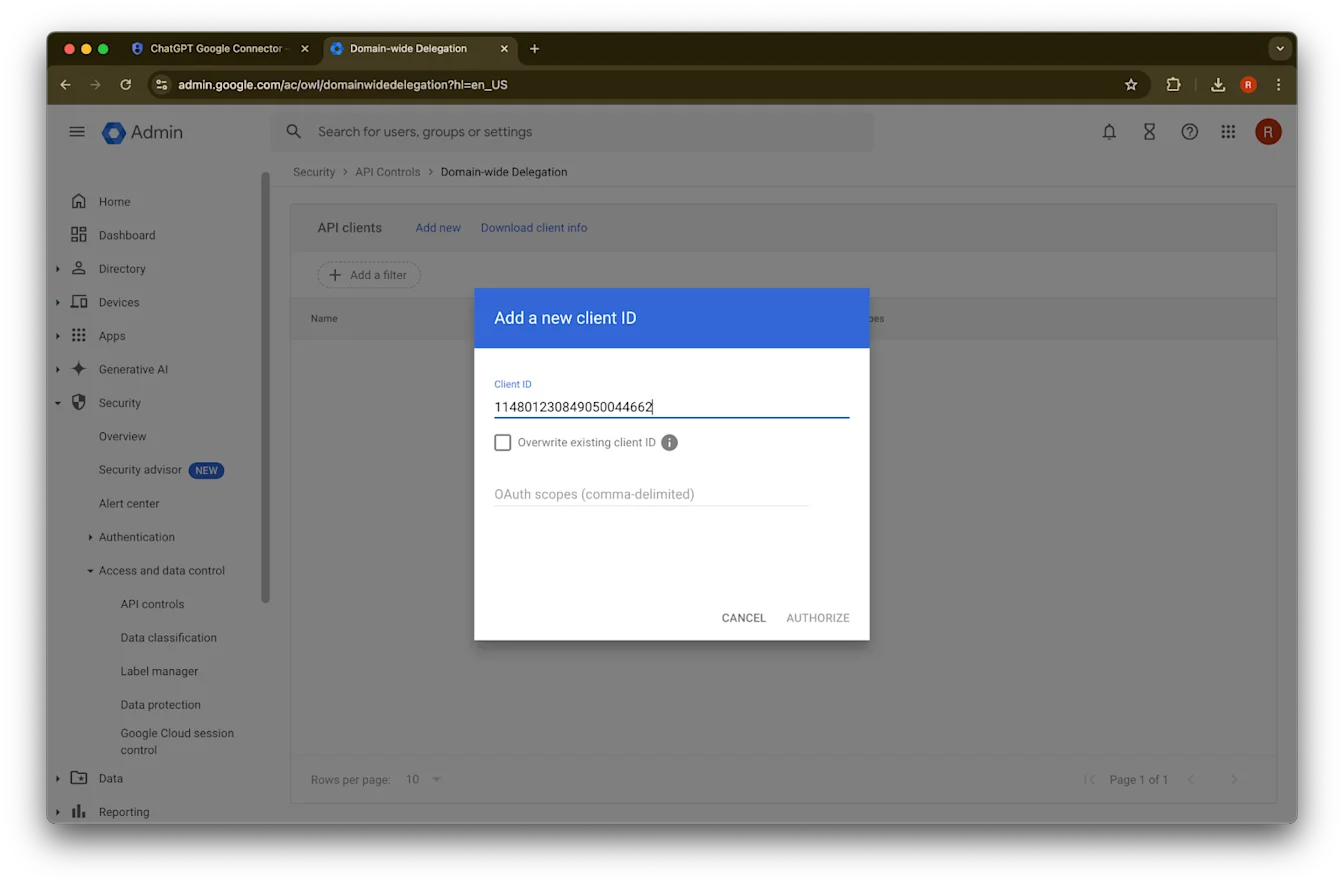
45. Klik Authorize
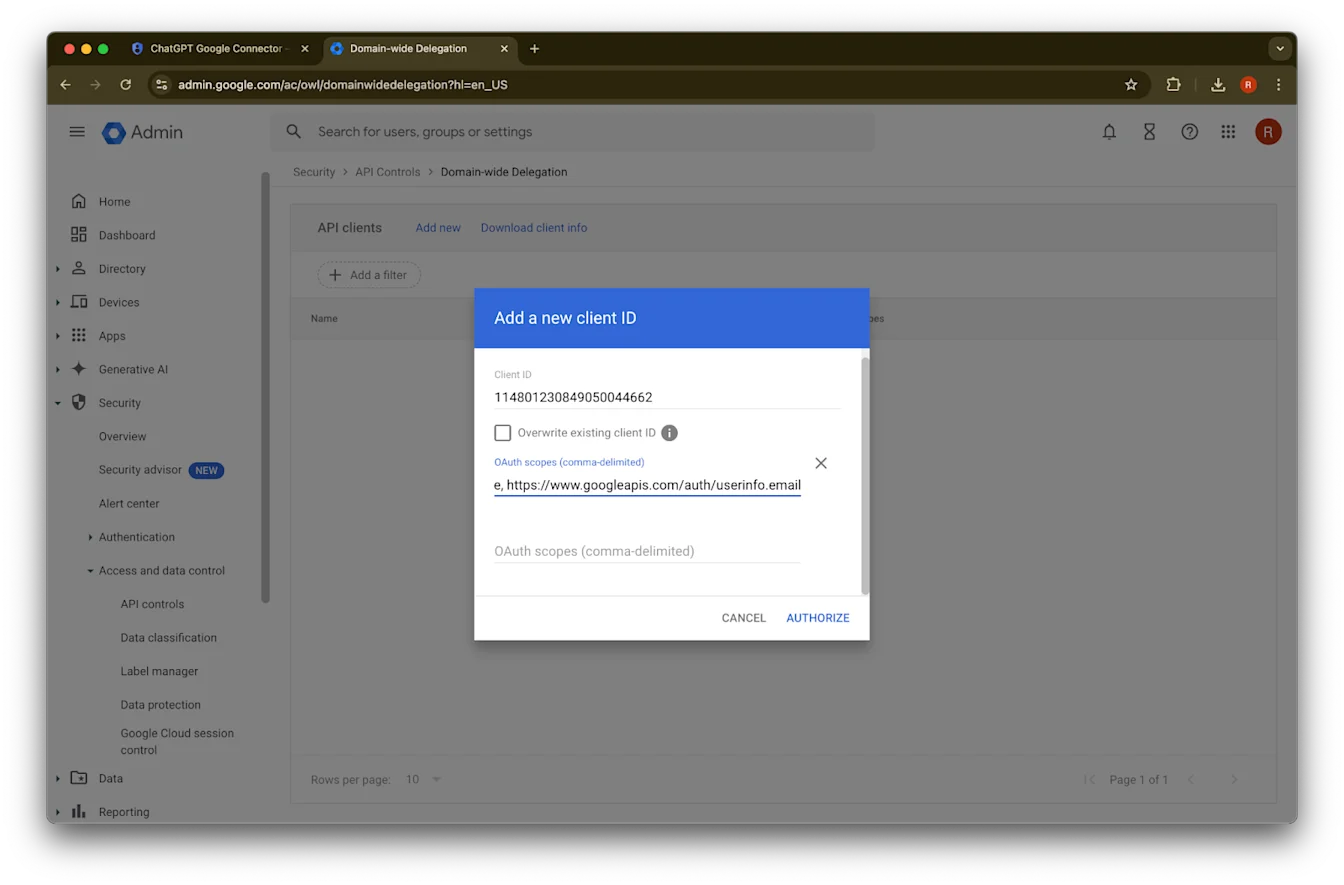
46. Sukses!
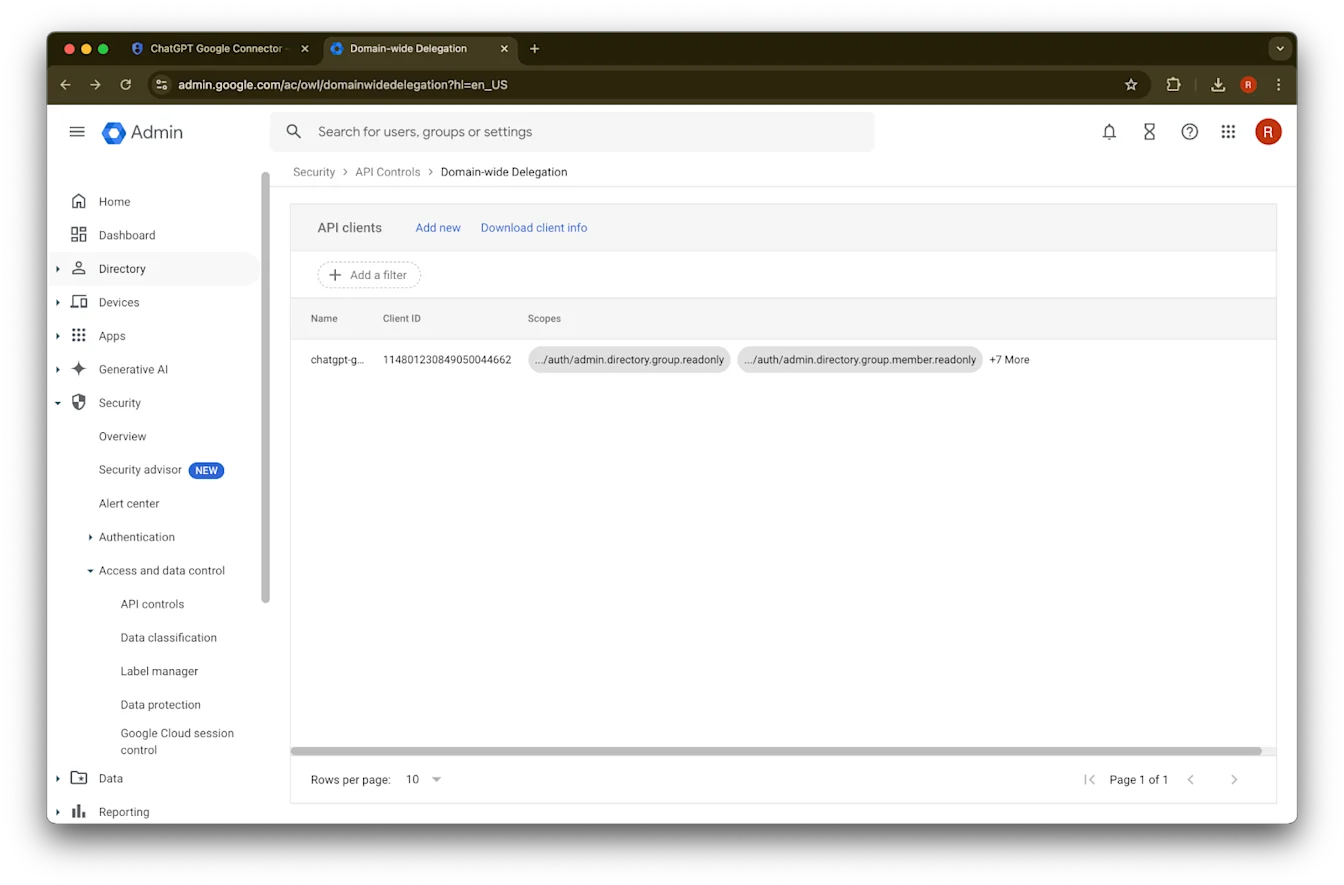
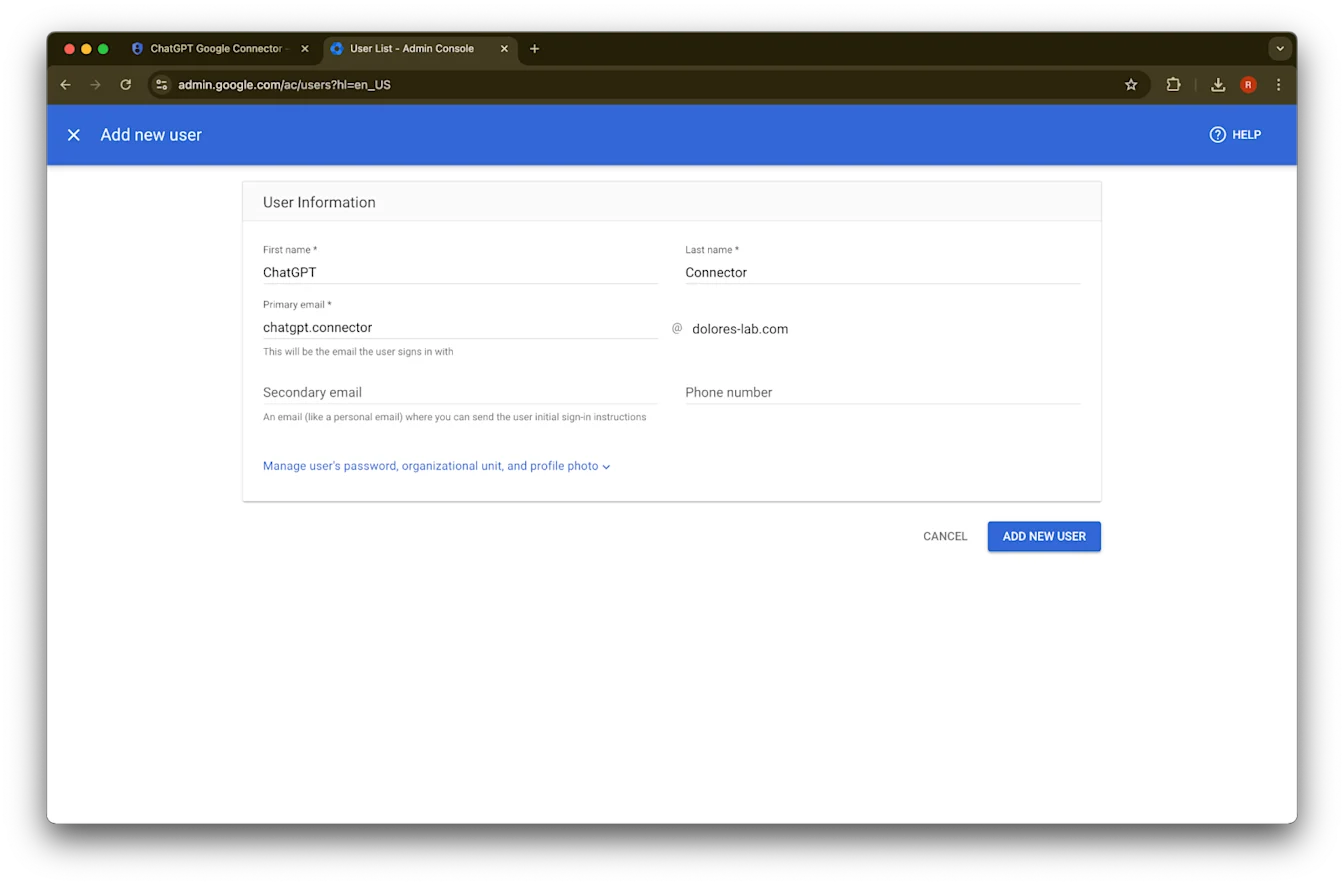
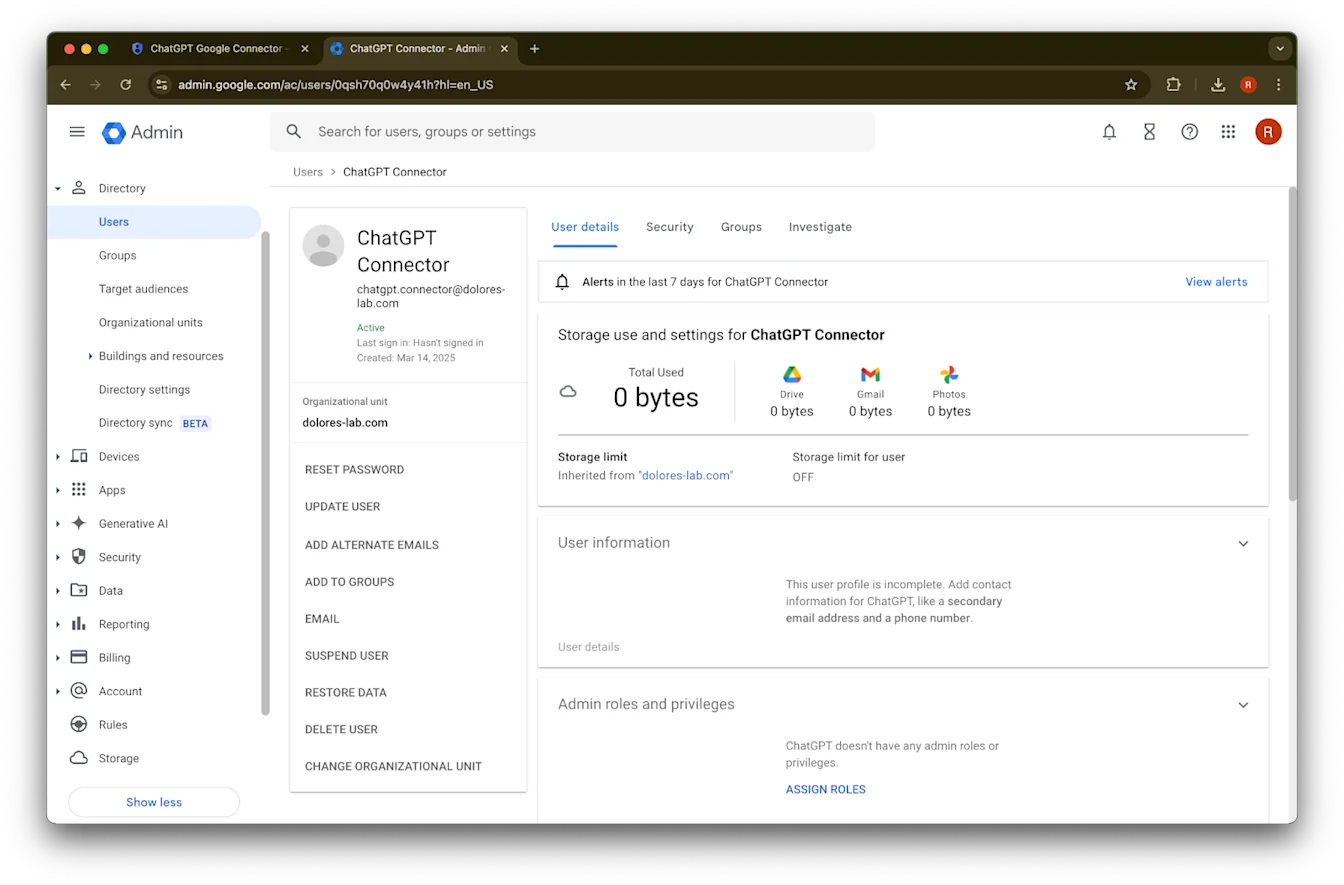
Nyetel Akun Admin
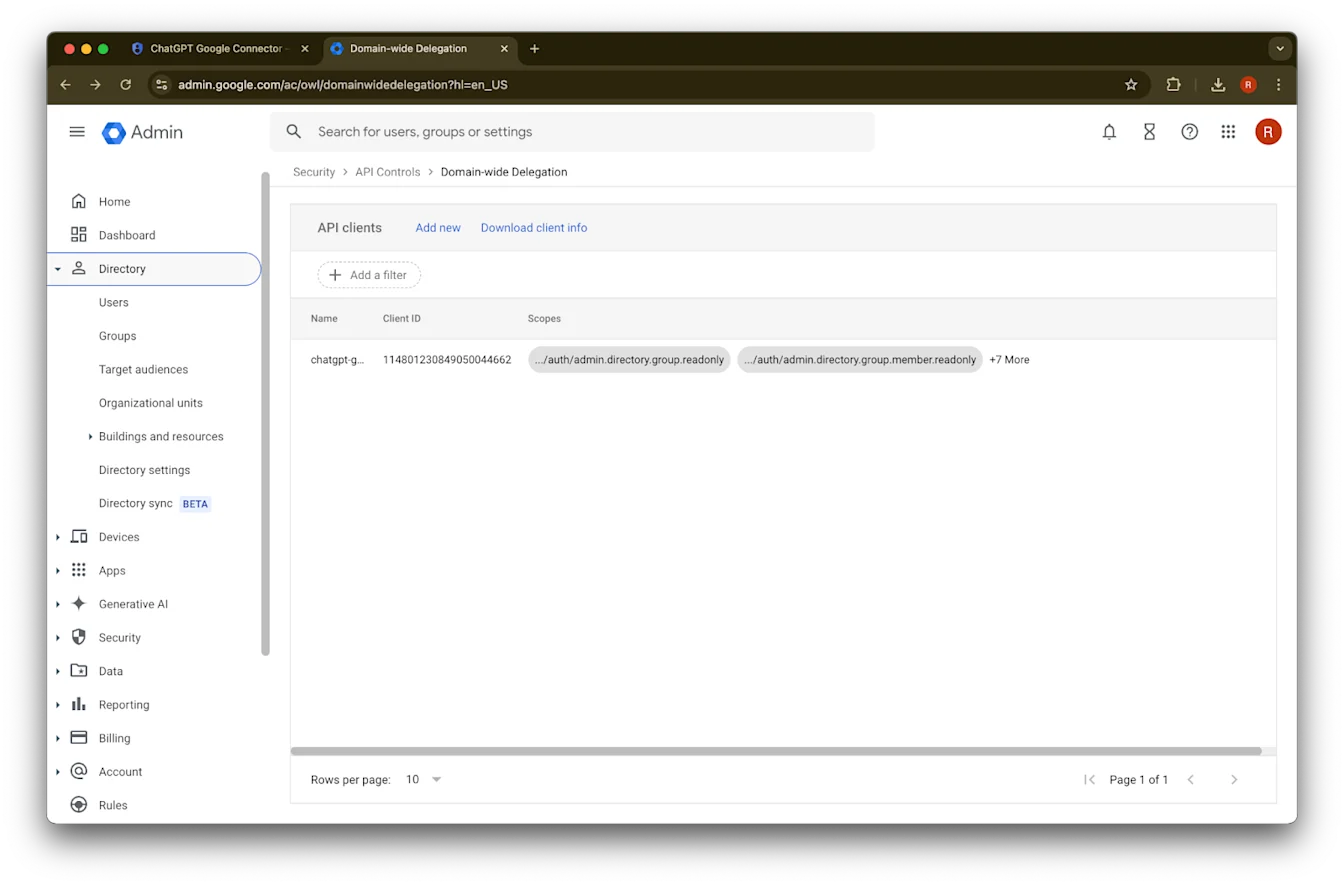
Jembarna Directory
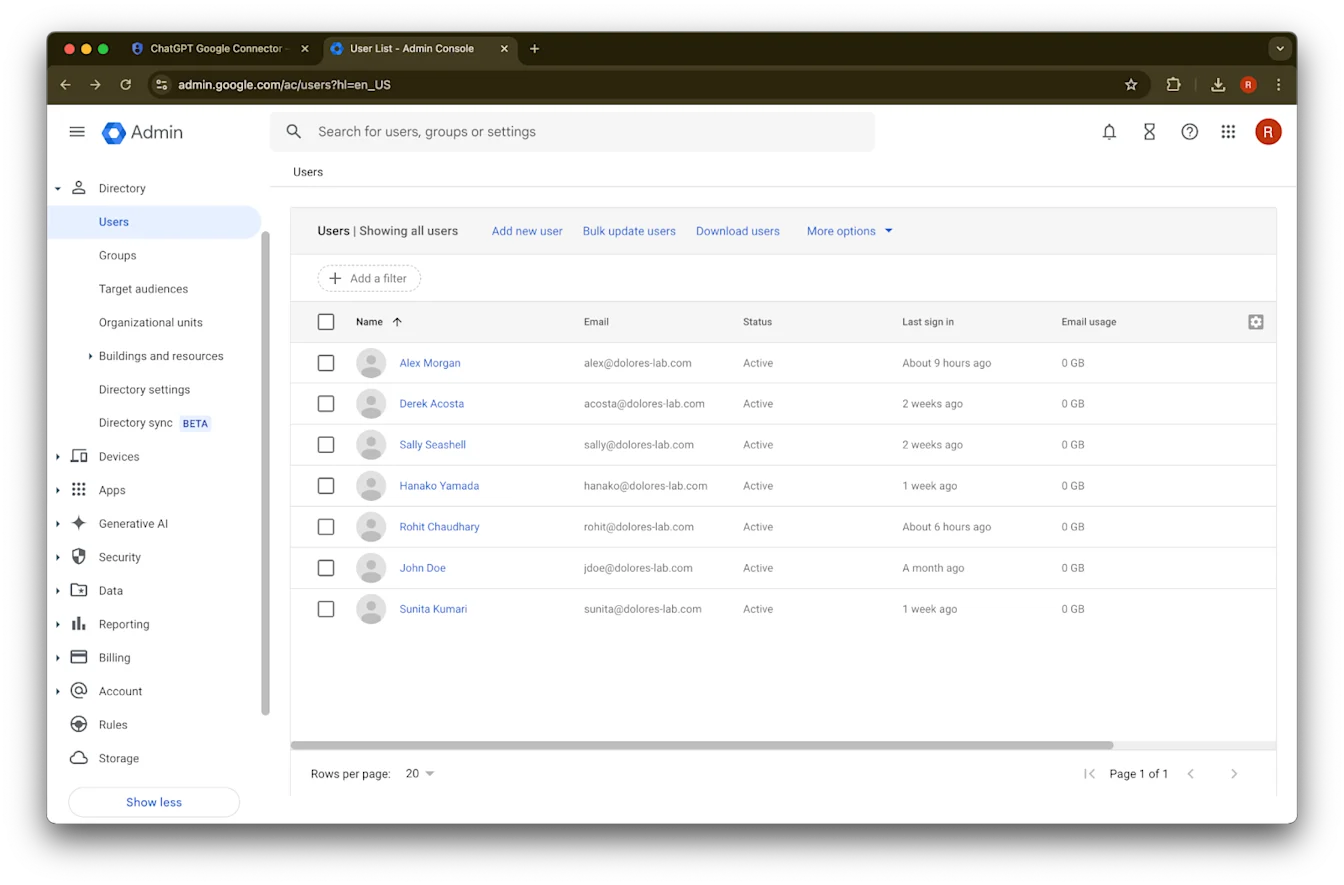
Klik Users
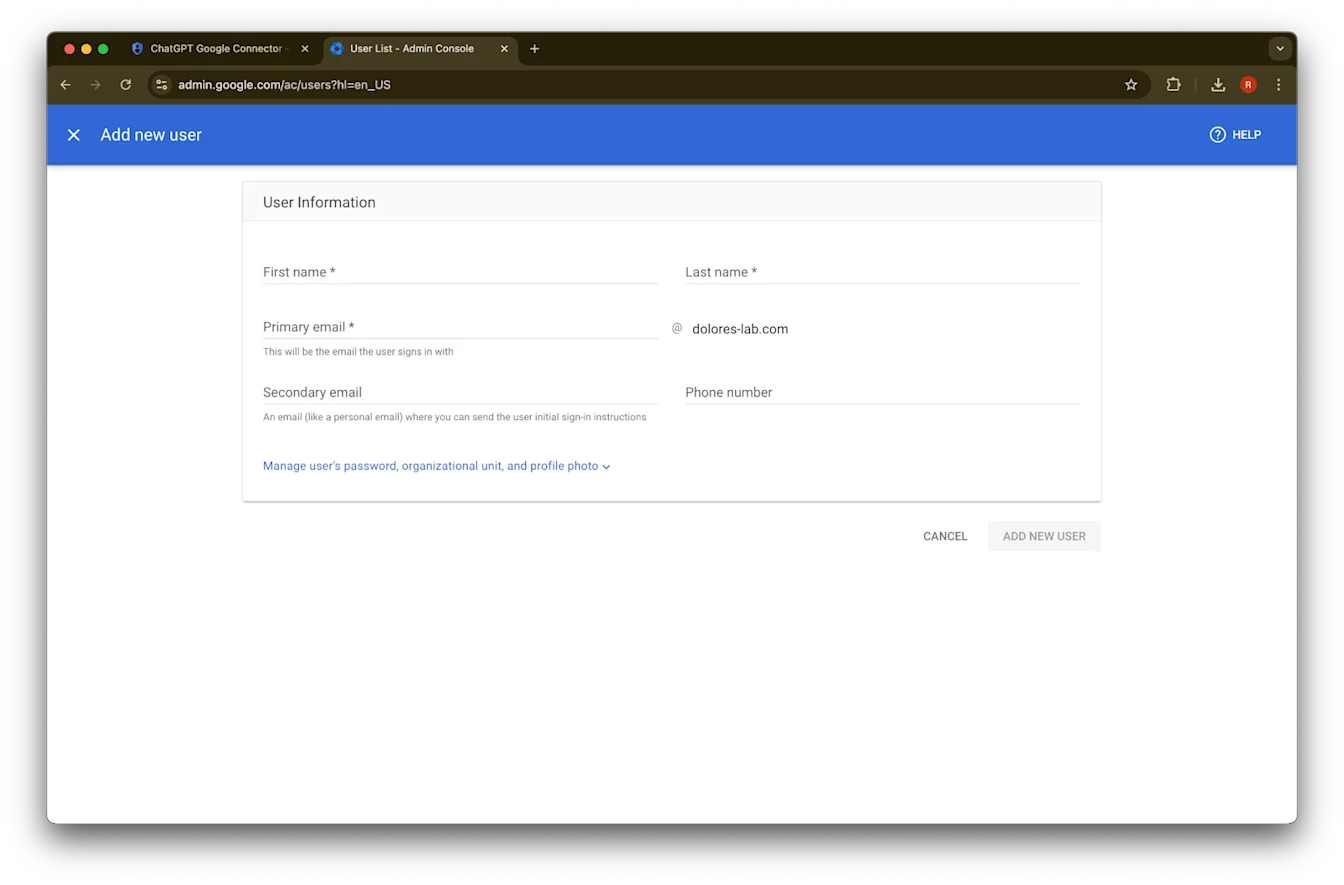
Wenehna jeneng ngarep, jeneng mburi, lan alamat email utama sakarepmu
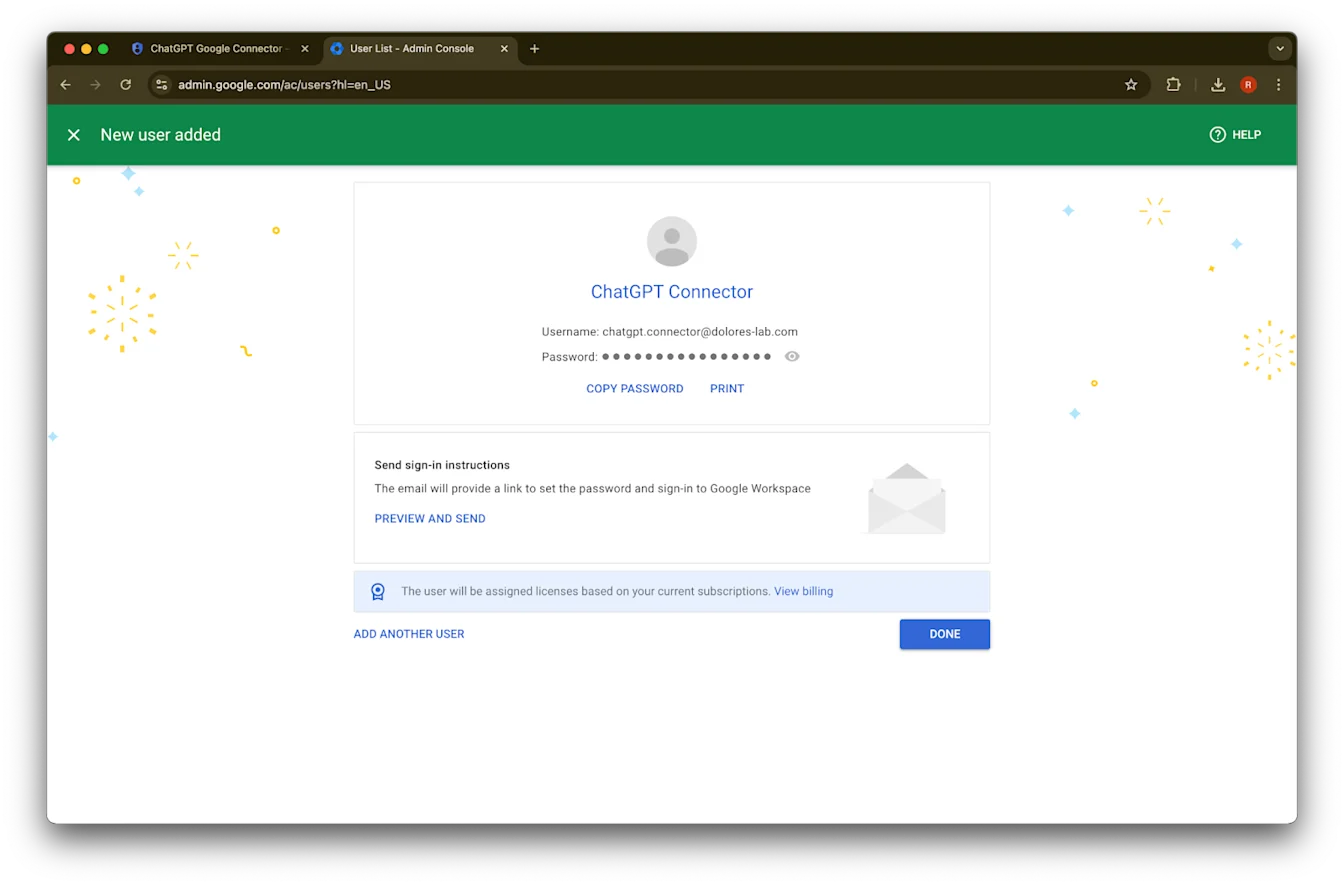
Klik Add new user
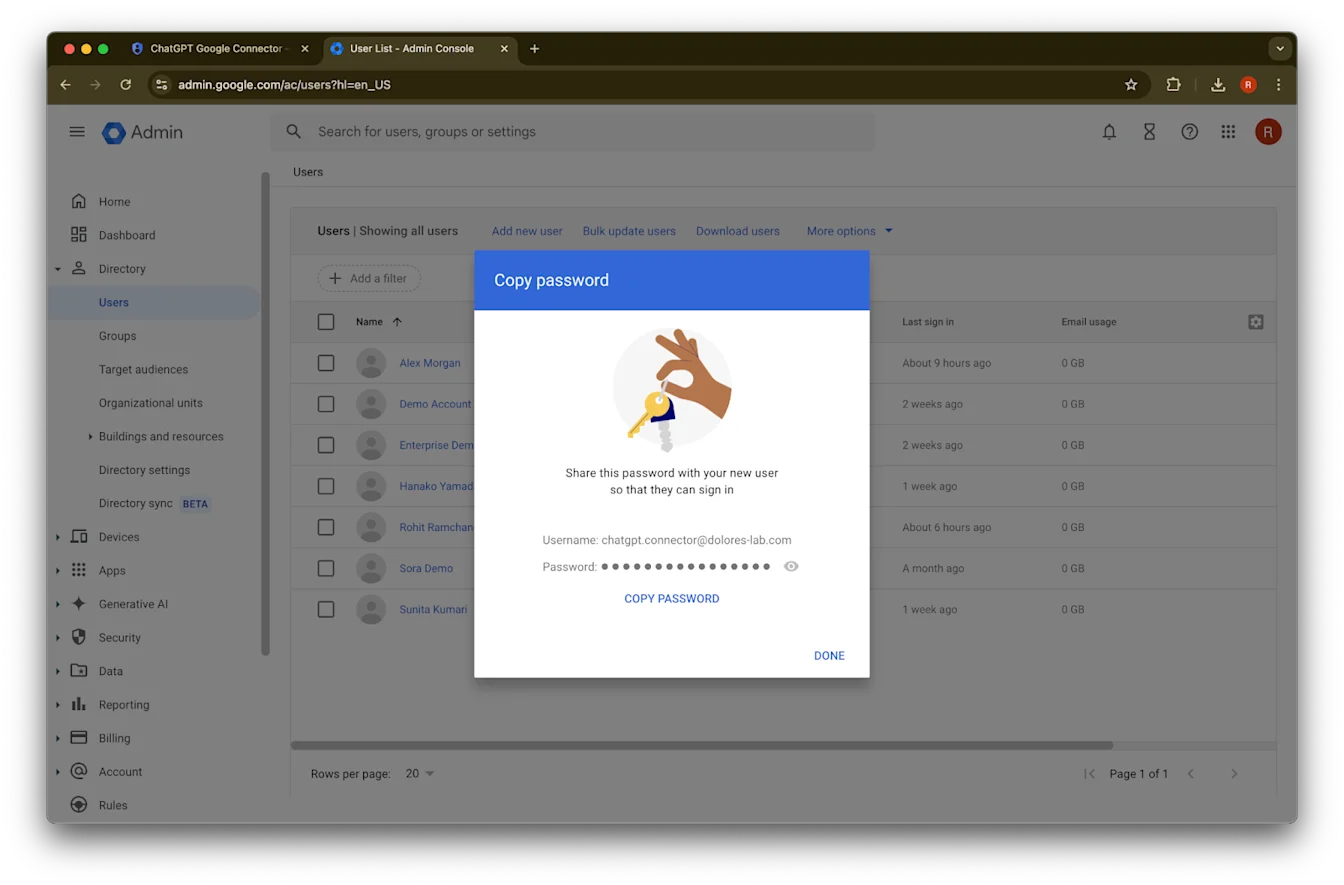
(Opsional) Cathet kredensial iki. ChatGPT ora mbutuhake kredensial iki.
Klik Done.
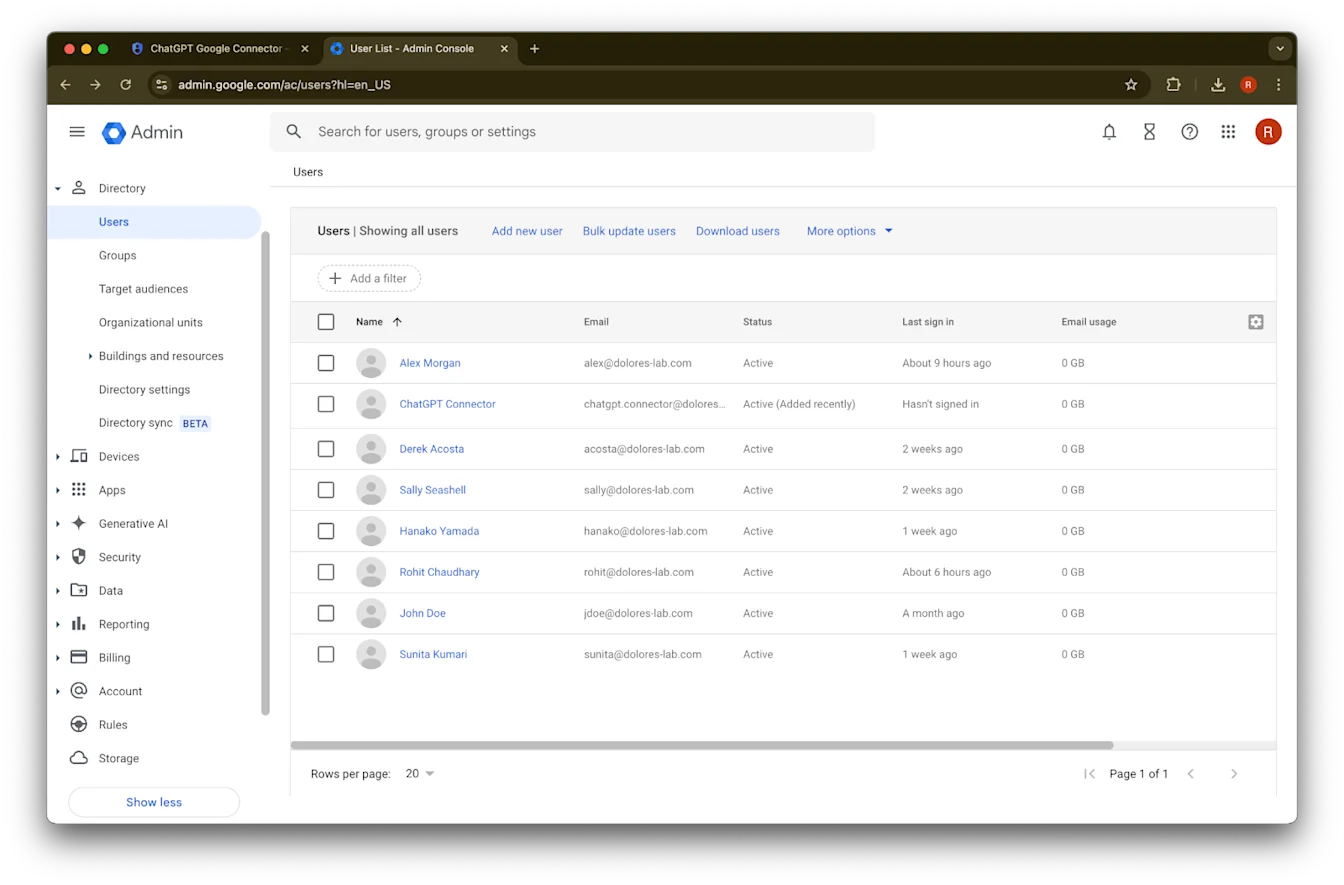
Klik akun sing mentas digawe. Yen ora katon ing dhaptar, refresh kaca utawa resiki cache lan cookie banjur coba maneh.
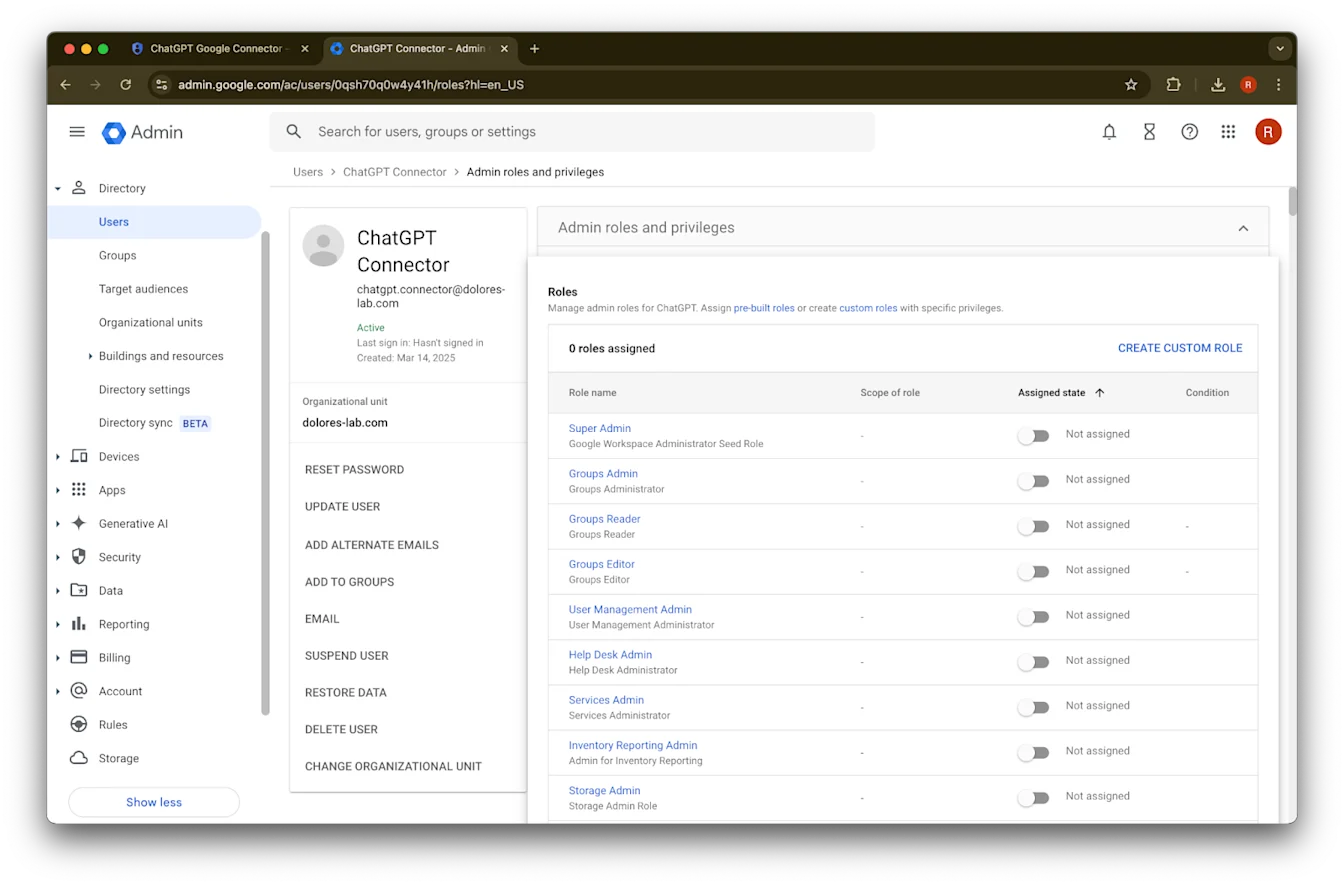
Klik assign roles.
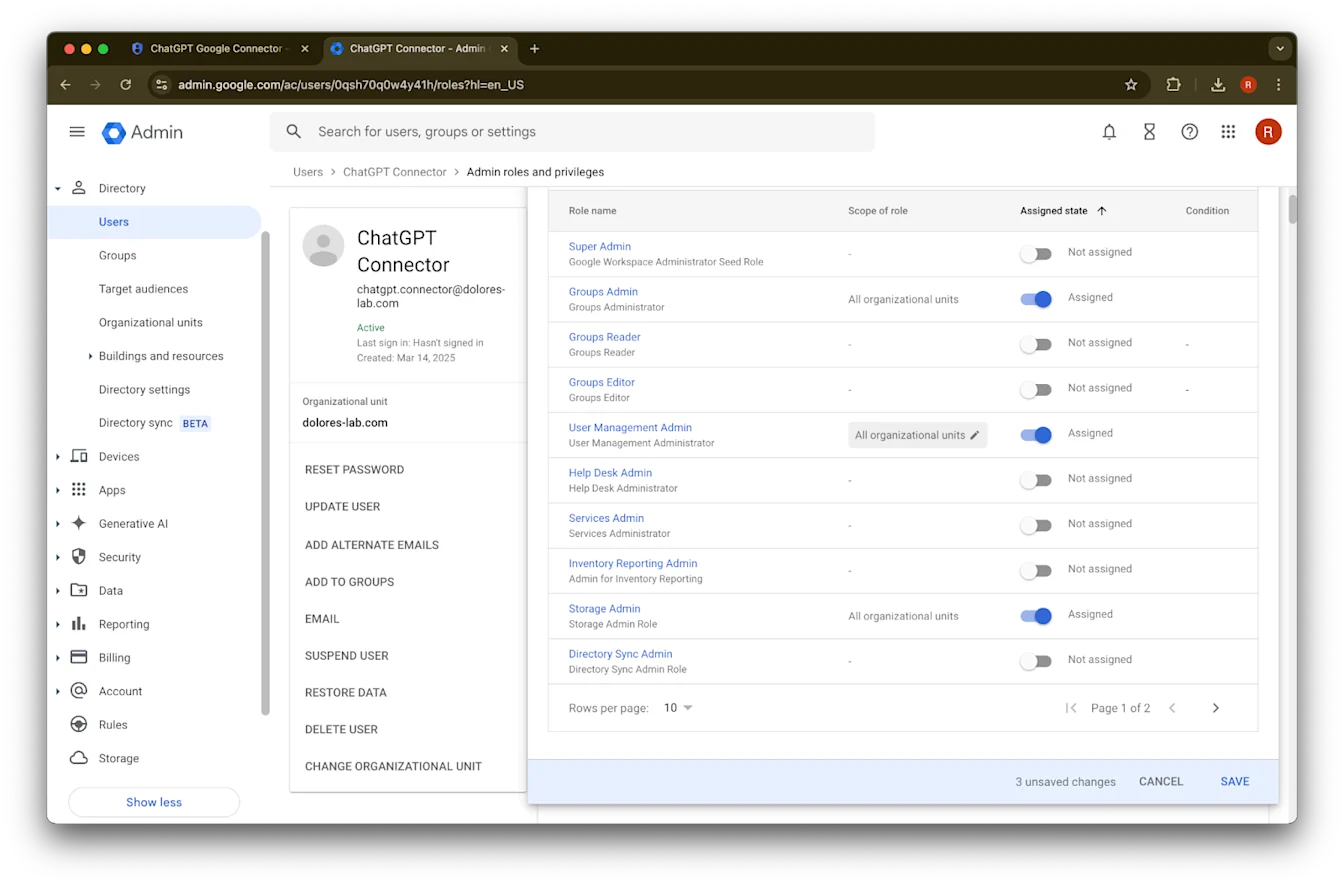
Aktifake peran Groups Reader, User Management Admin, lan Storage Admin.
Gulung mudhun lan klik Save. Akun admin saiki wis kasil digawe lan dikonfigurasi.
Ngrampungake setelan ing Konsol Admin ChatGPT
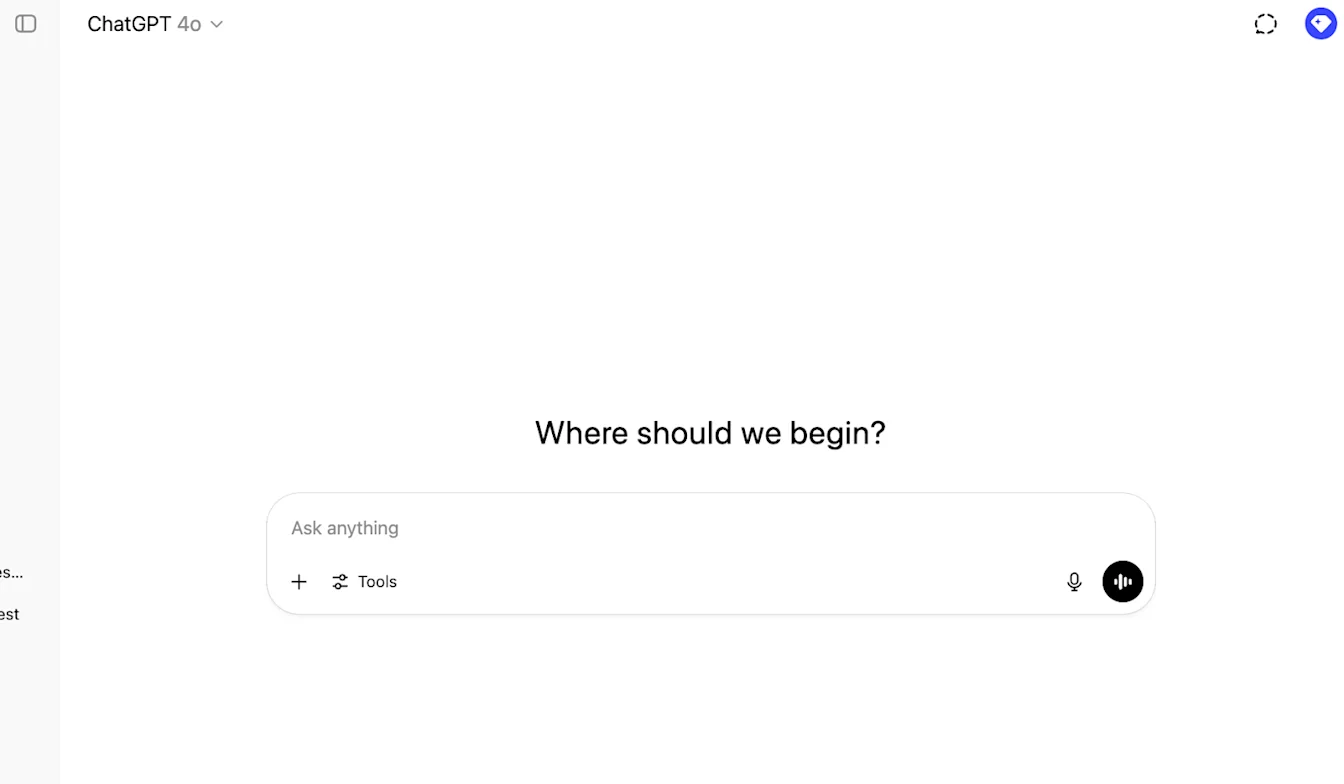
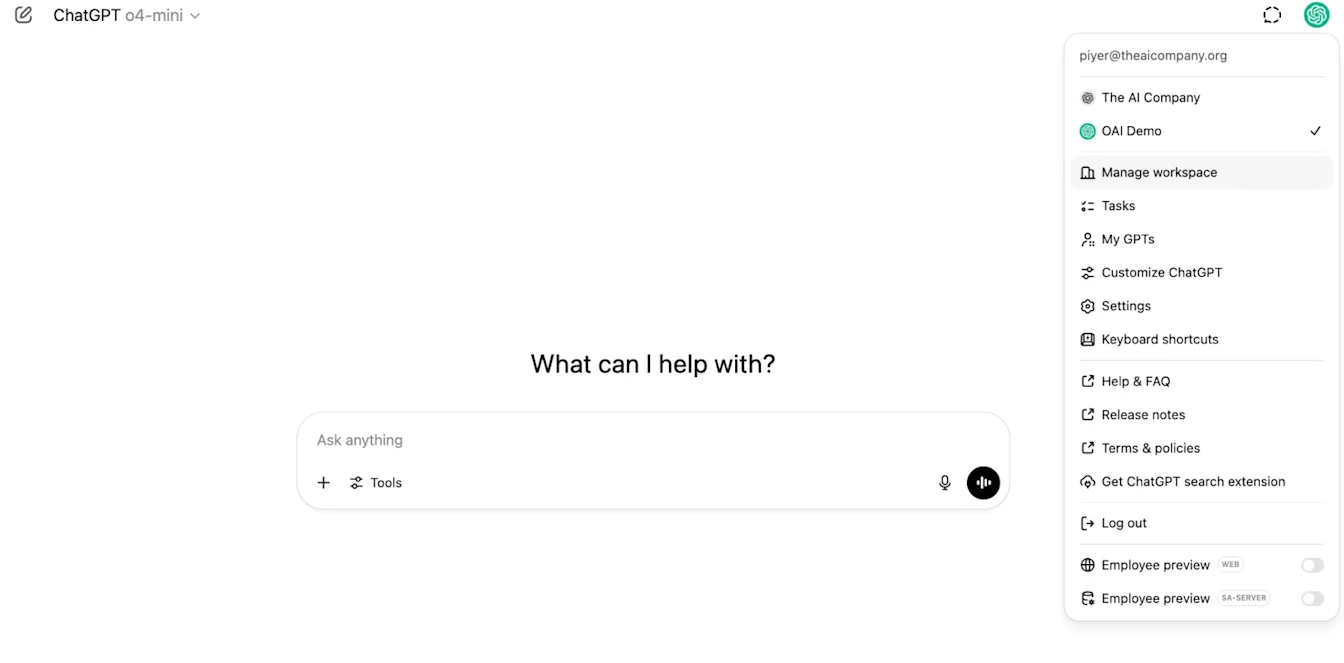
Bukak ChatGPT lan klik ikon profil ing pojok tengen ndhuwur kaca.
Klik Kelola papan kerja
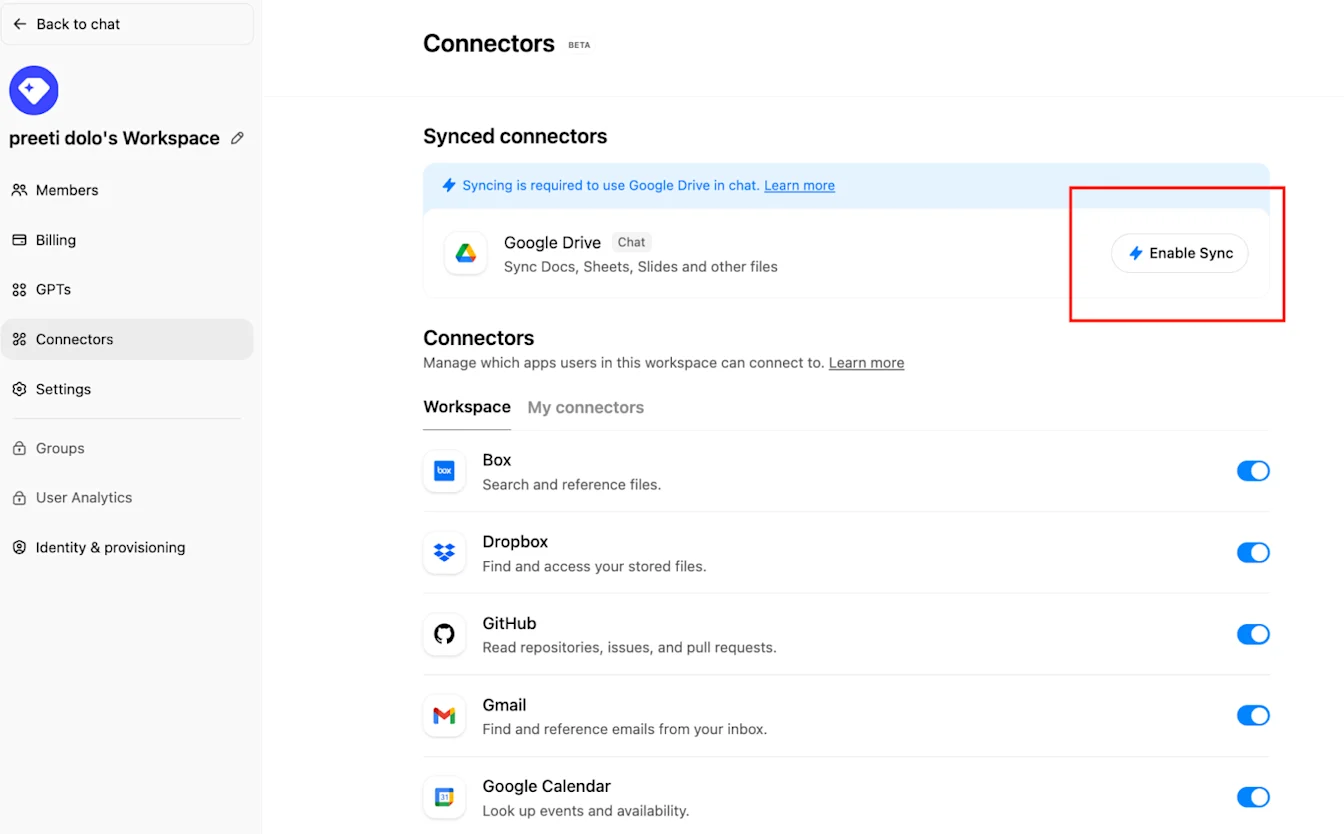
Klik Connections banjur ing ngisor ‘Konektor sing diselarasake’ → Aktifake Sinkronisasi
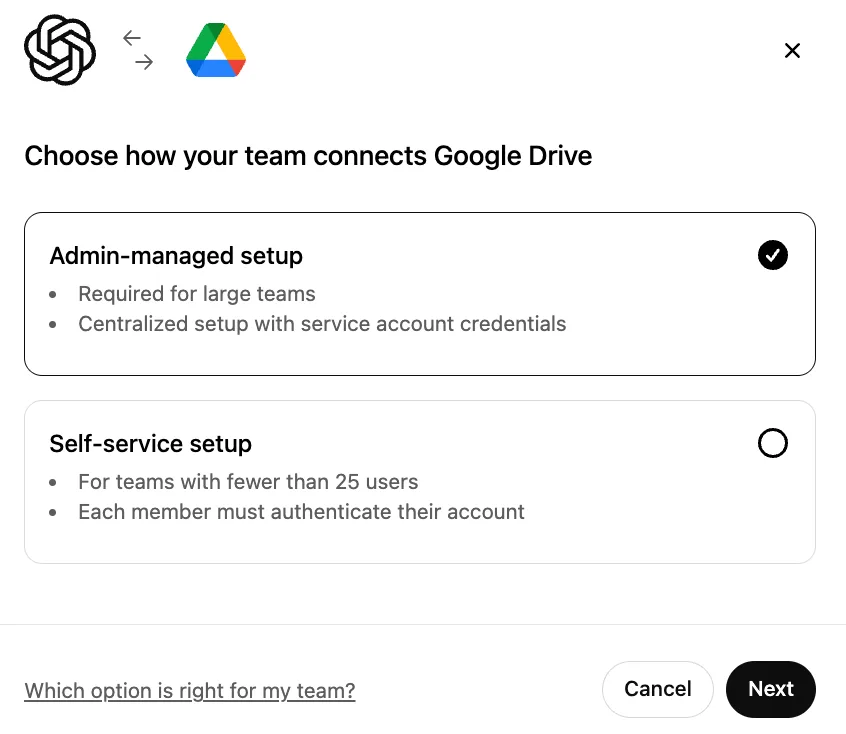
Priksa manawa Dikelola admin wis dipilih lan klik Sabanjure
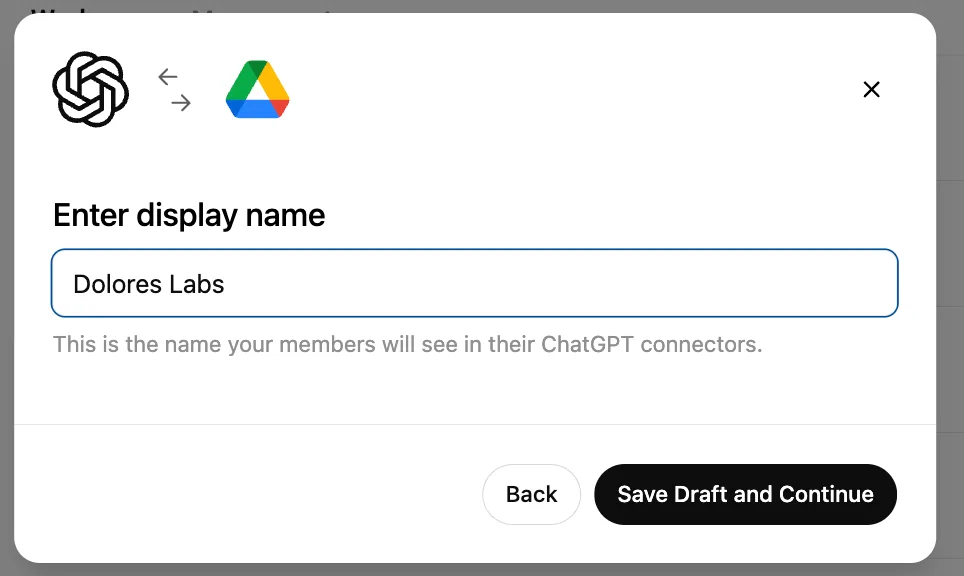
Ketik jeneng tampilan. Disaranake nganggo jeneng Google Workspace sampeyan.
Mangga digatekake yen saiki kita durung ndhukung ngganti jeneng sambungan sampeyan.Klik Simpen Draf lan Terusake
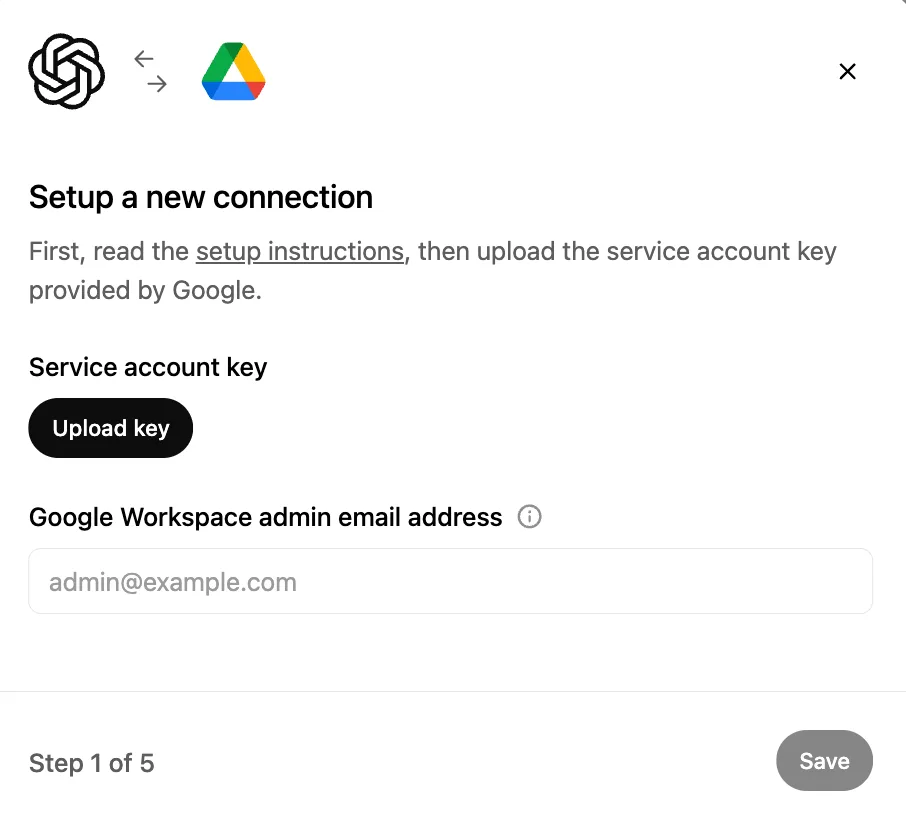
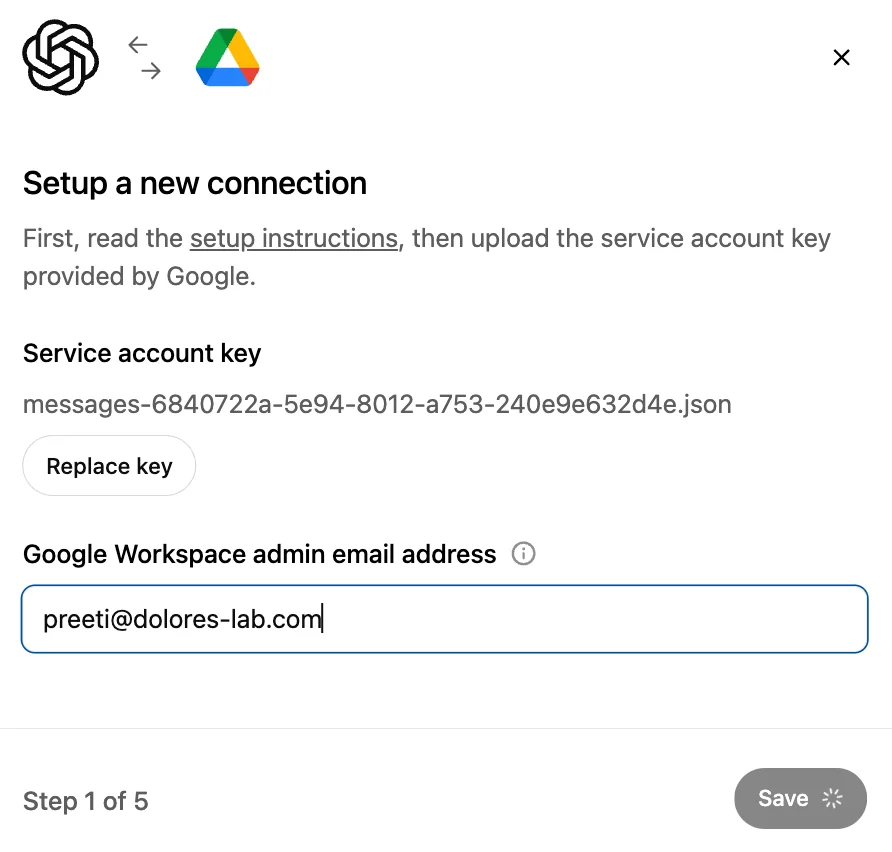
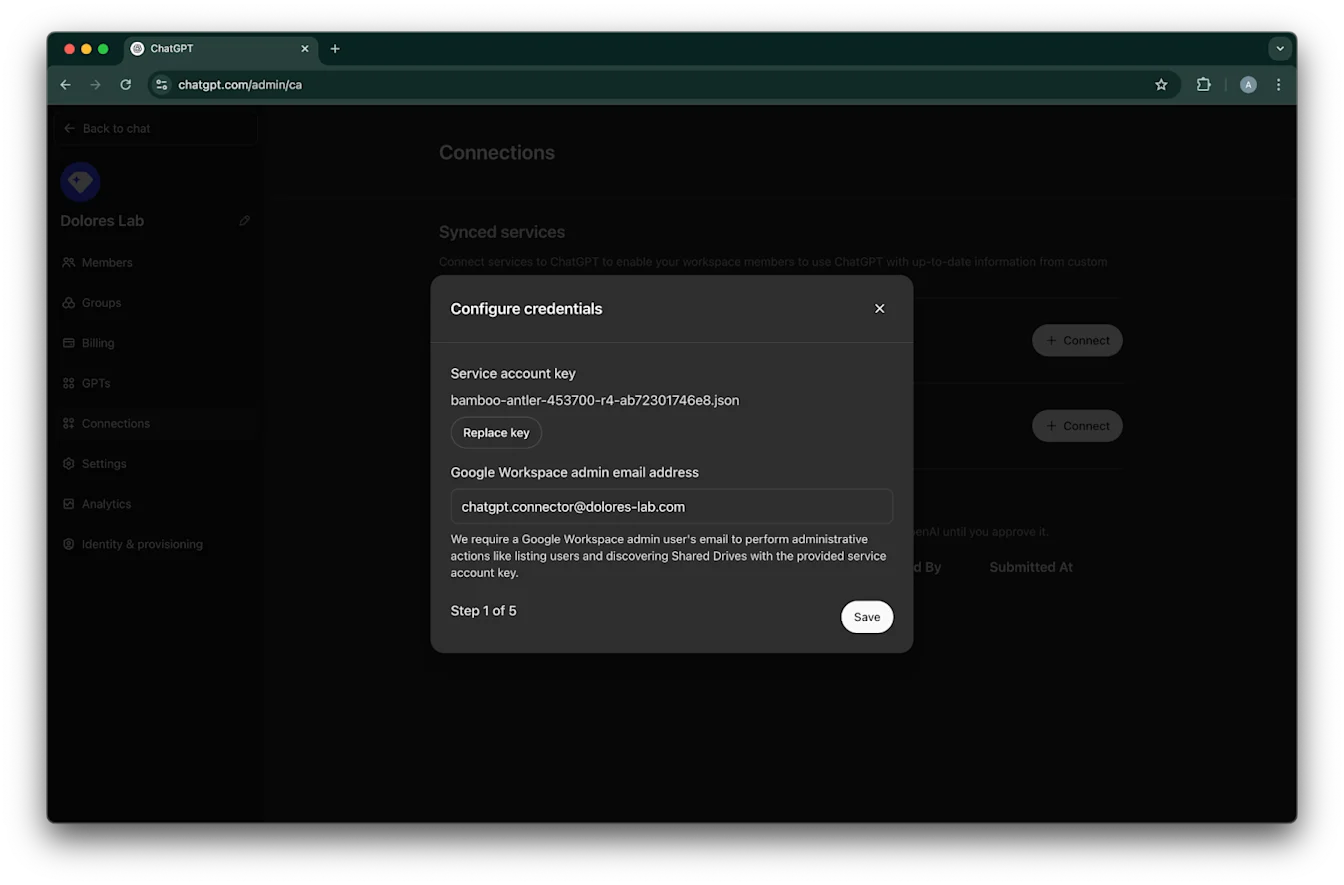
Klik Upload key. Pilih file JSON, yaiku kunci sing wis diundhuh minangka bagean saka nyetel akun layanan ing ndhuwur. Priksa manawa kunci iki bener
Ketik alamat email admin. Iki akun admin sing wis digawe sadurunge.
Klik Save.
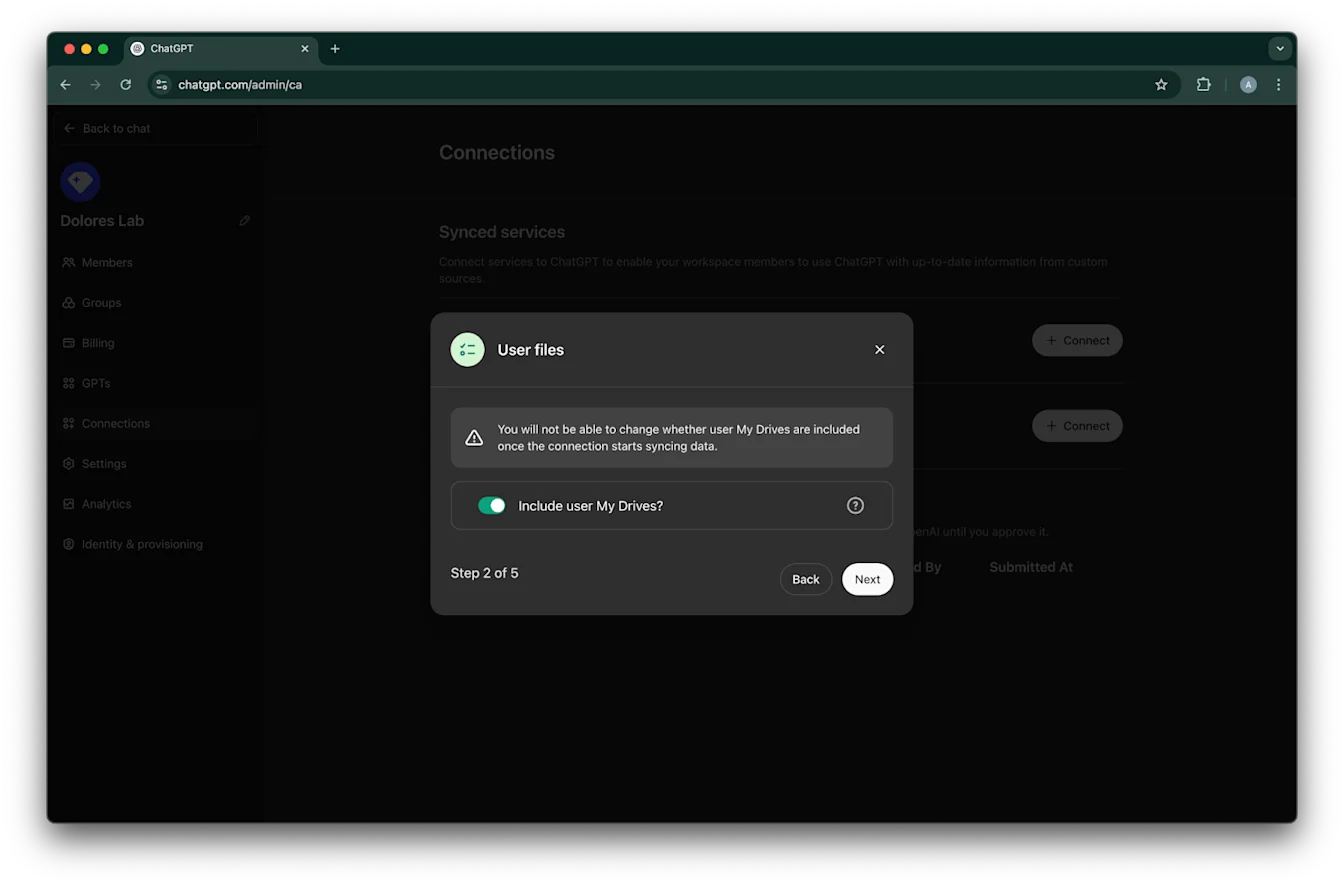
Pilih apa sampeyan pengin file ing My Drive kabeh pangguna kalebu.
Klik Sabanjure
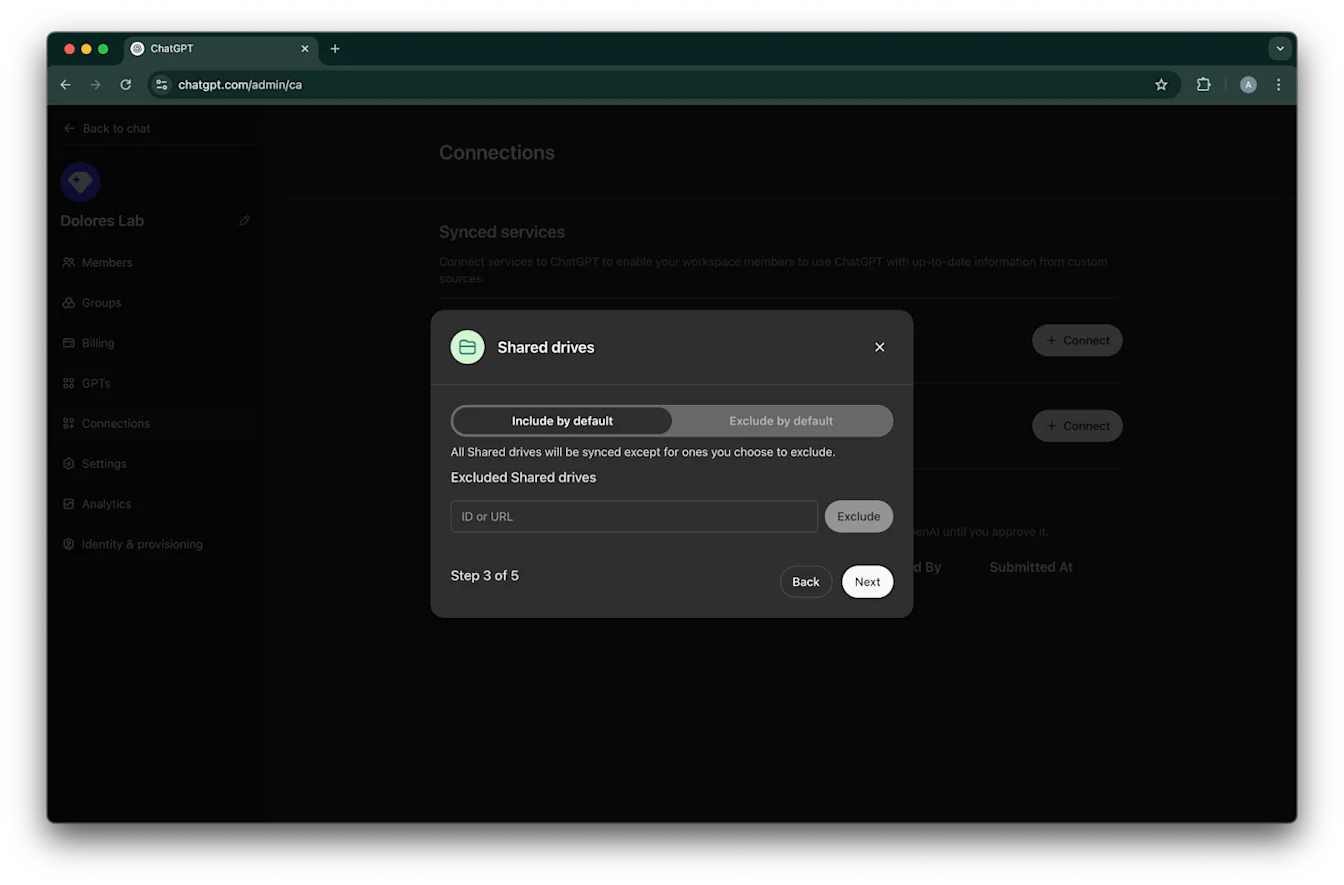
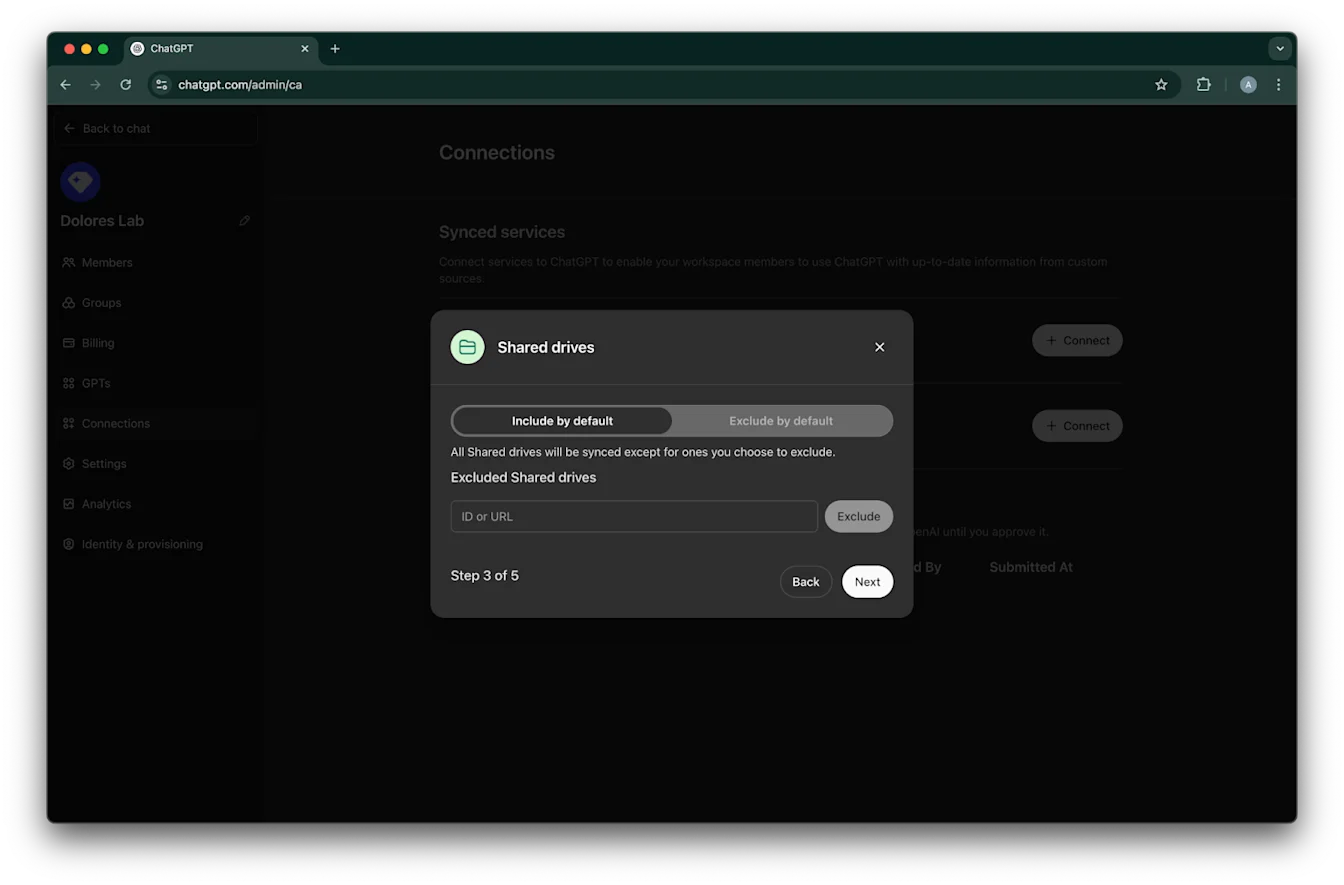
Pilih cara ngatur drive sing dienggo bareng. Kita ndhukung telung skenario iki:
Yen sampeyan pengin nyakup kabeh drive sing dienggo bareng, pilih Include by default lan aja nambah ID drive sing dienggo bareng sing arep dikecualekake
Yen sampeyan pengin nyakup umume drive sing dienggo bareng, pilih Include by default lan tambahna ID kanggo drive sing dienggo bareng sing arep dikecualekake
Yen sampeyan pengin ngecualekake umume drive sing dienggo bareng, pilih Exclude by default lan tambahna ID kanggo drive sing dienggo bareng sing arep disakup
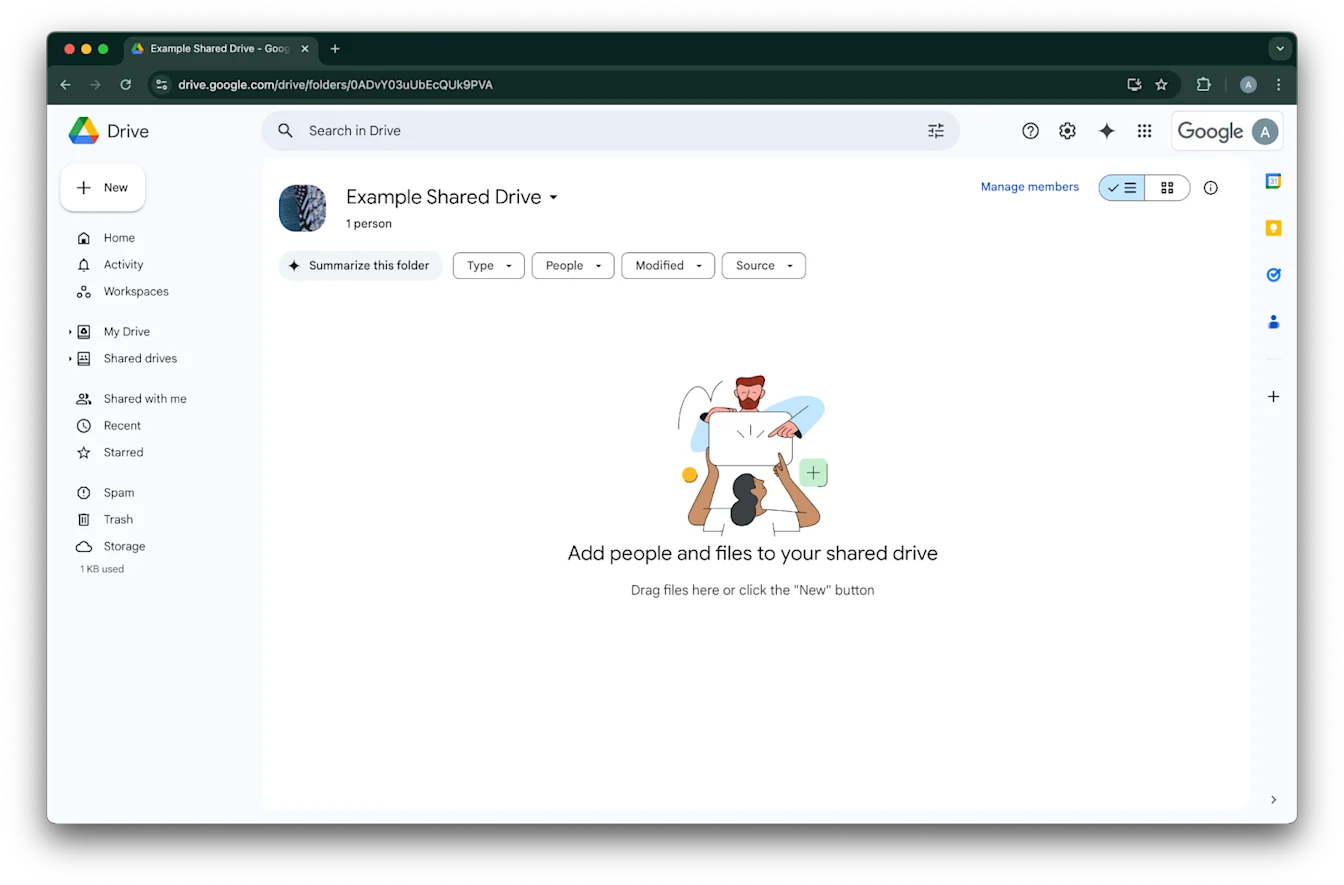
Kanggo nggoleki ID drive sing dienggo bareng, bukak ing browser web. Bagean pungkasan URL yaiku ID drive sing dienggo bareng.
Ing conto iki, yaiku `0ADvY03uUbEcQUk9PVA`'Klik Sabanjure
Pilih sapa wae sing kudu nduweni akses menyang sambungan Google Drive. Sampeyan bisa milih mung Admin ing papan kerja ChatGPT, utawa ngaktifake kanggo kabeh wong. Yen diaktifake kanggo kabeh wong, pangguna anyar sing ditambahake menyang papan kerja bakal otomatis kalebu.
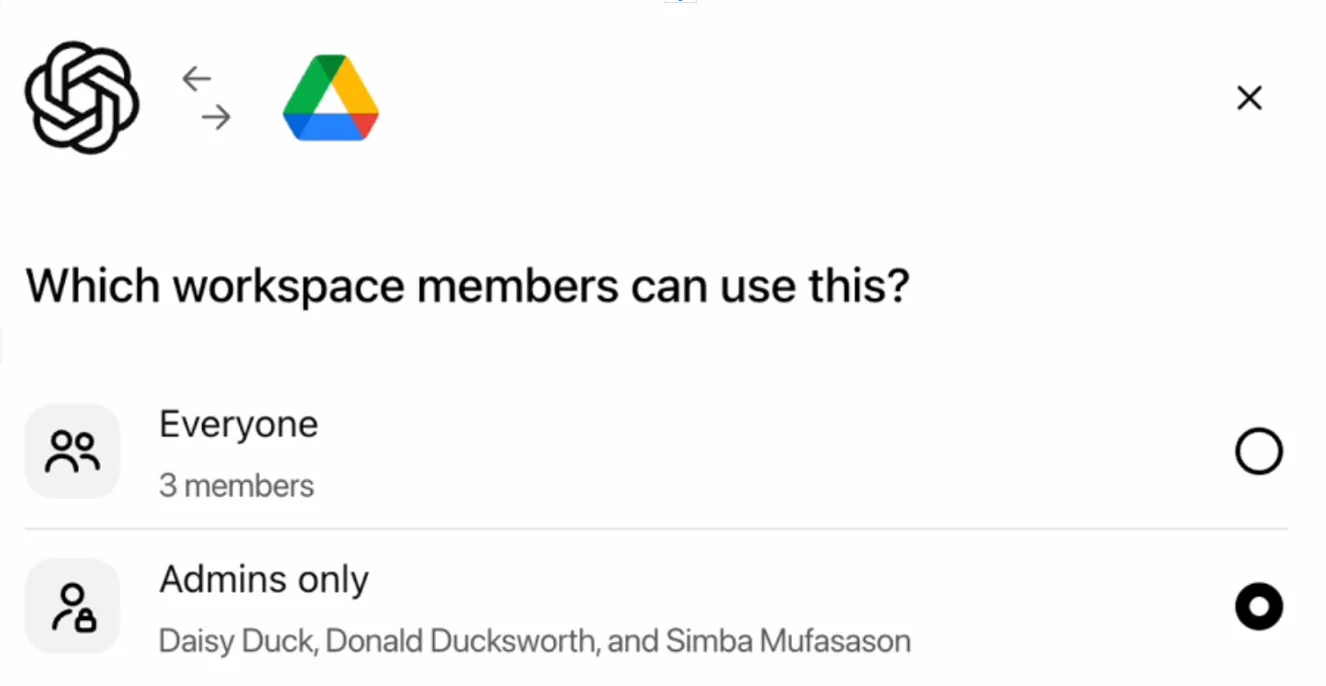
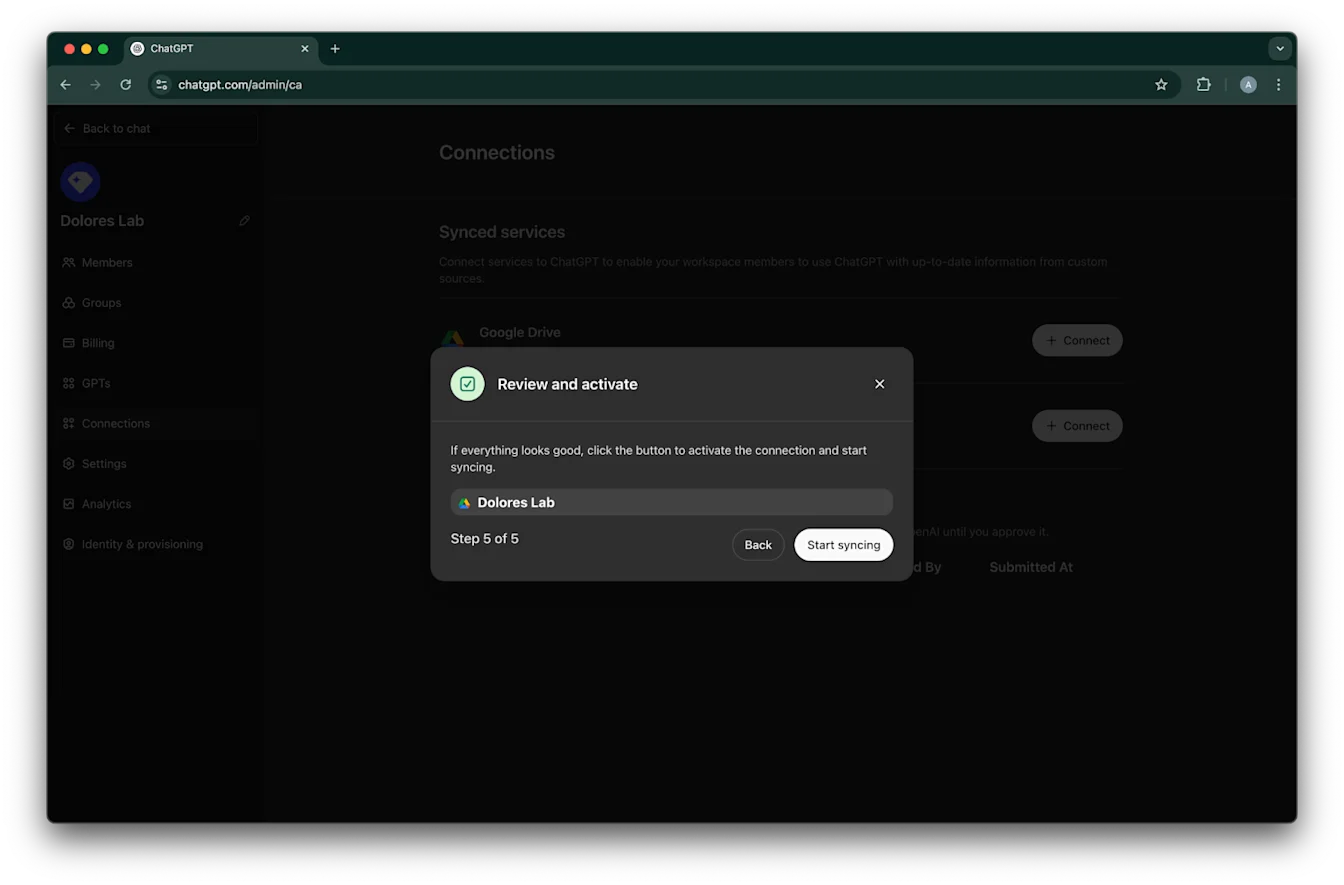
Klik Mulai nyelarasake
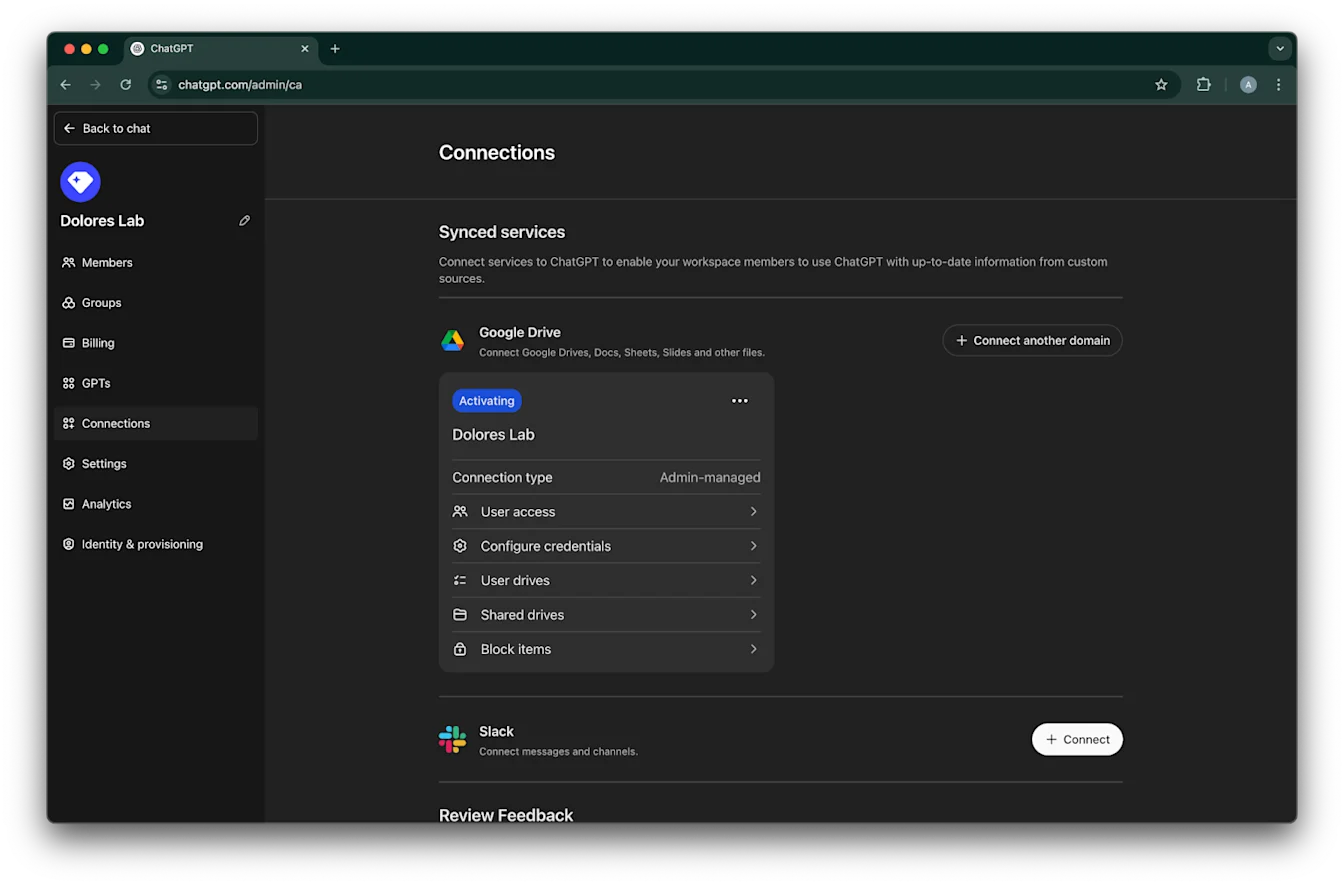
Sambungan Google Drive sampeyan saiki wis kasil digawe!
Mangga digatekake, sanajan sinkronisasi bakal langsung diwiwiti, proses iki bisa mbutuhake wektu saka sawetara jam nganti pirang-pirang dina gumantung saka pira file sing kalebu adhedhasar setelan sampeyan.
Sawise file sing ditambahake/diedit sajrone 30 dina kepungkur rampung diselarasake, konektor bakal kasedhiya kanggo pangguna sing wis sampeyan aktifake.
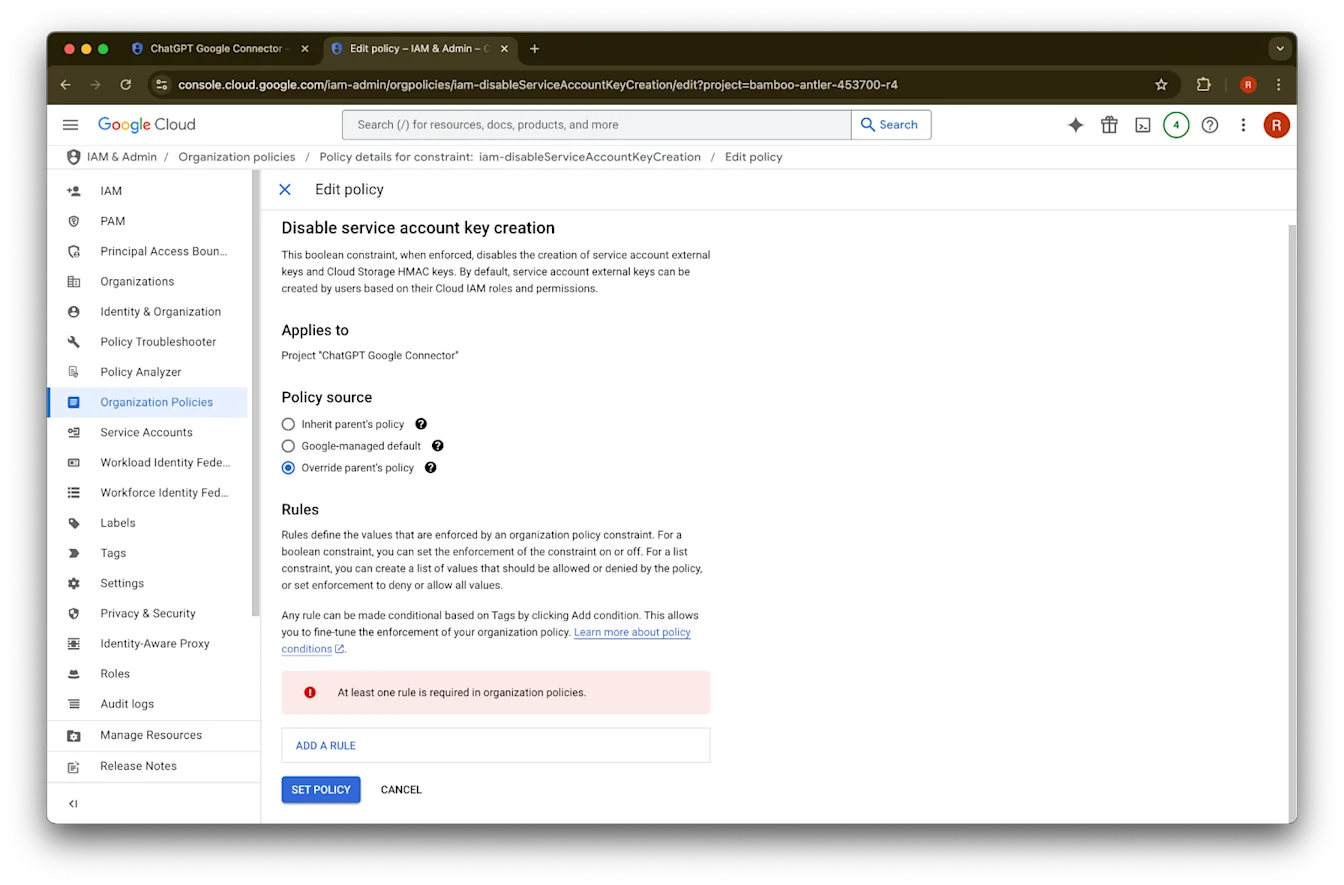
Ngaktifake nggawe kunci akun layanan
Yen sampeyan nampa kesalahan iki, sampeyan kudu ngaktifake pembuatan akun layanan kanggo proyek tartamtu iki:
> Constraint kabijakan organisasi ‘iam.disableServiceAccountKeyCreation’ diterapake ing organisasi sampeyan.
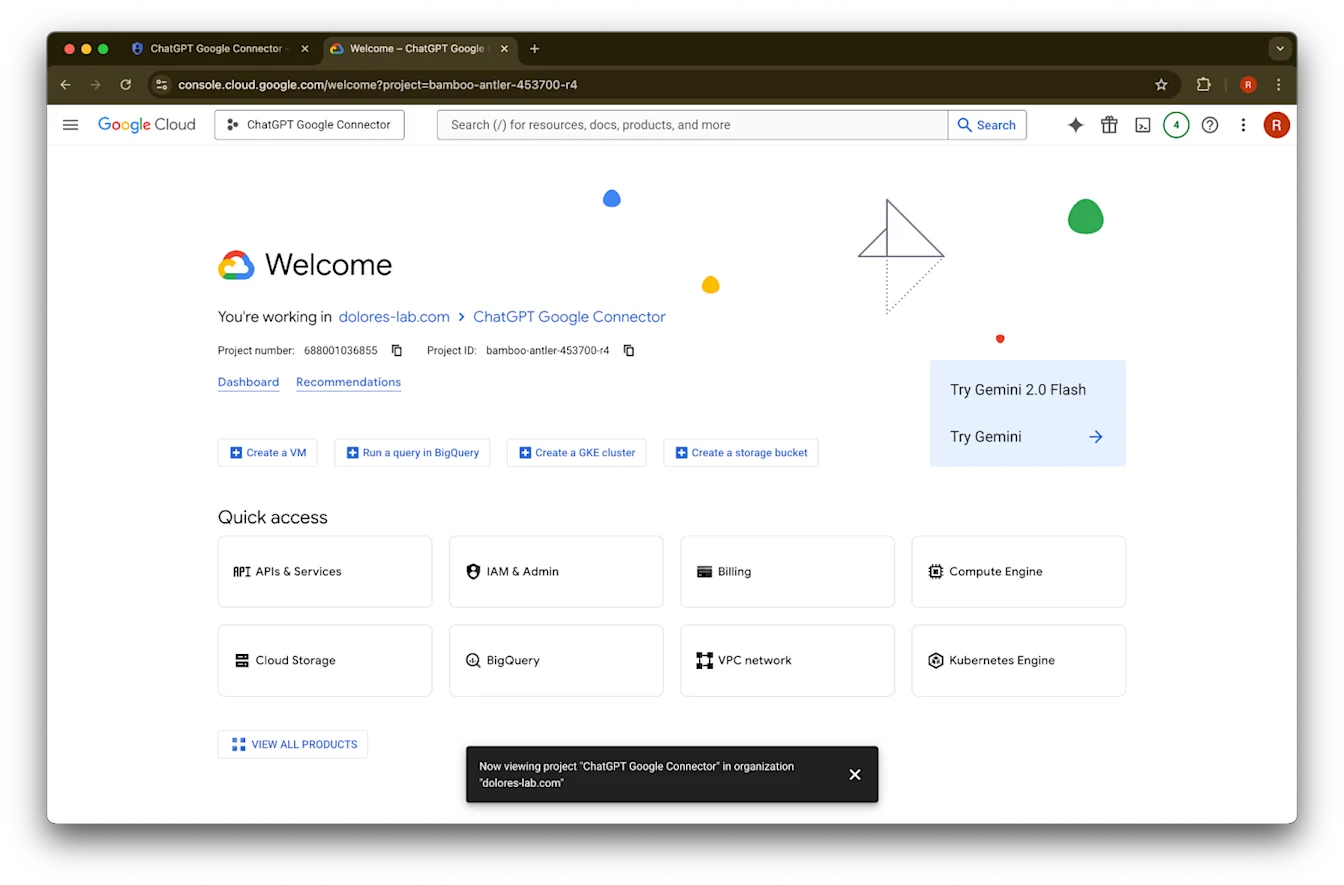
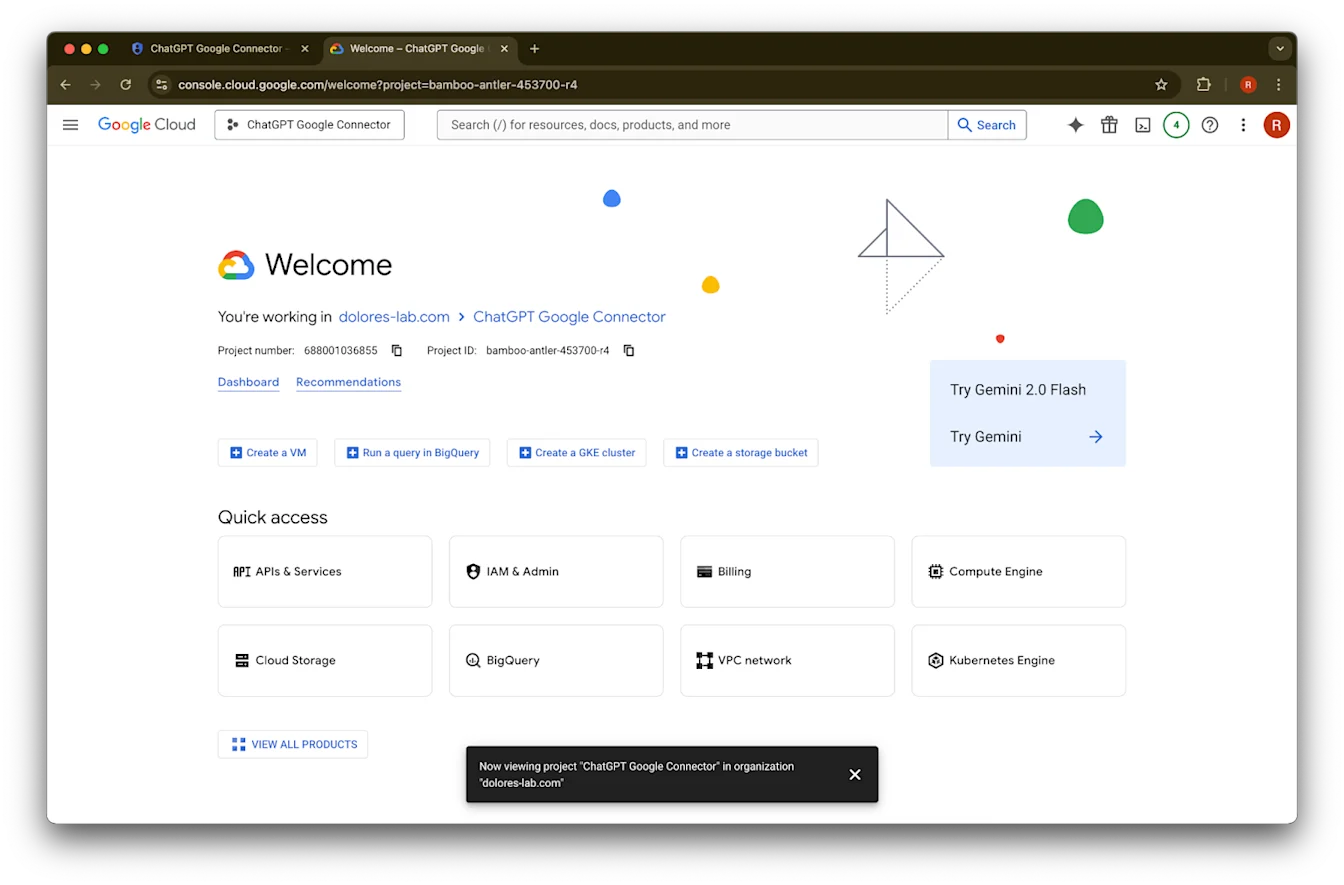
Bukak tab anyar lan bukak console.cloud.google.com. Priksa manawa proyek sing dipilih yaiku proyek sing wis sampeyan pilih sadurunge.
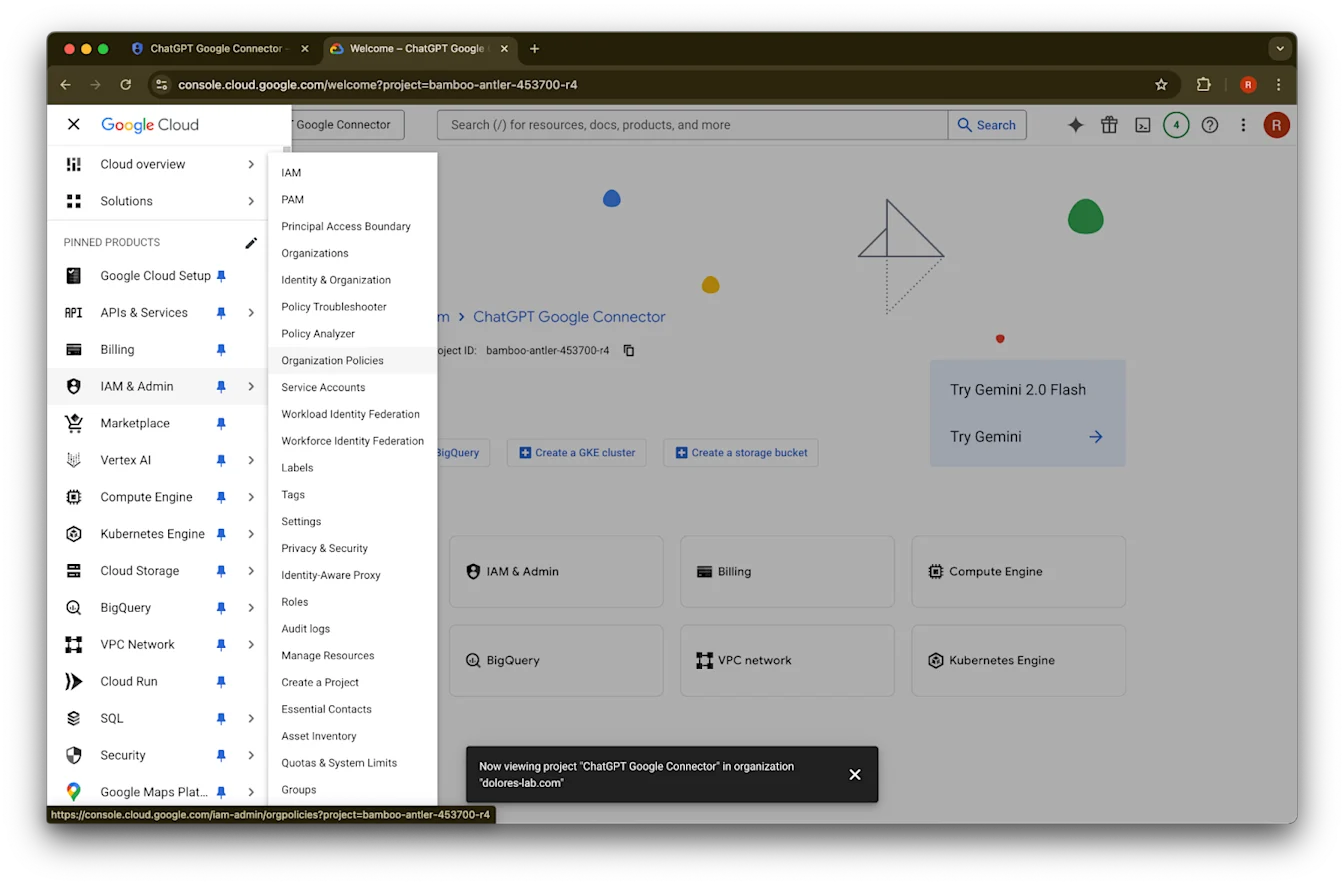
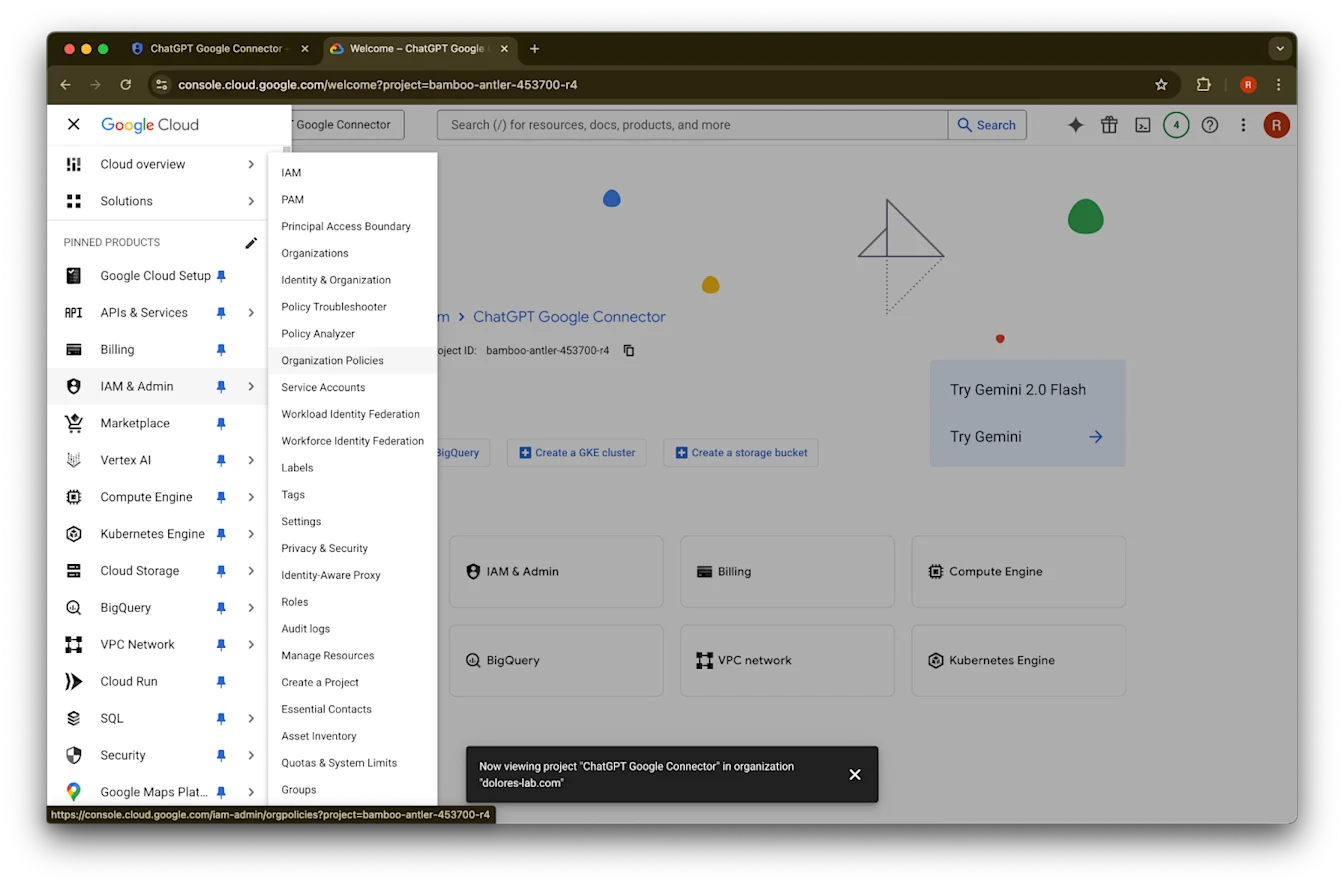
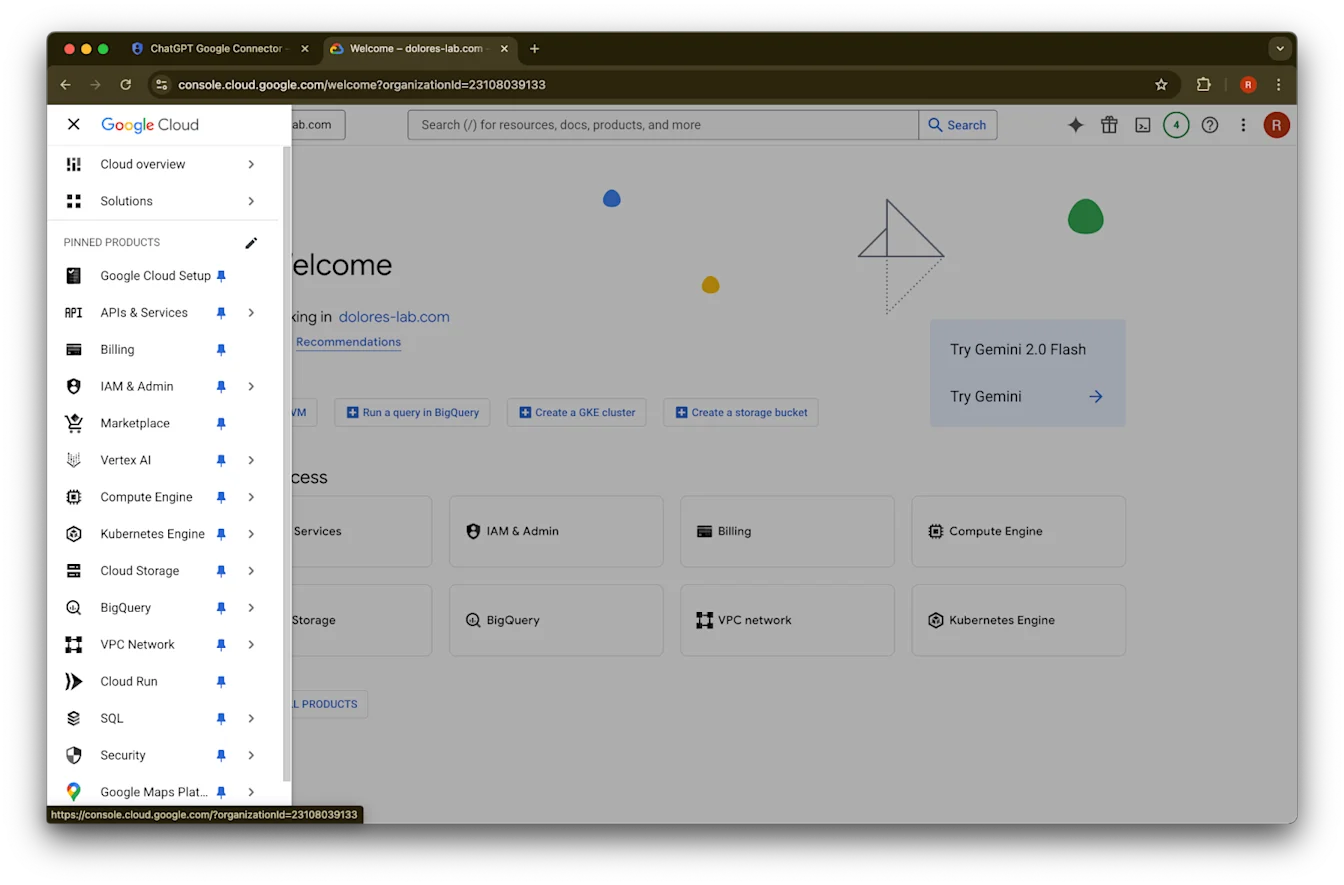
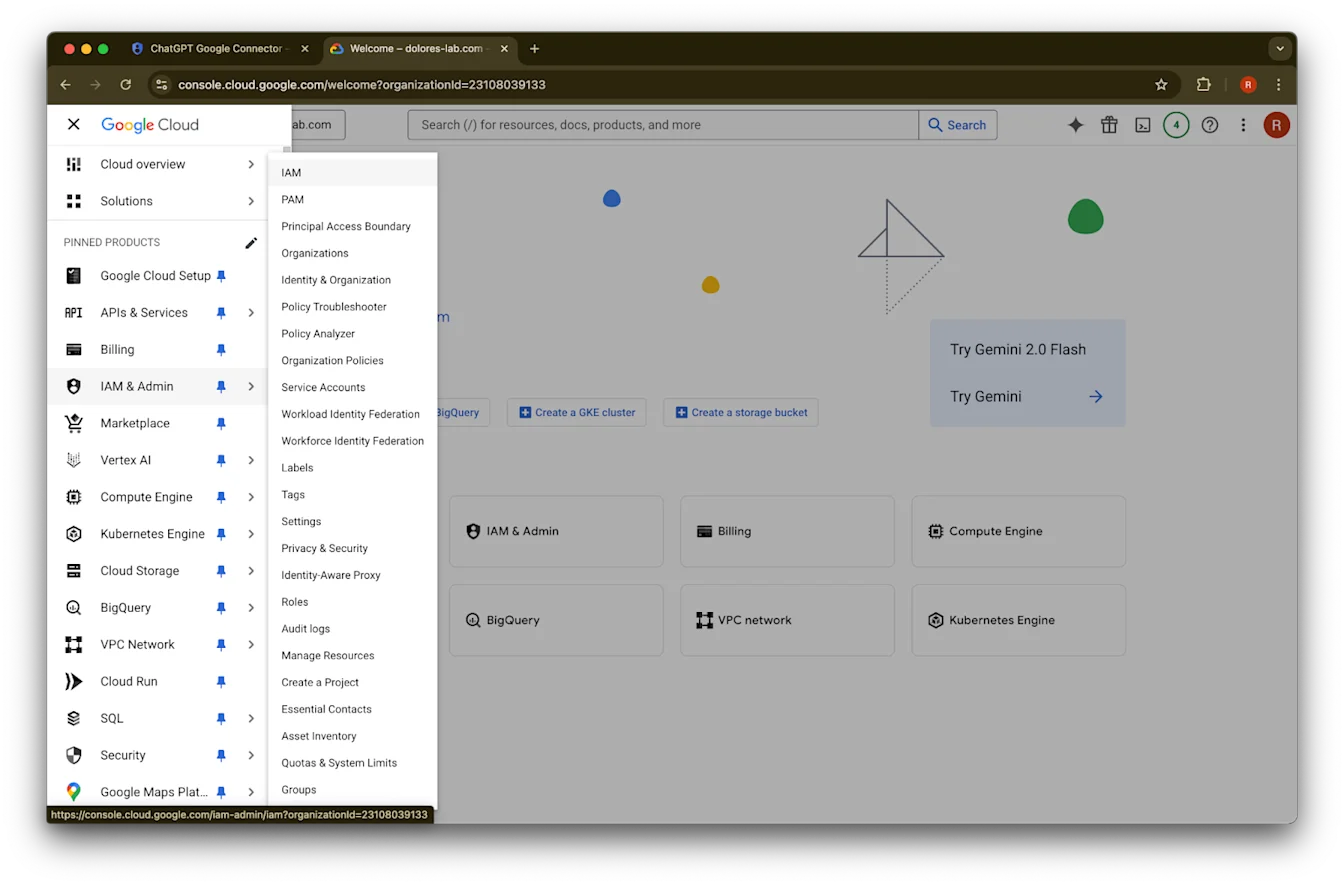
Klik ikon menu ing pojok kiwa ndhuwur.Arahna kursor menyang IAM & Admin
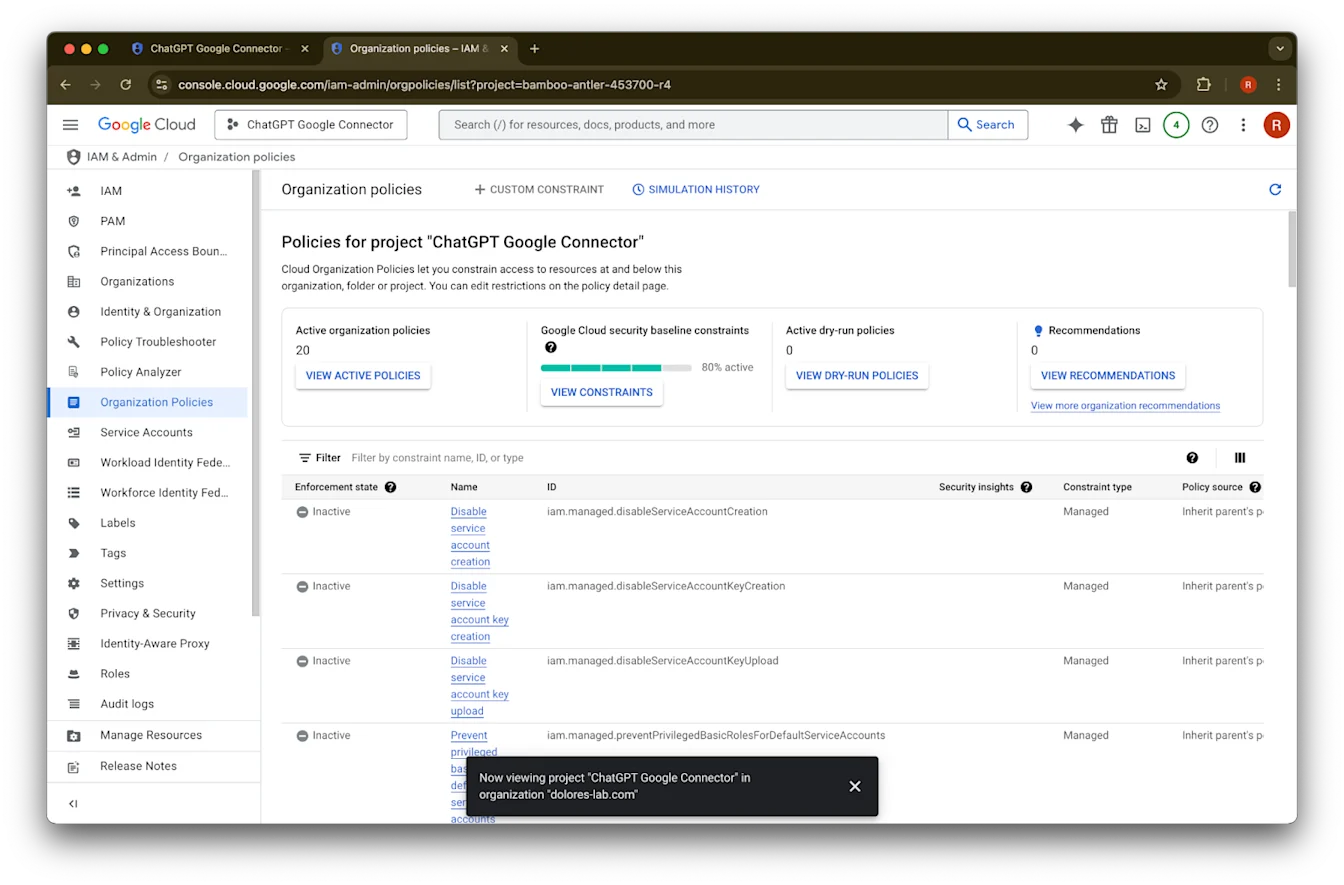
Klik Organizational Policies
Telusuri iam.disableServiceAccountKeyCreation
Klik asil kanggo constraints/iam.disableServiceAccountKeyCreation
Klik … ing baris kanthi ID iam.disableServiceAccountKeyCreation
Klik Edit policy. Yen Edit policy dipatèni, sampeyan kudu dadi Organization Policy Administrator.
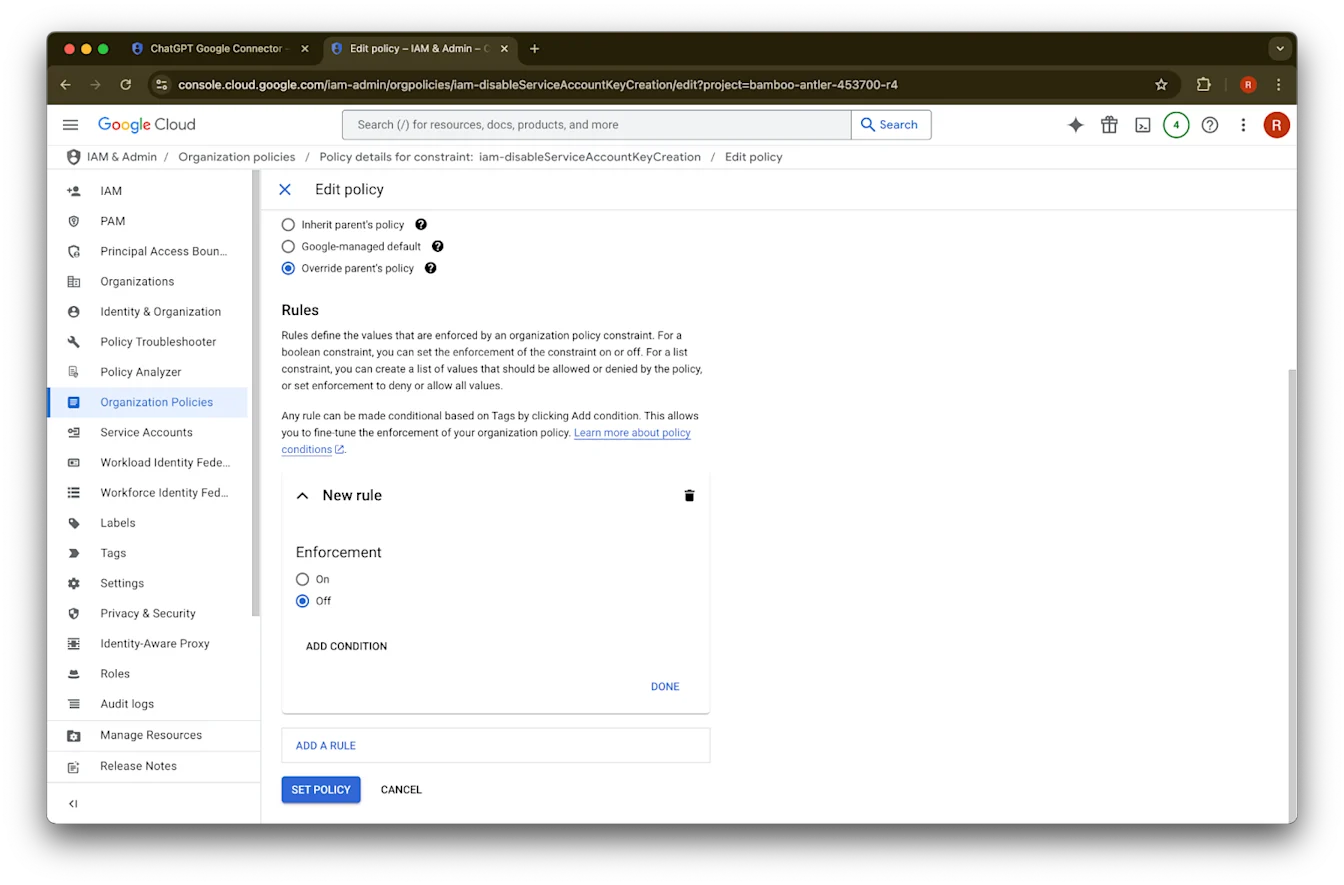
Klik Override parent’s policy
Klik Add a rule
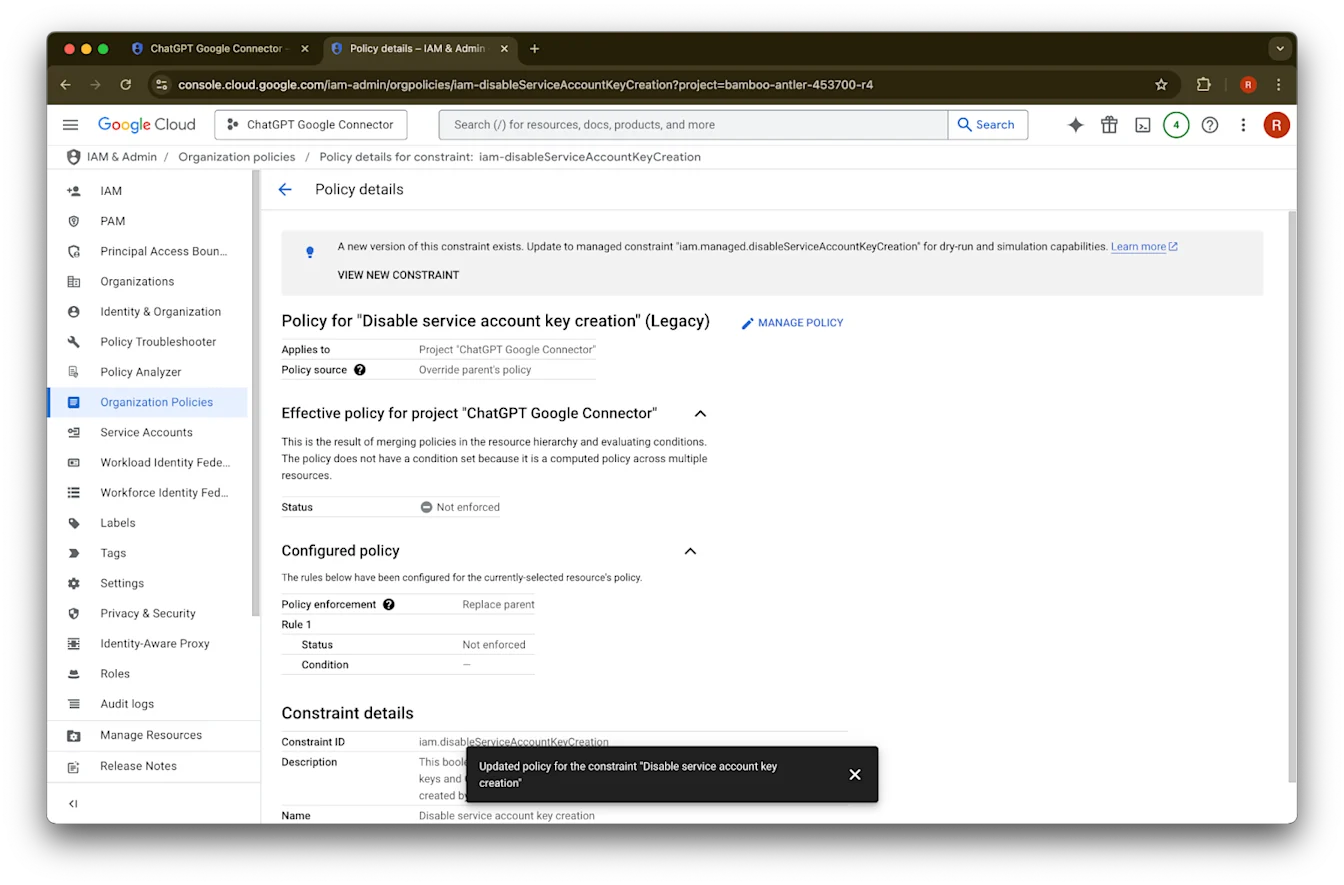
Klik Set Policy
Saiki sampeyan bisa nggawe kunci akun layanan. Pangaktifan iki bisa mbutuhake sawetara menit nganti aktif.
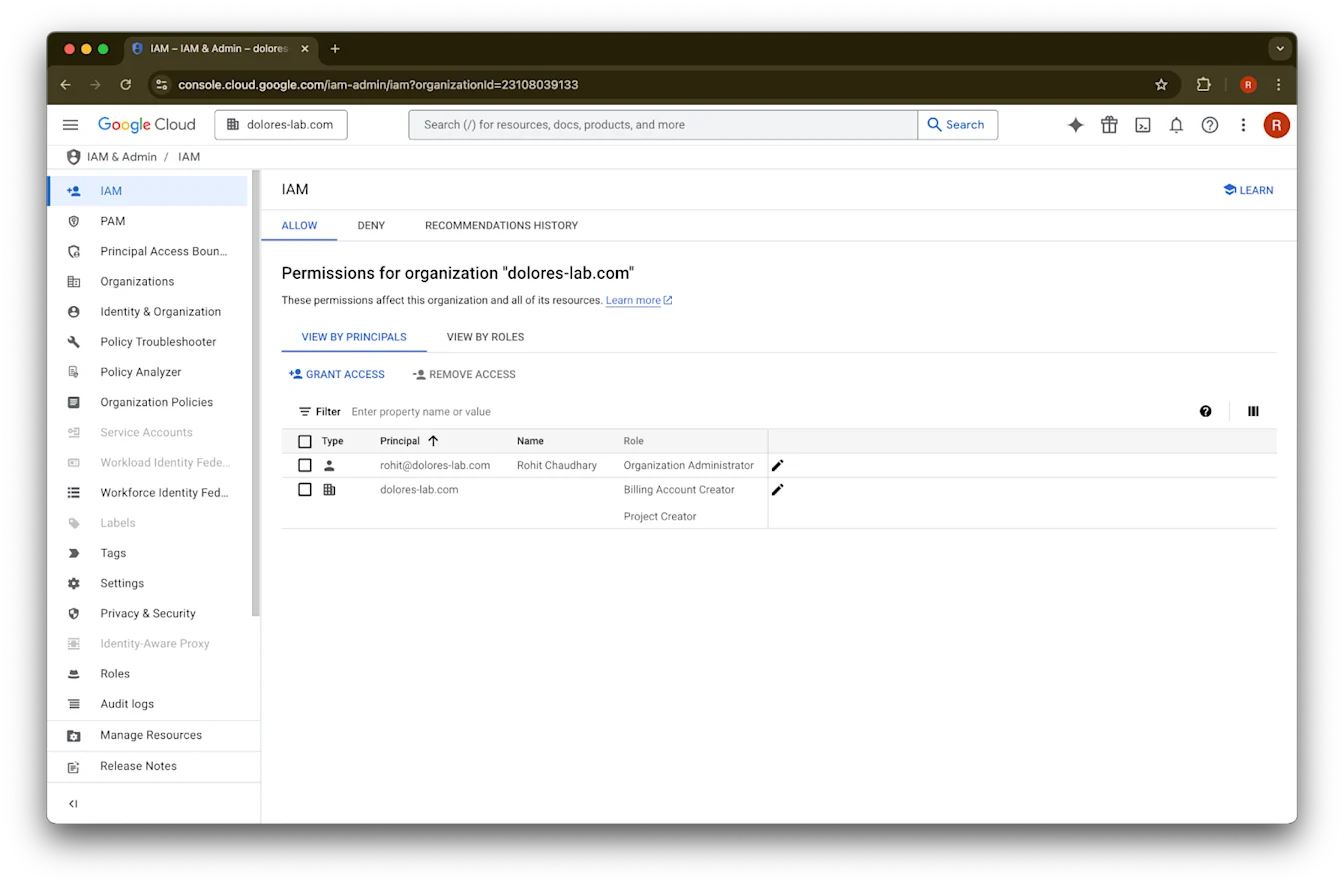
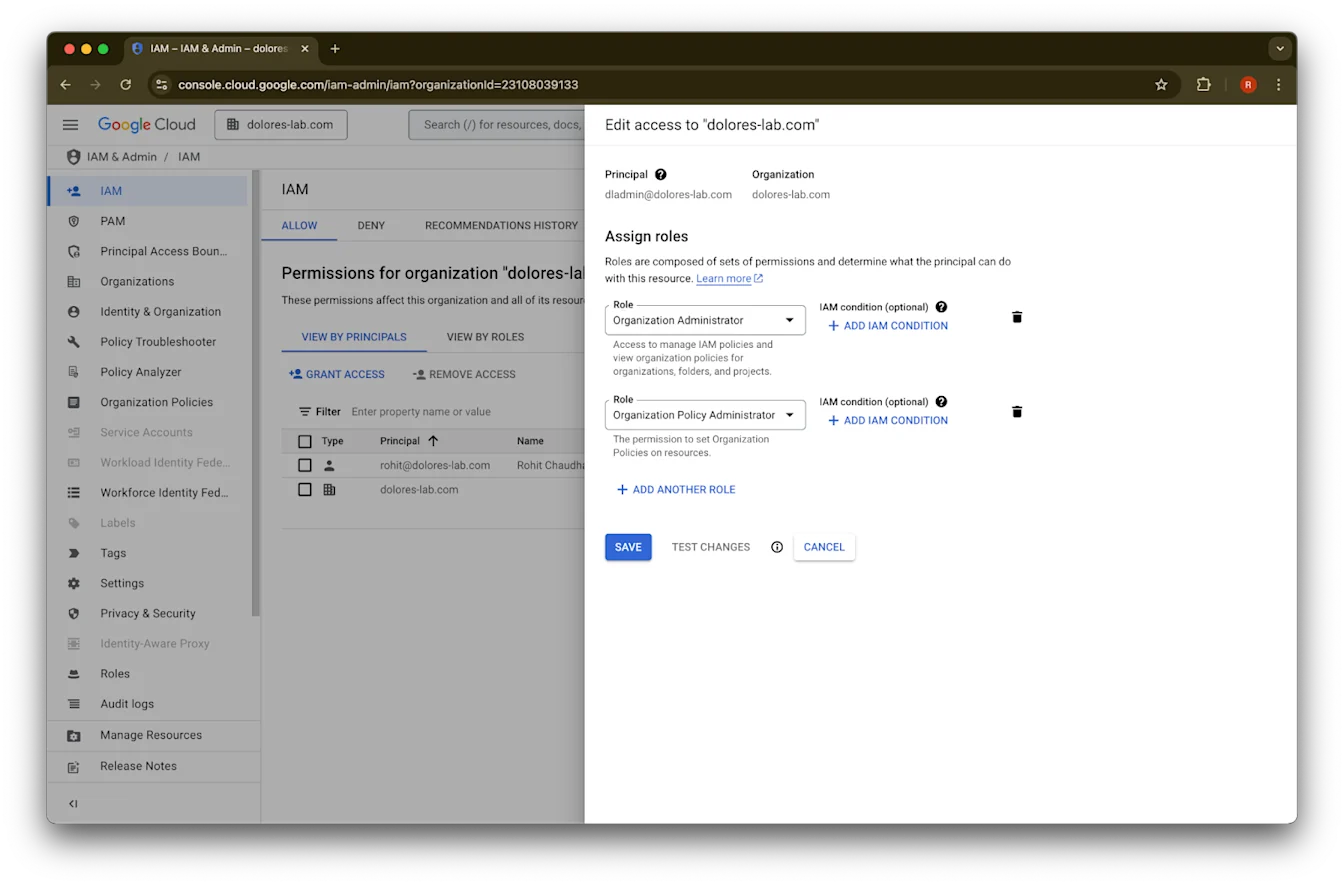
Dadi Organization Policy Administrator
Bukak console.cloud.google.com lan klik pemilih proyek/organisasi
Klik organisasi sampeyan
Klik ikon menu ing pojok kiwa ndhuwur
Arahna kursor menyang IAM & Admin
Klik IAM
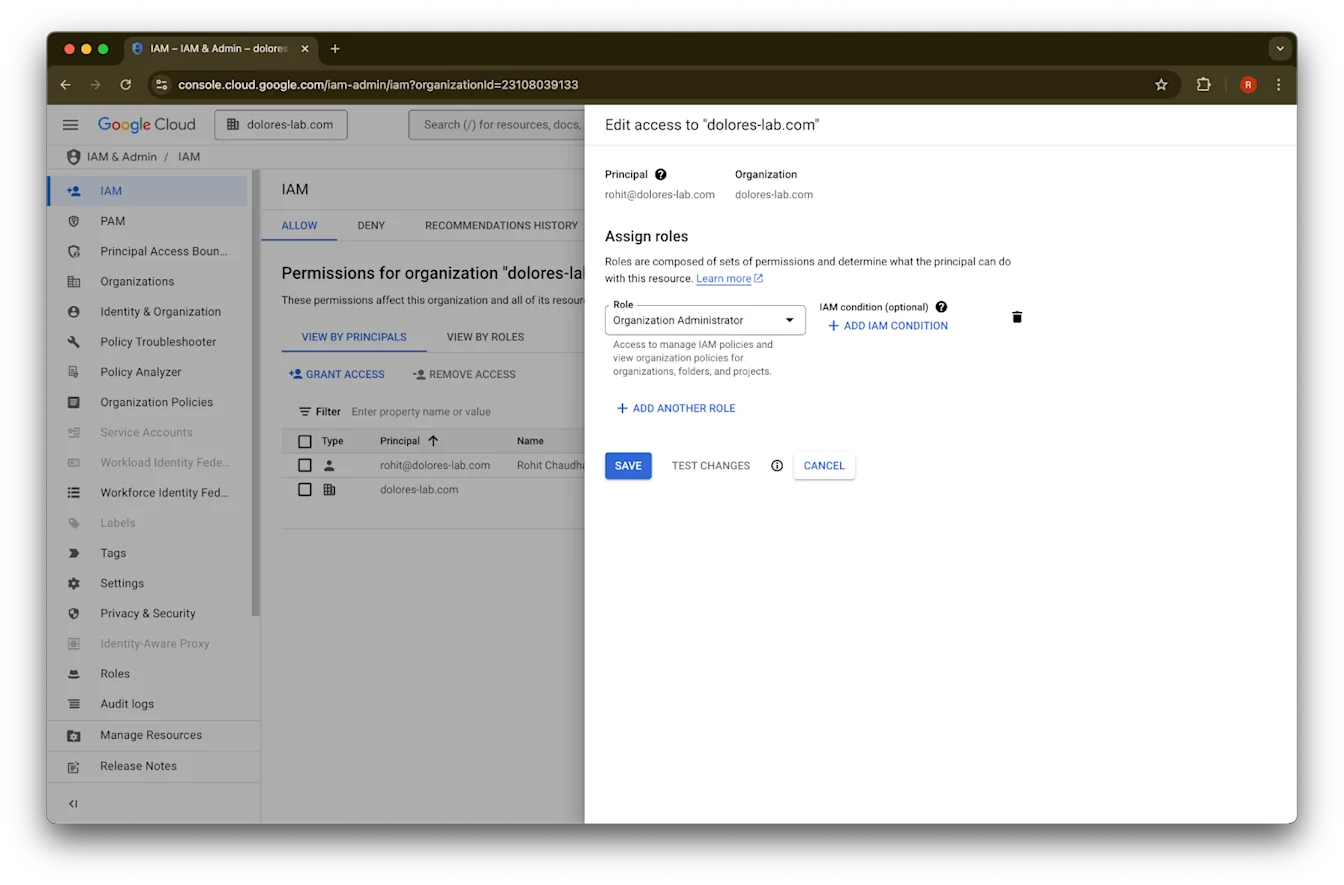
Klik pensil kanggo akun sampeyan
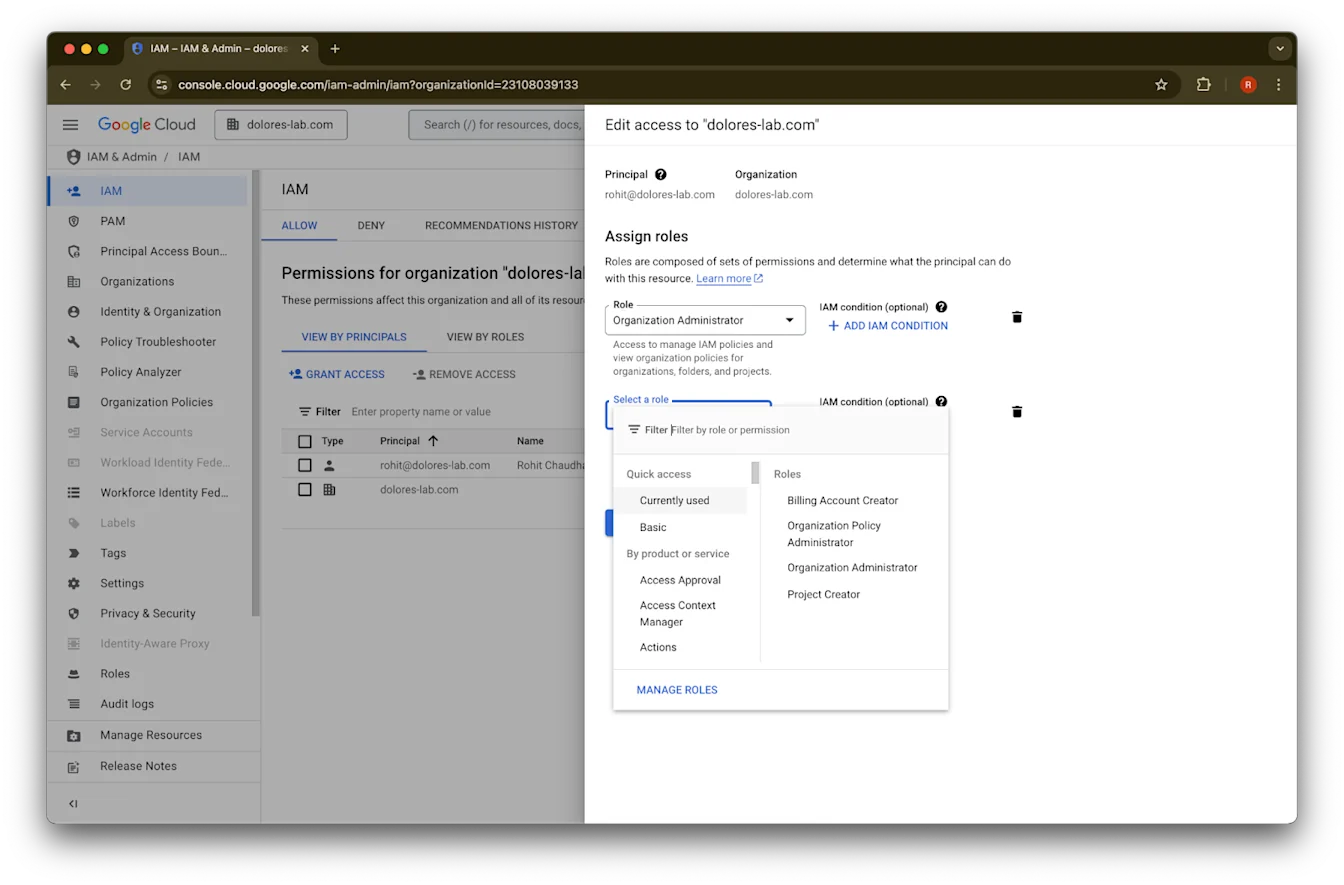
Klik Add Another Role
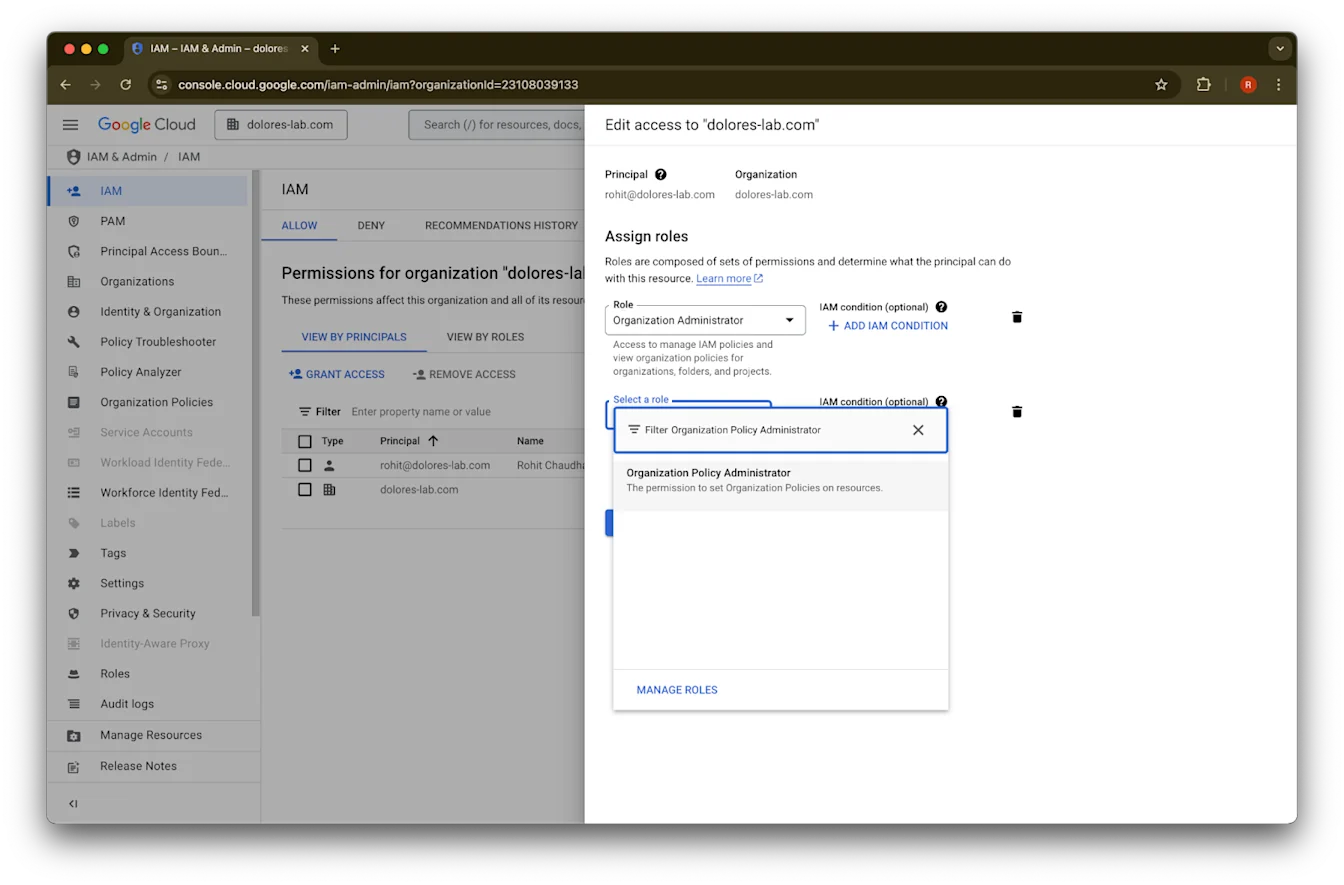
Telusuri Organization Policy Administrator
Klik Organization Policy Administrator
Klik Save
Akun sampeyan saiki nduweni idin kanggo ngaktifake pembuatan kunci akun layanan. Iki bisa mbutuhake sawetara menit nganti aktif.
Nggunakake Alias Email Google kanggo Njaga Akun Email Beda kanggo Google Workspace lan ChatGPT
Yen sampeyan admin sing nyambungake Google Workspace menyang papan kerja ChatGPT nganggo setelan sing dikelola admin kanggo konektor Google Drive sing diselarasake, lan organisasi sampeyan nggunakake domain email sing beda kanggo ChatGPT lan Google Workspace, sampeyan kudu nindakake langkah tambahan supaya pangguna bisa ngakses konektor Google Drive sing diselarasake kanthi sukses.
Rekomendasi: Yen bisa, gunakna alamat email utama sing padha kanggo akun Google Workspace lan ChatGPT.
Yen iki ora bisa ditindakake, tindakake pandhuan ing ngisor iki kanggo ngatur alias email Google Workspace sing cocog karo email mlebu ChatGPT.
Langkah kanggo Nambah Alias Google Workspace
Tindakake langkah iki ing Google Admin Console kanggo mesthekake email ChatGPT saben pangguna bisa disambungake menyang akun Google Workspace:
Bukak Admin Console. Bukak: Directory > Users
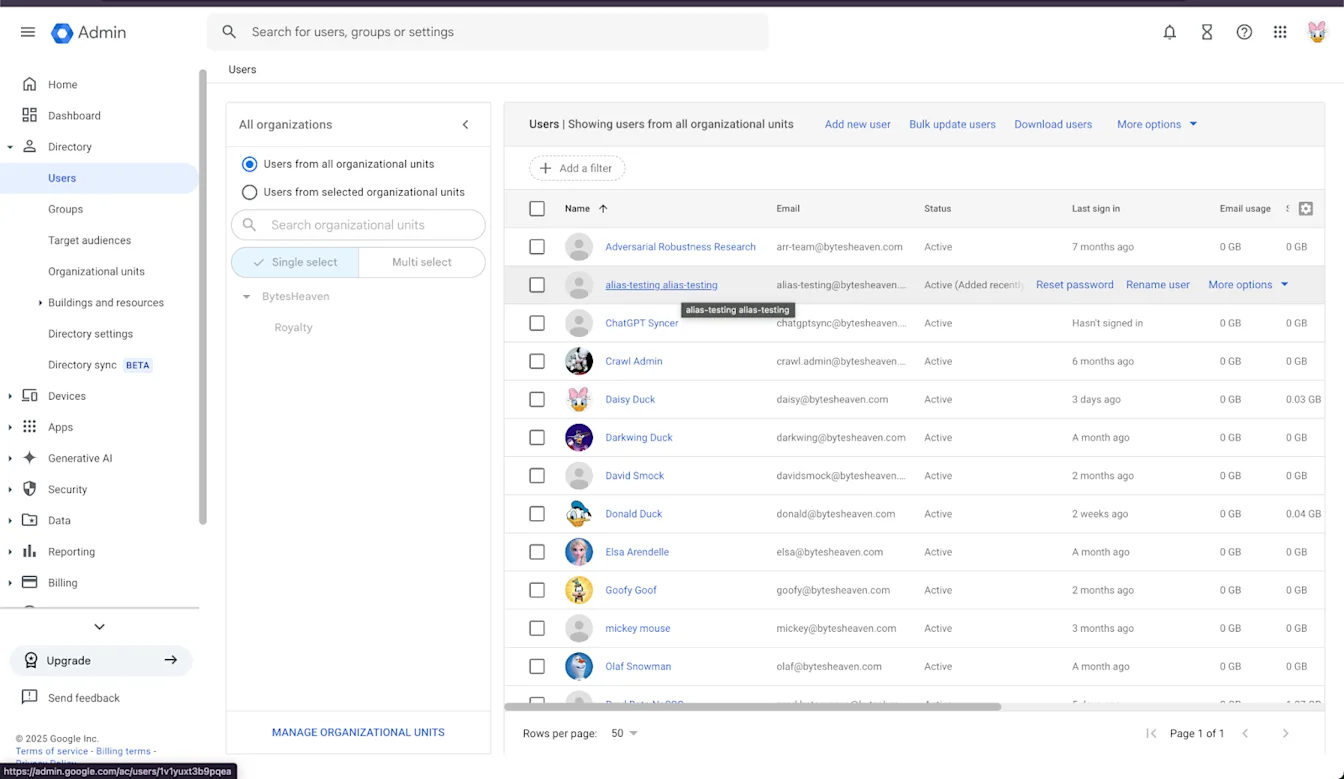
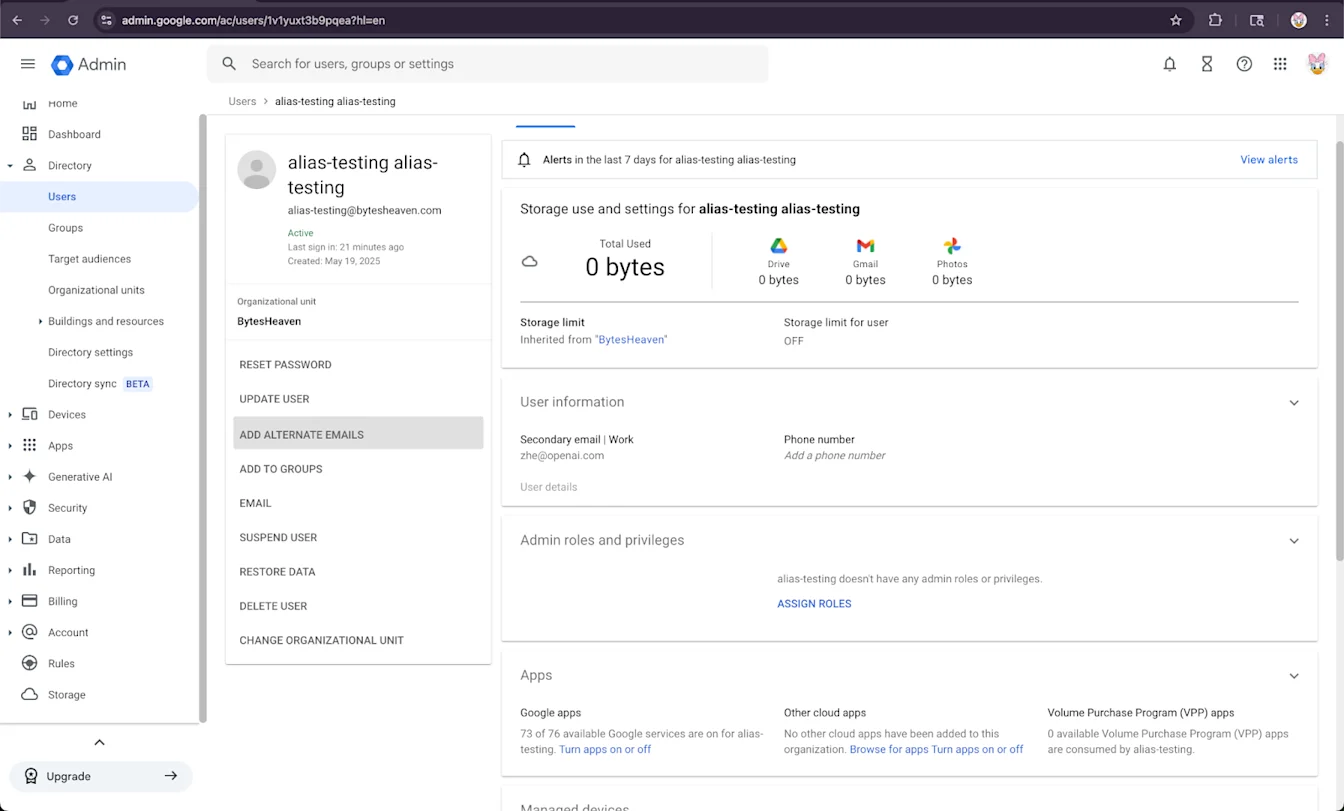
2. Pilih Pangguna, banjur “TAMBAH EMAIL ALTERNATIF”.
3. Tambah Email Alternatif. Priksa manawa cocog karo akun ChatGPT pangguna.
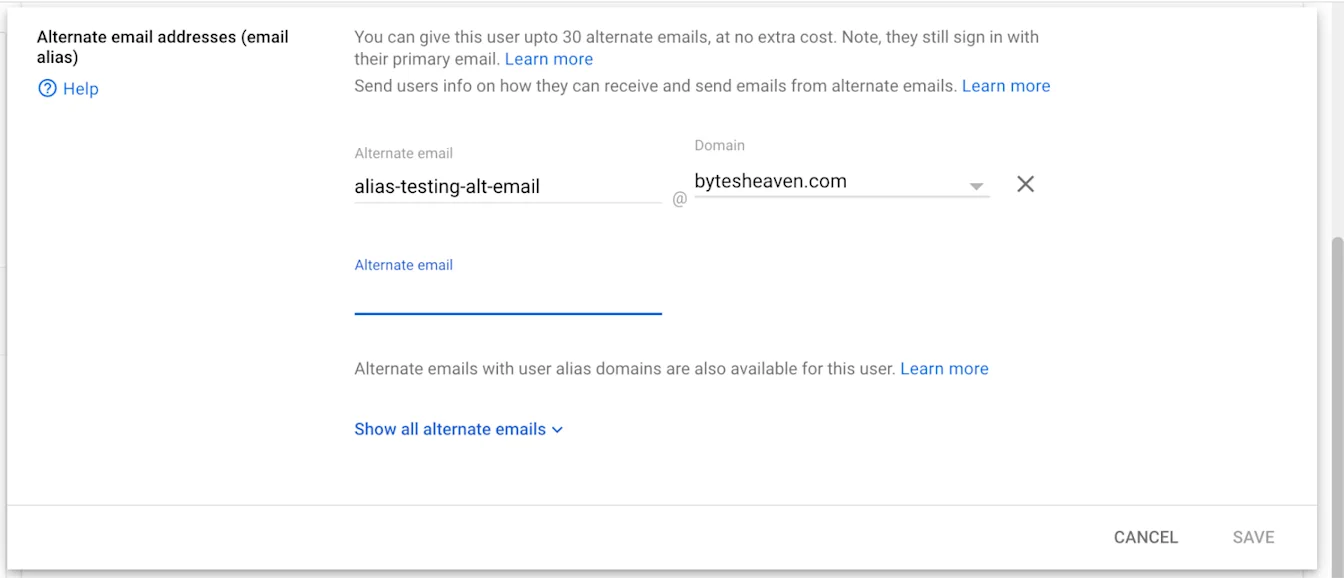
4. Pilih Simpen
Watesan sing Dikenal
Alamat email pribadi ora didhukung
Pangguna sing ndhaptar ChatGPT nganggo alamat pribadi (umpamane, example@gmail.com) ora bisa nyambung menyang Google Workspace. Setelan iki ora didhukung lan nduweni risiko keamanan, amarga ngidini akses menyang data internal saka njaba organisasi.
Alias Gmail "+" ora didhukung
Gmail ngidini pangguna nggawe alias kanthi nambahake "+" ing alamaté (umpamane, user+alias@gmail.com). Jinis alias iki ora bisa digunakake karo konektor Google Drive sing diselarasake. Alias kudu dikonfigurasi kanthi cetha ing Google Workspace.
Pesen Kesalahan Umum
Yen alamat email ora disambungake kanthi bener, pangguna bisa nemoni pesen iki: "Kita ora bisa nyambungake akun sampeyan menyang Google Drive. Klik kanggo sinau luwih lengkap."
Yen pangguna nampa pesen iki, delengen maneh langkah-langkah ing dokumen iki lan priksa manawa kabeh ditindakake kanthi bener. Yen butuh pitulungan tambahan, mangga hubungi tim dhukungan kami.