
Gambaran keseluruhan
Tinjauan impak ialah tinjauan dalam produk yang mengumpulkan hasil yang dilaporkan sendiri oleh ahli ruang kerja. Respons digabungkan dan dipaparkan dalam bahagian Impak pada analitis ruang kerja untuk membantu pentadbir memahami penerimagunaan dan hasil di seluruh organisasi.
Untuk gambaran keseluruhan penuh tentang metrik dan ciri ruang kerja, lihat: Analitis ruang kerja untuk ChatGPT Enterprise dan Edu.
Nota: Tinjauan impak yang dibuat oleh OpenAI akan mula dilancarkan pada atau selepas 31 Mac 2026. Untuk mengelakkan penerimaan tinjauan, nyahdayakan tetapan tinjauan impak yang dibuat oleh OpenAI sebelum tarikh ini.
Jenis tinjauan
Tinjauan yang dibuat oleh pentadbir
Pemilik ruang kerja boleh melancarkan tinjauan yang dibuat oleh pentadbir pada bila-bila masa daripada Analitis ruang kerja > Impak.
Tinjauan yang dibuat oleh pentadbir:
Membolehkan anda memilih nama tinjauan dan masa pelancaran
Menggunakan set soalan yang dipratetapkan
Tidak menyokong soalan tersuai atau pilihan jawapan
Tinjauan yang dibuat oleh OpenAI
Tinjauan yang dibuat oleh OpenAI dijadualkan secara automatik dan muncul dalam tempoh tinjauan yang dipratetapkan. Tinjauan ini membantu mengukur penerimagunaan pada titik penting dalam kitaran hayat ruang kerja.
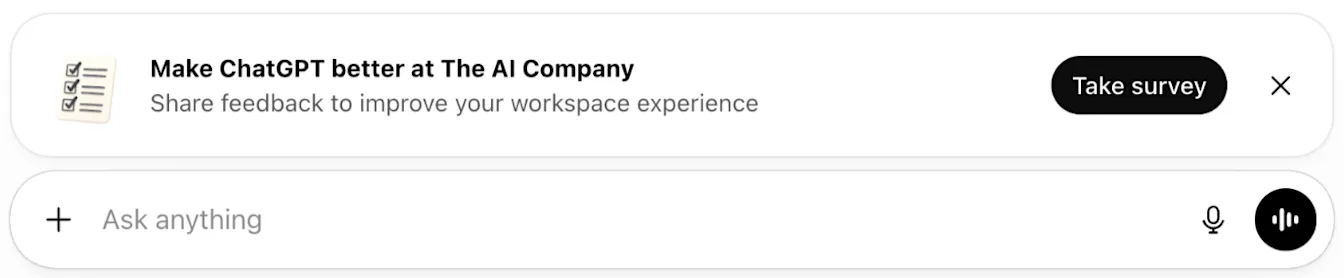
Cipta tinjauan yang dibuat oleh pentadbir
Untuk melancarkan tinjauan yang dibuat oleh pentadbir:
Pergi ke Analitis ruang kerja > Impak.
Pilih Hantar tinjauan baharu.
Masukkan nama tinjauan.
Pilih Cipta.
Tinjauan dihantar serta-merta selepas dicipta. Cipta tinjauan hanya apabila anda sudah bersedia untuk melancarkannya.
Fahami jadual tinjauan
Tinjauan yang dibuat oleh OpenAI dijadualkan pada pencapaian penting tertentu:
Hari ke-120 selepas ruang kerja dicipta (tempoh respons 30 hari)
Hari ke-240 selepas ruang kerja dicipta (tempoh respons 30 hari)
Jadual ini direka untuk mengukur impak selepas pasukan mewujudkan corak penggunaan, tadbir urus dan latihan.
Dalam sesetengah keadaan, tinjauan gantian sekali sahaja mungkin dikeluarkan jika ruang kerja terlepas tempoh tinjauan terdahulu.
Lihat pelaporan tinjauan
Respons tinjauan biasanya mula muncul dalam pelaporan dalam masa 1–2 hari.
Keputusan digabungkan dan ditunjukkan dalam papan pemuka Impak.
Respons tinjauan individu tidak dipaparkan.
Eksport keputusan
Anda boleh mengeksport data tinjauan impak daripada analitis ruang kerja untuk analisis lanjut.
Untuk maklumat eksport penuh, lihat lampiran dalam: Analitis ruang kerja dalam ChatGPT Enterprise dan Edu.
Semak set soalan tinjauan
Tinjauan impak menggunakan set soalan yang dipratetapkan.
Ruang kerja Enterprise
Ahli akan ditanya:
“Antara yang berikut, manakah paling menggambarkan cara ChatGPT telah mempengaruhi produktiviti anda?”
“Secara purata, berapa jam seminggu yang anda anggarkan ChatGPT membantu anda jimatkan untuk tugasan berkaitan kerja?”
Ahli juga menilai tahap persetujuan mereka dengan pernyataan berikut:
“ChatGPT telah meningkatkan kualiti kerja saya.”
“ChatGPT telah meningkatkan kepuasan saya di tempat kerja.”
“ChatGPT telah meningkatkan keupayaan saya untuk menyelesaikan tugasan atau aktiviti baharu.”
“ChatGPT telah meningkatkan keupayaan saya untuk memberikan perkhidmatan kepada pelanggan, rakan kongsi atau pihak berkepentingan.”
Ruang kerja Edu
Ahli akan ditanya:
“Antara yang berikut, manakah paling menggambarkan cara ChatGPT Edu telah mempengaruhi produktiviti anda dalam kerja atau pengajian anda?”
“Secara purata, berapa jam seminggu yang anda anggarkan ChatGPT Edu membantu anda jimatkan untuk kerja atau pengajian anda?”
Ahli juga menilai tahap persetujuan mereka dengan pernyataan berikut:
“ChatGPT Edu meningkatkan kualiti hasil kerja atau pembelajaran saya.”
“Penggunaan ChatGPT Edu meningkatkan kepuasan saya terhadap kerja atau pembelajaran saya.”
“ChatGPT Edu membantu saya mempelajari, memahami atau menerapkan konsep baharu.”
“ChatGPT Edu membantu saya berfikir dengan lebih kreatif atau meneroka idea baharu.”
Nyahdayakan tinjauan impak
Nyahdayakan tinjauan yang dibuat oleh pentadbir
Pergi ke Analitis ruang kerja > Impak.
Pilih tinjauan daripada menu tinjauan.
Pilih Nyahdayakan tinjauan.
Nyahdayakan tinjauan yang dibuat oleh OpenAI
Pergi ke Tetapan ruang kerja.
Buka tab Umum.
Tatal ke bahagian Analitis ruang kerja.
Nyahdayakan Dayakan tinjauan impak yang dibuat oleh OpenAI.