
Overview
When Memory is enabled, ChatGPT can remember relevant preferences and details from your chats and other available sources. This can help you pick up where you left off and spend less time repeating yourself.
Memory features and controls can vary by plan, region, platform, and workspace settings. If a setting described here is not visible, it may not be available for your account yet.
Depending on your plan and region, those sources can include:
past chats
saved memories
custom instructions
saved files available through Library or Space
content from connected apps, such as Gmail
Memory does not retain every detail from every conversation. ChatGPT decides which available information is relevant to a response, and Memory can change as your context changes.
Manage memory settings
To review the Memory controls available to your account:
Open Settings.
Select Personalization.
Select Memory.
Depending on your memory experience, available controls may include Memory, Reference saved memories, Reference chat history, Memory summary, Manage, or Saved memories.
For a linked teen account, a parent or guardian can manage supported memory controls through Parental controls.
Turning off Memory does not delete your past chats. If you turn Memory on later, ChatGPT may create new remembered information from chats that remain in your history.
Turning off Memory or personalization does not disable limited safety and security uses of context in rare, high-risk situations. Those uses are separate from personalization controls.
Review what ChatGPT remembers
Memory summary
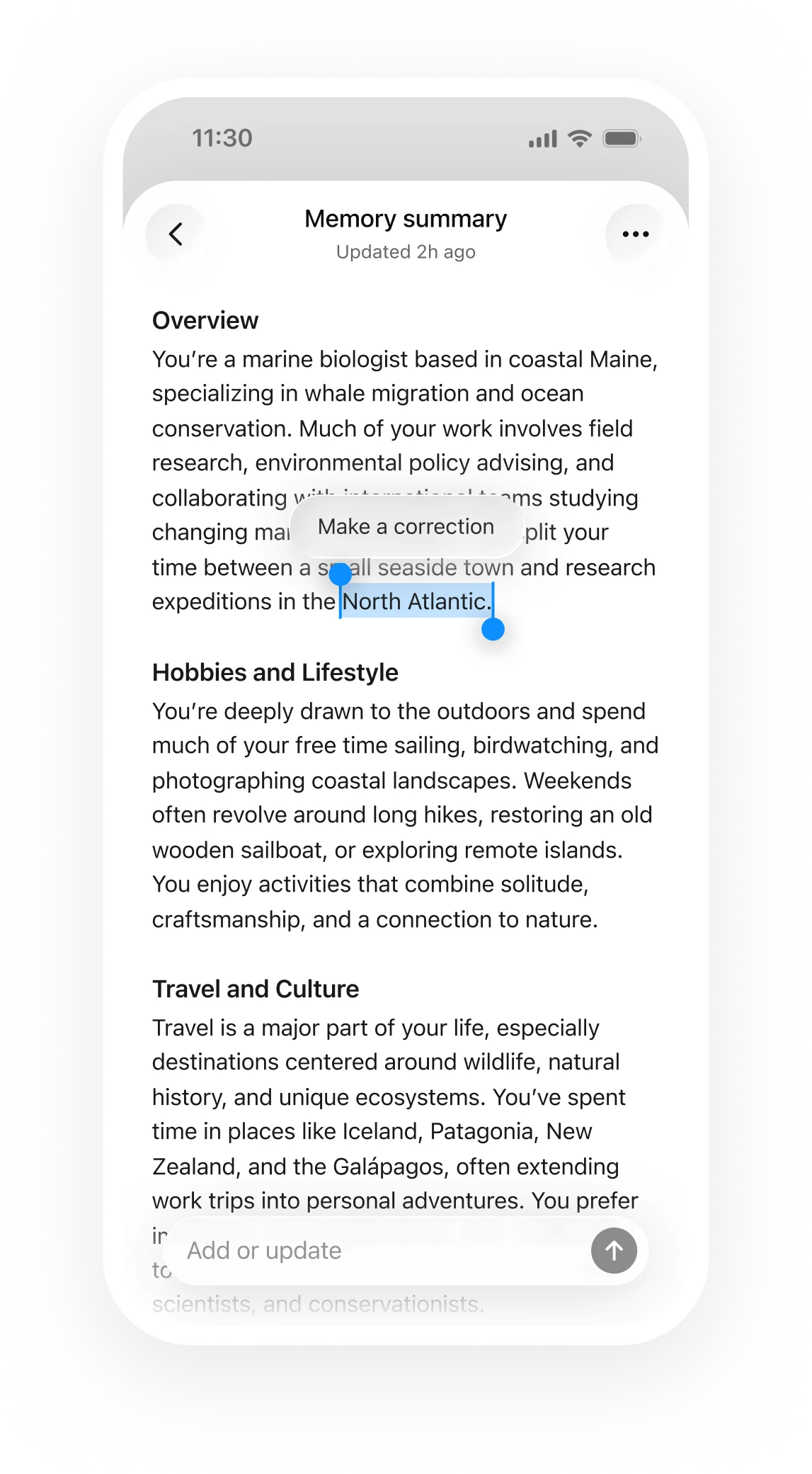
The memory summary is a high-level view of information that ChatGPT may use to personalize responses. It does not necessarily include every detail or source that Memory can reference.
You can also ask ChatGPT what it remembers about you.
When the memory summary is available, you can:
Enter a correction in the text field.
Highlight text and provide a correction.
Select Don't mention this again when that option is available.
Select Delete and turn off memory from the more options menu (•••).
Don't mention this again reduces future references to the information. It does not delete the original source.
Delete and turn off memory deletes the remembered information shown in the summary and turns Memory off. It does not delete past chats.
Sources
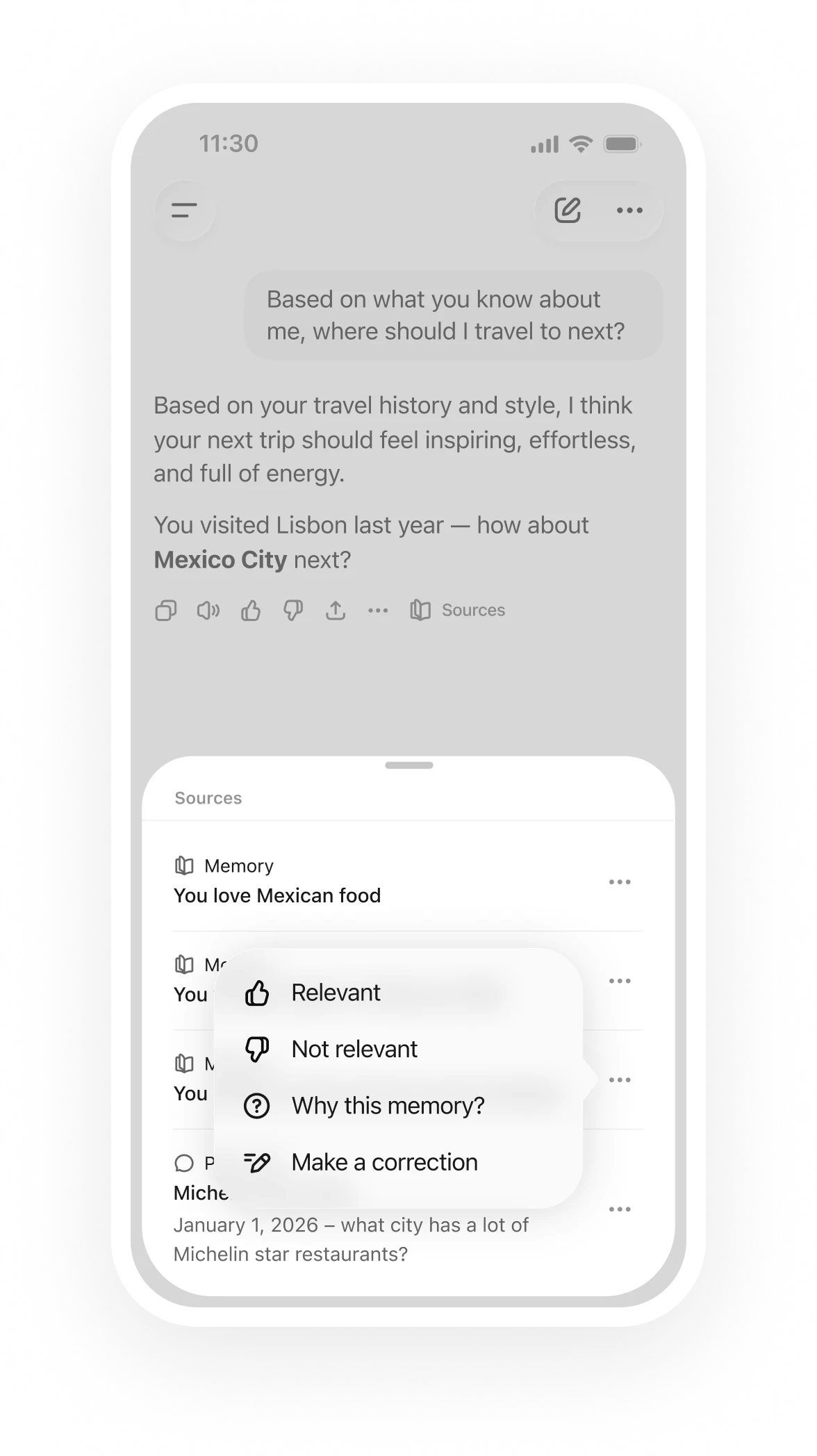
When ChatGPT uses relevant personal context, Sources may appear below the response. Sources can help you review information such as a past chat, saved memory, custom instruction, file, or connected email that contributed to personalization.
Sources may not show every factor that shaped a response. Memory Sources are not included when you share a conversation through a shared link.
Depending on the source and available controls, you may be able to:
open or review the source
correct or delete a saved memory
delete a referenced chat
mark a source as relevant or not relevant
open a referenced file or email
Correct or remove remembered information
Correct information
You can tell ChatGPT that remembered information is incorrect or outdated. You can also edit the memory summary or a saved memory when those controls are available.
Ask ChatGPT not to mention something
Select Don't mention this again when available, or tell ChatGPT not to use the information in future responses.
This changes personalization behavior but does not delete the underlying chat, file, email, or other source.
Delete remembered information
The required steps depend on where the information is stored.
Delete an item from the memory summary or saved-memory controls.
Delete the chat where you shared or referenced the information.
Delete relevant saved files from Library or Space.
Disconnect an app that contains the information when you no longer want ChatGPT to access it.
Deleting a chat alone does not necessarily delete a separate saved memory created from that chat.
Remove remembered information from its sources
To remove information saved as a memory, delete the saved memory and the chat where you first shared it. Also remove the information from any other sources where it appears:
the memory summary
saved memories
regular and archived chats
saved files available through Library or Space
connected apps
It can take time for deletion and Memory updates to propagate. OpenAI may retain logs of deleted saved memories for up to 30 days for safety and debugging purposes.
Reference chat history
If your settings include Reference chat history, turning it on lets ChatGPT use relevant information from past conversations to personalize future responses.
Unlike an explicit saved memory, information derived from chat history can change as ChatGPT updates what is most useful to remember.
If you turn Reference chat history off, information remembered from past chats is scheduled for deletion from OpenAI systems within 30 days. The original chats remain in your history unless you delete them.
If your settings include Reference saved memories, turning it off also turns off Reference chat history. When Reference saved memories is on, you can manage Reference chat history separately.
There is no separate storage limit for what ChatGPT can reference through chat history.
Turning off Reference chat history does not delete your saved memories.
Saved memories
Saved memories are details that you explicitly ask ChatGPT to remember or that ChatGPT saves as useful context when that behavior is available.
Saved memories are stored separately from chat history. Deleting the original chat does not automatically delete a separate saved memory.
You can ask ChatGPT to forget a saved memory or delete it from Memory settings. Deleting a saved memory prevents it from being used in future personalization, but it does not remove mentions of that information from past conversations.
Depending on your plan and platform, saved-memory controls can also include search, sorting, automatic prioritization, and version history.
Improved memory and legacy saved memories
Improved Memory continually updates a broader summary of relevant context. Legacy saved memories use a more explicit list of individual memory items.
Where the option is available, you can switch between the experiences:
Open Settings.
Select Personalization.
Select Memory.
Select Saved memories to use the legacy experience, or select Try improved memory to return to improved Memory.
Changing the Memory experience does not delete your chat history.
Improved memory in regulated workspaces
Improved memory can use context from past chats to keep its memory current. It is distinct from Memory generally and from the legacy saved memories system.
In ChatGPT for Healthcare and ChatGPT Enterprise with Regulated Workspace, improved memory is disabled by default. Workspace owners and admins can make Use improved memory available to the default workspace role or eligible custom roles.
This feature is not covered under your BAA. PHI should not be entered when using this feature.
Members who choose to use improved memory can use Project-only memory to keep memory context limited to a specific project. Chats can reference other conversations in the same project, but they cannot reference conversations outside the project, and chats outside the project cannot reference conversations in it. Project-only memory changes where context can be referenced; it does not change the BAA guidance in this section.
For setup and availability requirements, see: Projects in ChatGPT.
Before enabling improved memory, workspace owners and admins should review who will receive access and tell affected members about this restriction. If a memory setting is unavailable in an Enterprise workspace, contact your workspace admin.
For the current list of functionality covered and not covered under the BAA, see: HIPAA Eligible Products and Functionality.
Memory in locked chats
When Memory is enabled, locked chats can use relevant information from regular Memory. New messages sent while a chat is locked do not personalize regular chats.
Locking a conversation does not remove information that ChatGPT remembered before it was locked. After permanent unlock, the full conversation may be used for regular Memory if your settings and workspace policies allow it.
Memory in temporary chat
Before starting a temporary chat, you can choose whether it uses existing memories, custom instructions, and plugins. Select Unpersonalized if you do not want to use them. You cannot change this choice after the conversation starts.
Temporary chats do not create or update memories, even with personalization on. Your account and workspace restrictions still apply.
Saving a temporary chat converts it to a regular chat. It then follows your account’s personalization and model-improvement settings. If Memory is on, ChatGPT may use the saved conversation to personalize future responses.
Limited safety-relevant context may be used in rare, high-risk situations. This safety use is separate from Memory personalization.
For more information about temporary chat, see: Temporary chat in ChatGPT.
Privacy and model training
Sensitive information can appear in Memory if you share it with ChatGPT. Review Memory settings and Sources, and choose a non-personalized temporary chat when you do not want the conversation to use or create memories for personalization. If you save the chat, it becomes a regular chat and follows your account’s personalization settings.
For personal ChatGPT accounts, OpenAI may use chats and remembered information to improve models when Improve the model for everyone is on. You can turn that setting off in Data controls.
By default, OpenAI does not use content from ChatGPT Business, Enterprise, Edu, or ChatGPT for Healthcare workspaces to train its models.
For more information about data controls, see: Data controls in ChatGPT.
FAQ
Does the memory summary include everything ChatGPT remembers?
No. The summary is a high-level view and may omit details that are less relevant, unsuitable for the summary, or derived from sources that are not displayed individually.
Is memory different from custom instructions?
Yes. Custom instructions are direct guidance that you provide about what ChatGPT should know and how it should respond. Memory can use relevant information that develops across conversations and other available sources.
For more information about custom instructions, see: ChatGPT Custom Instructions.
Can ChatGPT remember my name or account identity?
ChatGPT can remember a name that you provide. When Reference chat history is enabled, ChatGPT may also use the account name already shown in the product when that information is relevant.
Does ChatGPT search my history for every response?
No. ChatGPT looks for relevant context when it is likely to improve a response.
Can memory personalize web searches?
Yes. When Memory is enabled, ChatGPT may use relevant details to formulate a more useful search query. For example, location or dietary preferences can help refine a restaurant search.
Can memory use files or connected apps?
Depending on plan and region, ChatGPT may use relevant saved files available through Library or Space and connected-app content when those features are available and enabled.
Disconnecting an app prevents future access to that app. It does not delete past conversations that already used app content.
Can workspace owners control memory?
Workspace owners and admins can manage supported memory settings and role permissions. If a memory setting is unavailable in your workspace, contact your workspace admin.