
Account switching is rolling out on iOS and Android. If you don’t see Switch account in Settings, it may not be available to you yet.
Overview
You can stay signed in to up to 2 ChatGPT accounts at a time and switch between them without signing out. Only one account is active at a time.
Availability
Account switching is available on ChatGPT web and in the ChatGPT iOS and Android apps.
On the web, account switching can be used with all plan types, but your organization may control whether it is available for your managed workspace. If you do not see the option in a managed workspace, check with your workspace administrator.
How the account switcher works
Stay signed in to up to 2 accounts
You can stay signed in to up to 2 accounts at a time. You can have more than 2 ChatGPT accounts. If 2 accounts are already signed in, log out of one before adding another.
Creating a second account does not require payment. Your newly created account will start on the Free plan by default.
Add an account on the web
Open the account menu.
Select Add account.
Sign in or create a new account.
If 2 accounts are already signed in, select Add another account. Choose an account to log out of, then select Log out and continue to sign in to the account you want to add.
Add an account on iOS or Android
If 2 accounts are already signed in, Add account is hidden. Log out of one account to make Add account available again.
Open Settings.
Select Switch account.
Select Add account.
Sign in to the account you want to add.
Switch accounts
On the web, open the account menu and select the account you want to use. On iOS or Android, open Settings, select Switch account, and select the other account.
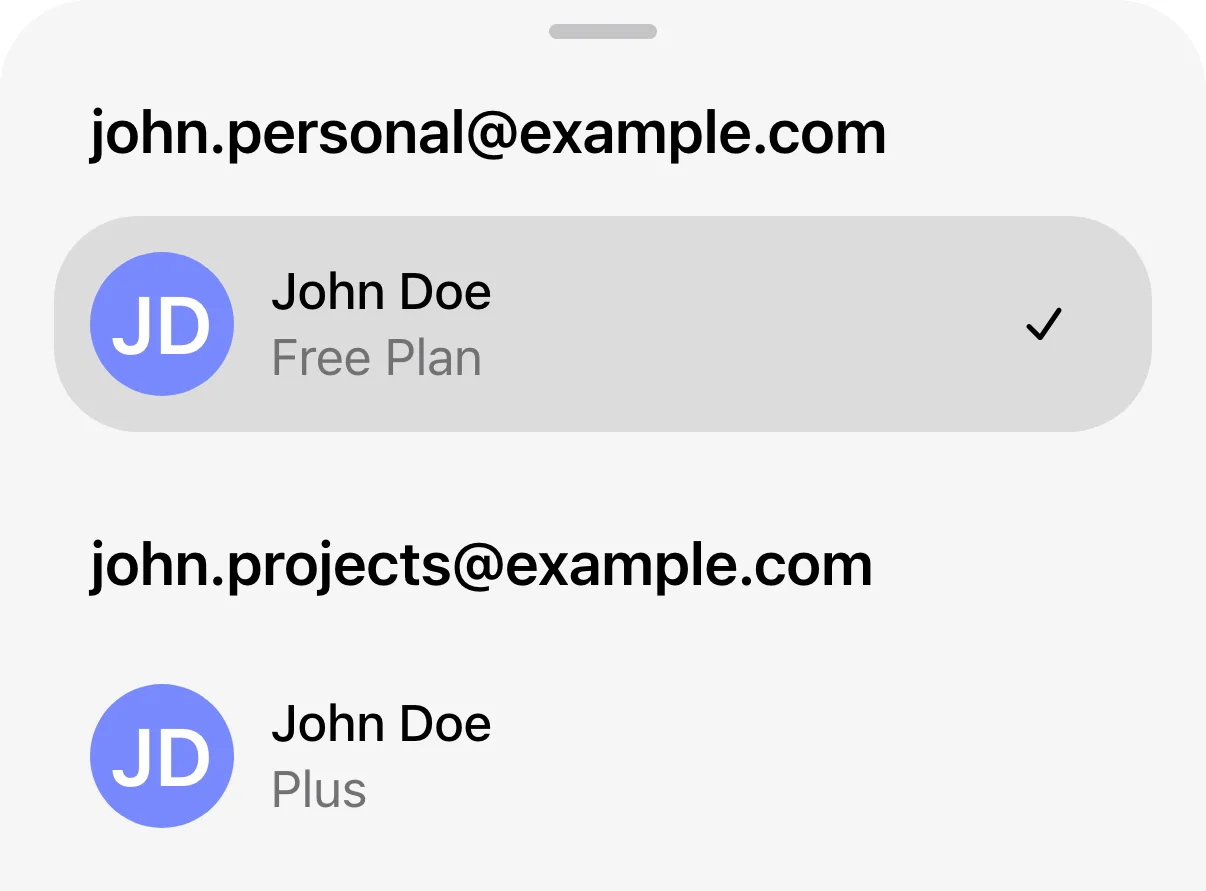
Example of two signed-in accounts. The checkmark identifies the active account.
When you switch, chats, memory, files, and settings reflect the selected account. Workspaces, where available, are scoped to that account. Check the active account before starting a conversation or making a purchase.
Switching does not:
Move chats between accounts
Share memory or conversation history
Share files or uploads
Combine billing or subscriptions
Merge accounts or workspaces
Notifications on mobile
You can receive notifications for both signed-in accounts, depending on each account’s settings and your device permissions. Selecting a notification for the other account switches to that account and opens the relevant content.
Log out of an account
Logging out removes that account from the switcher.
On mobile, logging out of the active account opens the other signed-in account. Logging out of the last account returns you to the sign-in screen.
Log out on the web
Open the account menu.
Select Log out.
If 2 accounts are signed in, select the account you want to log out of.
Confirm if prompted.
Log out on iOS or Android
Open Settings.
Select Switch account.
Open the more options menu (•••) for the account you want to log out of.
Select Log out and confirm.
Subscriptions and purchases
Each account keeps its own plan. Switching accounts does not transfer or share a subscription.
If you already paid but cannot access your subscription, check the ChatGPT account that owns it before making another purchase.
If you want a paid plan on another ChatGPT account, you need a separate subscription. Check for existing subscriptions before purchasing to avoid duplicate charges.
For help recovering a subscription, purchasing a new one, changing or canceling a plan, or resolving a purchase error, see: Troubleshooting ChatGPT subscription access and account changes.
Workspace-managed accounts on the web
If your organization manages your ChatGPT account:
Your administrator may be able to access and manage data tied to that account.
Data created in your managed account is governed by your organization’s policies.
Switching accounts does not change which policies apply.
Read more about data access for your managed ChatGPT account. If you’re unsure which account you’re using, check the active account shown in the account menu. If you have questions about your organization-managed account, contact your IT administrator.
Frequently asked questions
Is switching accounts the same as switching workspaces?
No. Switching accounts changes which ChatGPT account you are using. Switching workspaces changes the workspace within an account.
What happens if my workspace is deactivated?
On the web, if a workspace tied to an account is deactivated:
You may see a banner explaining the change.
You may be prompted to sign in with a different account or purchase a new subscription, depending on the plan.
ChatGPT will not automatically switch you to another account.