
Overview
Domain verification confirms that your company or institution controls an email domain. A verified domain can support your tenant’s identity settings and single sign-on (SSO).
Verifying a domain does not by itself enable SSO, configure System for Cross-domain Identity Management (SCIM), or grant product access. If automatic account creation is on for a ChatGPT workspace mapped to the domain, eligible people can join that workspace when they sign in with a matching email address. Review this setting before applying the domain to a workspace.
Domain verification can also support a GPT Builder Profile that uses a verified website. It does not give a personal ChatGPT account permission to create or publish new GPTs. For builder-profile requirements, see: Sharing and publishing GPTs.
Check your tenant before you start
Before verifying a domain, identify:
The tenant that should manage the domain and its identity settings.
A global admin for a tenant-managed domain or a workspace owner for a standalone ChatGPT Business workspace.
The DNS administrator who can add a public TXT record.
Existing ChatGPT workspaces, API organizations, Ads accounts, and users associated with the domain.
Any active SSO connection, existing account-migration policy, or administrator recovery method.
If another tenant already verified the domain, contact your account team or OpenAI Support before trying to remove it or change sign-in settings.
For a standalone ChatGPT Business workspace, a workspace owner can verify the domain under Identity & access in ChatGPT. If the settings are read-only or show Cloud Console ↗, ask a global admin to manage the shared tenant domain.
Verify a domain in Admin Console
You need global admin permissions to verify a tenant-managed domain.
Sign in to Admin Console and select the tenant that should manage the domain.
Go to Global settings.
Open Access > Domains, then select Add domain. An earlier Admin Console view may show Add Domain.
Enter the exact domain or subdomain your company or school controls, then select Add.
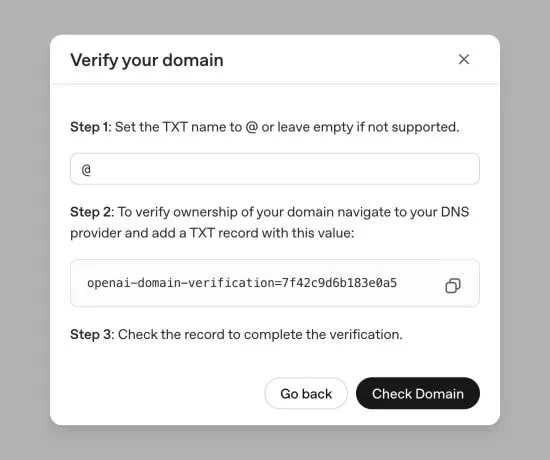
Copy the DNS TXT verification value shown by OpenAI.
At your DNS provider, create a TXT record with that value. Set the record name to @, or leave it blank if your provider requires that.
Return to Admin Console, select Check Domain, and confirm that the domain shows Verified.
OpenAI must be able to read the TXT record through public DNS. DNS propagation can take up to 24 hours. If a verification attempt expires before you finish, start a new attempt and complete it within the new 7-day window. A completed domain verification does not expire.
Some customers need OpenAI Support to verify a domain. If the add (+) button is unavailable, or your company or school cannot publish the required TXT record, contact your OpenAI account team or Support.
If a standalone ChatGPT Business workspace manages its own identity, a workspace owner can complete the equivalent steps under Identity & access in ChatGPT. The final verification button may be labeled Check. For Business-specific instructions, see: Setting up single sign-on for ChatGPT Business.
Review workspace access
After the domain is verified:
Choose the ChatGPT workspaces the domain should apply to.
Review automatic account creation for those workspaces.
Turn it off for any workspace where you do not want people to join automatically when they sign in with a verified-domain email.
For Enterprise plans, automatic account creation is on by default for the first eligible ChatGPT workspace created in a new tenant and off by default for an additional workspace created in an existing tenant. Check each workspace’s actual setting before continuing.
If you plan to manage access through SCIM, turn off automatic account creation. For workspace defaults and controls, see: Managing your tenant in Admin Console.
Review where the verified domain applies
In Global settings, open Access > Domains to review which products are associated with the verified domain. A newly verified domain can initially apply to all eligible ChatGPT workspaces and API organizations.
Open the menu for the verified domain and select Manage eligibility.
Choose whether the domain applies to all eligible workspaces and API organizations or to selected ChatGPT workspaces.
Review whether All API Orgs is selected. Domain eligibility applies to API organizations together, not to one API organization at a time.
Select Save after confirming that the resulting access matches your intended settings.
Review domain eligibility before you enforce SSO, change onboarding settings, or invite users. Domain eligibility and SSO do not by themselves grant product membership. If automatic account creation is on for a mapped ChatGPT workspace, eligible people can join when they sign in with a verified-domain email.
Understand sign-in and account impacts
A domain generally can be verified for only one tenant. Connected ChatGPT workspaces and API organizations should use the tenant where the domain is already verified. If another tenant has verified it, contact OpenAI Support instead of creating a replacement tenant or changing a working identity-provider connection.
Verifying a work domain does not delete an existing personal ChatGPT workspace or merge its chats. Before changing sign-in policies, review how existing work-email accounts and product memberships could be affected.
Domain verification and domain claiming are different. Verifying a domain does not claim it. Domain claiming is available only for approved use cases and requires a separate request through OpenAI Support or your account team.
A parent domain does not automatically verify its subdomains. Verify each exact email domain used by your identity provider or product.
Tenant-wide SCIM can update a managed user’s primary email on their existing OpenAI account when both the current and new email domains are verified for the directory’s tenant. An eligible ChatGPT workspace-level SCIM connection also requires both domains to be verified for the same workspace and its tenant. The email change signs the user out, so they must sign in again.
SCIM remains a separate setup from SSO and domain verification. For managed email-change requirements and steps, see: SCIM provisioning and management.
For users who already have personal or work accounts, see: Onboarding employees with existing ChatGPT accounts.
To configure sign-in after verifying your domain, see: Single sign-on (SSO) setup for OpenAI products.
Restrict app connections using a verified domain
ChatGPT Enterprise organizations can request restrictions on connecting accounts that use a verified company email domain to apps outside their authorized ChatGPT workspaces.
When enabled, users can make new connections to supported apps using your verified company email domain only from your organization’s authorized ChatGPT workspaces. New connections from personal or other unauthorized workspaces are blocked. Existing app connections are not automatically disconnected.
Contact OpenAI Support to request this be enabled. Include your verified company domain and the names of the apps your organization would like to restrict.
Verifying the domain does not turn on this restriction. It applies only to supported apps. You do not need to enable domain claiming that restricts personal ChatGPT accounts.
For supported apps and limitations, see: Admin controls, security, and compliance for plugins and apps.
Resolve a domain verification issue
If the TXT record cannot be found, confirm that its name and value exactly match the instructions in Admin Console.
If the record was added recently, allow time for public DNS propagation and select Check Domain again.
If the domain is already verified, ask whether another tenant has verified it before changing existing settings.
If a subdomain is not recognized, verify that specific subdomain rather than assuming its parent domain covers it.
If people cannot sign in after a domain change, check the selected tenant, domain eligibility, identity-provider assignment, SSO policy, and product membership.
For sign-in errors and additional recovery steps, see: Troubleshooting SSO, workspace access, and domain verification.
If your company or school cannot complete verification or recover access, contact OpenAI Support.