
Looking to contact OpenAI support? Please visit here: How can I contact support?
Overview
ChatGPT agent is no longer available. Use ChatGPT Work for longer, multi-step tasks and finished deliverables. For supported browser workflows, see Using cloud browser in ChatGPT.
Getting started
To start using agent mode, select it from the tools menu or type /agent in the composer. Describe the task you want completed, and the agent will begin executing it. It will pause for clarification or confirmation when needed. Agent mode does not require technical skills, and can be guided or interrupted mid-task, making it accessible to many users and adaptable to changing needs.
Availability by plan
Agent mode is currently available on Pro, Plus, Business, Enterprise, and Edu plans for users in all of our supported countries and territories.
Usage and limits
Agent mode includes the following monthly message limits:
Plus: 40 messages/month
Pro: 400 messages/month
Business & Enterprise: 40 messages/month
Business & Enterprise plans using flexible pricing: 30 credits/message
Only initial user-initiated agent requests count toward the limit. Intermediate clarifications or authentication steps are not counted against the usage limit. ChatGPT agent use is subject to reasonable rate limits (such as limits on the number of concurrent tasks) in order to ensure the product works well for all users.
Please note that each unique agent invocation will count against the monthly message limit. This includes agent requests that are part of scheduled tasks.
Apps
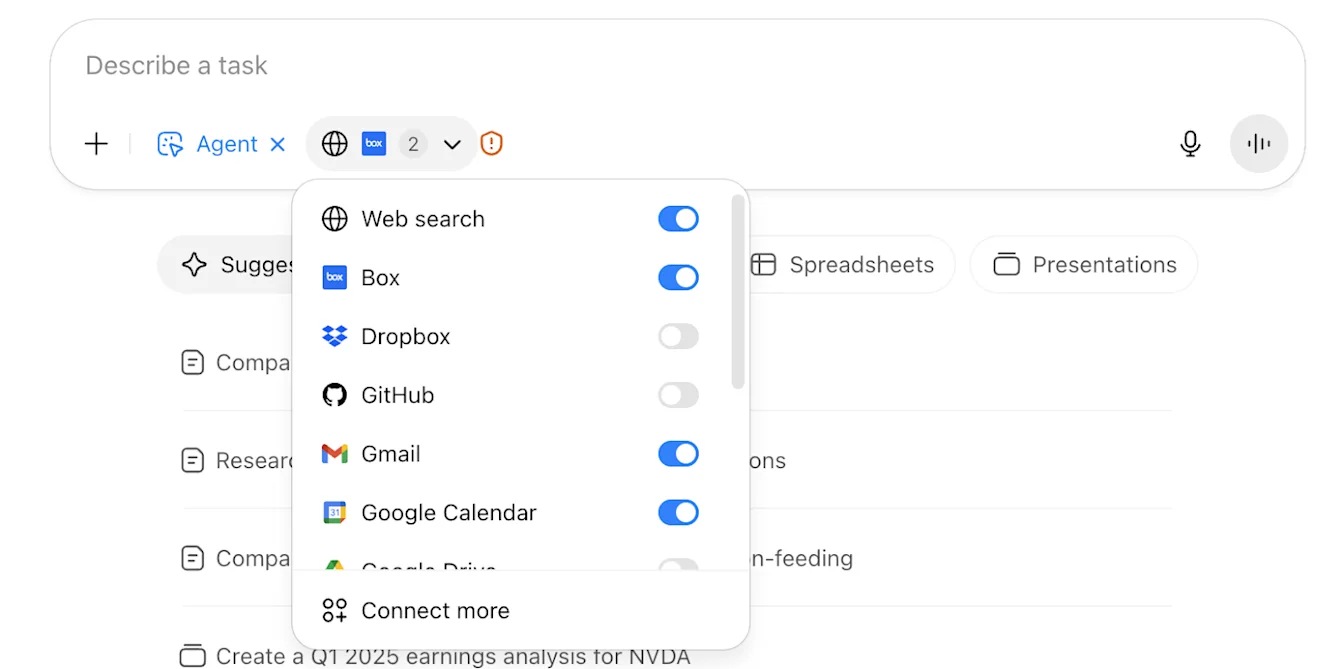
ChatGPT agent can use apps as additional data sources to leverage when conducting research. You should use extra caution when using apps with ChatGPT agent to prevent unauthorized access to sensitive information.
Task scheduling and management
After a task finishes, you can set it to repeat daily, weekly, or monthly by selecting the Clock icon. All recurring tasks can be reviewed and managed at chatgpt.com/schedules.
To edit or manage tasks:
Select the more options menu (•••) > Edit schedule in the conversation.
Use the Clock icon on specific messages.
Visit chatgpt.com/schedules to review, edit, pause, or delete tasks.
Safety and privacy
When you sign ChatGPT agent into websites or enable apps, it can access sensitive data like emails, files, or account settings, and perform actions on your behalf (e.g., sharing files, modifying account settings). This creates potential privacy risks, including “prompt injection” attacks.
ChatGPT agent incorporates multiple safeguards, including user confirmations for high-impact actions, refusal patterns for disallowed tasks, prompt injection monitoring, and a “watch mode” requiring user supervision on certain sites. These measures are designed to help prevent harmful or unintended outcomes. However, these measures don’t eliminate all risks. It remains important to monitor ChatGPT agent and exercise care when using it.
Prompt injection example
For example, you might ask the agent to find a restaurant for a group dinner by checking your calendar and recent emails. While researching, it might encounter a malicious comment—essentially a harmful piece of content designed to trick the agent into performing unintended actions—directing it to retrieve a password reset code from Gmail and send it to a malicious website.
ChatGPT agent includes extensive multi-layered safeguards designed to help reduce risk, but you can exercise caution by disabling unnecessary apps, avoiding sensitive logins, or logging out when done.
Learn more about prompt injection safeguards in the ChatGPT agent system card.
Best practices for data safety and reducing privacy risks
Avoid typing passwords or private info directly in messages; use takeover mode for sensitive inputs.
Enable only the apps needed for the current task.
Consider the data sensitivity of sites you log into via agent.
Avoid vague, open-ended prompts like “Check my email and handle everything.”
Stop tasks immediately if something seems suspicious.
Clear remote browser data after sensitive sessions.
Regularly review and manage app permissions in your settings.
Sensitive data and logins
If a task requires a login, ChatGPT agent will pause and prompt you to take control of the virtual browser (“…” → Take over browser). While you control the browser, screenshots are not captured, which helps protect passwords and other sensitive data you enter. After you complete the required step and return control, the agent attempts to continue from the prior workflow state; in some cases it may need to re-establish the run or prompt you again if takeover or resume cannot be completed.
Cookies persist across sessions for convenience, just like a regular browser.
To clear saved logins or cookies, sign out of sites and remove cookies in your ChatGPT data control settings.
Data handling and taking of screenshots
ChatGPT agent uses screenshots of its virtual browser window to “see” and interact with web pages. This allows it to click buttons, fill out forms, and navigate websites. Screenshots also help ChatGPT agent reason about what actions to take and adjust its behavior if it encounters challenges or errors during a task.
Screenshots capture the window in the virtual browser where the task is active.
When you’re controlling the browser, ChatGPT doesn’t capture passwords or sensitive data you manually enter.
Chats, agent browsing history, and screenshots remain in your conversation history until you delete them. Deleting a chat also deletes any associated screenshots.
Do humans review my ChatGPT agent content?
Your ChatGPT agent content (including screenshots) may be accessed by a limited number of authorized OpenAI personnel, as well as trusted service providers that are subject to confidentiality and security obligations in order to: (1) investigate abuse or a security incident; (2) provide support to you if you reach out to us with questions about your account; (3) handle legal matters; or (4) improve model performance (unless you have opted out). Access to content is subject to technical access controls and limited only to authorized personnel on a need-to-know basis. Additionally, we monitor and log all access to user content and authorized personnel must undergo security and privacy training prior to accessing any user content.
Business, Enterprise, and Edu plans
By default, we do not use your business data for training our models, including data accessed during agent mode sessions.
Plus and Pro users
For Pro and Plus users, your data, including screenshots for the visual browser, is used in accordance with OpenAI’s privacy policy, including to provide the service, maintain safety, and—if you've opted in—improve our models.
You have control over how long we retain your data in ChatGPT agent, and whether we use it to improve our models, which we also describe further below.
How long are ChatGPT agent chats and screenshots retained?
Your chats in ChatGPT agent, browsing history in ChatGPT agent, and screenshots associated with those conversations, are retained until you delete them. Deleting a chat deletes the screenshots taken during that chat. Deleted chats and associated screenshots will be deleted from our systems within 90 days. You can learn more about how you can delete your data here.
To turn off model training, go to Settings → Data Controls and disable “Improve the model for everyone.”
Turn off model training
You can control whether your data is used to improve and train OpenAI’s models. To do so, on ChatGPT’s site, look for the Data Controls (or “Privacy” settings).
To turn off or disable model training, select your profile icon, go to Settings > Data Controls, and turn off “Improve the model for everyone”:
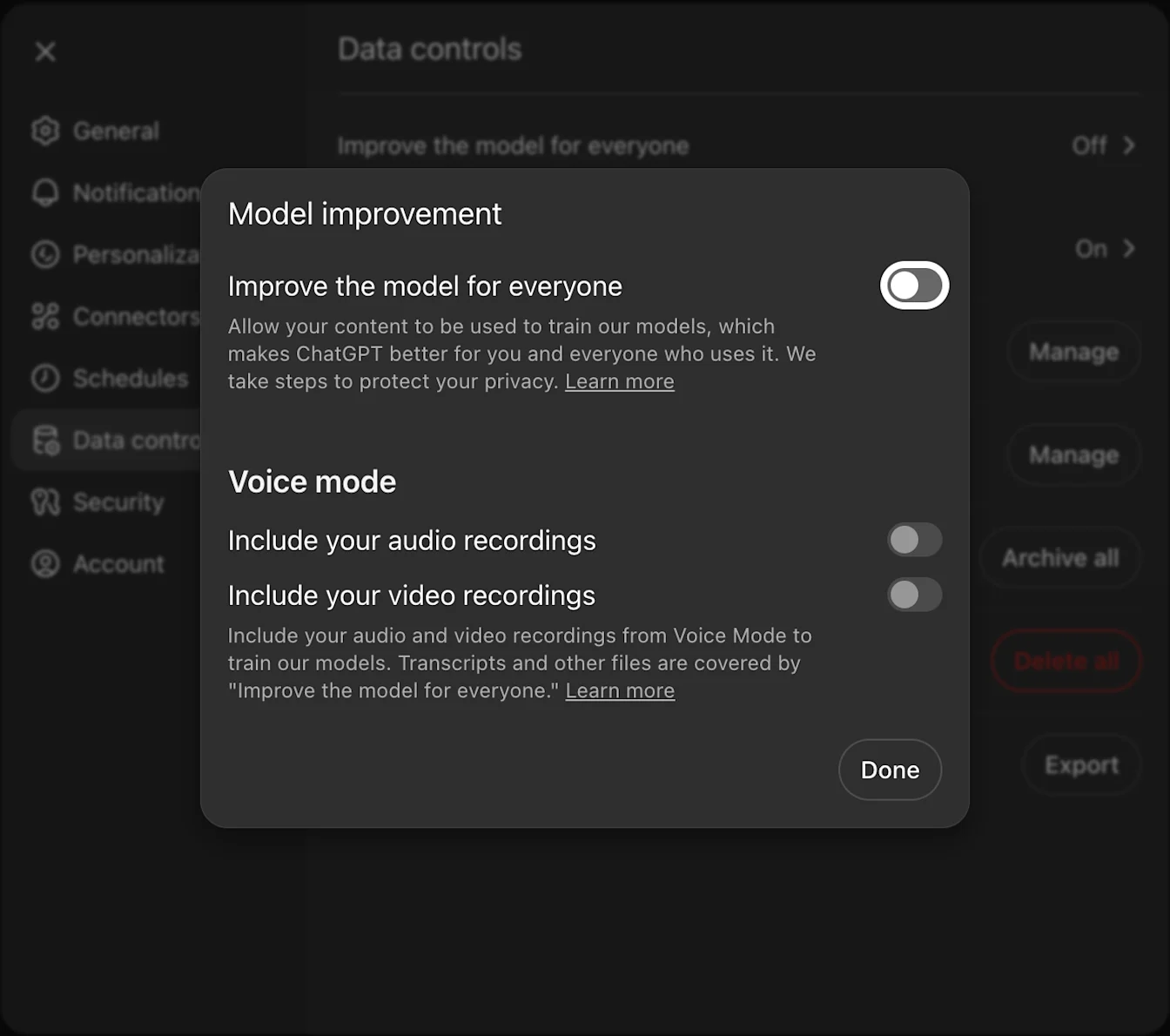
Turn off "Improve the model for everyone"
When this setting is OFF, your new conversations (including screenshots) won’t be used for training OpenAI models. (You may separately choose to delete prior chats and screenshots as described above.)
Please refer to this article to understand how content may be used to improve model performance.
Website access restrictions
To maintain security, safety, and compliance, ChatGPT agent may not be able to visit certain websites. This blocklist applies across both the virtual browser and apps. If an attempt is made to access a restricted site, the task will not proceed for that source.
Workspace controls (Enterprise and Edu)
Workspace toggle
Enterprise workspace owners will have a toggle to enable or disable agent mode for their workspace, defaulted to OFF.
Role-based access controls (RBAC)
Workspace owners will be able to assign agent mode as available to specific roles. For more information about RBAC, please refer to our documentation.
App controls
Workspace owners can control which apps are available, and agent mode will only have access to the apps that have been enabled for the workspace. It will not be able to use any apps that are disabled.
Note: Agent mode cannot access data from apps with sync (like Google Drive). However, if apps such as Google Drive chat and deep research are enabled, it can still access the data that way.
Compliance API
Conversations involving agent tasks will appear in Compliance API logs, but individual agent actions (such as virtual computer usage, app requests, chain of thought) will not.
Data residency and retention
Enterprise data residency and custom retention policies will be respected.
Agent mode is available for enterprises worldwide, including those with data residency in the EU.
Analytics and reporting
Usage analytics for agent mode will be included in reporting dashboards in the near future, however will not be available upon launch.
Website blocking
Workspace owners can request to block specific websites and domains from ChatGPT agent access. When a site is blocked, the agent will not visit it while browsing or taking actions. You can choose to block:
Exact domains: For example,
website.comormail.website.comEntire domains with all subdomains: For example,
.website.comwill blockwebsite.com,mail.website.com,docs.website.com, and all other subdomains.
If you would like a blocklist set up for your workspace, contact your OpenAI Account Director or Customer Success Manager.
If you do not have an account team, contact OpenAI Support. Include your workspace ID and the website(s) you want blocked.
Allowing agent mode to access your website
If you want to ensure that ChatGPT agent mode can access your website, follow the allowlisting steps outlined in the ChatGPT agent allowlisting guide.
Operator
Operator functionality is now integrated into ChatGPT agent mode. The Operator website is no longer accessible.
FAQs
Is it available on the Free plan?
Agent mode is currently only available for paid plans.
Does ChatGPT agent cite sources?
Yes, outputs include source links or screenshots.
Which devices can I use agent mode on?
Agent is supported on ChatGPT Web, mobile (iOS/Android), and desktop apps (macOS/Windows).