
You can use the API Usage Dashboard using your OpenAI platform account to view monthly usage and export detailed usage or cost data as a CSV.
Export cost data to get a detailed spend breakdown
Create an invoice-like breakdown by grouping data by line item
Export data for a full calendar month or month-to-date (MTD)
Download usage or cost data as a CSV for reporting
Note: For Enterprise customers, starting with invoices issued on April 1, 2026, detailed API costs will no longer be provided on OpenAI invoices; this is being replaced by the export flow described in this article. Read on for specific instructions to get equivalent monthly detail - specifically, the Export detailed monthly usage or cost data section.
Get started
Sign in to platform.openai.com.
Select the relevant organization/project and select Usage in the sidebar.
Note: If you do not see the expected billing/usage data, check your organization permissions and filters.
Set the monthly date range
On the Usage page, select the date range picker.
Choose the date range based on your reporting needs.
For example, to get data for a full calendar month, you can set the start date to the first day of the month, and the end date to the last day of the same month.
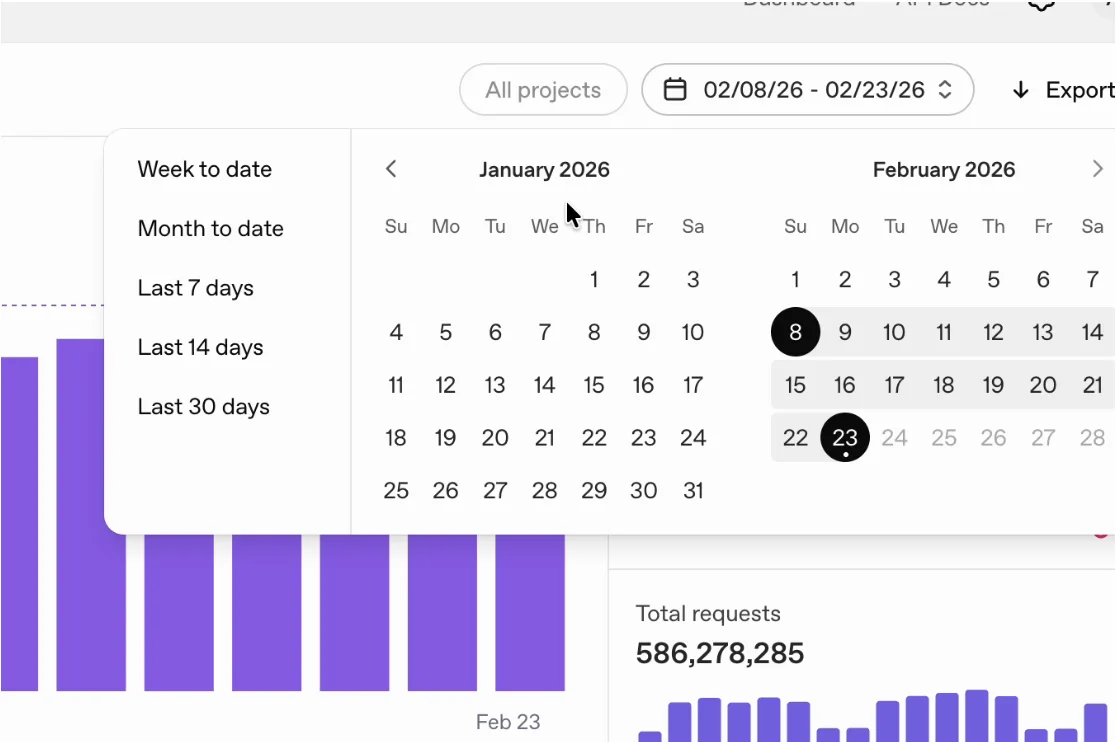
You can select the Month to date option to set the start date automatically to the first of the month.
Export detailed monthly usage or cost data
On the Usage page, select Export.
In the modal, choose the export type. You can use Activity data for detailed usage activity, or Cost data for detailed spend/cost reporting.
Recommended export settings for detailed monthly cost reporting
For Enterprise customers, OpenAI API invoices are issued for calendar-month service periods, usually a few days after the end of the month. If you want a detailed breakdown of costs that reconciles to the total invoiced API consumption amount, select the Cost data tab and use these settings:
Group by: Line item
Projects: All (or select a specific project)
File format: CSV
Start time: First day of the reporting month
End time: Last day of the reporting month (or today for MTD)
Time interval: 1 day

You can also use Activity data when you need usage-level detail. For example, you can filter on a specific API capability, and group the exported data by project, user, API key, model, batch, or service tier.
Generate and download the export
After setting the parameters of the report you are interested in, select Download in the Export modal.
The report may take some time to be generated. Once it is ready, select the download icon next to the generated file.
FAQ
I logged into my account, and can open the Usage pane, but not billing settings - how do I fix this?
Some billing settings may require additional organization permissions. Contact your Organization owner to review or request permissions.
After I select the download button, why does my file not appear immediately?
Depending on the amount of data in your export, the downloadable file may take a few moments to be generated, and will be ready for download when available.
What time zone is followed for this export?
Usage dashboard dates/times are shown in UTC.
Why doesn't my invoice reconcile with the cost breakdown export?
Check the following:
Ensure you are reconciling the same Organization from this export as the one you have been invoiced for. If you have multiple organizations, they may have separate invoices, or may be consolidated, depending on your invoicing setup as requested during the sales process.
Ensure you are reconciling the correct period. Invoices are for calendar month periods, for example consumption from January 1, 2026 through January 31, 2026 UTC is invoiced in February.
If you still have trouble reconciling your spend, reach out to our support team for further help.