OpenAI
このページは機械翻訳されています。元の英語の記事を表示

Google Workspace - 管理者管理セットアップ

更新日: 16 days ago

管理者管理セットアップを使用して Google Workspace を ChatGPT に接続するには、まず Google の管理コンソールでアクセスを設定します:

  • サービス アカウントを作成し、Google Drive、ユーザー、グループへの読み取り専用アクセスを付与します。

    • このサービス アカウントは、ChatGPT ワークスペースに関連付けられているものと同じ Google アカウント配下で作成することを強くおすすめします。ChatGPT ワークスペース内のアカウントが Google Workspace で使用しているものと異なるメールドメインを持つ場合、ユーザーにこのコネクタを有効にするには追加の手順に従う必要があります

  • サービス アカウントが代理として動作する管理者アカウントを作成します。

次に、ChatGPT 管理コンソールで設定を完了します:

  • サービス アカウントの秘密鍵をアップロードします(Google から取得した JSON ファイル)

  • 管理者アカウントを指定します(認証情報は不要です)。

  • 同期するファイルを選択し、接続にアクセスできるユーザーを選択します。

このガイドでは、これら 6 つの手順を順に説明します。

サービス アカウントの設定

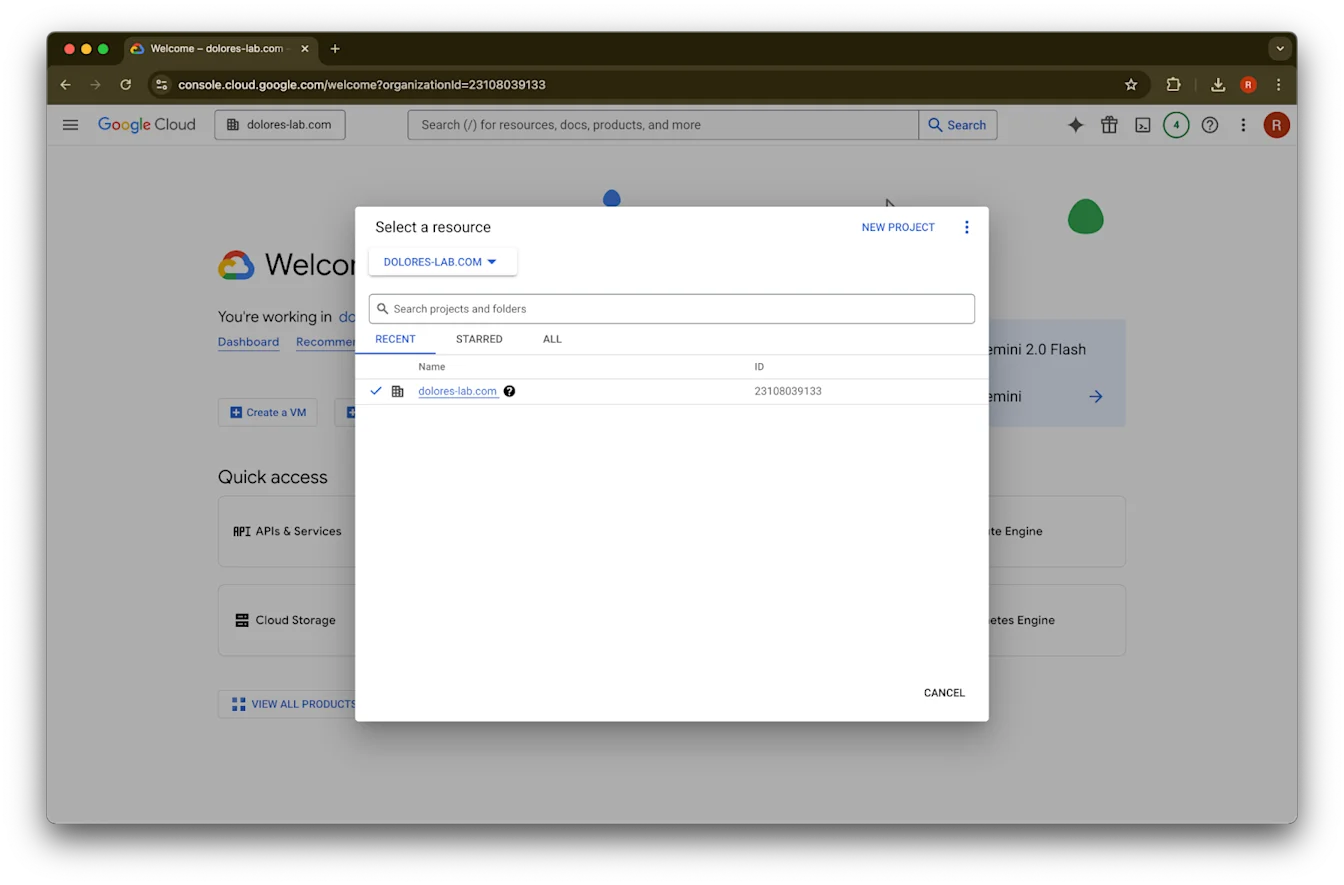
  1. console.cloud.google.com に移動します。

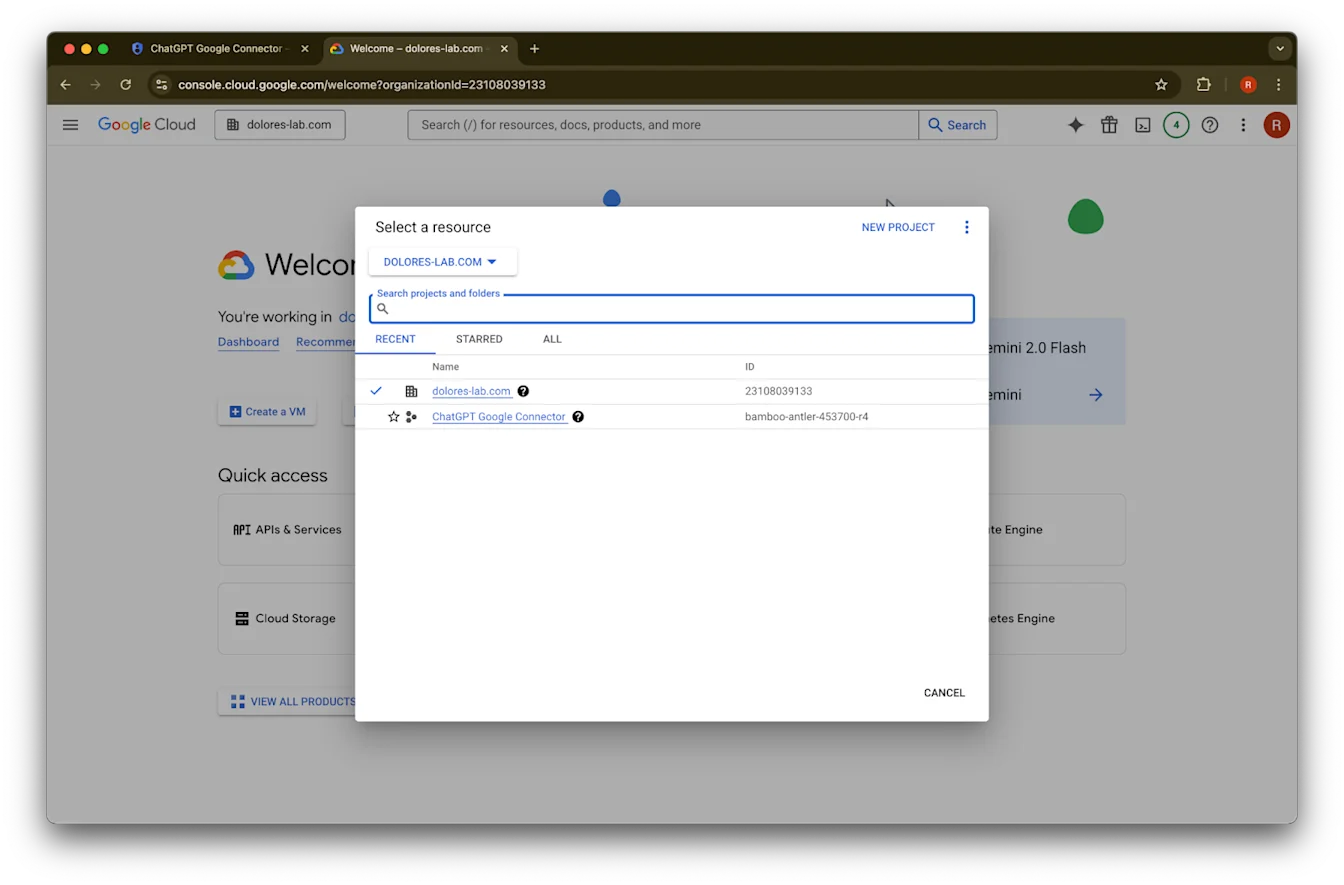
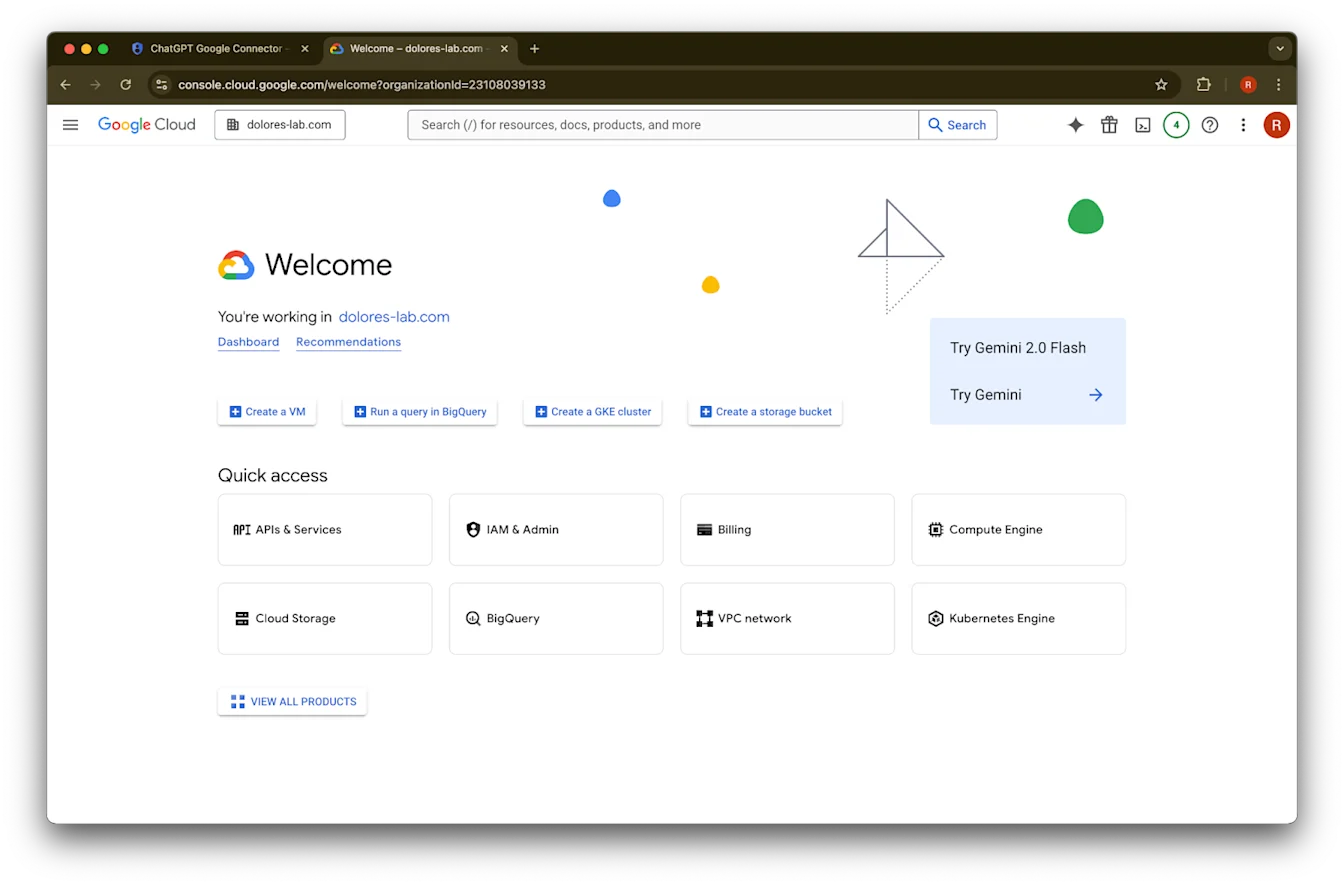
  2. プロジェクトのプルダウンをクリックします。ImageChatGPT ワークスペースに関連付けられているものと同じ Google workspace にログインしていることを確認してください(ChatGPT ワークスペースに関連付けられた Google workspace がなく、両者でメールアドレスが異なる場合は、追加の手順に従う必要があります。そうしないと、ユーザーが Google Drive 同期コネクタを利用できない可能性があります)。

  3. New Project を選択します

    Google Cloud Select a resource dialog with dolores-lab.com organization selected
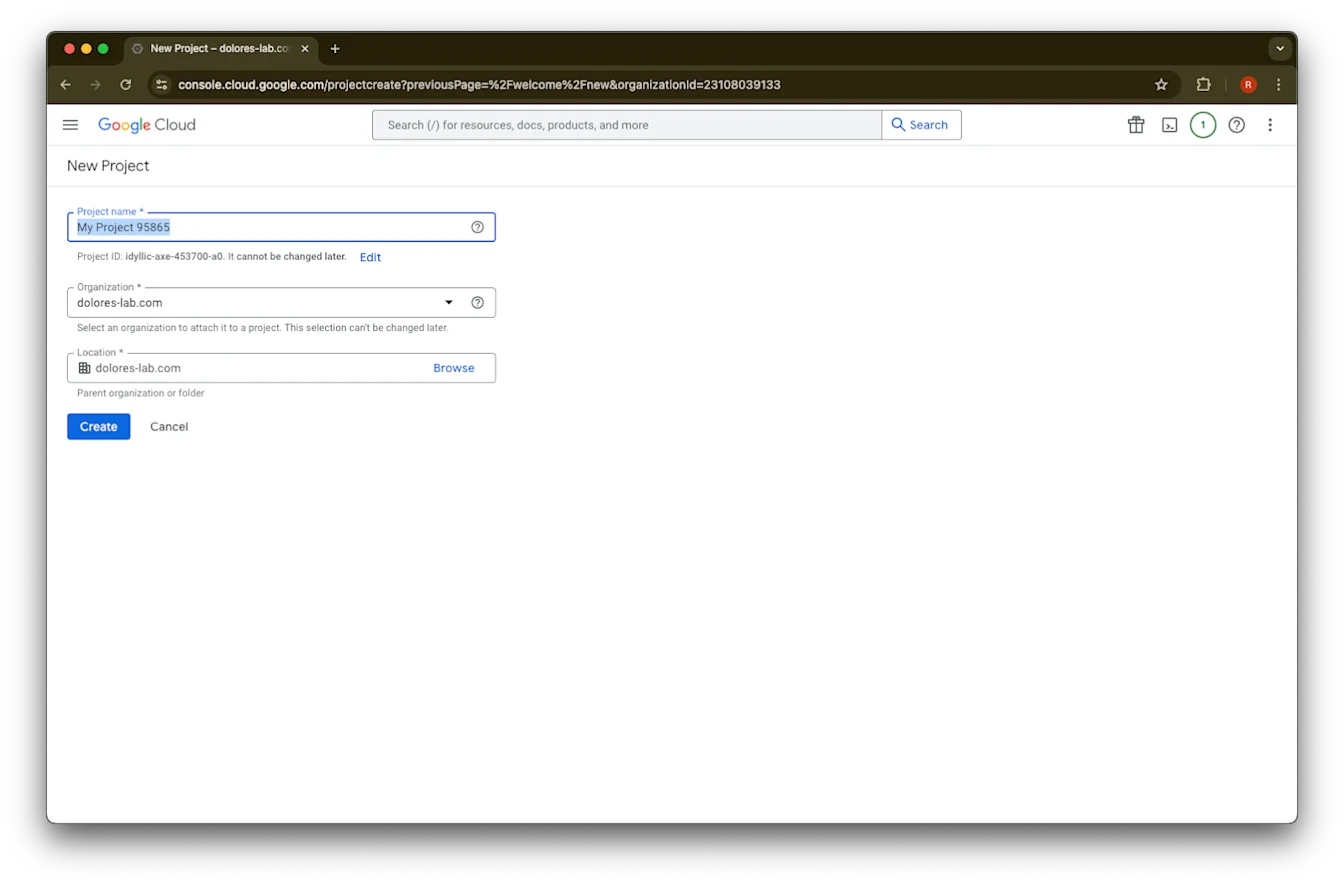
  4. Project Name を入力します

    Google Cloud New Project form with organization dolores-lab.com selected and Create button available
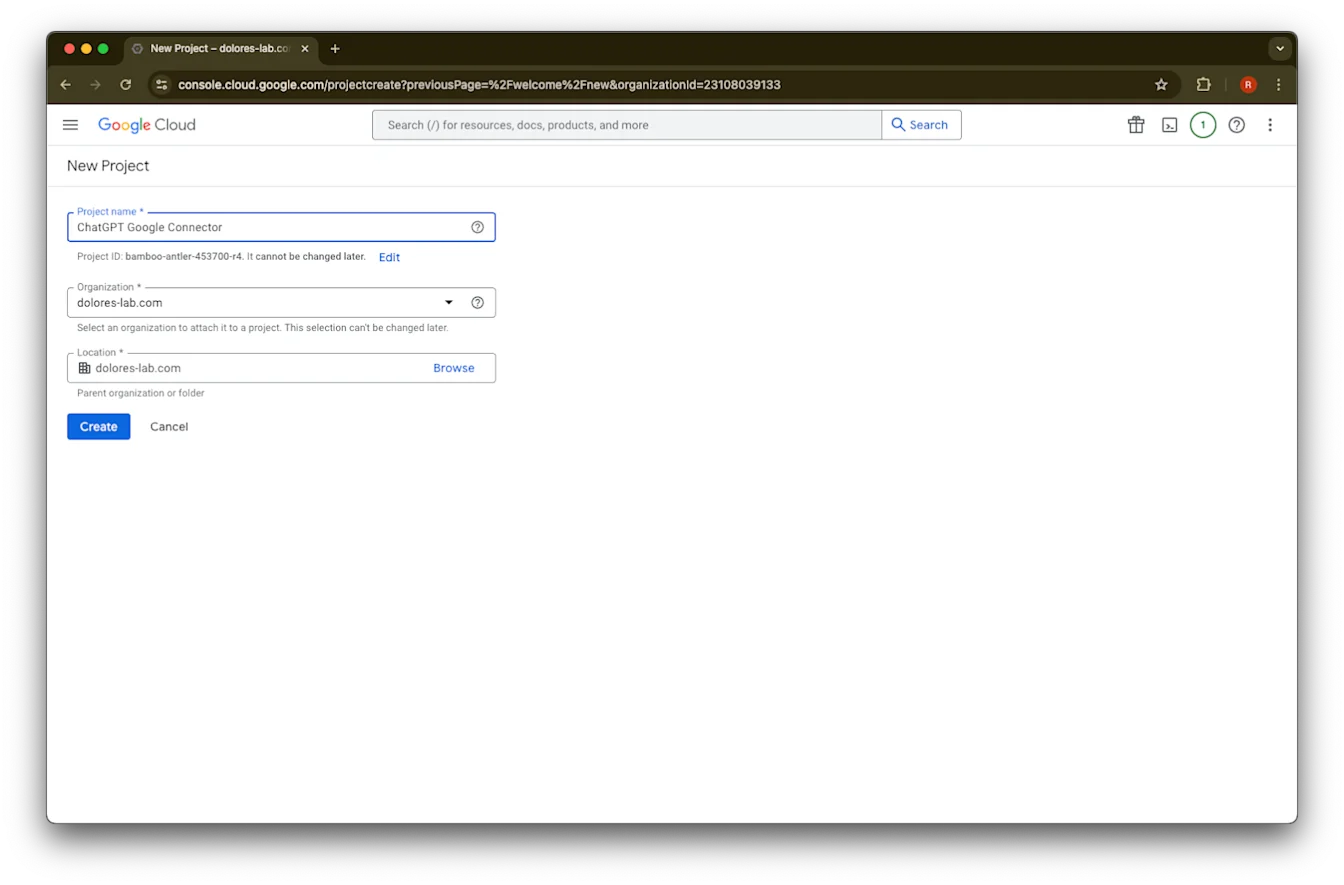
  5. プロジェクトを作成します

    Google Cloud New Project form with ChatGPT Google Connector entered under the dolores-lab.com organization
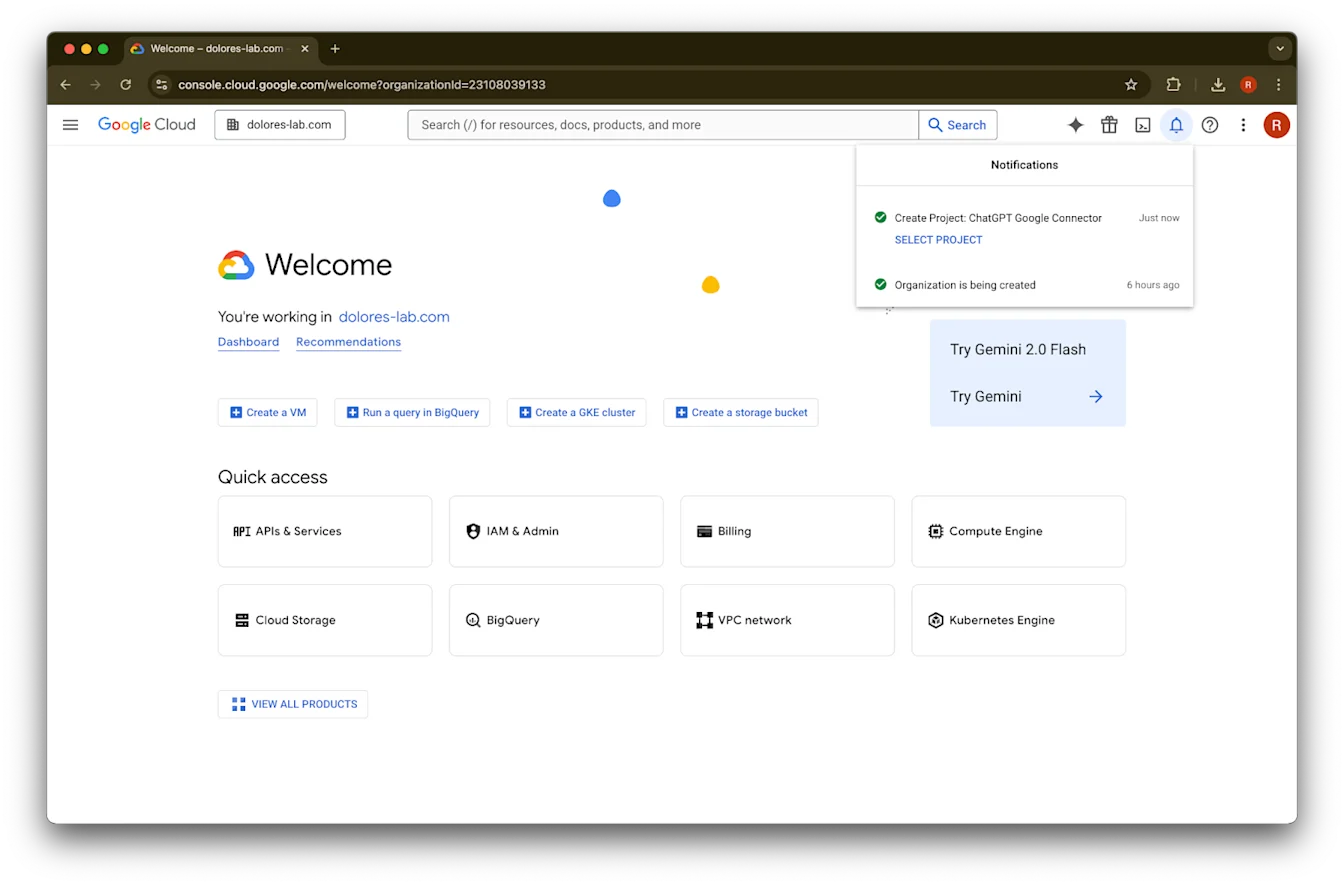
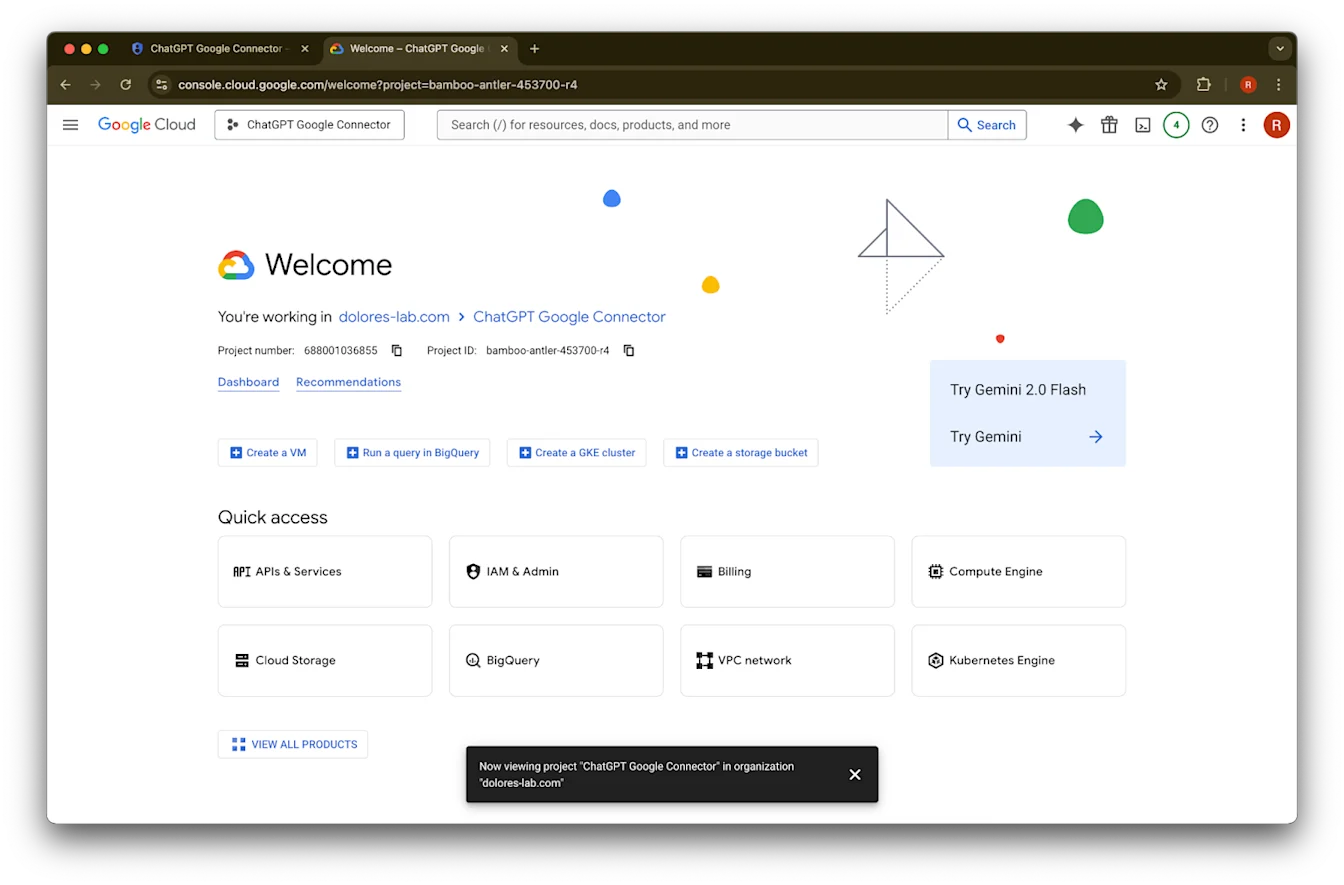
  6. プロジェクトが作成されるまで待ち、Select Project をクリックします

    Google Cloud notifications confirm creation of the ChatGPT Google Connector project for dolores-lab.com
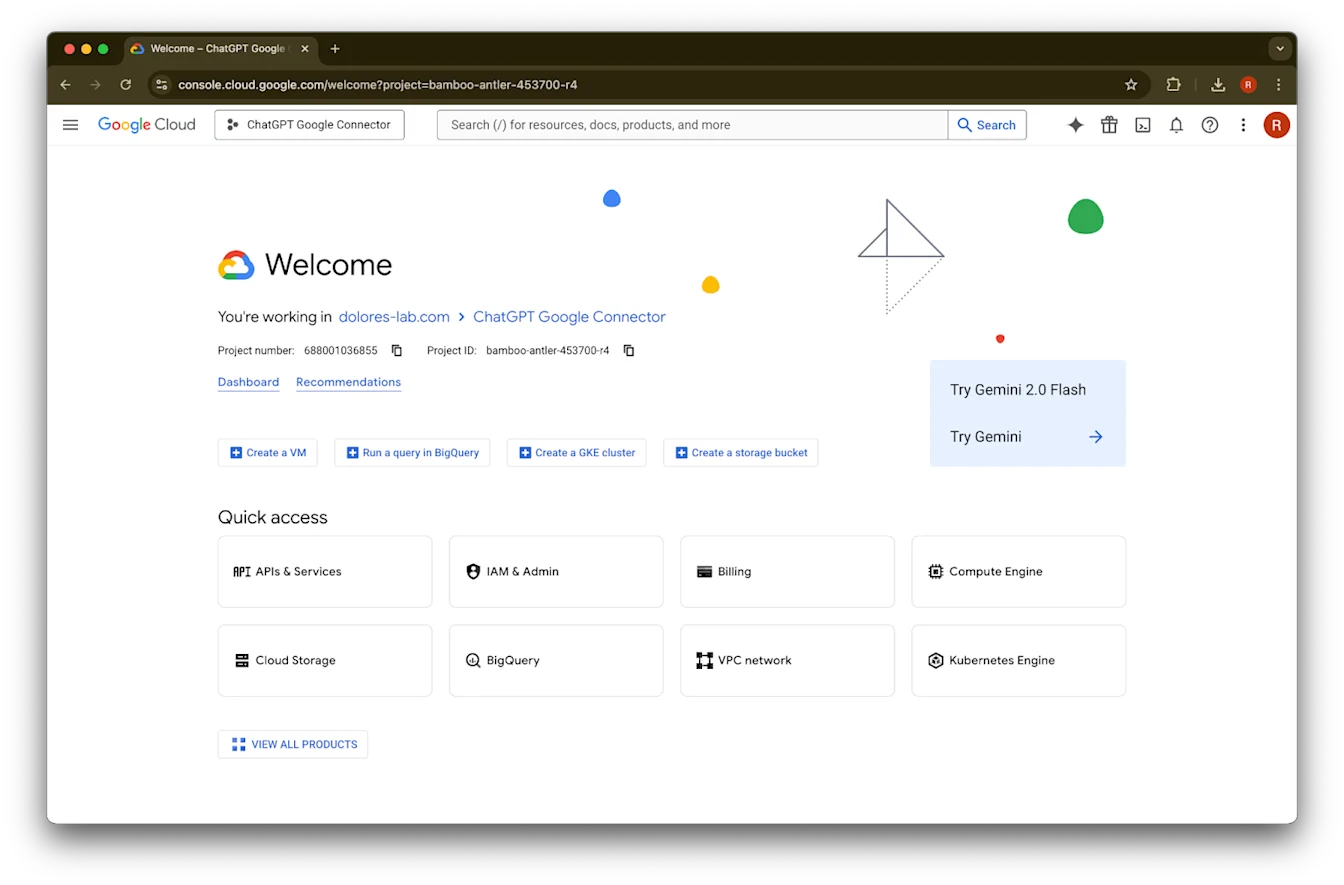
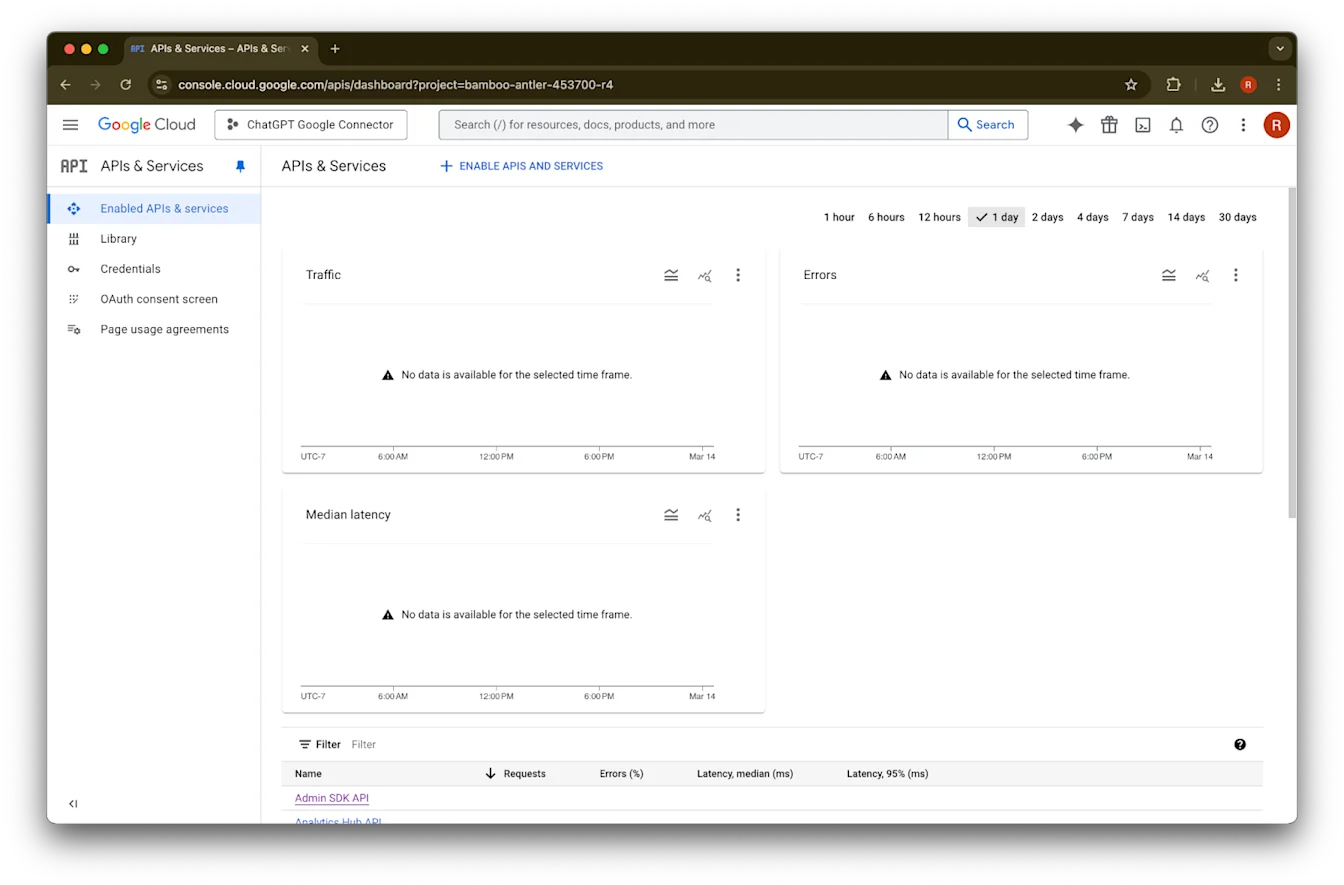
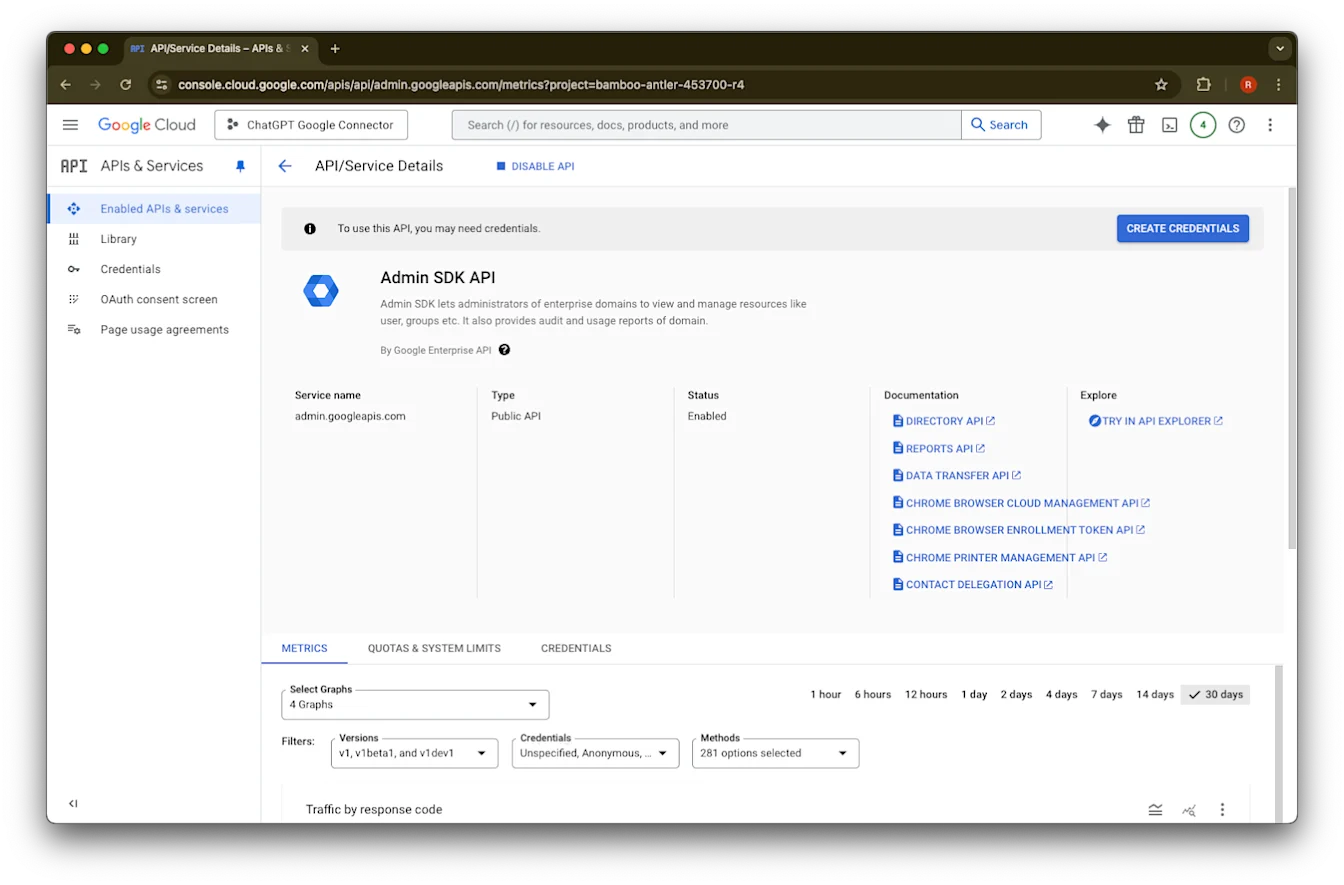
  7. APIs & Services をクリックします

    Image
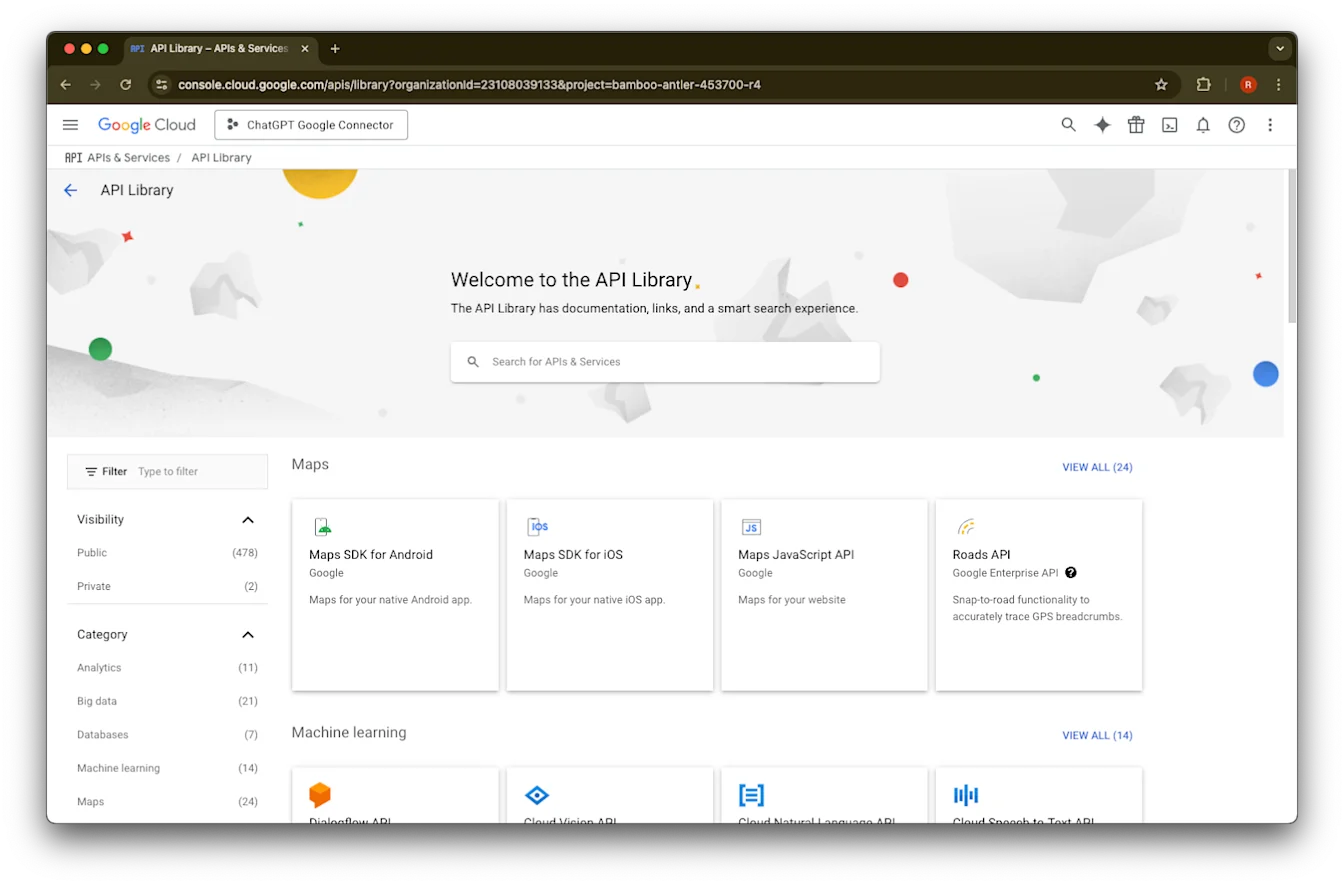
  8. Library をクリックします

    Image
  9. これから 3 つの API を追加します。検索ボックスを使って探してください

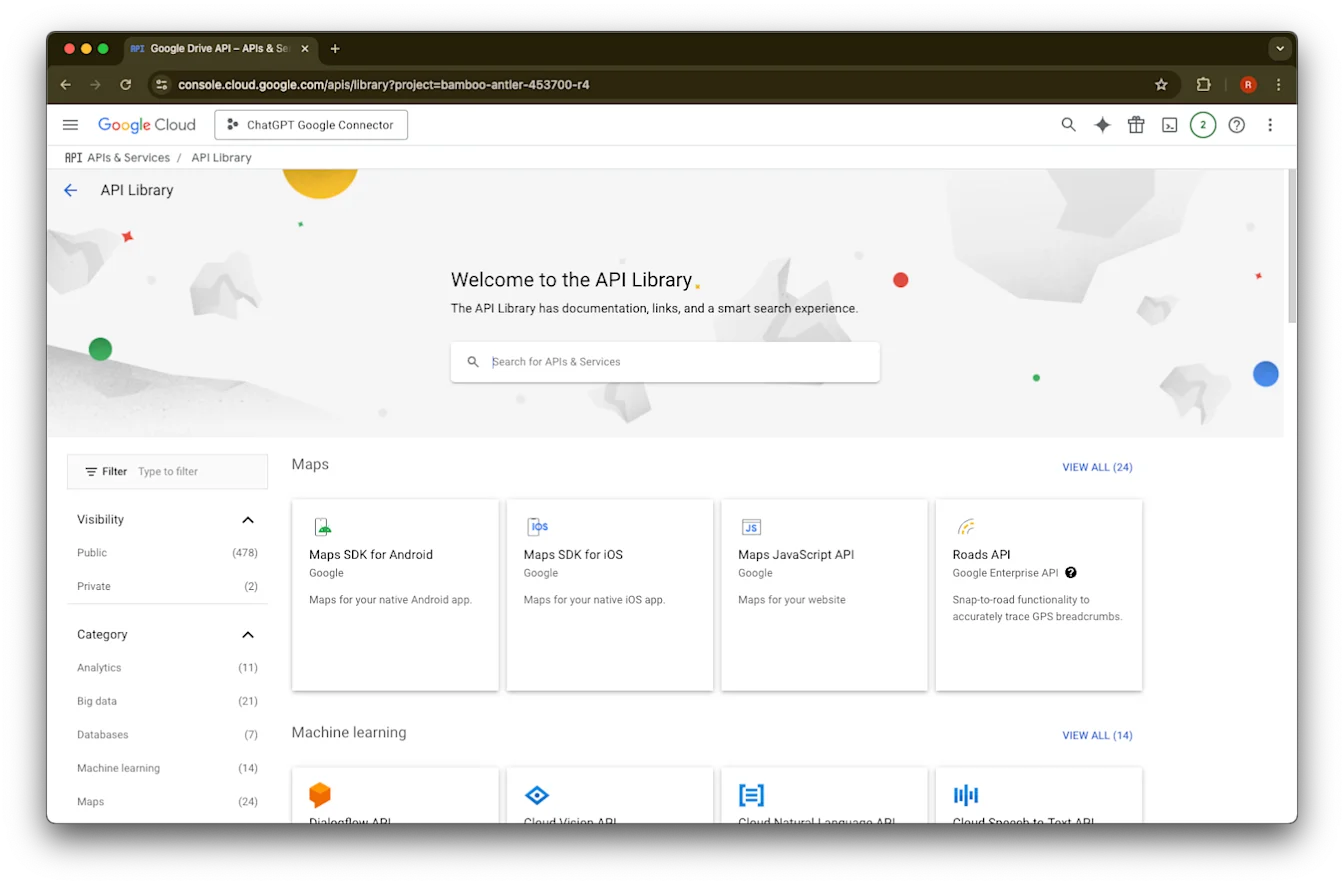
    Google Cloud API Library page with the ChatGPT Google Connector project selected
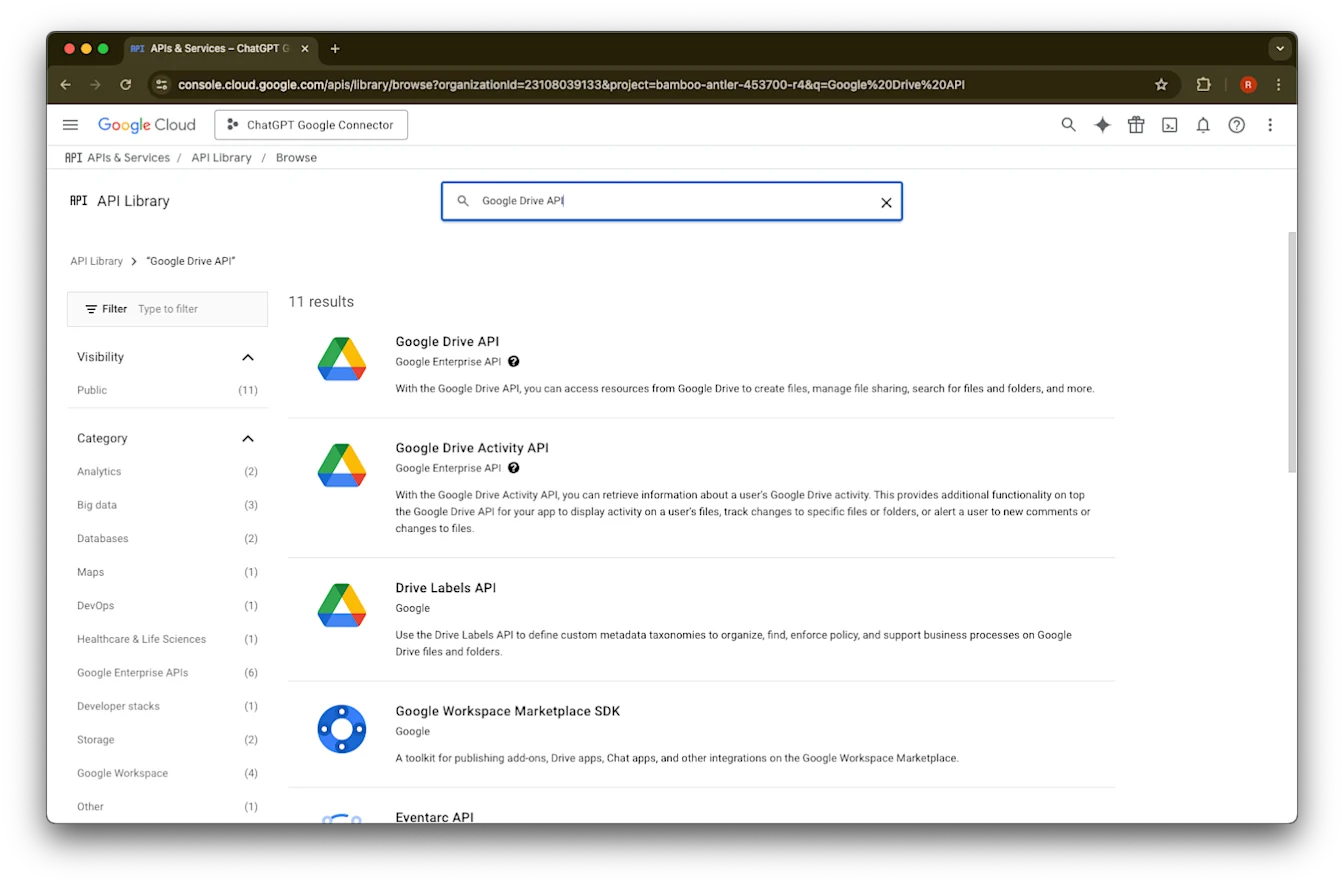
  10. Google Drive API を検索して選択します

    Google Cloud API Library search results for Google Drive API in the ChatGPT Google Connector project
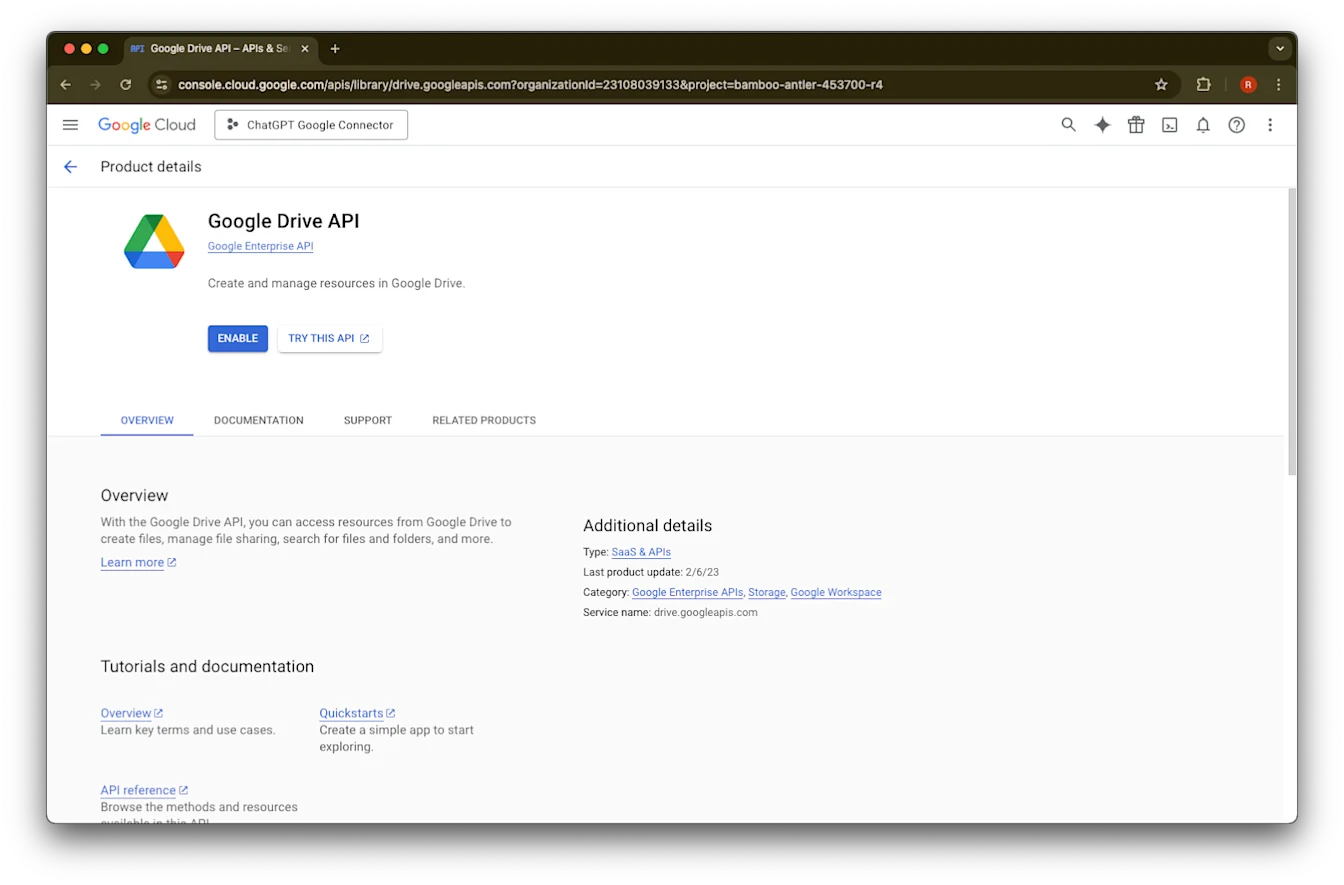
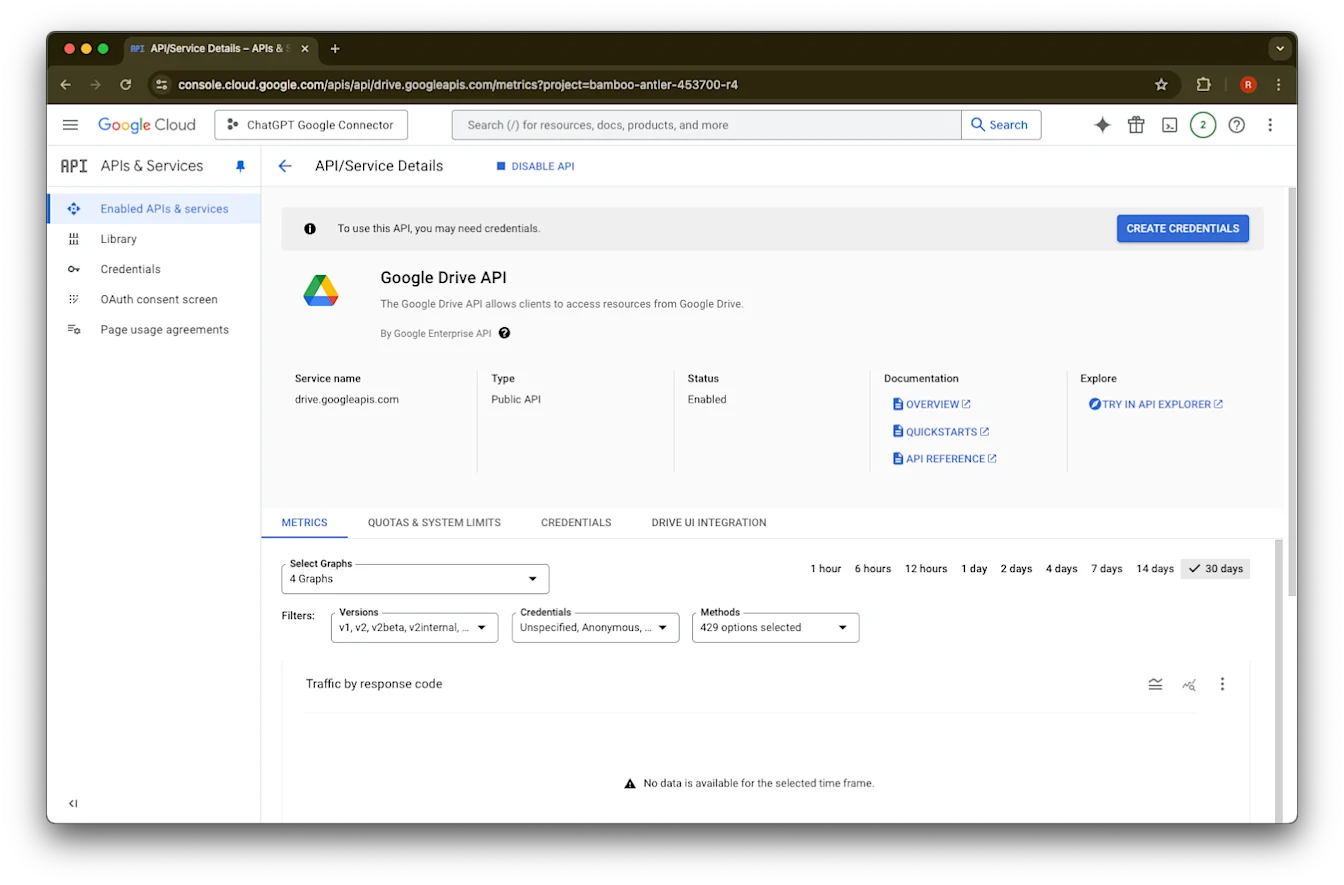
  11. Enable をクリックします

    Google Cloud Console Google Drive API page with the Enable button for the ChatGPT Google Connector project
  12. Library をクリックします

    Google Drive API details page with the API enabled and Create Credentials available
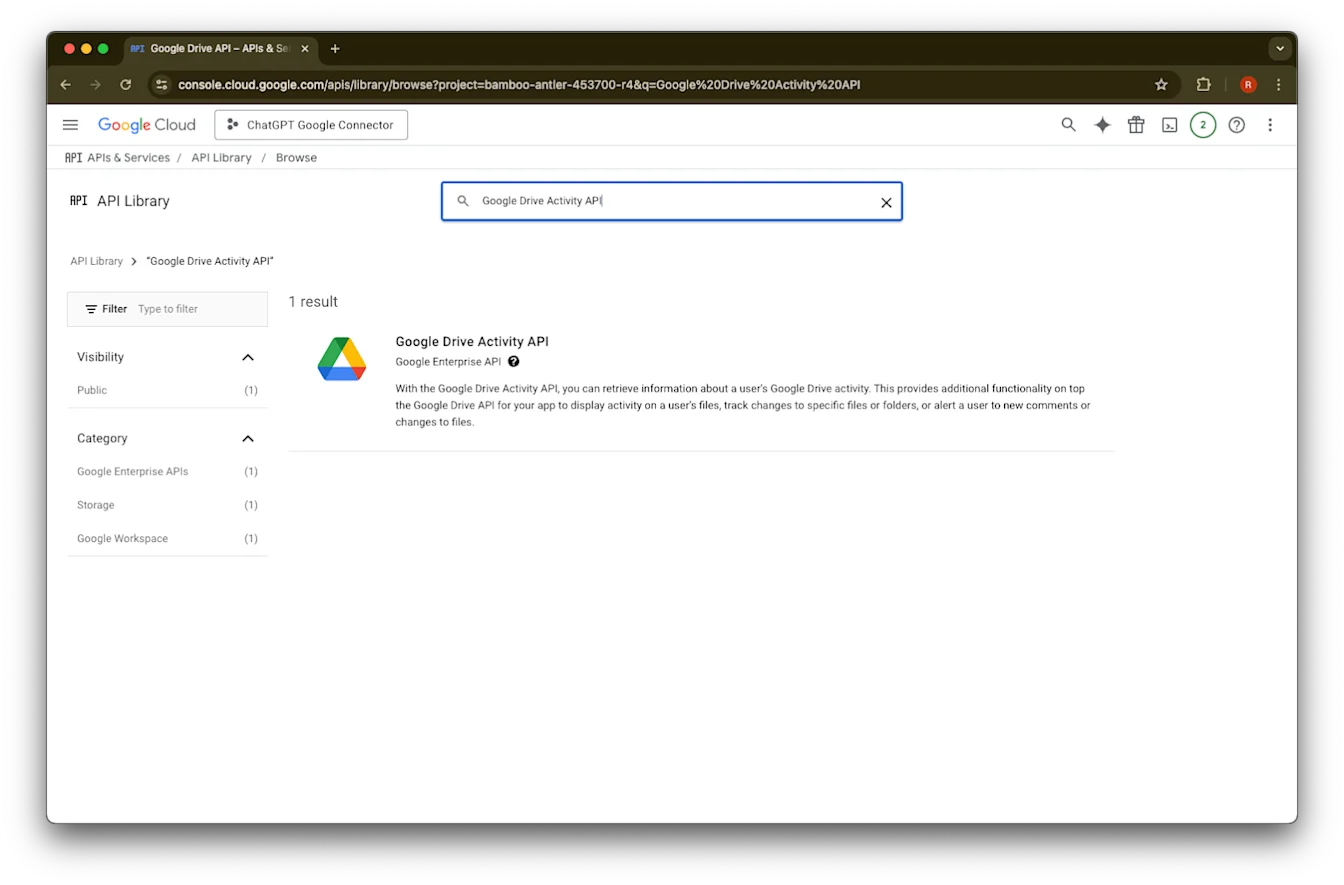
  13. Google Drive Activity を検索します

    Google Cloud API Library open for the ChatGPT Google Connector project
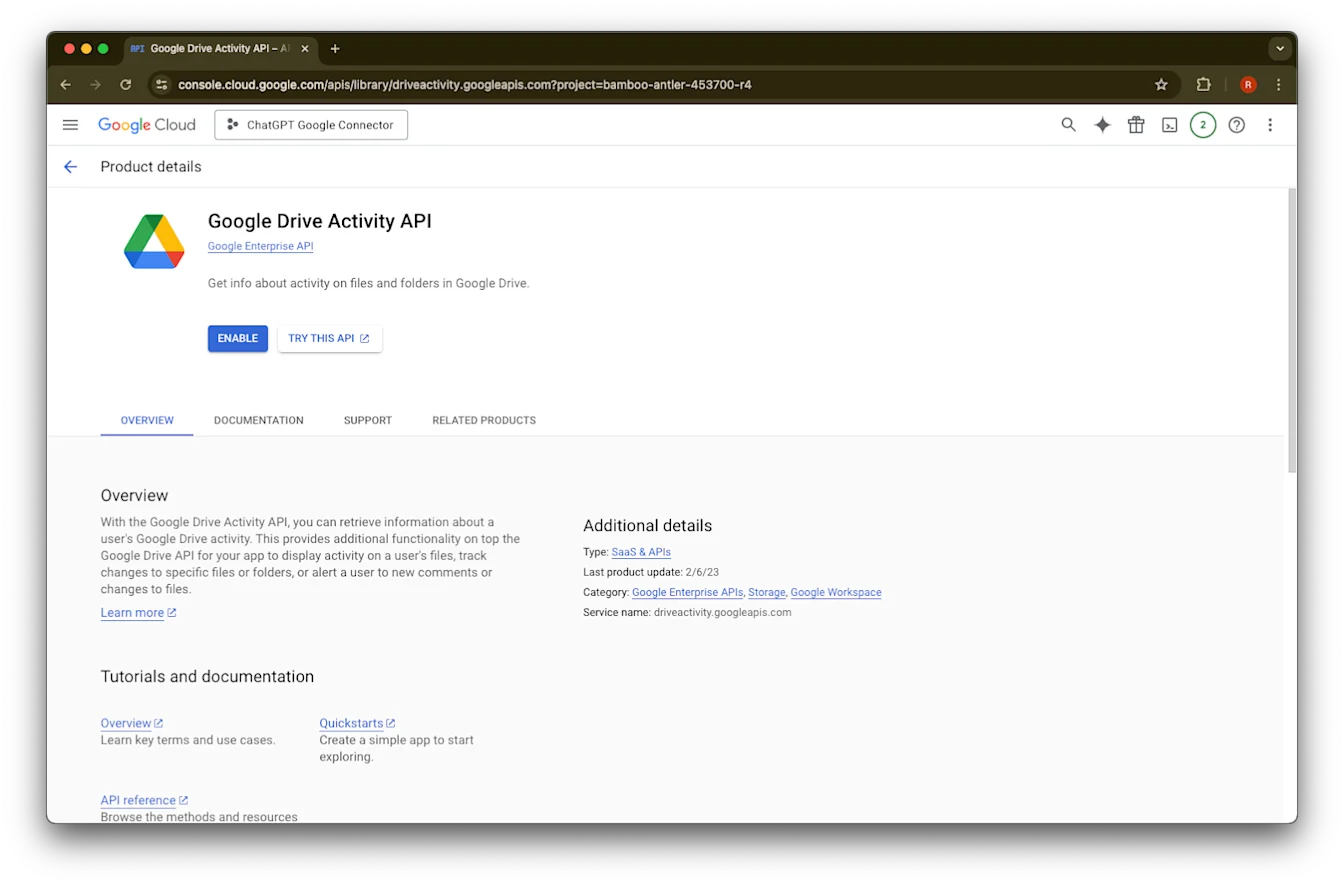
  14. Google Drive Activity API を選択します

    Google Cloud API Library search results for Google Drive Activity API
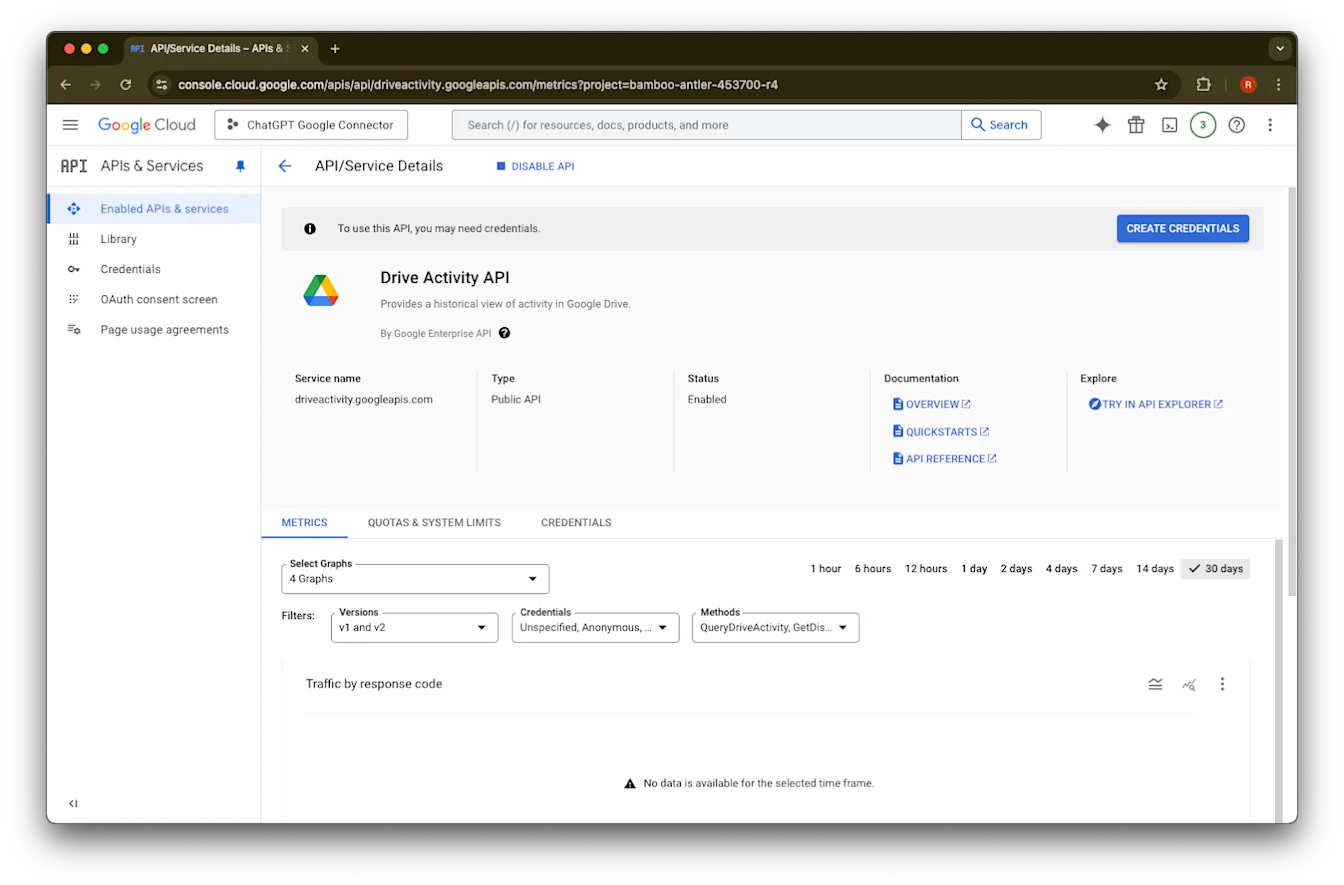
  15. Enable をクリックします

    Image
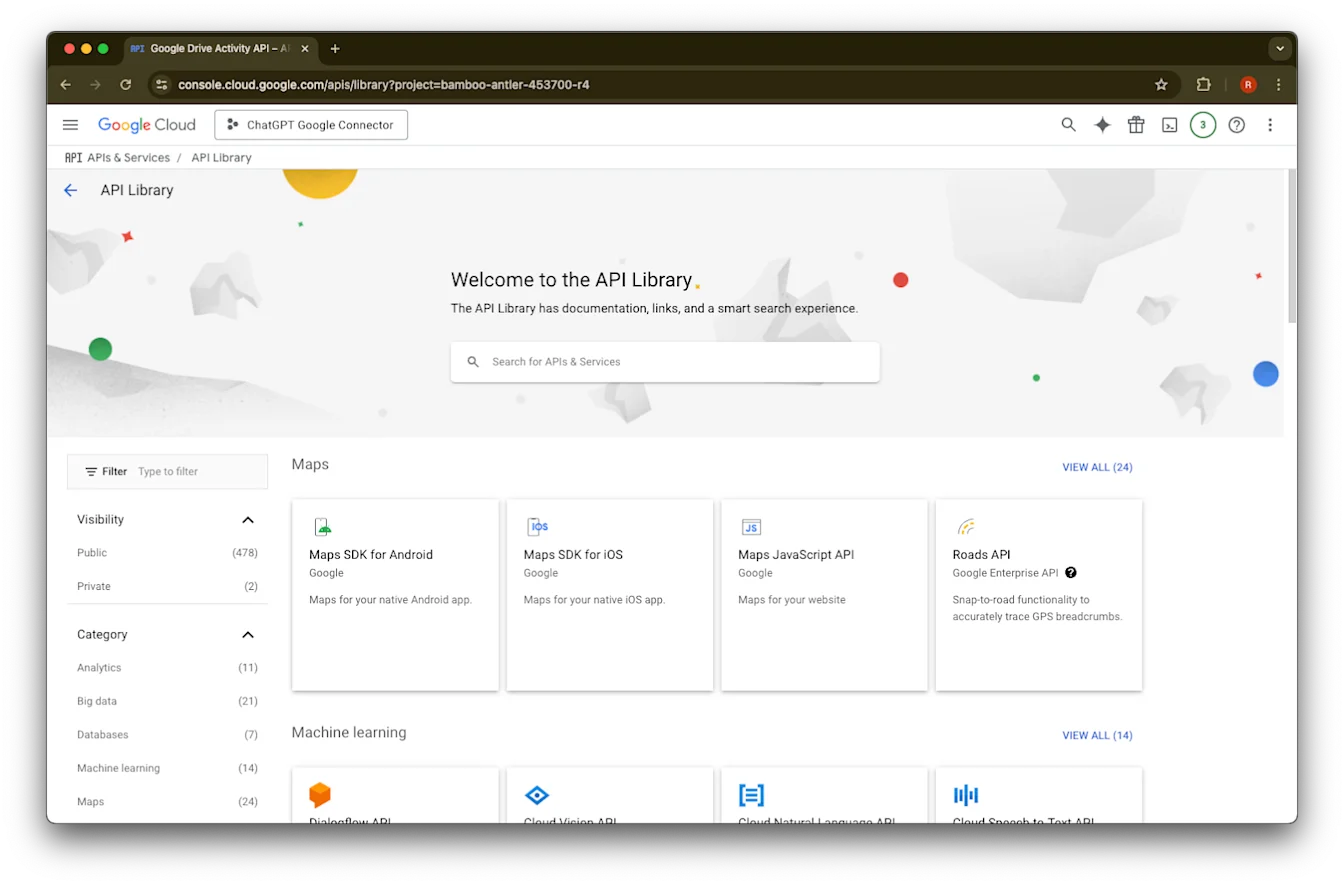
  16. Library をクリックします

    Google Cloud Console Drive Activity API details page with the API enabled and Create credentials available
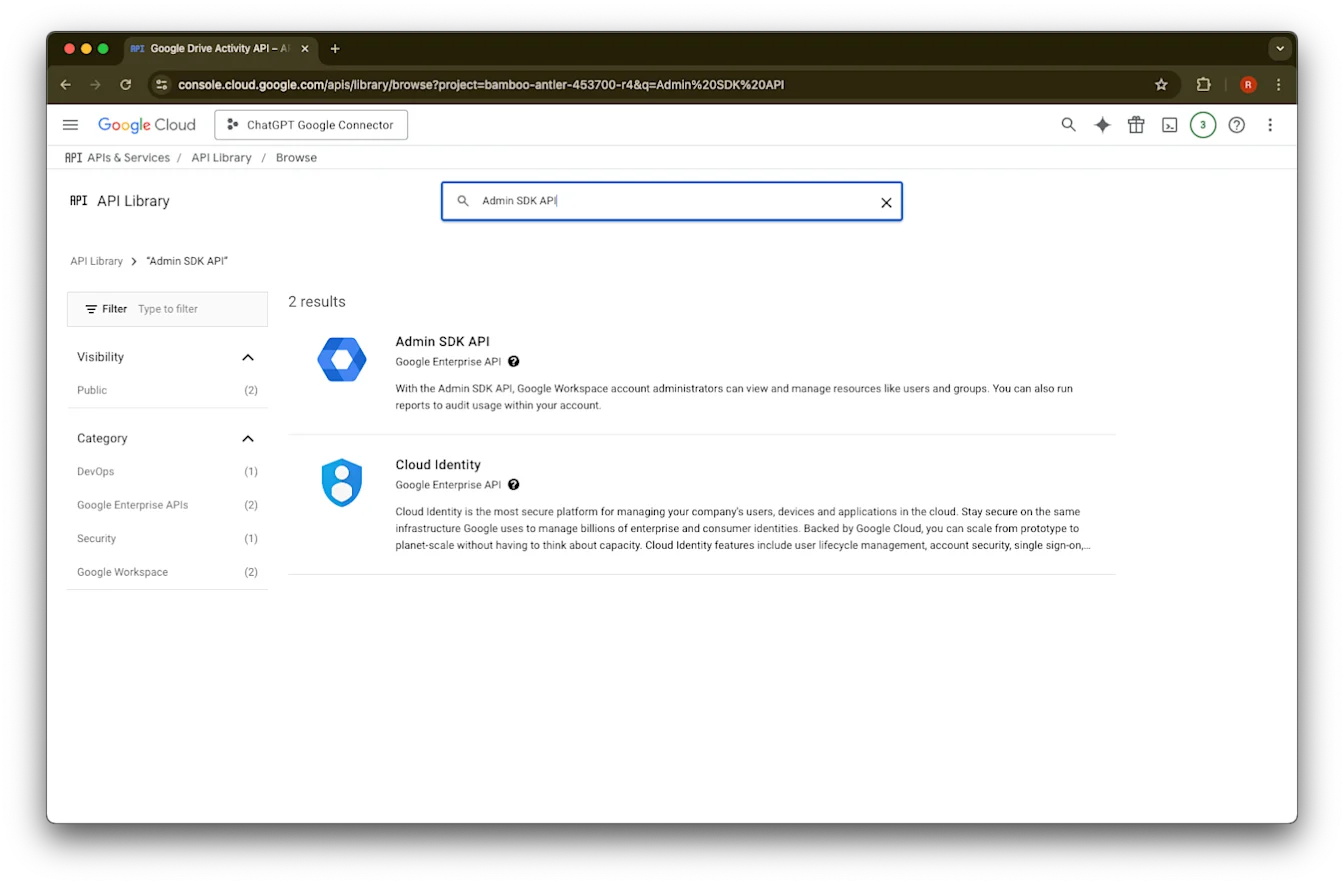
  17. Admin SDK API を検索します

    Google Cloud API Library page for the ChatGPT Google Connector project
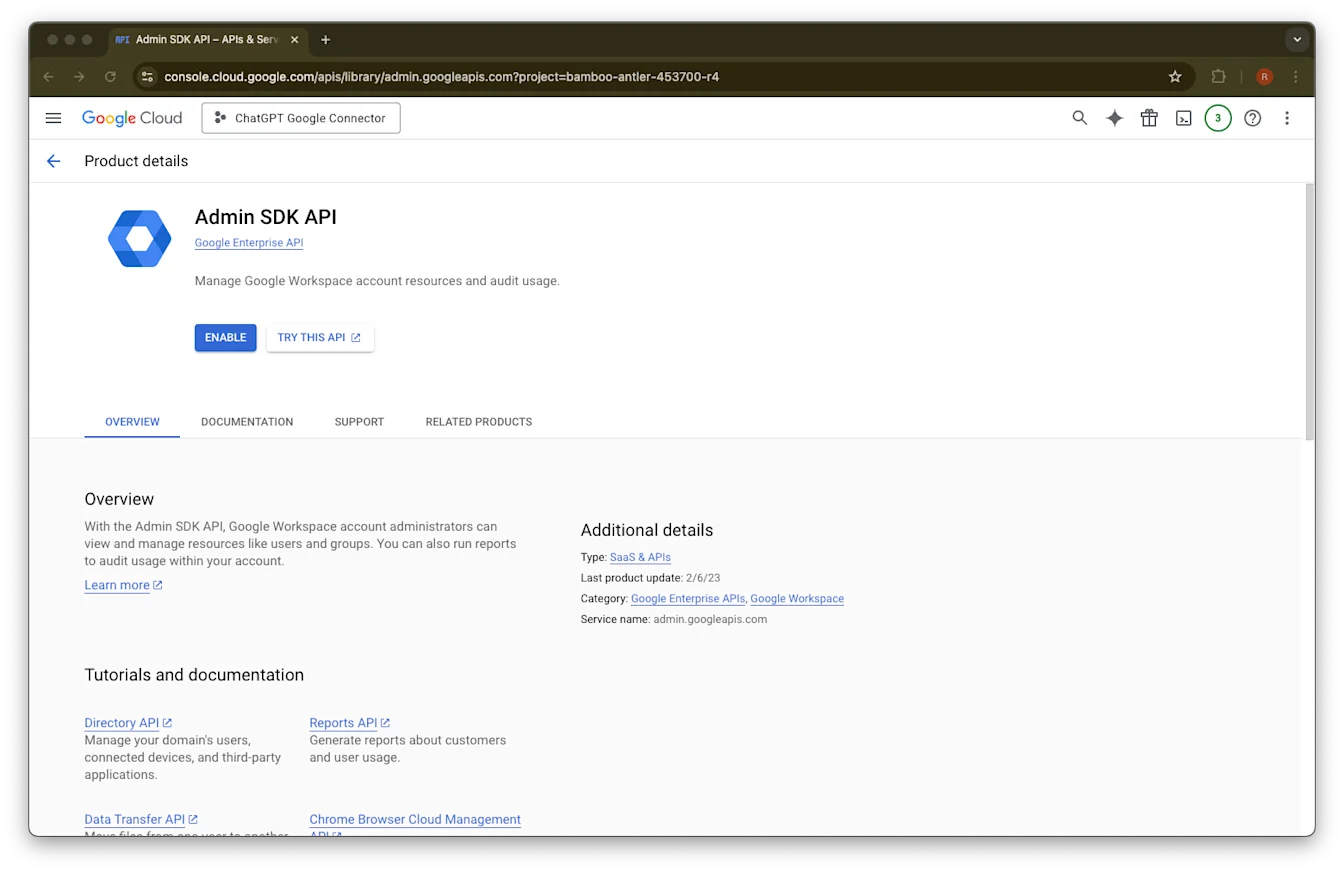
  18. Admin SDK API
    を選択します

    Google Cloud API Library search results for Admin SDK API with Admin SDK API listed
  19. Enable をクリックします

    Google Cloud Admin SDK API page with the Enable button for the ChatGPT Google Connector project
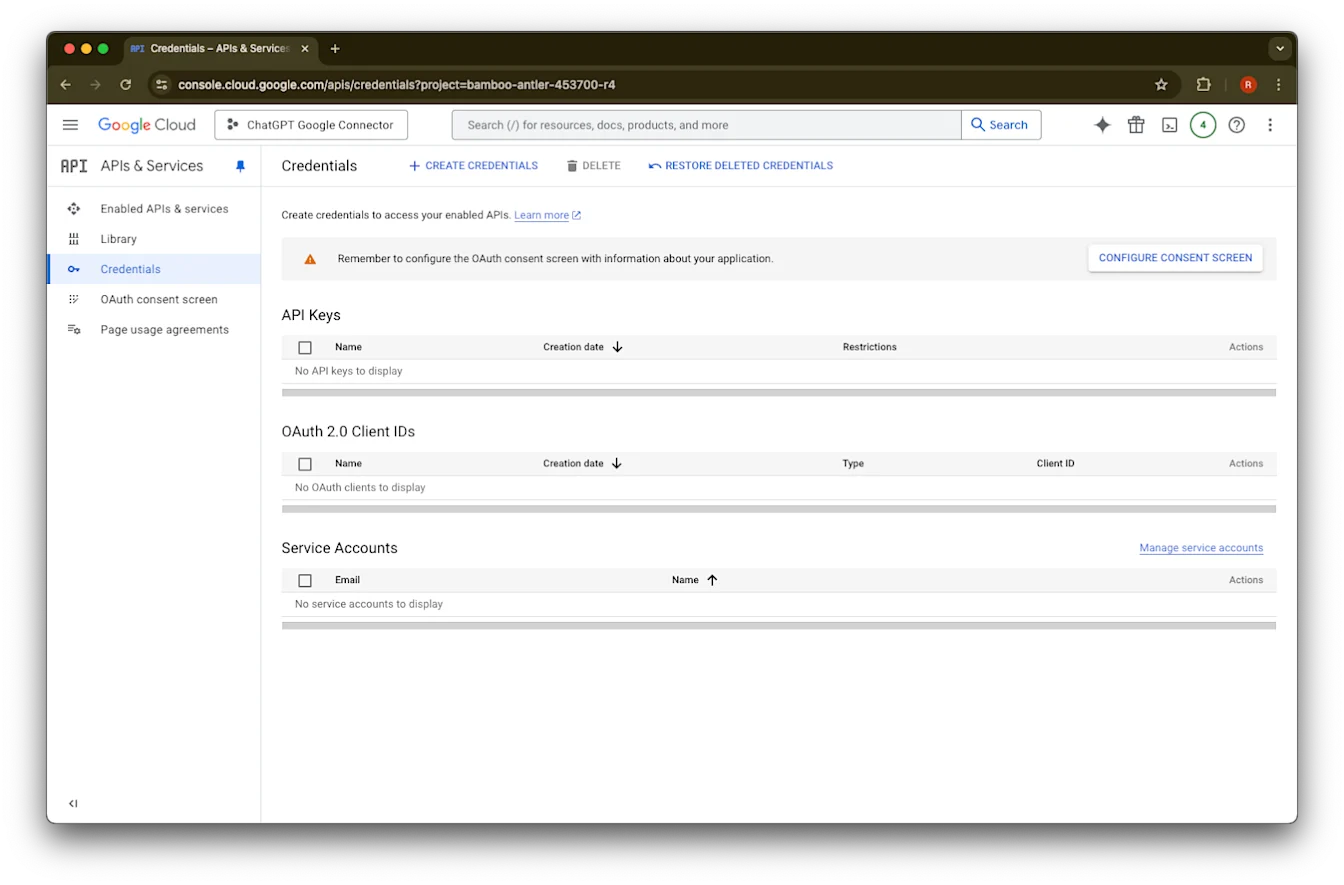
  20. Credentials をクリックします

    Google Cloud Admin SDK API details page with the API enabled and Create credentials button available
  21. Create Credentials をクリックします

    Google Cloud APIs & Services Credentials page with Configure consent screen button
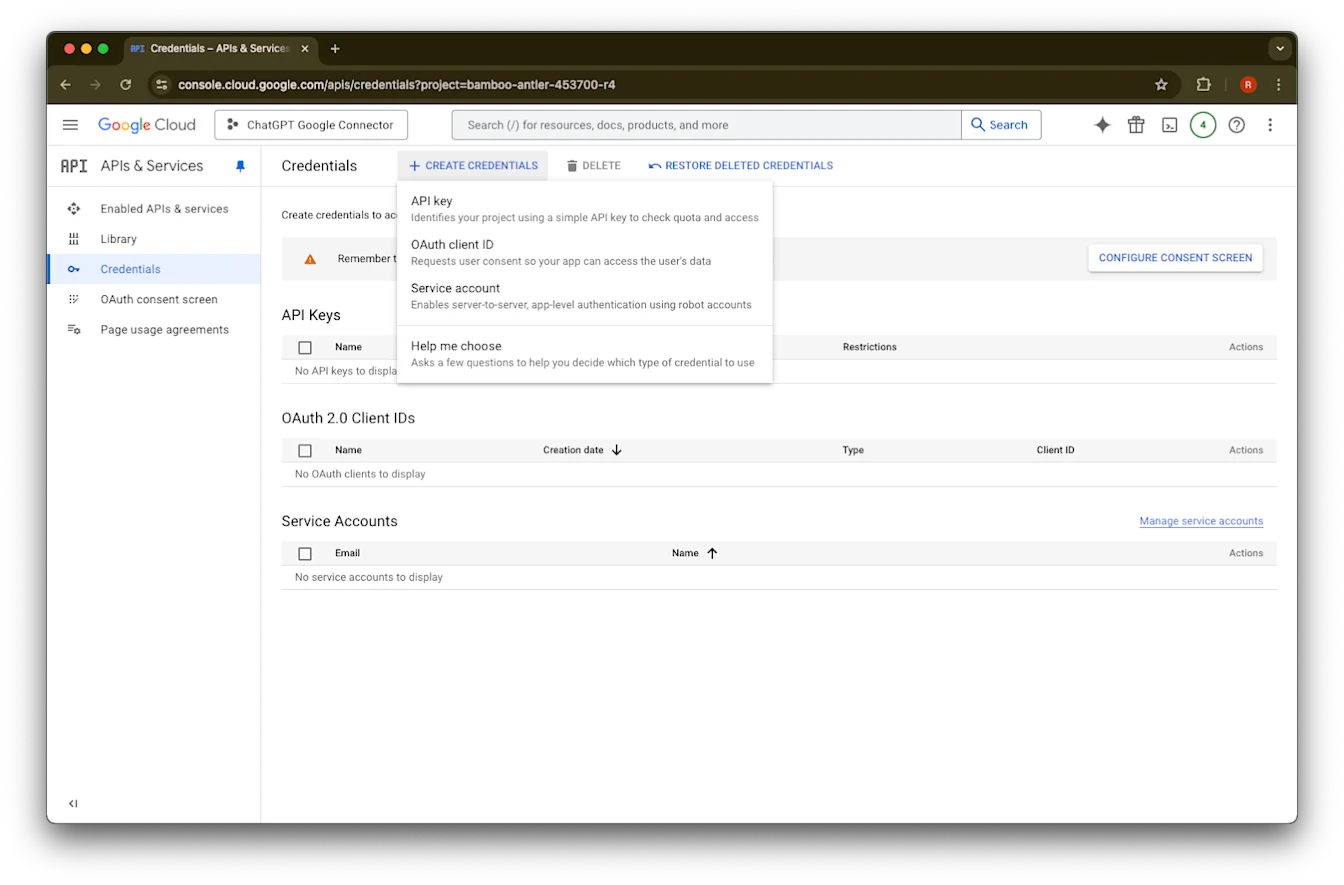
  22. Service account をクリックします

    Google Cloud Credentials page with Create credentials menu open for API key, OAuth client ID, or service account
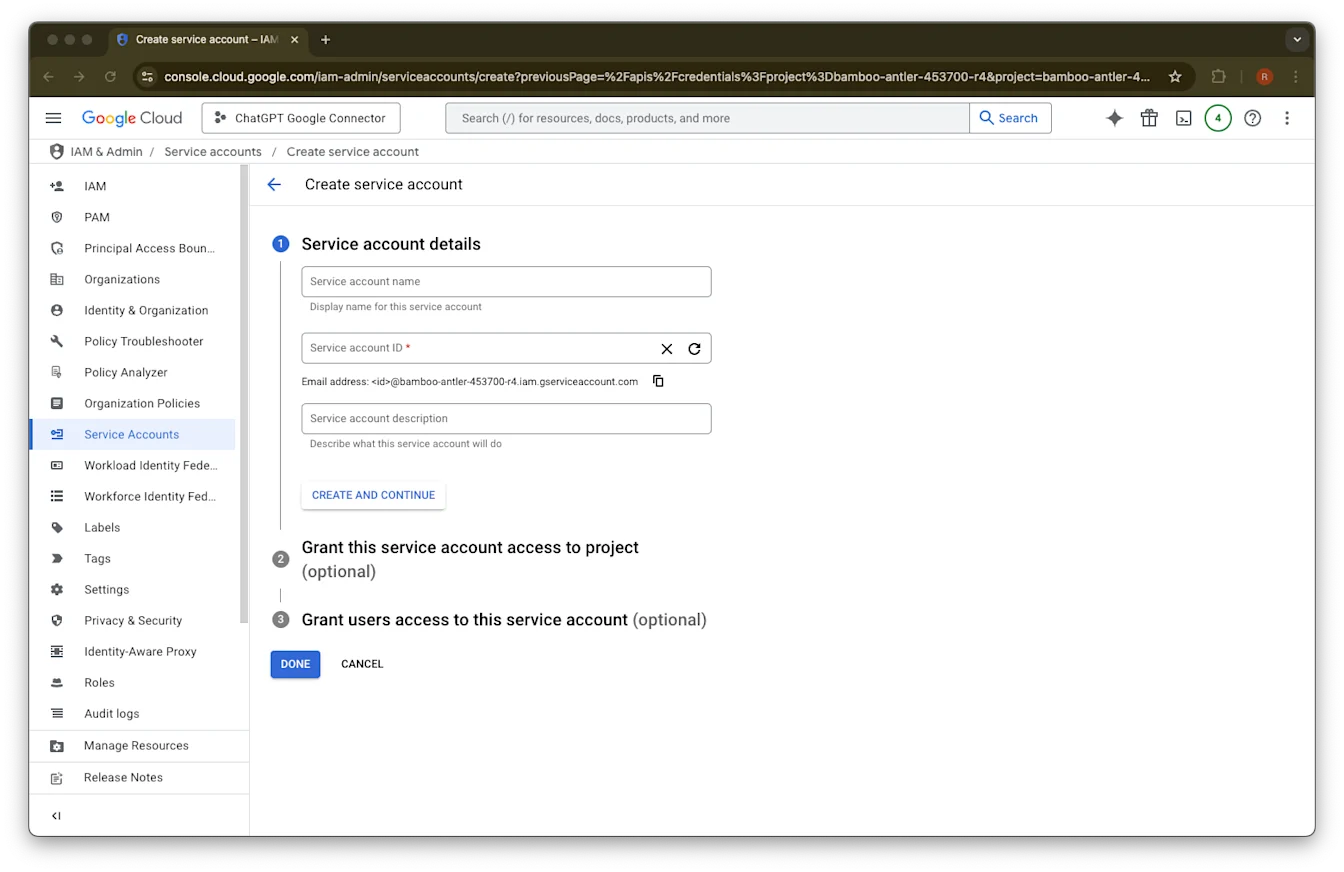
  23. このサービス アカウントの名前説明を任意で入力します

    Google Cloud Create service account page with Service Accounts selected and service account details fields
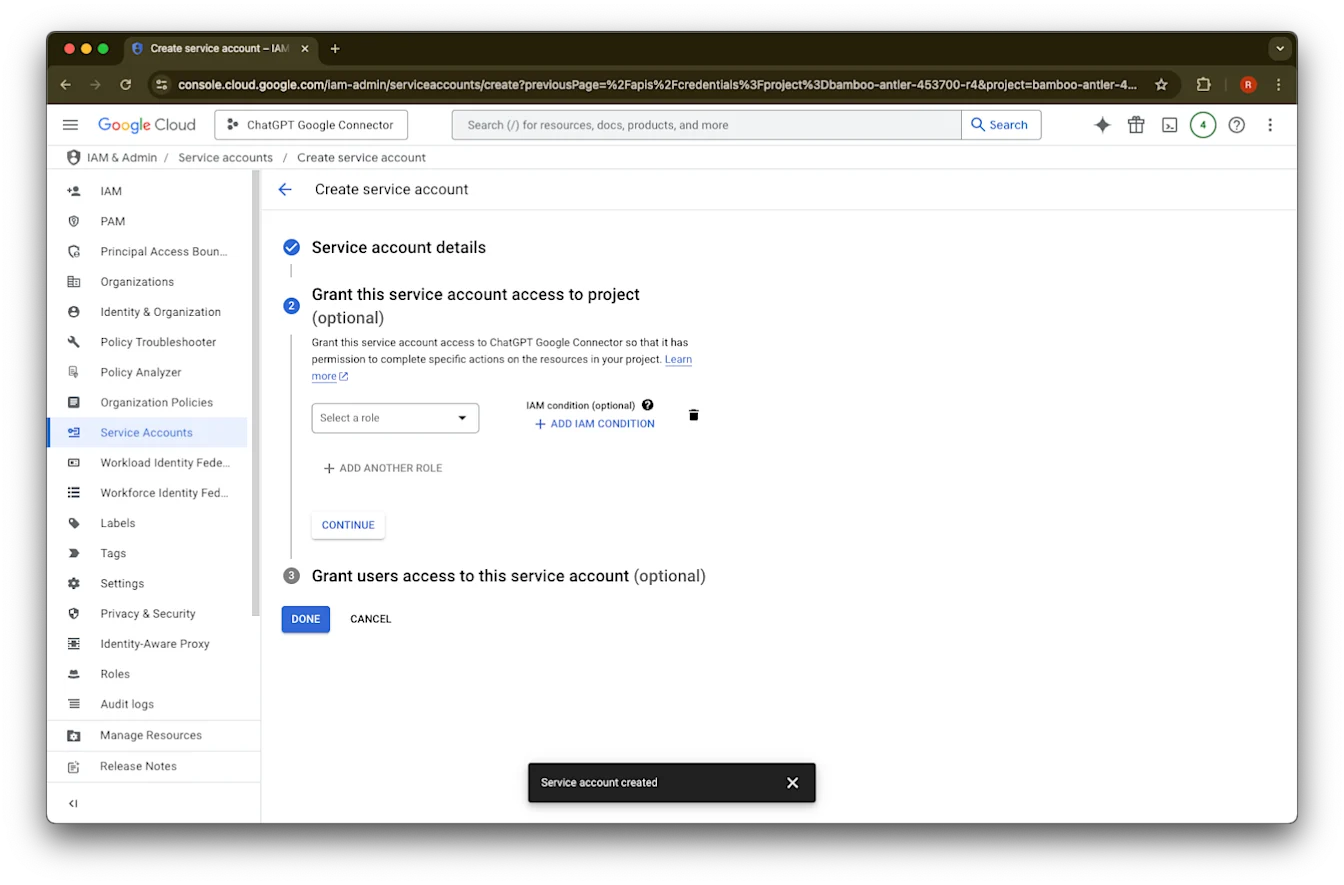
  24. (任意)ロールを割り当てることもできますが、ChatGPT では必須ではありません。

    Google Cloud Create service account page with optional IAM role step and Service account created confirmation
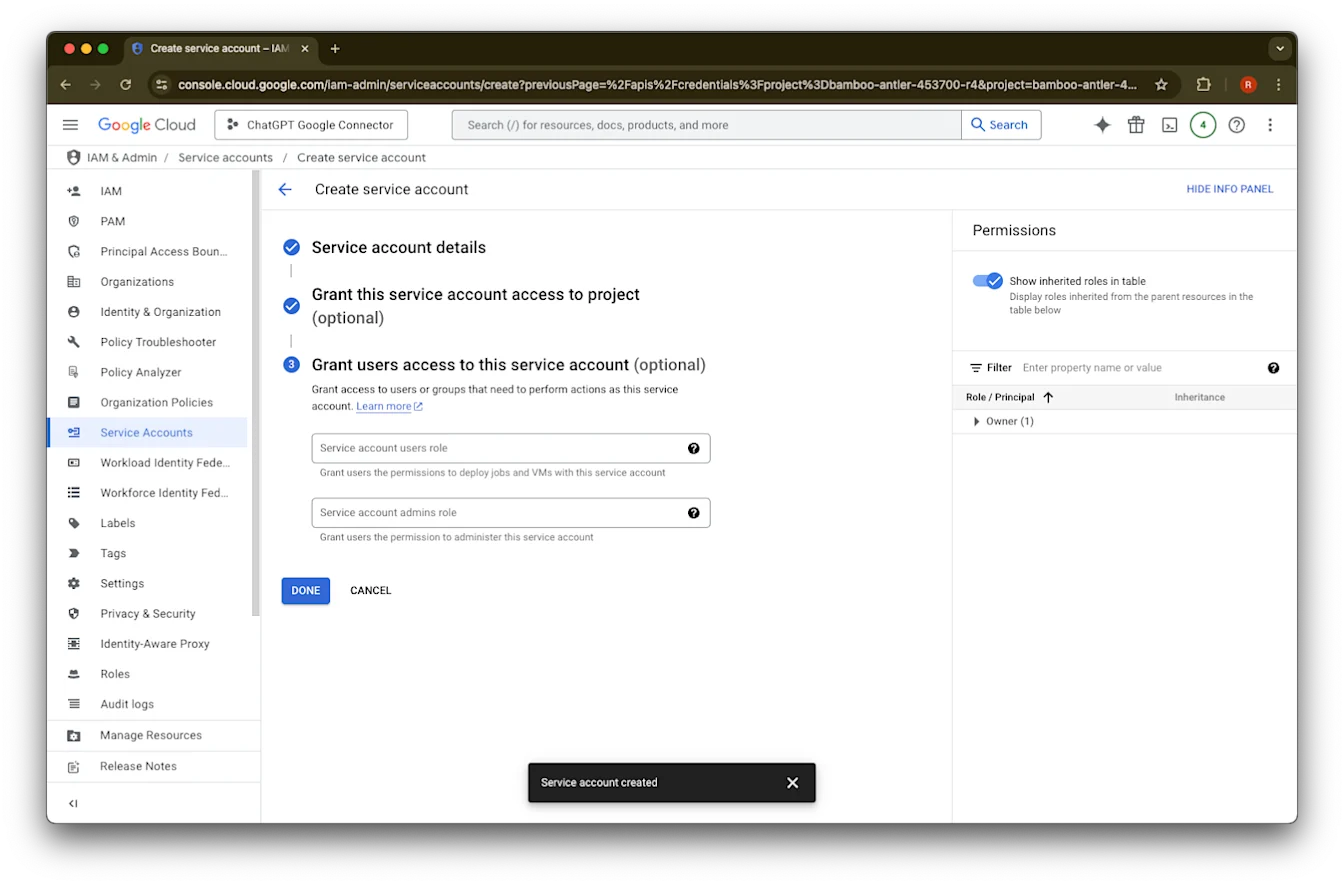
  25. (任意)サービス アカウントへのアクセスを付与することもできますが、ChatGPT では必須ではありません。

    Google Cloud Create service account step 3 with Done button and Service account created confirmation
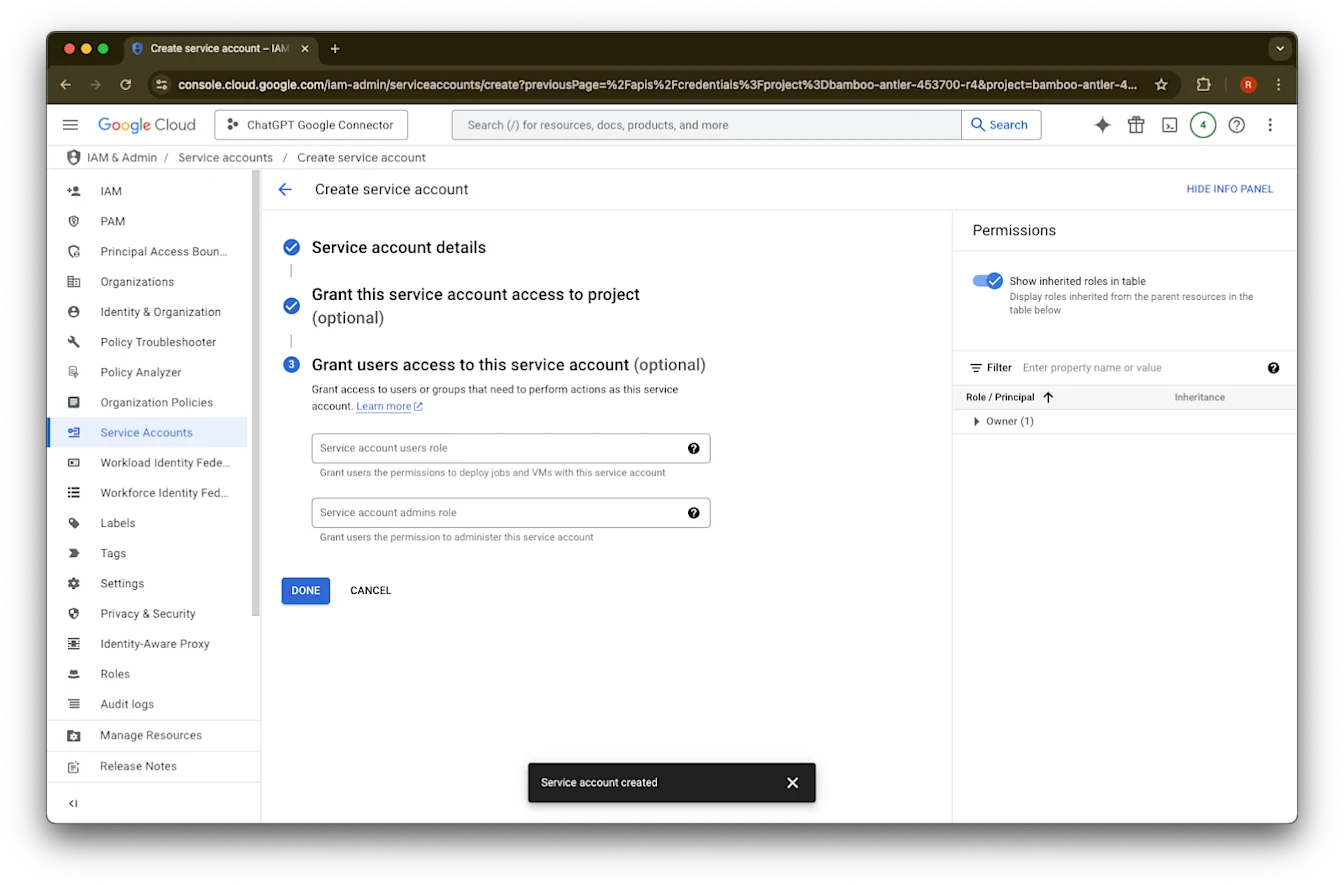
  26. Done をクリックします。

    Create service account step 3 in Google Cloud with Done button and Service account created confirmation
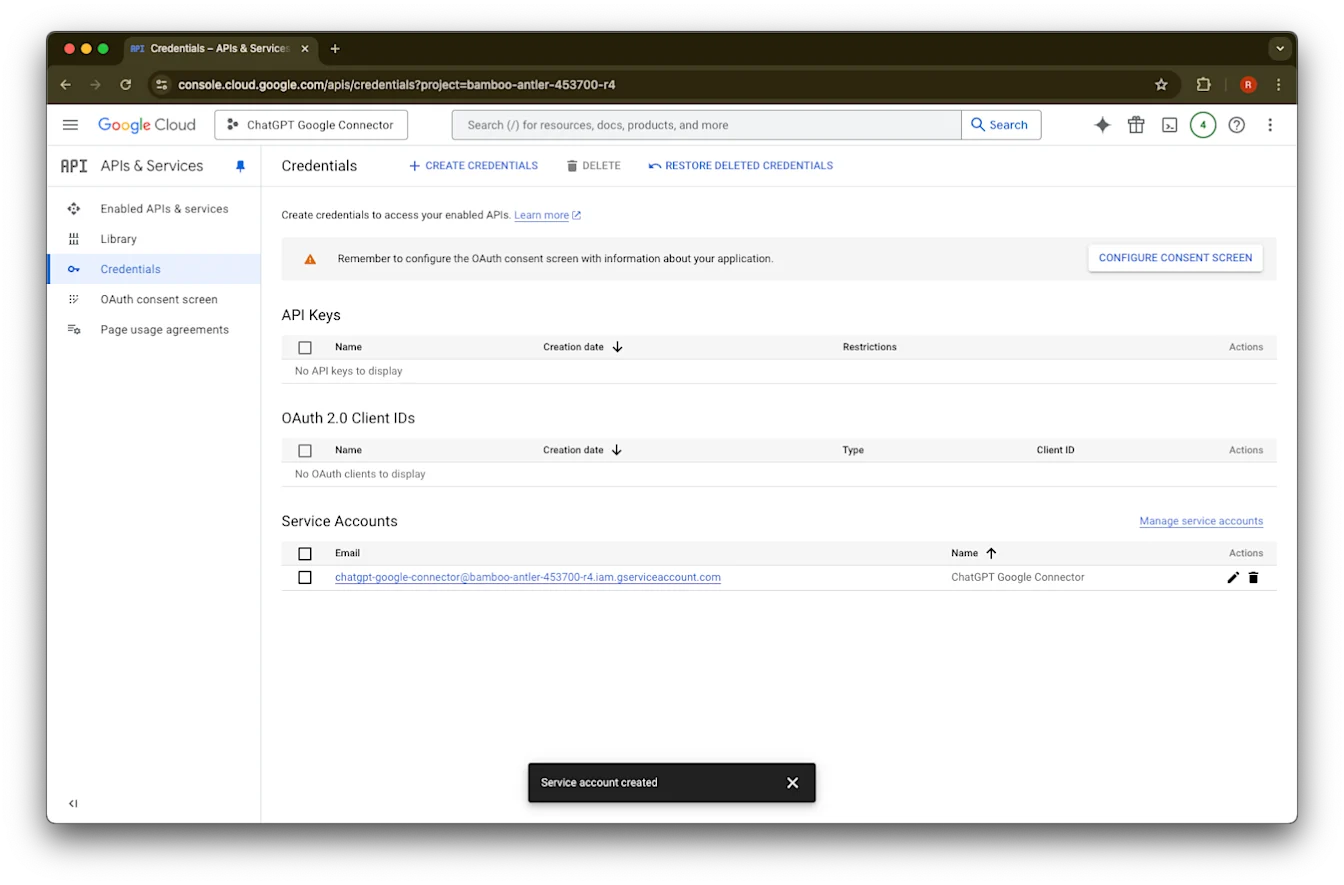
  27. 作成されたサービス アカウントをクリックします。

    Google Cloud Credentials page listing the newly created ChatGPT Google Connector service account
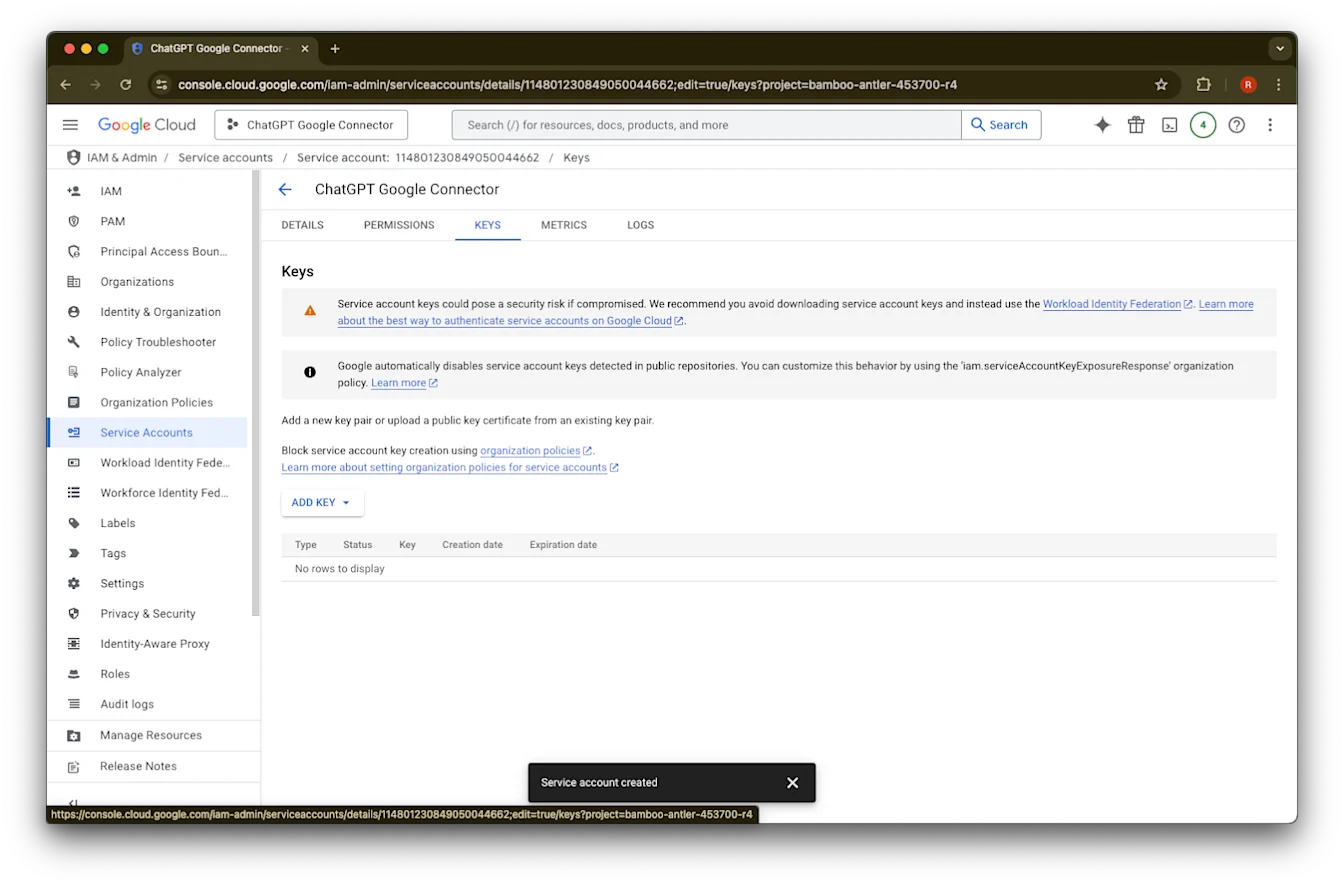
  28. keys. をクリックします

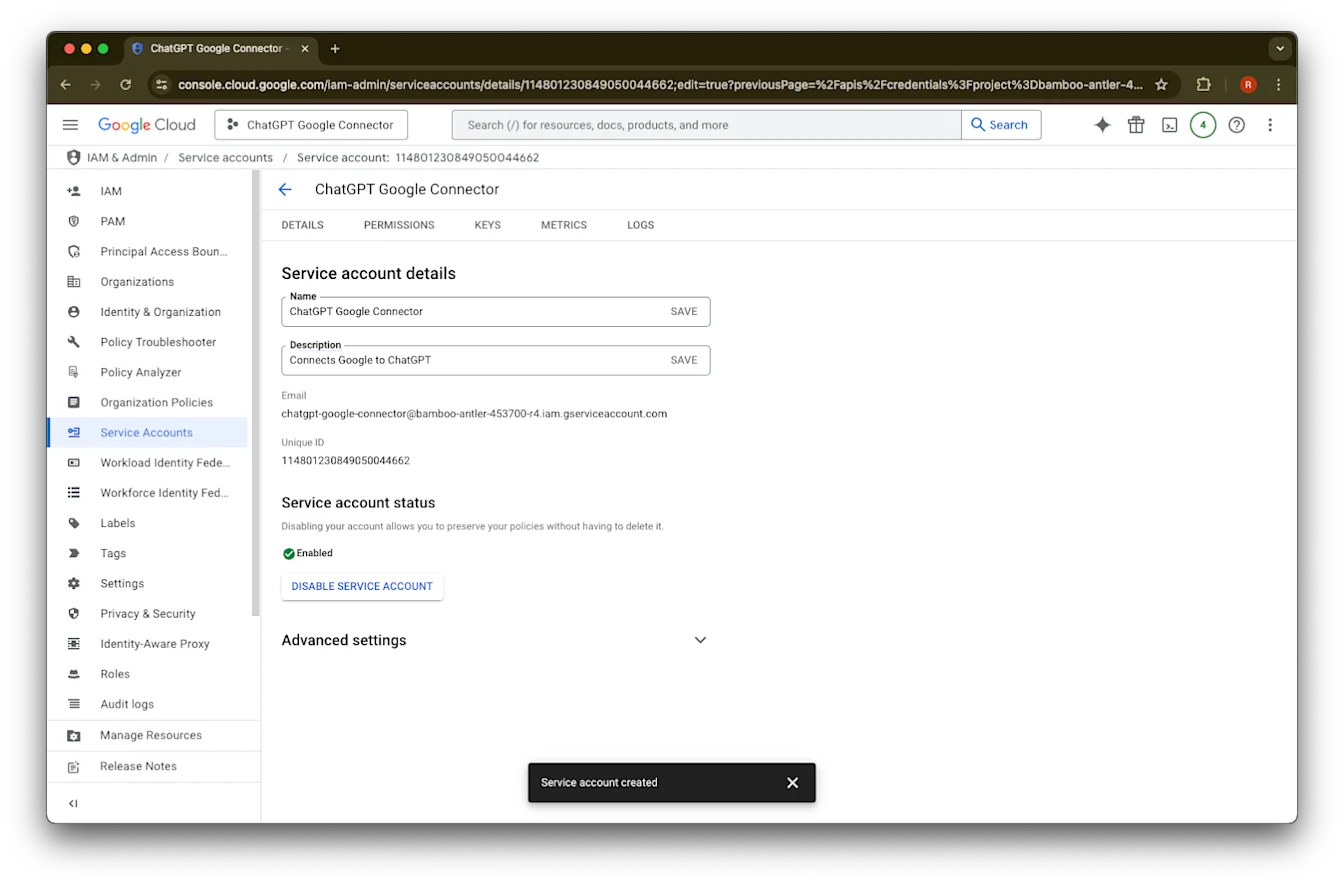
    Google Cloud IAM service account details for ChatGPT Google Connector, enabled after creation
  29. Add Key をクリックします

    Image
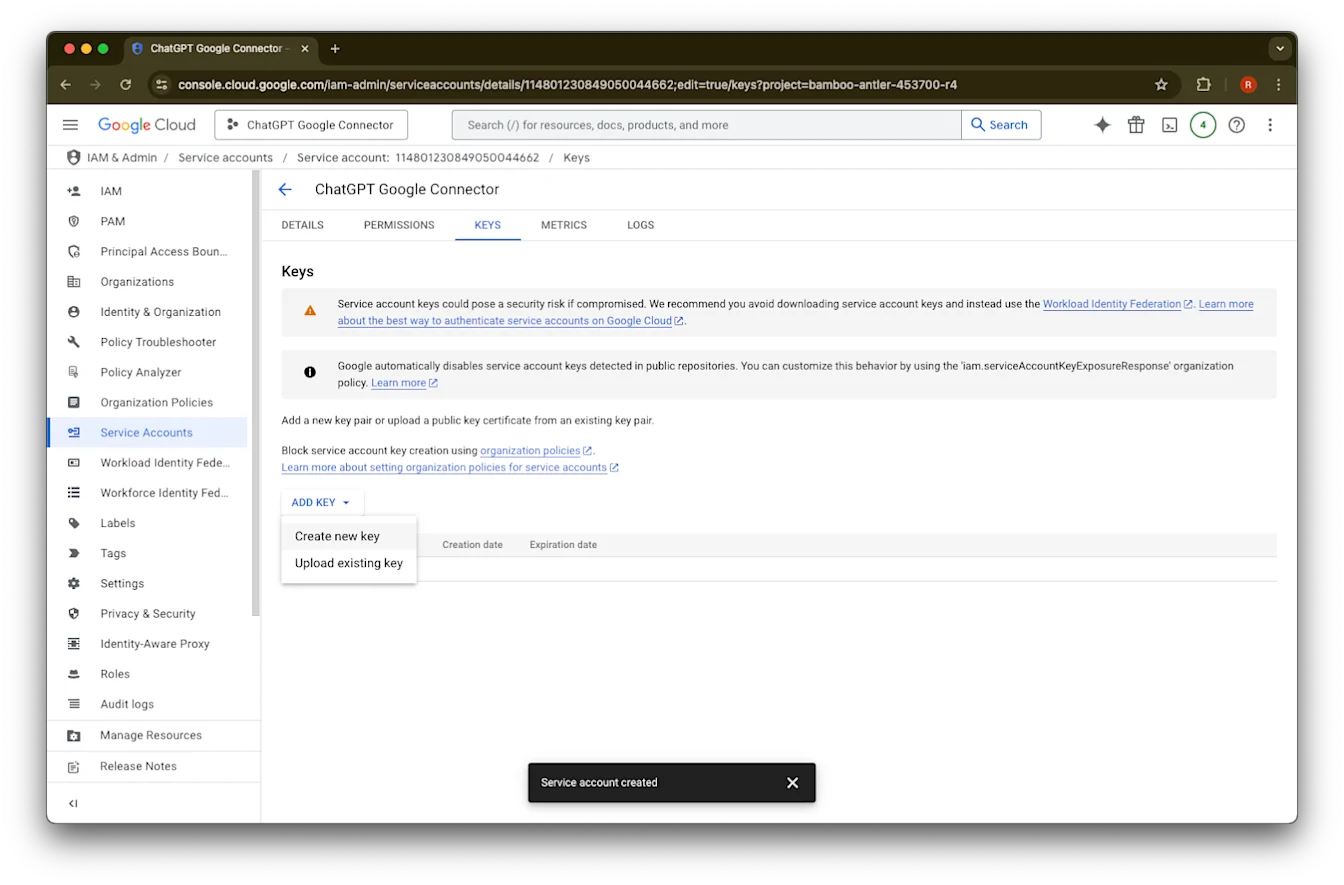
  30. Create new key をクリックします

    Google Cloud service account Keys tab with Add key menu open to create or upload a key
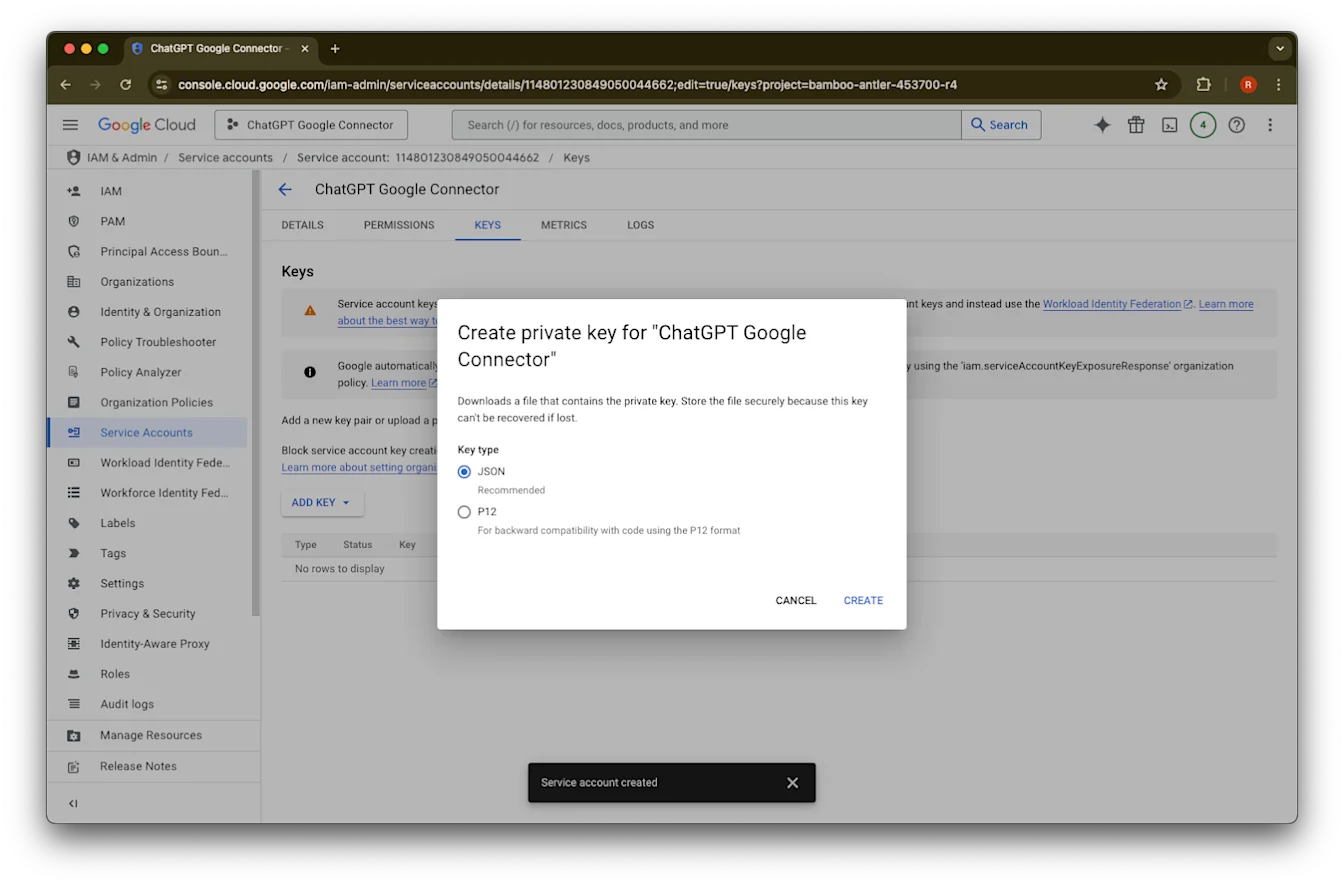
  31. デフォルトの JSON キータイプのままにして、Create をクリックします
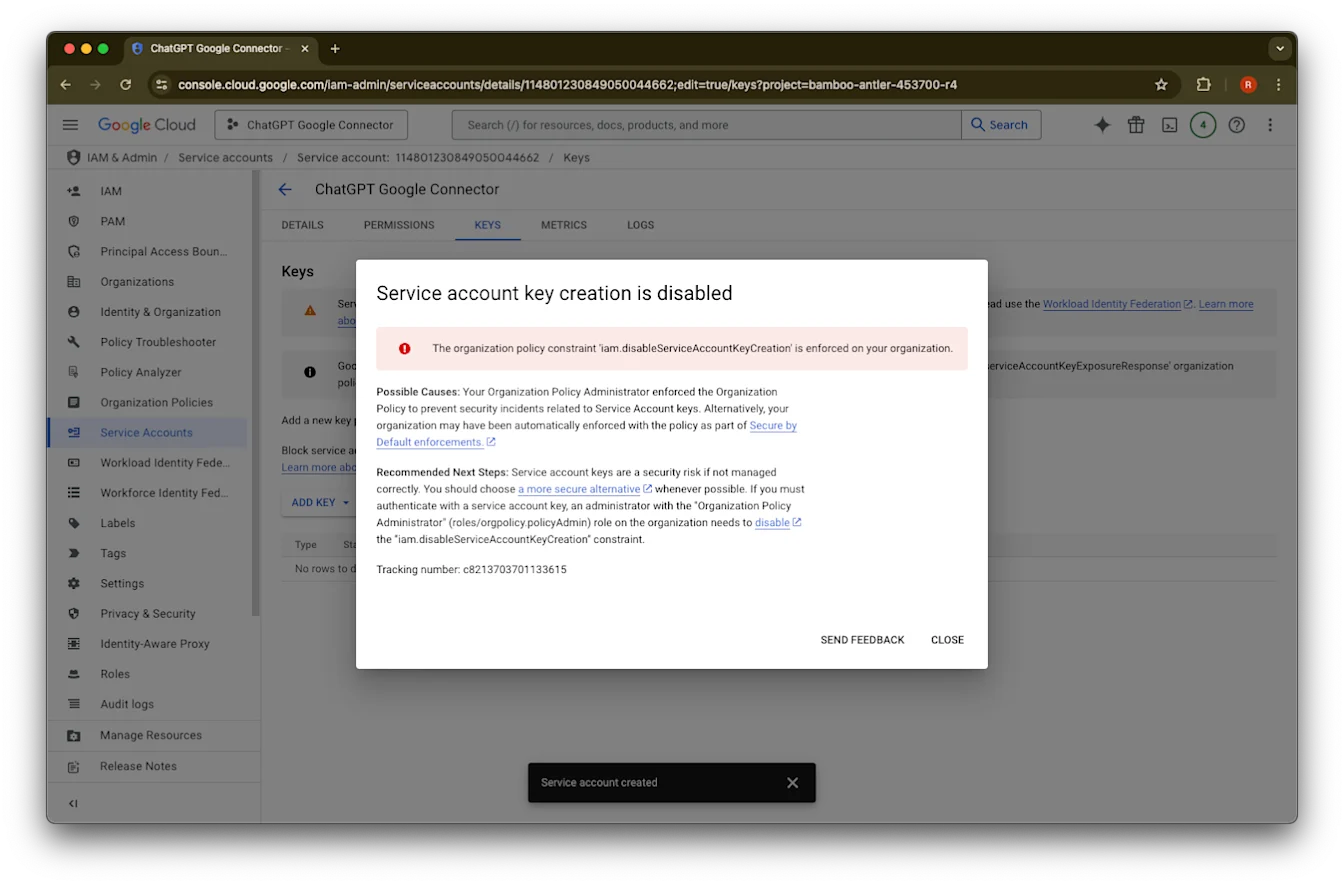
    「Service account key creation is disabled」というエラー メッセージが表示された場合は、作成を有効にするためにこちらの手順に従ってください。

    Create private key dialog for ChatGPT Google Connector with JSON key type selected
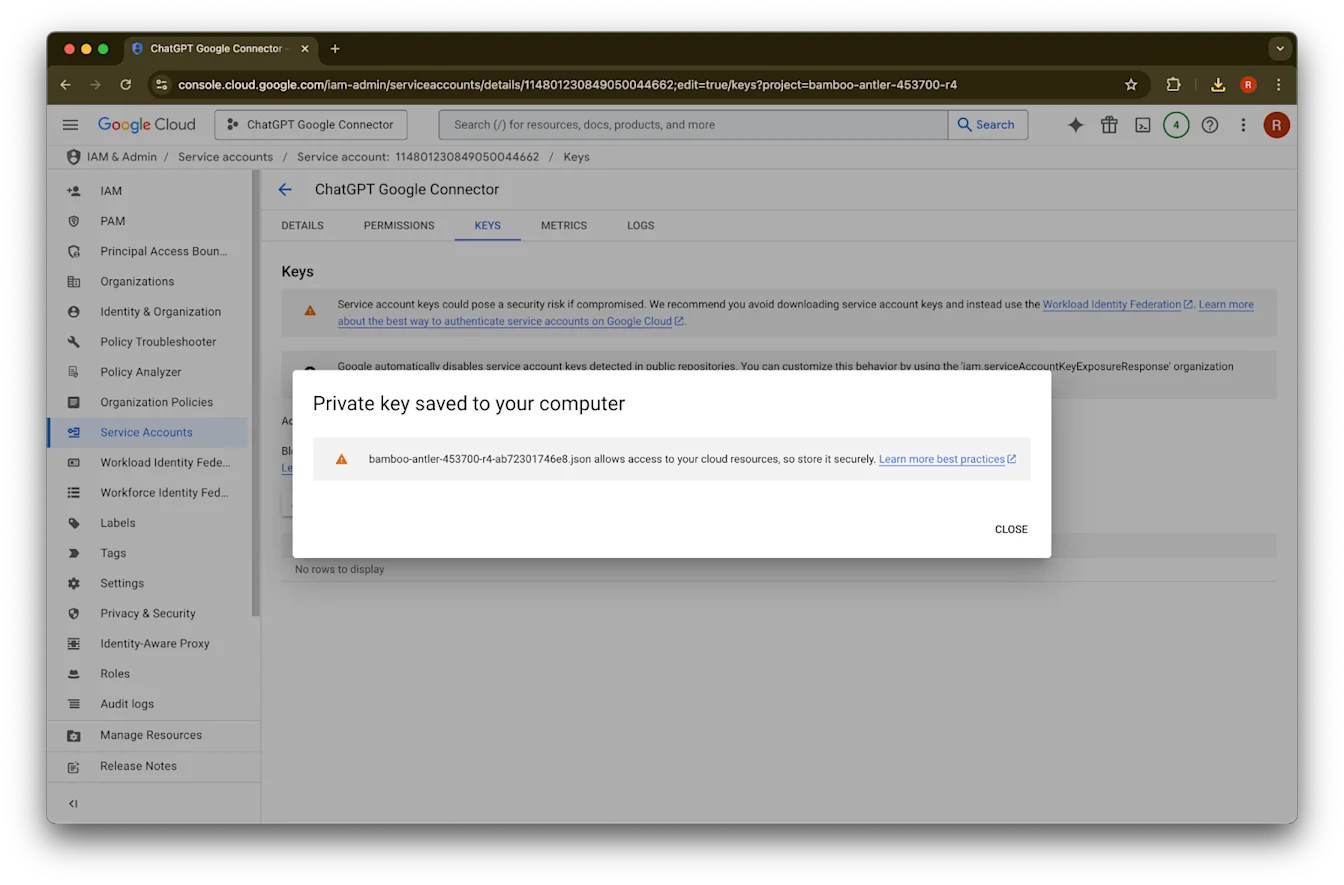
  32. Close をクリックします。キーがコンピューターにダウンロードされました。後で ChatGPT 管理コンソールにアップロードします。

    Google Cloud service account Keys tab with confirmation that a private key JSON file was saved to the computer
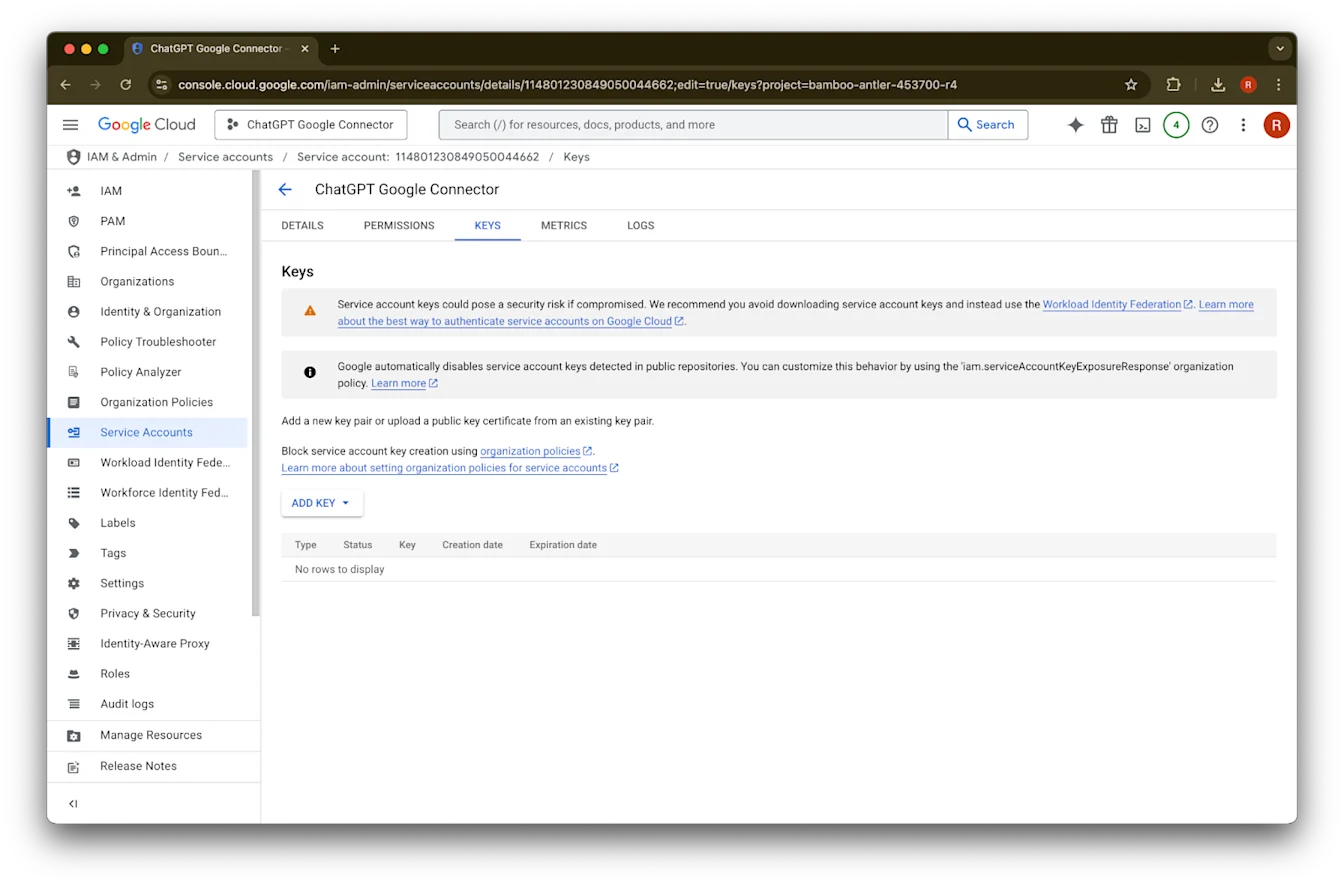
  33. details をクリックします

    Google Cloud service account Keys tab for ChatGPT Google Connector with Add Key button
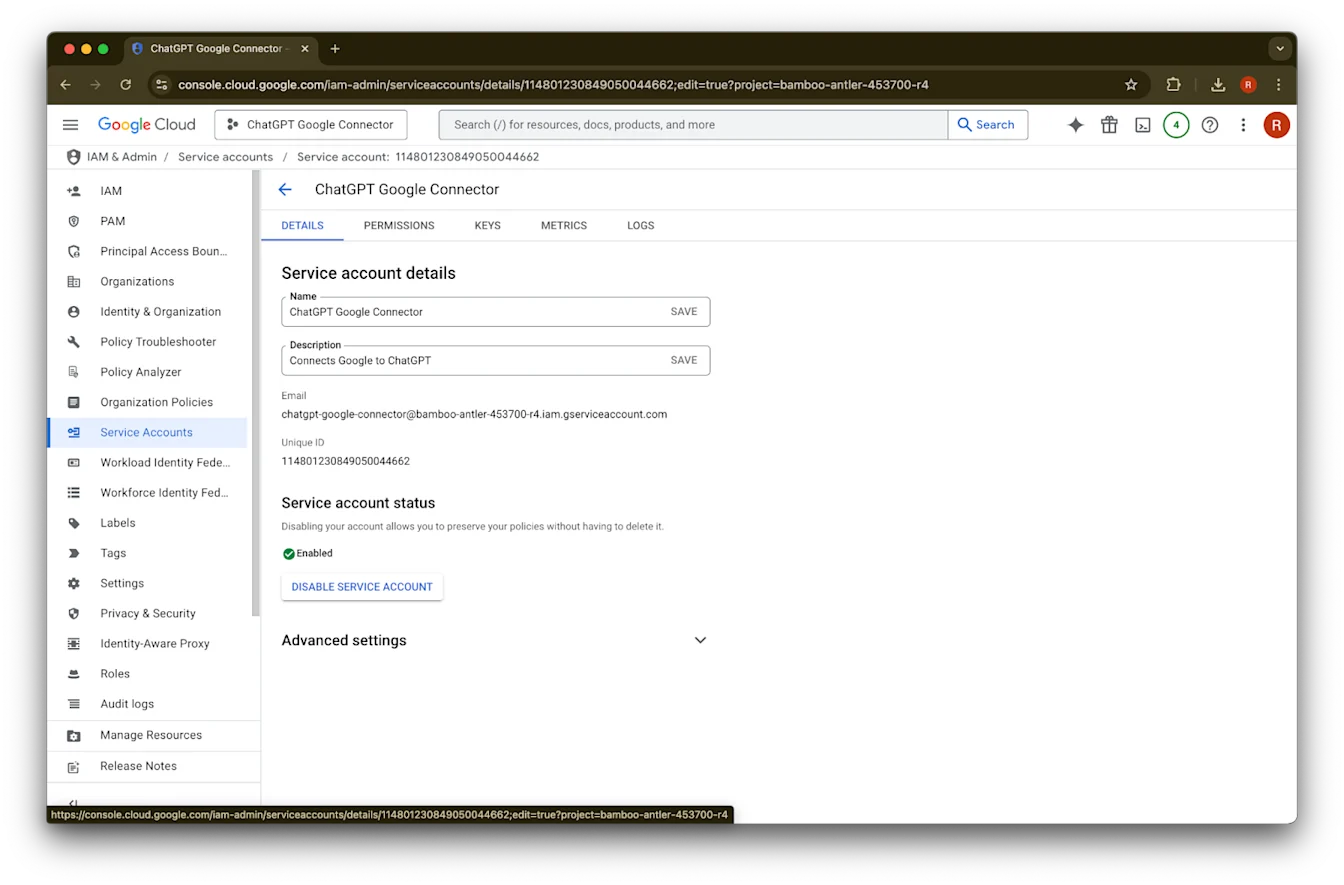
  34. Unique ID をメモしておきます。これは手順 42 で必要になります。

    Google Cloud service account details for ChatGPT Google Connector with status Enabled
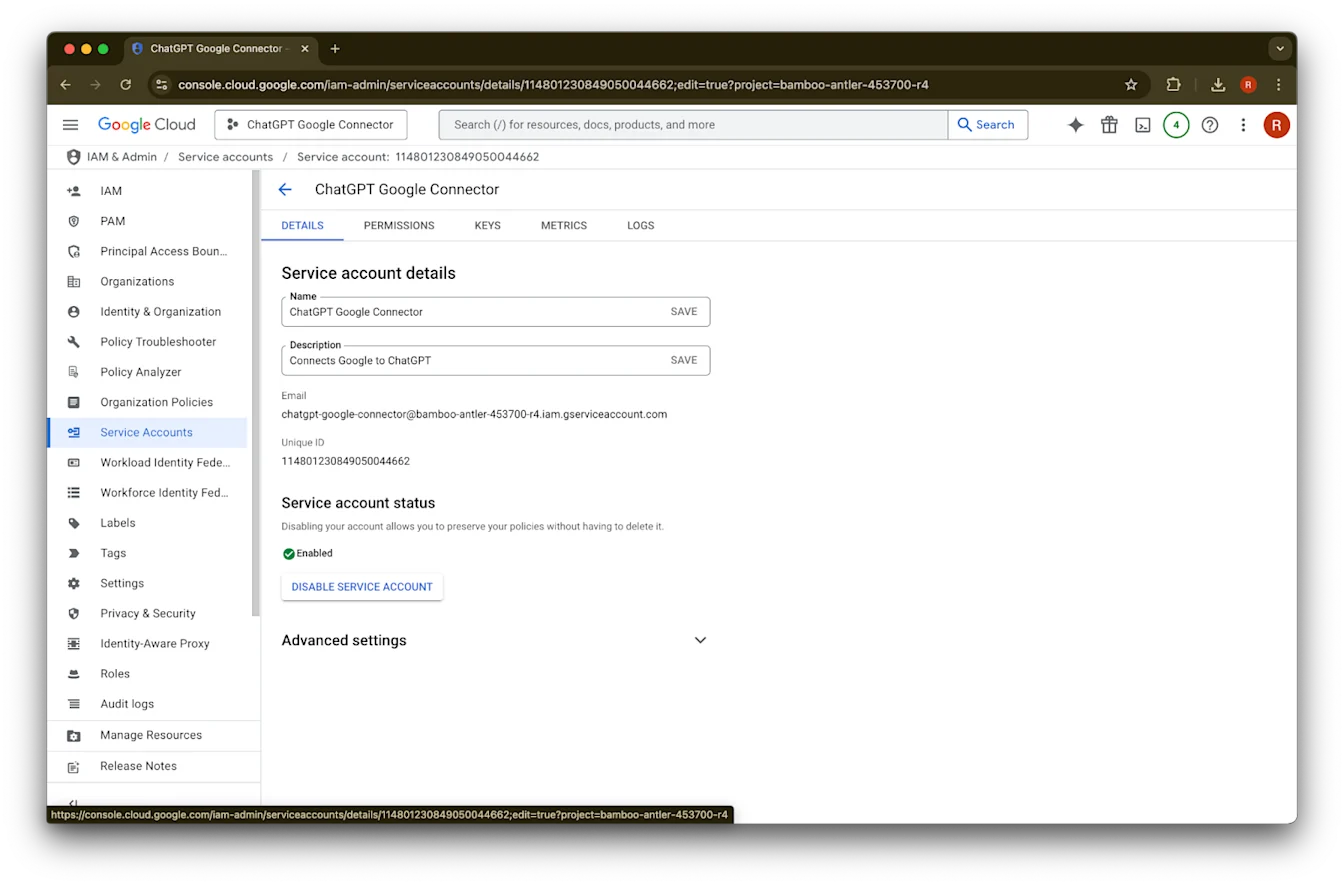
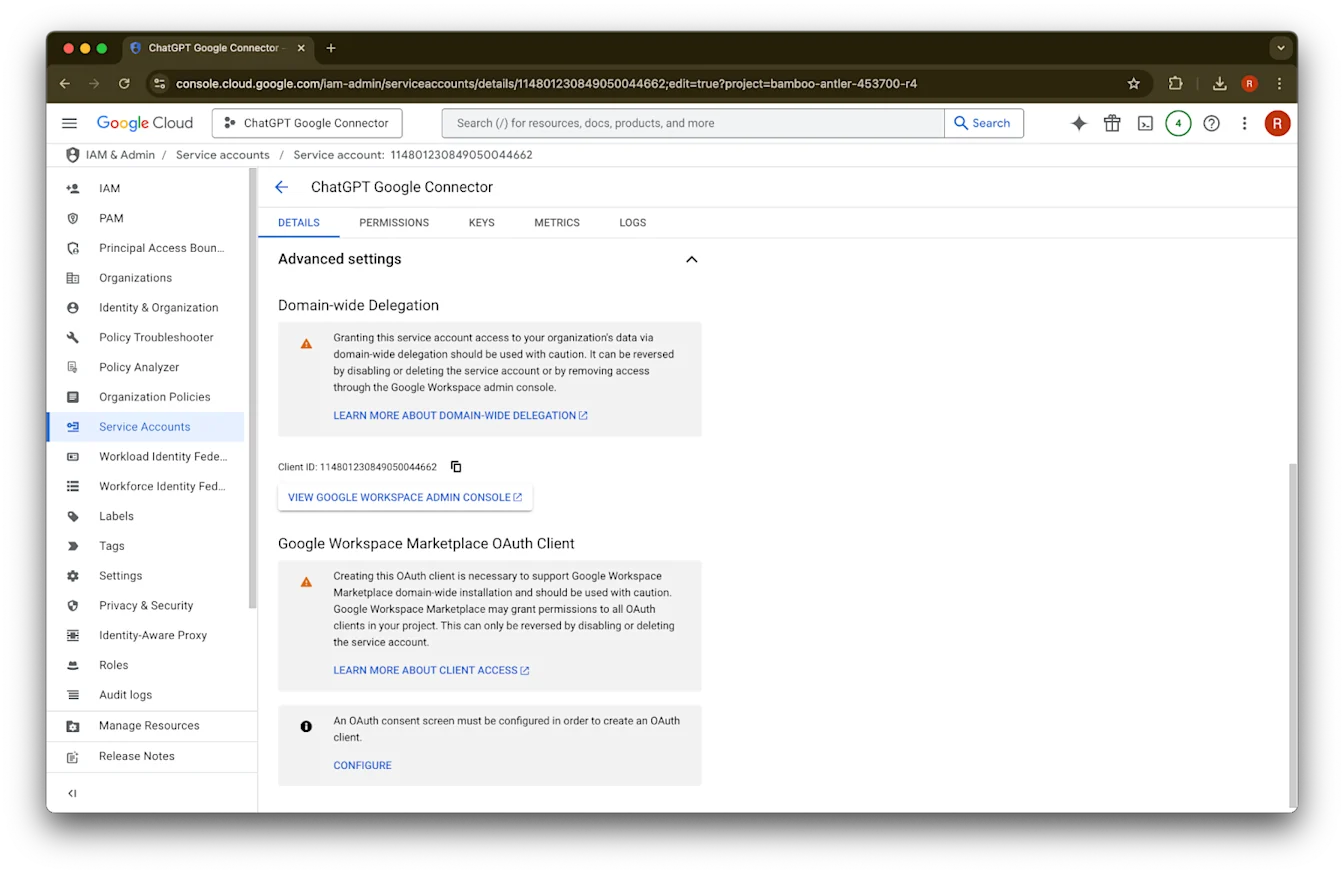
  35. Advanced settings を展開します

    Google Cloud service account details for ChatGPT Google Connector with the account enabled
  36. 下にスクロールして View Google Workspace Admin Console をクリックします。Google Workspace コンソールが新しいタブで開きます。

    Image
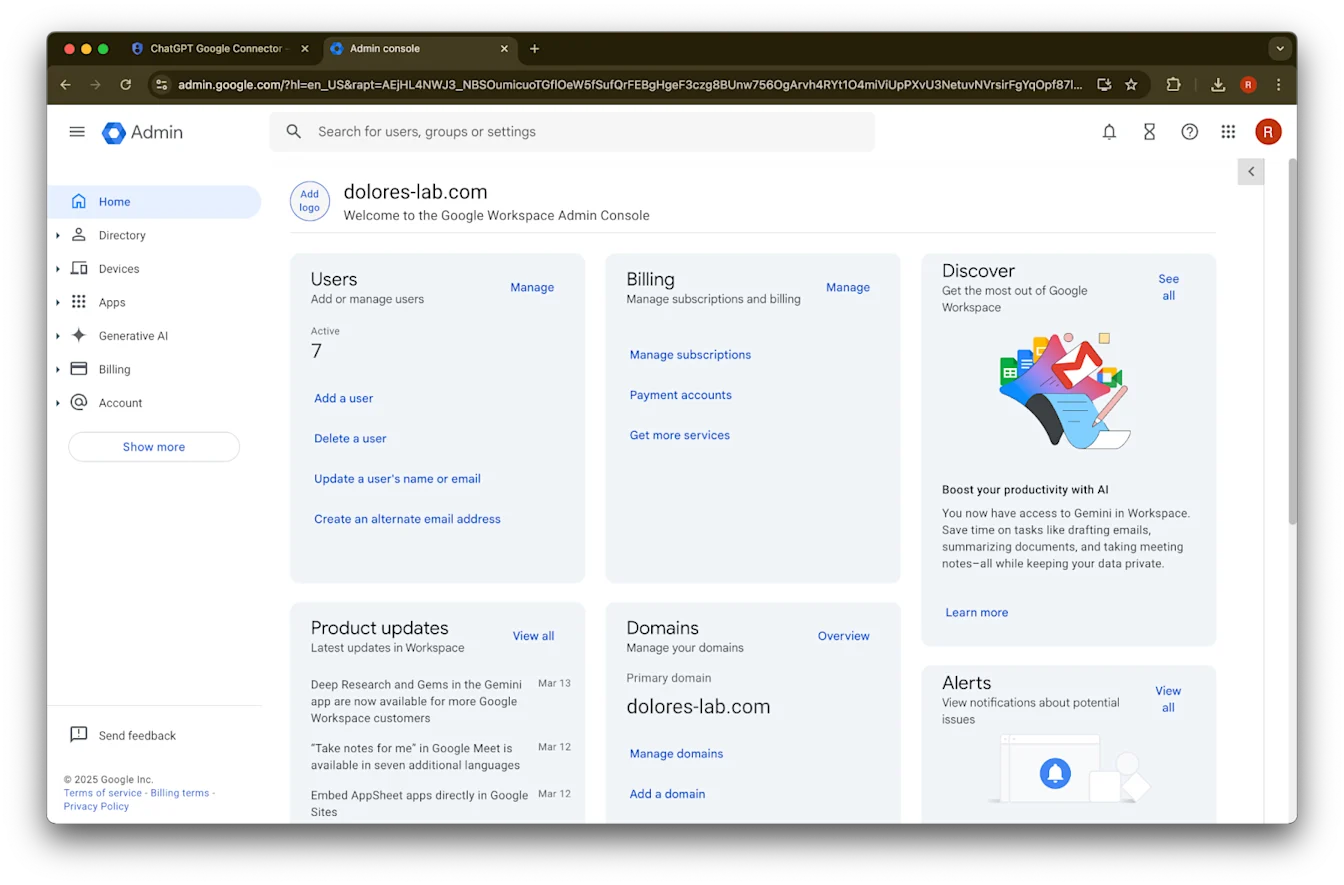
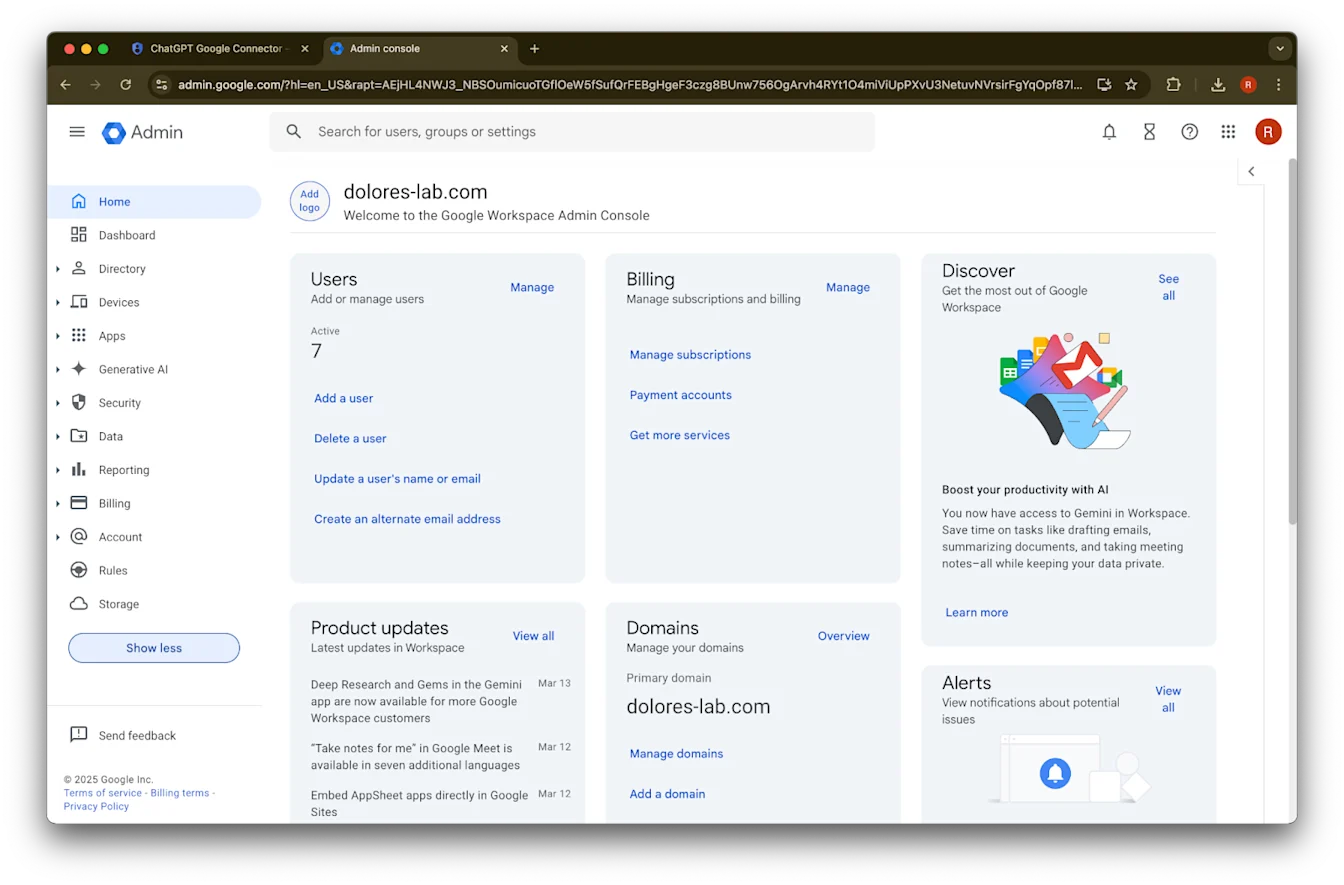
  37. Show more をクリックします

    Google Workspace Admin console home page for dolores-lab.com
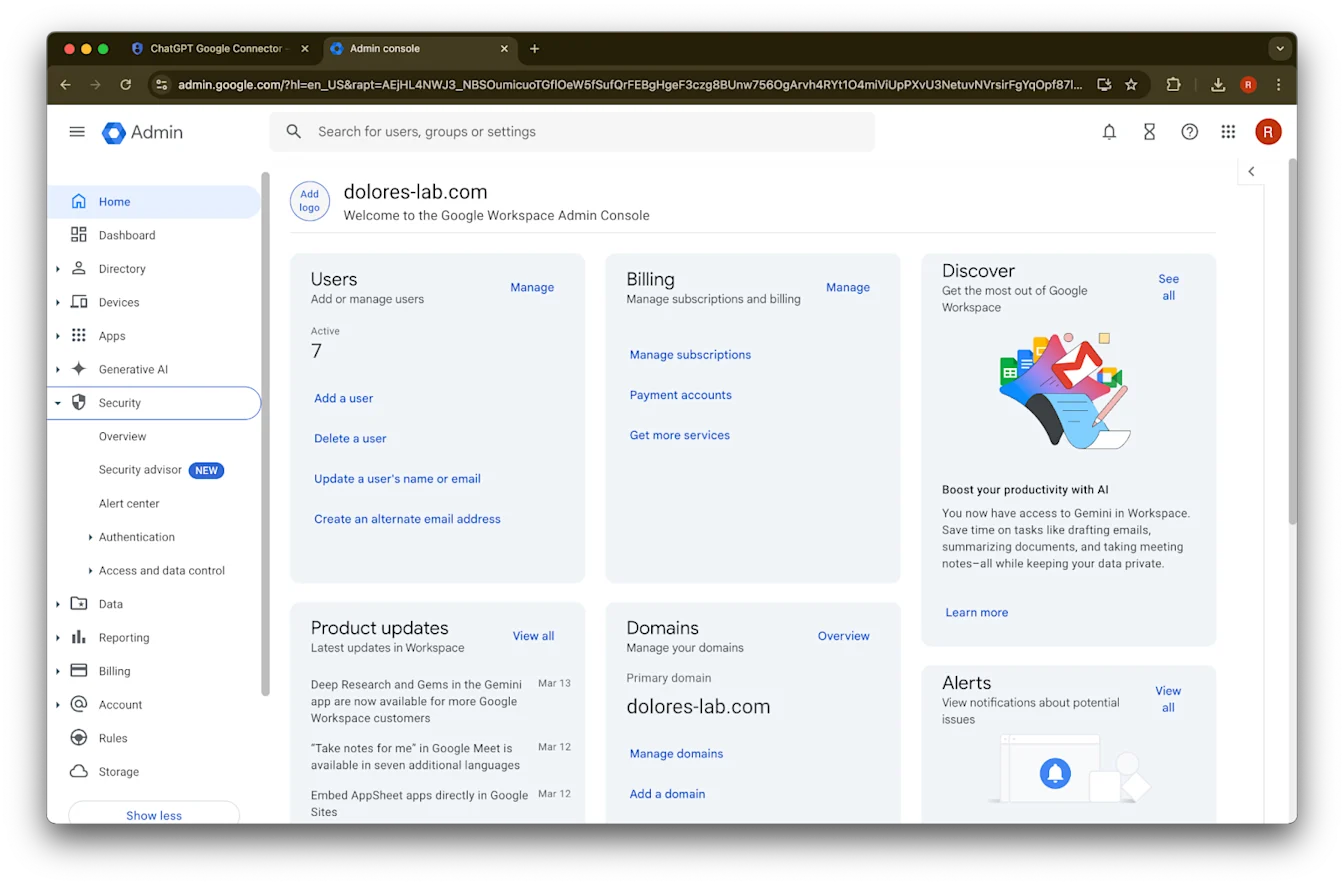
  38. Security セクションを展開します

    Image
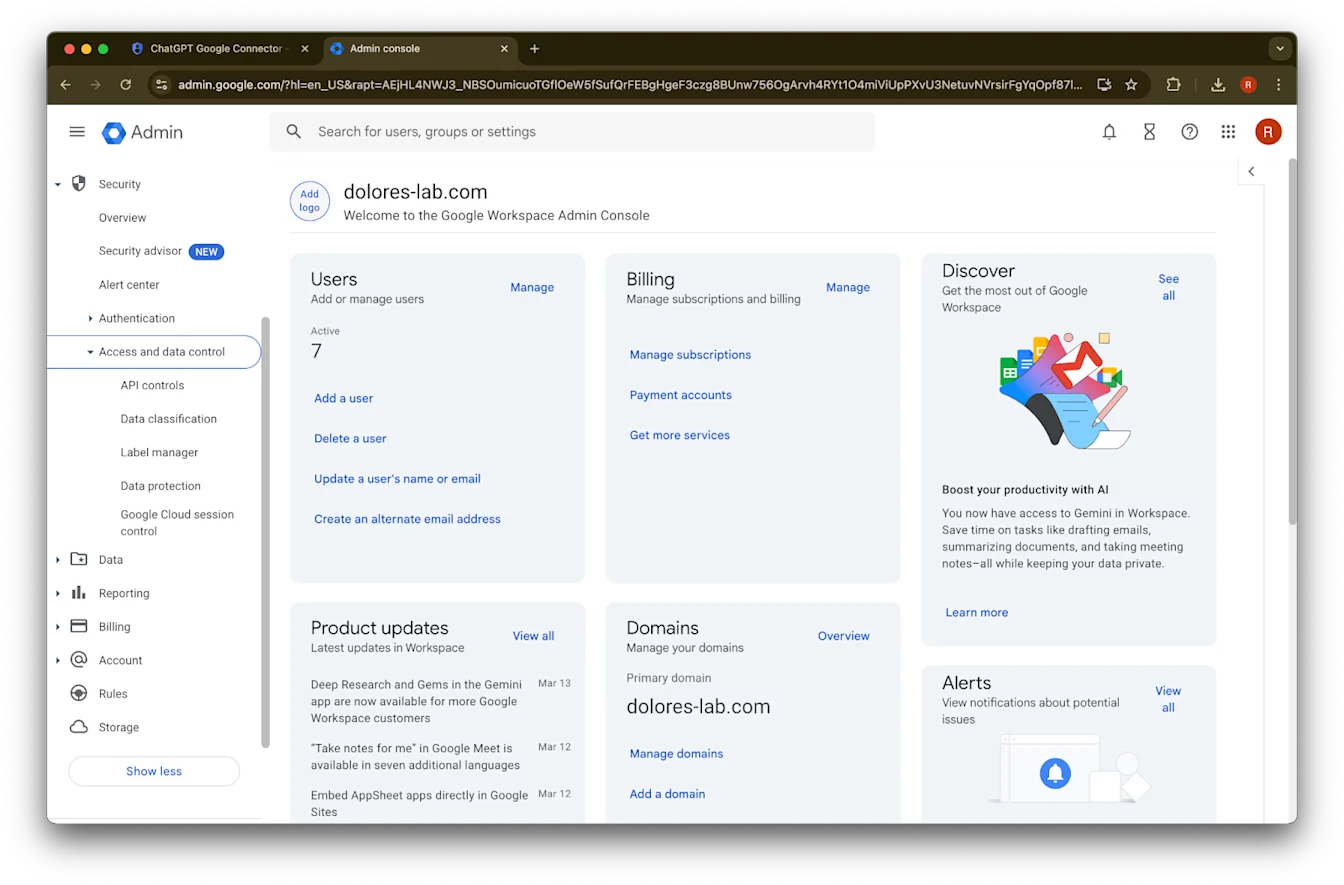
  39. Access and data controls セクションを展開します

    Google Workspace Admin console home with Security section expanded in the left navigation
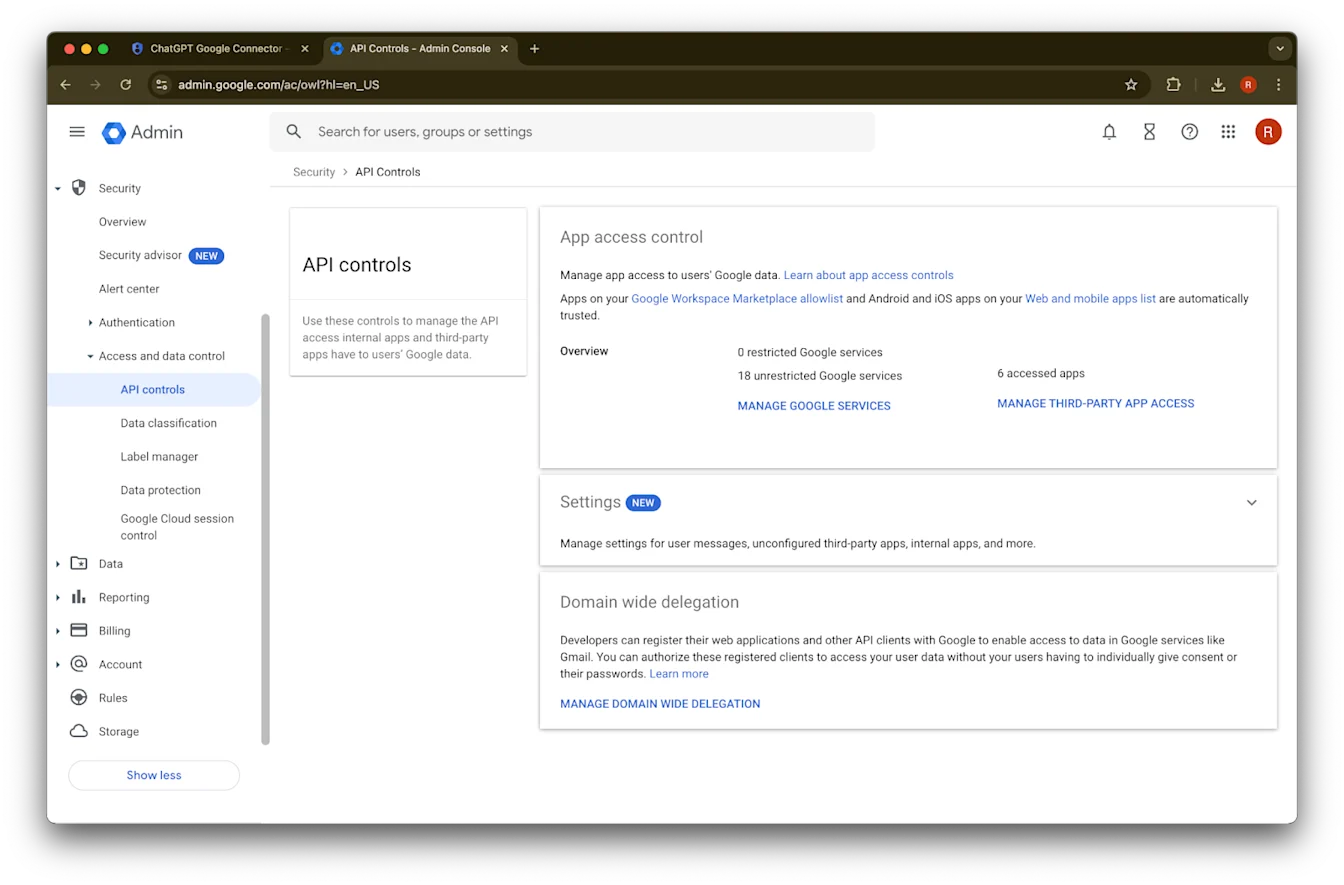
  40. API controls セクションをクリックします

    Google Workspace Admin console home with Security > Access and data control expanded in the sidebar
  41. Manage Domain Wide Delegation をクリックします

    Google Admin console API controls page under Security > Access and data control
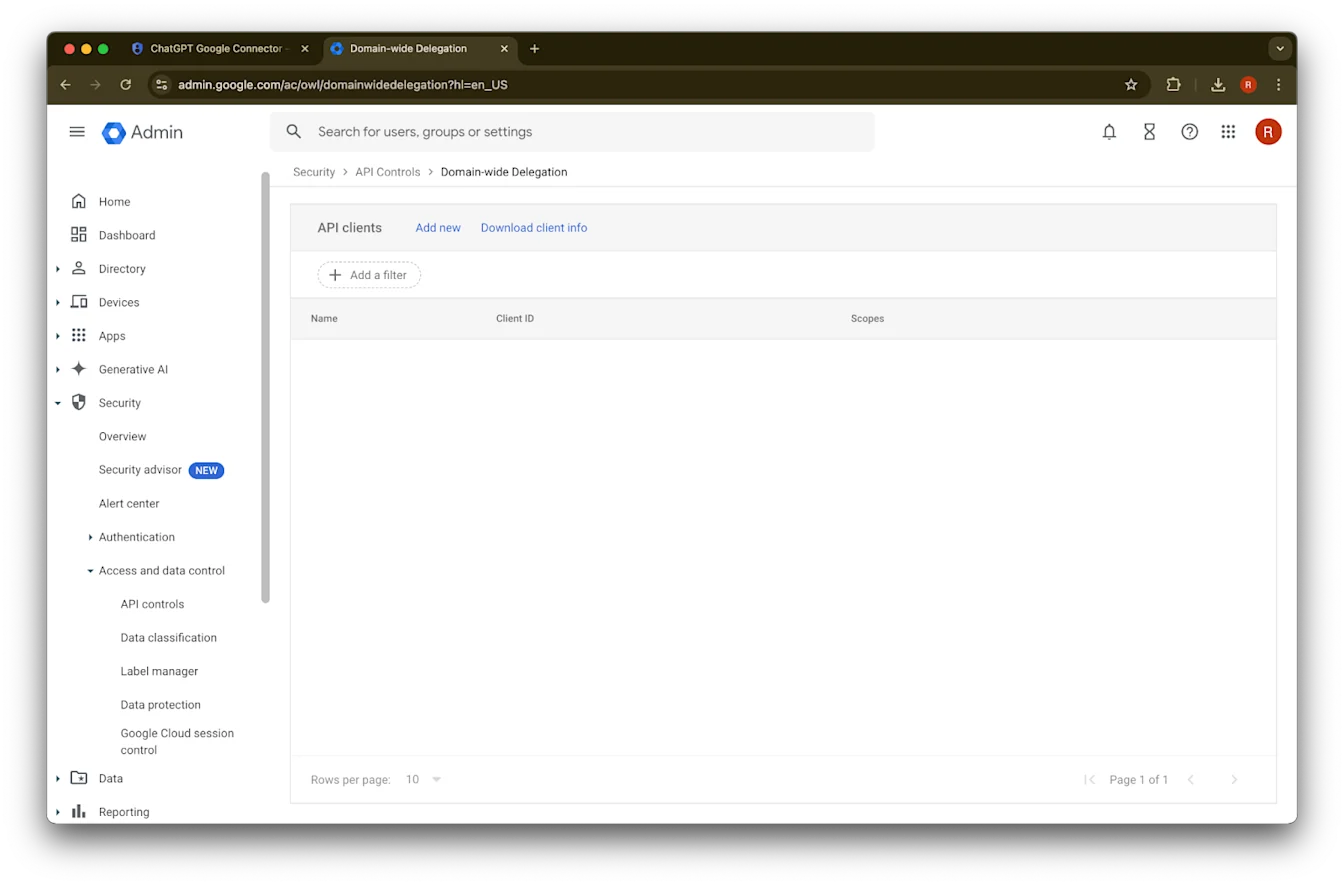
  42. Add new をクリックします

    Google Admin Domain-wide Delegation page with API clients list and Add new option
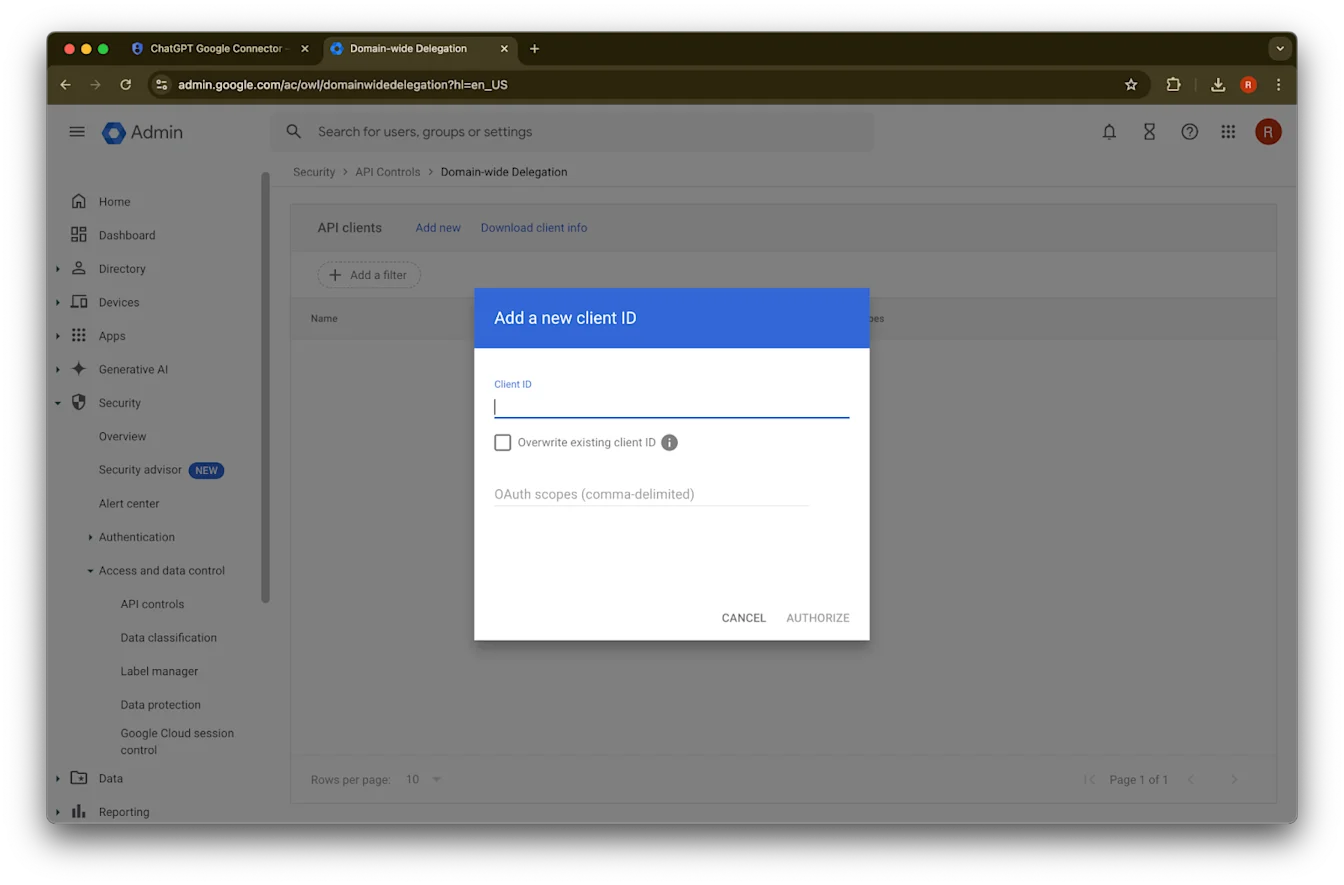
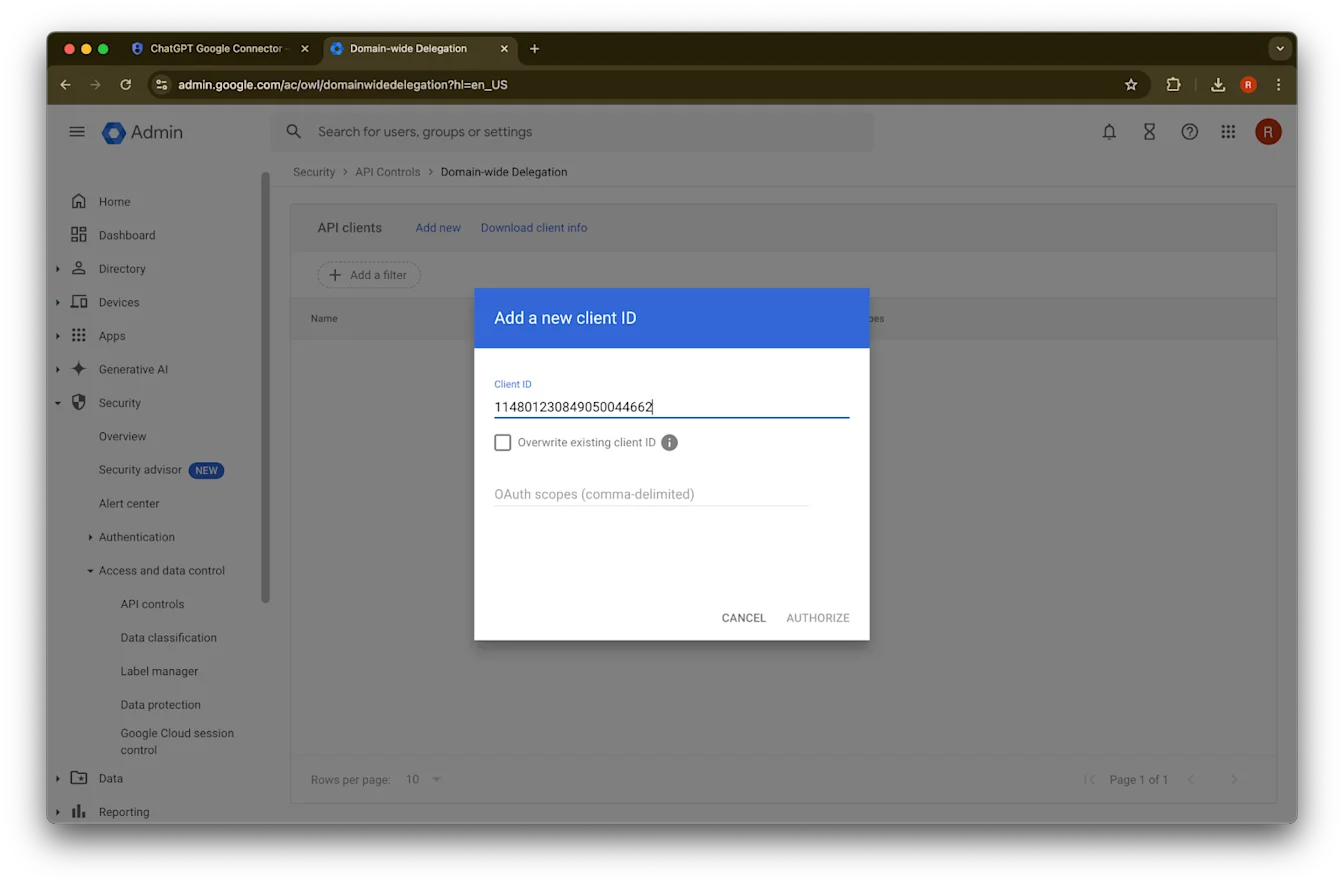
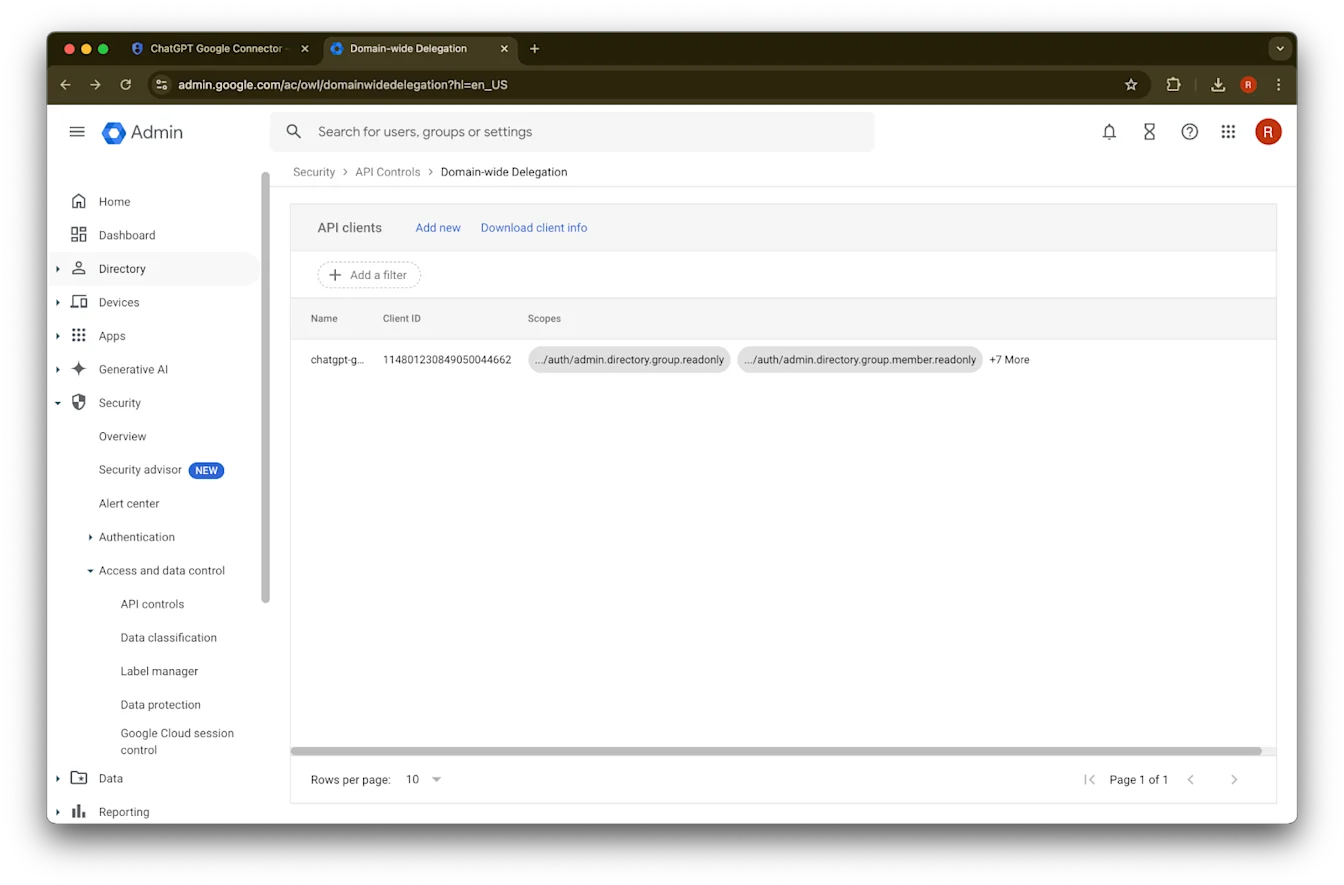
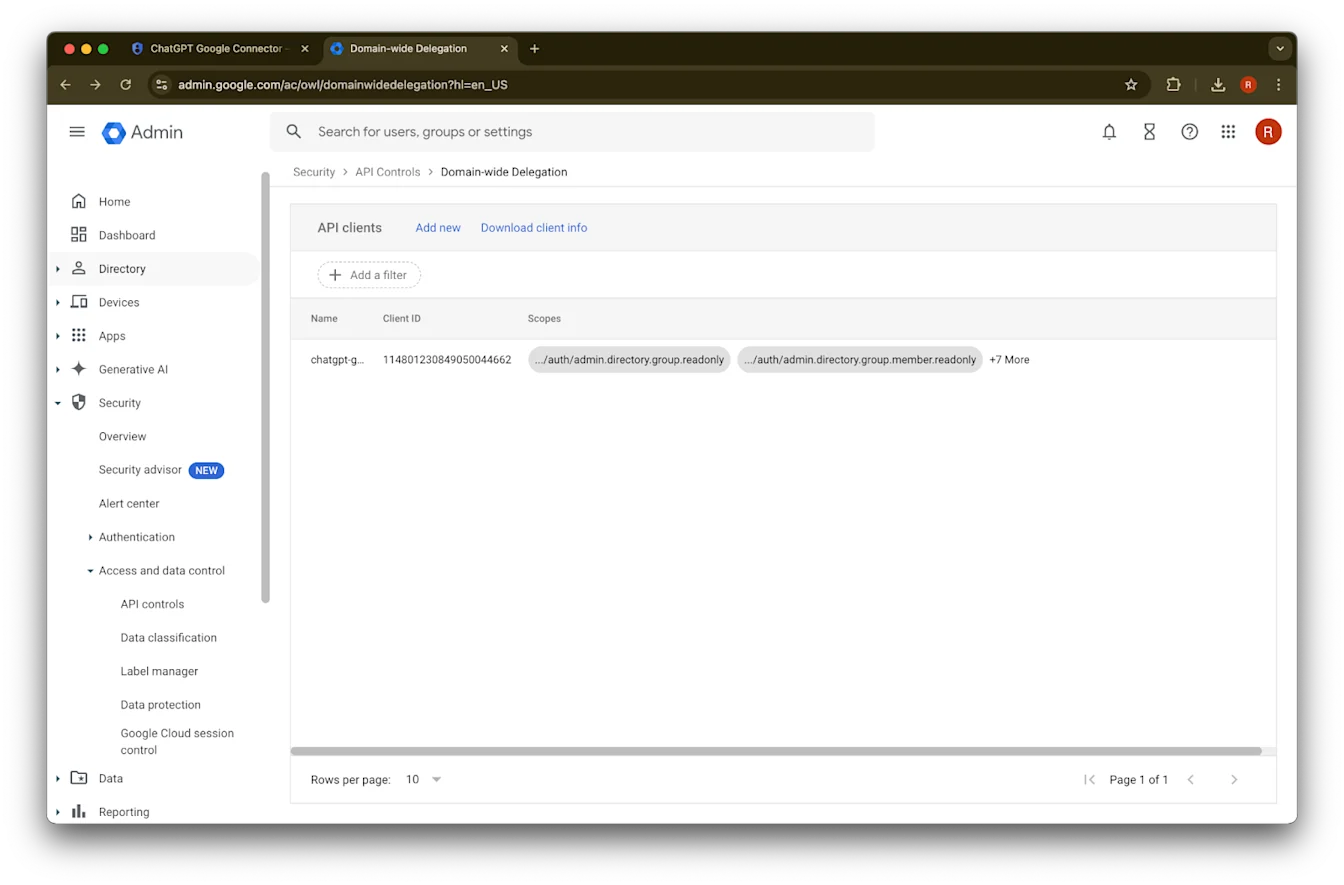
  43. 先ほどメモしたUnique ID を、このClient ID の値として使用します

    Google Admin Domain-wide Delegation dialog for adding a new client ID and OAuth scopes
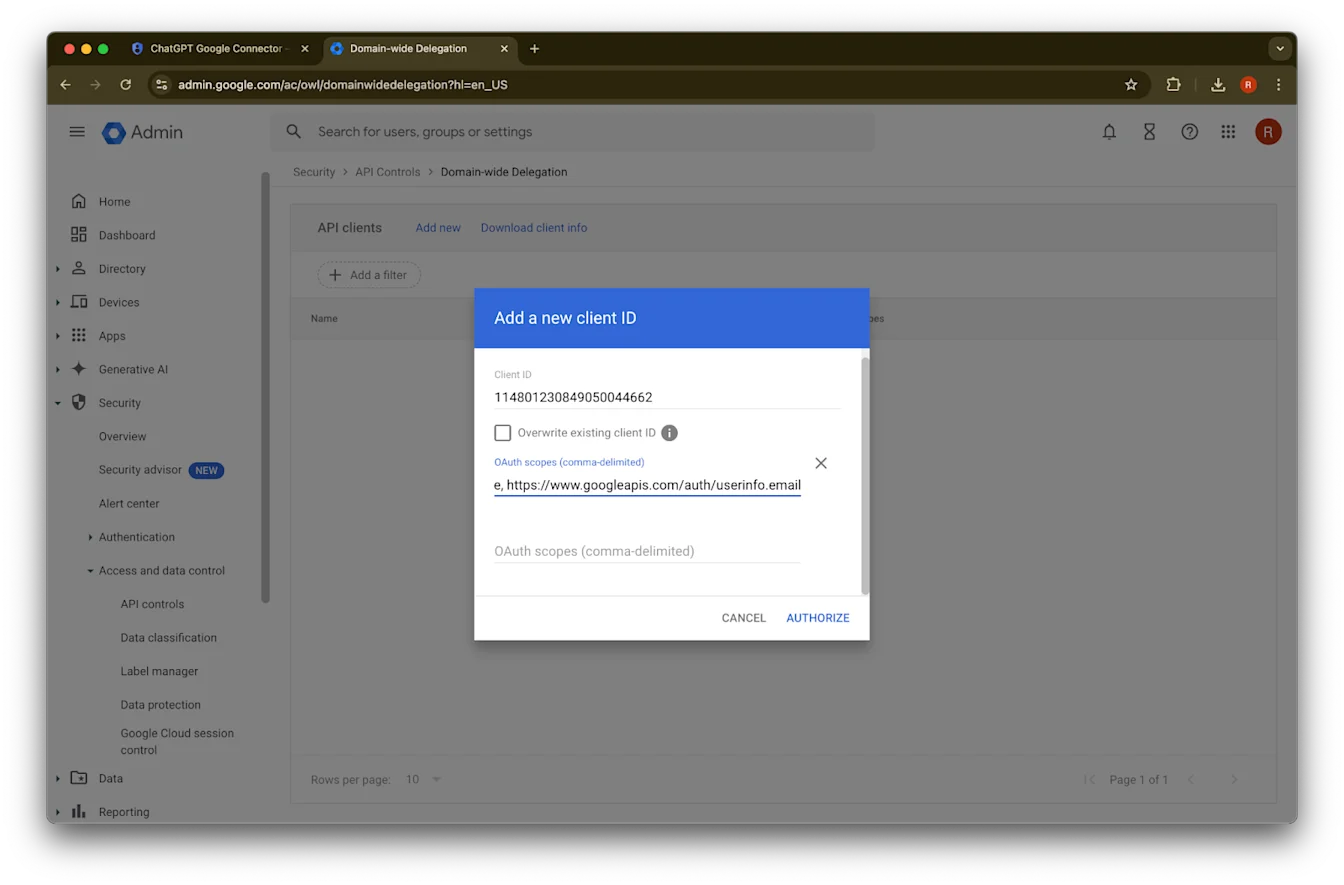
  44. OAuth scopes については、次のカンマ区切りの認証スコープ値を参照し、コピーして貼り付けてください:
https://www.googleapis.com/auth/admin.directory.group.readonly, https://www.googleapis.com/auth/admin.directory.group.member.readonly, https://www.googleapis.com/auth/admin.directory.user.readonly, https://www.googleapis.com/auth/admin.directory.user.alias.readonly, https://www.googleapis.com/auth/drive.activity.readonly, https://www.googleapis.com/auth/drive.metadata.readonly, https://www.googleapis.com/auth/drive.readonly, https://www.googleapis.com/auth/userinfo.profile, https://www.googleapis.com/auth/userinfo.email
スコープ推論
admin.directory.group.readonlyグループベースの権限を適用するため
admin.directory.group.member.readonlyグループベースの権限を適用するため
admin.directory.user.alias.readonlyユーザーがエイリアス経由で権限を付与されている場合に対応するため
drive.activity.readonlyファイルに変更が発生した際に通知を受けるため
drive.metadata.readonlyファイル内容と関連メタデータ(例: 最終更新日)を同期するため
drive.readonlyファイル内容と関連メタデータ(例: 最終更新日)を同期するため
userinfo.profileファイルを同期する対象ユーザーを特定するため
userinfo.emailファイルを同期する対象ユーザーを特定するため
Google Admin Domain-wide Delegation dialog for adding a new client ID and OAuth scopes

45. Authorize をクリックします

Image

46. 完了です。

Image

管理者アカウントの設定

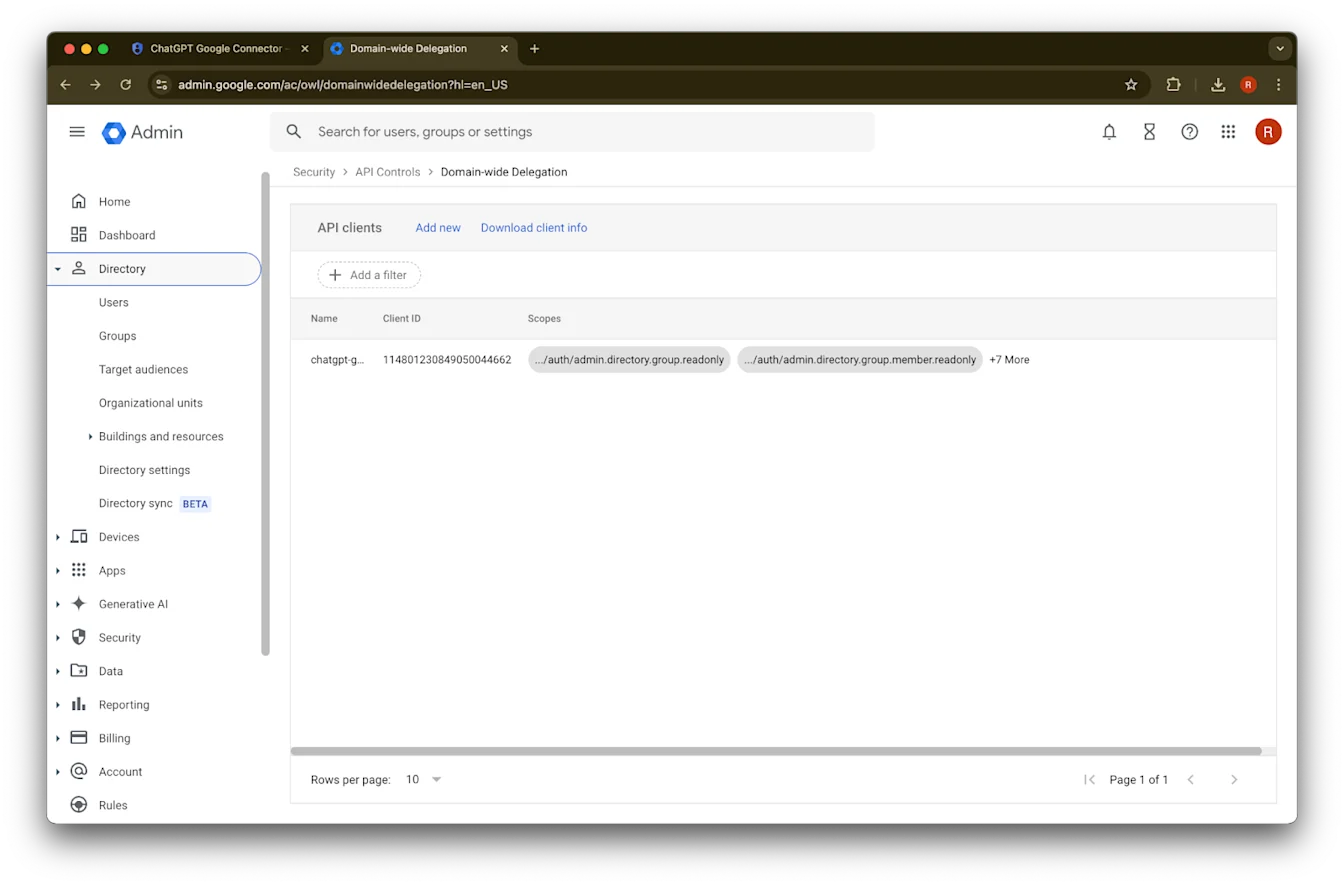
  1. Directory を展開します

    Google Admin Domain-wide Delegation page with a ChatGPT API client and scopes listed
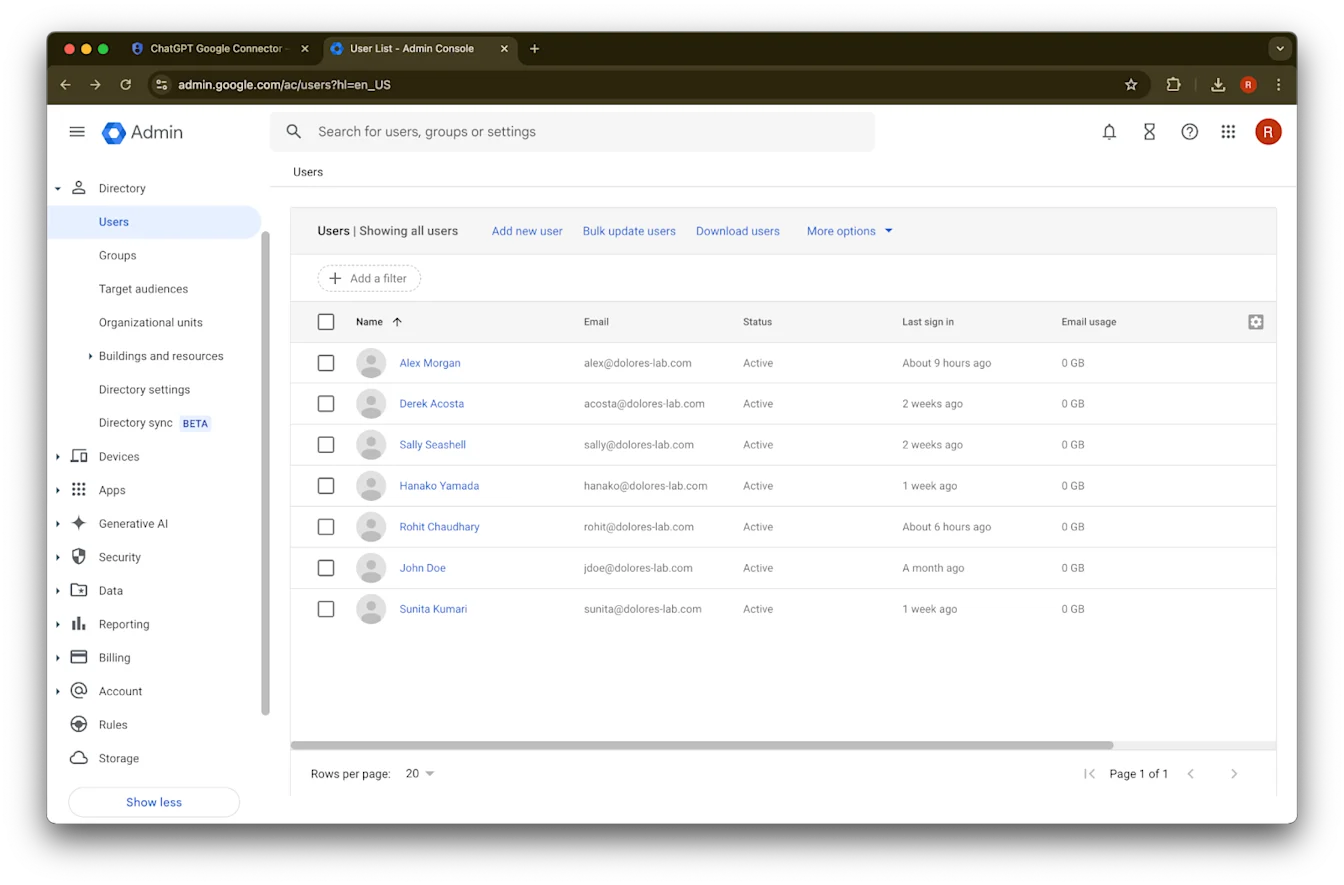
  2. Users をクリックします

    Google Admin domain-wide delegation page listing a ChatGPT Google Connector API client and scopes
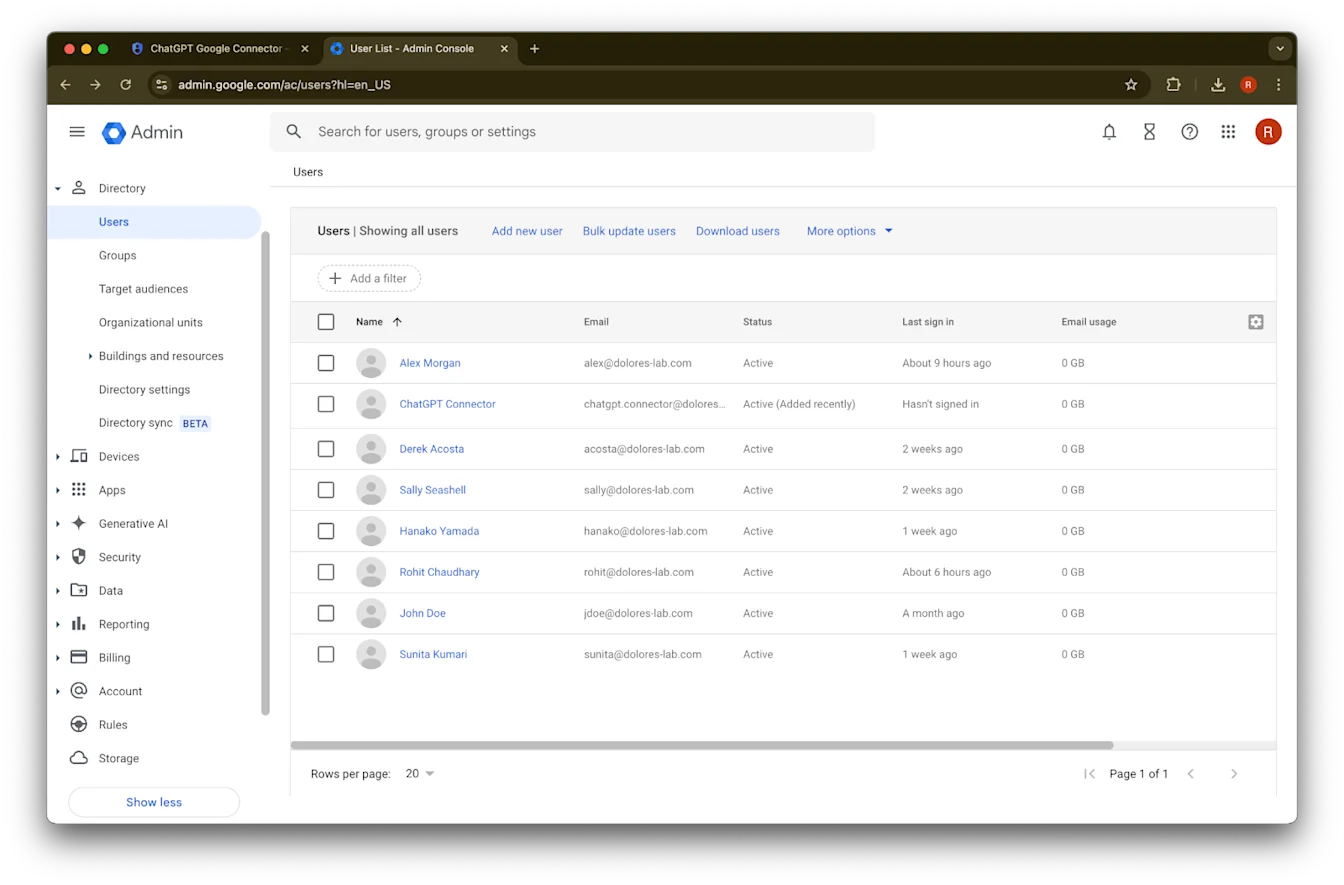
    Google Admin console Users page listing workspace accounts for setup and management
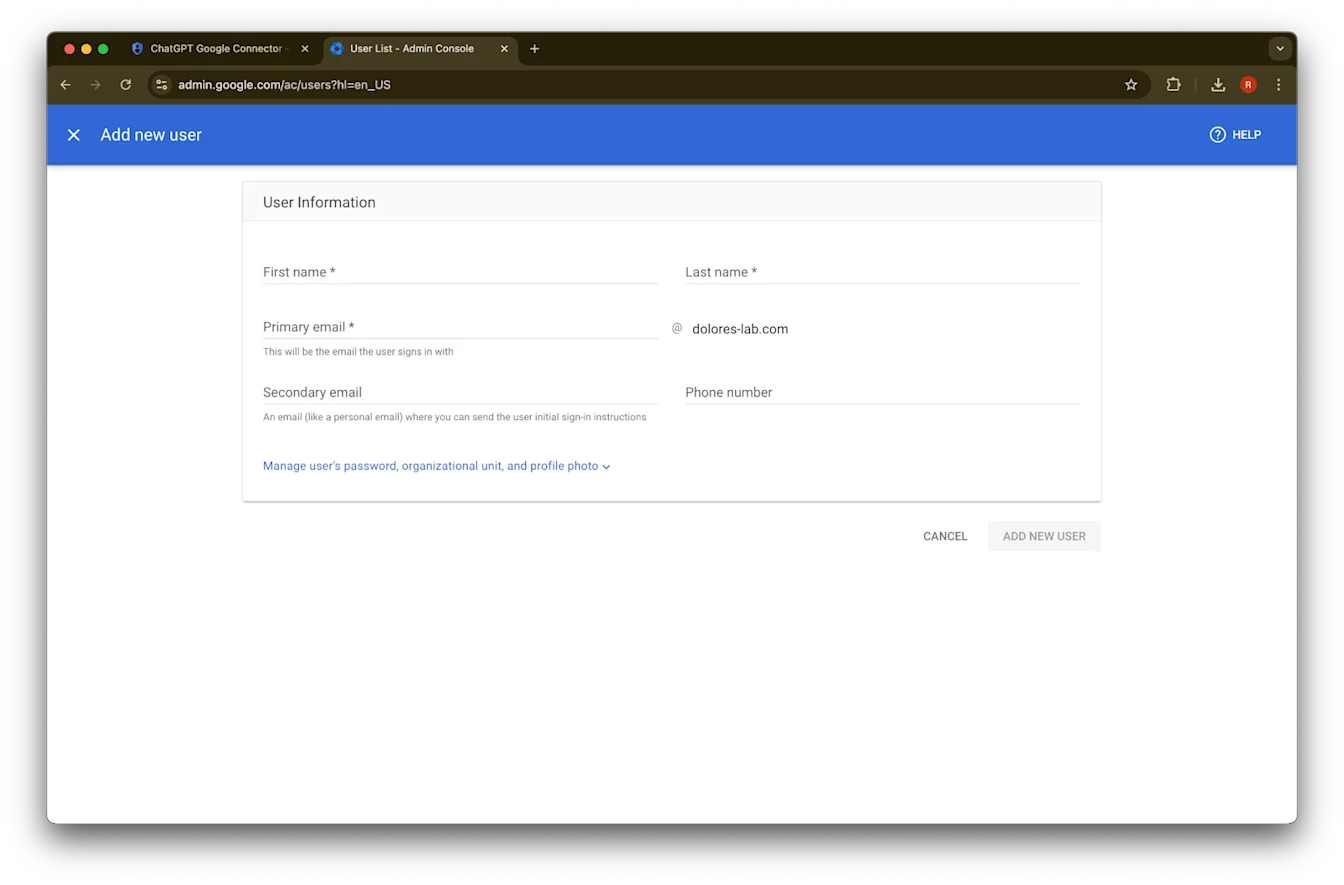
  3. 任意のプライマリ メールアドレスを入力します

    Google Admin console Add new user form for creating a Workspace user at dolores-lab.com
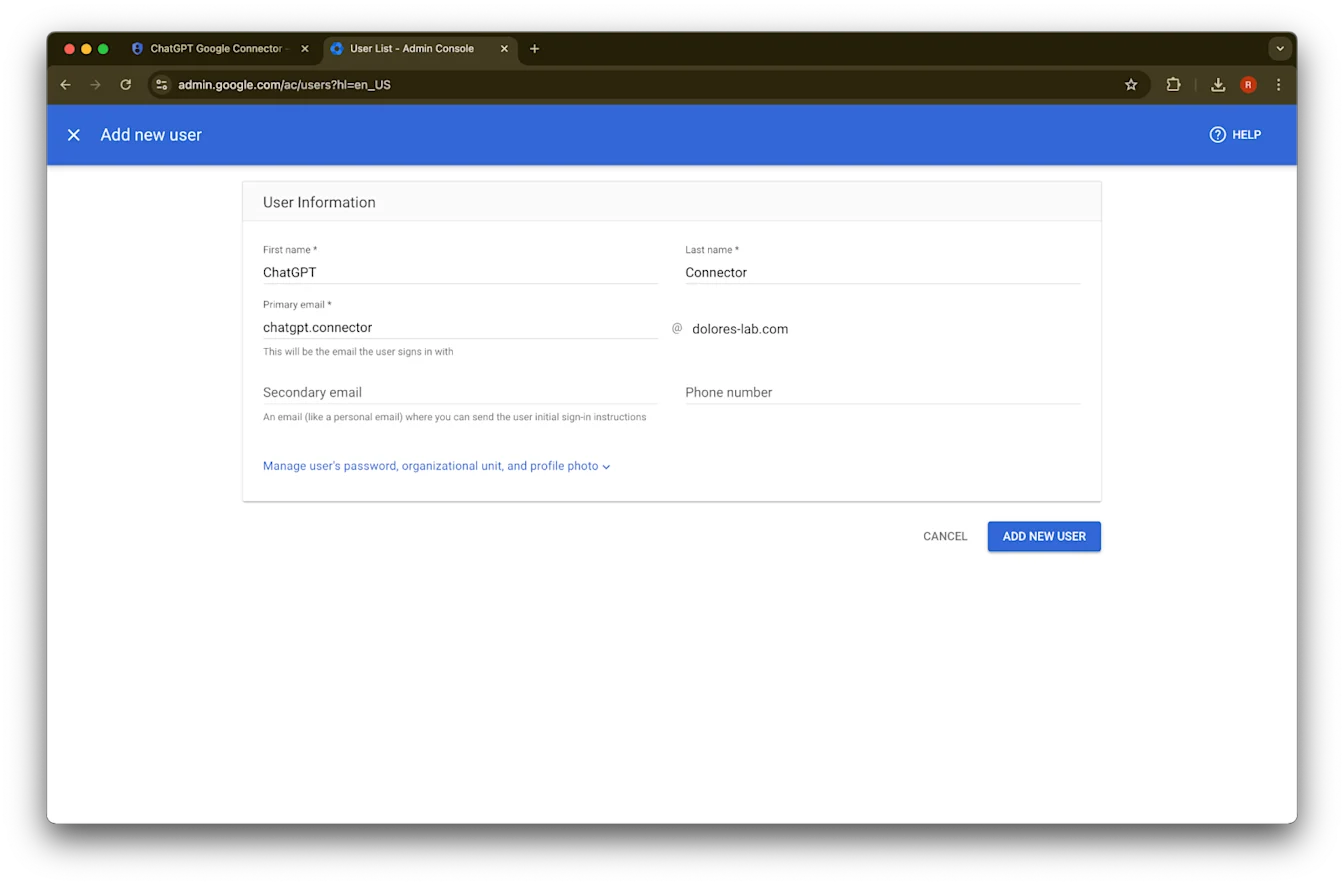
  4. Add new user
    をクリックします

    Google Admin console Add new user form filled for a ChatGPT Connector account
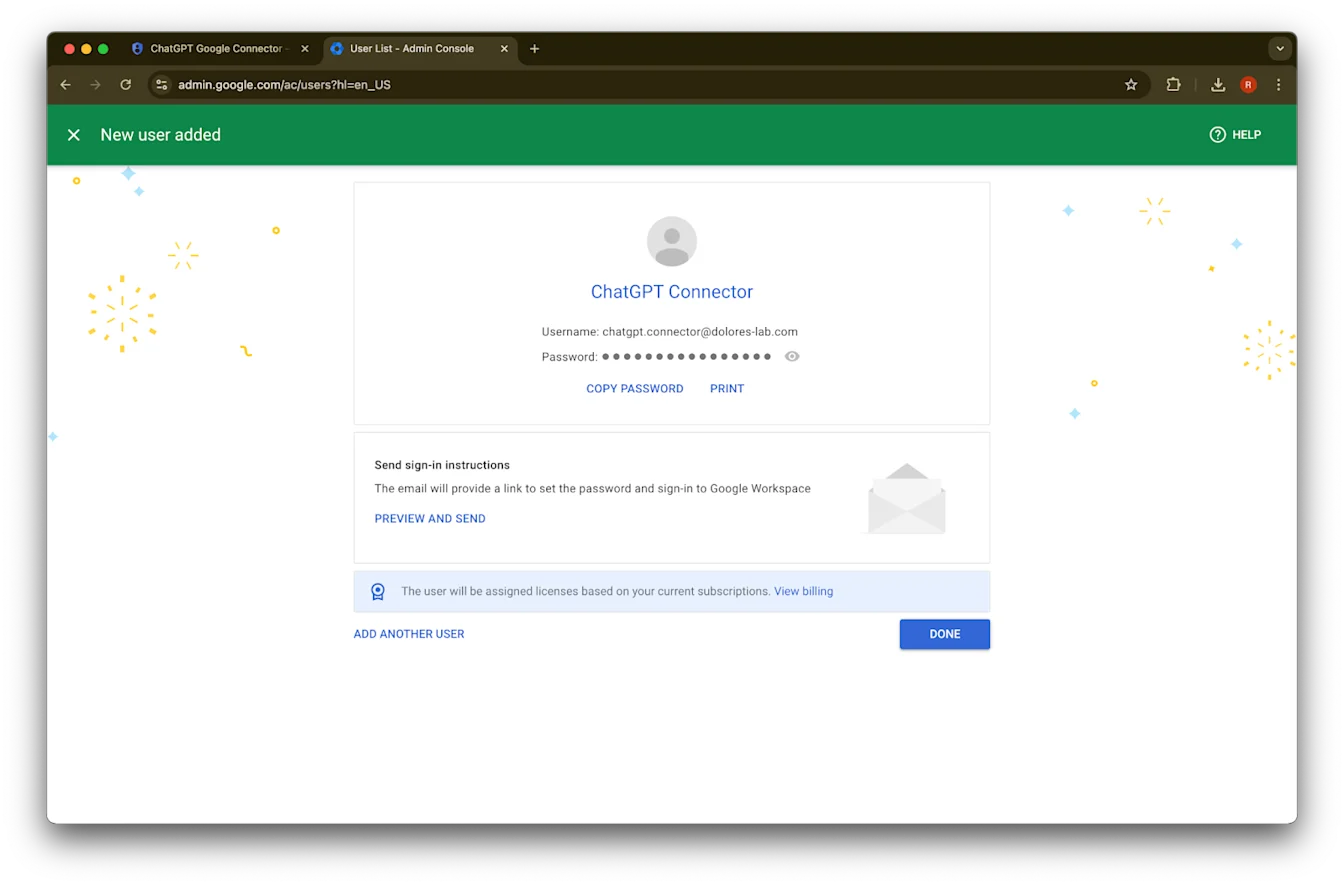
  5. (任意) これらの認証情報を記録しておきます。ChatGPT ではこれらの認証情報は不要です。

    Google Admin Console New user added page for ChatGPT Connector with Copy Password and Done actions
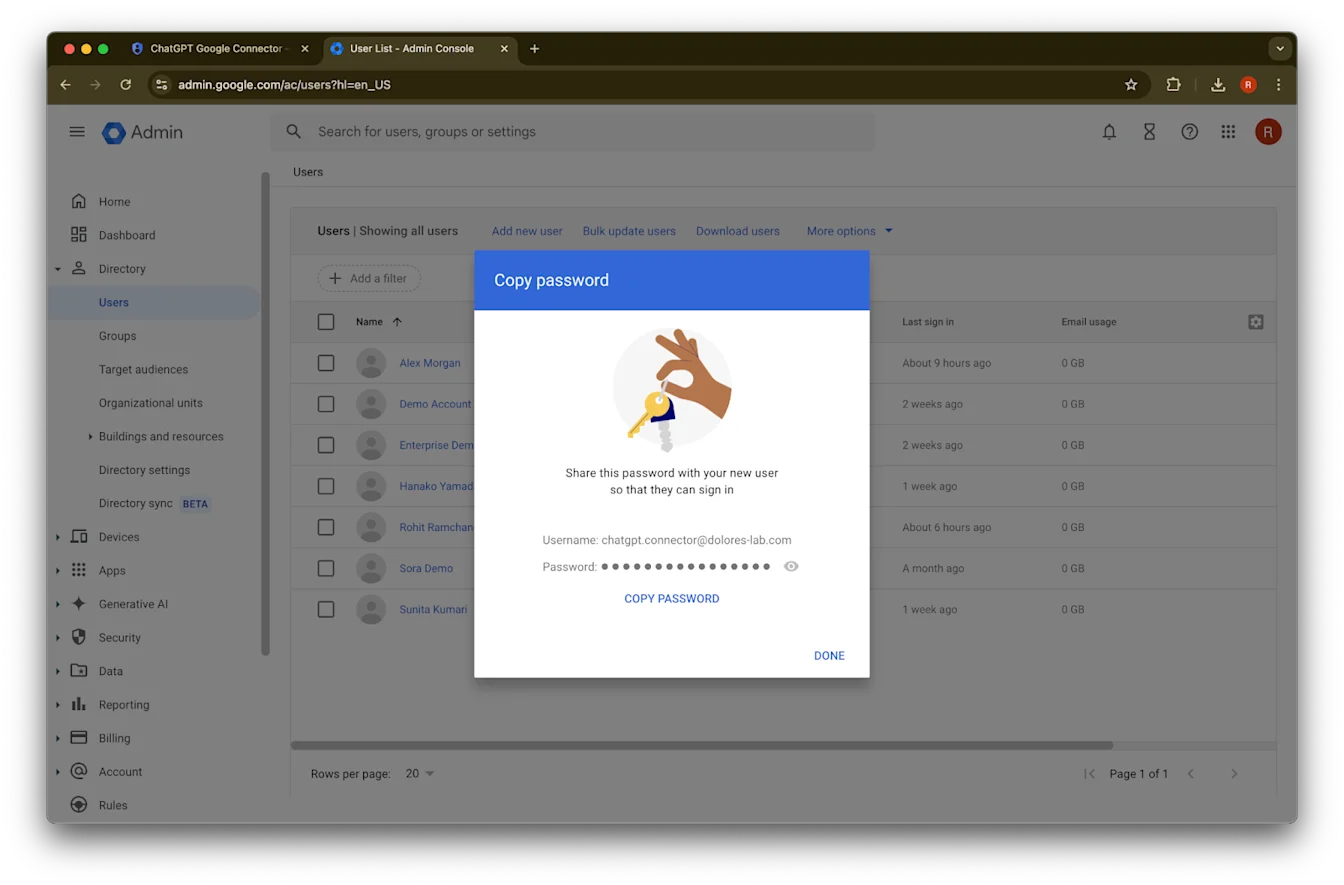
  6. Done をクリックします。

    Google Admin console Copy password dialog for a newly created user account
  7. 作成したアカウントをクリックします。一覧に表示されない場合は、ページを更新するか、キャッシュと Cookie を削除してから再度お試しください。

    Google Admin console Users page listing accounts including ChatGPT Connector
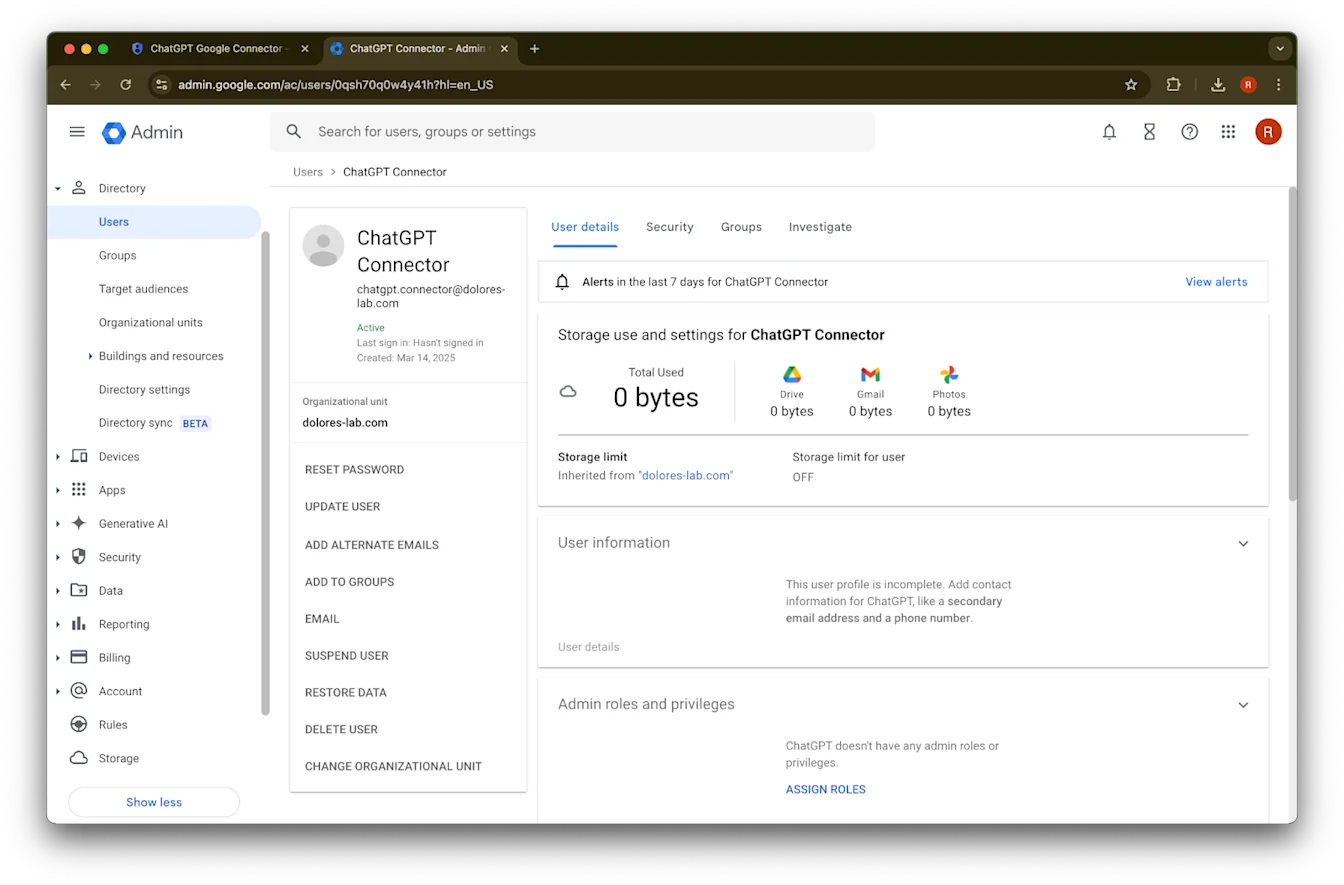
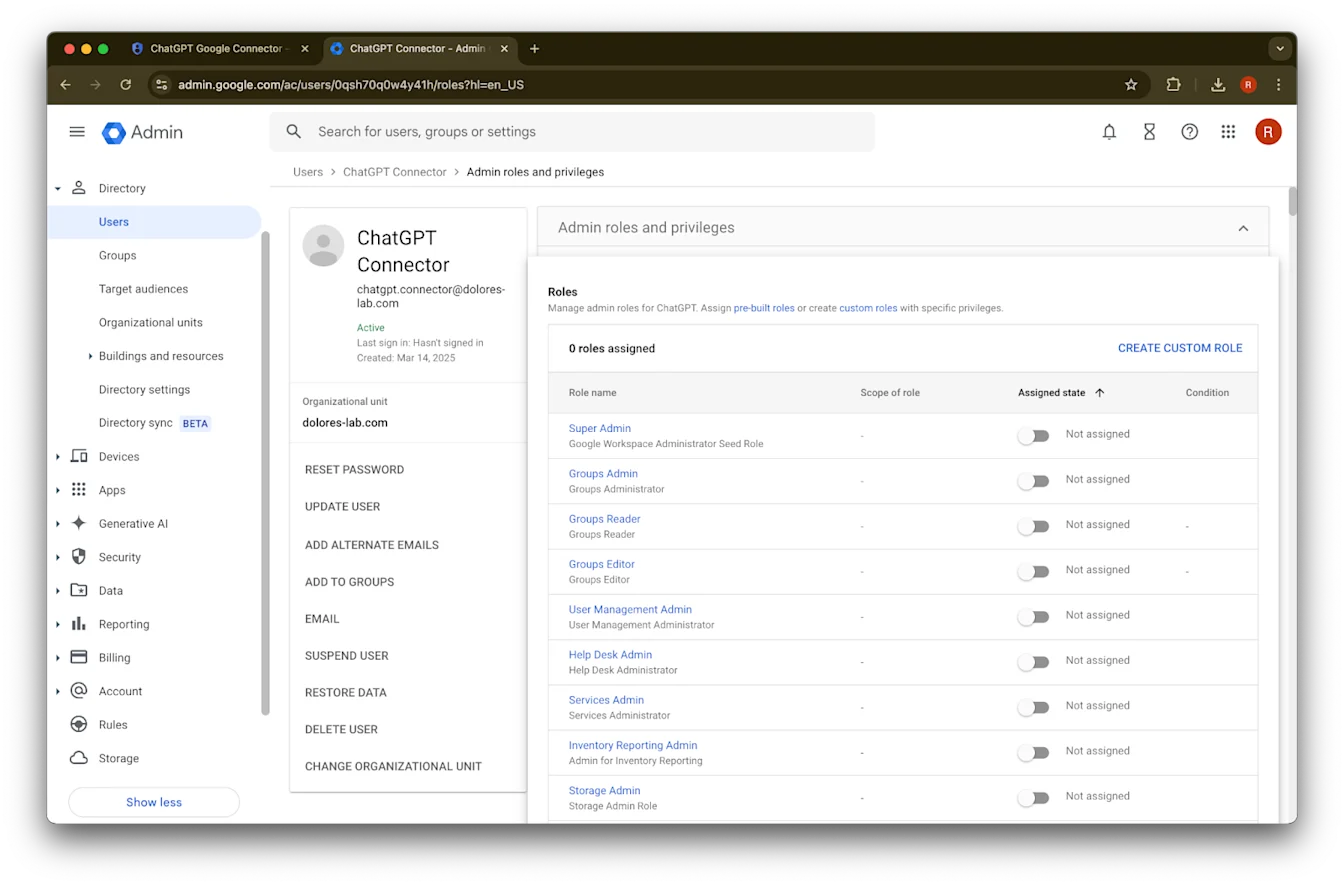
  8. assign roles をクリックします。

    Google Admin user details page for the ChatGPT Connector service account
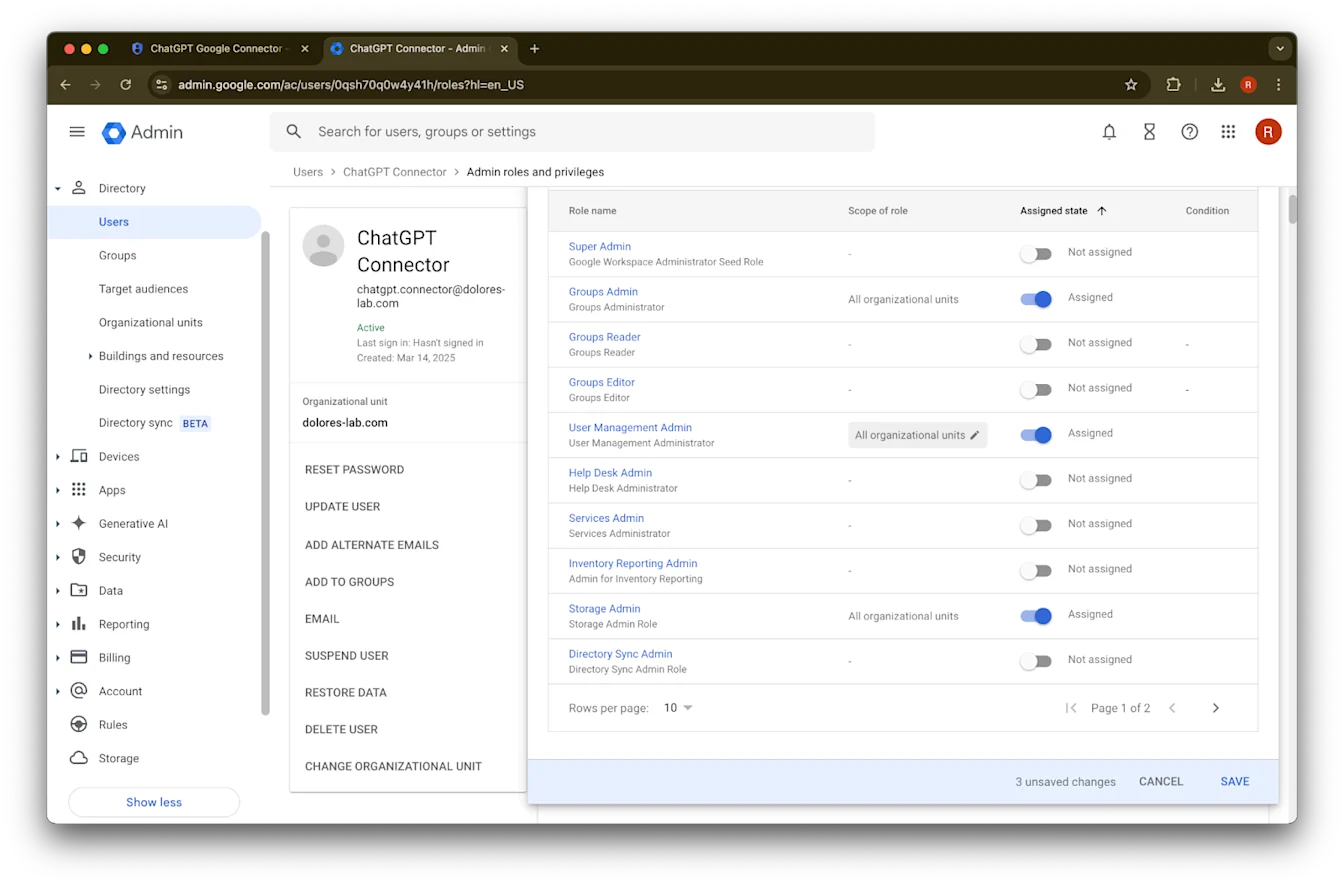
  9. Groups Reader、User Management Admin、および Storage Admin ロールをオンにします。

    Google Admin ChatGPT Connector user page with Admin roles and privileges open and no roles assigned
  10. 下にスクロールして Save. をクリックします。これで管理者アカウントの作成と設定が正常に完了しました。

Image

ChatGPT 管理コンソールで設定を完了する

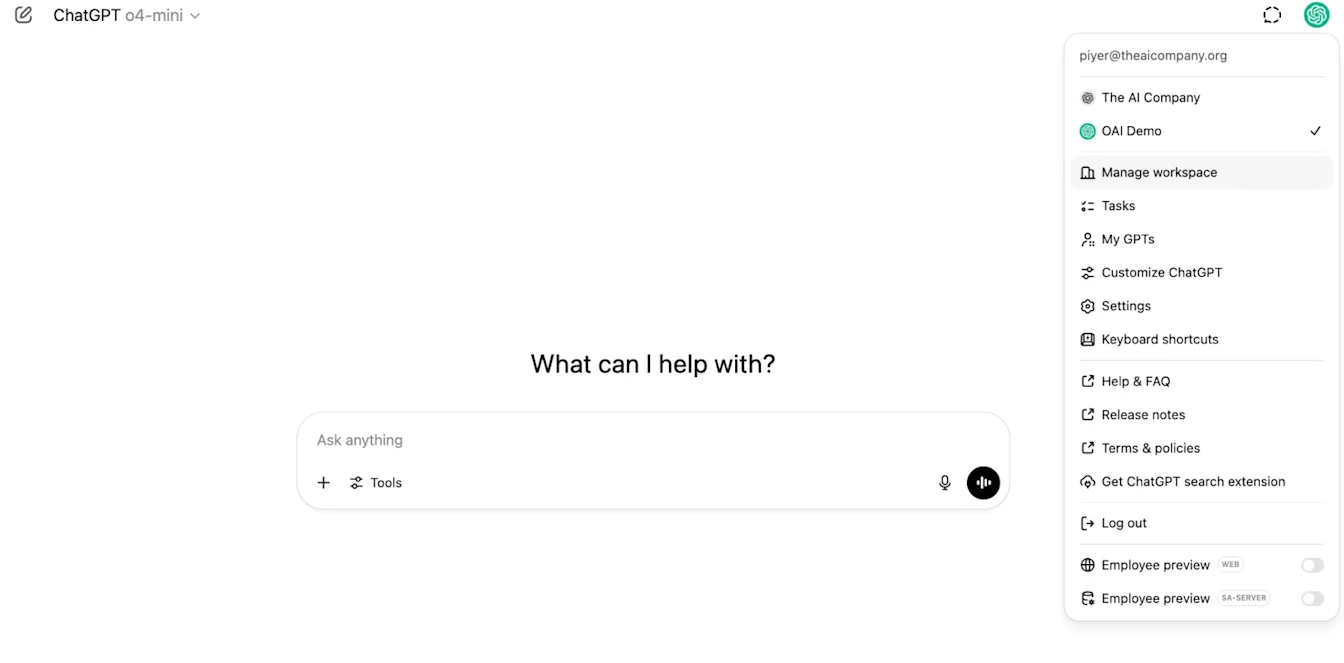
  1. ChatGPT に移動し、ページ右上のプロフィール アイコンをクリックします。

    Image
  2. ワークスペースを管理
    をクリックします

    ChatGPT workspace menu with Manage workspace selected under the organization switcher
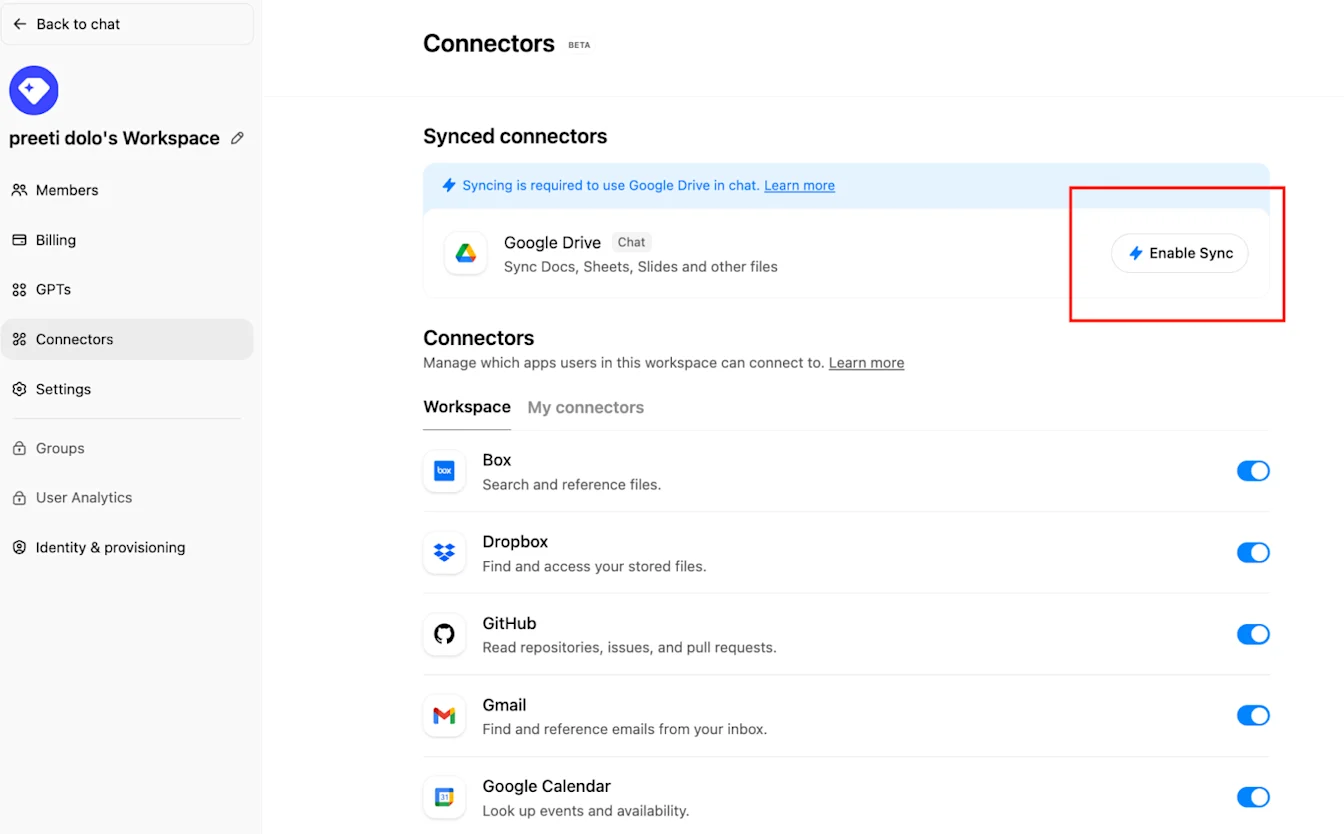
  3. Connections をクリックし、次に「Synced connectors」Enable Sync の順にクリックします

    Connectors page with Google Drive sync prompt and Enable Sync button highlighted
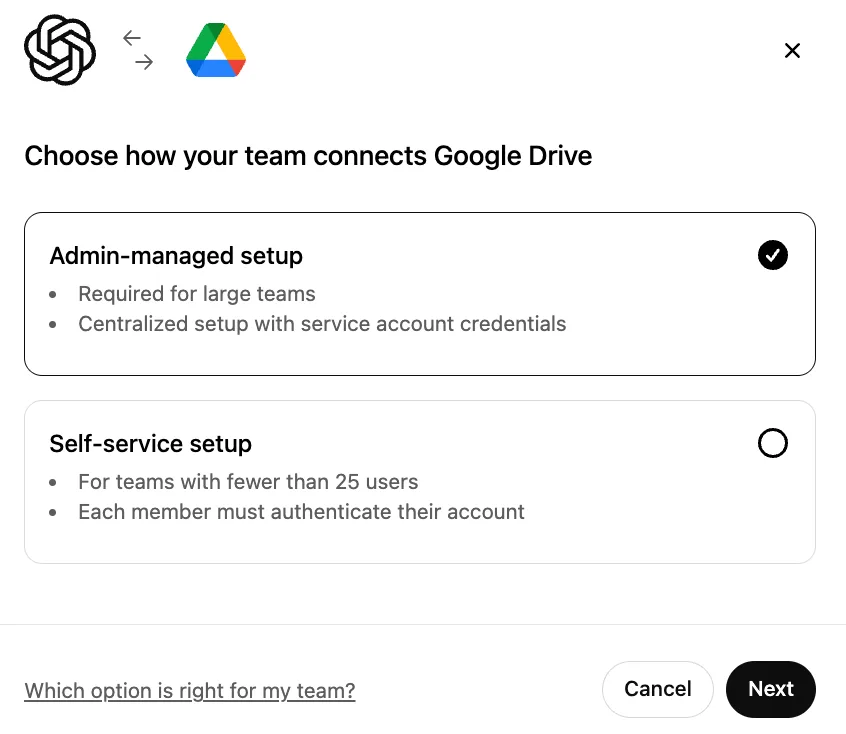
  4. Admin-managed が選択されていることを確認し、Next をクリックします

    Google Drive connection setup with Admin-managed setup selected over Self-service setup
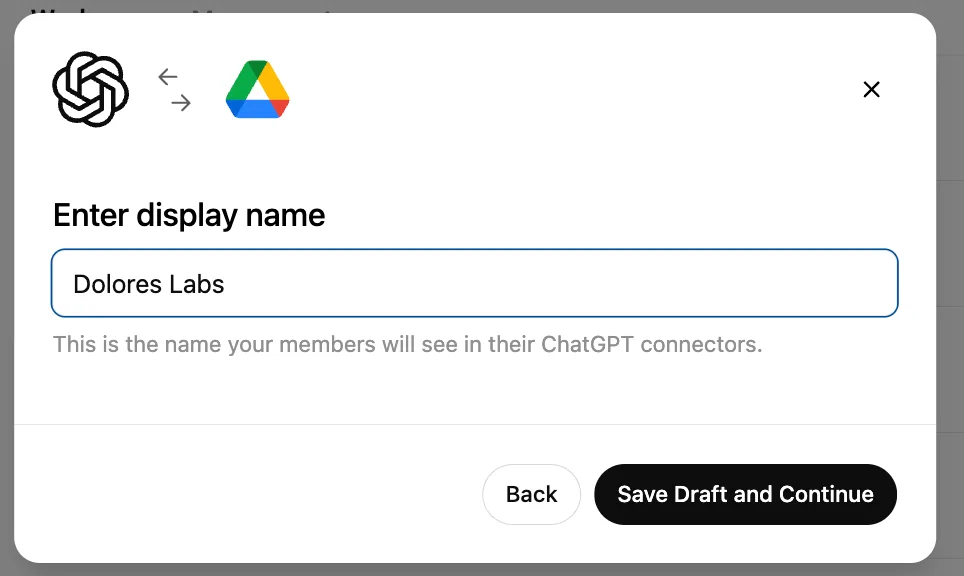
  5. 表示名を入力します。Google Workspace の名前を使用することをおすすめします。

    なお、現在のところ接続名の変更には対応していません。

    Google Workspace connector setup dialog with display name Dolores Labs entered
  6. Save Draft and Continue をクリックします

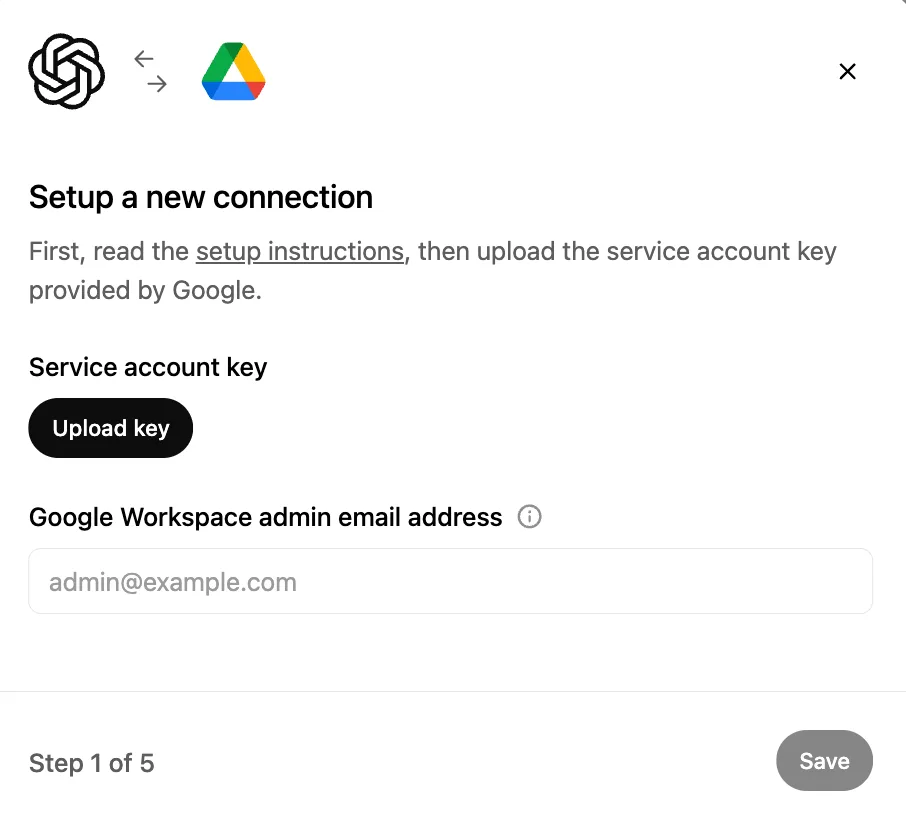
  7. Upload key をクリックします。上記でサービス アカウントを設定する際にダウンロードしたキーである JSON ファイルを選択します。このキーが正確であることを確認してください

    Google Workspace connection setup step prompting upload of a service account key and admin email address
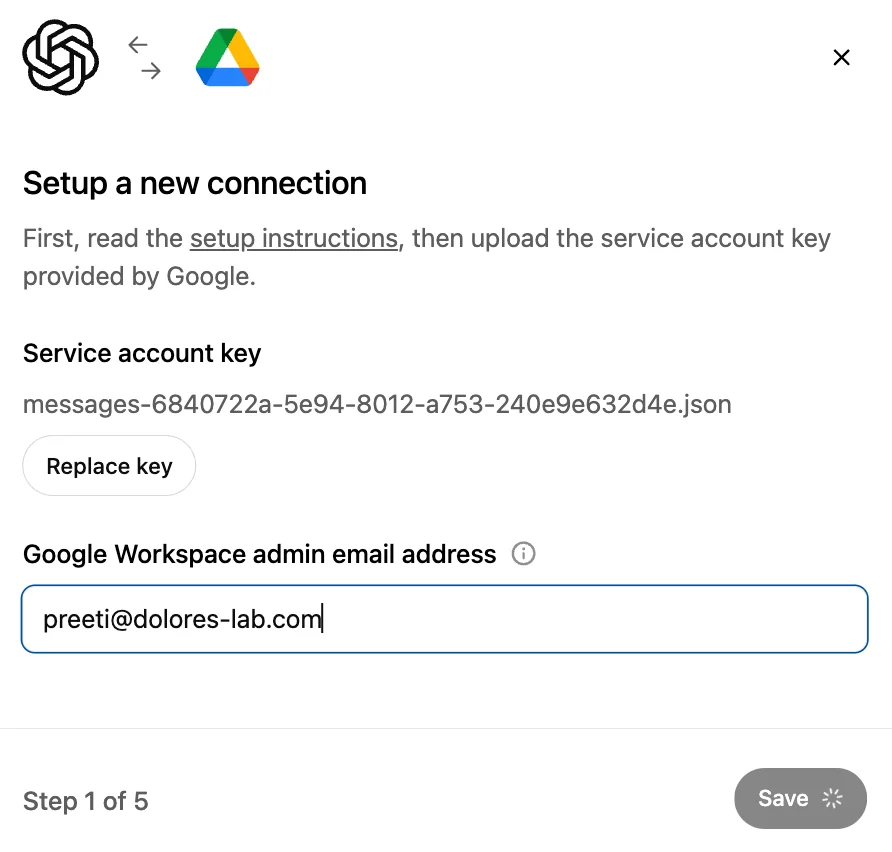
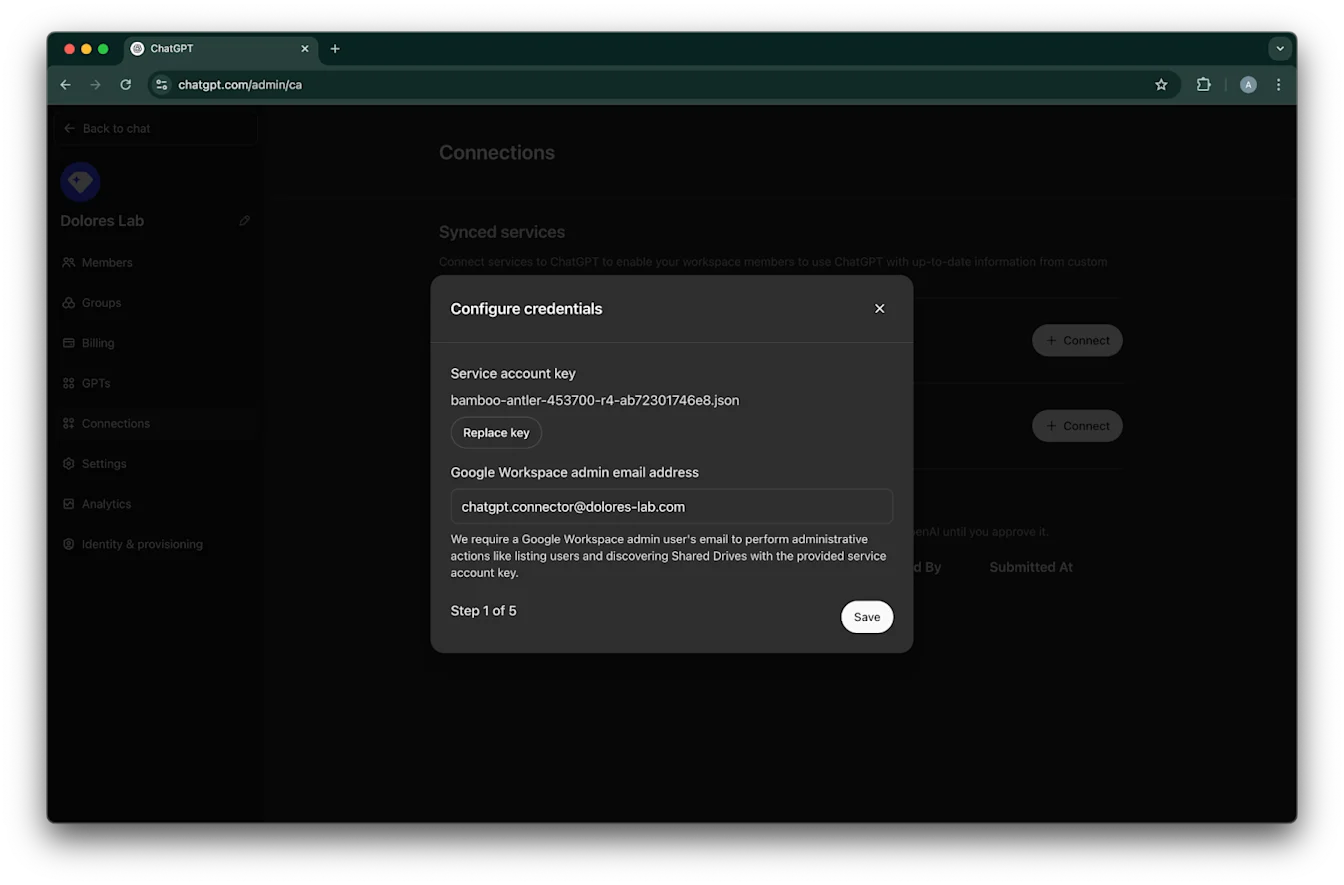
  8. 管理者メールアドレスを入力します。これは先ほど作成した管理者アカウントです。

    Image
  9. Save. をクリックします

    ChatGPT Connections credentials dialog with service account key and Google Workspace admin email entered
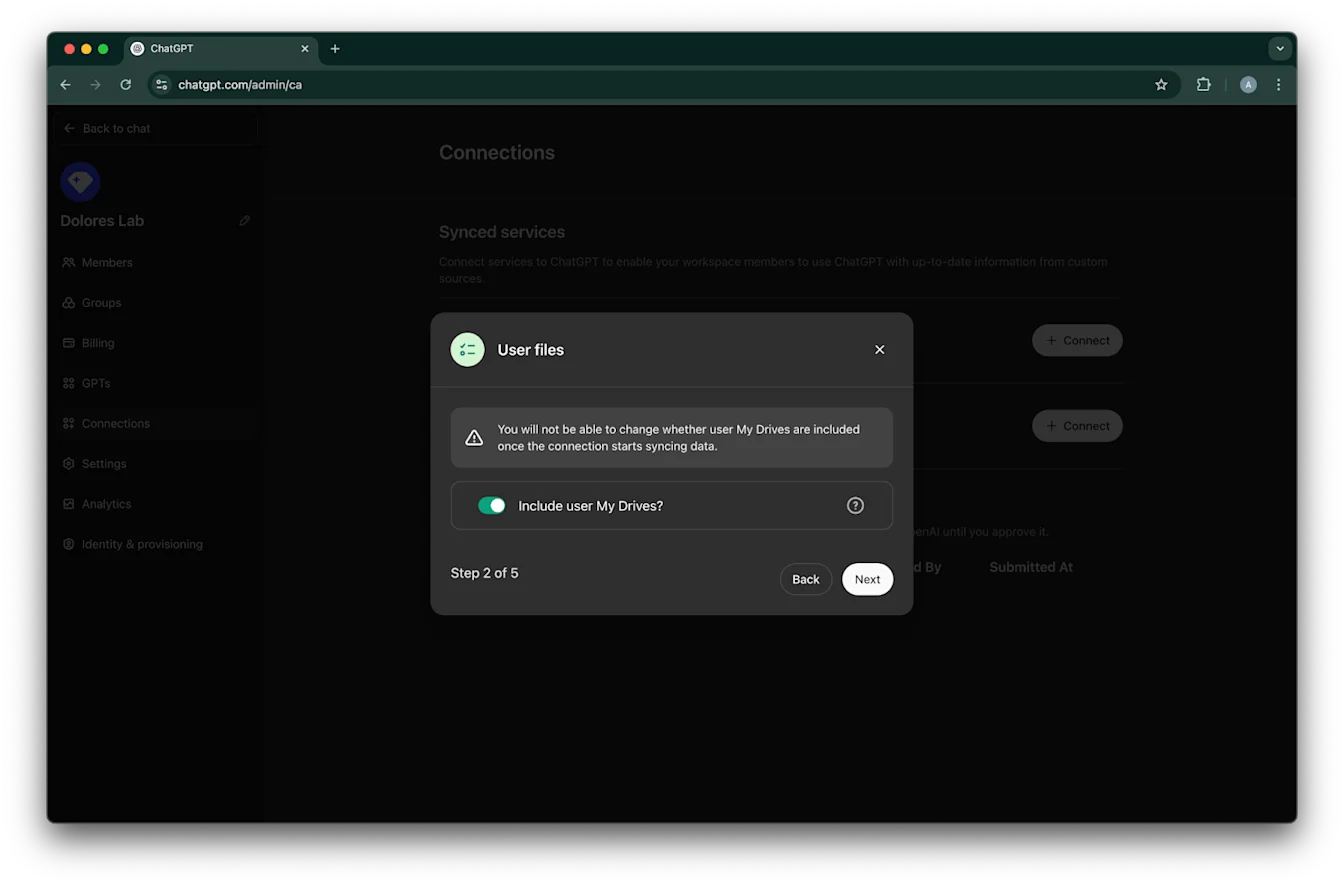
  10. すべてのユーザーの My Drive 内のファイルを含めるかどうかを選択します。

    ChatGPT Connections modal for User files with Include user My Drives enabled at step 2 of 5
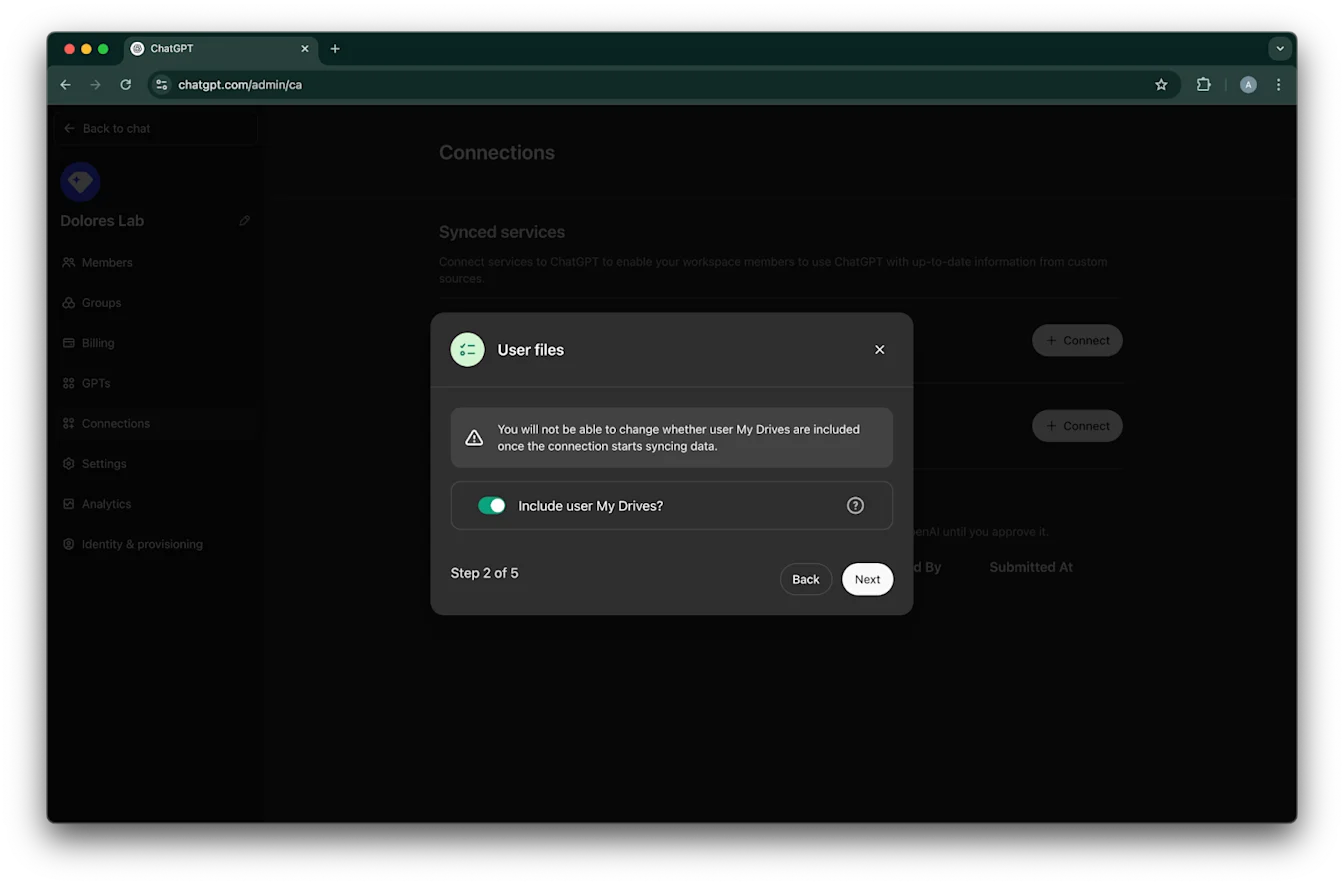
  11. Next をクリックします

    ChatGPT admin Connections modal for User files with Include user My Drives enabled in step 2 of 5
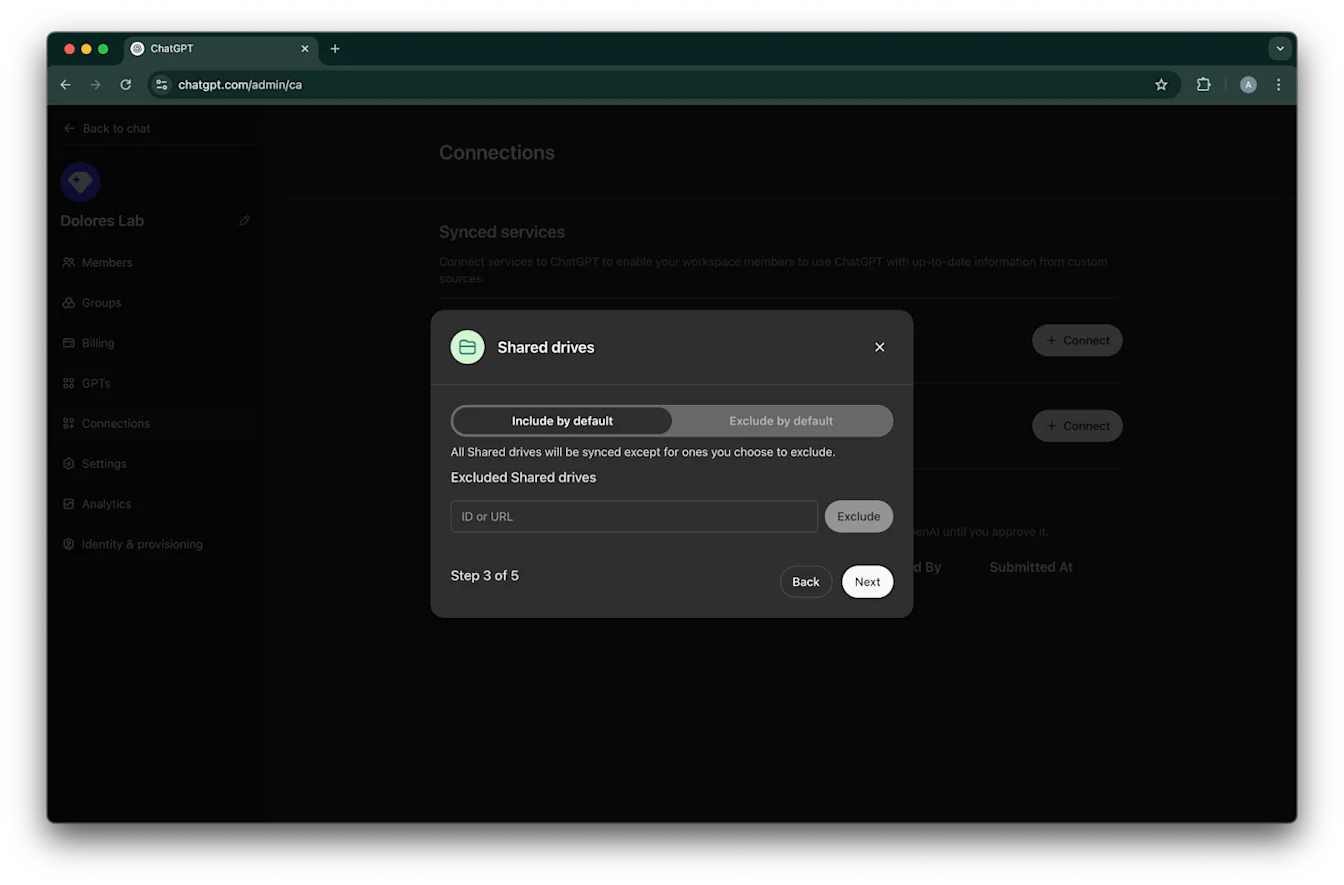
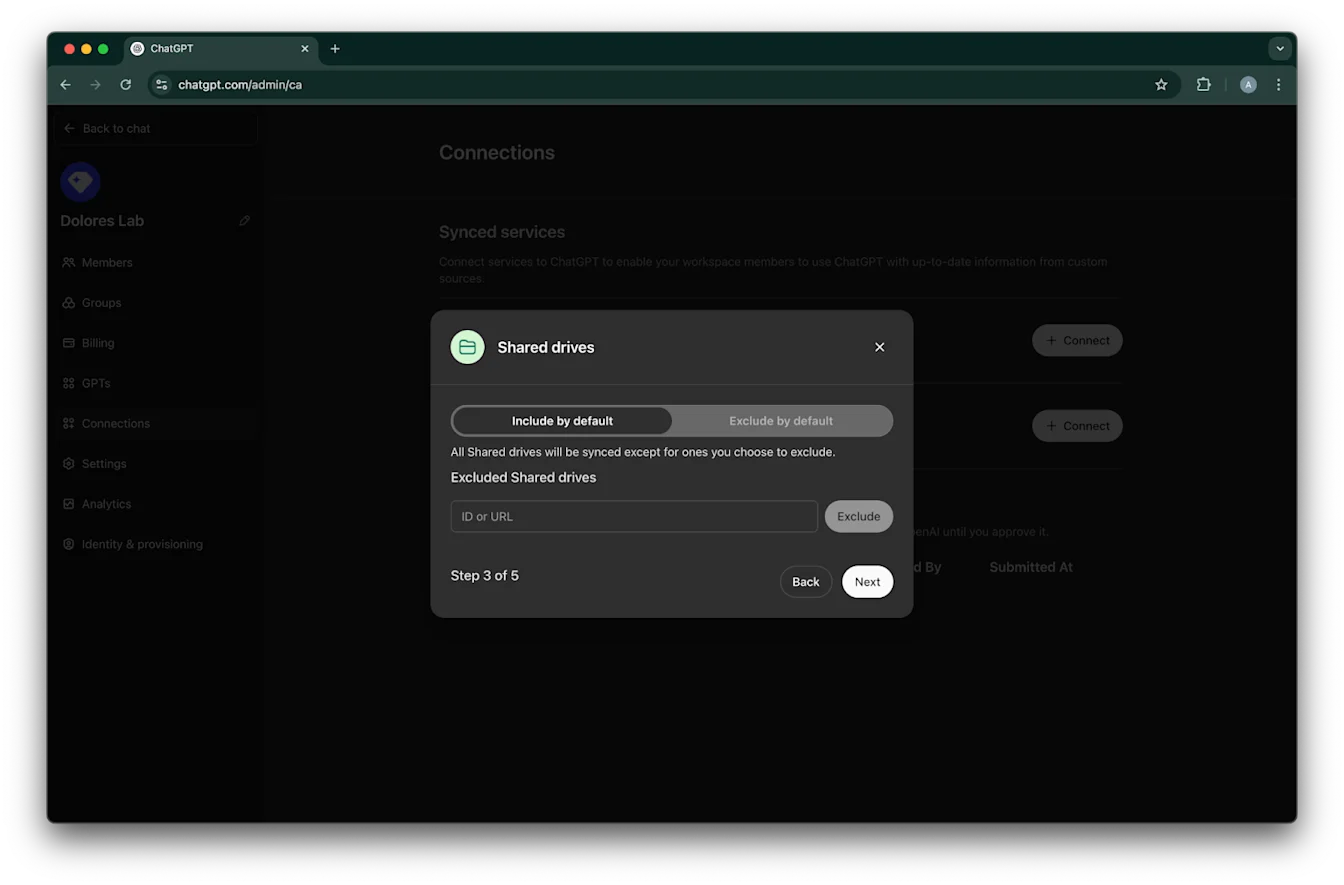
  12. 共有ドライブの管理方法を選択します。以下の 3 つのシナリオに対応しています:

    1. すべての共有ドライブを含める場合は、Include by default を選択し、除外する共有ドライブ ID は追加しません

    2. 大半の共有ドライブを含める場合は、Include by default を選択し、除外したい共有ドライブの ID を追加します

    3. 大半の共有ドライブを除外する場合は、Exclude by default を選択し、含めたい共有ドライブの ID を追加します

    ChatGPT admin Shared drives setup with Include by default selected and an Excluded Shared drives field
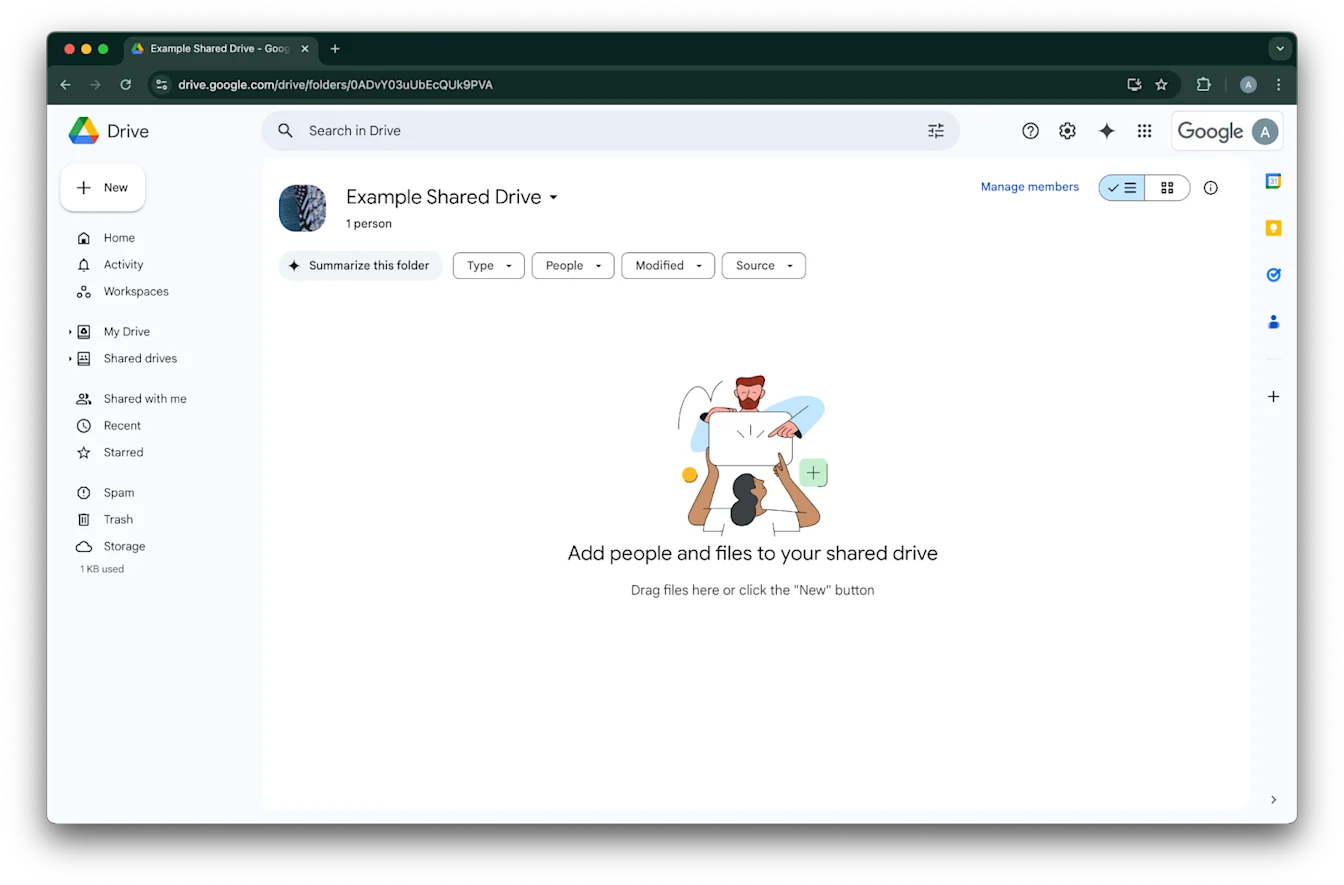
  13. 共有ドライブの ID を確認するには、Web ブラウザーでその共有ドライブに移動します。URL の末尾部分が共有ドライブ ID です。
    次の例では、`0ADvY03uUbEcQUk9PVA` です'

    Google Drive shared drive with Manage members visible for Example Shared Drive
  14. Next をクリックします

    ChatGPT admin Connections modal for Shared drives with Include by default selected at step 3 of 5
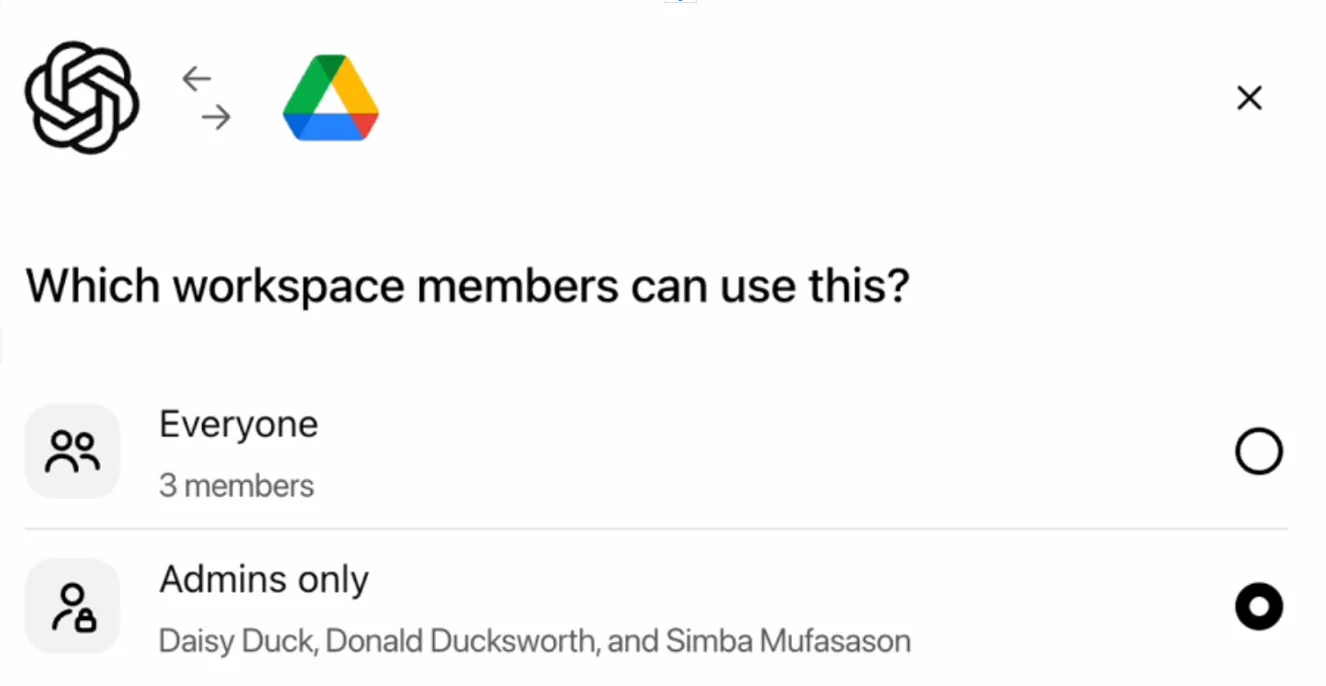
  15. Google Drive 接続にアクセスできるユーザーを選択します。ChatGPT ワークスペースの管理者のみにするか、全員に有効化するかを選べます。全員に有効化した場合、ワークスペースに追加された新規ユーザーも自動的に含まれます。

    Google Drive connector permission set to Admins only for workspace members
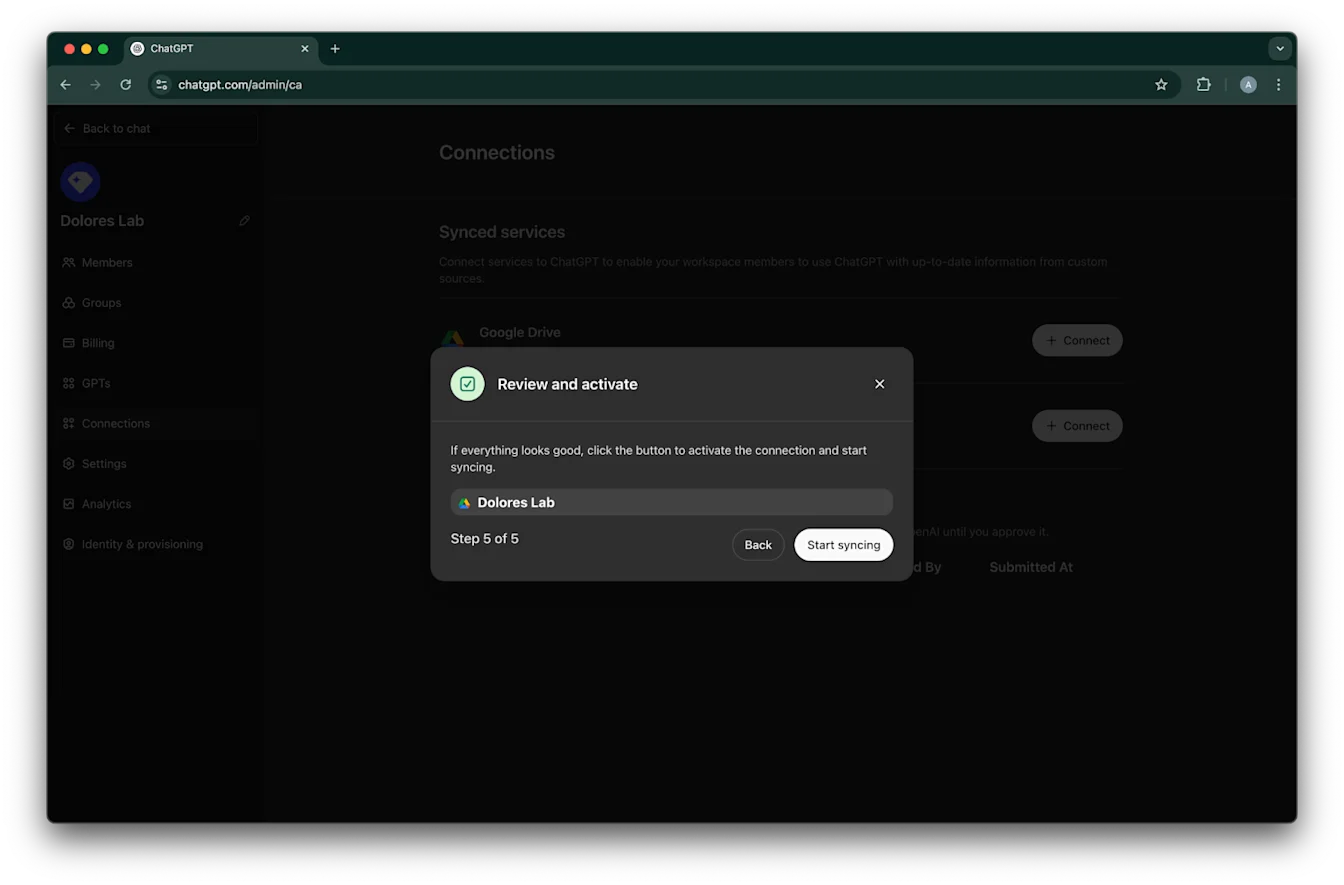
  16. Start syncing をクリックします

    Image
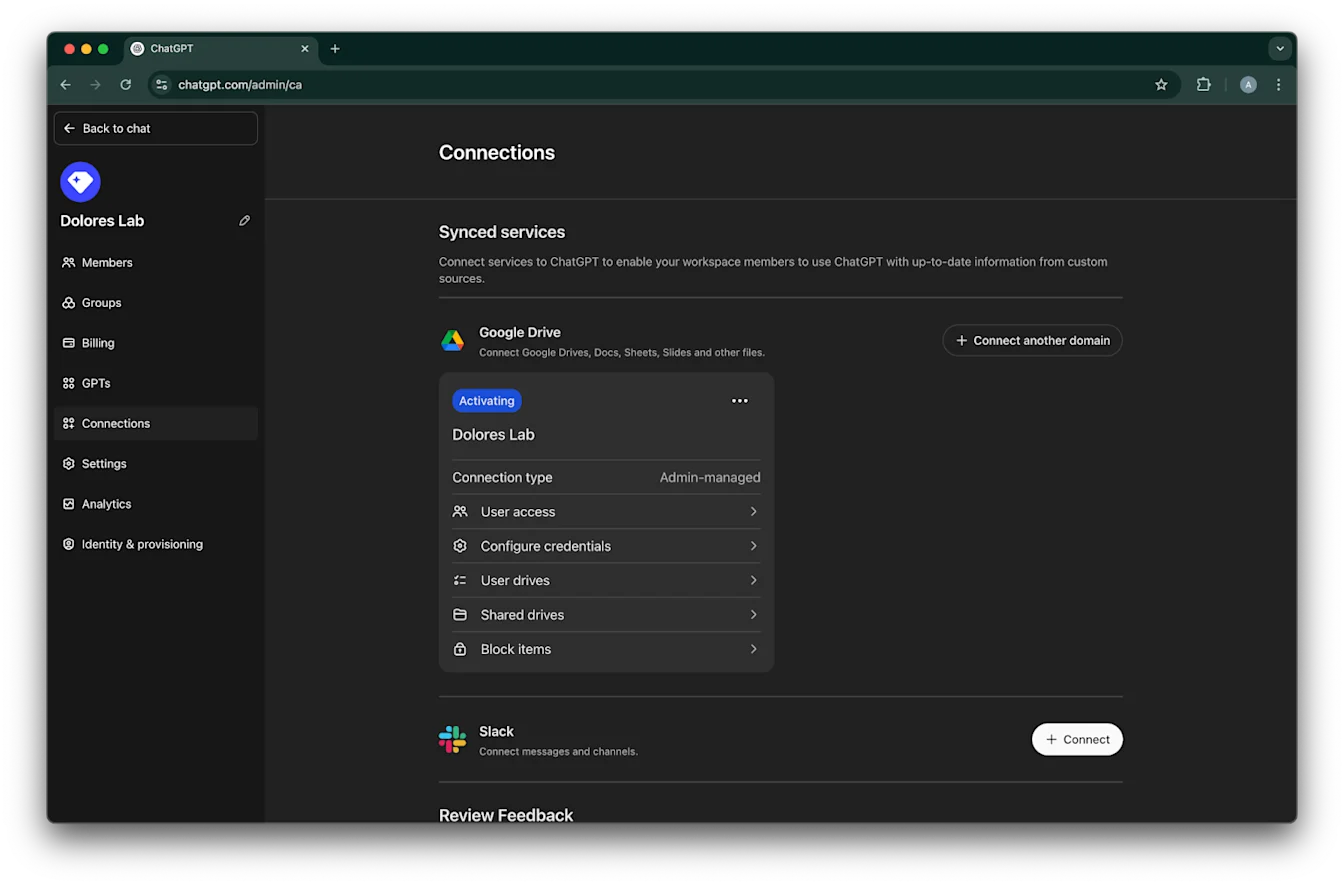
  17. これで Google Drive 接続が正常に作成されました。
    同期はすぐに開始されますが、設定に応じて含まれるファイル数によっては、完了まで数時間から数日かかる場合があります。
    過去 30 日以内に追加または編集されたファイルの同期が完了すると、このコネクタは有効化したユーザーが利用できるようになります。

    Image

サービス アカウント キー作成の有効化

次のエラーが表示される場合は、この特定のプロジェクトでサービス アカウントの作成を有効にする必要があります:

> 組織ポリシー制約「iam.disableServiceAccountKeyCreation」が組織に適用されています。

Google Cloud service account Keys tab with error that service account key creation is disabled
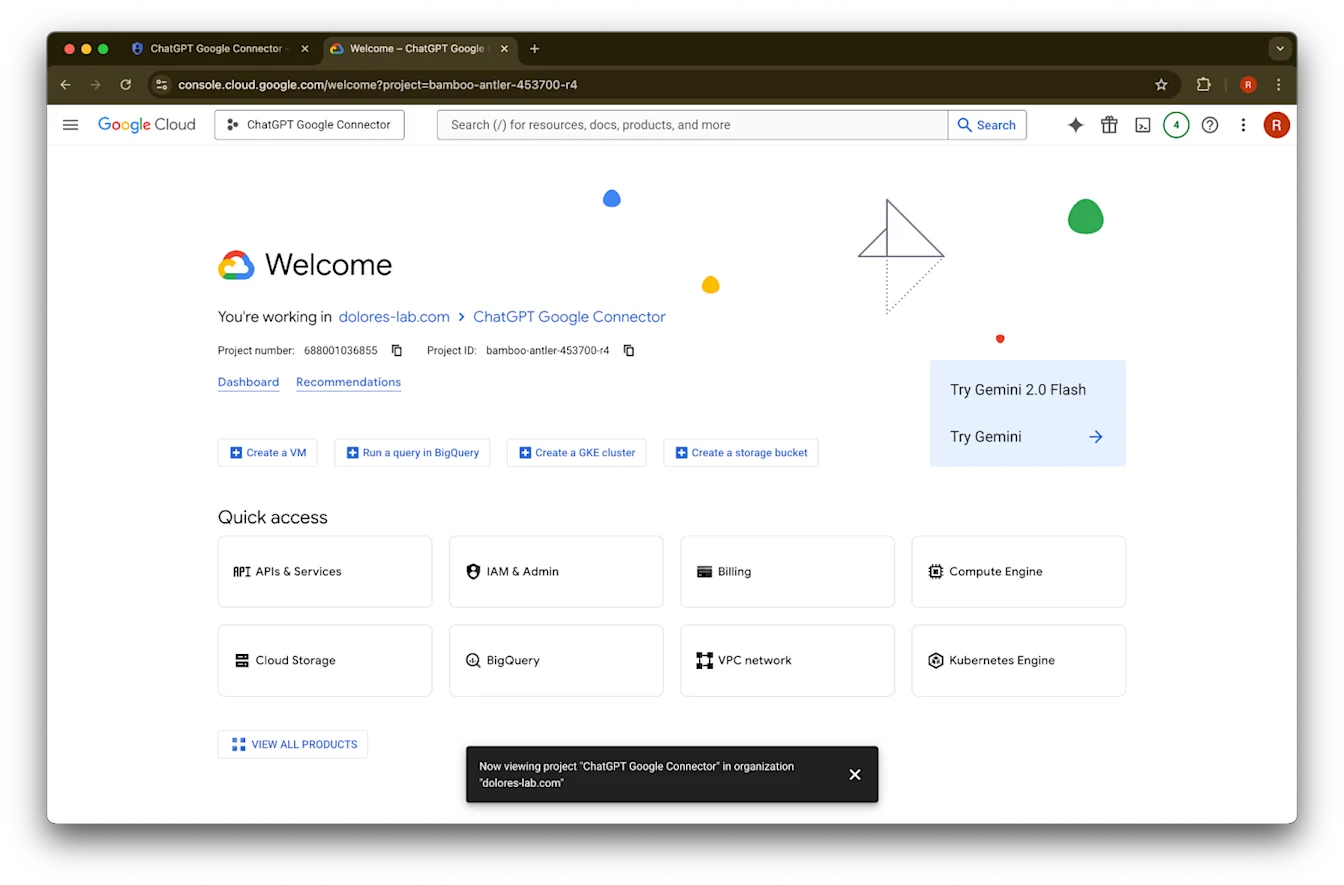
  1. 新しいタブを開き、console.cloud.google.com に移動します。選択されているプロジェクトが、すでに選択したものと同じであることを確認してください。
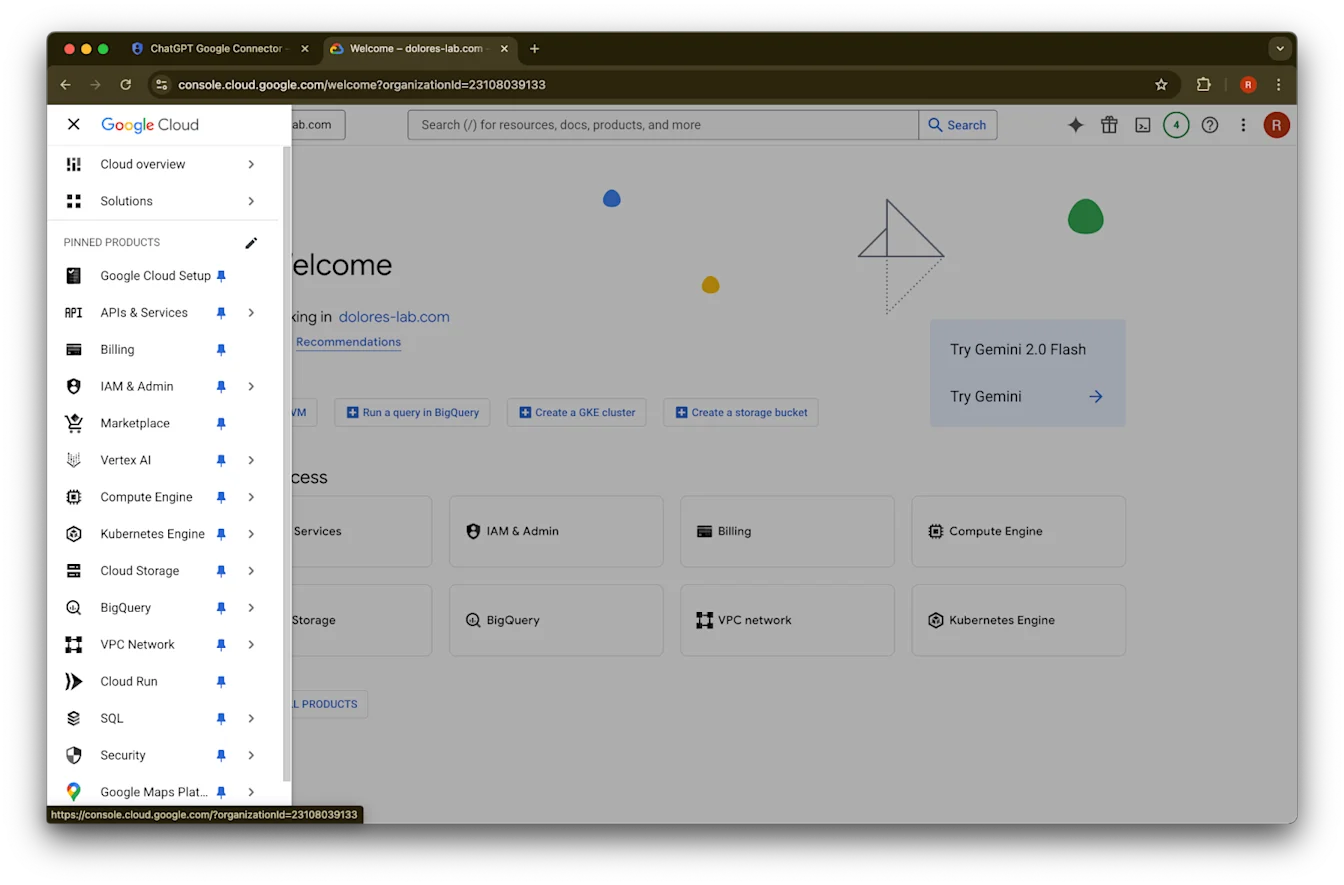
    左上のメニュー アイコンをクリックします。

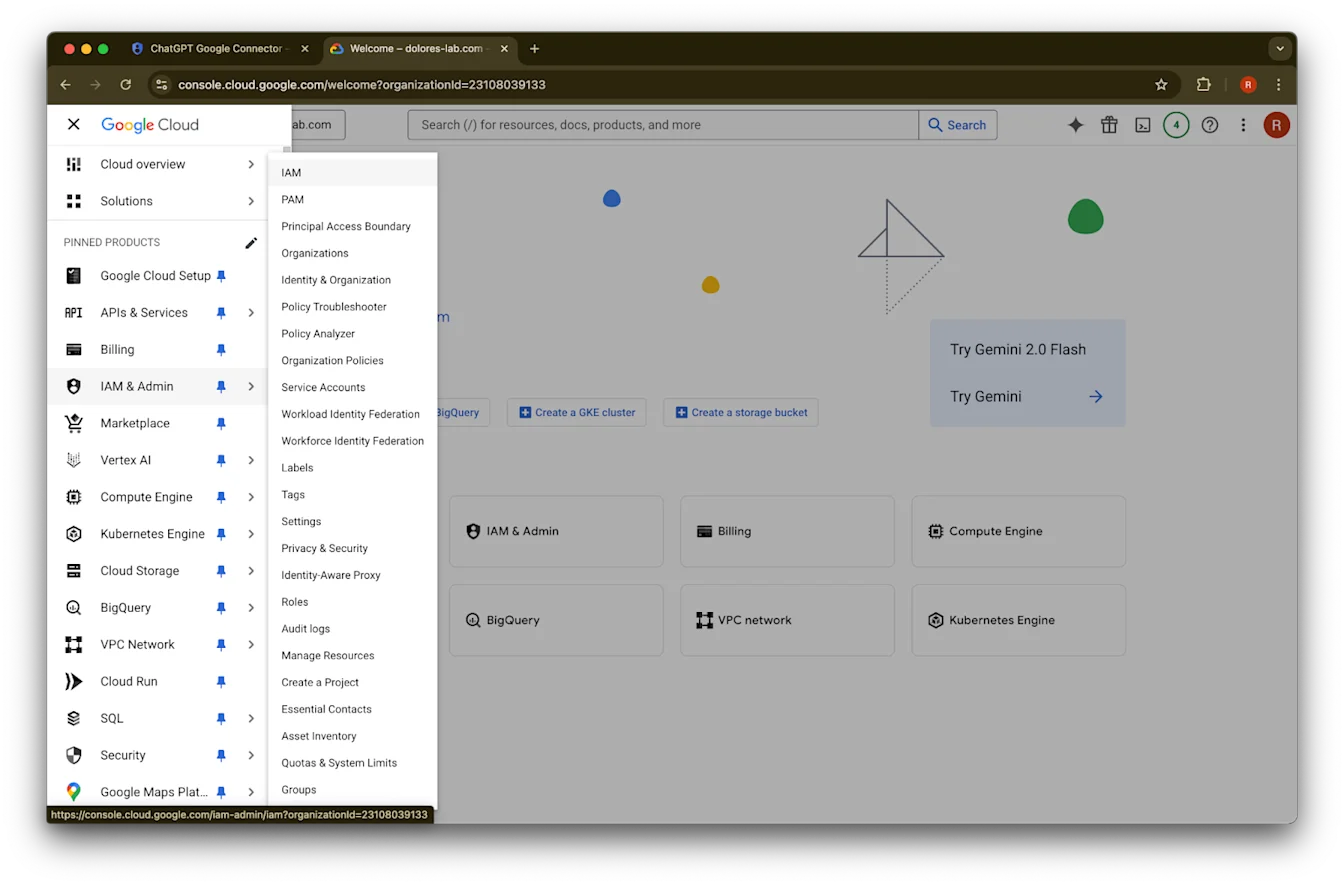
    Google Cloud Console welcome page for the ChatGPT Google Connector project
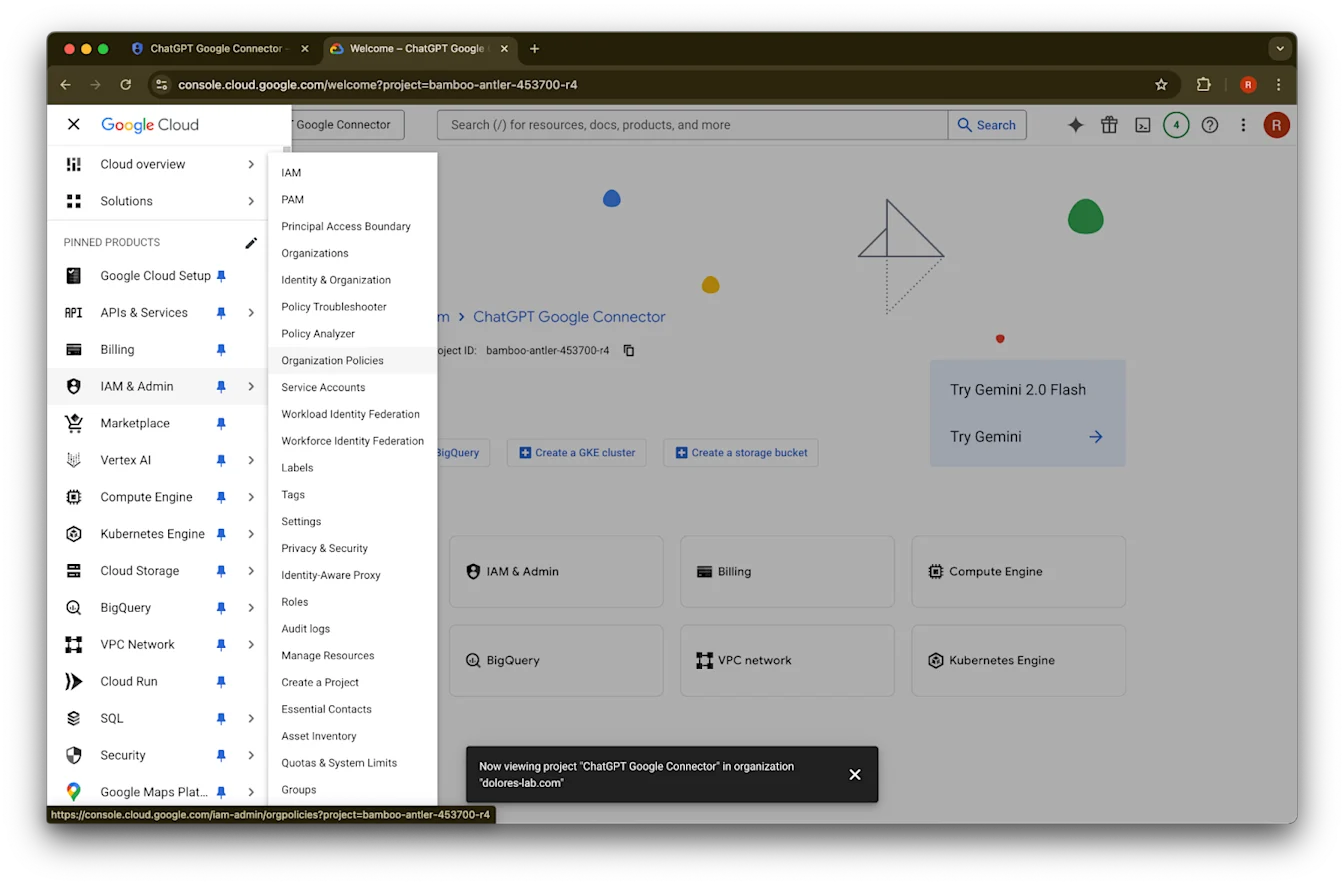
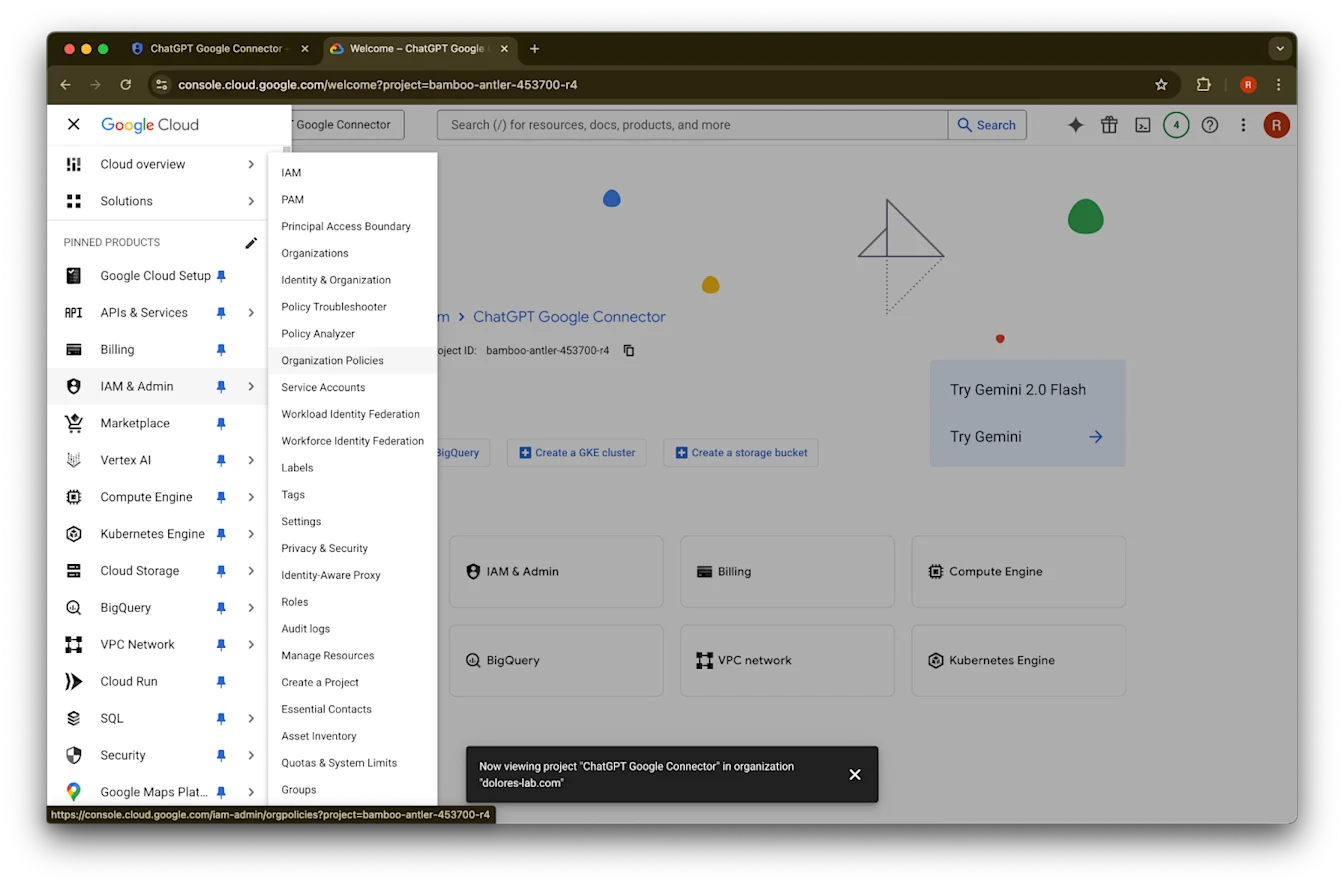
  2. IAM & Admin にカーソルを合わせます

    Google Cloud Console navigation with IAM & Admin open and Organization Policies selected
  3. Organizational Policies をクリックします

    Google Cloud Console IAM & Admin menu opened to Organization Policies
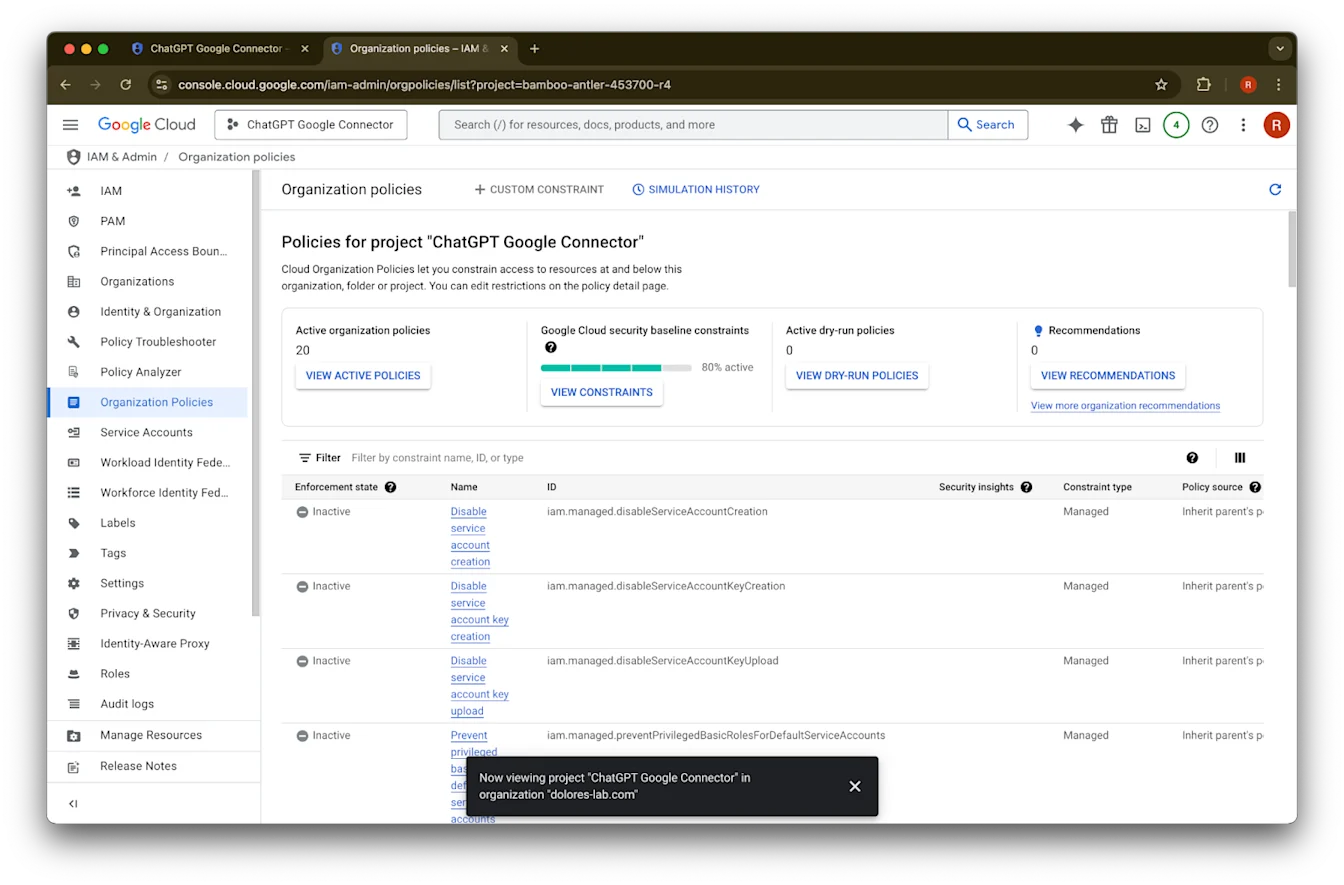
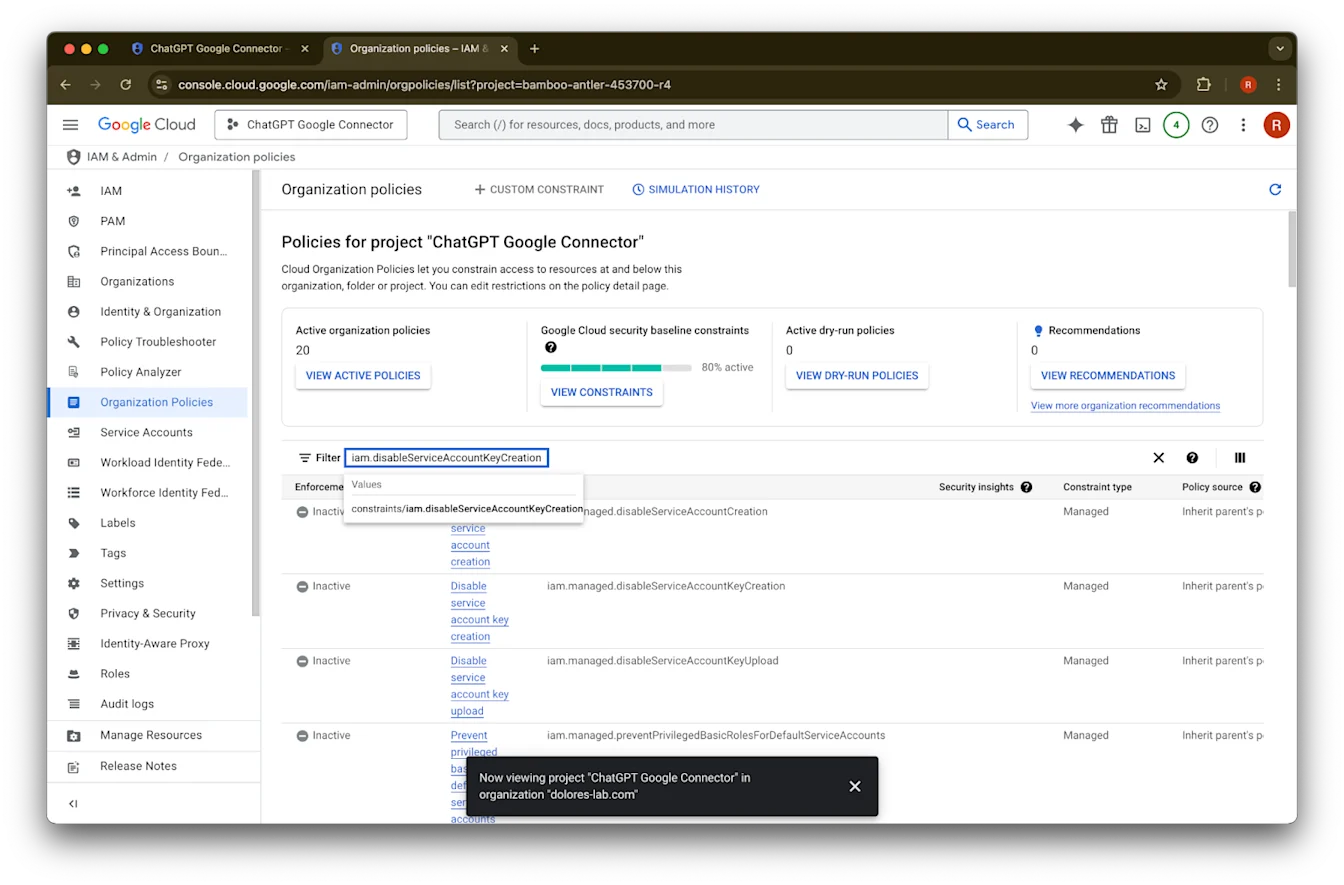
  4. iam.disableServiceAccountKeyCreation
    を検索します

    Google Cloud organization policies for the ChatGPT Google Connector project
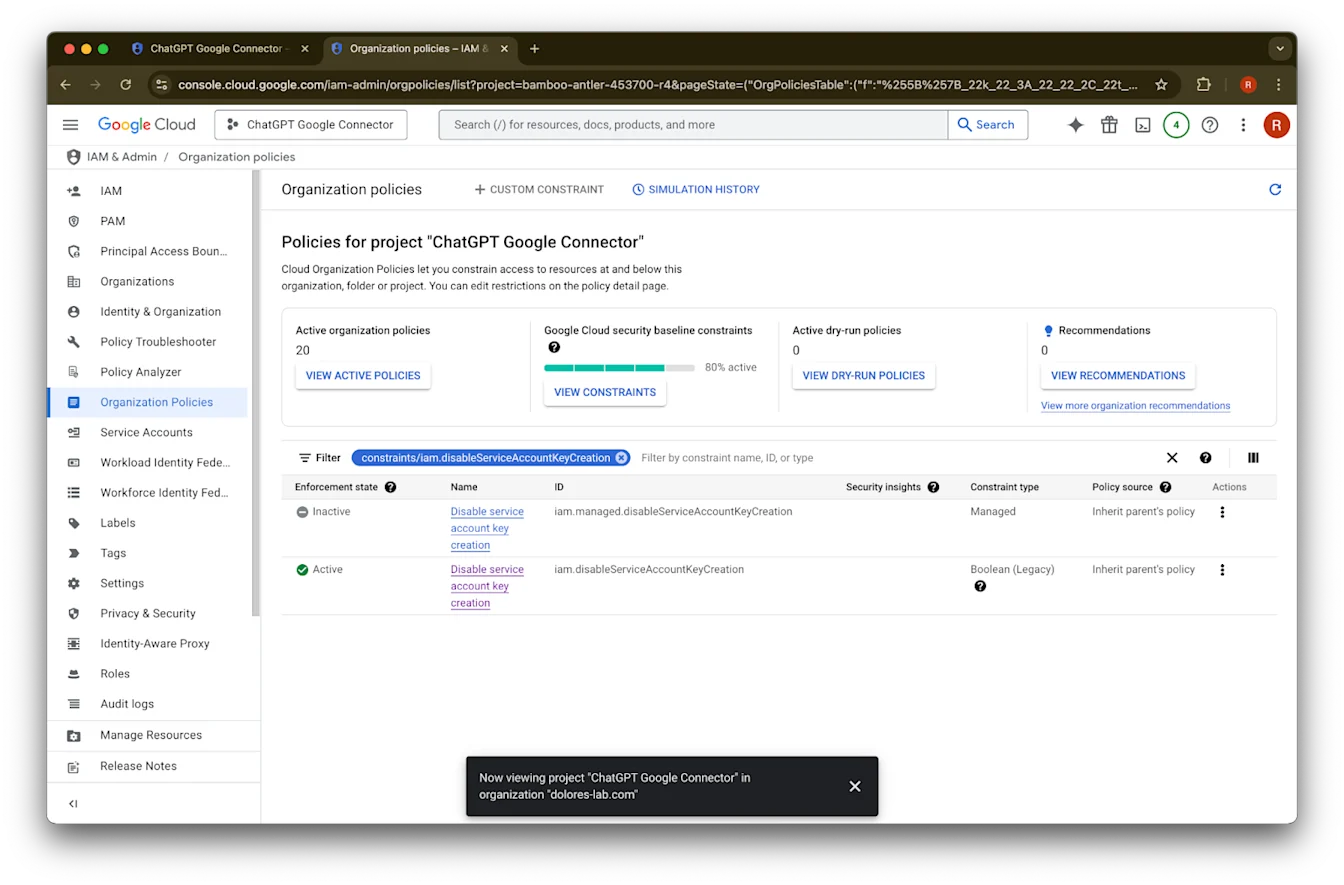
  5. constraints/iam.disableServiceAccountKeyCreation
    の結果をクリックします

    Image
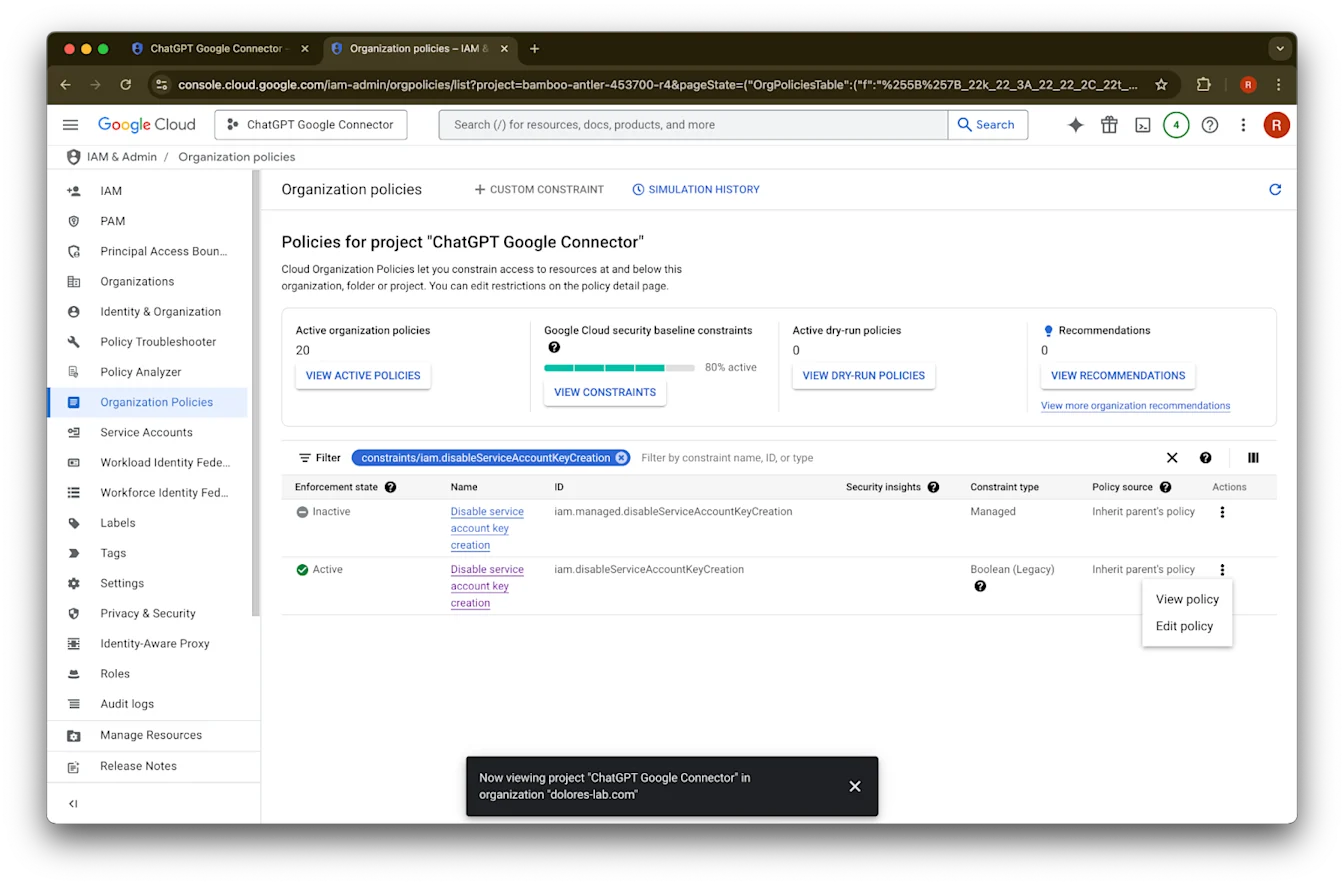
  6. ID が iam.disableServiceAccountKeyCreation
    の行の … をクリックします

    Organization policies filtered to Disable service account key creation for the ChatGPT Google Connector project
  7. Edit policy をクリックします。Edit policy が無効になっている場合は、Organization Policy Administrator になる必要があります。

    Google Cloud Organization Policies filtered to Disable service account key creation with Edit policy menu open
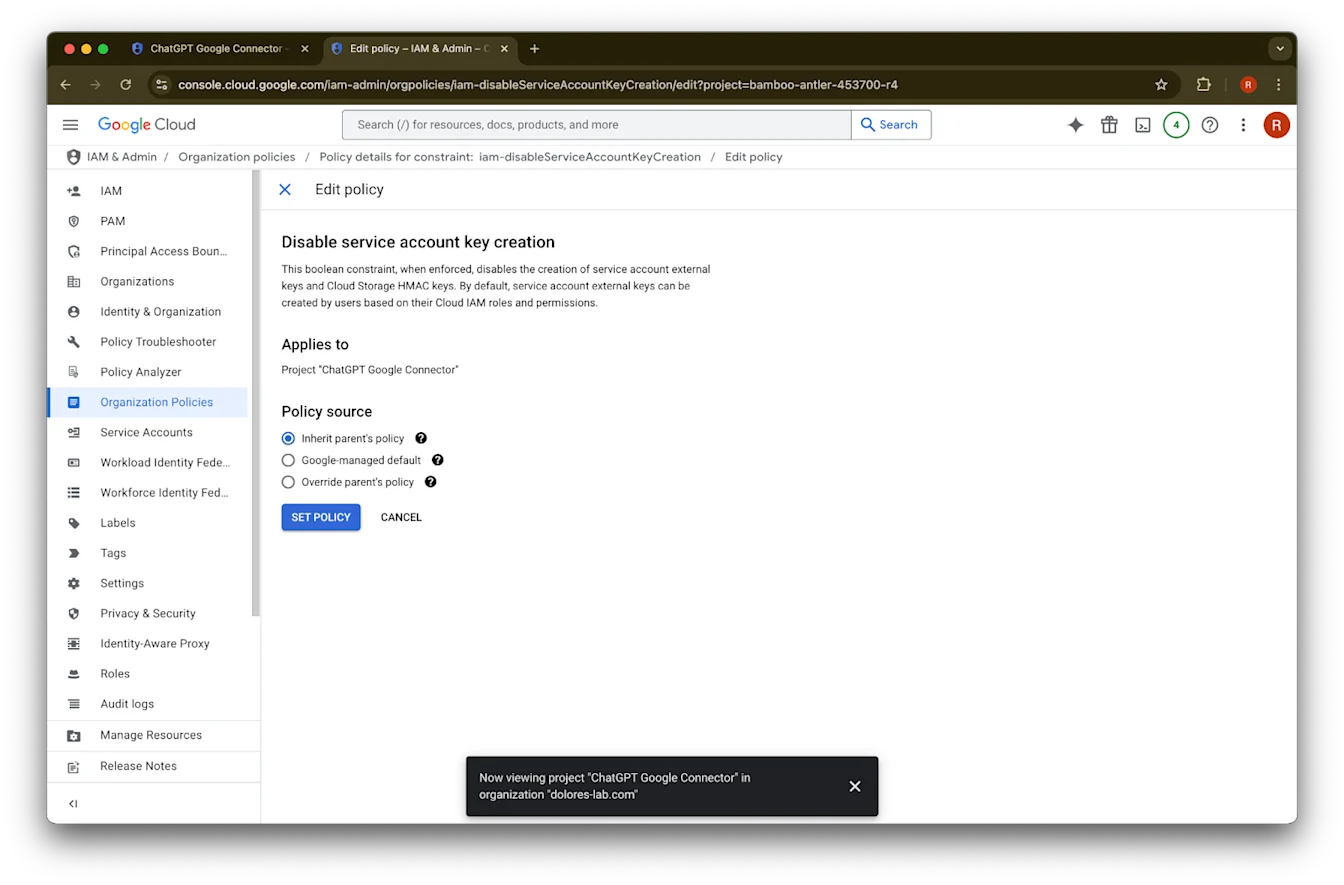
  8. Override parent’s policy
    をクリックします

    Image
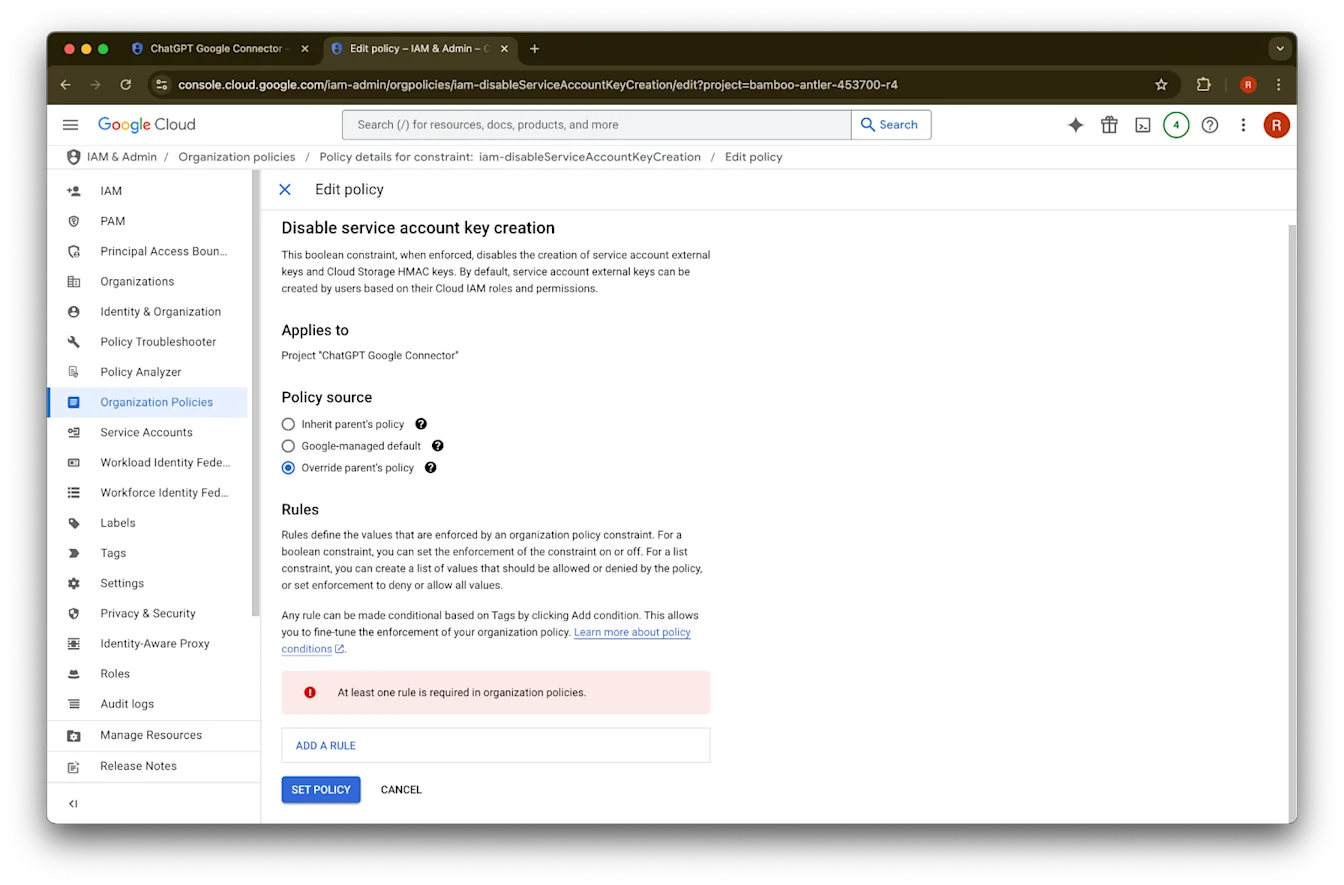
  9. Add a rule
    をクリックします

    Edit policy page for Disable service account key creation with Override parent's policy selected
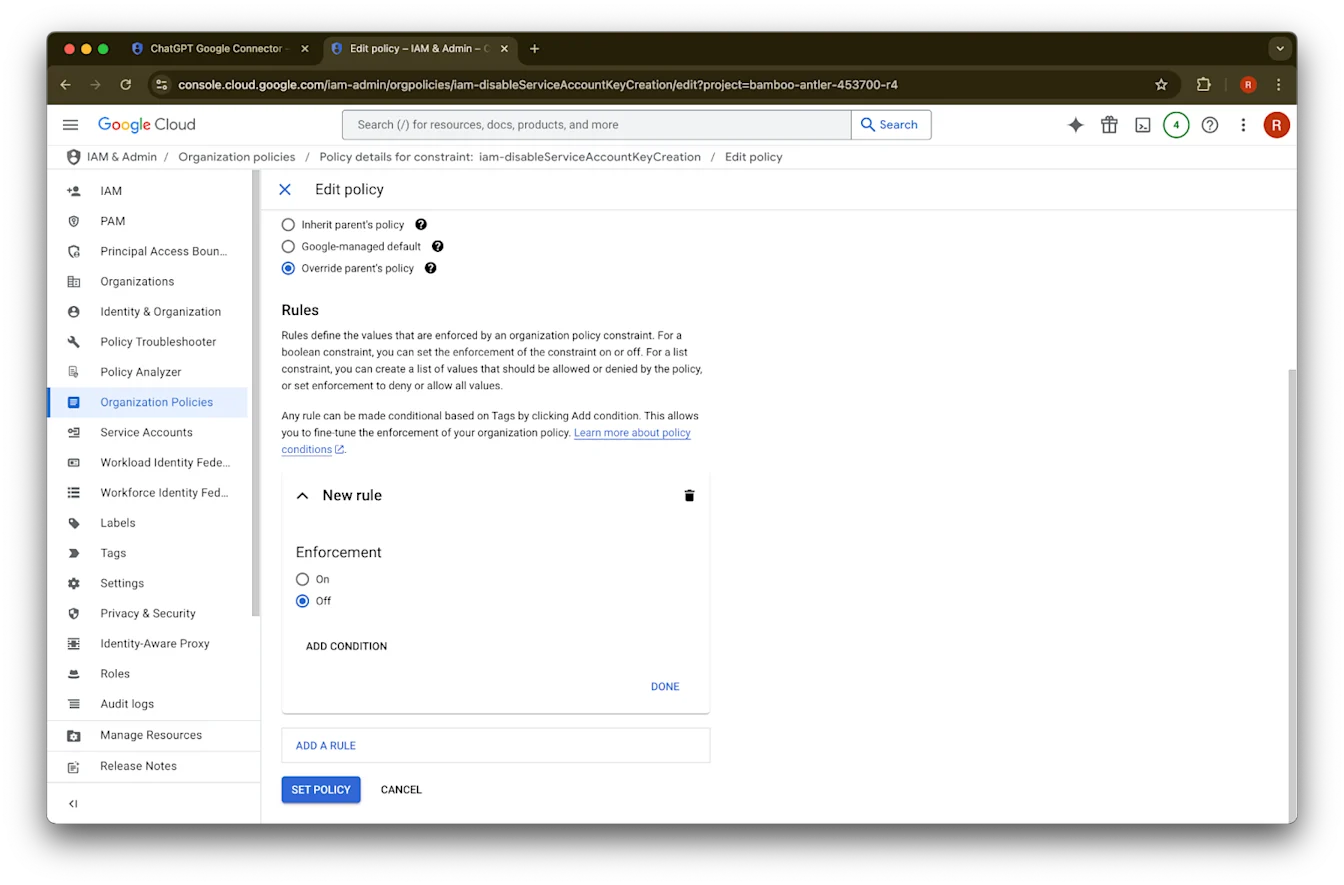
  10. Set Policy
    をクリックします

    Google Cloud Edit policy page with Override parent's policy selected and enforcement set to Off
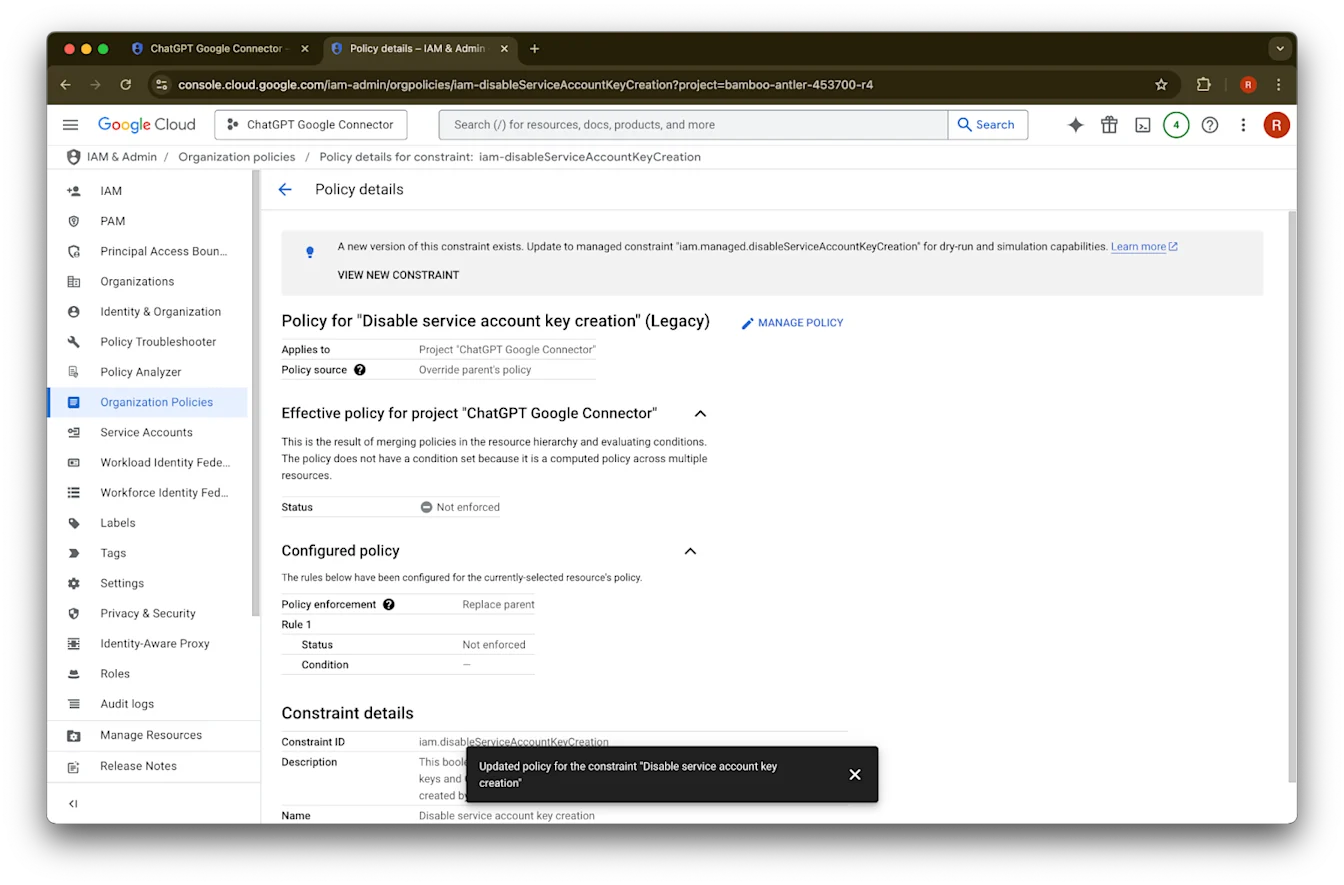
  11. これでサービス アカウント キーを作成できます。この有効化が反映されるまで数分かかる場合があります。

Google Cloud policy details with Disable service account key creation set to Not enforced

Organization Policy Administrator になる

  1. console.cloud.google.com に移動し、プロジェクト/組織セレクターをクリックします

    Google Cloud welcome page for the ChatGPT Google Connector project
  2. your organization
    をクリックします

    Image
  3. 左上のメニュー アイコンをクリックします

    Image
  4. IAM & Admin
    にカーソルを合わせます

    Google Cloud console navigation menu open with Google Cloud Setup pinned
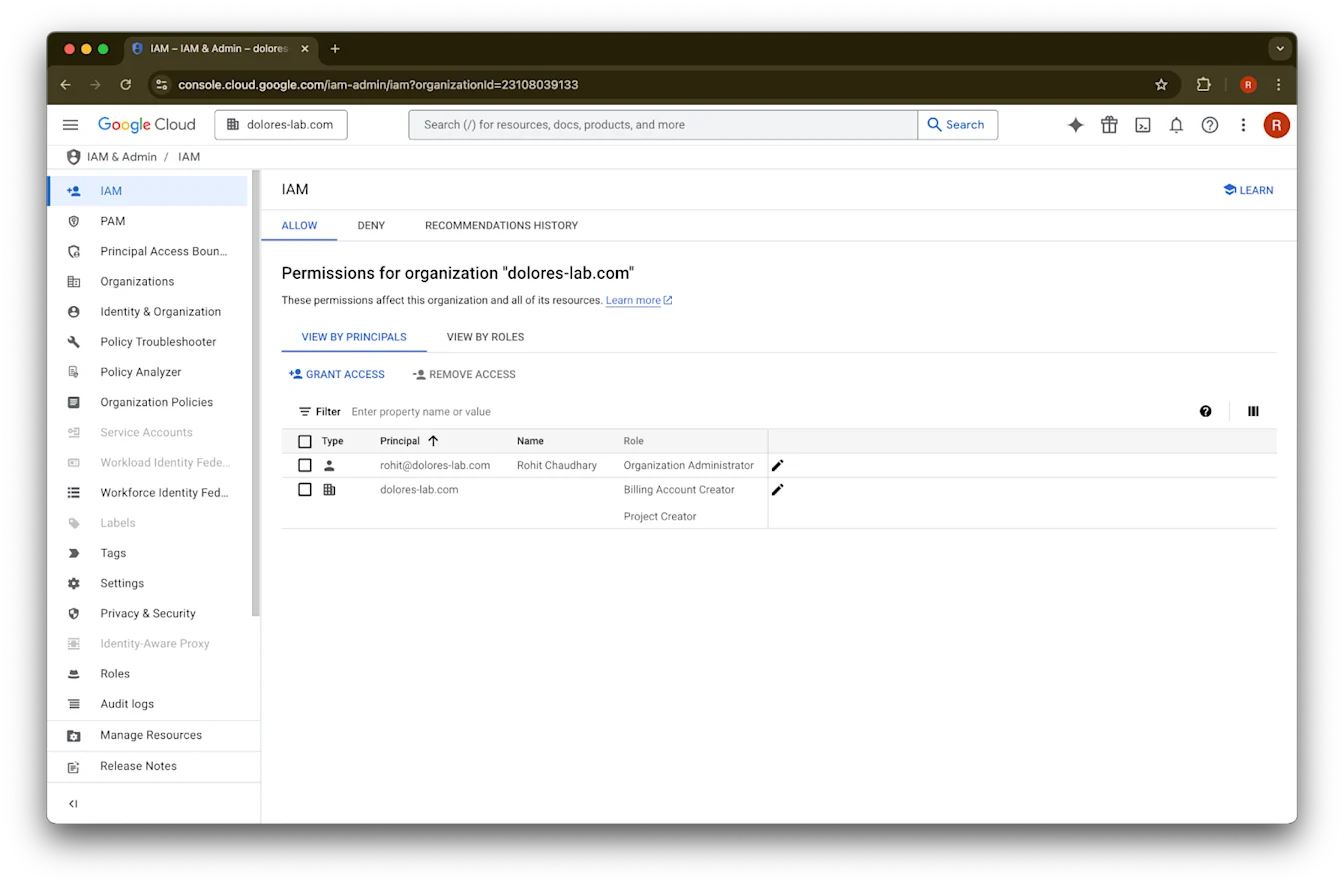
  5. IAM
    をクリックします

    Image
  6. 自分のアカウントの鉛筆アイコン をクリックします

    Google Cloud IAM page for dolores-lab.com showing organization permissions and the Grant Access action
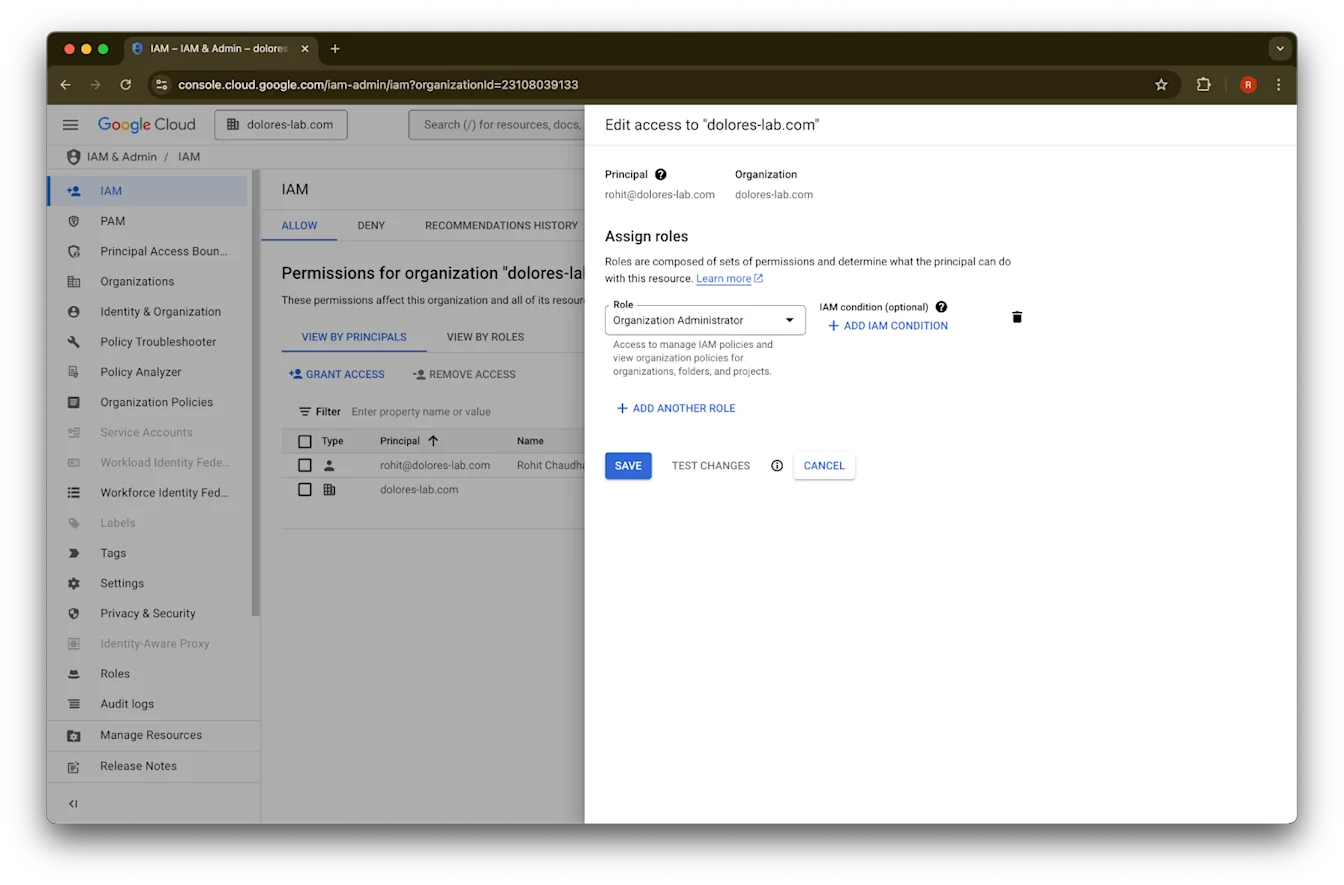
  7. Add Another Role
    をクリックします

    Google Cloud IAM dialog assigning the Organization Administrator role for dolores-lab.com
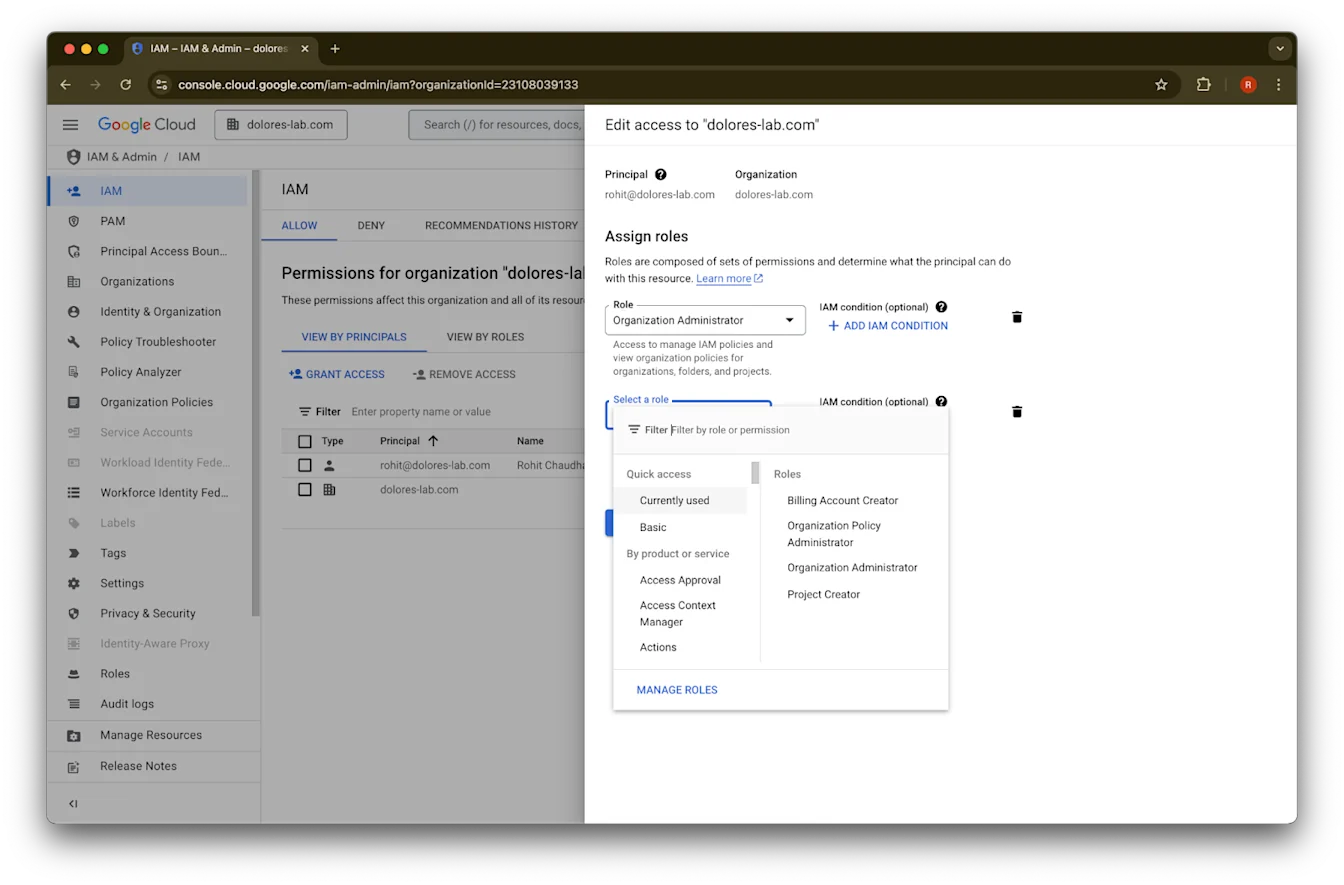
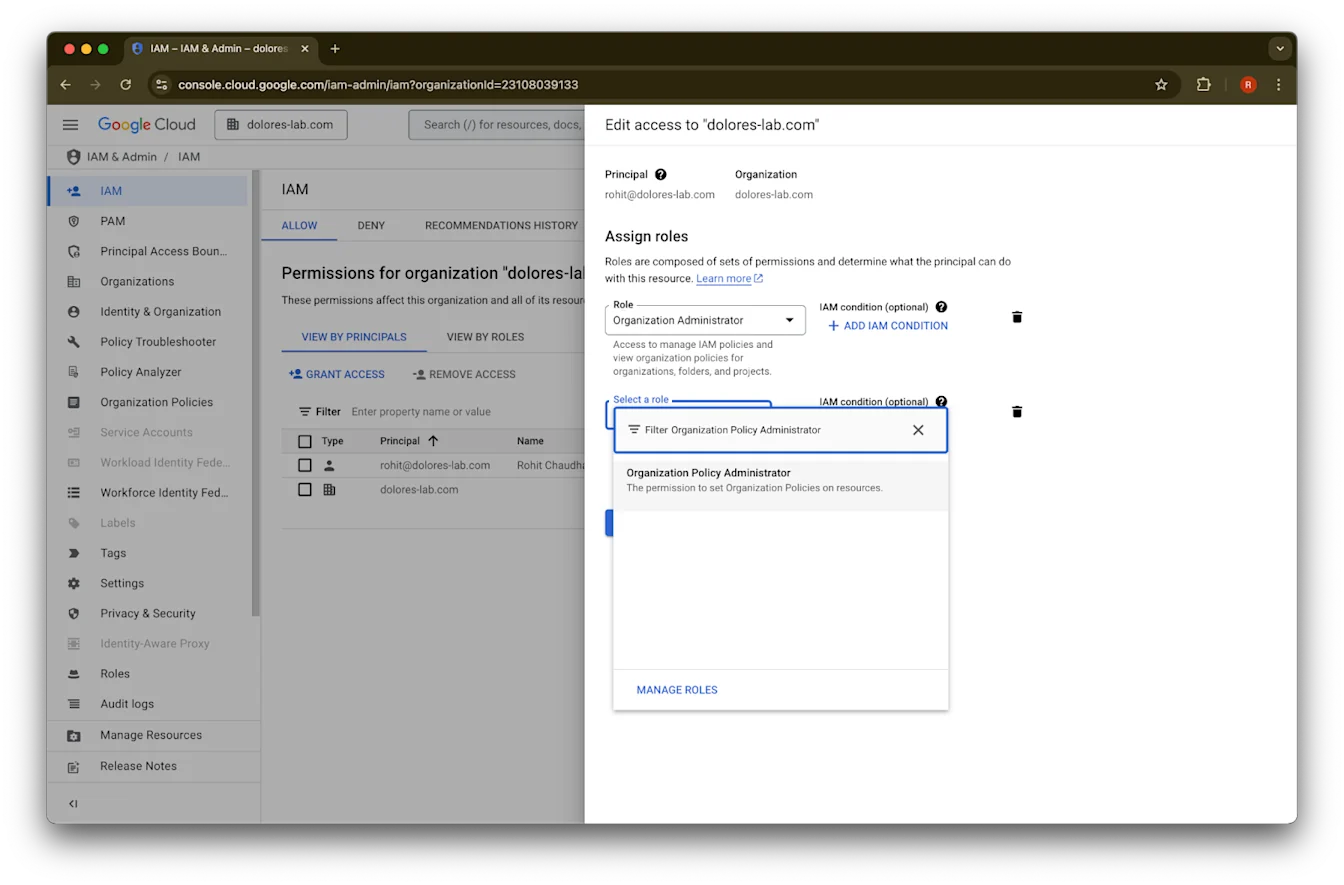
  8. Organization Policy Administrator
    を検索します

    Google Cloud IAM edit access dialog assigning the Organization Administrator role to a user
  9. Organization Policy Administrator
    をクリックします

    Google Cloud IAM role picker with Organization Policy Administrator selected while editing access
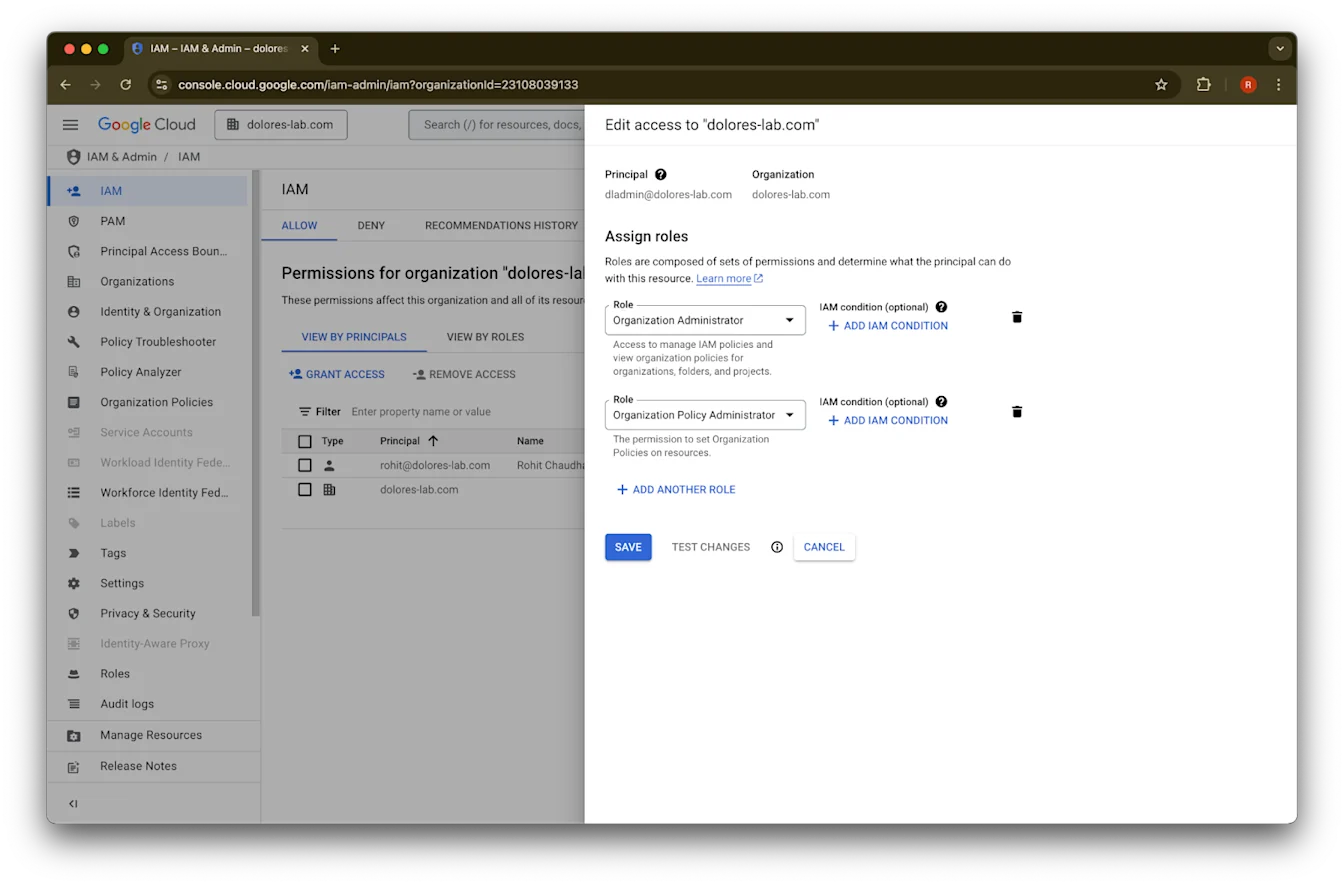
  10. Save をクリックします

    Google Cloud IAM access editor assigning Organization Administrator and Organization Policy Administrator roles
  11. これで、サービス アカウント キー作成を有効にする権限がアカウントに付与されました。反映まで数分かかる場合があります。

Google Workspace と ChatGPT で異なるメールアカウントを維持するために Google メール エイリアスを使用する

Google Drive 同期コネクタの管理者管理セットアップを使用して Google Workspace を ChatGPT ワークスペースに接続する管理者で、組織で ChatGPT と Google Workspace に異なるメールドメインを使用している場合、ユーザーが Google Drive 同期コネクタに正常にアクセスできるようにするには追加の手順が必要です。

推奨事項: 可能な限り、Google Workspace と ChatGPT アカウントの両方で同じプライマリ メールアドレスを使用してください。

これが難しい場合は、以下の手順に従って、ChatGPT のサインイン用メールアドレスと一致する Google Workspace のメール エイリアスを設定してください。

Google Workspace エイリアスを追加する手順

各ユーザーの ChatGPT メールアドレスを Google Workspace アカウントに関連付けられるようにするため、Google Admin Console で次の手順に従ってください:
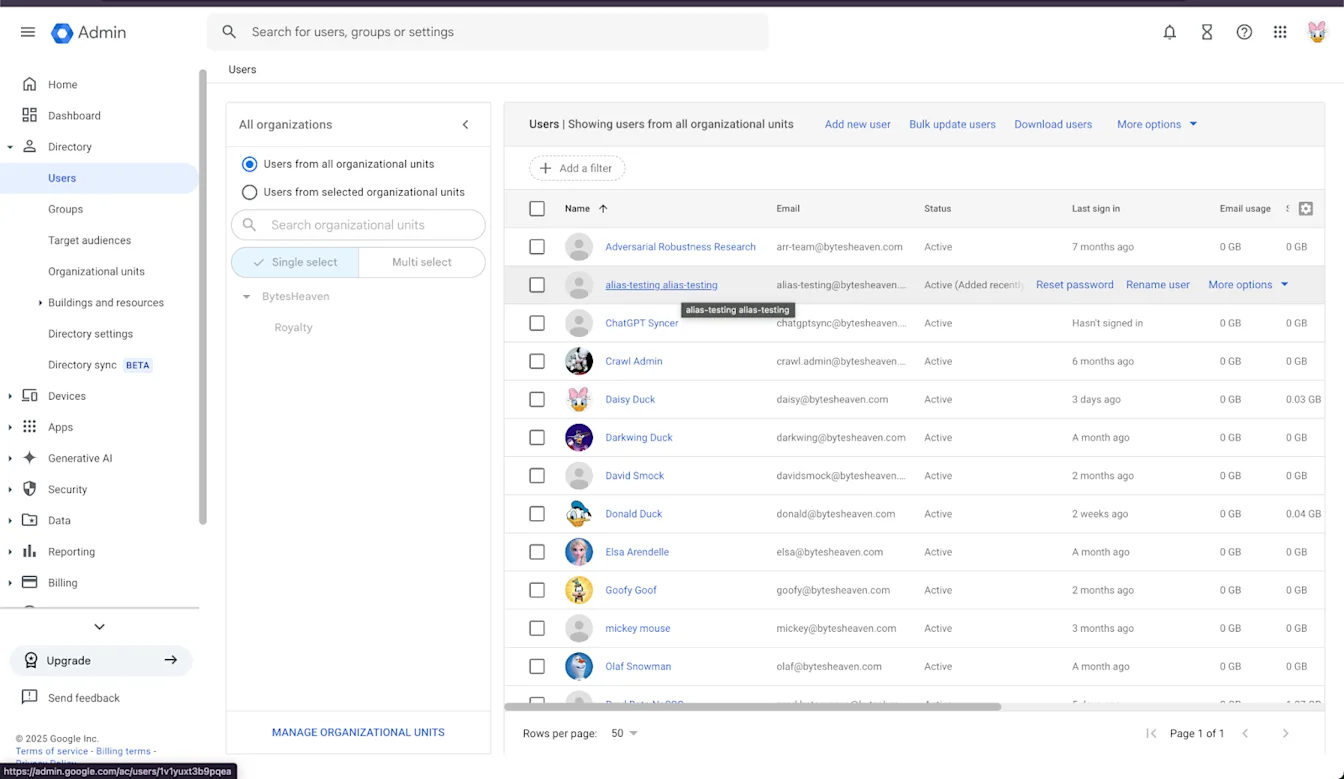
  1. Admin Console に移動します。 Directory > Users に移動します

Image

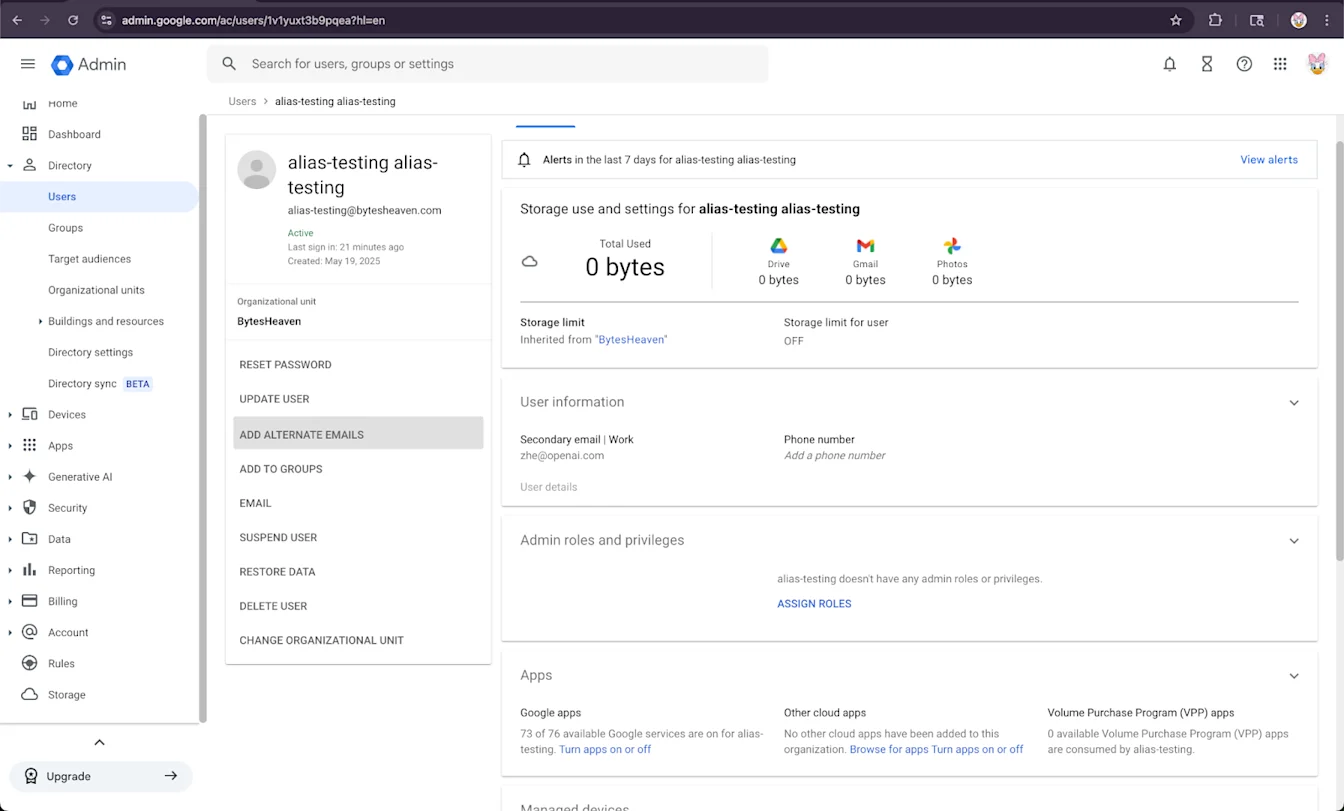
2. ユーザーを選択し、次に「ADD ALTERNATIVE EMAILS」を選択します。

Google Admin user details page with Add alternate emails action highlighted

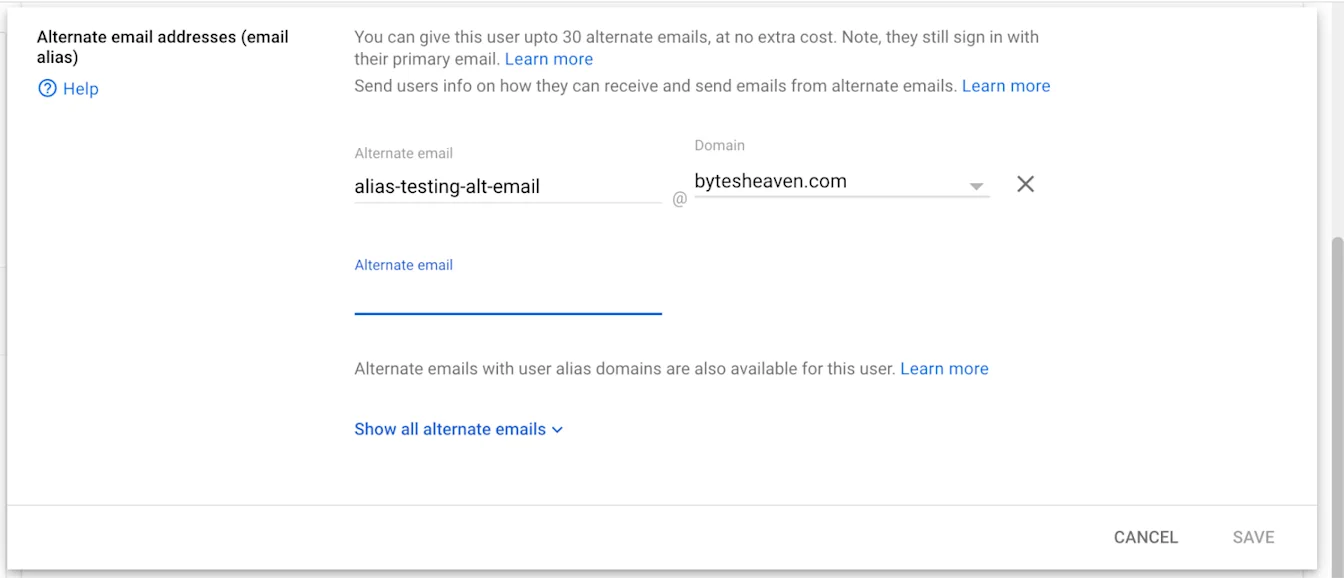
3. 代替メールアドレスを追加します。ユーザーの ChatGPT アカウントに対応していることを確認してください。

Google Workspace Admin alternate email alias form with alias-testing-alt-email on bytesheaven.com

4. Save を選択します


既知の制限事項

個人用メールアドレスはサポートされていません

個人用アドレス(例: example@gmail.com)で ChatGPT に登録したユーザーは、Google Workspace に接続できません。この設定はサポート対象外であり、組織外から内部データへのアクセスを可能にするため、セキュリティ リスクがあります。
Gmail の「+」エイリアスはサポートされていません

Gmail では、アドレスに「+」を追加してエイリアスを作成できます(例: user+alias@gmail.com)。この種類のエイリアスは Google Drive 同期コネクタでは機能しません。エイリアスは Google Workspace で明示的に設定する必要があります。

よくあるエラー メッセージ

メールアドレスが適切に関連付けられていない場合、ユーザーには次のメッセージが表示されることがあります: 「Google Drive にアカウントを接続できませんでした。詳しくはこちら。」

このメッセージが表示された場合は、このドキュメントの手順を見直し、正確に実施されていることを確認してください。さらにサポートが必要な場合は、サポート チームにお問い合わせください

この記事は役に立ちましたか?