The new experience is rolling out gradually. If you see Home (a house) and Explore (four circles) at the bottom of the app, you are in the new experience. If you don’t see Home and Explore, follow the guide to the classic experience. You can switch back to the classic experience if you see New ChatGPT design in Settings.
Overview
The mobile app has been redesigned to make it easier to discover tools in ChatGPT and keep your favorites a tap away.
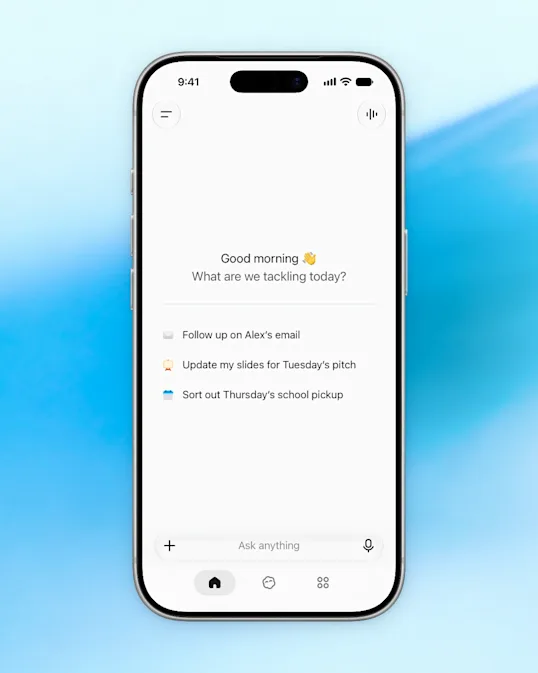
Open the Home to start a chat or pick up a past conversation. In Explore, you can find tools like Projects and Images.
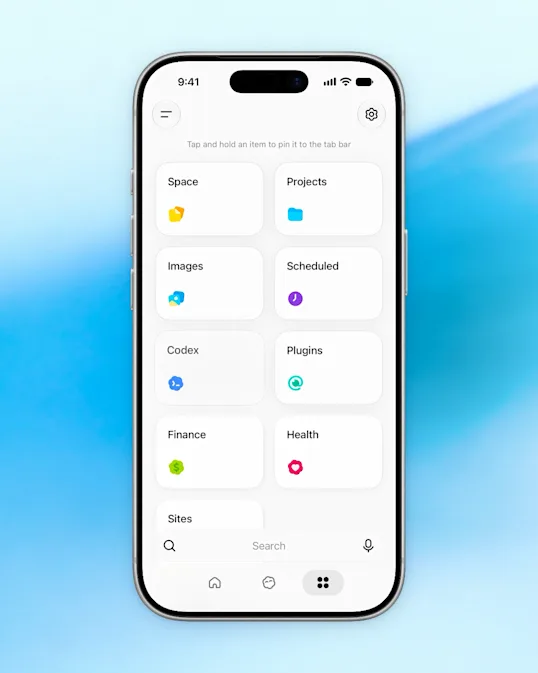
If you use Projects often, you can pin it to the tab bar and open your project list from there. If you have a dot, select its tab to open your conversation. For setup and availability, see: Getting started with your dot.
Availability
The new experience is rolling out to eligible adults on ChatGPT Pro and a small group on Plus. The rollout excludes the European Economic Area (including the EU), the UK, Switzerland, and Korea.
To use the new experience, update ChatGPT to the latest version from the App Store or Google Play.
It is not available on iPhone SE, iPhone Duo, or iPad yet. If you use one of these devices, follow the guide to the classic experience.
If you have Pro and your app opens in the classic experience, open Settings and turn on New ChatGPT design. If the switch is missing after you update the app, the new experience isn’t available on your device or account yet.
Find and manage chats and projects
Find your projects in Explore
To browse the projects you used to open from the sidebar, select Explore (the four-circle icon), then Projects. Open a project to see its chats together. A project chat can also appear in your recent chats.
To keep your project list in the tab bar, touch and hold Projects in Explore, then select Pin to tab bar. Select the folder icon to open the list.

If Projects is missing or your list won’t open, follow the mobile troubleshooting steps. If one project is missing from the list, check your account, workspace, and search filters.
Pin other tools to the tab bar
You can pin other tools from Explore the same way. Touch and hold a tool, then select Pin to tab bar. If the bar is full, choose a shortcut to replace.
Remove a shortcut
Touch and hold the pinned icon in the tab bar, then select Unpin from tab bar. You can still open the feature from Explore.
Open your chat history
Select Home.
Select the menu icon (two horizontal lines) to open the sidebar. Your recent chats appear with the newest first.
Select a conversation to reopen it.
Your chat history syncs across devices where you’re signed in to the same account. If a chat is missing:
Check that you’re in the correct account and workspace.
Open Search in the sidebar and enter words from the chat’s title or messages. An older chat missing from the sidebar hasn’t necessarily been deleted.
Search for archived chats too; they remain searchable.
Locked chats are hidden from regular history and search. To open a locked chat, go to Explore > Projects, then select Locked chats.
For search filters and other missing-result checks, see: Finding your chats, projects, and files in ChatGPT.
Choose Chat or Work for a new chat
Start a new chat from Home.
Select the message box, then select the model name shown inside it.
Select Chat or Work in the model picker.
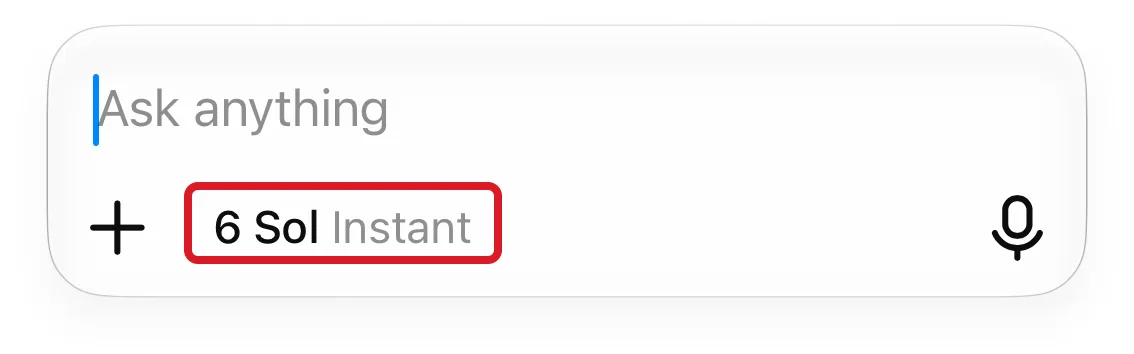
For more about when to use each mode, see ChatGPT Work and Codex.
Delete a conversation
Open the conversation you want to delete.
Select the more options menu (•••), then Delete.
Confirm the deletion.
Deleted chats cannot be restored. For deletion and archiving options, see: Deleting and archiving chats in ChatGPT.
Adjust app settings
Select Home, open the sidebar, and select your profile icon to open Settings.
Check your app version
In Settings, find the version for your platform:
On iOS, scroll to the app version. If your Settings screen has an Information icon (i), select it to view the version.
On Android, select About. The version appears under ChatGPT for Android.
Turn haptic feedback on or off
Open Settings.
Select General.
Turn Haptic feedback on or off.
If your app has a different Settings layout, look for Haptic feedback directly in Settings on iOS, or under Personalization on Android. The setting appears only on devices that support the app’s haptic effects.
Switch back to the classic experience
Save any drafts and finish active conversations, dictation, and uploads before switching.
Select Home, open the sidebar, and select your profile icon to open Settings.
Turn off New ChatGPT design.
On Android, select Restart when prompted.
If you don’t see New ChatGPT design in Settings, you can’t switch back in your app. For help after switching, follow the guide to the classic experience.
Set custom instructions
For the steps on iOS and Android, see: Custom instructions for ChatGPT.
Install the app and sign in
Download the official app for your device:
ChatGPT in the App Store for iPhone. Check that the developer is OpenAI OpCo, LLC.
ChatGPT in Google Play for Android. Check that the publisher is OpenAI.
If you search the store, search for “OpenAI ChatGPT” and check the publisher before downloading. Check the store listing for the latest device and operating system requirements.
This is the official app icon:

For countries where you can use ChatGPT, see: ChatGPT supported countries.
Sign in to the same ChatGPT account you use on your other devices to access its chats and subscription. If sign-in fails, see: Troubleshooting ChatGPT sign-in.
Access and manage your subscription
If you’ve paid but the app shows Free, sign in to the same ChatGPT account that made the purchase. Check this before subscribing again to avoid a duplicate charge.
Restore an Apple App Store purchase
Sign in to the original ChatGPT account and use the Apple Account that made the purchase. In the ChatGPT iOS app:
Open Settings.
If you don’t see Restore purchases, select Account.
Select Restore purchases.
If the subscription still doesn’t appear on the original account, or you paid through Google Play, follow the checks in Troubleshooting ChatGPT subscription access and account changes.
Upgrade, cancel, or request a refund
To upgrade, see: Upgrading on the web or in the ChatGPT iOS app.
To cancel, see: Canceling your ChatGPT subscription.
To request a refund, see: Requesting a refund for a ChatGPT subscription.
Uninstalling the app does not cancel your subscription.
Manage your account and privacy
Use the dedicated guides for these settings and account actions:
To manage how your chats are used, see: Data controls.
To export your chats and account data, see: Exporting your ChatGPT history and data.
To review email-change options and requirements, see: Changing your email address.
For precise location sharing and its settings, see: Location settings for ChatGPT search.
For how speech-to-text audio is retained and used, see: Voice dictation. For spoken conversations with ChatGPT, see: ChatGPT Voice.
Delete your account
Deleting your account is permanent and cannot be undone. For the consequences and steps on each platform, see: Deleting your ChatGPT account.
Select text on Android
Touch and hold the text you want to select, then use the Android selection menu. For actions such as Copy, Read aloud, or Share, use the buttons below the response or open the more options menu (•••).
Troubleshoot the app
For crashes, freezes, and device-check errors, see: Troubleshooting the ChatGPT mobile app. You can also check OpenAI Status for an active incident.