
Visão geral
Ative o Daybreak para usuários aprovados do ChatGPT e do Codex e para projetos de API aprovados.
Antes de começar
Quando a OpenAI habilita os controles de acesso ao Daybreak para um espaço de trabalho do ChatGPT ou uma organização da API, a configuração do Daybreak fica desativada por padrão. Um proprietário do espaço de trabalho deve configurar o acesso para os grupos aprovados, e um proprietário da organização da API deve configurar os projetos aprovados. Isso também se aplica aos espaços de trabalho existentes do Daybreak que optaram por migrar para esses controles.
O acesso ao Daybreak é restrito a usuários internos de alta confiança e a atividades internas de segurança autorizadas. Não habilite esses recursos para usuários externos, produtos voltados a clientes, automações voltadas ao público ou fluxos de trabalho de terceiros.
A aprovação para o Daybreak Blue não inclui o Daybreak Red.
Configure a forma de acesso usada pela sua equipe:
ChatGPT e Codex com login pelo ChatGPT: gerencie o acesso pelo espaço de trabalho aprovado do ChatGPT.
API e Codex com autenticação por chave de API: gerencie o acesso pelo projeto de API aprovado.
Se a sua equipe usa as duas formas, conclua ambas as configurações.
Configure o acesso ao ChatGPT e ao Codex
No momento, os planos Business não oferecem suporte aos controles de acesso ao Daybreak para o ChatGPT ou o Codex com login pelo ChatGPT. Em um espaço de trabalho Business aprovado, todos os membros têm acesso por padrão atualmente. Os controles de acesso ao Daybreak para planos Business estarão disponíveis em breve.
Nos planos Enterprise, você pode usar uma função personalizada atribuída aos usuários ou grupos aprovados para conceder acesso ao Daybreak. Um proprietário do espaço de trabalho deve criar e atribuir funções; consulte Como gerenciar o acesso a recursos com o controle de acesso baseado em funções no ChatGPT. Depois, um proprietário ou administrador do espaço de trabalho pode configurar o acesso a modelos de uma função existente pela página de controle de Modelos compatível com esse recurso.
Para limitar o acesso ao Daybreak a usuários específicos, mantenha-o desativado em Padrão do espaço de trabalho e ative-o apenas para a função atribuída a esses usuários.
No espaço de trabalho aprovado, abra Console de administração > Modelos.
Abra Padrão do espaço de trabalho. Se quiser ativar a Cibersegurança para todos os usuários do espaço de trabalho, pule esta etapa. Caso contrário, em Cibersegurança, verifique se Daybreak Red e Blue estão desativados e desative-os se necessário.
Selecione Salvar alterações.
Abra Funções. Na função desejada, escolha Editar substituição ou escolha Adicionar substituição de função para criar uma substituição.
Em Cibersegurança, defina Daybreak Blue como Ativado. Ative o Daybreak Red somente se ele estiver aprovado para o espaço de trabalho e os usuários da função selecionada estiverem autorizados a usá-lo.
Selecione Salvar. As alterações podem levar até cerca de 10 minutos para entrar em vigor.
Abra novamente Padrão do espaço de trabalho e a função. Verifique as configurações salvas e os usuários ou grupos aos quais a função está atribuída.
Para verificar o status do Daybreak de um usuário, em Console de administração > Modelos > Testar, procure um membro aprovado pelo nome ou e-mail e verifique as permissões de acesso a modelos salvas para ele. Faça a verificação para um membro que deve ter acesso e para outro que não deve. Revise todas as funções atribuídas diretamente ou por meio de grupos: outra função pode conceder acesso mesmo que uma delas esteja definida como Desativado. Em seguida, teste a forma de acesso desejada com o usuário aprovado. As permissões salvas, por si só, não confirmam que uma solicitação ao modelo será bem-sucedida. Se o acesso real for diferente das configurações salvas, verifique também se há algum acesso concedido separadamente.
Configure o acesso ao projeto de API
Você precisa ser proprietário de uma organização da API para configurar o acesso ao Daybreak. Ser apenas proprietário de um projeto não dá permissão para alterar essas configurações.
Abra a organização aprovada na Plataforma de API.
Crie ou selecione um projeto que não seja o padrão para as atividades internas de cibersegurança aprovadas da sua equipe. Não é possível ativar o Daybreak em projetos padrão.
Abra Configurações do projeto > Geral > Acesso aos modelos Daybreak.
Ative cada nível de acesso ao Daybreak aprovado para este projeto. O Daybreak Red só está disponível se a sua organização tiver aprovação para usá-lo.
Selecione Salvar. As alterações podem levar até cerca de 15 minutos para entrar em vigor.
Adicione os usuários aprovados ao projeto.
Use uma chave de API do projeto com acesso habilitado para fazer solicitações à API ou autenticar-se no Codex por chave de API. Se você migrou para outra organização ou outro projeto, crie ou selecione uma chave no projeto de destino e atualize os aplicativos ou fluxos de trabalho que a utilizam.
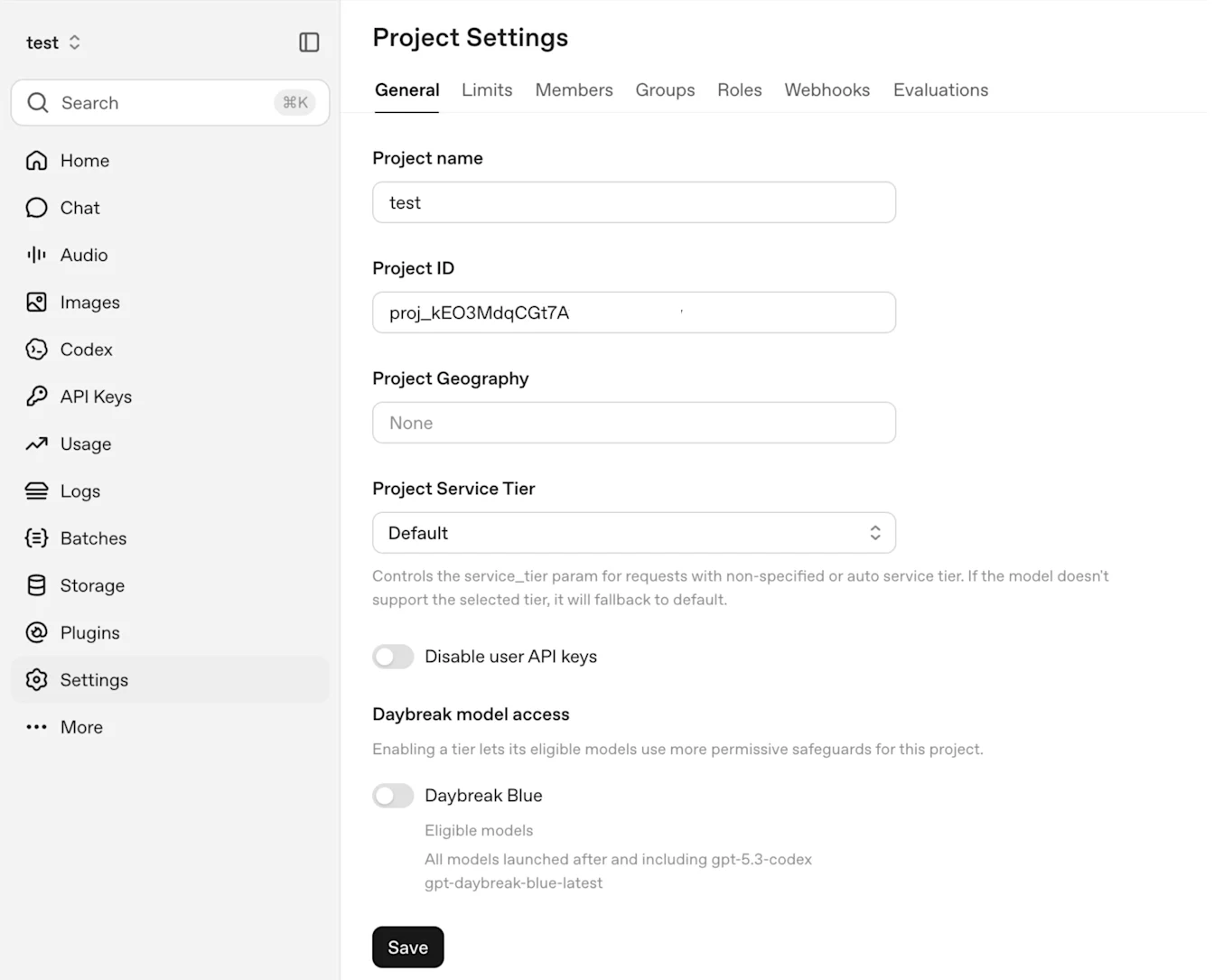
Exemplo: o Daybreak Blue está desativado em Configurações do projeto > Geral > Acesso aos modelos Daybreak.
Repita essas etapas para cada projeto que precisar de acesso. Ativar o Daybreak em um projeto não o ativa em outros projetos nem configura o acesso pelo espaço de trabalho do ChatGPT/Codex.
Se você migrou de uma organização Cyber dedicada, as chaves de API dessa organização não são transferidas para a nova organização. Crie chaves no projeto de destino aprovado e atualize os aplicativos ou fluxos de trabalho que as utilizam.
Verifique o acesso após a configuração
Aguarde até que as alterações salvas entrem em vigor e, em seguida, atualize o cliente. Siga a verificação de acesso no guia de primeiros passos do Daybreak para Enterprise para testar o espaço de trabalho ou projeto de API desejado com os usuários e modelos aprovados.
Se os controles do Daybreak não aparecerem ou o acesso não funcionar como esperado:
Verifique se você selecionou a organização, o espaço de trabalho ou o projeto indicado na confirmação de provisionamento ou migração.
Verifique a função do administrador. No ChatGPT, abra Configurações do espaço de trabalho > Membros. Os proprietários do espaço de trabalho gerenciam as configurações padrão e as atribuições de funções personalizadas. Na API, selecione a organização correta em Configurações da Plataforma de API > Pessoas > Membros > Funções e confirme a função de Proprietário.
Para o login no ChatGPT e no Codex, revise os grupos dos quais o usuário faz parte, as funções atribuídas a ele e as configurações de modelos salvas.
Para a autenticação por chave de API, verifique se a chave pertence ao projeto com acesso habilitado.
Se o problema persistir, entre em contato com o Suporte da OpenAI e informe o ID da organização ou do espaço de trabalho, o ID do projeto, se aplicável, o produto afetado, o nível de acesso ao Daybreak, as configurações salvas e qualquer mensagem de erro. Não inclua chaves de API.
O Daybreak não remove todas as salvaguardas. Uma recusa, por si só, não significa que não há acesso.