OpenAI
此頁面由機器翻譯。查看原始英文文章

Google Workspace - 管理員管理設定

更新日期:13 days ago

若要使用管理員管理設定將您的 Google Workspace 連接至 ChatGPT,您必須先在 Google 的管理主控台中設定存取權:

  • 建立服務帳戶,並為 Google Drive、使用者與群組提供唯讀存取權。

    • 強烈建議在與您的 ChatGPT 工作區相關聯的同一個 Google 帳戶下建立此服務帳戶。如果 ChatGPT 工作區中的帳戶使用的電子郵件網域與 Google Workspace 不同,您必須依照額外步驟操作,才能為您的使用者啟用此連接器。

  • 建立管理員帳戶,讓服務帳戶代表其執行操作。

接著,在 ChatGPT 管理主控台中完成設定:

  • 上傳服務帳戶的私密金鑰(Google 提供的 JSON 檔案)

  • 指定管理員帳戶(不需要憑證)。

  • 選擇要同步的檔案,並選擇哪些使用者可以存取此連線。

本指南會逐步說明這 6 個步驟。

設定服務帳戶

  1. 前往 console.cloud.google.com

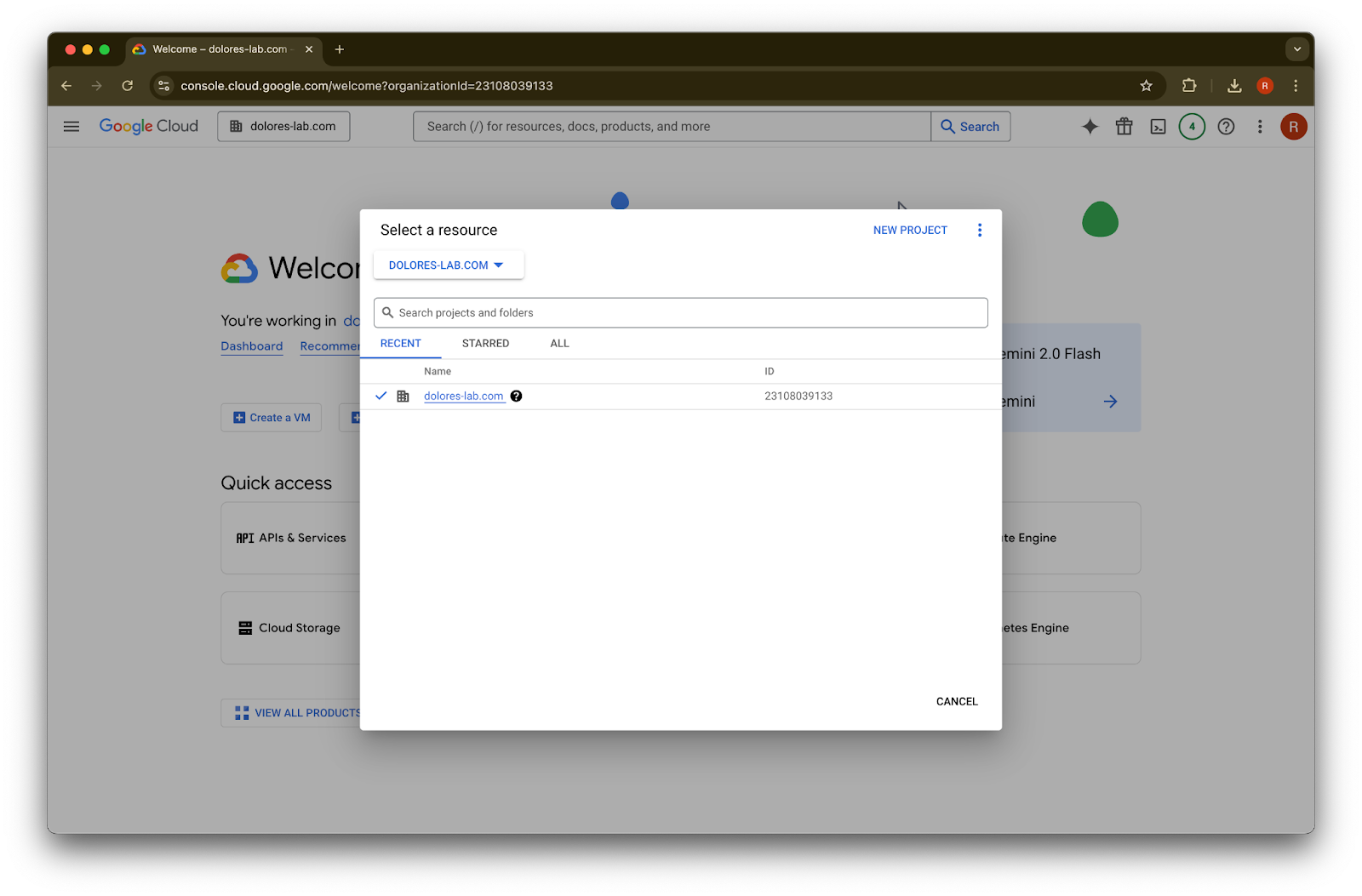
  2. 點擊專案下拉式選單。Image請確認您登入的是與 ChatGPT 工作區相關聯的同一個 Google 工作區(如果您的 ChatGPT 工作區未關聯 Google 工作區,且兩者使用不同電子郵件,您將必須依照額外步驟操作,否則您的使用者可能無法使用 Google Drive 同步連接器)。

  3. 選擇 New Project

    Google Cloud Select a resource dialog with dolores-lab.com organization selected
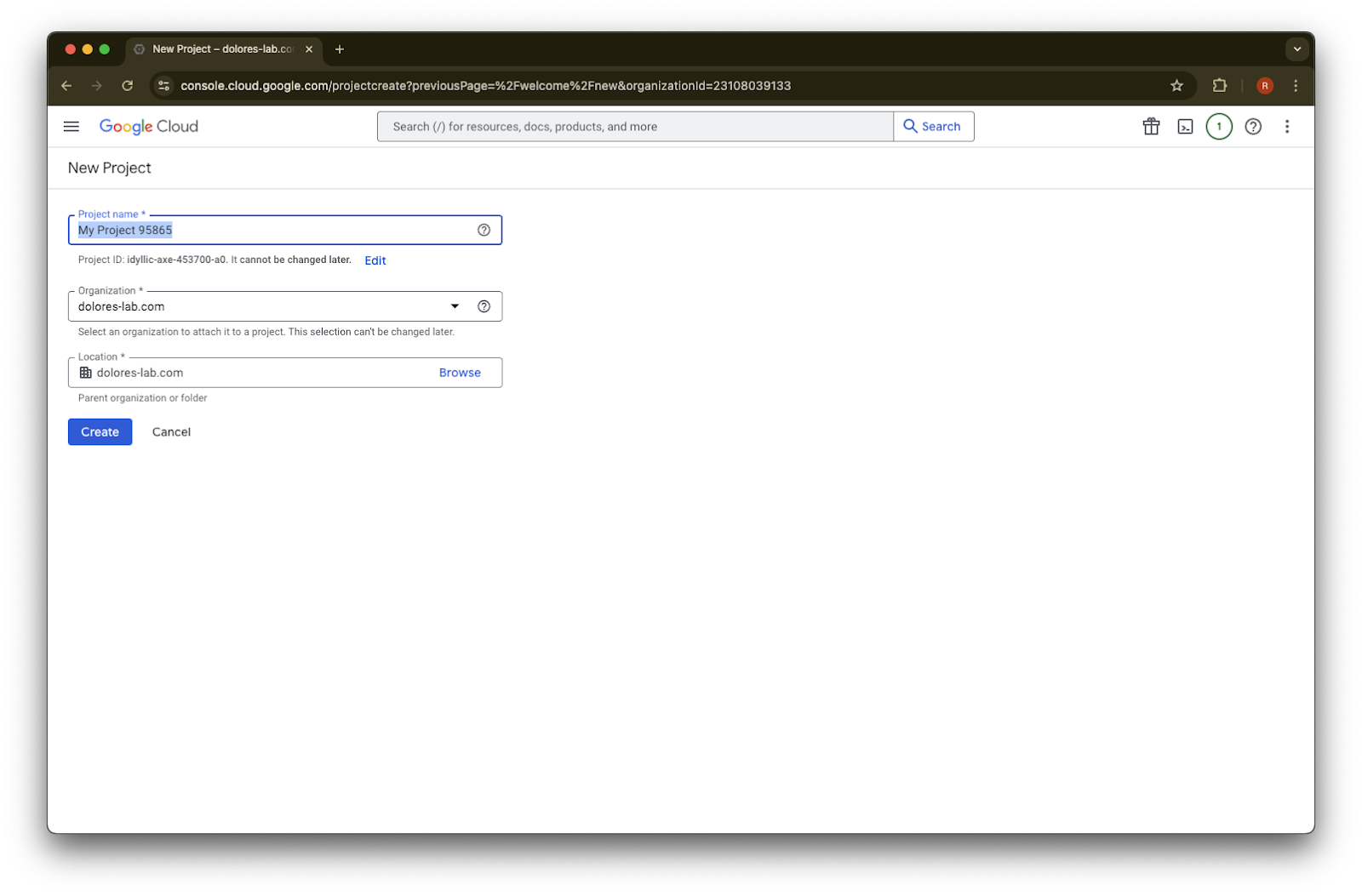
  4. 輸入Project Name

    Google Cloud New Project form with organization dolores-lab.com selected and Create button available
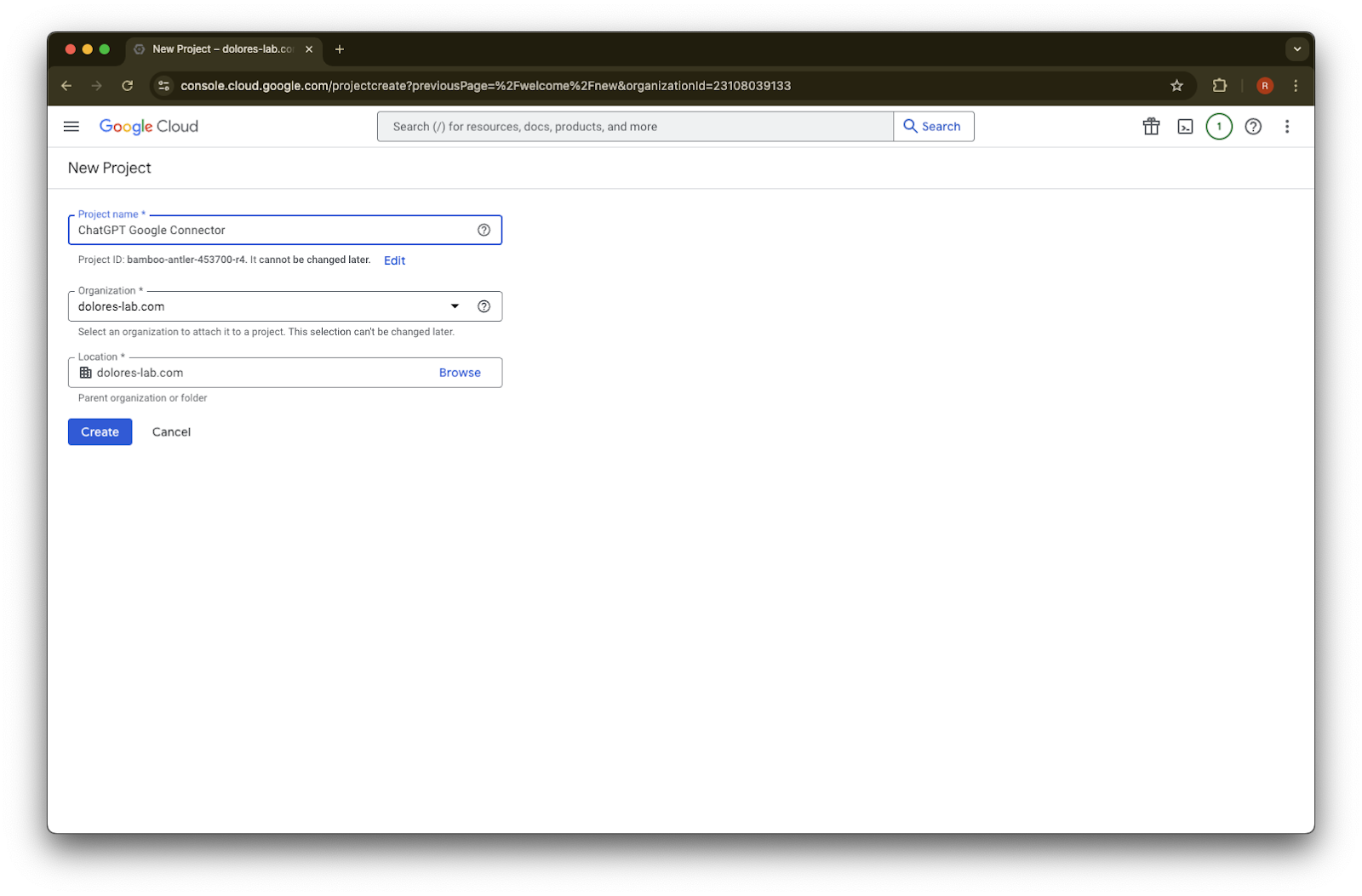
  5. 建立專案

    Google Cloud New Project form with ChatGPT Google Connector entered under the dolores-lab.com organization
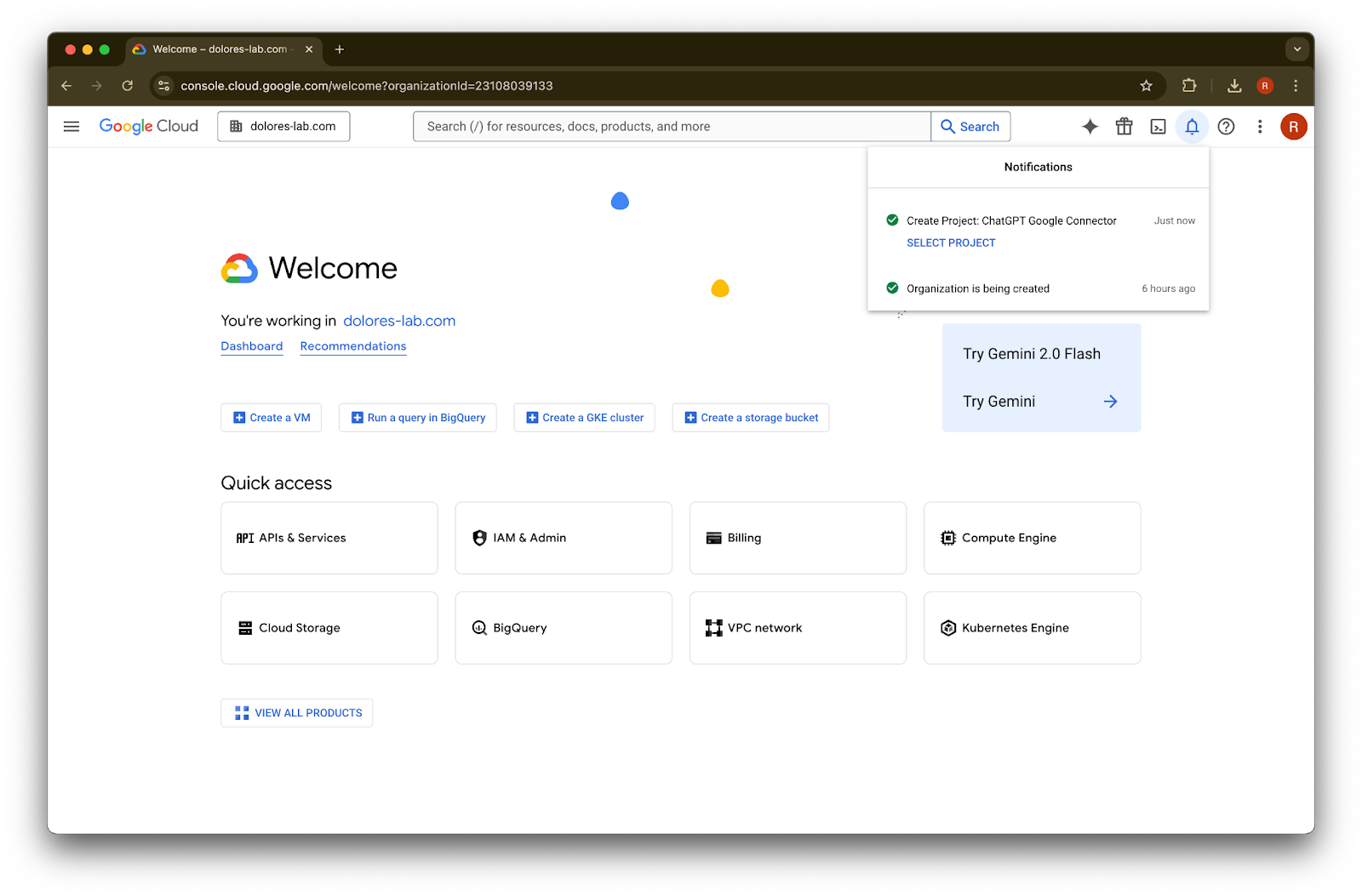
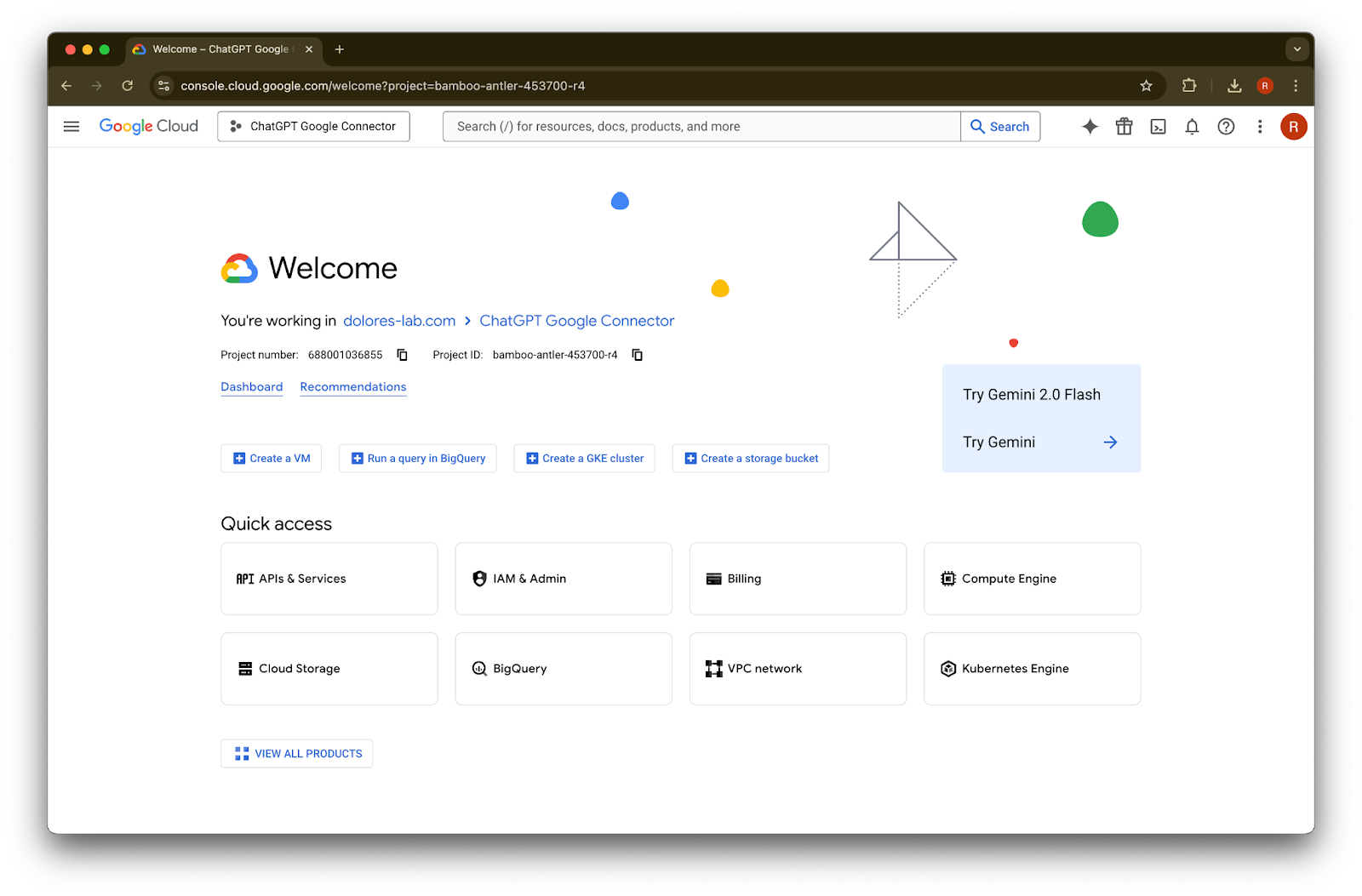
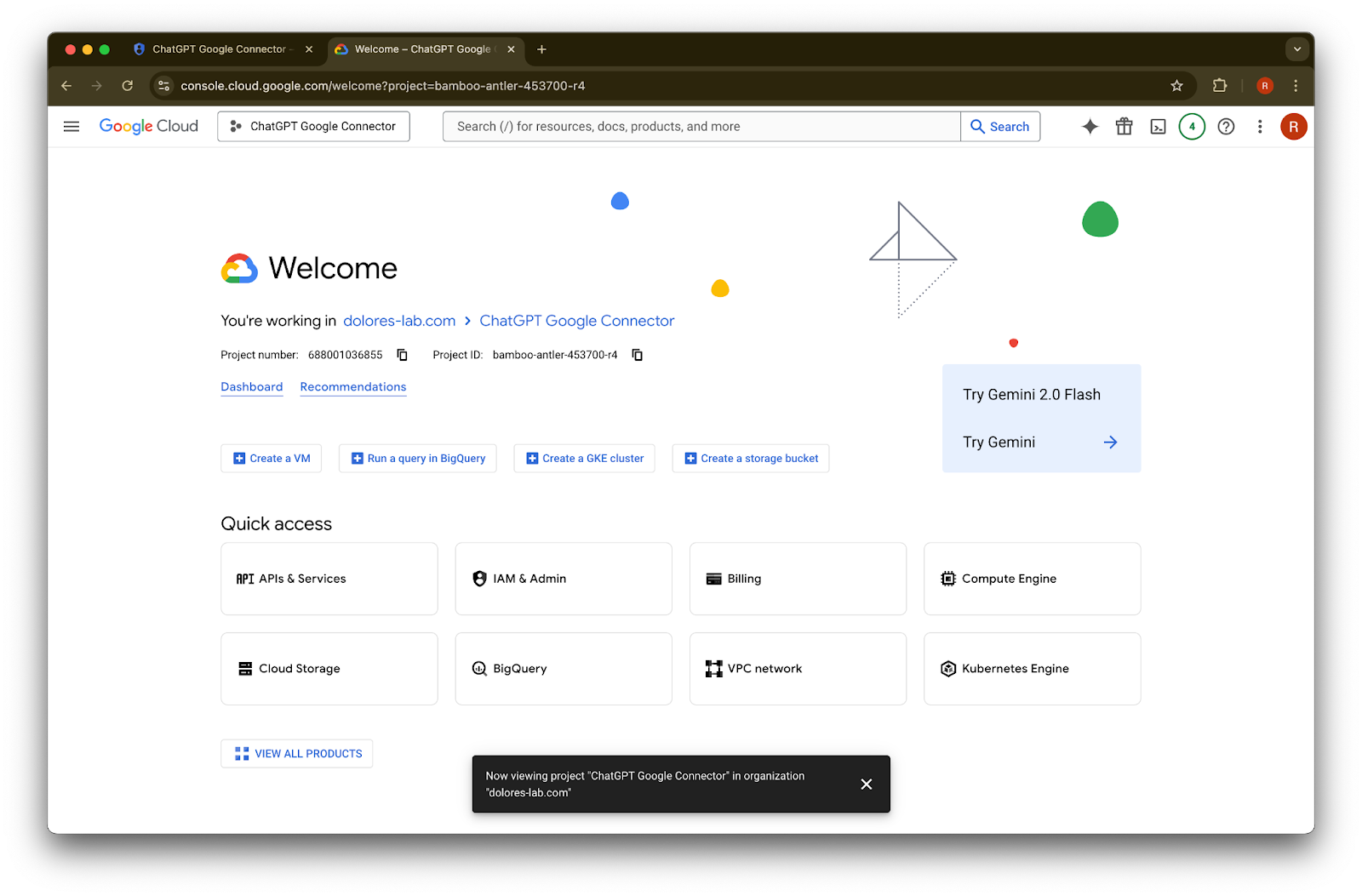
  6. 等待專案建立完成,然後點擊 Select Project

    Google Cloud notifications confirm creation of the ChatGPT Google Connector project for dolores-lab.com
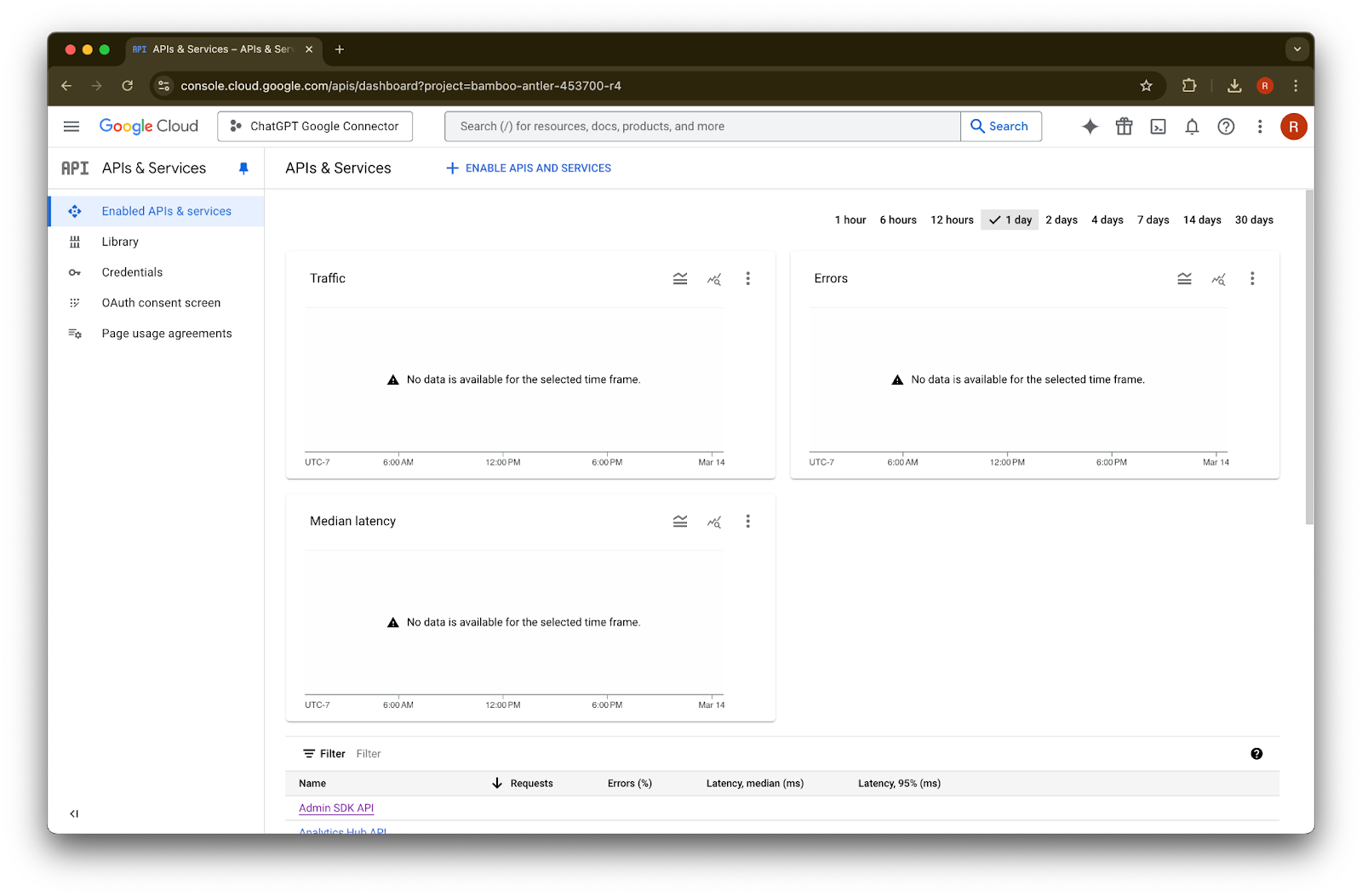
  7. 點擊 APIs & Services

    Image
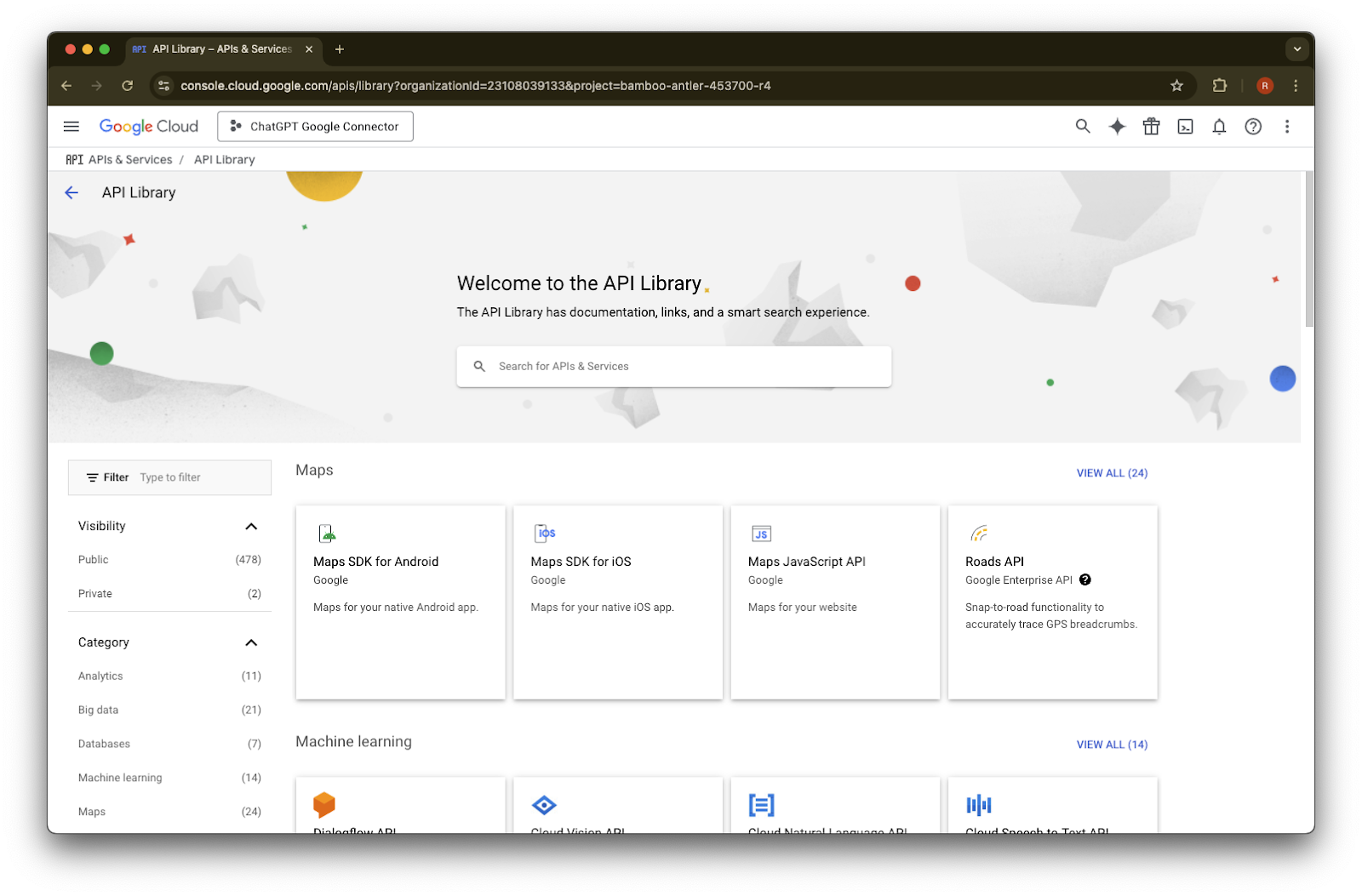
  8. 點擊 Library

    Image
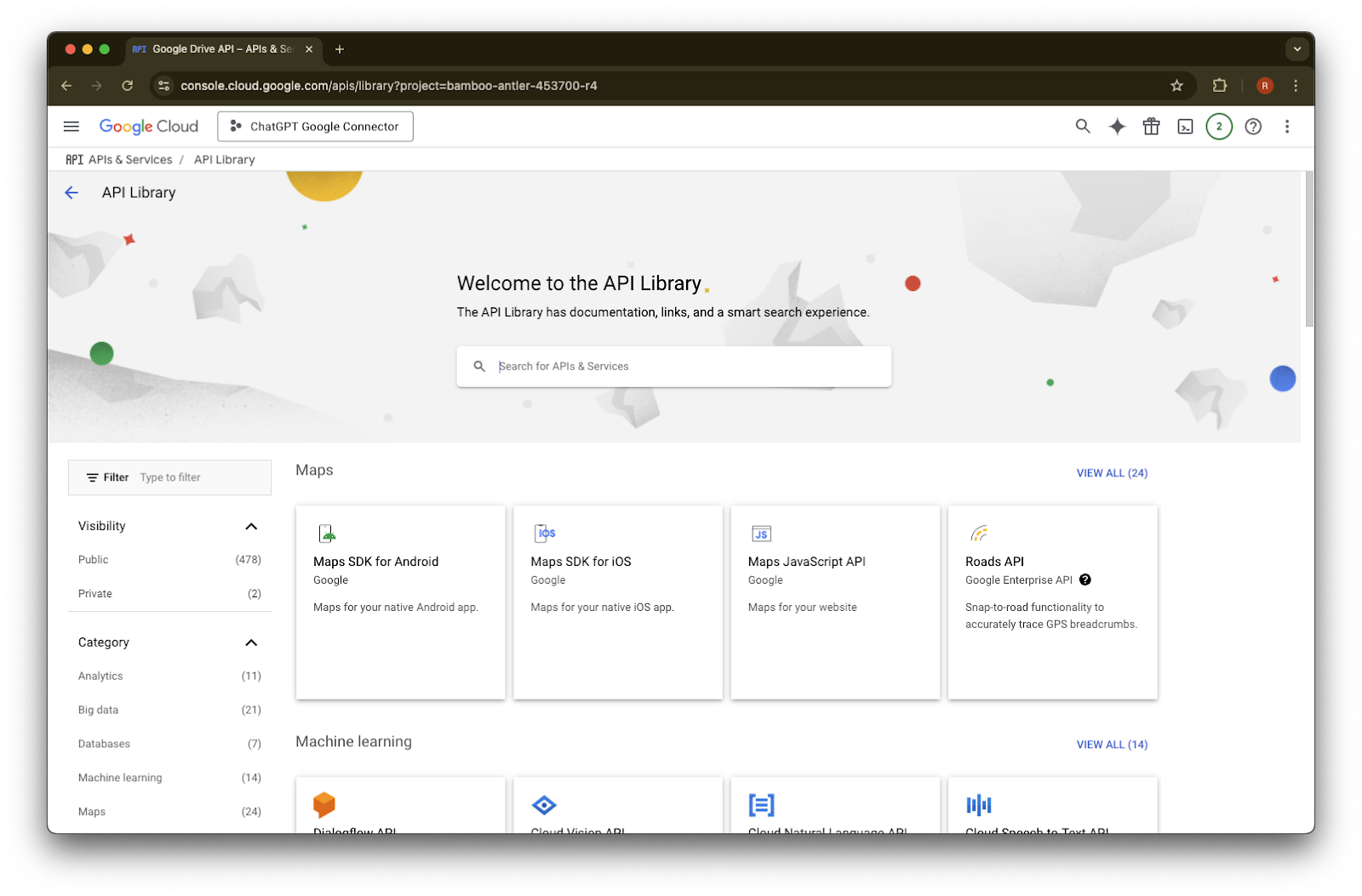
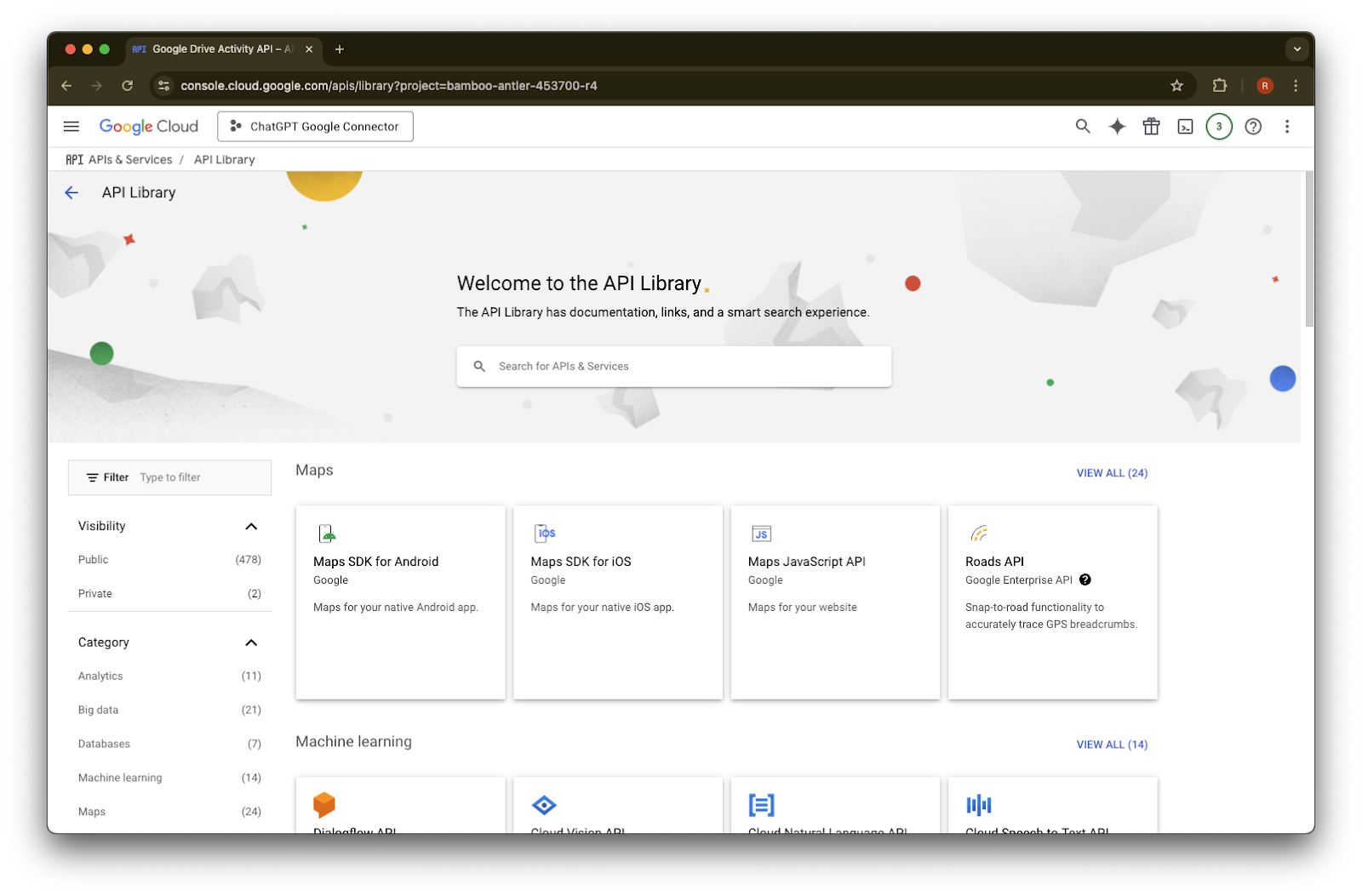
  9. 接下來我們會新增三個 API,使用搜尋框來找到它們

    Google Cloud API Library page with the ChatGPT Google Connector project selected
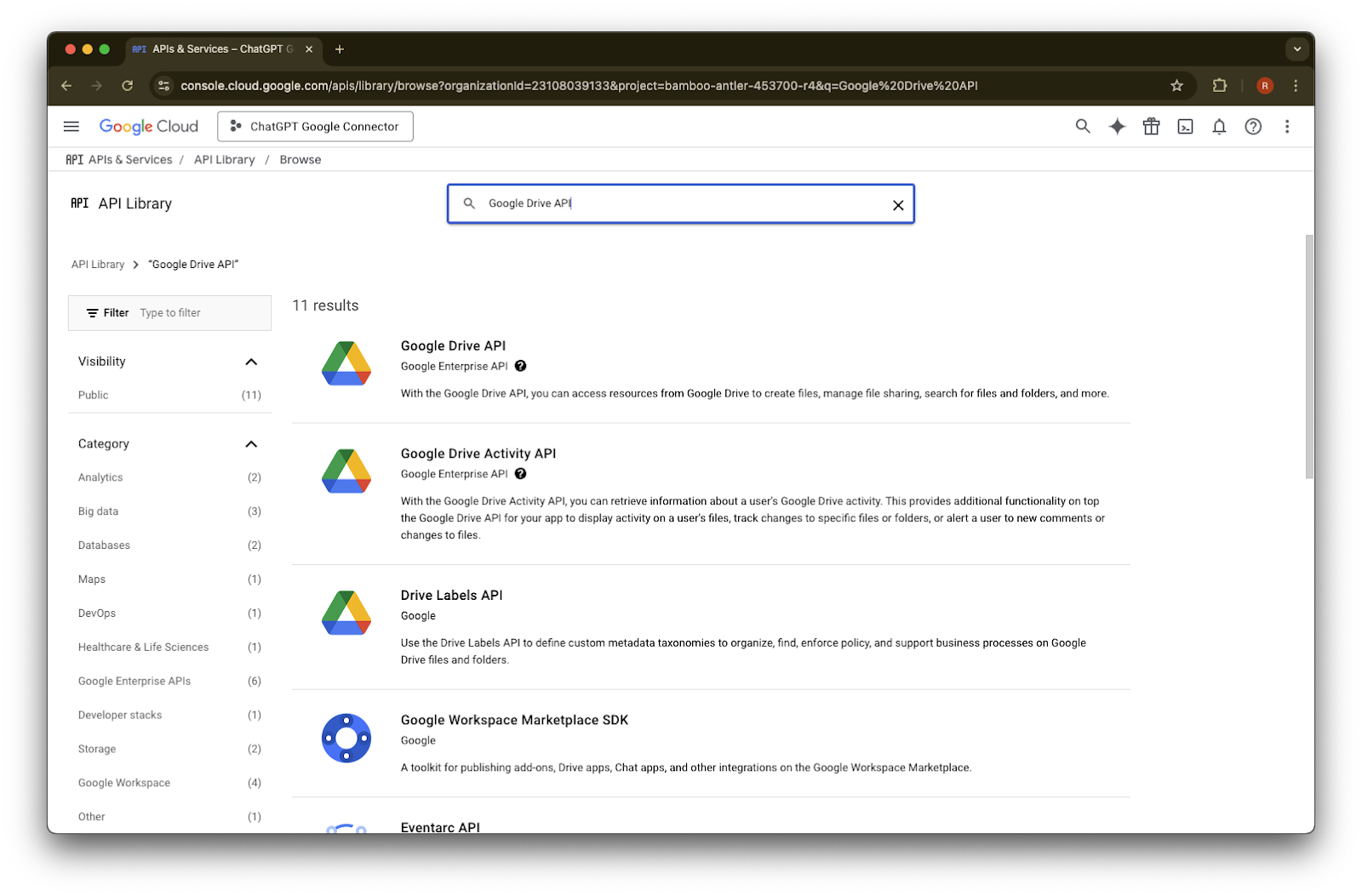
  10. 搜尋並選擇 Google Drive API

    Google Cloud API Library search results for Google Drive API in the ChatGPT Google Connector project
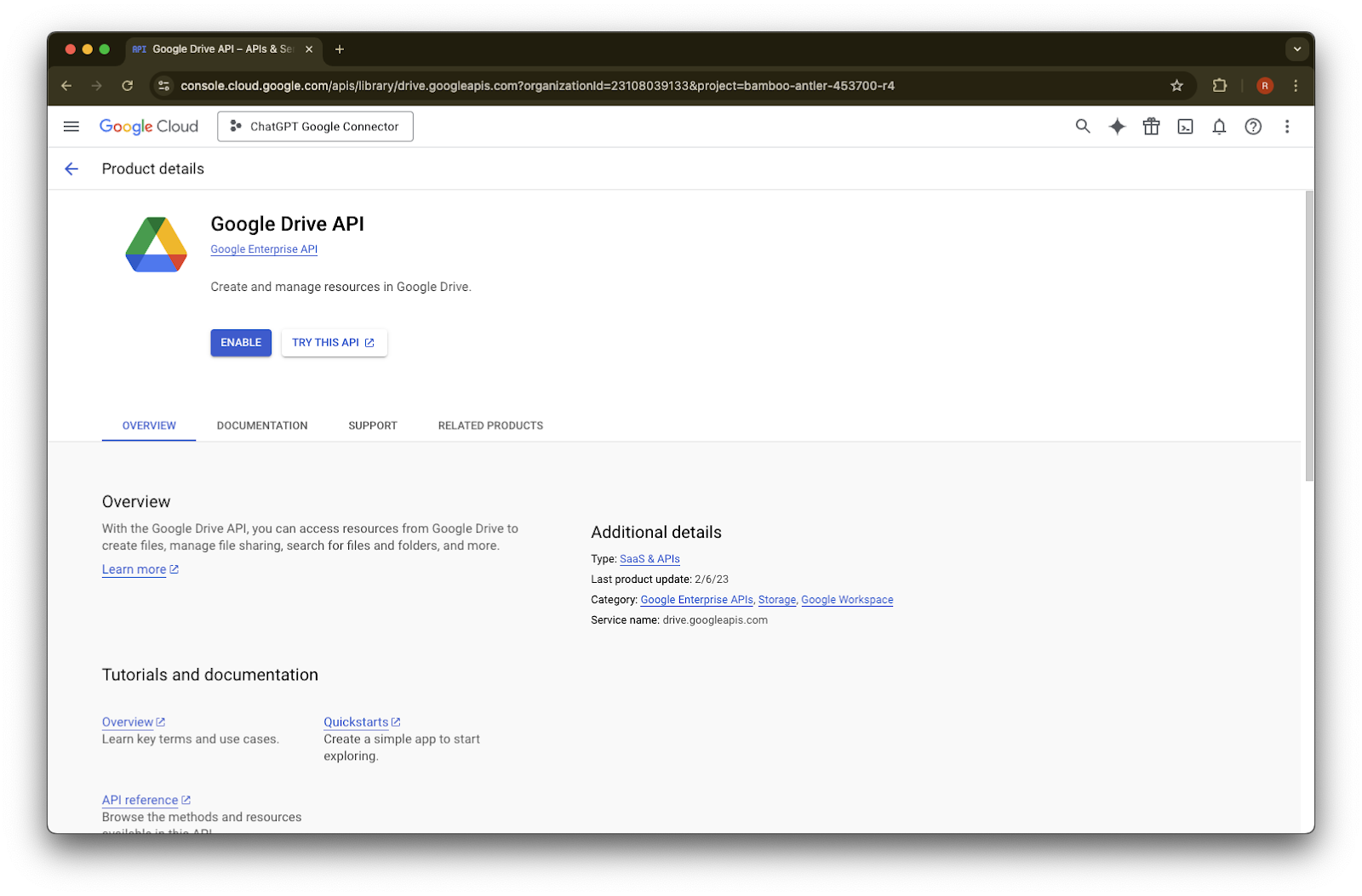
  11. 點擊 Enable

    Google Cloud Console Google Drive API page with the Enable button for the ChatGPT Google Connector project
  12. 點擊 Library

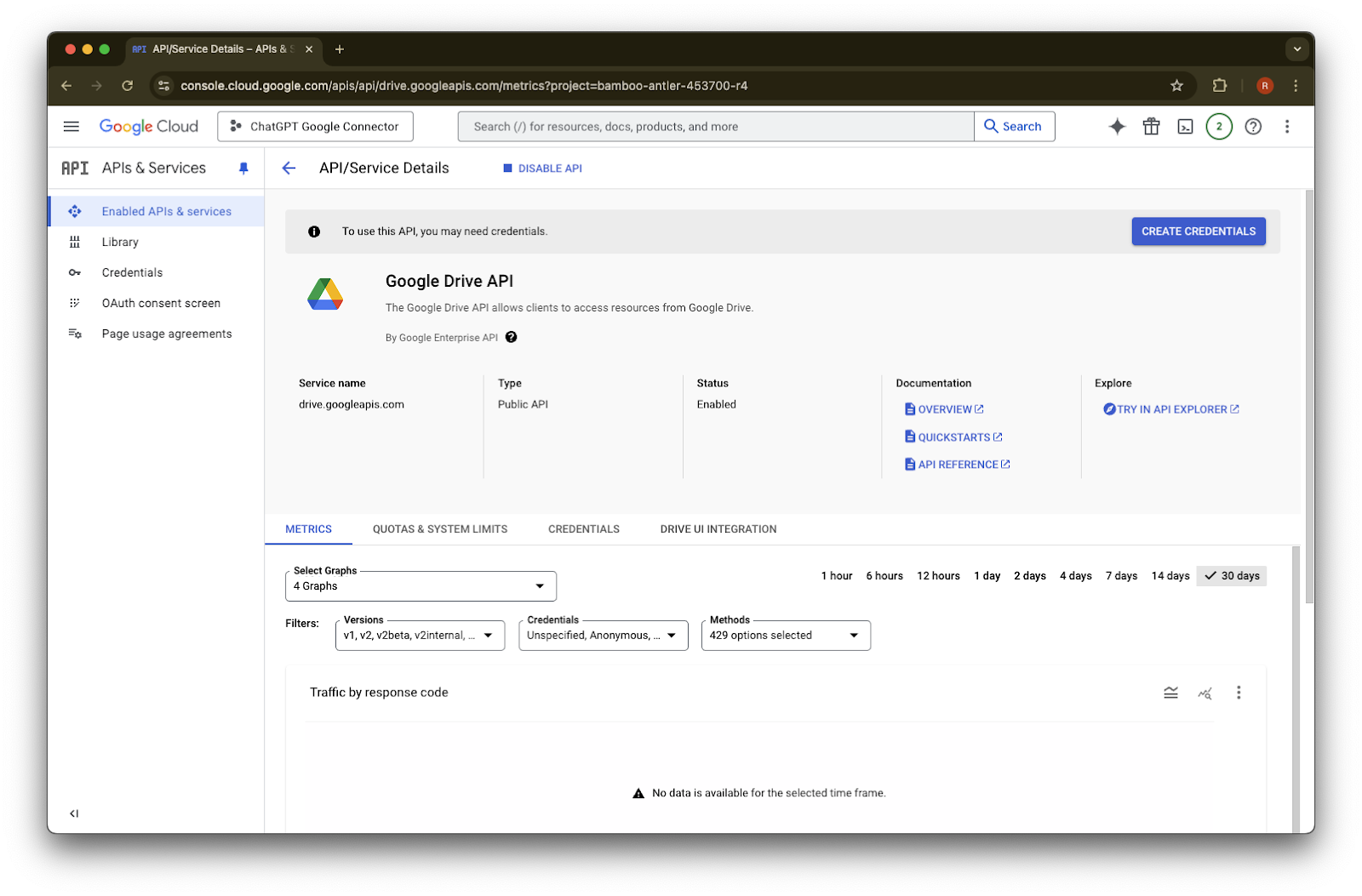
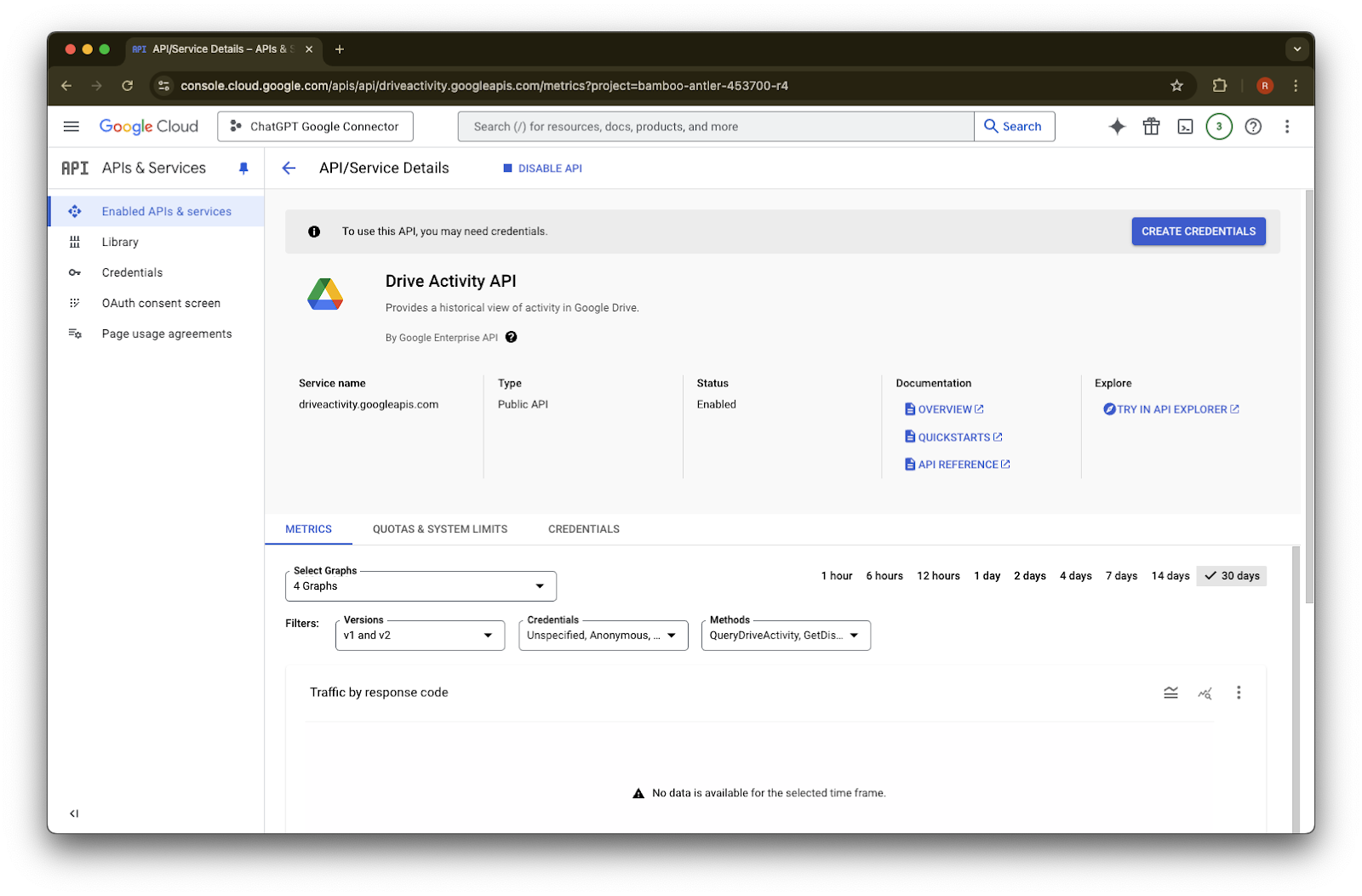
    Google Drive API details page with the API enabled and Create Credentials available
  13. 搜尋 Google Drive Activity

    Google Cloud API Library open for the ChatGPT Google Connector project
  14. 選擇 Google Drive Activity API

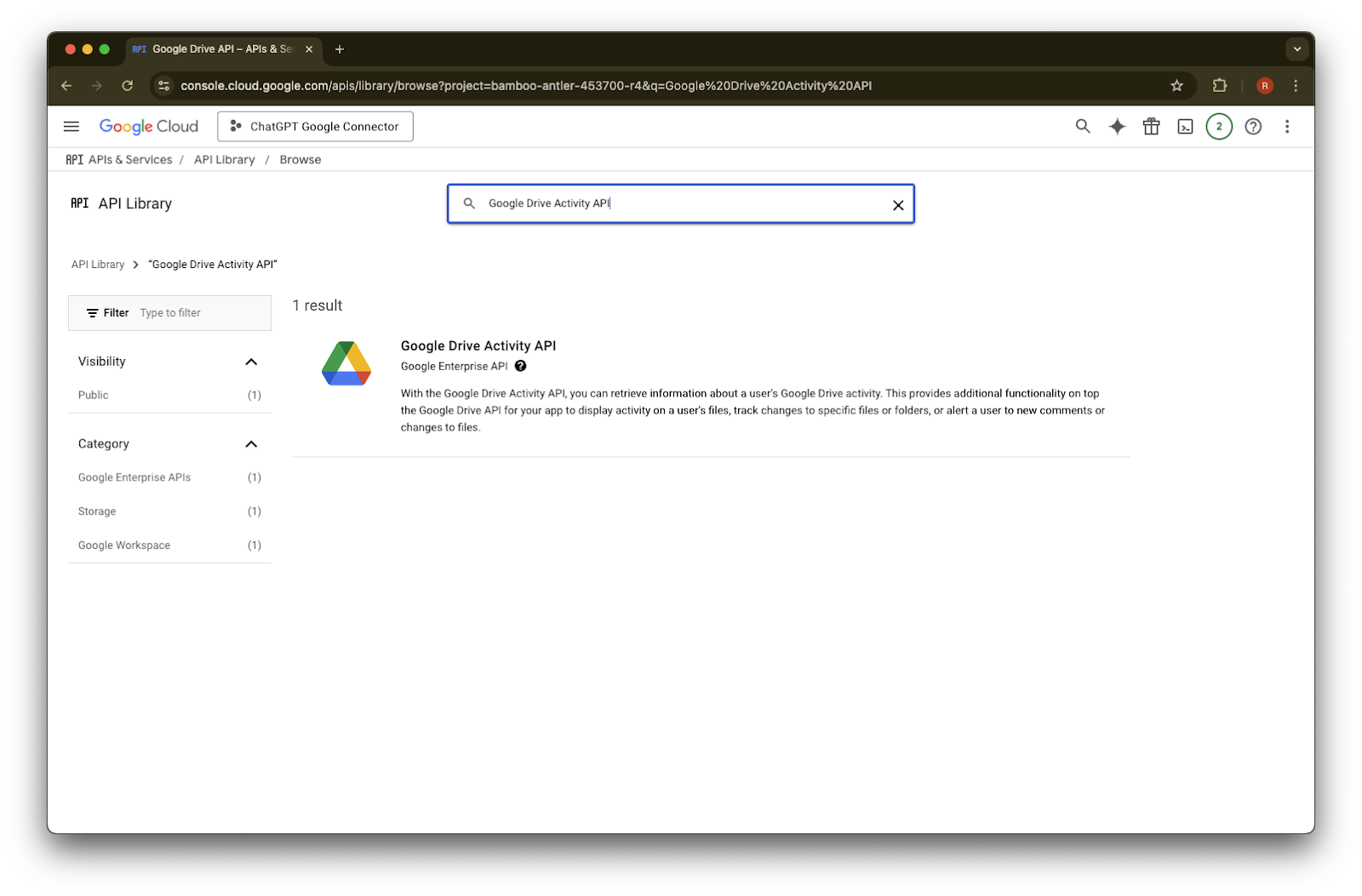
    Google Cloud API Library search results for Google Drive Activity API
  15. 點擊 Enable

    Image
  16. 點擊 Library

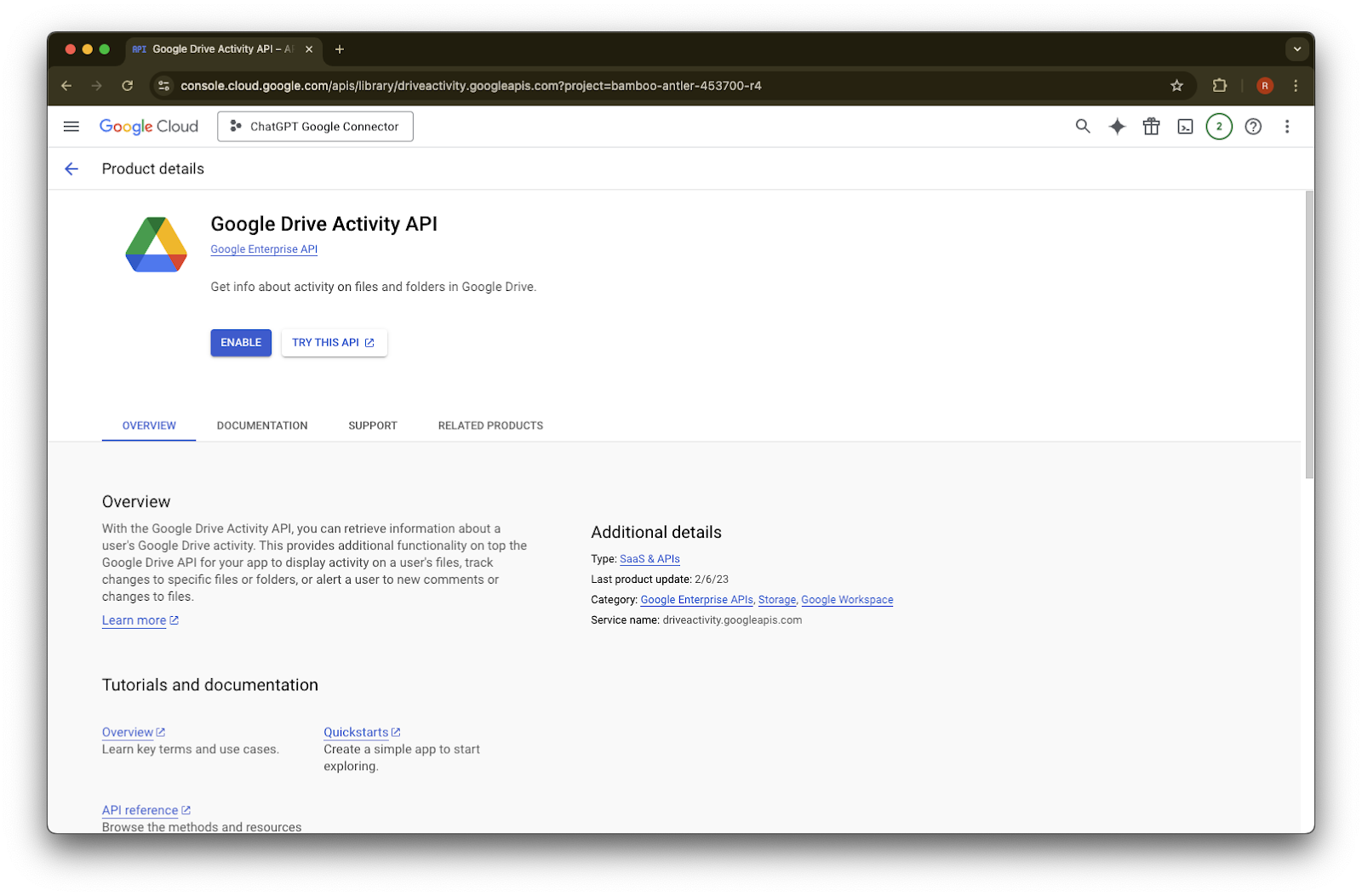
    Google Cloud Console Drive Activity API details page with the API enabled and Create credentials available
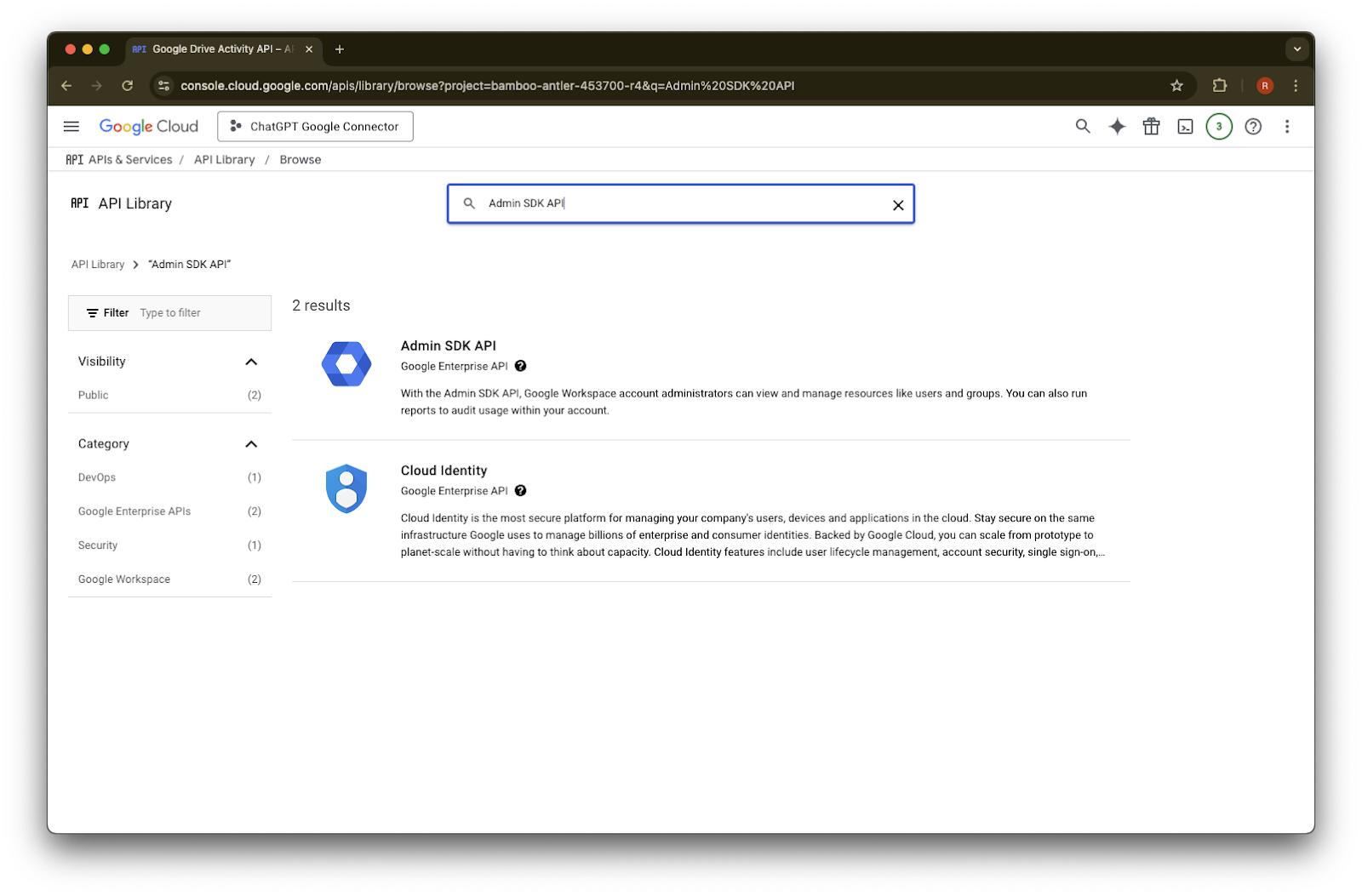
  17. 搜尋 Admin SDK API

    Google Cloud API Library page for the ChatGPT Google Connector project
  18. 選擇 Admin SDK API

    Google Cloud API Library search results for Admin SDK API with Admin SDK API listed
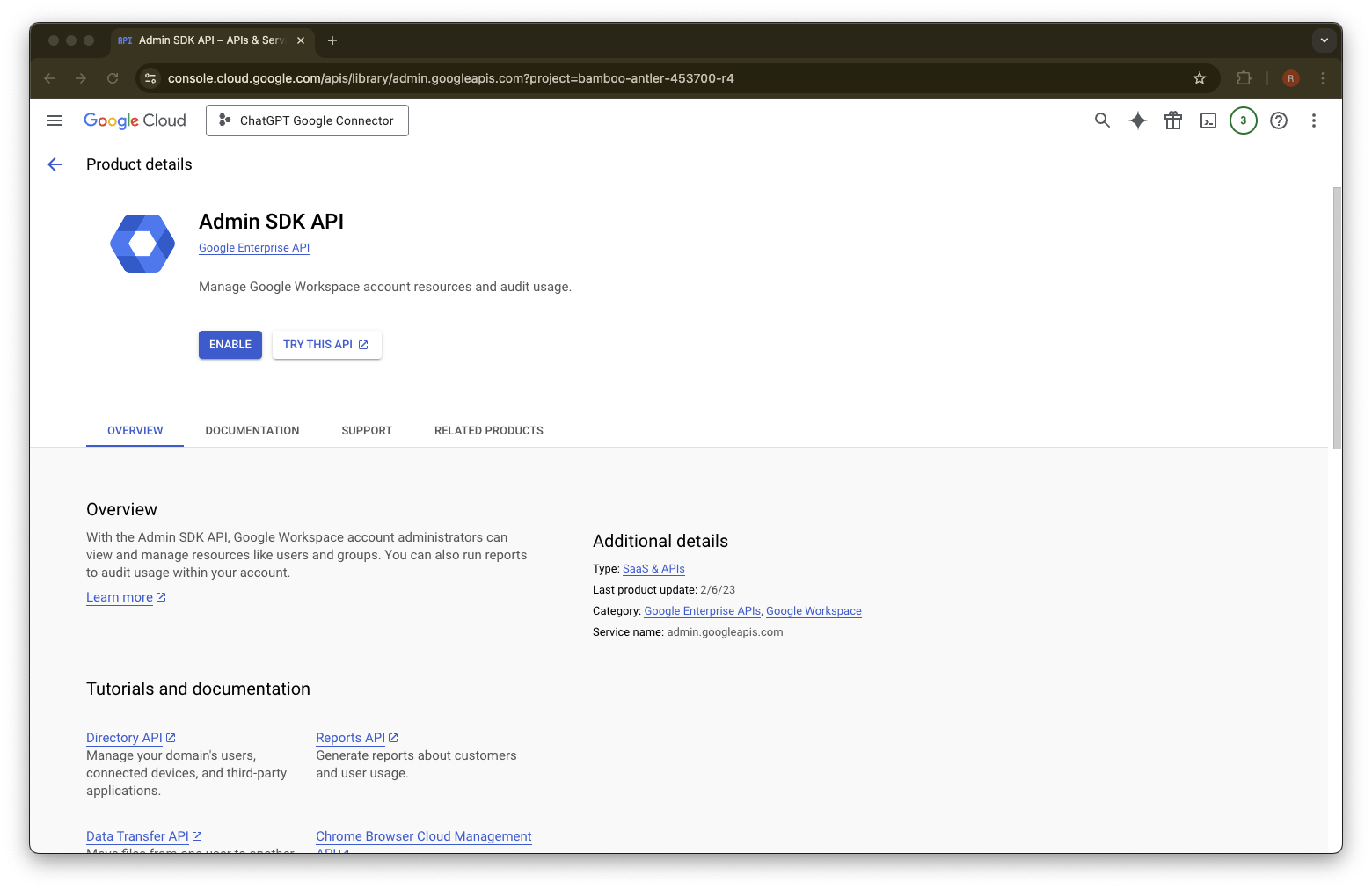
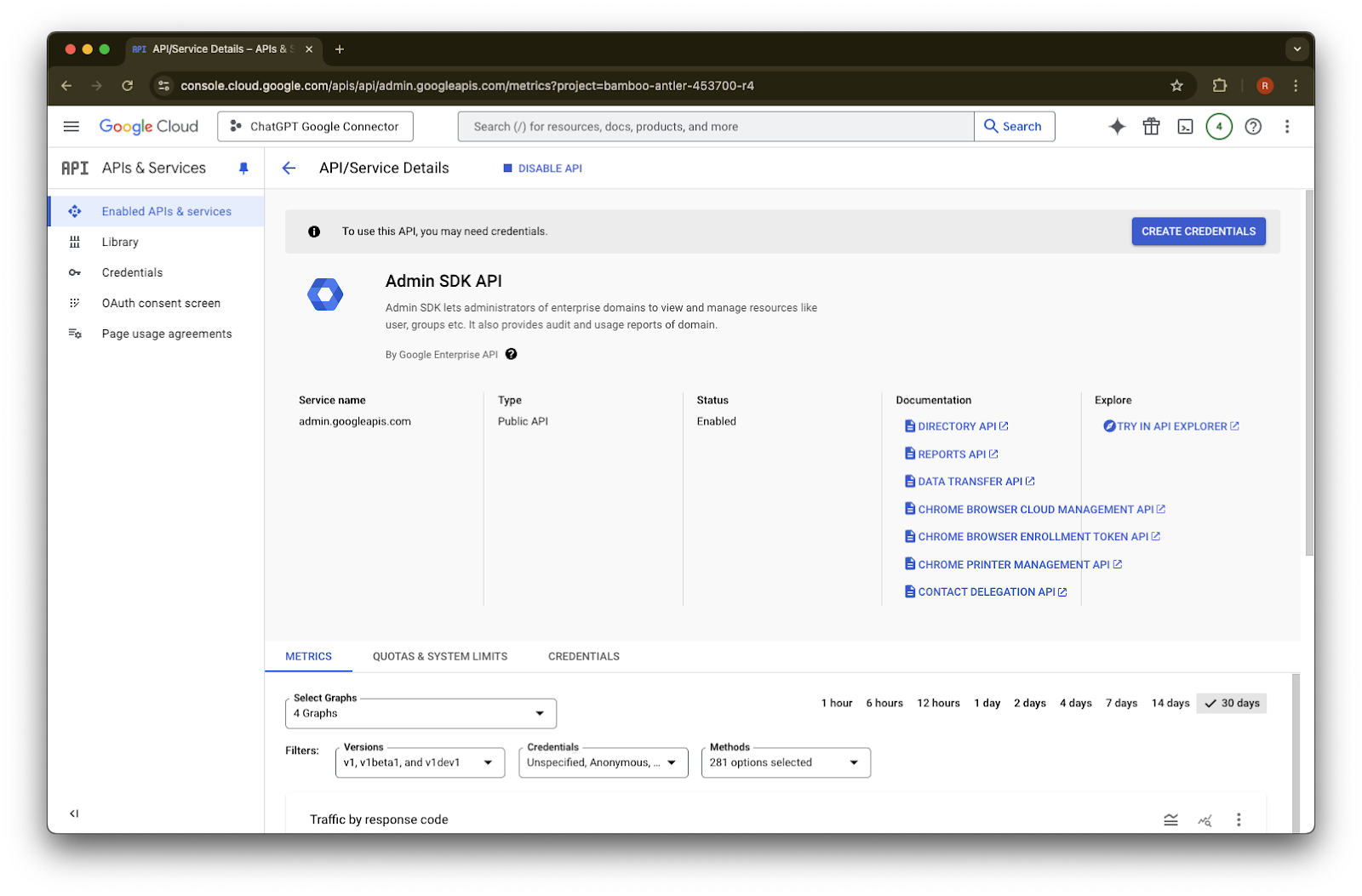
  19. 點擊 Enable

    Google Cloud Admin SDK API page with the Enable button for the ChatGPT Google Connector project
  20. 點擊 Credentials

    Google Cloud Admin SDK API details page with the API enabled and Create credentials button available
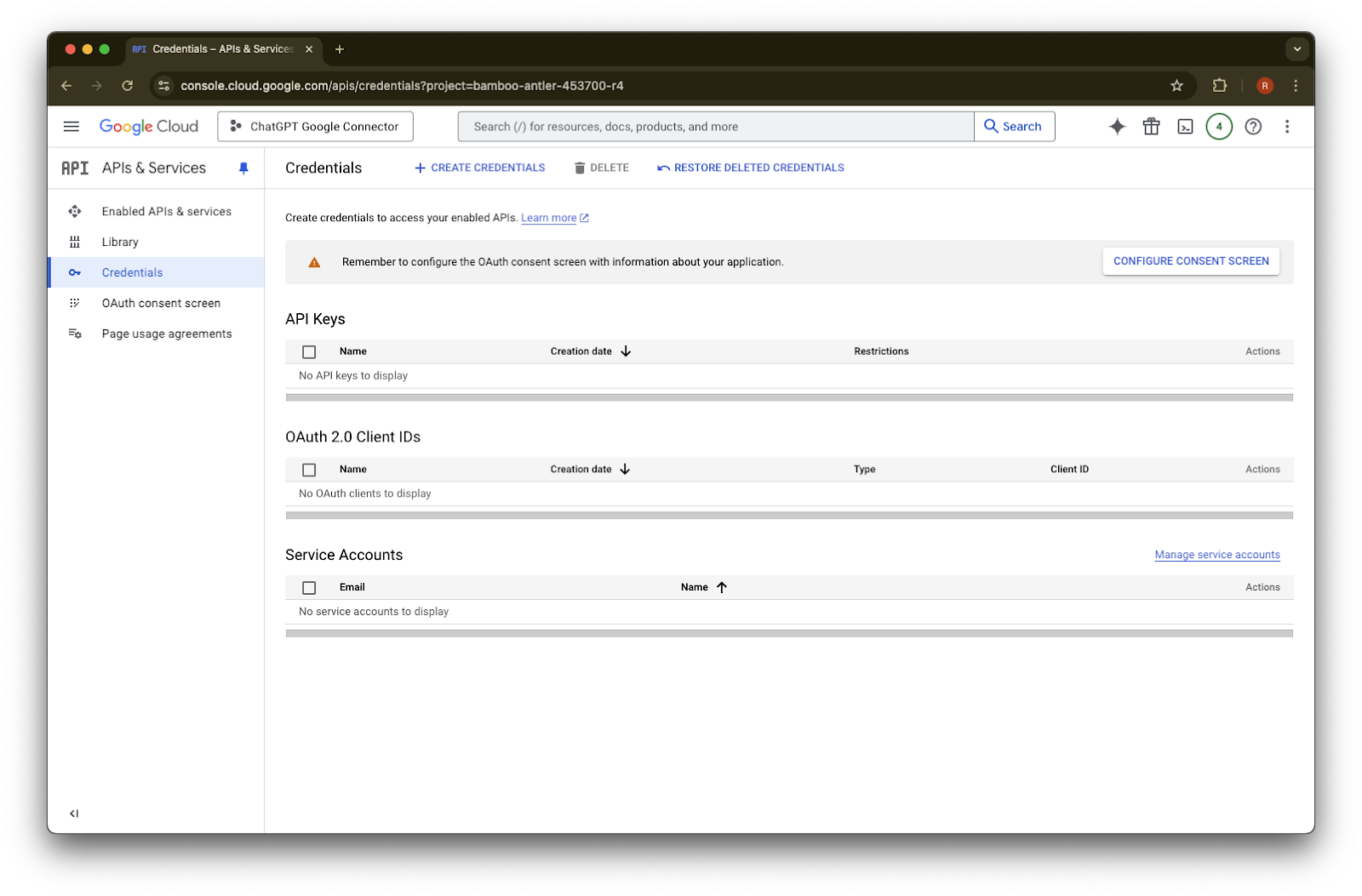
  21. 點擊 Create Credentials

    Google Cloud APIs & Services Credentials page with Configure consent screen button
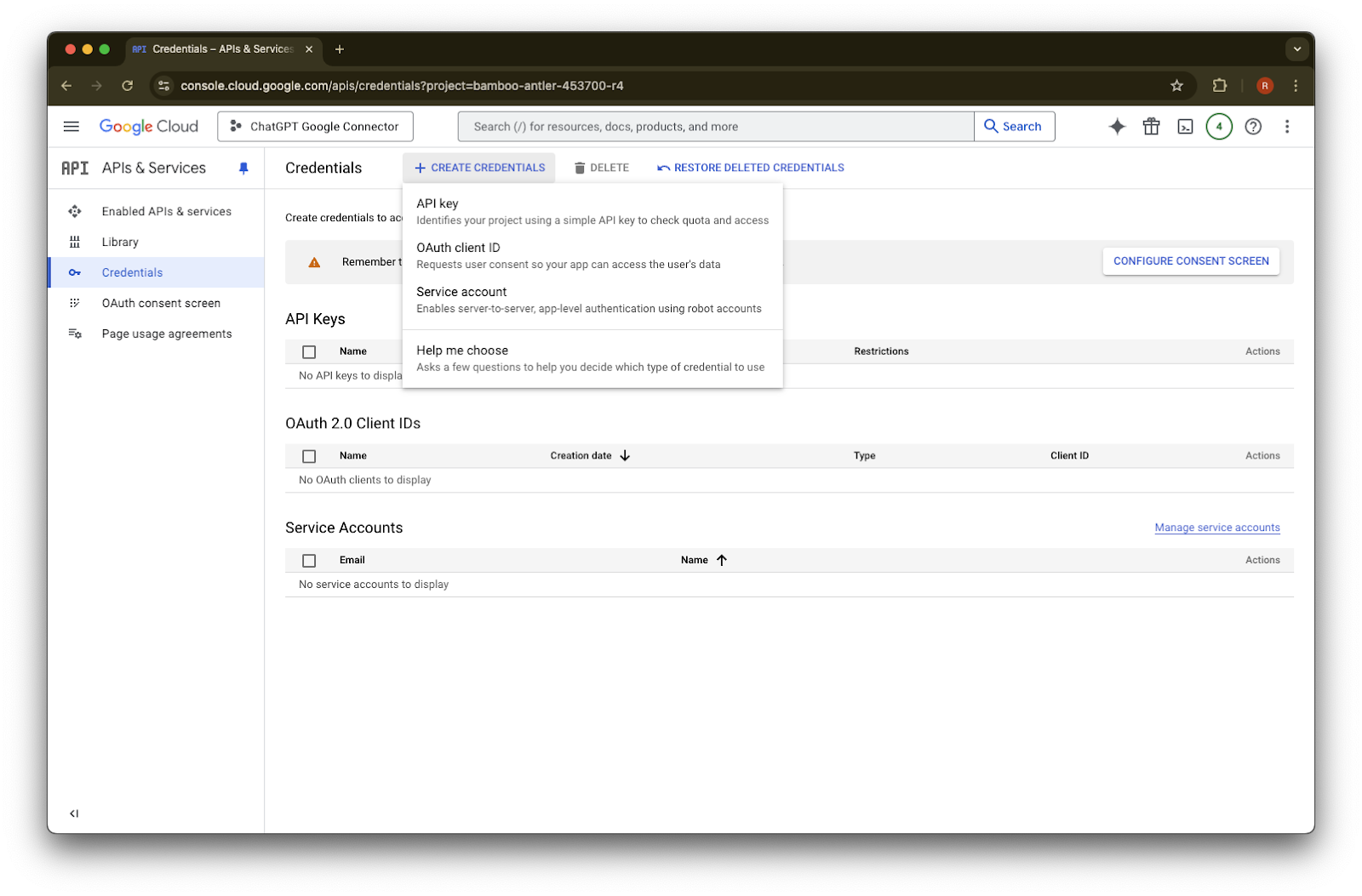
  22. 點擊 Service account

    Google Cloud Credentials page with Create credentials menu open for API key, OAuth client ID, or service account
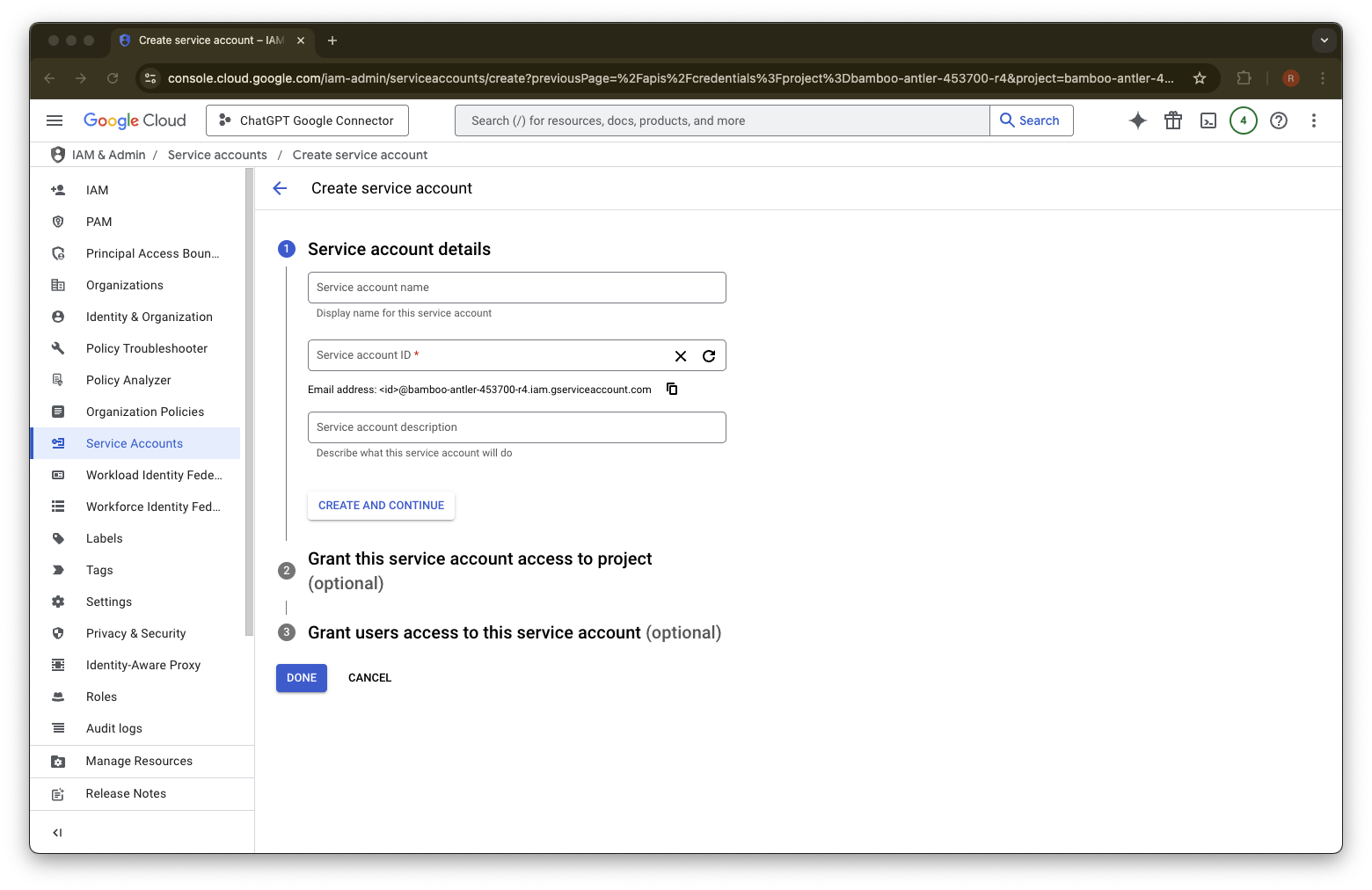
  23. 為此服務帳戶提供您自選的名稱說明

    Google Cloud Create service account page with Service Accounts selected and service account details fields
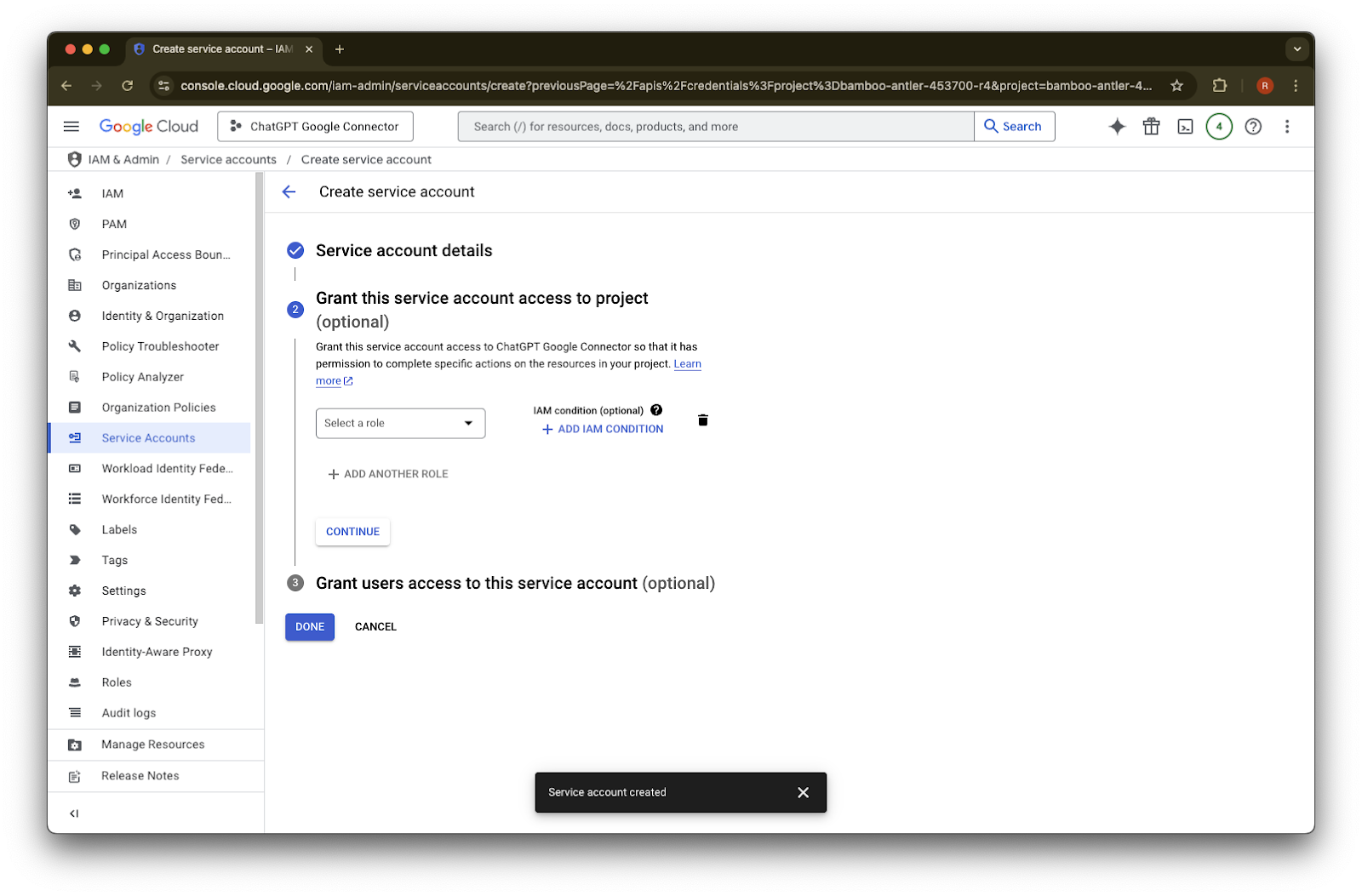
  24. (選用)您可以指派角色,但這不是 ChatGPT 所必需。

    Google Cloud Create service account page with optional IAM role step and Service account created confirmation
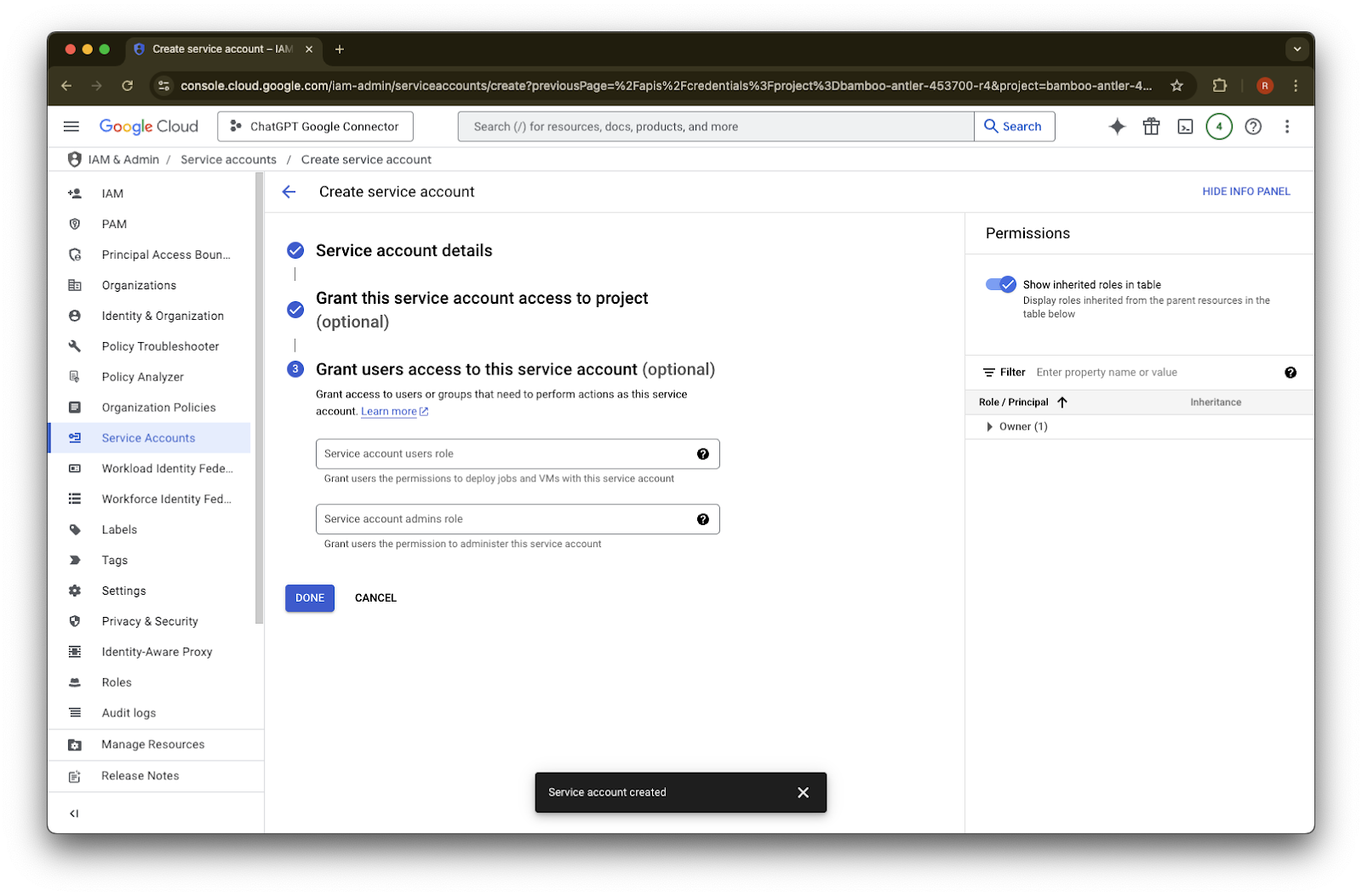
  25. (選用)您可以授予服務帳戶存取權,但這不是 ChatGPT 所必需。

    Google Cloud Create service account step 3 with Done button and Service account created confirmation
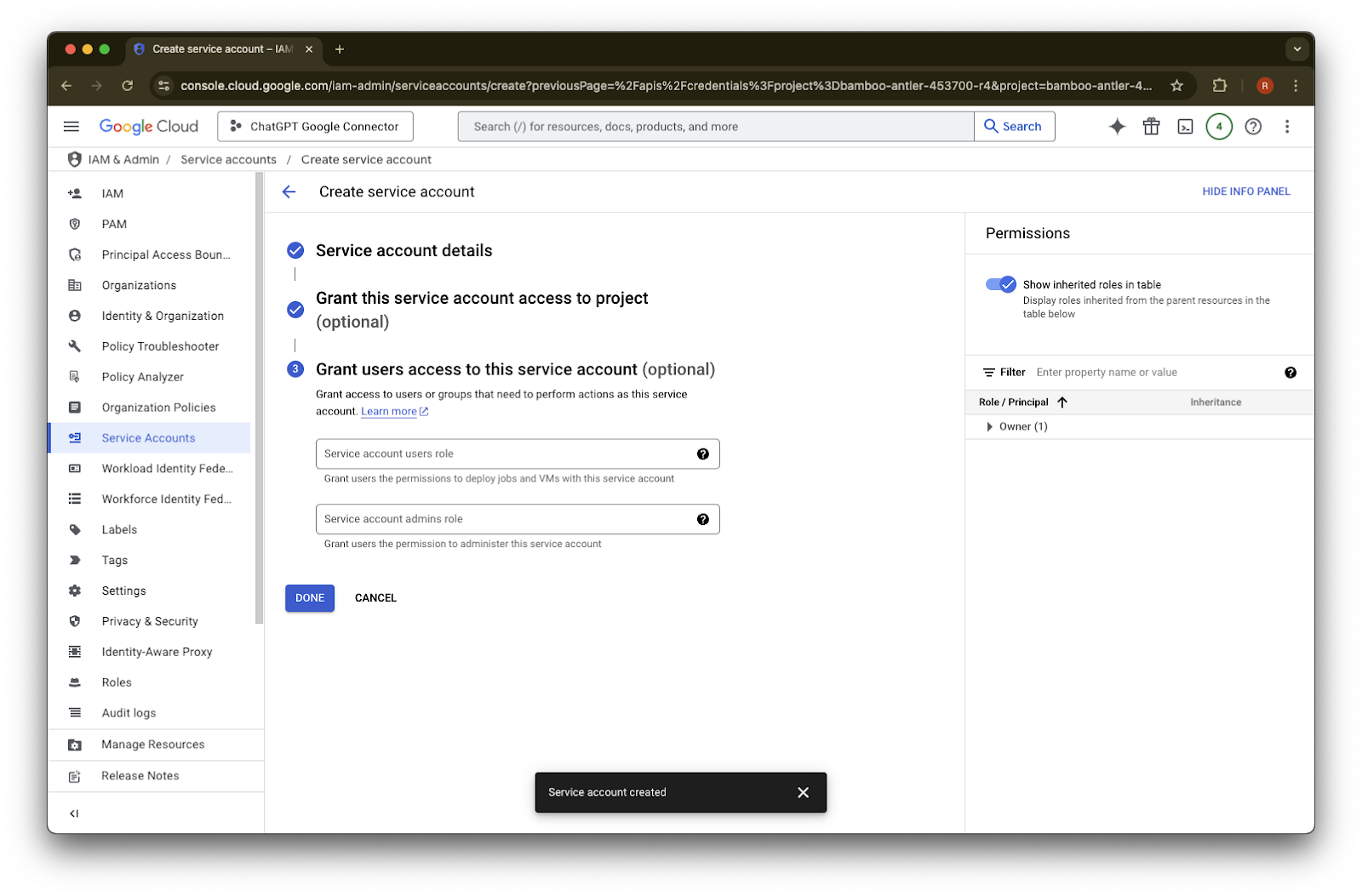
  26. 點擊 Done

    Create service account step 3 in Google Cloud with Done button and Service account created confirmation
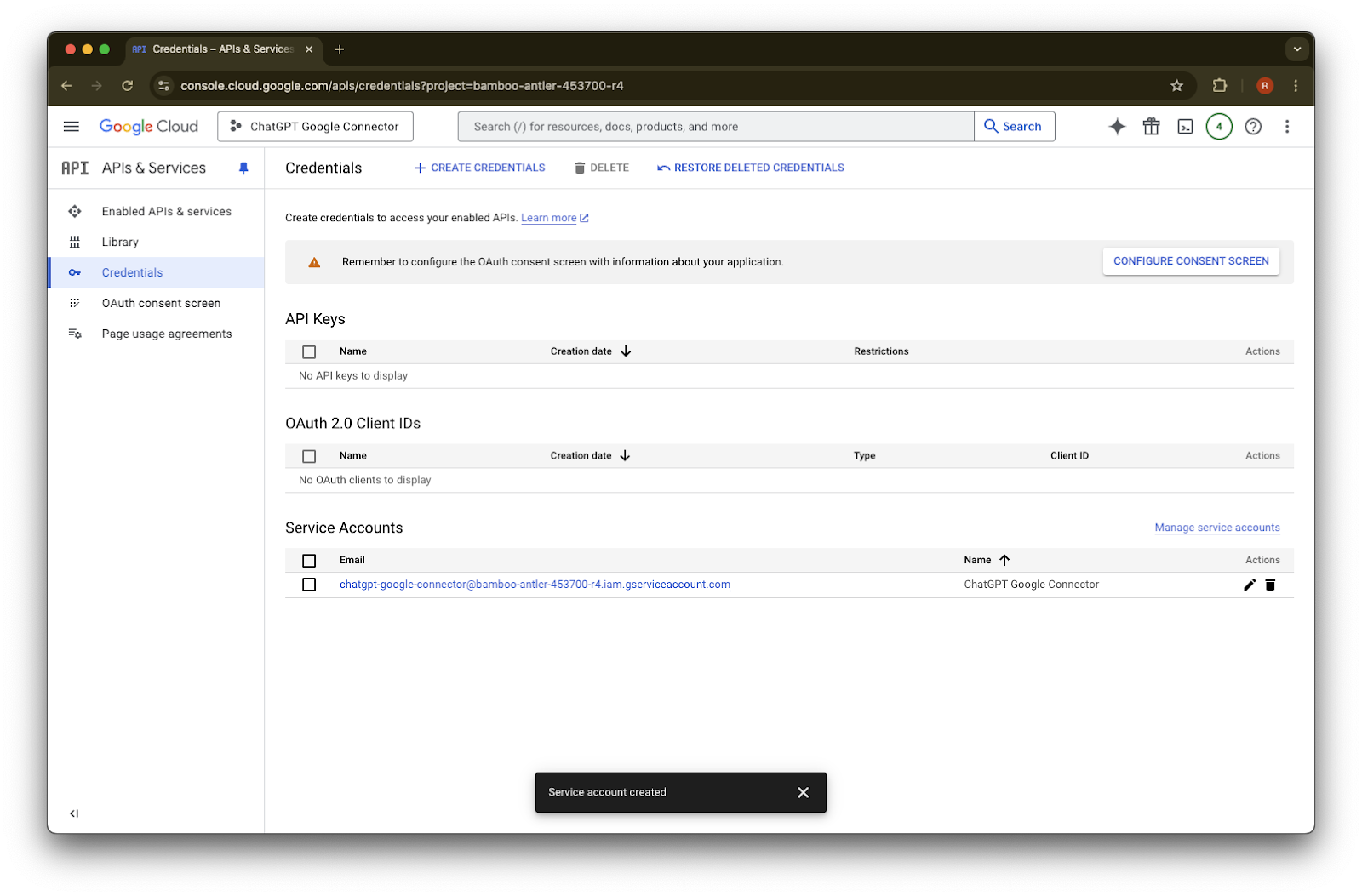
  27. 點擊剛建立好的服務帳戶

    Google Cloud Credentials page listing the newly created ChatGPT Google Connector service account
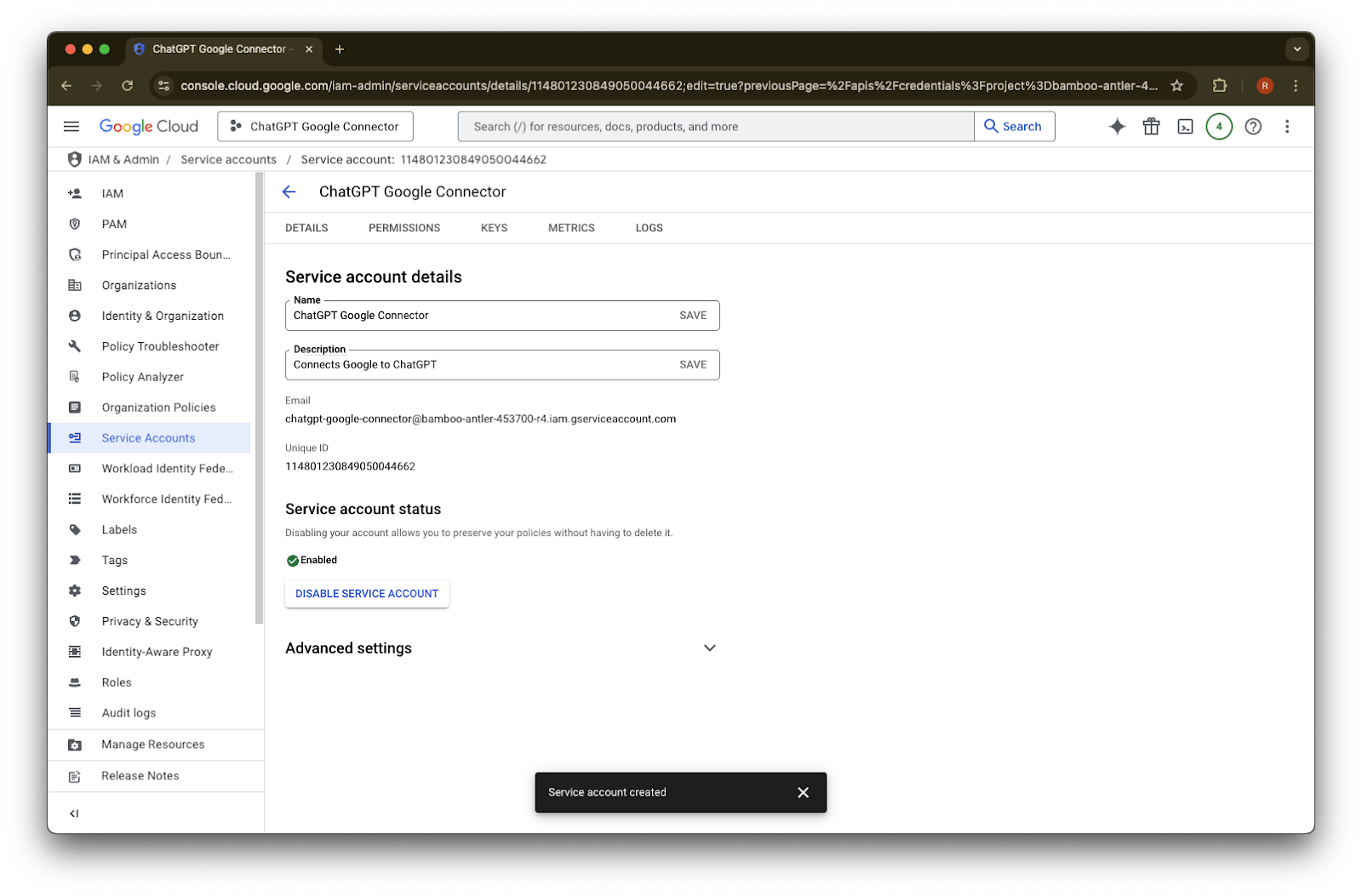
  28. 點擊 keys.

    Google Cloud IAM service account details for ChatGPT Google Connector, enabled after creation
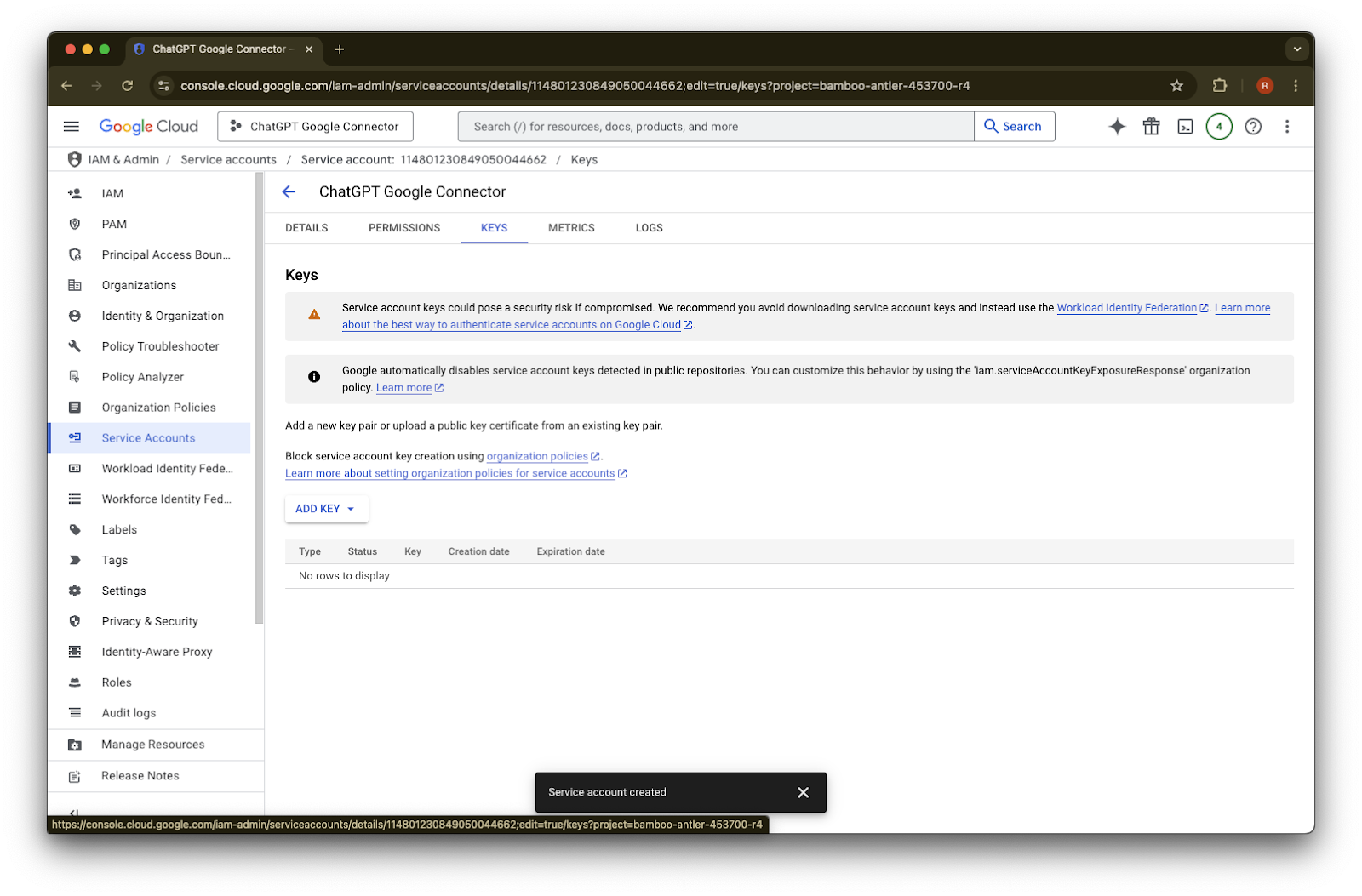
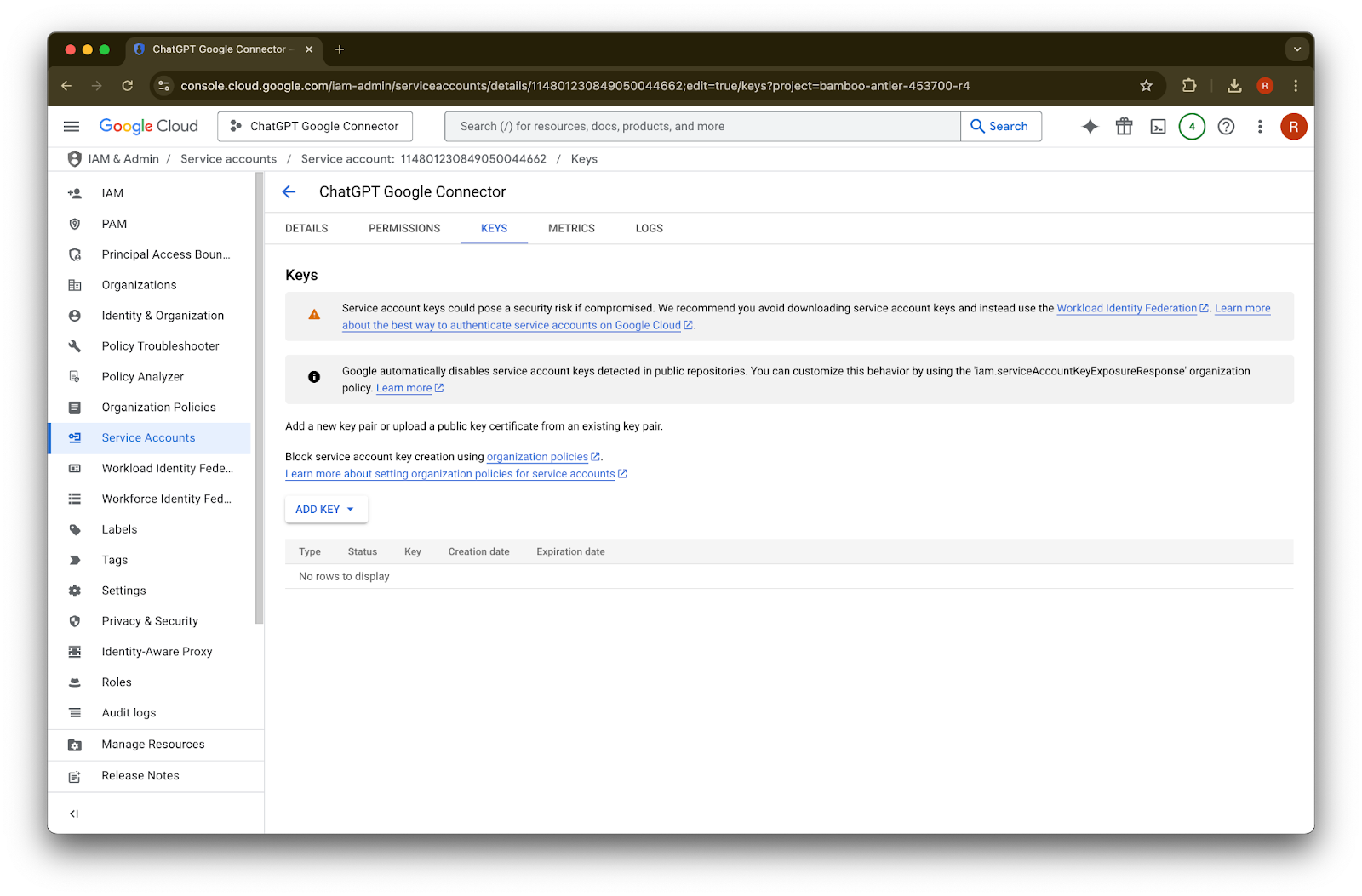
  29. 點擊 Add Key

    Image
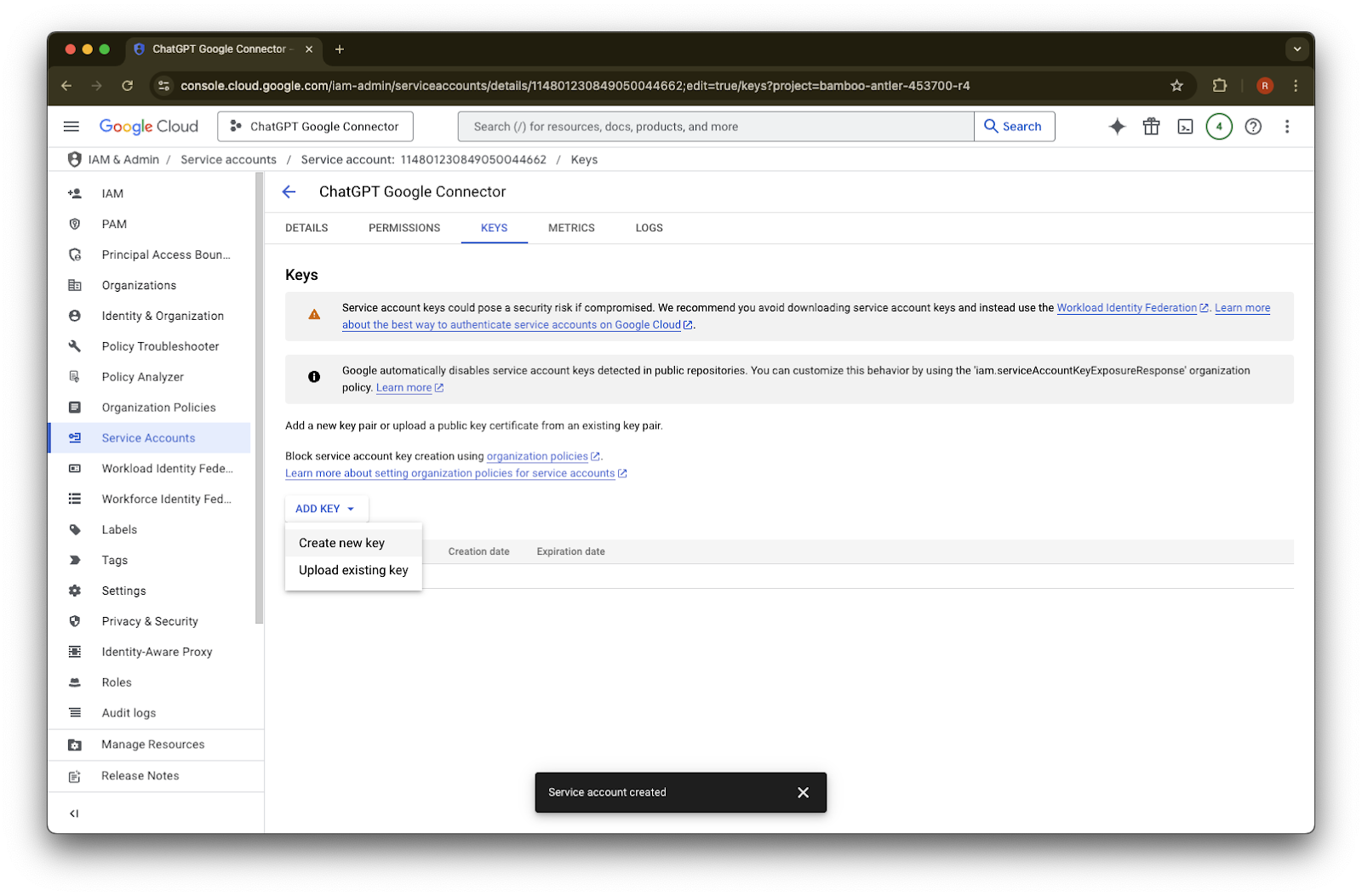
  30. 點擊 Create new key

    Google Cloud service account Keys tab with Add key menu open to create or upload a key
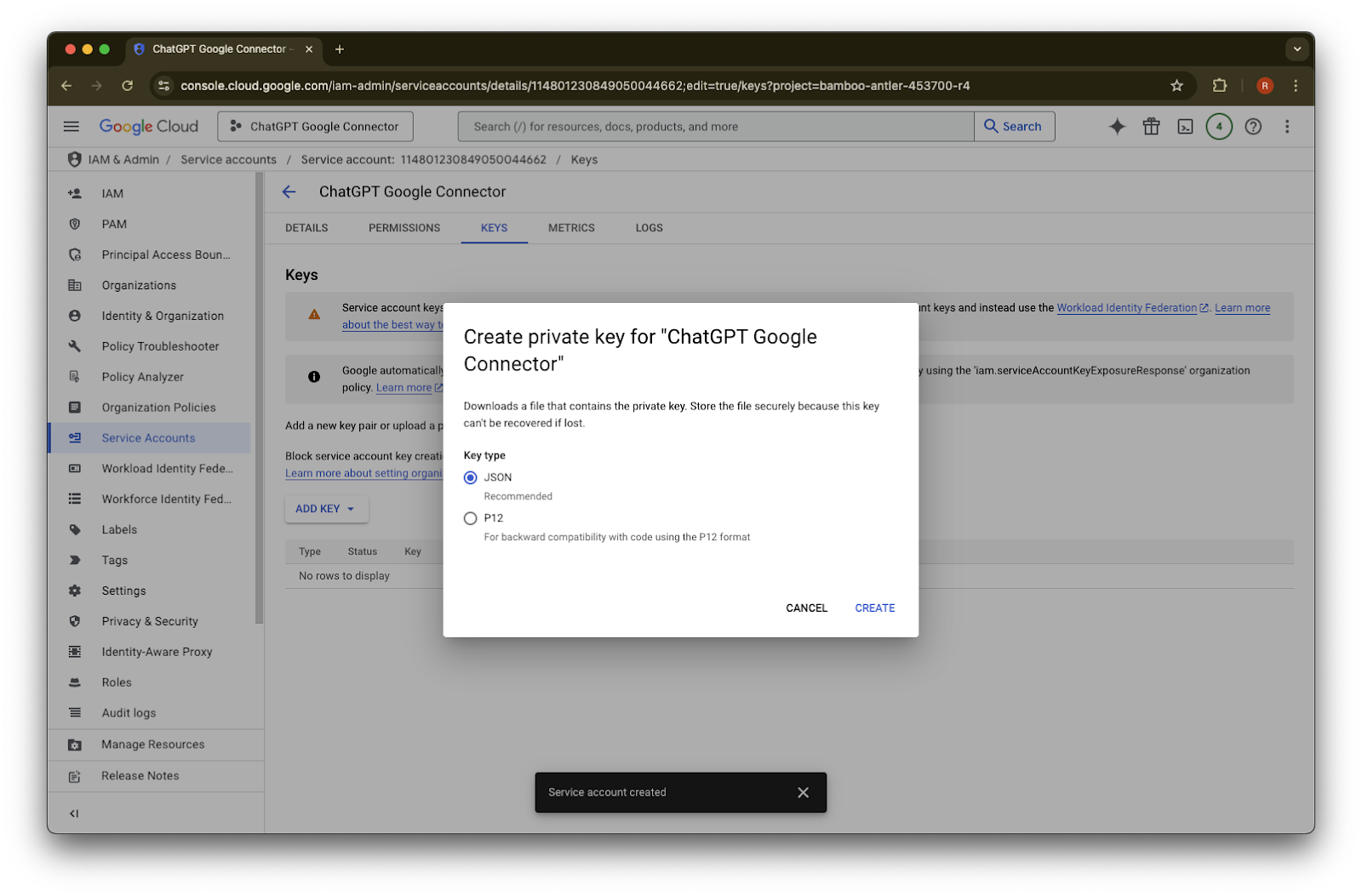
  31. 保留預設的 JSON 金鑰類型,然後點擊 Create
    如果您看到顯示「Service account key creation is disabled」的錯誤訊息,請依照這些步驟啟用建立功能。

    Create private key dialog for ChatGPT Google Connector with JSON key type selected
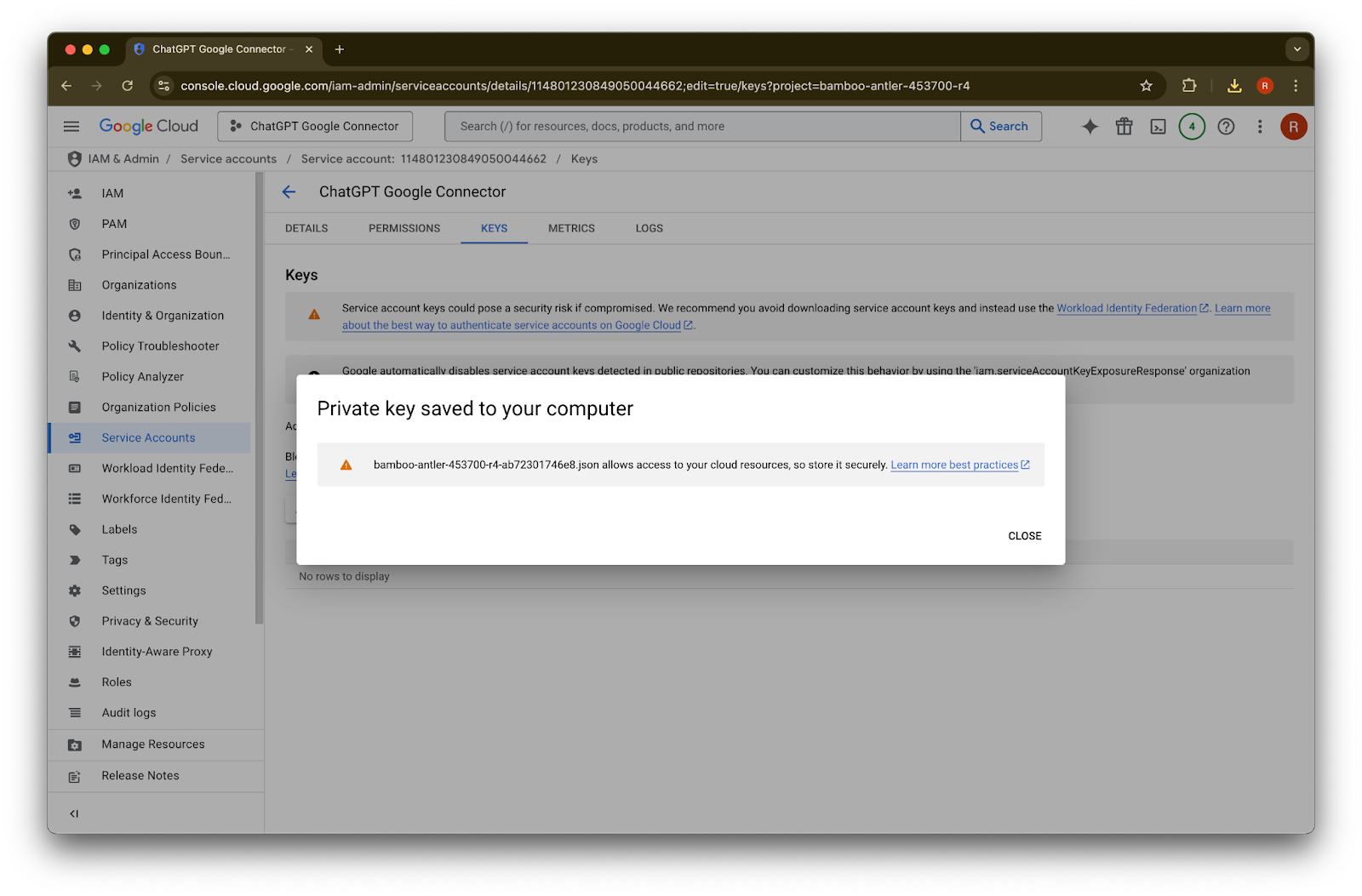
  32. 點擊 Close。金鑰現在已下載到您的電腦。之後您會將它上傳到 ChatGPT 管理主控台。

    Google Cloud service account Keys tab with confirmation that a private key JSON file was saved to the computer
  33. 點擊 details

    Google Cloud service account Keys tab for ChatGPT Google Connector with Add Key button
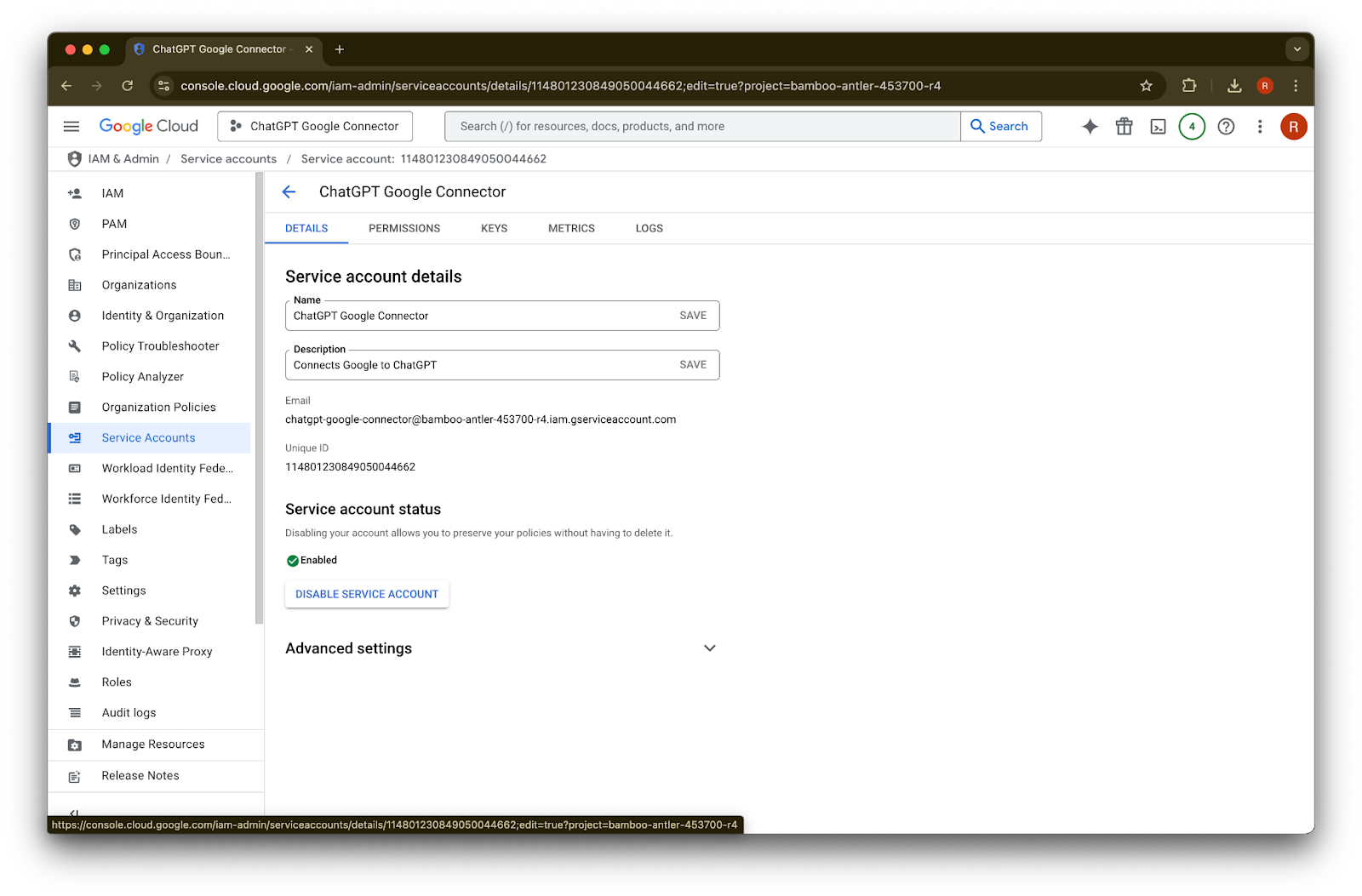
  34. 記下Unique ID。這會在步驟 42 用到。

    Google Cloud service account details for ChatGPT Google Connector with status Enabled
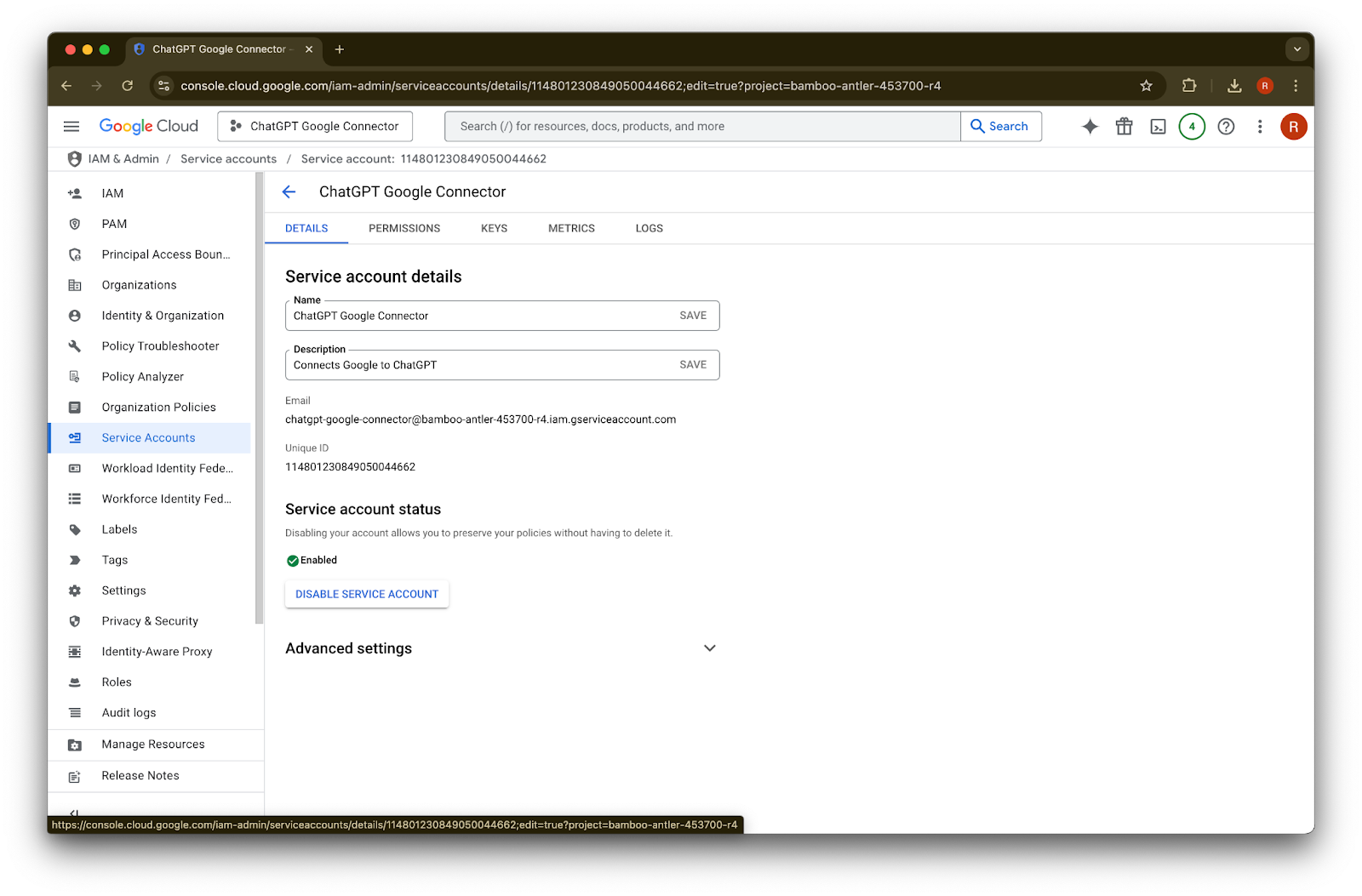
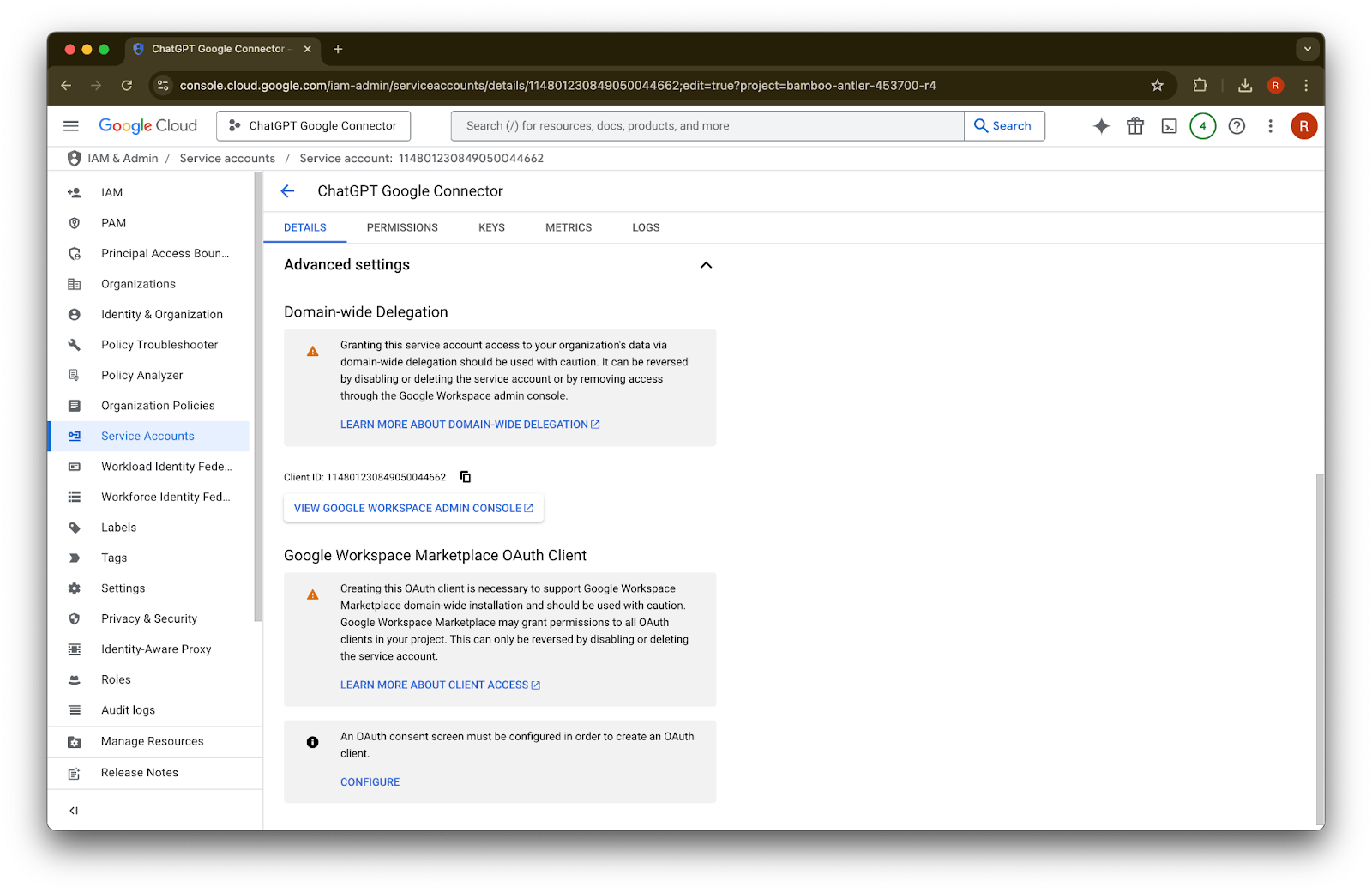
  35. 展開 Advanced settings

    Google Cloud service account details for ChatGPT Google Connector with the account enabled
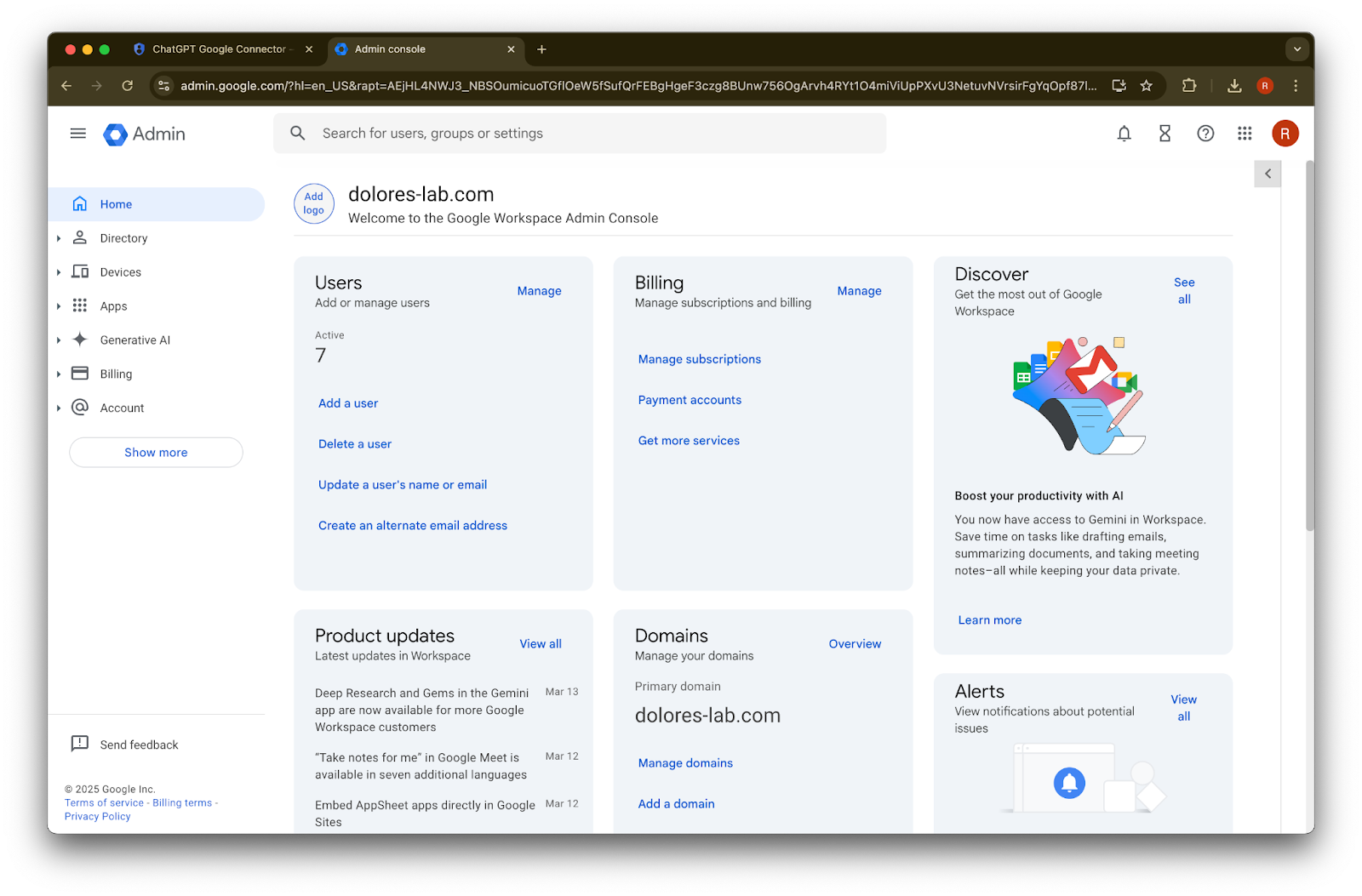
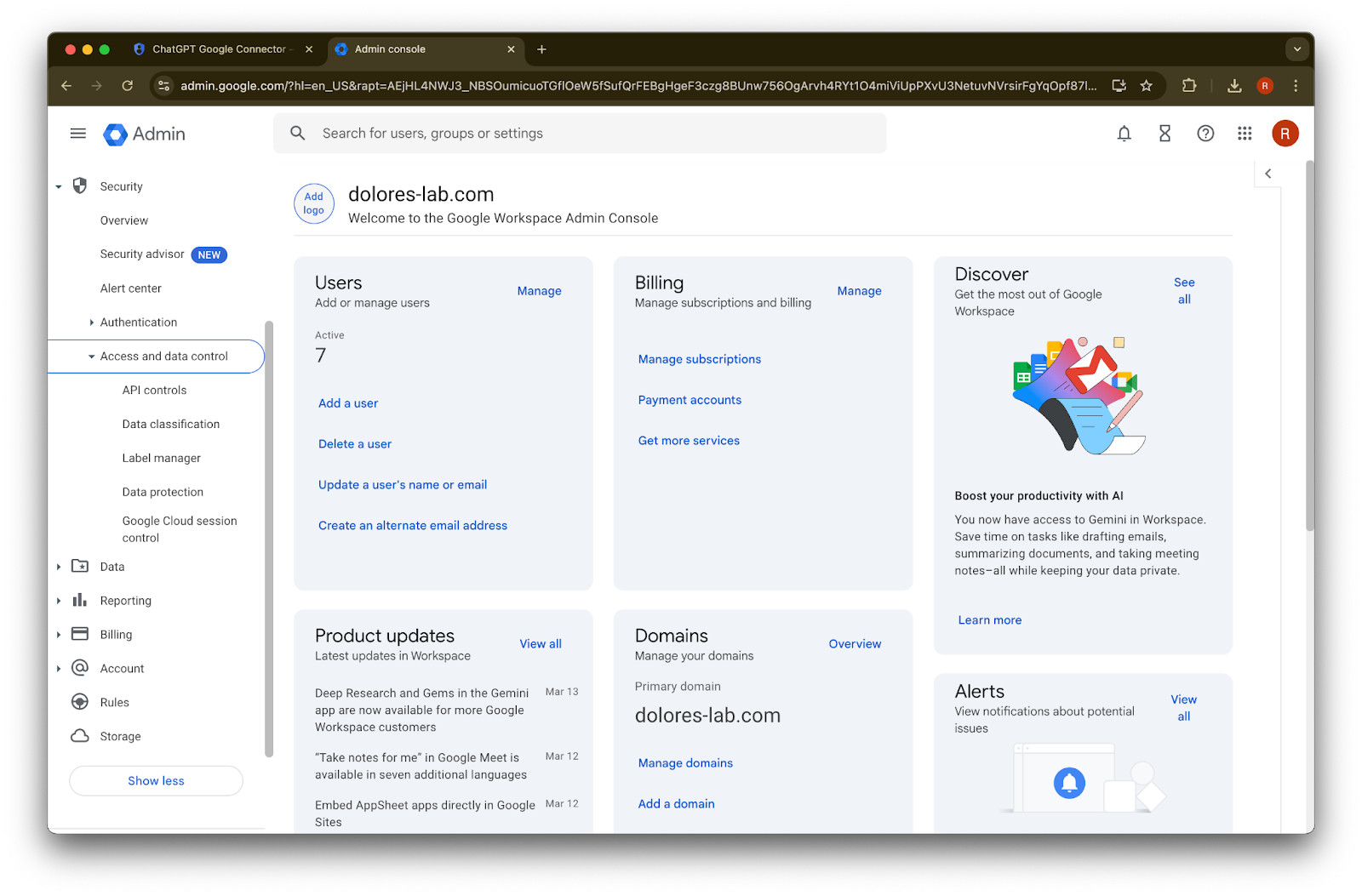
  36. 向下捲動並點擊 View Google Workspace Admin Console。Google Workspace 主控台會在新分頁中開啟。

    Image
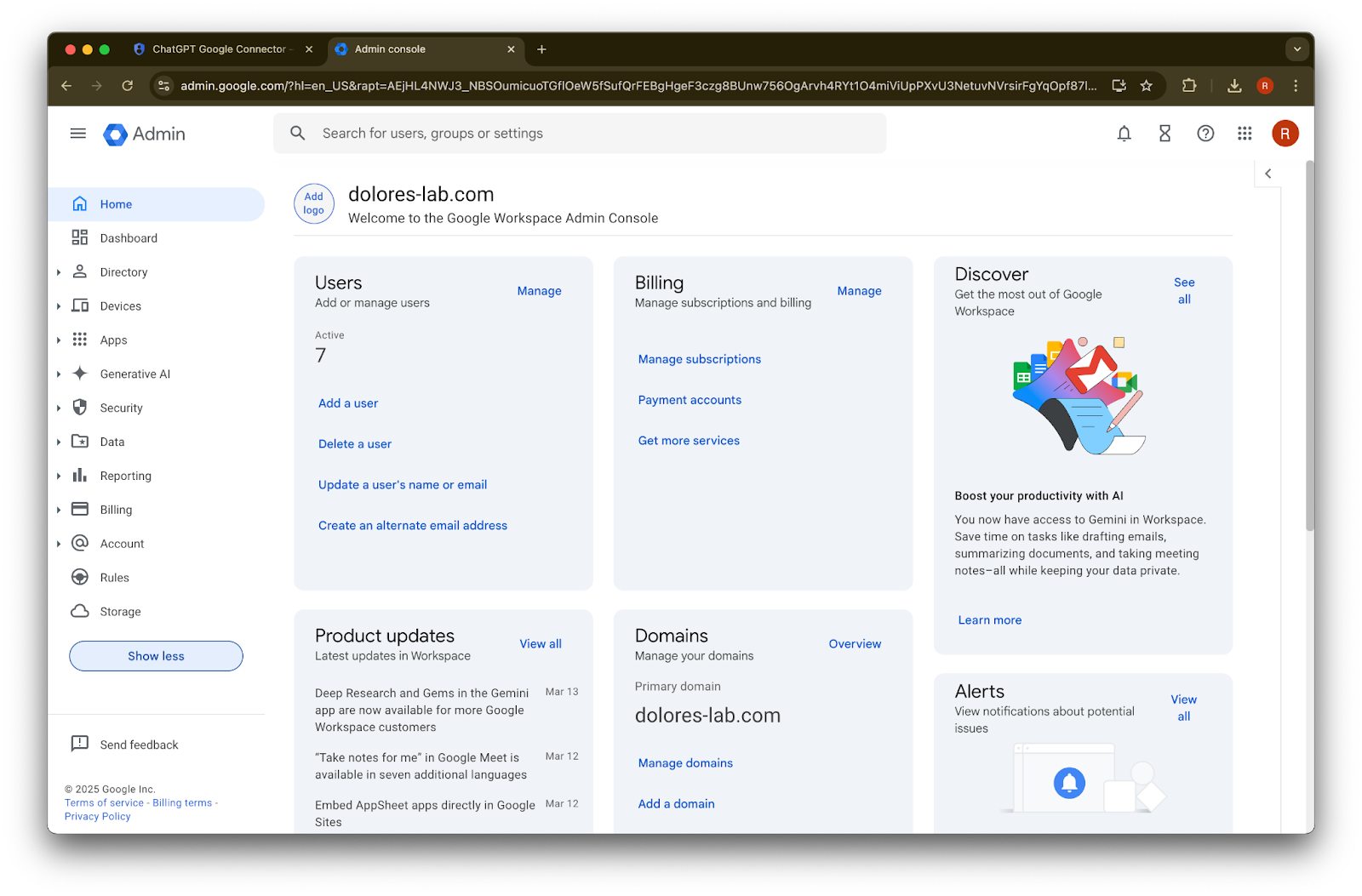
  37. 點擊 Show more

    Google Workspace Admin console home page for dolores-lab.com
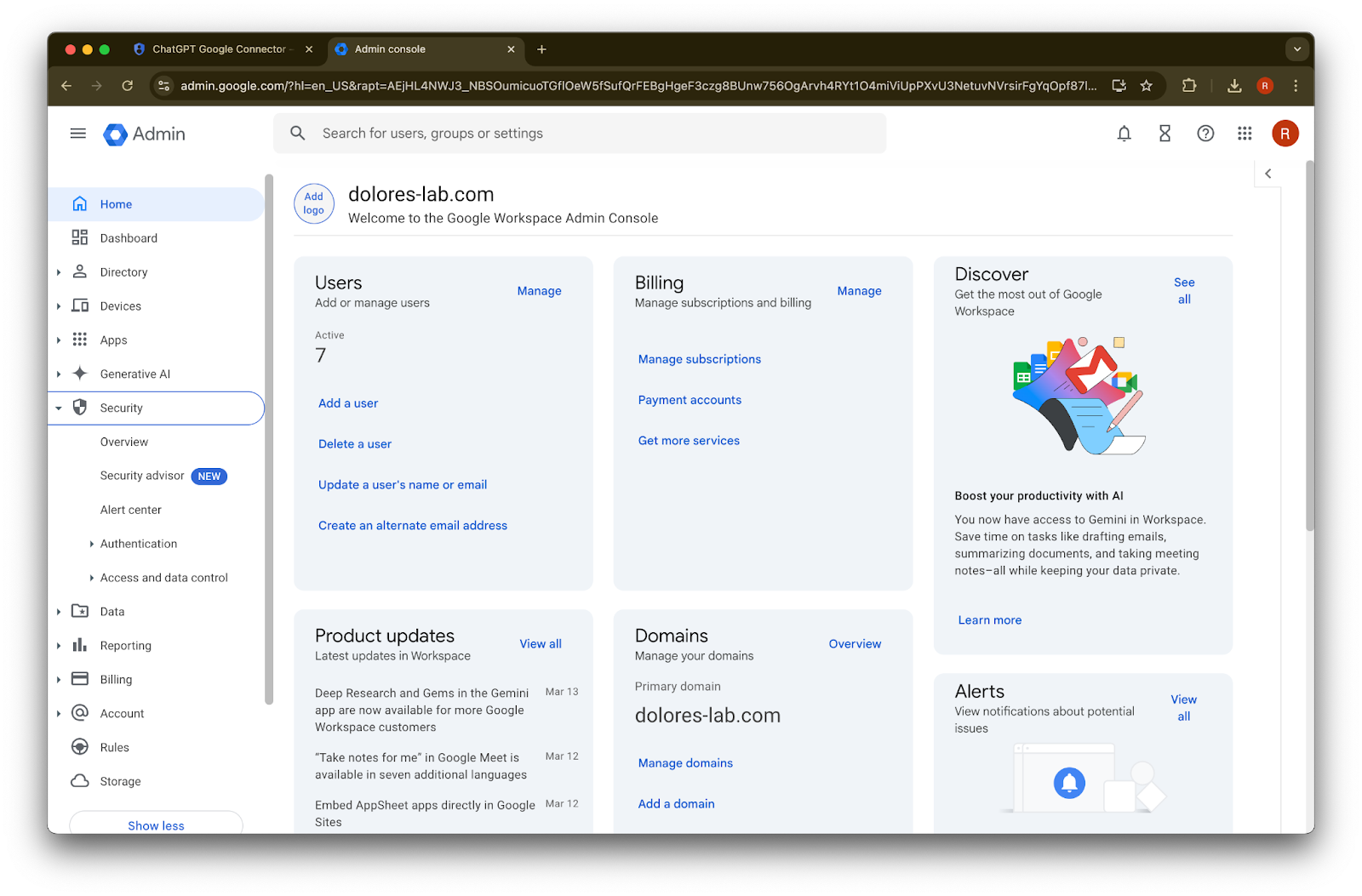
  38. 展開 Security 區段

    Image
  39. 展開 Access and data controls 區段

    Google Workspace Admin console home with Security section expanded in the left navigation
  40. 點擊 API controls 區段

    Google Workspace Admin console home with Security > Access and data control expanded in the sidebar
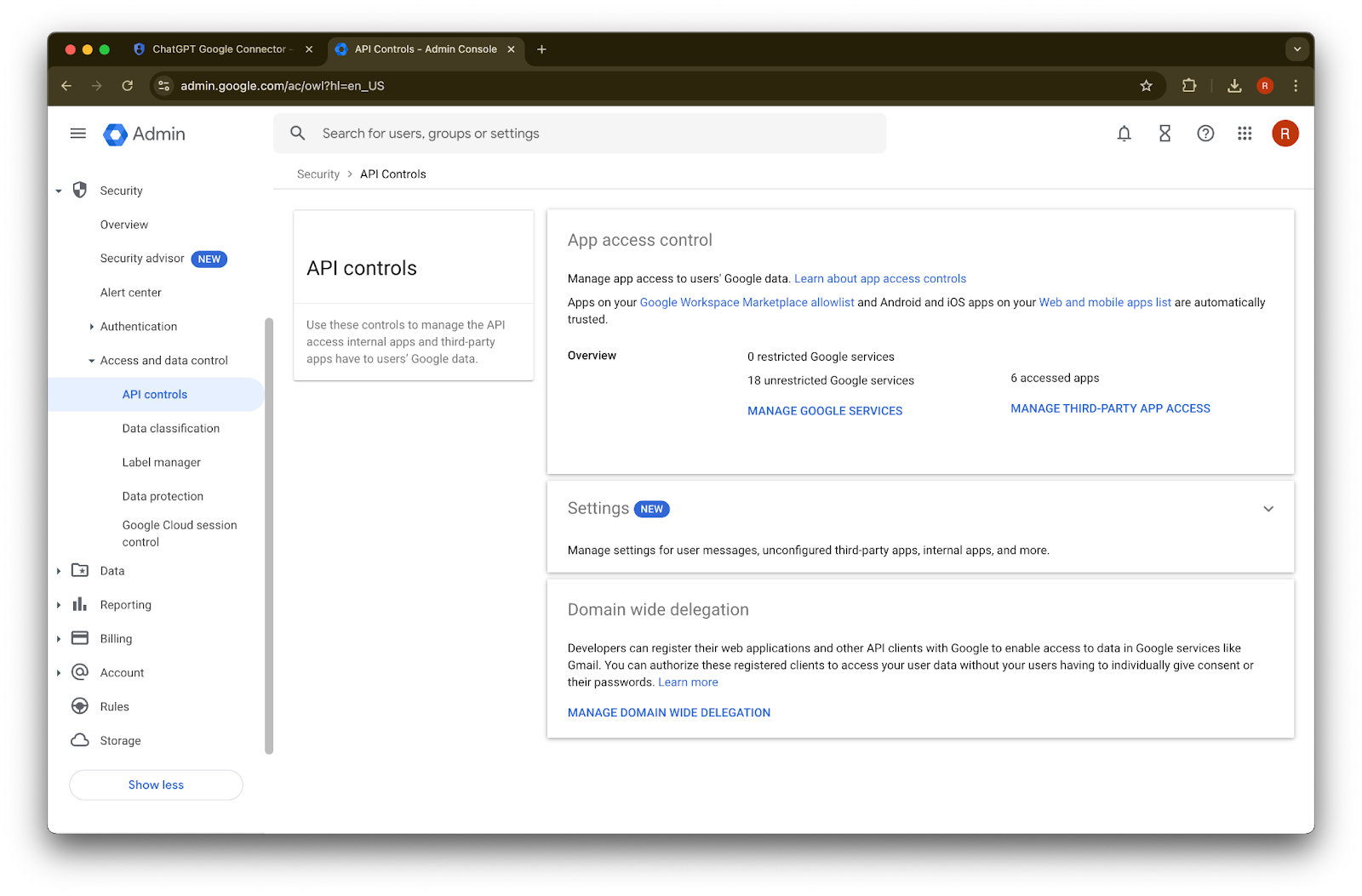
  41. 點擊 Manage Domain Wide Delegation

    Google Admin console API controls page under Security > Access and data control
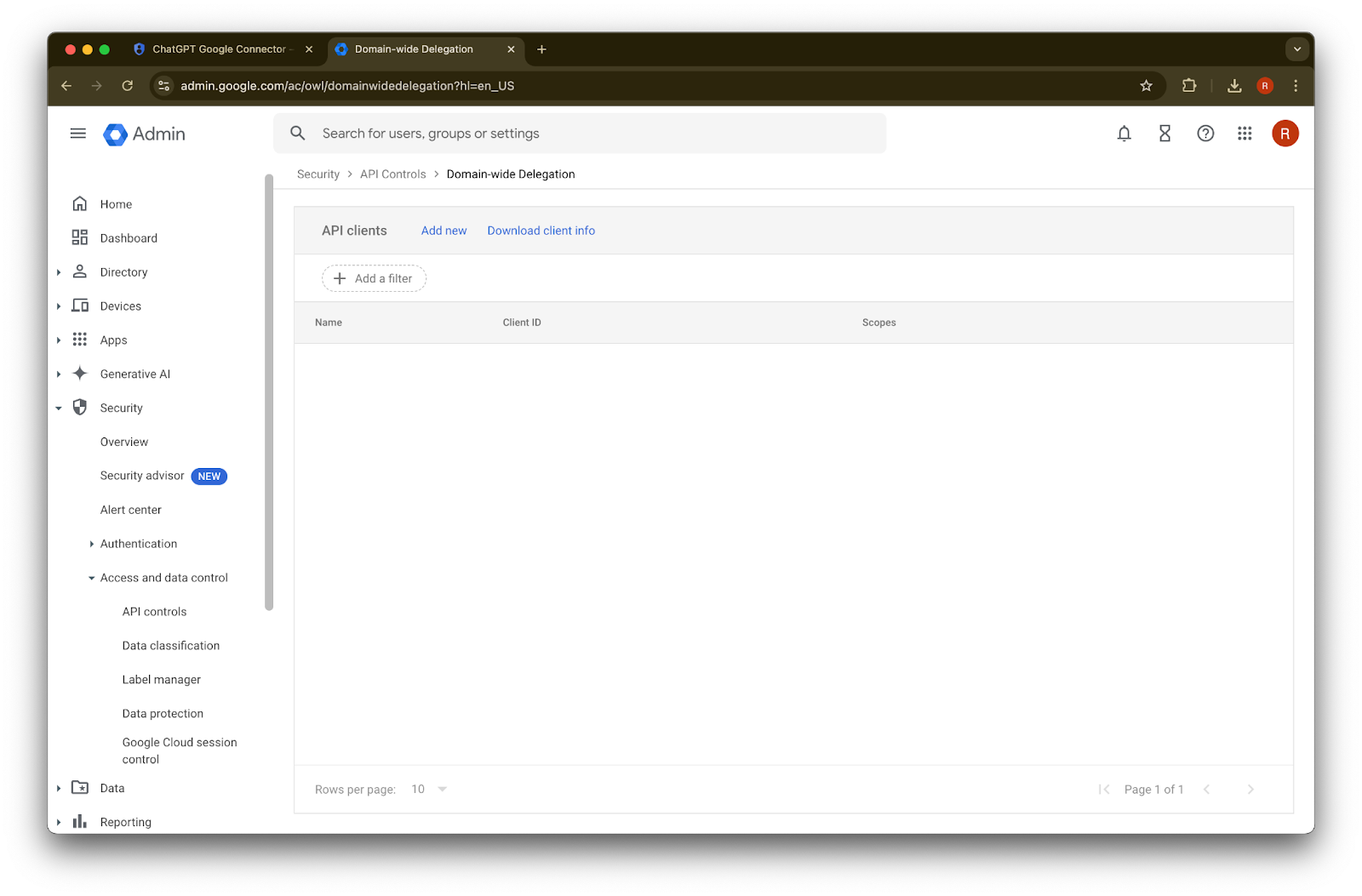
  42. 點擊 Add new

    Google Admin Domain-wide Delegation page with API clients list and Add new option
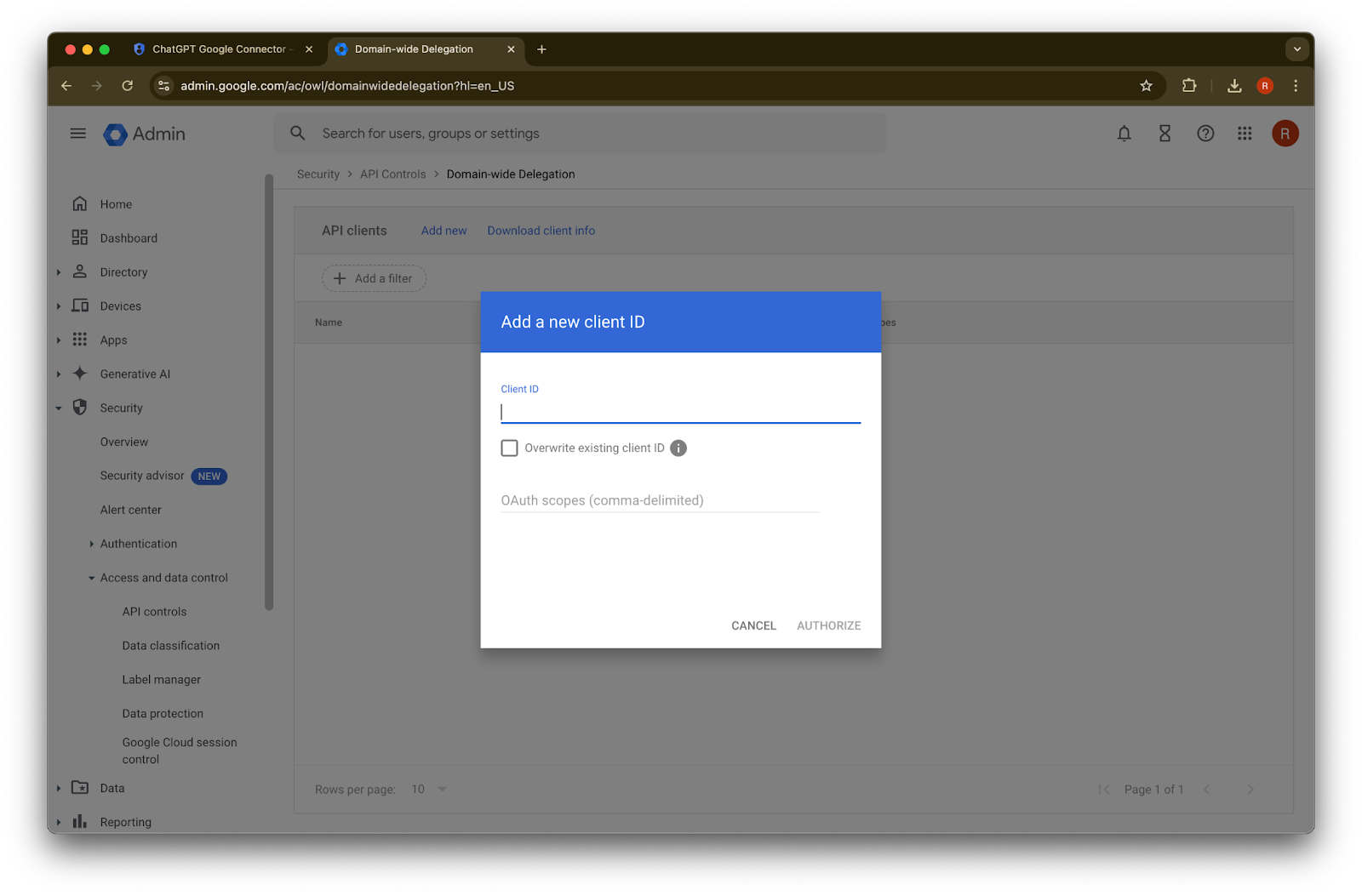
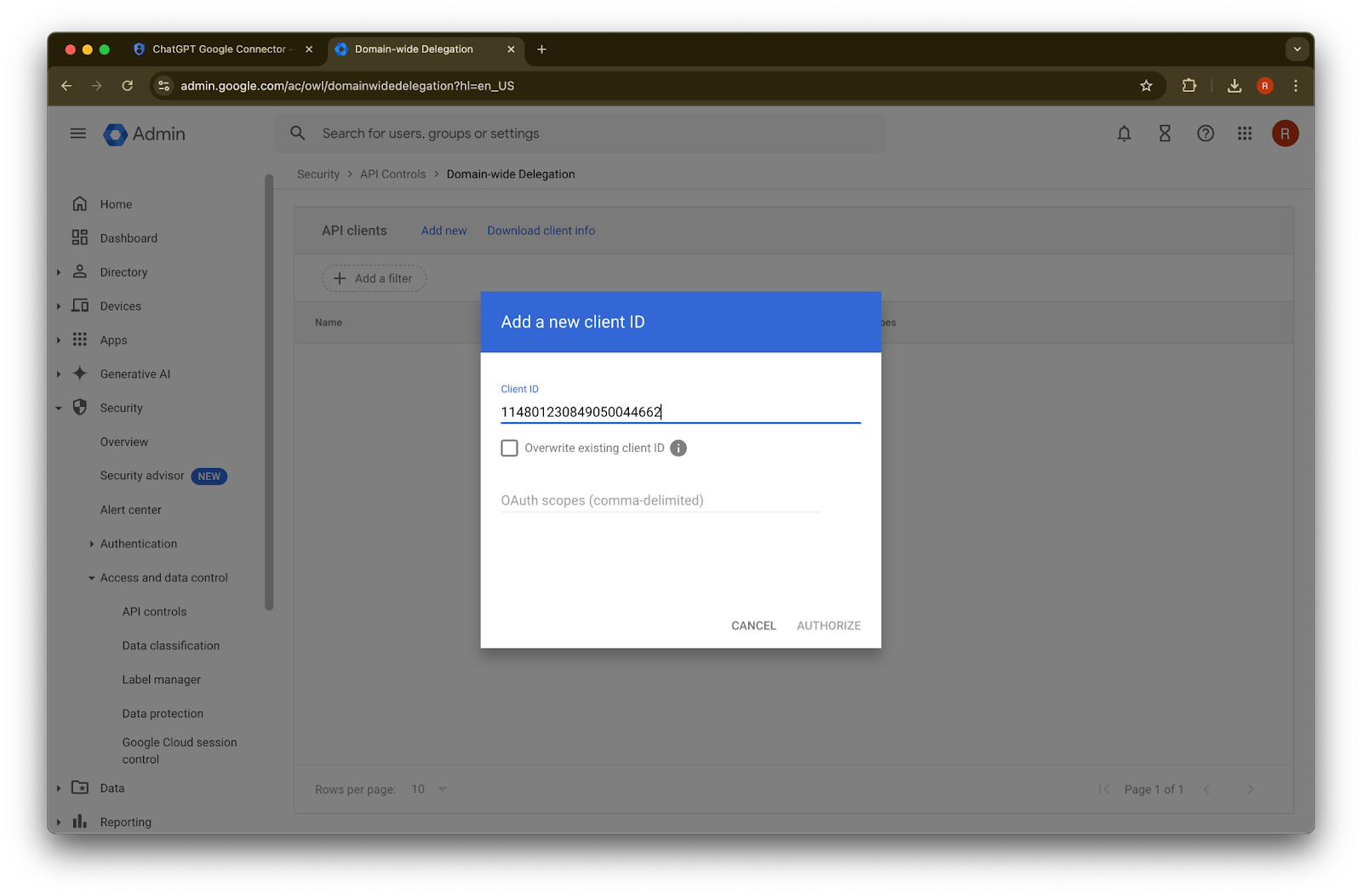
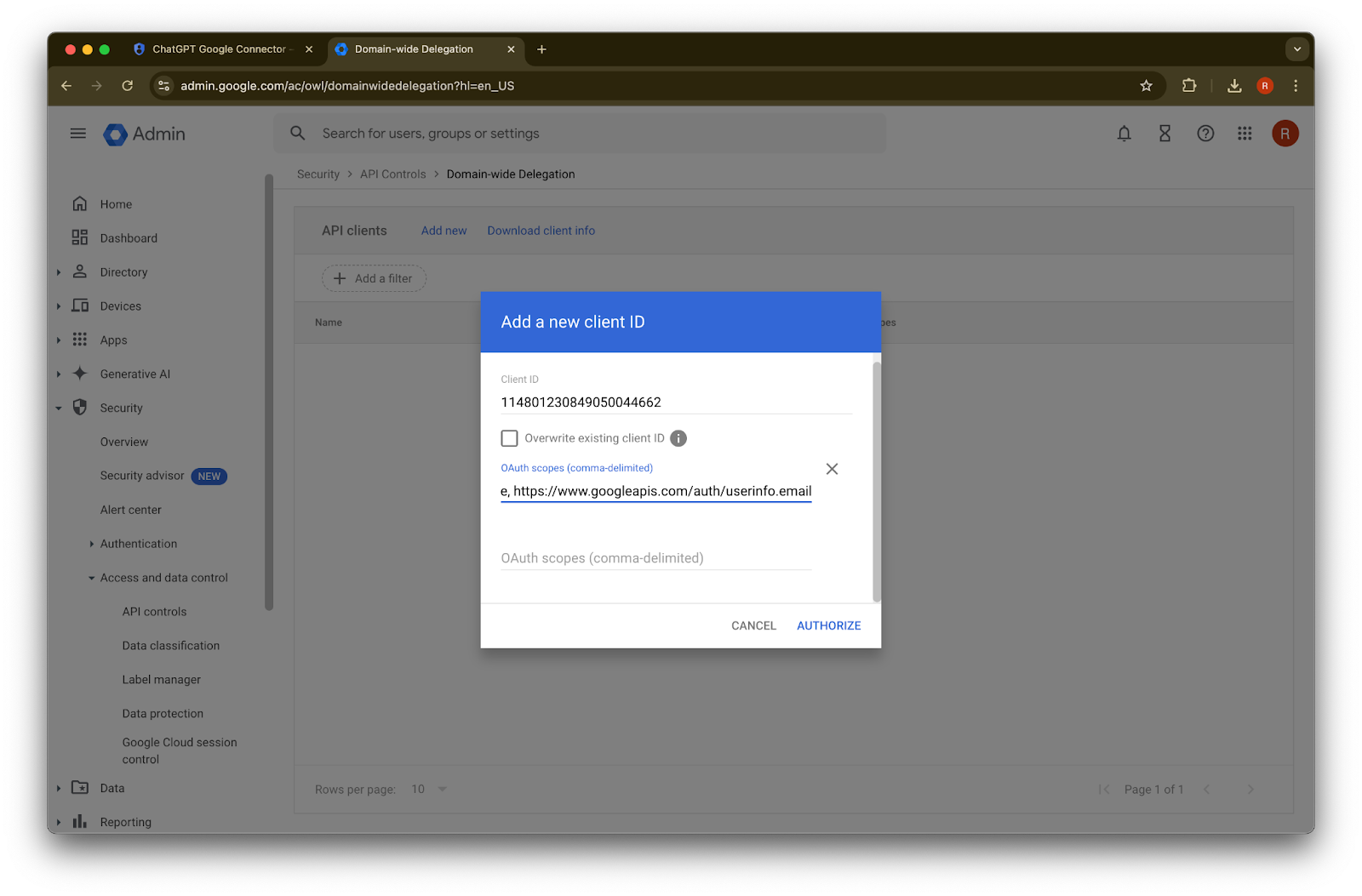
  43. 使用先前記下的Unique ID 作為此Client ID 的值

    Google Admin Domain-wide Delegation dialog for adding a new client ID and OAuth scopes
  44. 對於OAuth scopes,請參考以下以逗號分隔的授權範圍值,您需要複製並貼上它們:
https://www.googleapis.com/auth/admin.directory.group.readonly, https://www.googleapis.com/auth/admin.directory.group.member.readonly, https://www.googleapis.com/auth/admin.directory.user.readonly, https://www.googleapis.com/auth/admin.directory.user.alias.readonly, https://www.googleapis.com/auth/drive.activity.readonly, https://www.googleapis.com/auth/drive.metadata.readonly, https://www.googleapis.com/auth/drive.readonly, https://www.googleapis.com/auth/userinfo.profile, https://www.googleapis.com/auth/userinfo.email
範圍原因
admin.directory.group.readonly強制執行以群組為基礎的權限
admin.directory.group.member.readonly強制執行以群組為基礎的權限
admin.directory.user.alias.readonly處理使用者透過別名獲得權限的情況
drive.activity.readonly在檔案發生變更時收到通知
drive.metadata.readonly同步檔案內容及相關中繼資料(例如最後修改日期)
drive.readonly同步檔案內容及相關中繼資料(例如最後修改日期)
userinfo.profile判斷我們要為哪些使用者同步檔案
userinfo.email判斷我們要為哪些使用者同步檔案
Google Admin Domain-wide Delegation dialog for adding a new client ID and OAuth scopes

45. 點擊 Authorize

Image

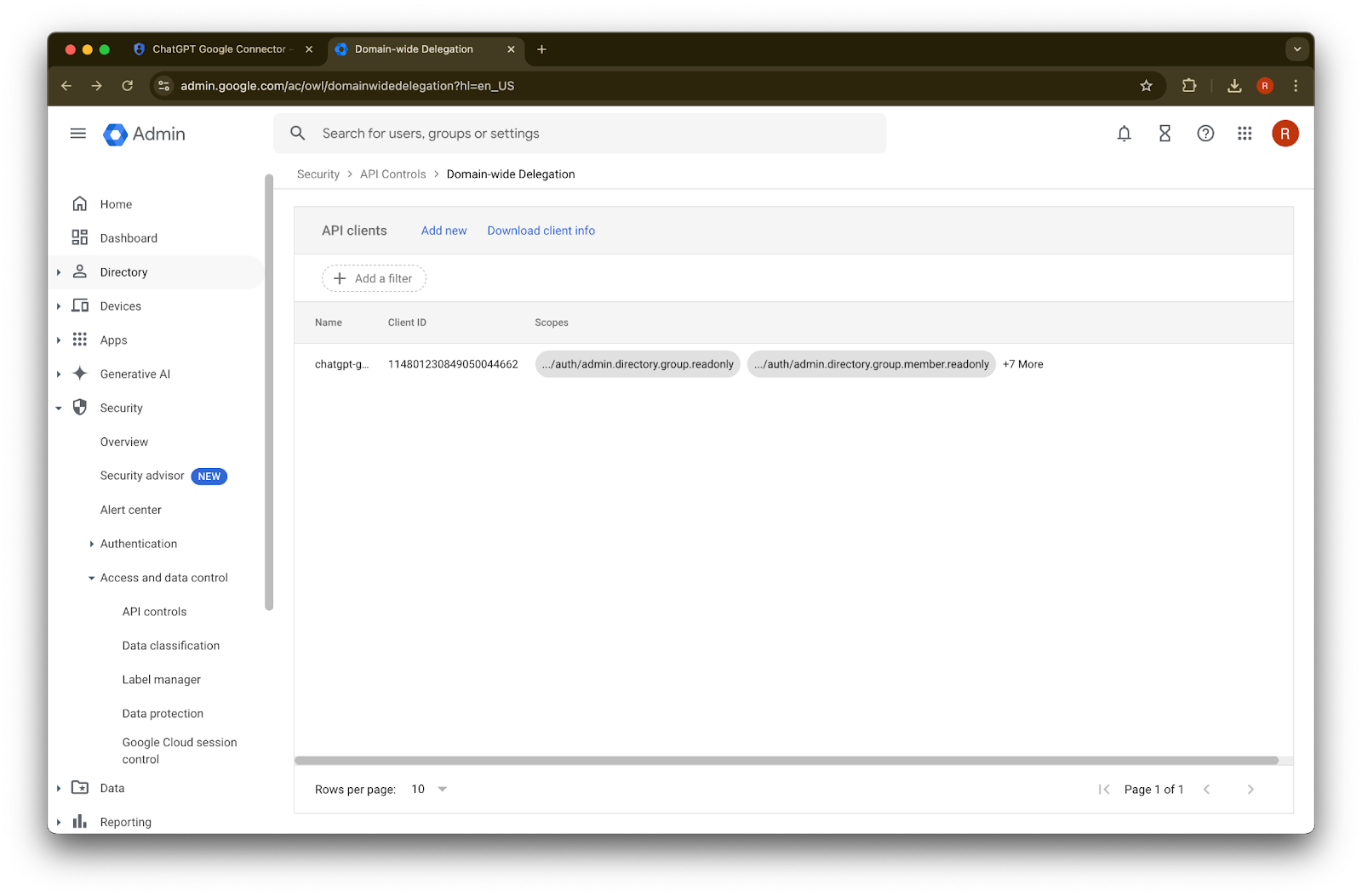
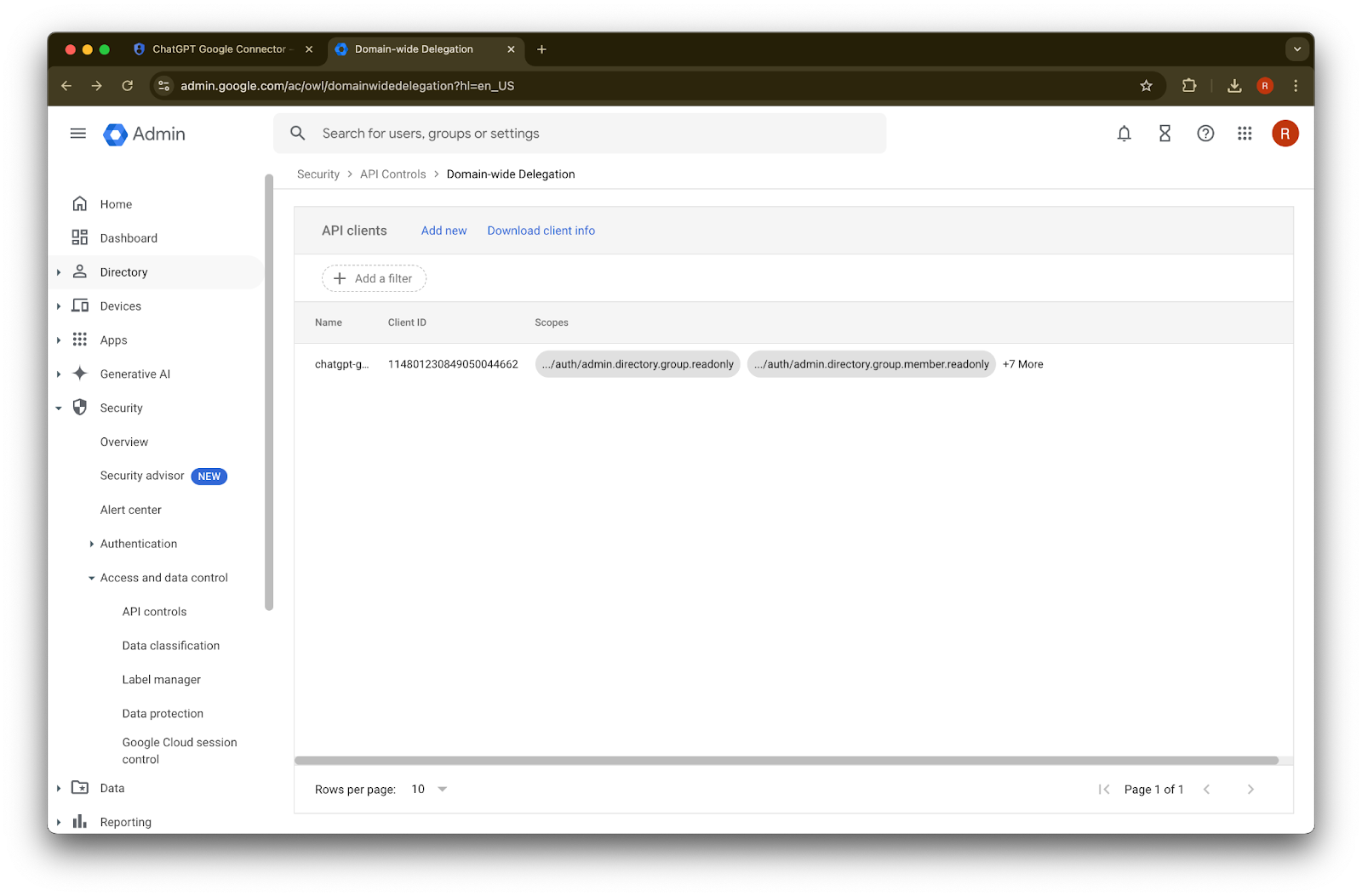
46. 成功!

Image

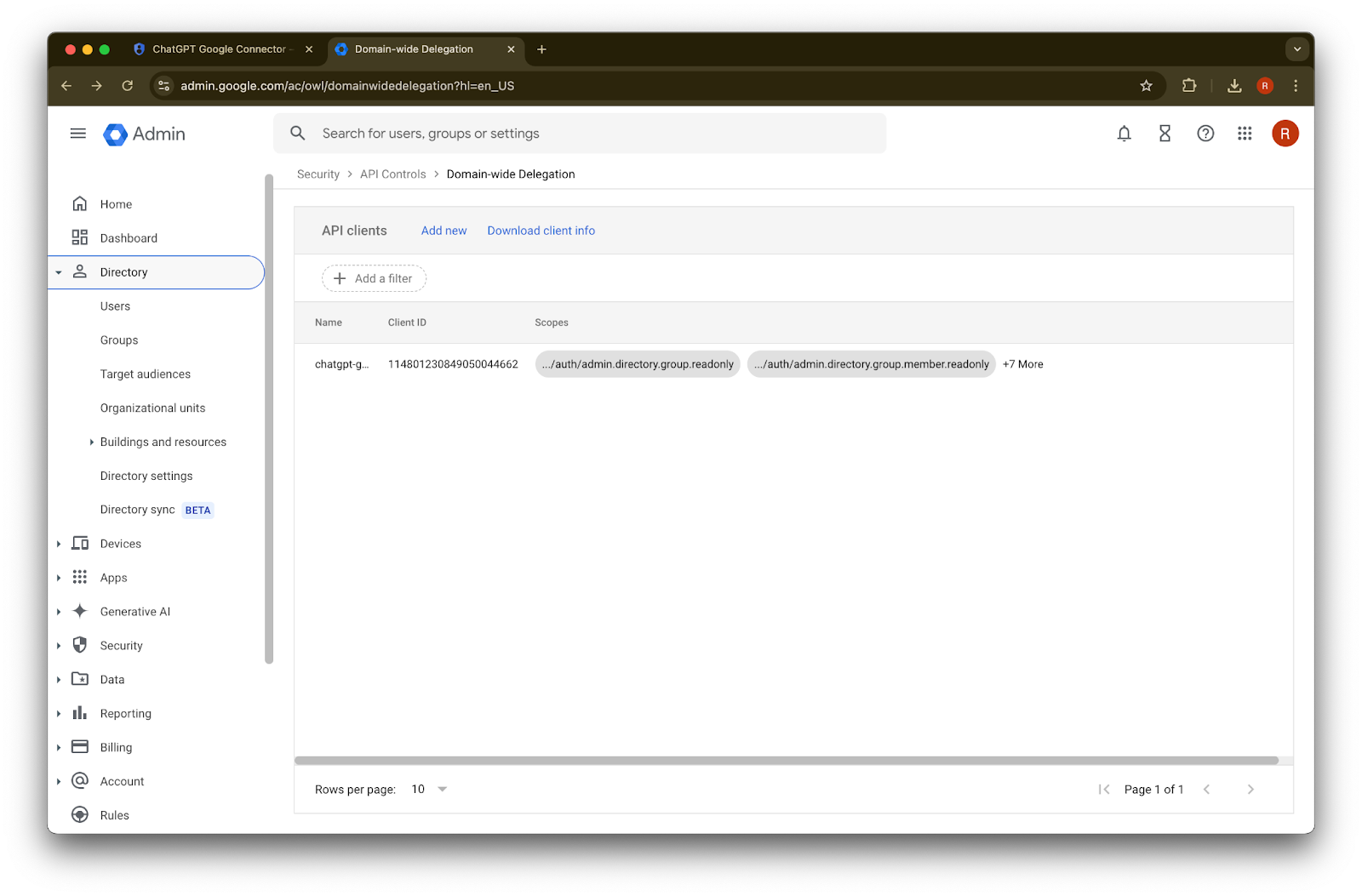
設定管理員帳戶

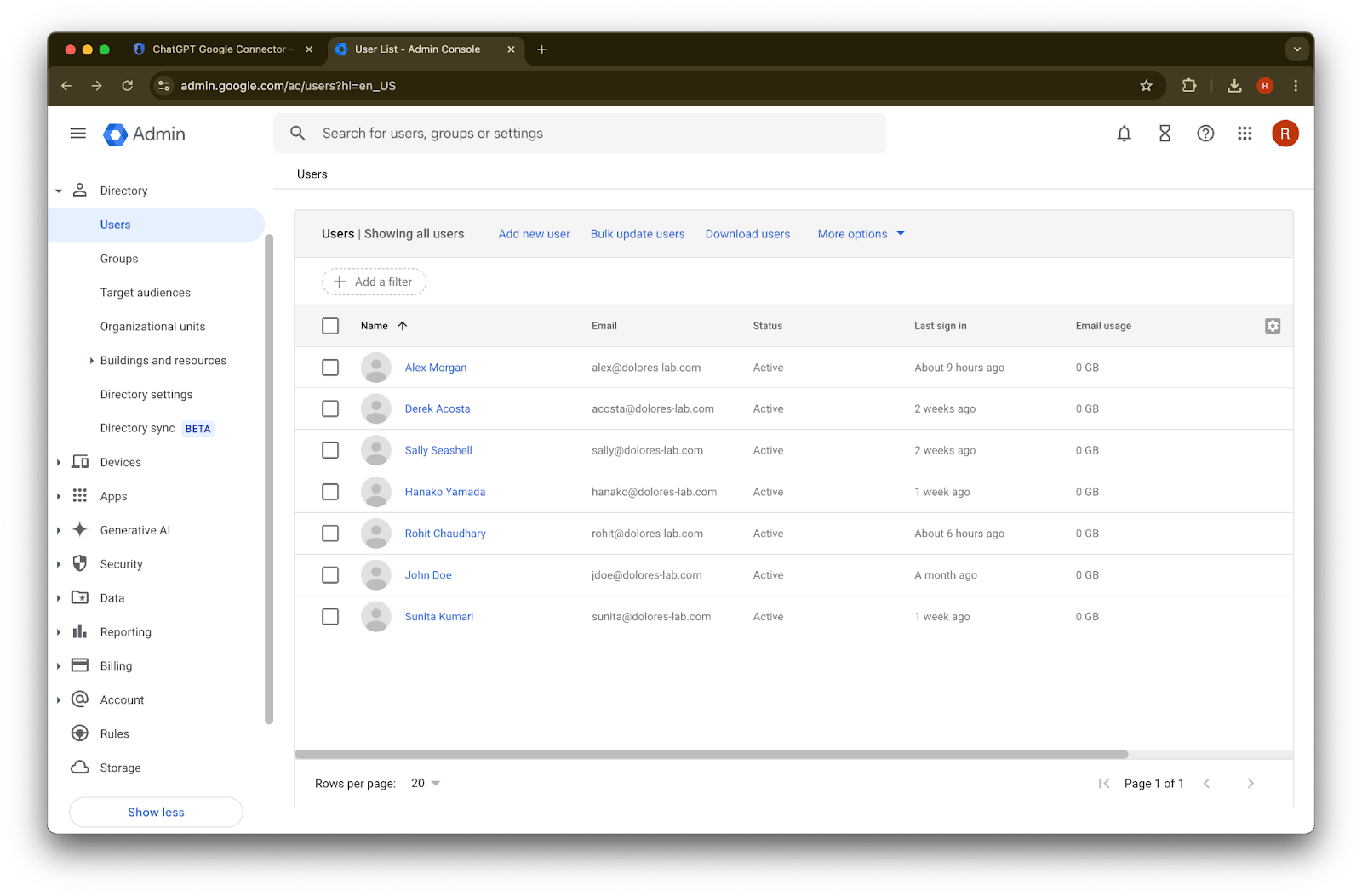
  1. 展開 Directory

    Google Admin Domain-wide Delegation page with a ChatGPT API client and scopes listed
  2. 點擊 Users

    Google Admin domain-wide delegation page listing a ChatGPT Google Connector API client and scopes
    Google Admin console Users page listing workspace accounts for setup and management
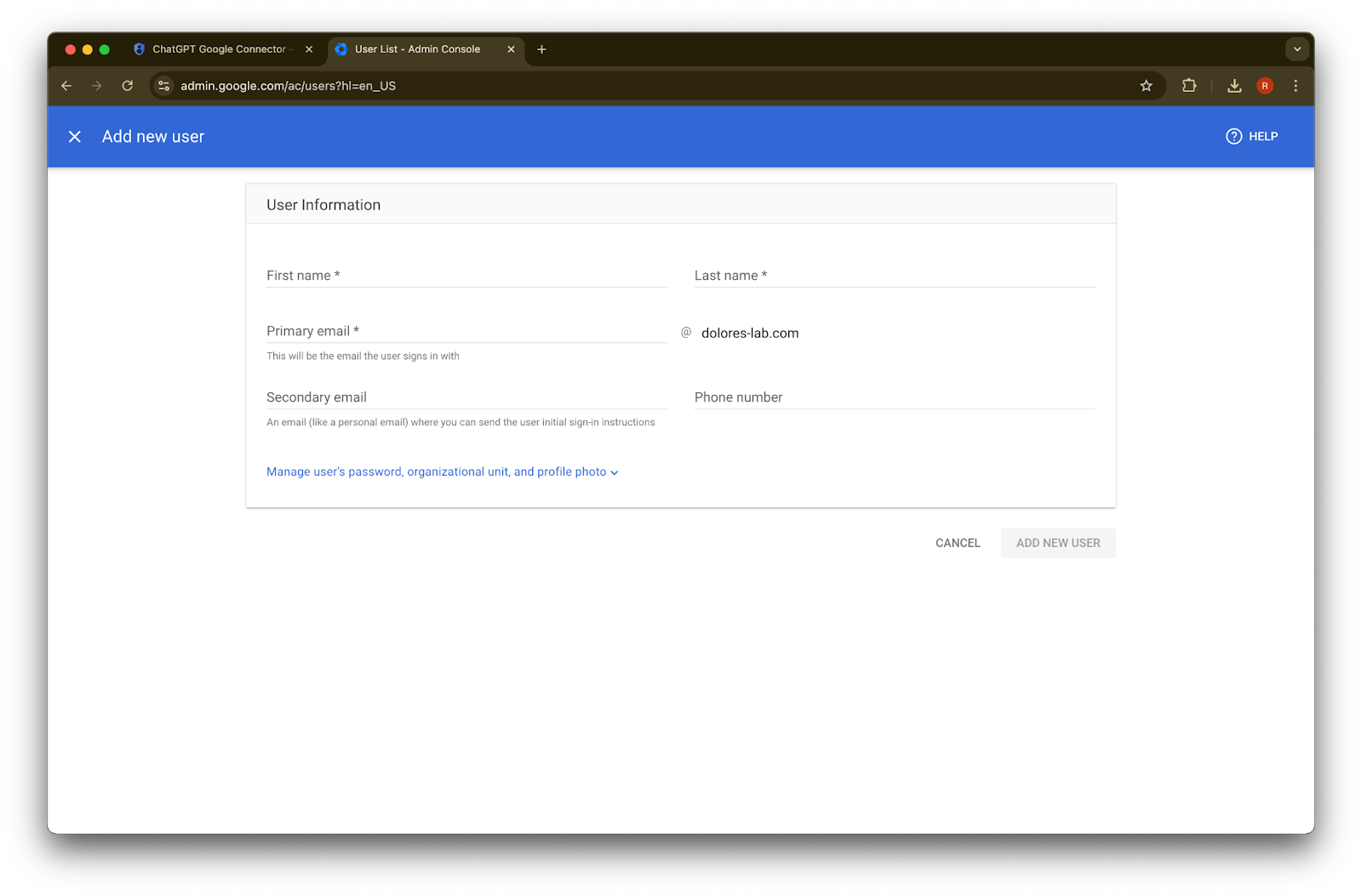
  3. 提供您自選的名字姓氏主要電子郵件地址

    Google Admin console Add new user form for creating a Workspace user at dolores-lab.com
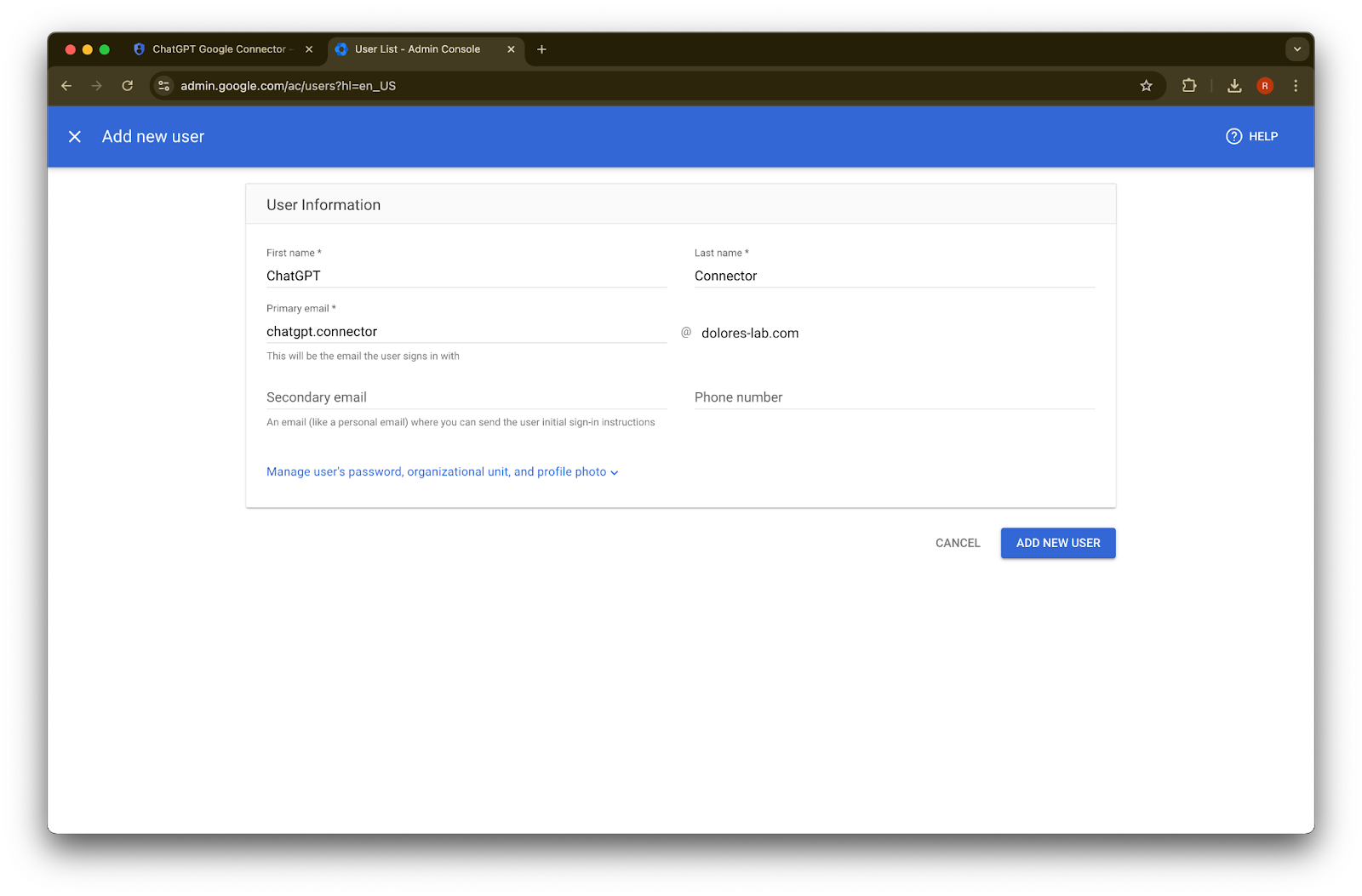
  4. 點擊 Add new user

    Google Admin console Add new user form filled for a ChatGPT Connector account
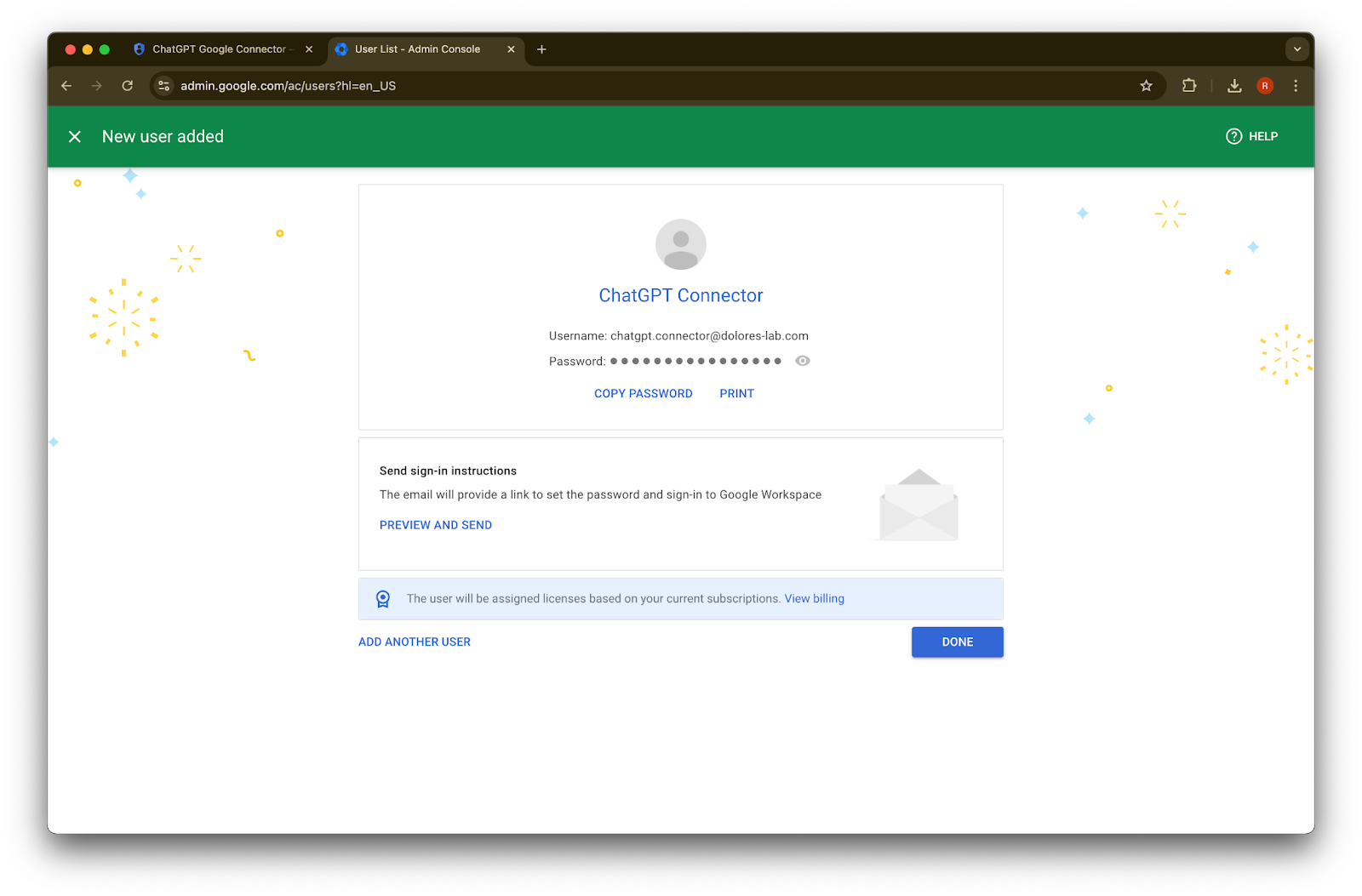
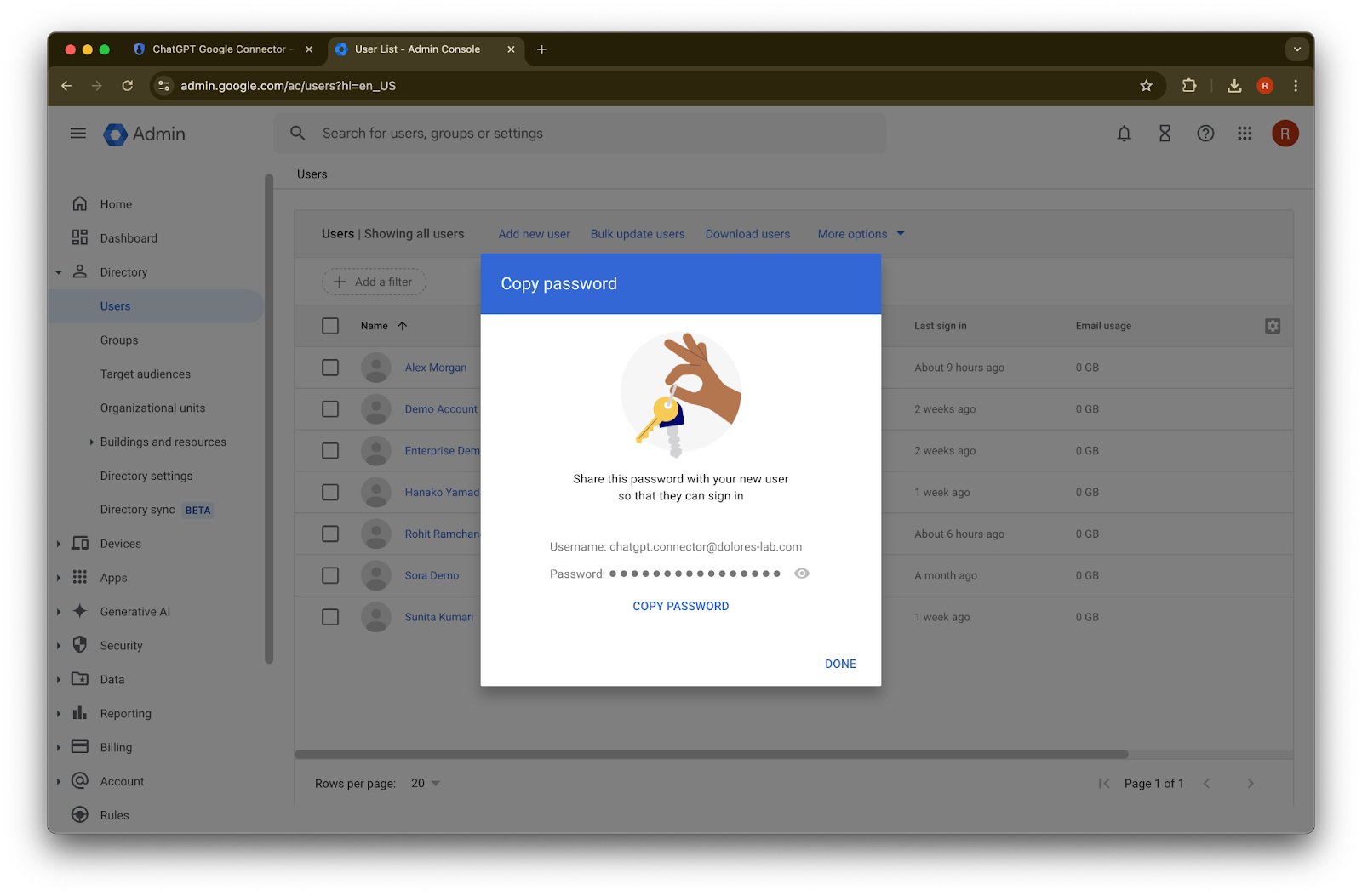
  5. (選用)記錄這些憑證。ChatGPT 不需要這些憑證。

    Google Admin Console New user added page for ChatGPT Connector with Copy Password and Done actions
  6. 點擊 Done

    Google Admin console Copy password dialog for a newly created user account
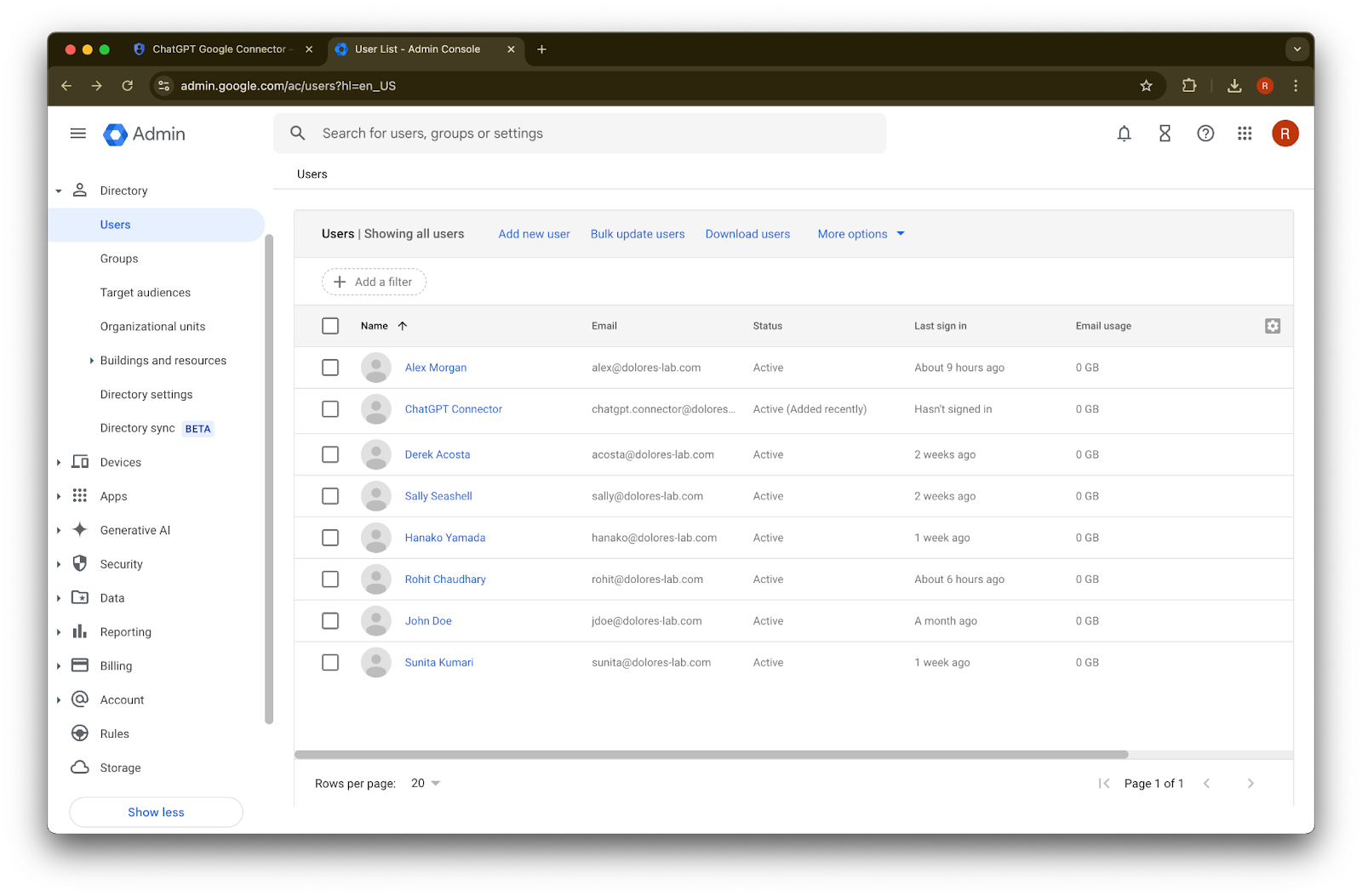
  7. 點擊您剛建立的帳戶。如果它沒有出現在清單中,請重新整理頁面,或清除快取與 Cookie 後再試一次。

    Google Admin console Users page listing accounts including ChatGPT Connector
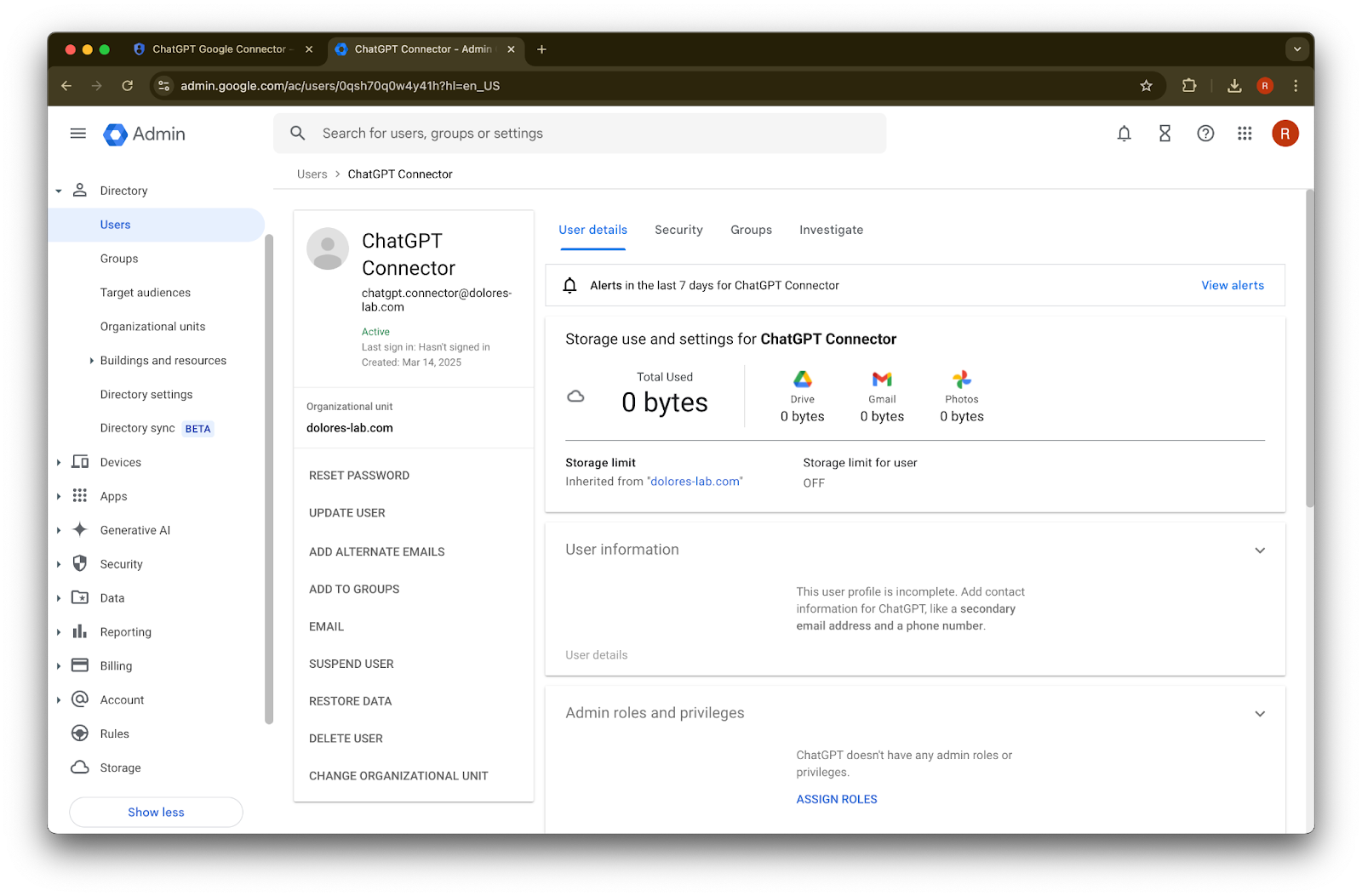
  8. 點擊 assign roles

    Google Admin user details page for the ChatGPT Connector service account
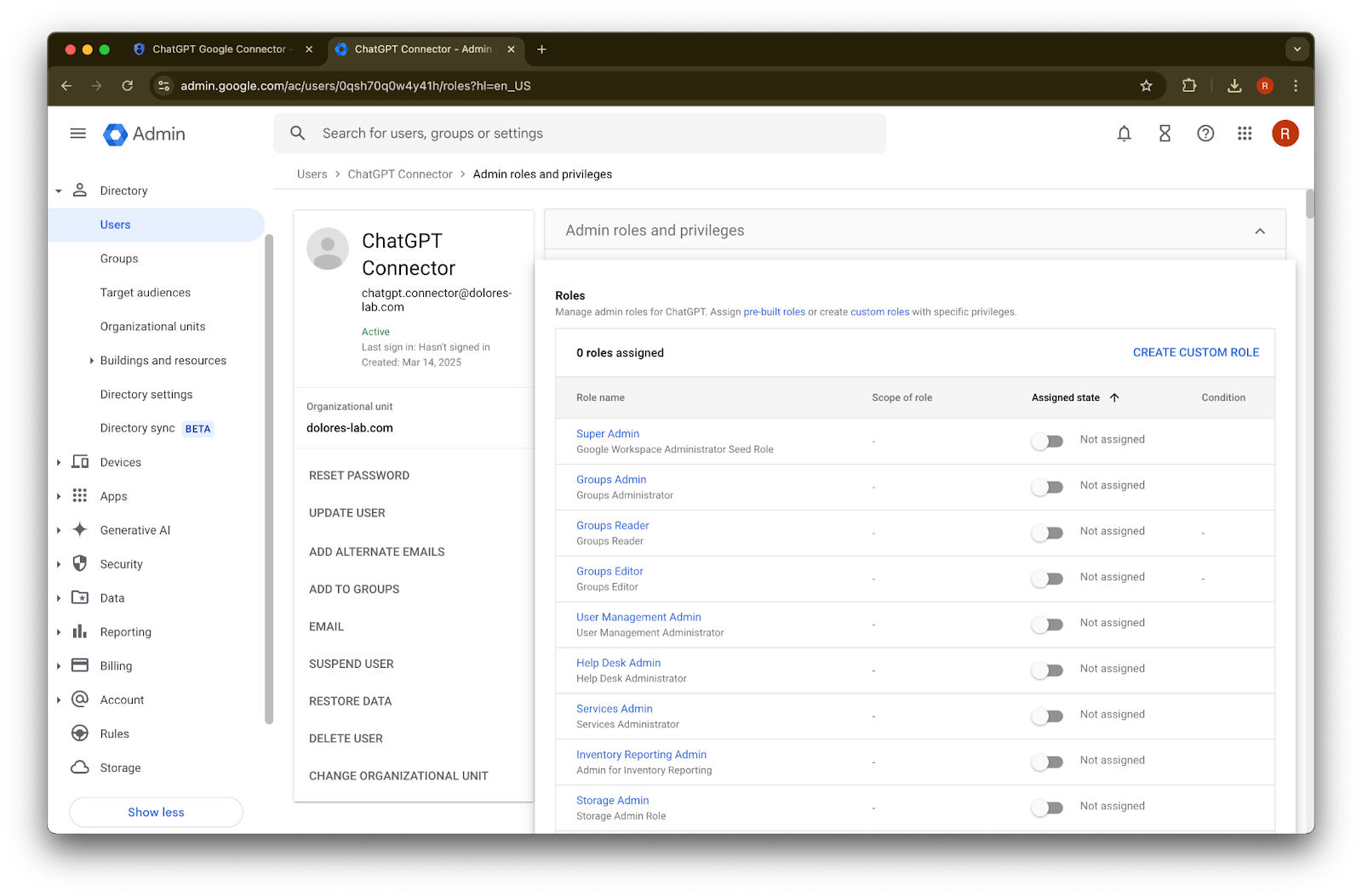
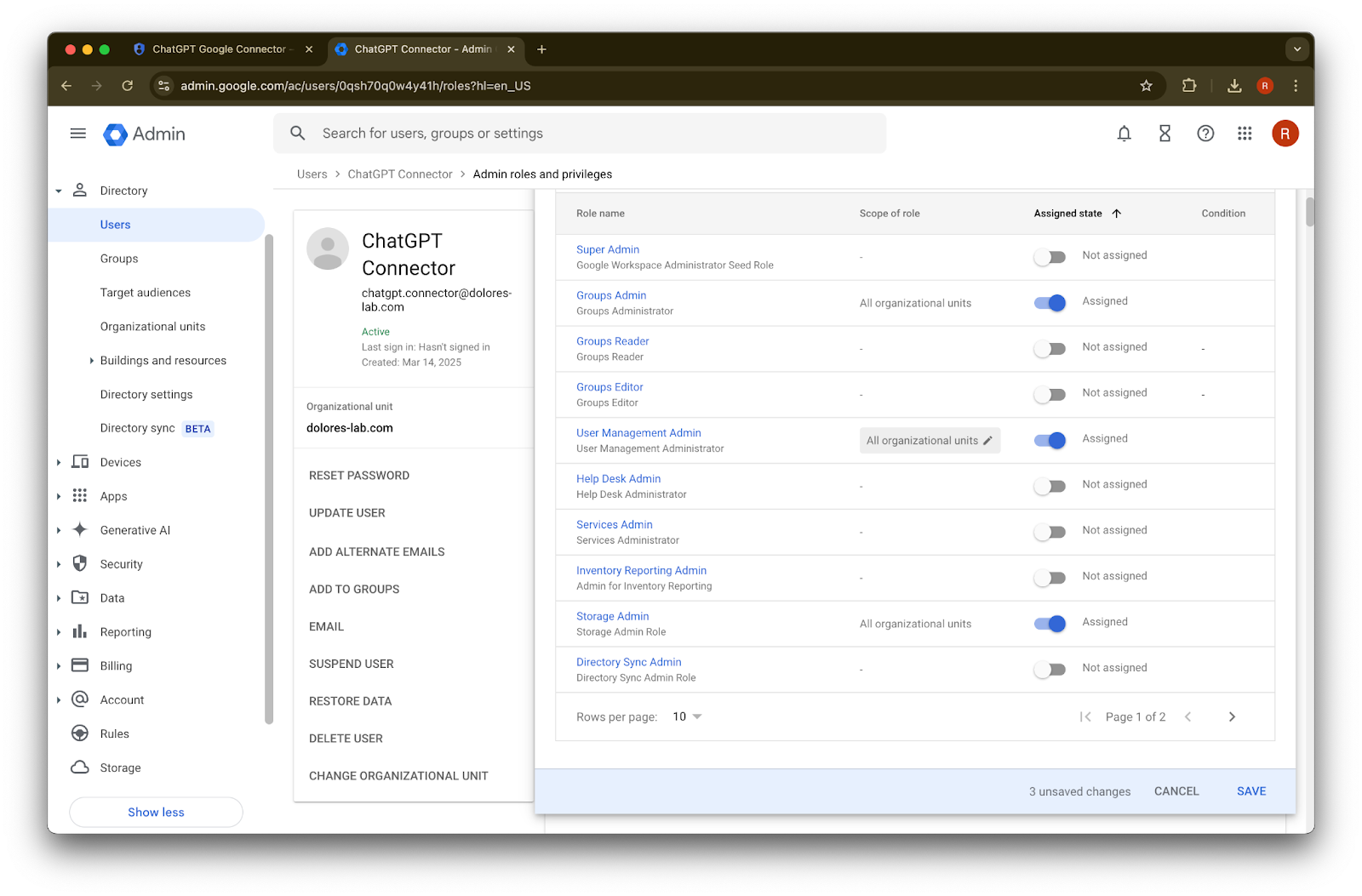
  9. 開啟 Groups Reader、User Management AdminStorage Admin 角色。

    Google Admin ChatGPT Connector user page with Admin roles and privileges open and no roles assigned
  10. 向下捲動並點擊 Save. 管理員帳戶現已成功建立並完成設定。

Image

在 ChatGPT 管理主控台完成設定

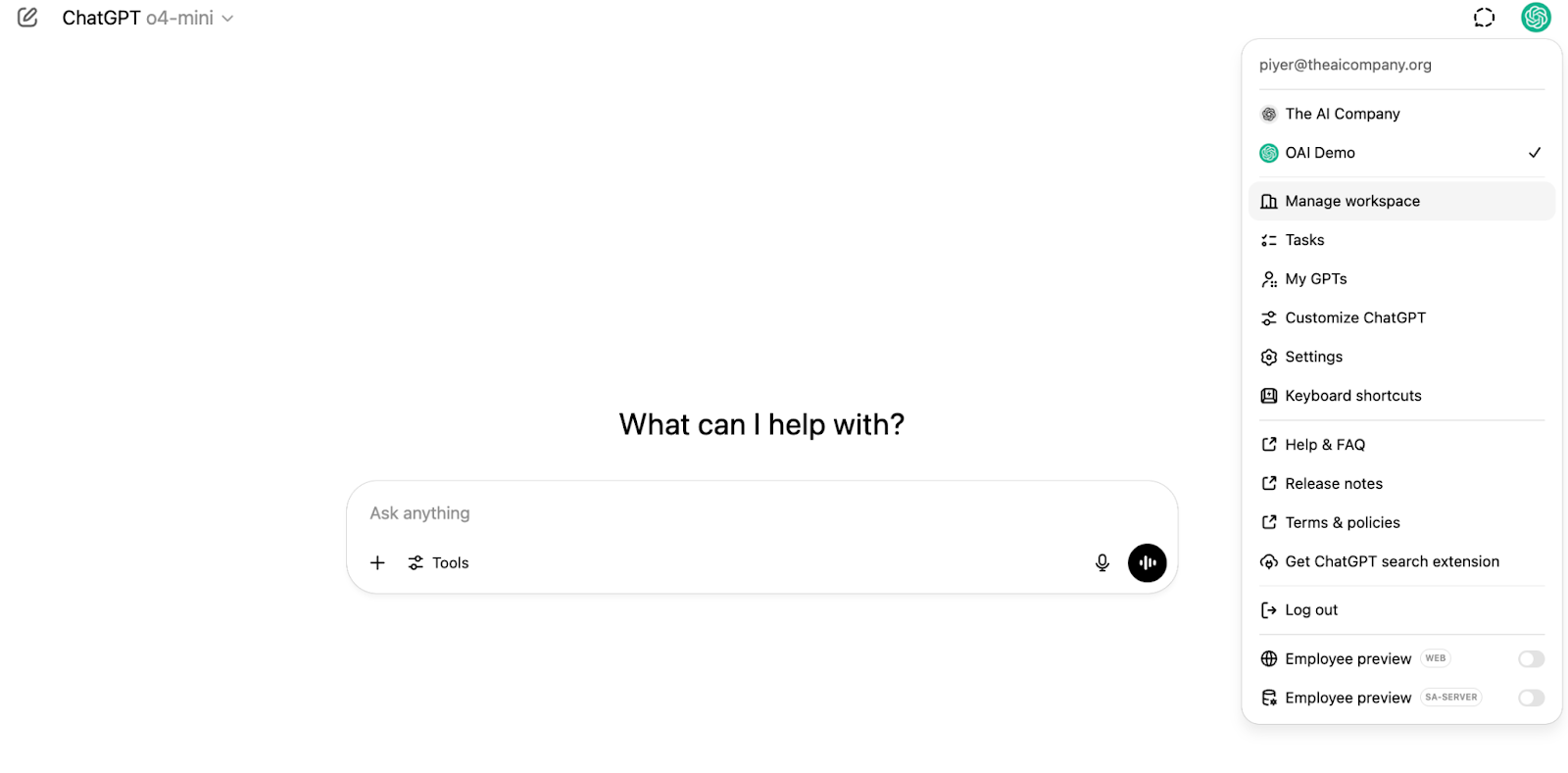
  1. 前往 ChatGPT,然後點擊頁面右上角的個人資料圖示。

    Image
  2. 點擊 管理工作區

    ChatGPT workspace menu with Manage workspace selected under the organization switcher
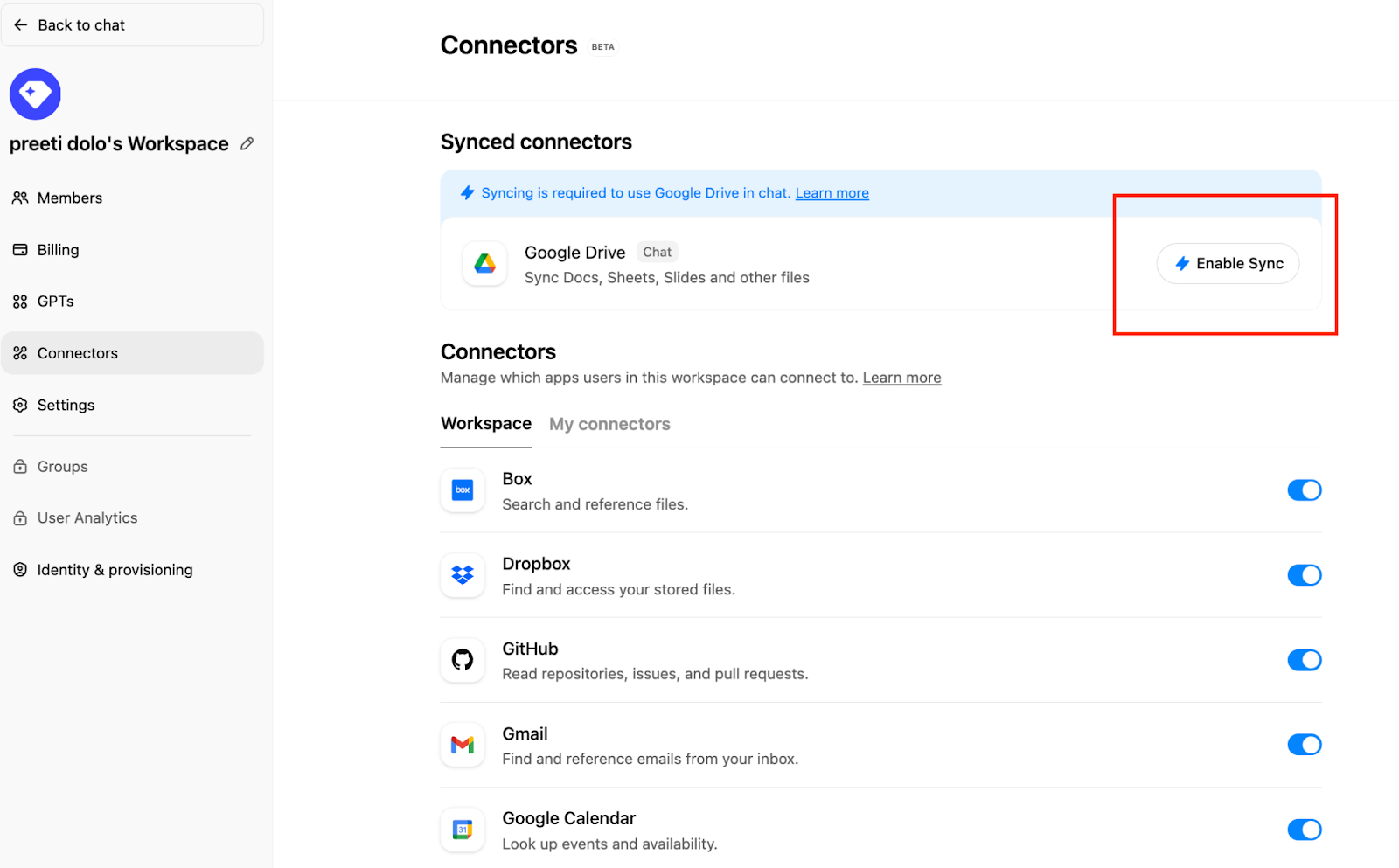
  3. 點擊 Connections ,然後在 「Synced connectors」 下方點擊 → Enable Sync

    Connectors page with Google Drive sync prompt and Enable Sync button highlighted
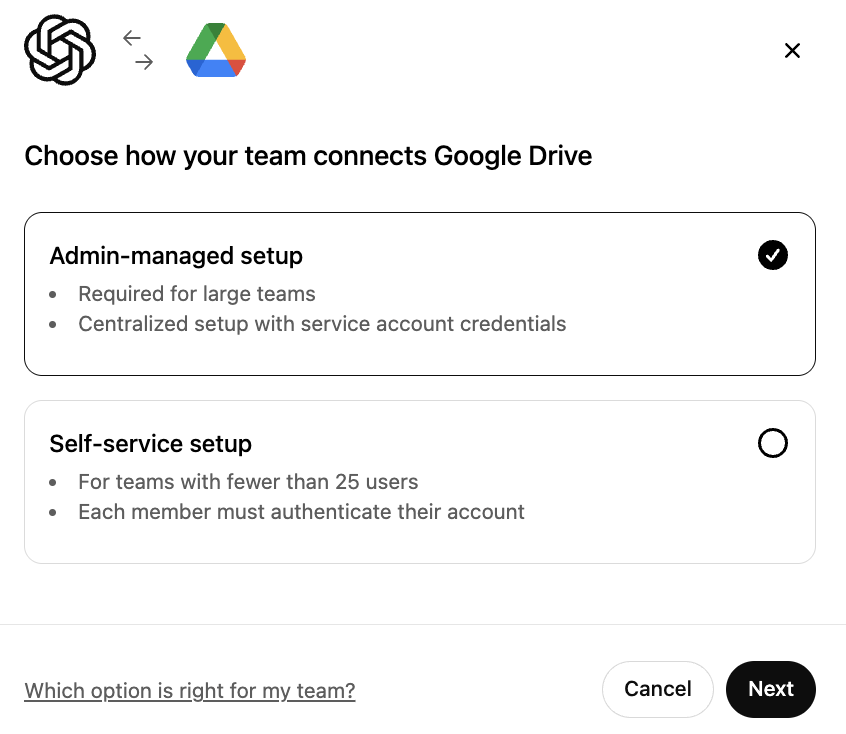
  4. 確認已選取 Admin-managed,然後點擊 Next

    Google Drive connection setup with Admin-managed setup selected over Self-service setup
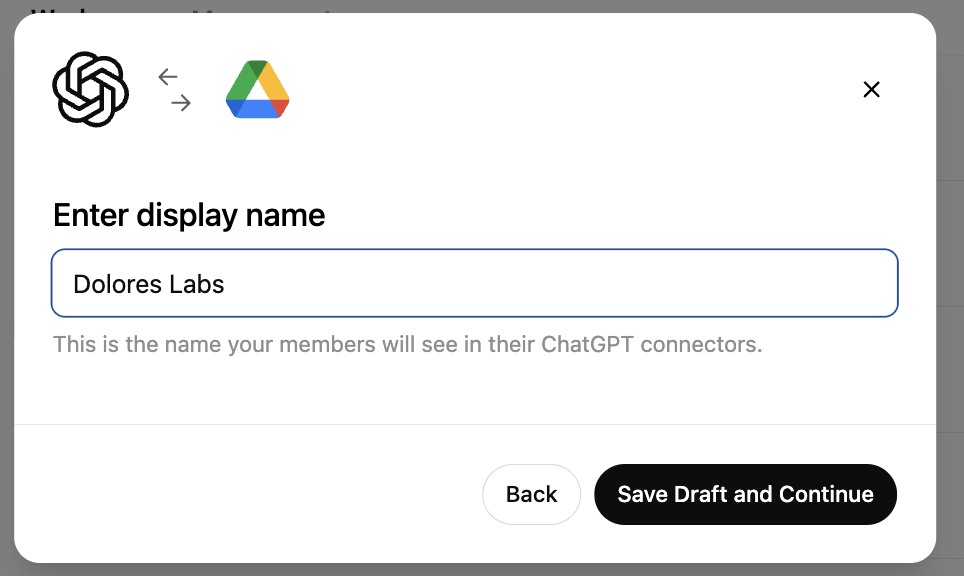
  5. 輸入一個顯示名稱。我們建議使用您的 Google Workspace 名稱。

    請注意,目前我們不支援變更連線名稱。

    Google Workspace connector setup dialog with display name Dolores Labs entered
  6. 點擊 Save Draft and Continue

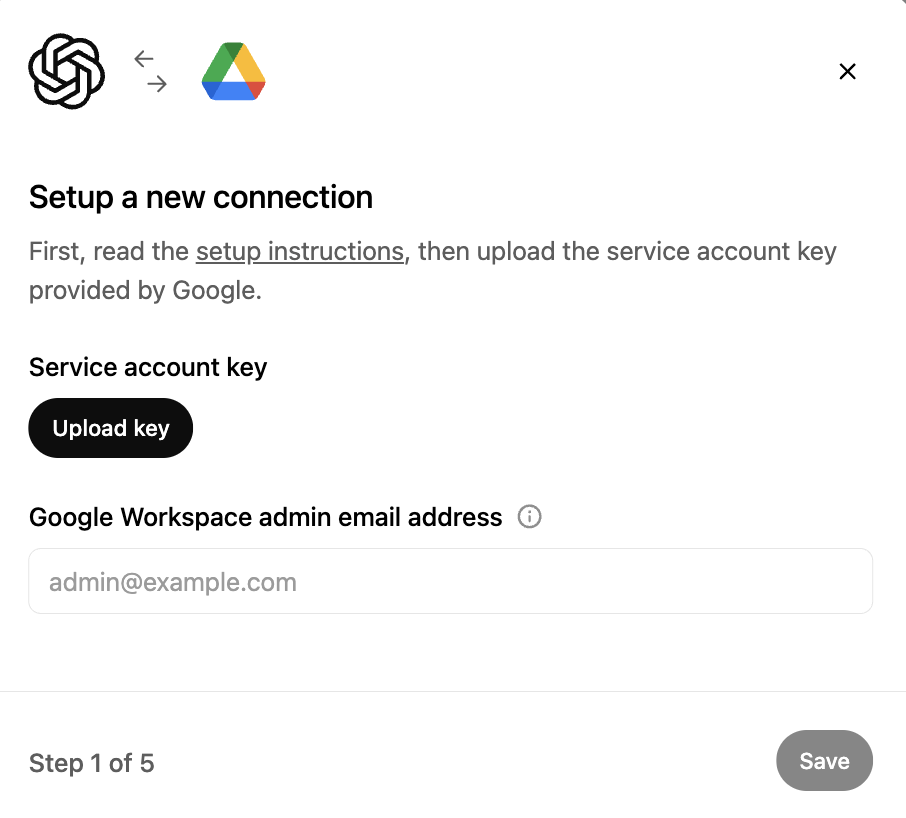
  7. 點擊 Upload key。選擇 JSON 檔案,也就是您在上方設定服務帳戶時下載的金鑰。請確認此金鑰正確無誤

    Google Workspace connection setup step prompting upload of a service account key and admin email address
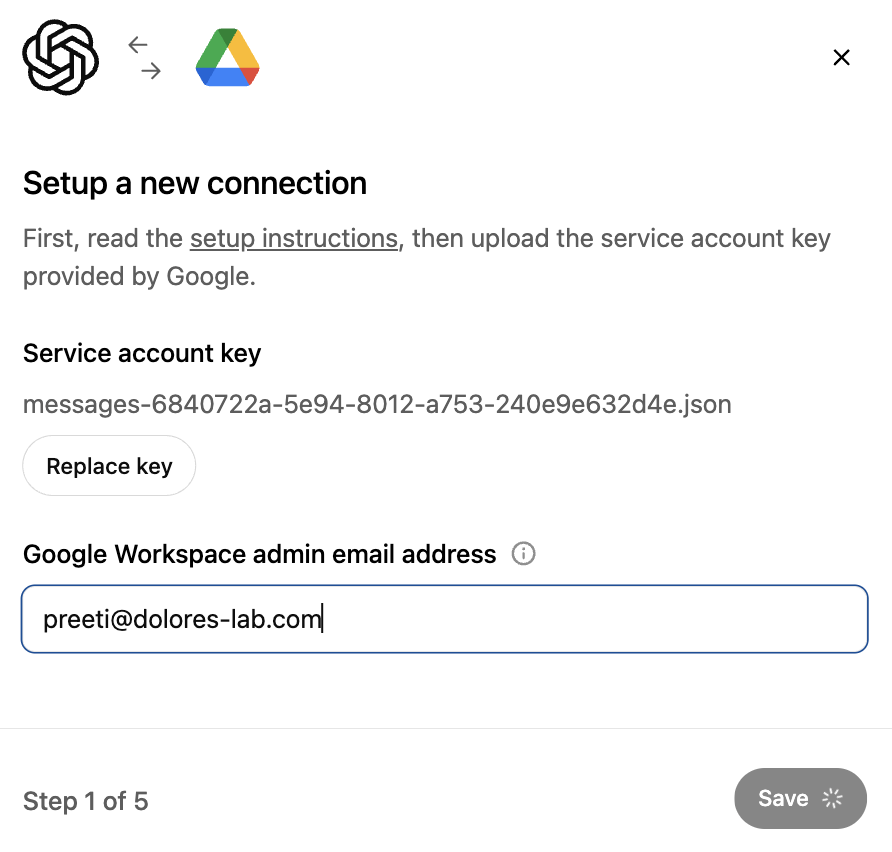
  8. 輸入管理員電子郵件地址。這是您先前建立的管理員帳戶。

    Image
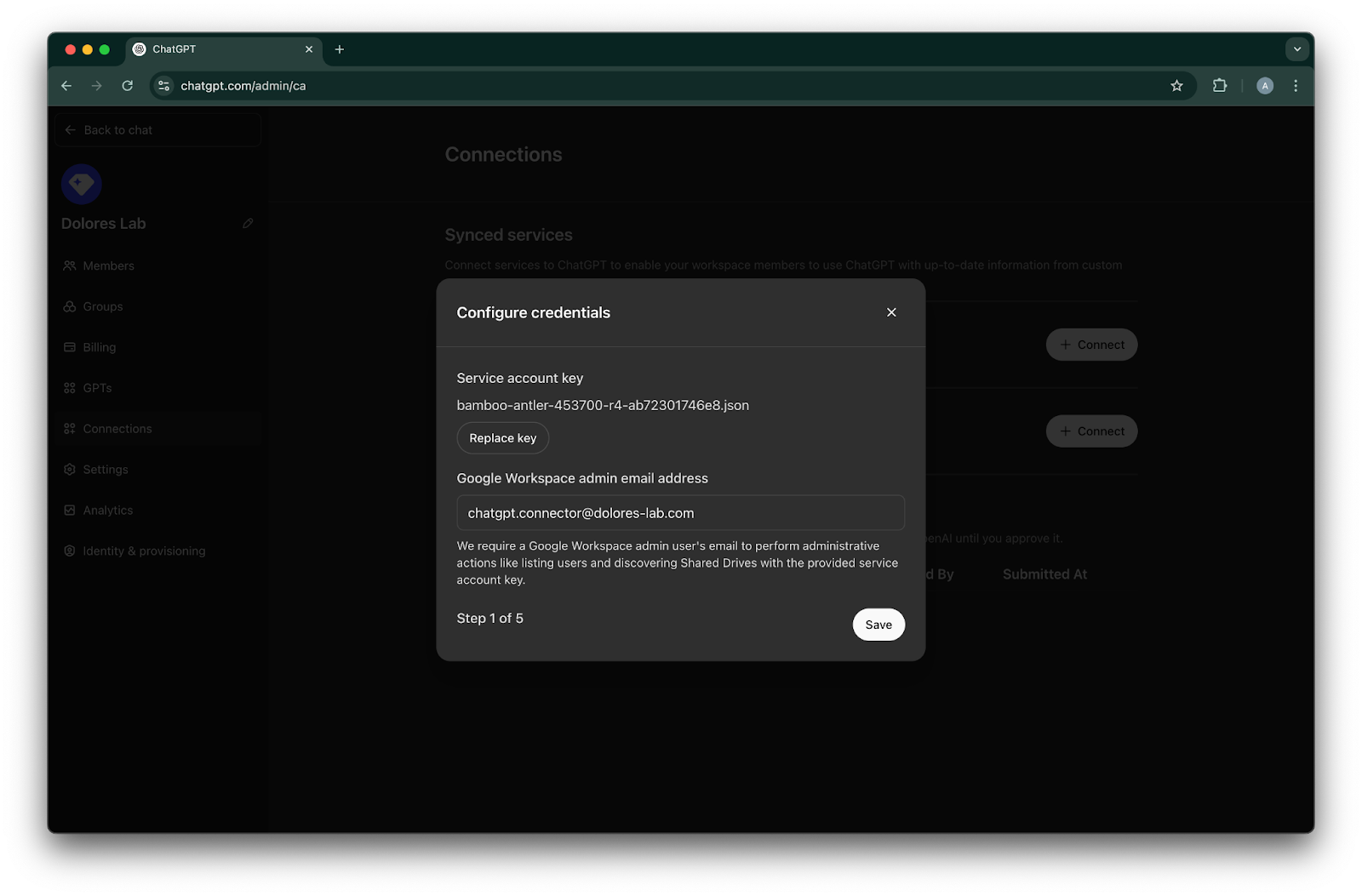
  9. 點擊 Save.

    ChatGPT Connections credentials dialog with service account key and Google Workspace admin email entered
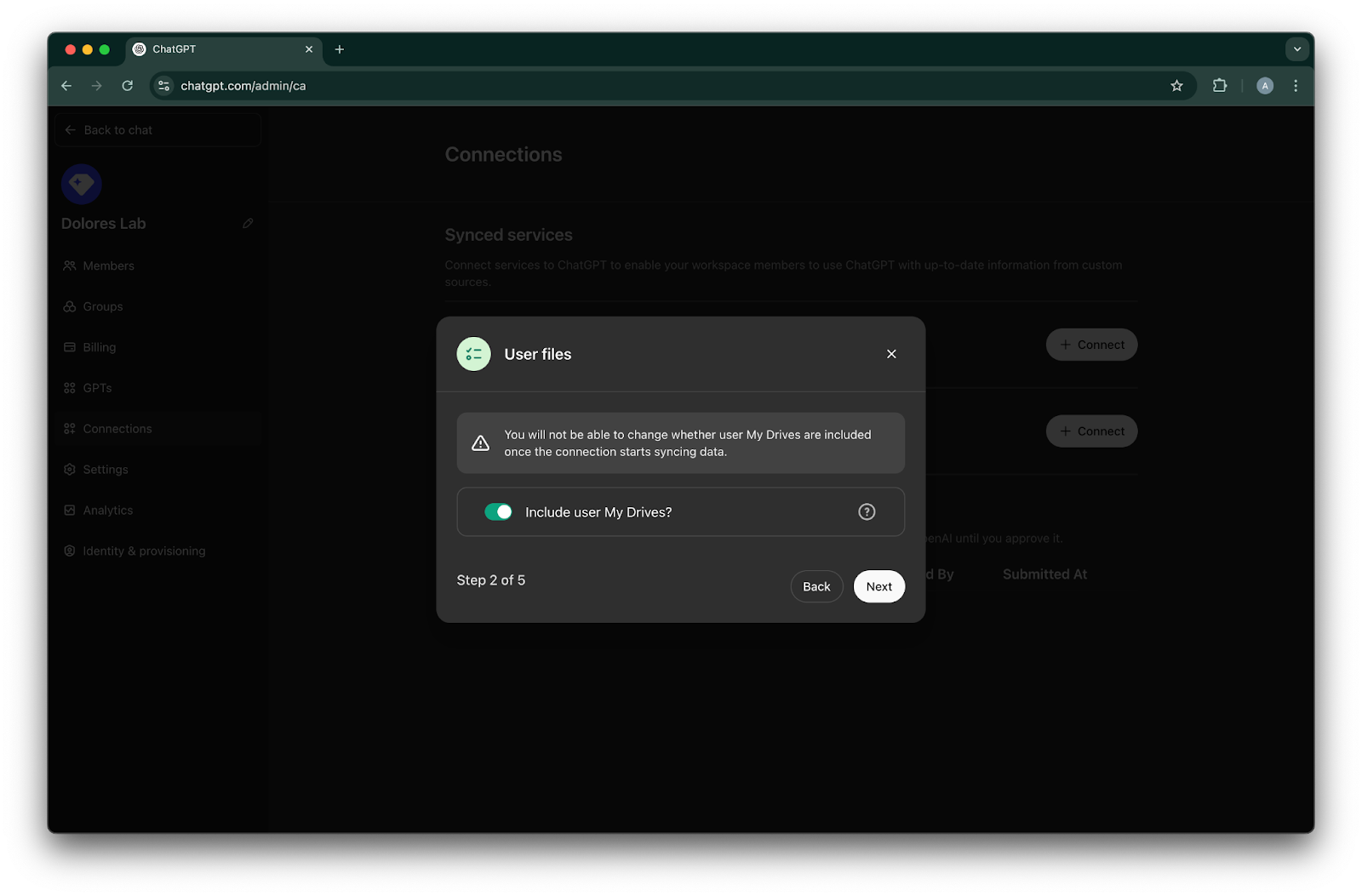
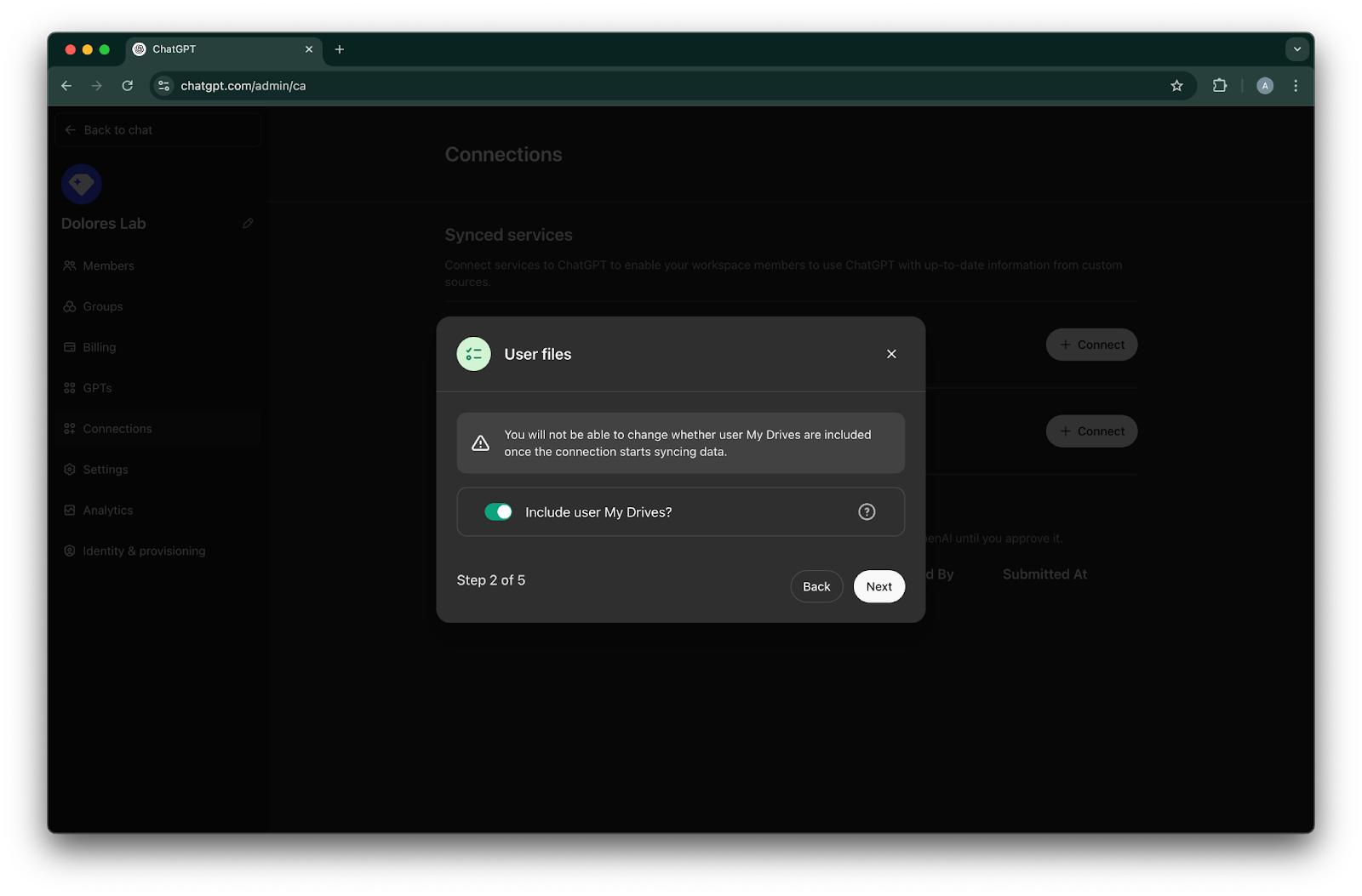
  10. 選擇是否要納入您所有使用者的「我的雲端硬碟」中的檔案。

    ChatGPT Connections modal for User files with Include user My Drives enabled at step 2 of 5
  11. 點擊 Next

    ChatGPT admin Connections modal for User files with Include user My Drives enabled in step 2 of 5
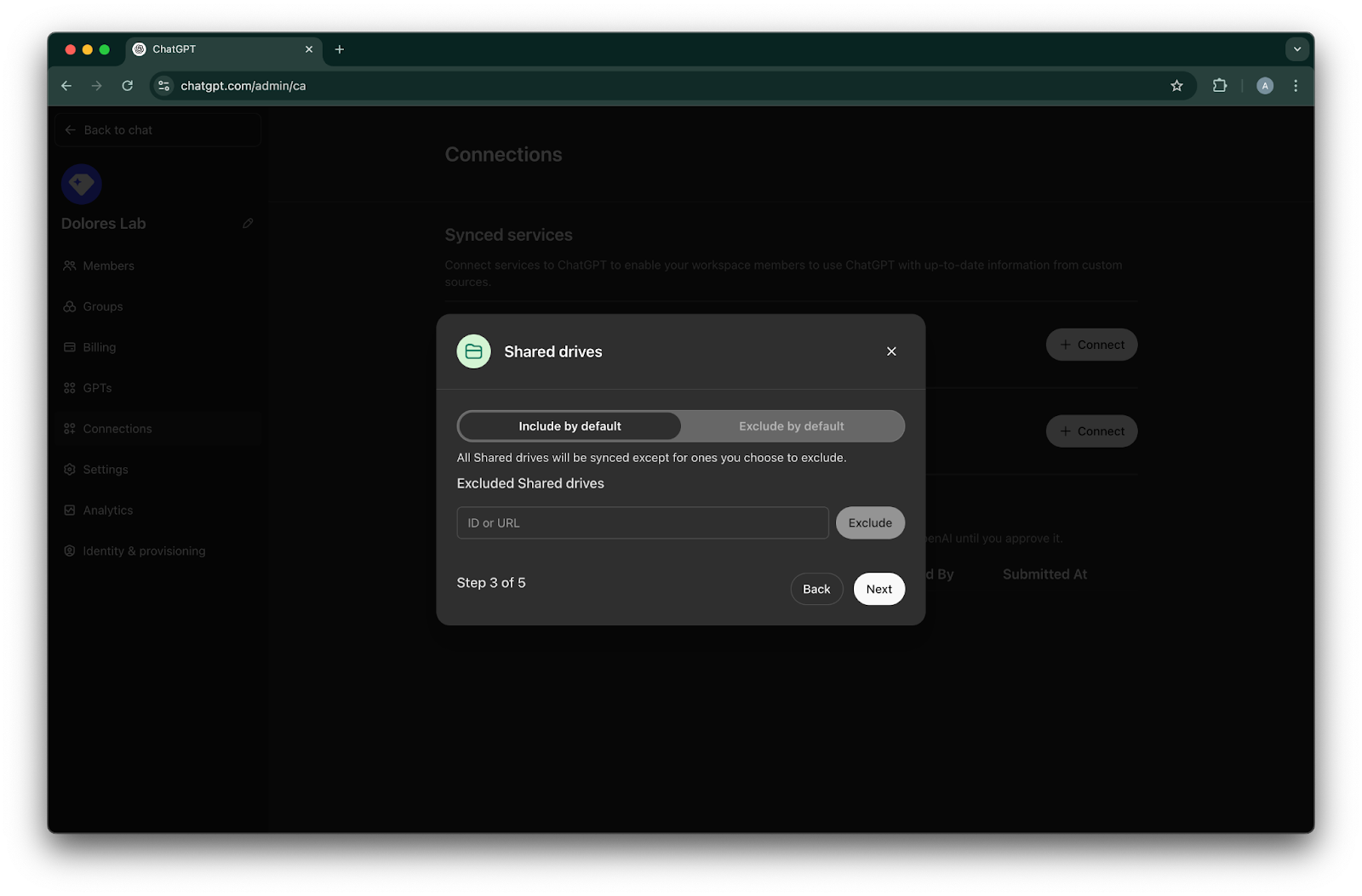
  12. 選擇如何管理共用雲端硬碟。我們支援以下三種情境:
    1. 如果您想納入所有共用雲端硬碟,請選擇 Include by default ,且不要新增要排除的共用雲端硬碟 ID

    2. 如果您想納入大多數共用雲端硬碟,請選擇 Include by default,並新增您要排除的共用雲端硬碟 ID

    3. 如果您想排除大多數共用雲端硬碟,請選擇 Exclude by default,並新增您要納入的共用雲端硬碟 ID

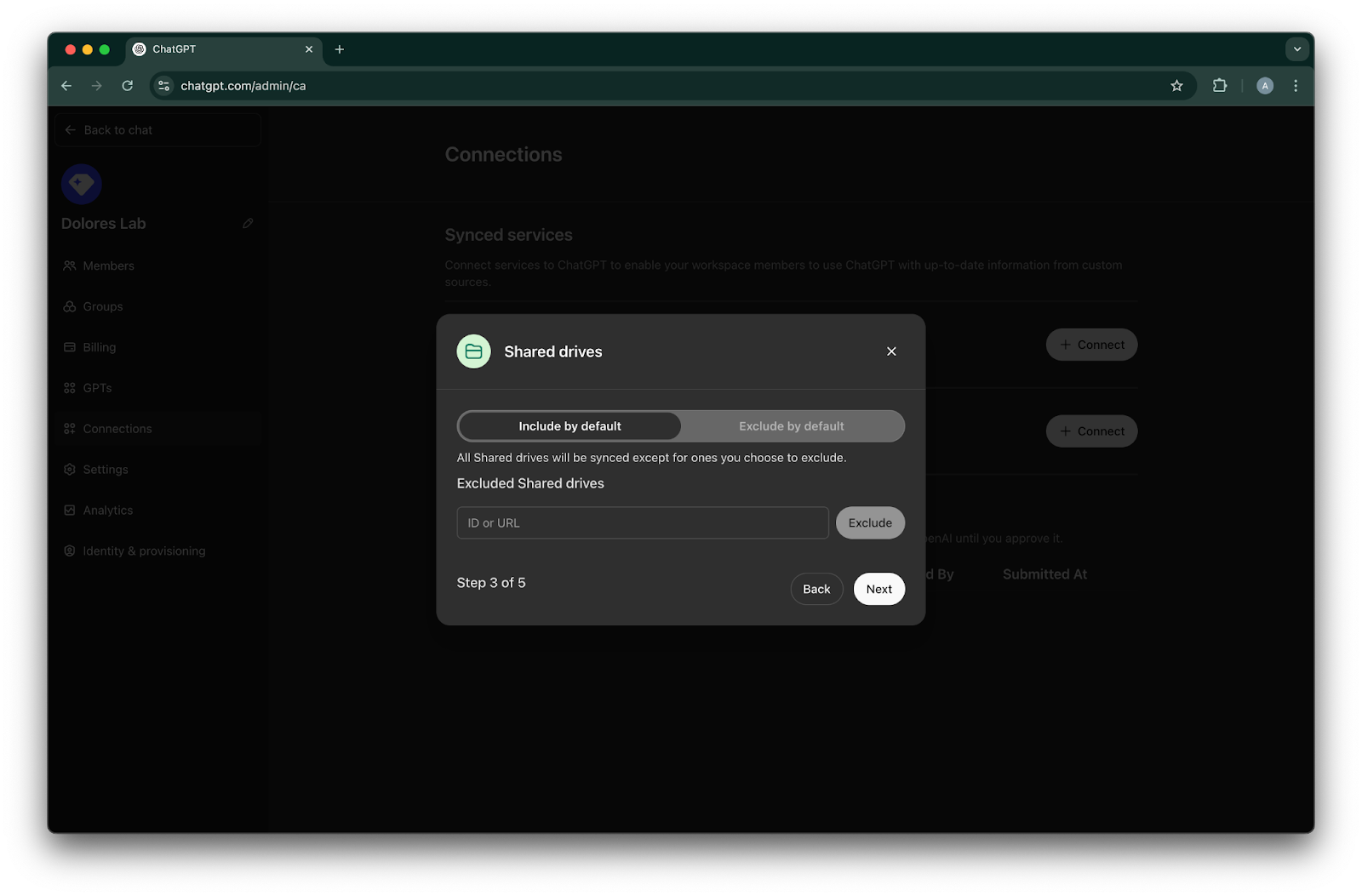
    ChatGPT admin Shared drives setup with Include by default selected and an Excluded Shared drives field
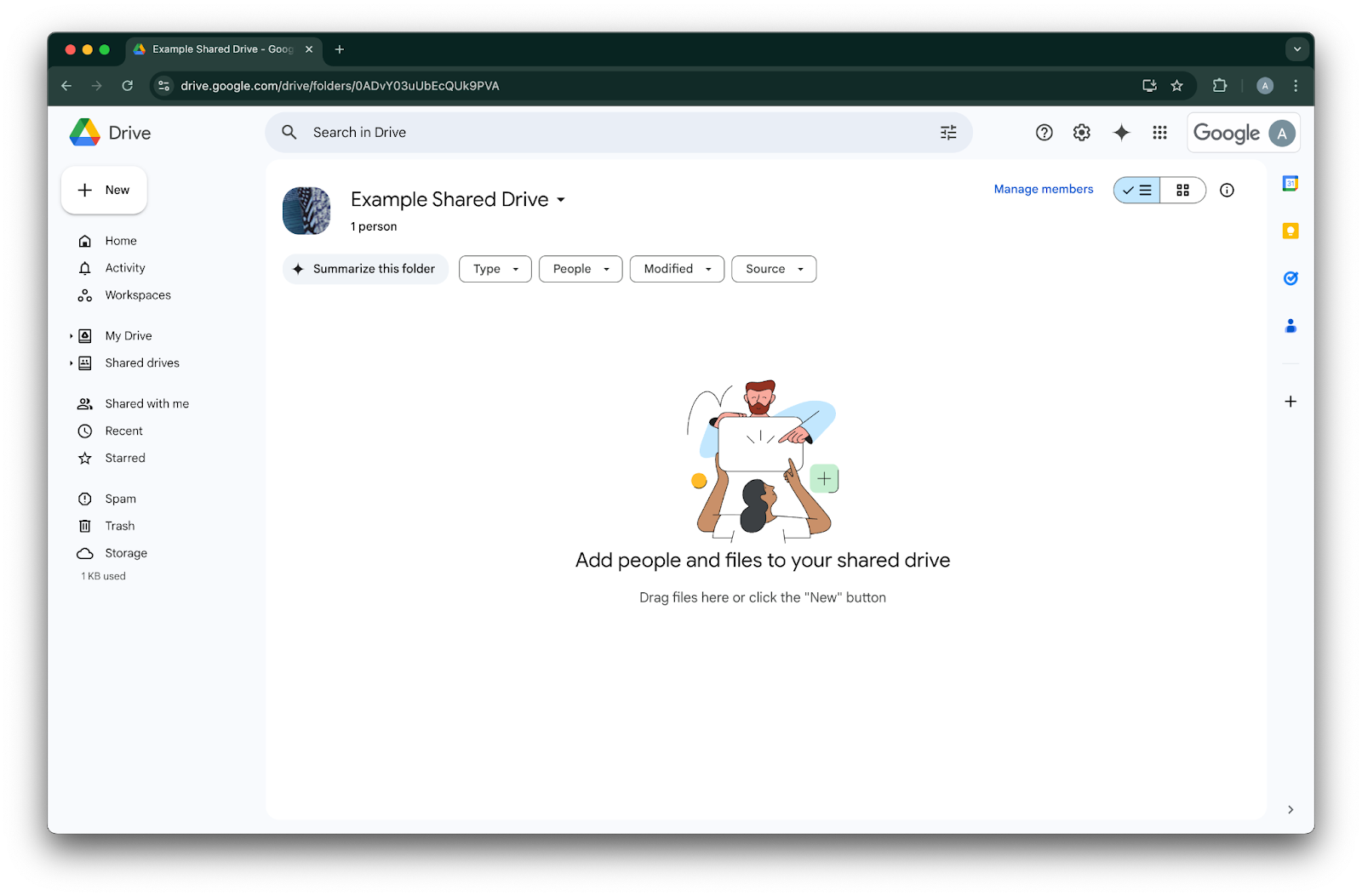
  13. 若要查找共用雲端硬碟的 ID,請在網頁瀏覽器中前往該雲端硬碟。URL 的最後一段就是共用雲端硬碟 ID。
    在以下範例中,它是 `0ADvY03uUbEcQUk9PVA`'

    Google Drive shared drive with Manage members visible for Example Shared Drive
  14. 點擊 Next

    ChatGPT admin Connections modal for Shared drives with Include by default selected at step 3 of 5
  15. 選擇誰應該可以存取 Google Drive 連線。您可以只選擇 ChatGPT 工作區的管理員,或為所有人啟用。如果為所有人啟用,之後新增至工作區的新使用者也會自動包含在內。
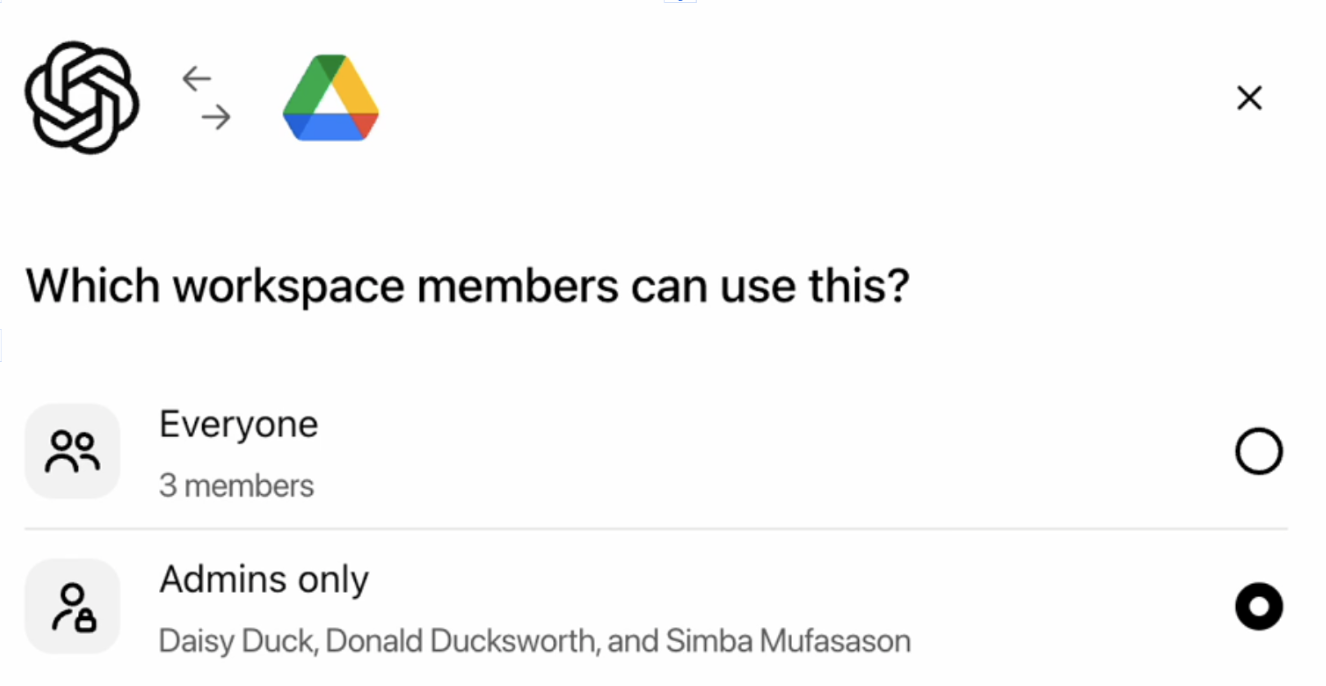
    Google Drive connector permission set to Admins only for workspace members
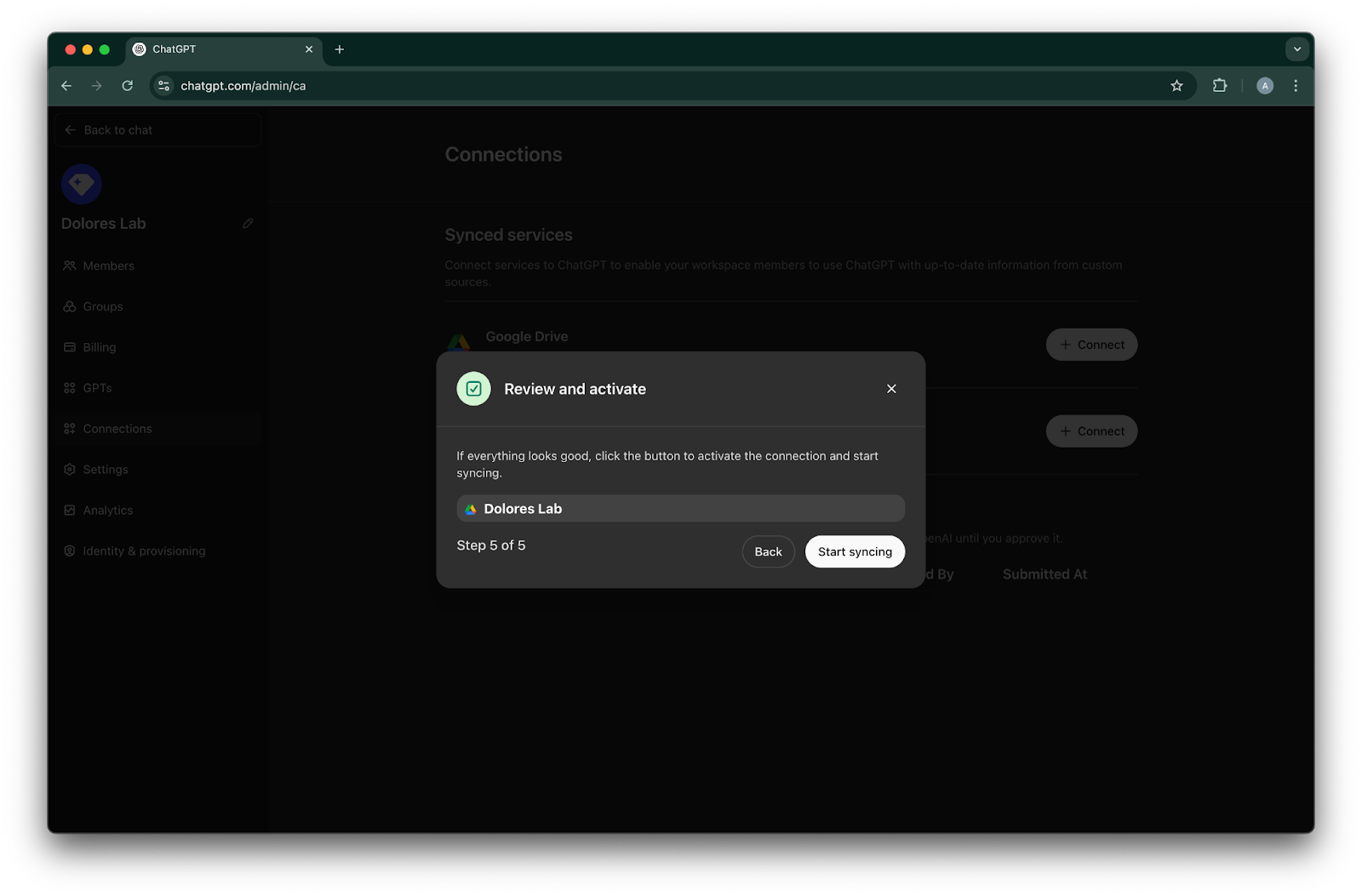
  16. 點擊 Start syncing

    Image
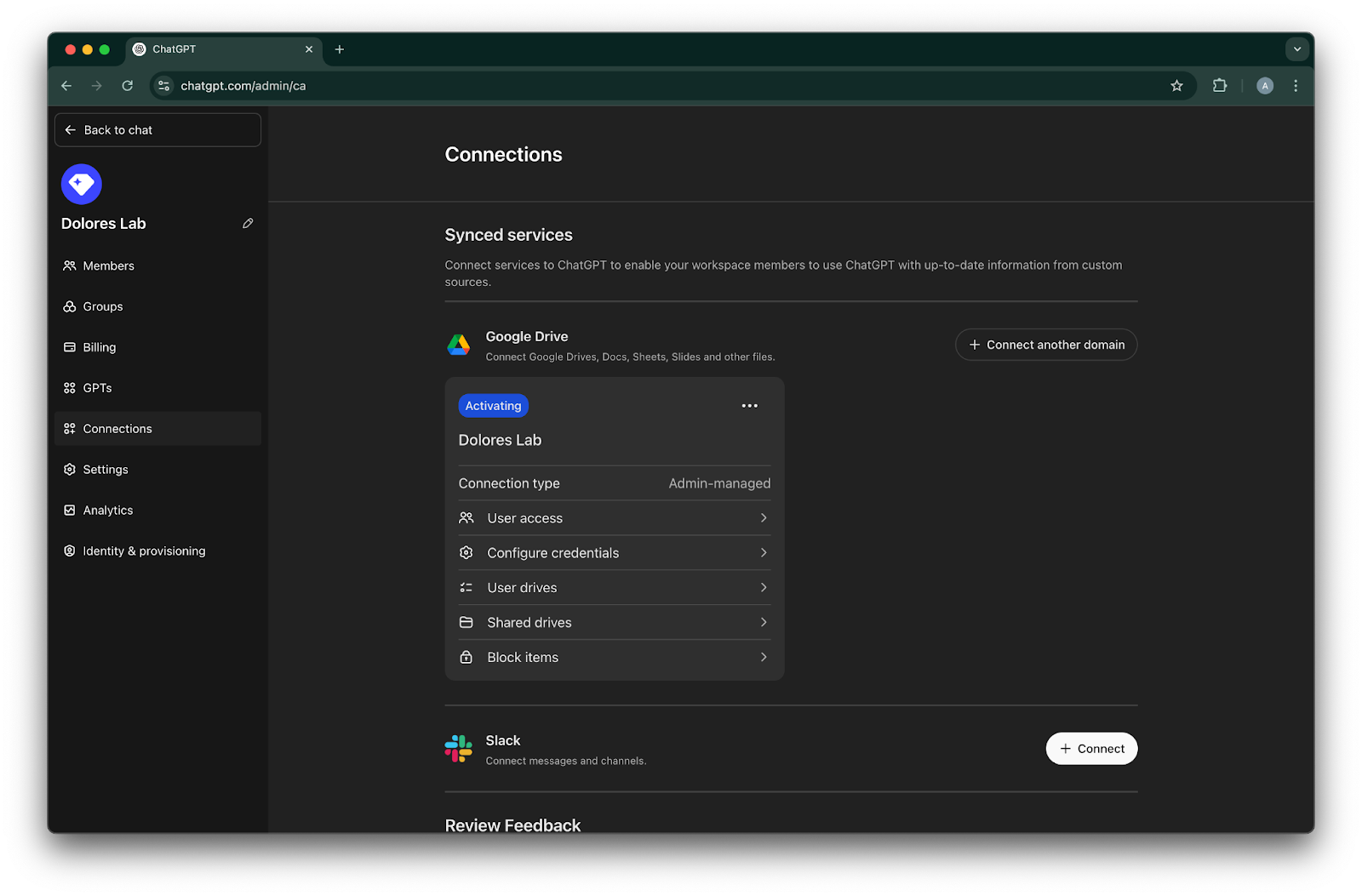
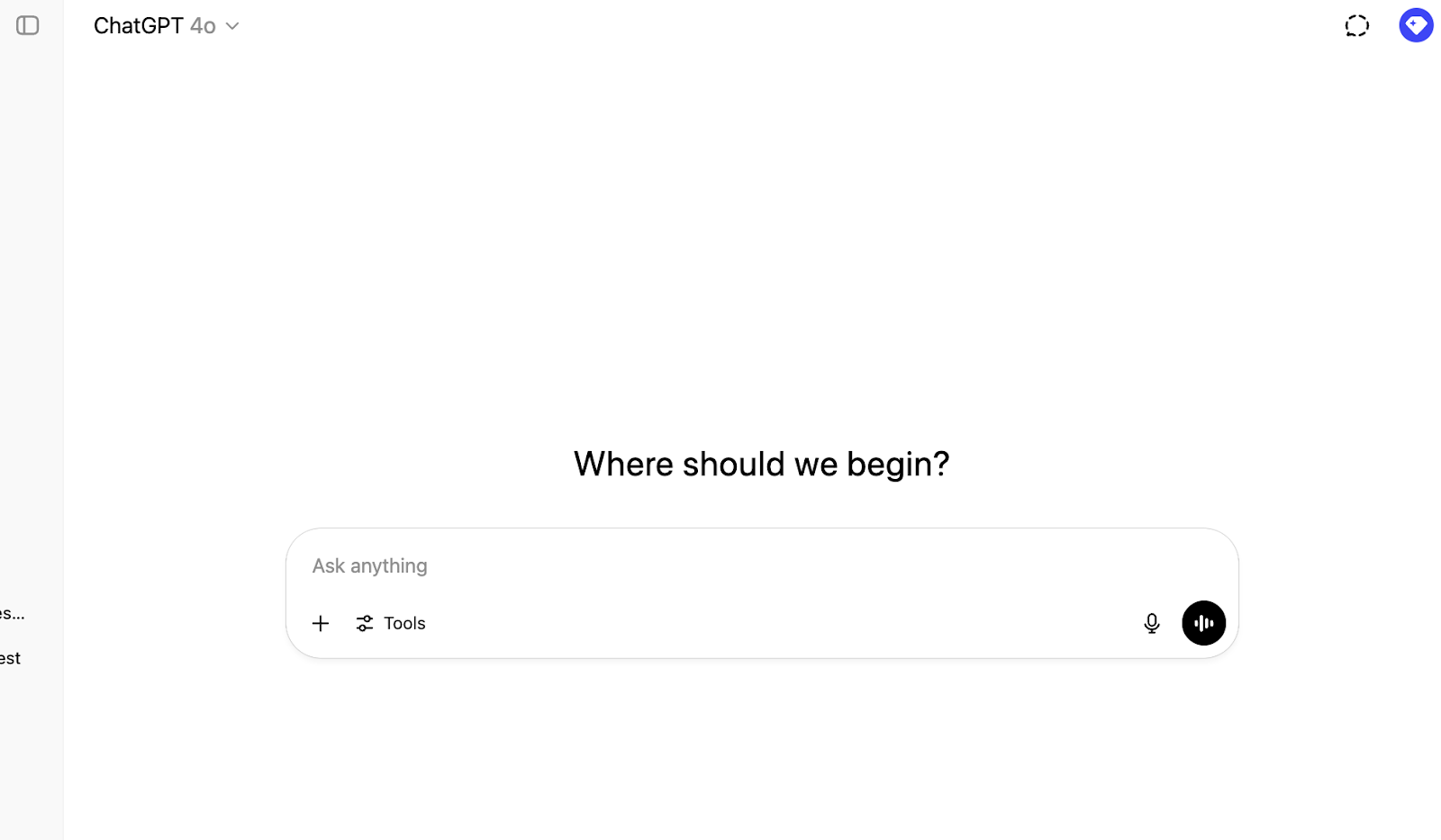
  17. 您的 Google Drive 連線現已成功建立!
    請注意,雖然同步會立即開始,但根據您設定中納入的檔案數量,完成可能需要數小時到數天。
    當過去 30 天內新增/編輯的檔案完成同步後,該連接器就會提供給您已啟用的使用者使用。
    Image

啟用服務帳戶金鑰建立功能

如果您收到以下錯誤,則需要為此特定專案啟用服務帳戶建立功能:

> 組織政策限制「iam.disableServiceAccountKeyCreation」已在您的組織上強制執行。
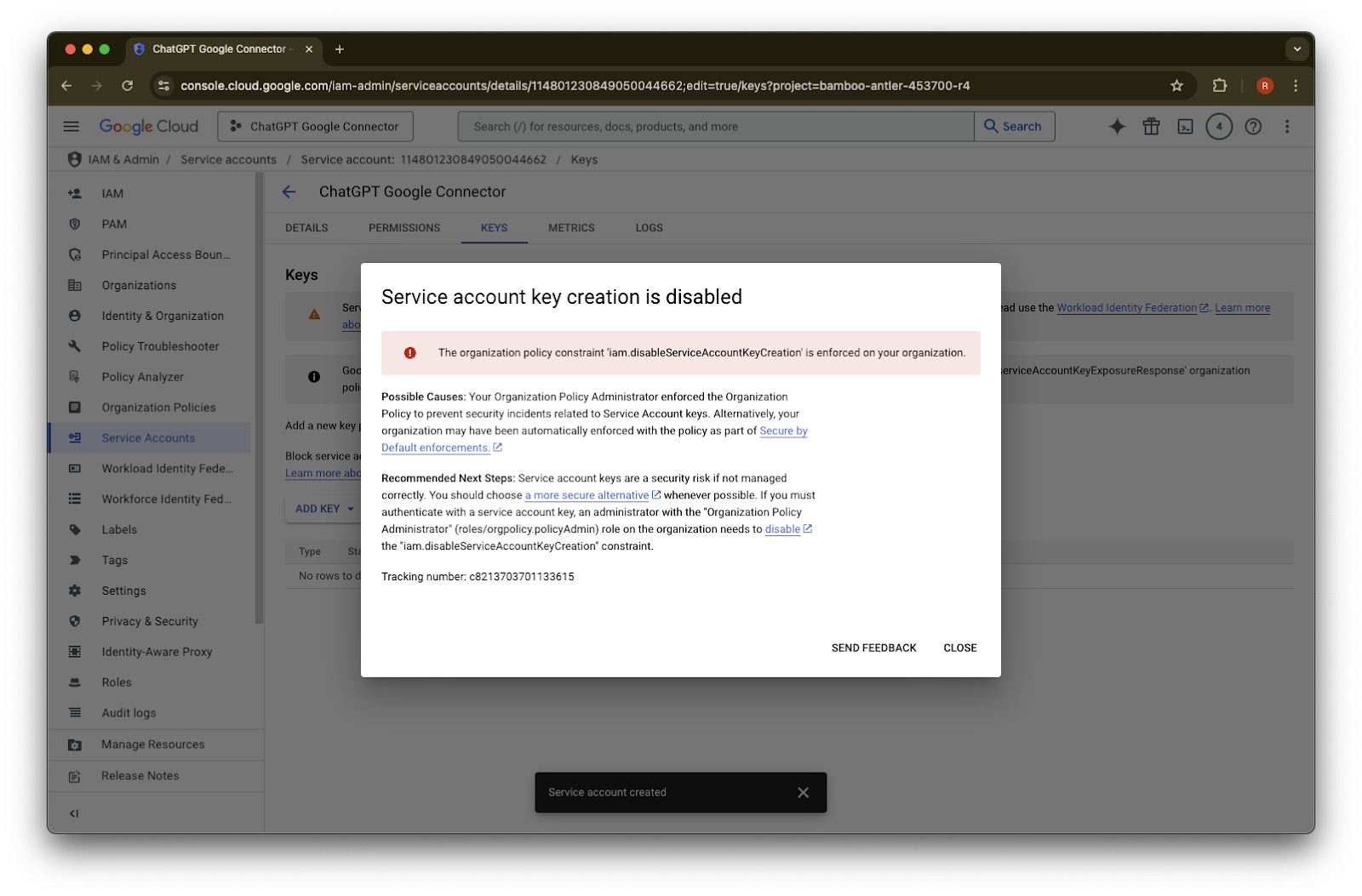
Google Cloud service account Keys tab with error that service account key creation is disabled
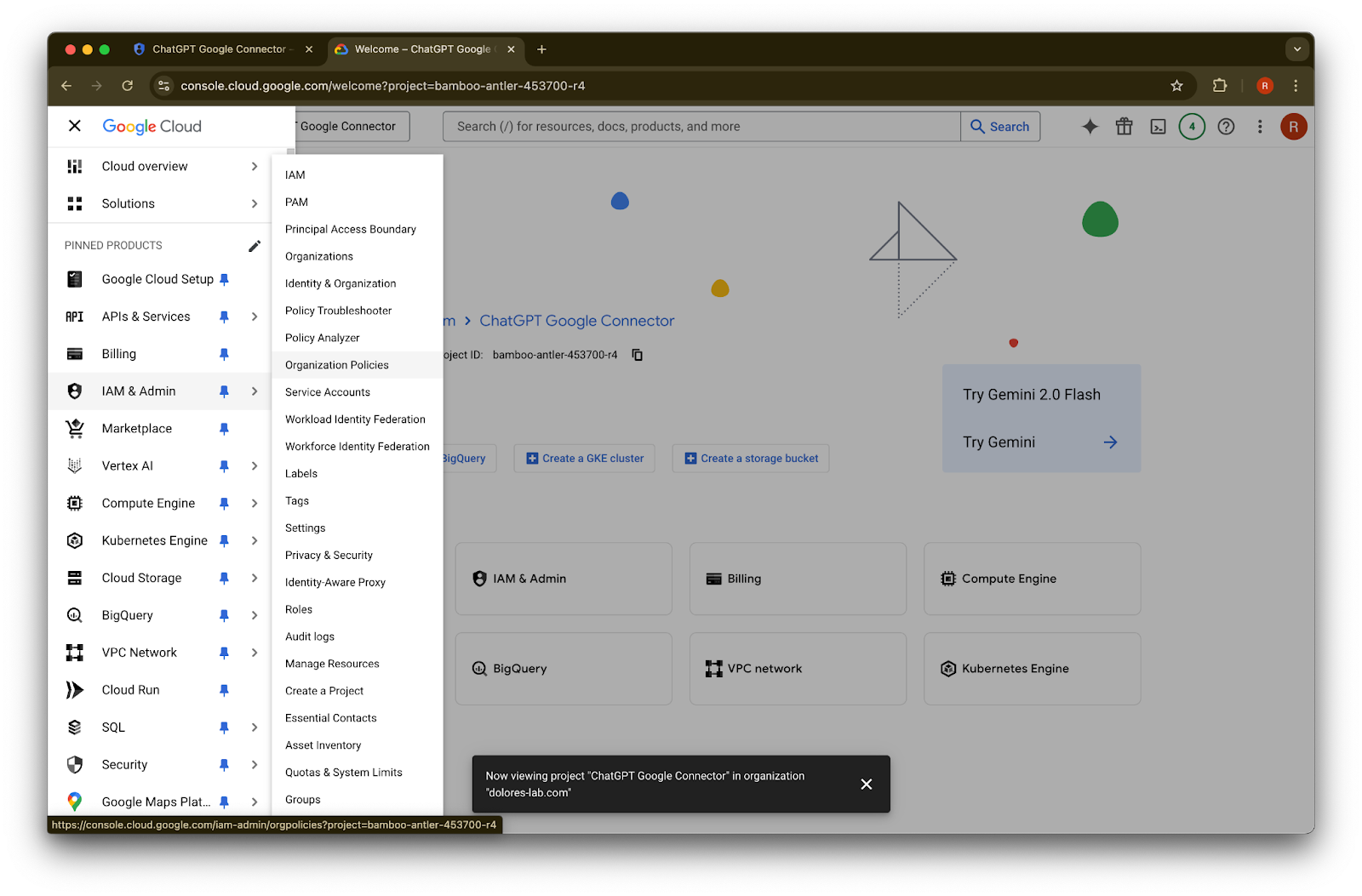
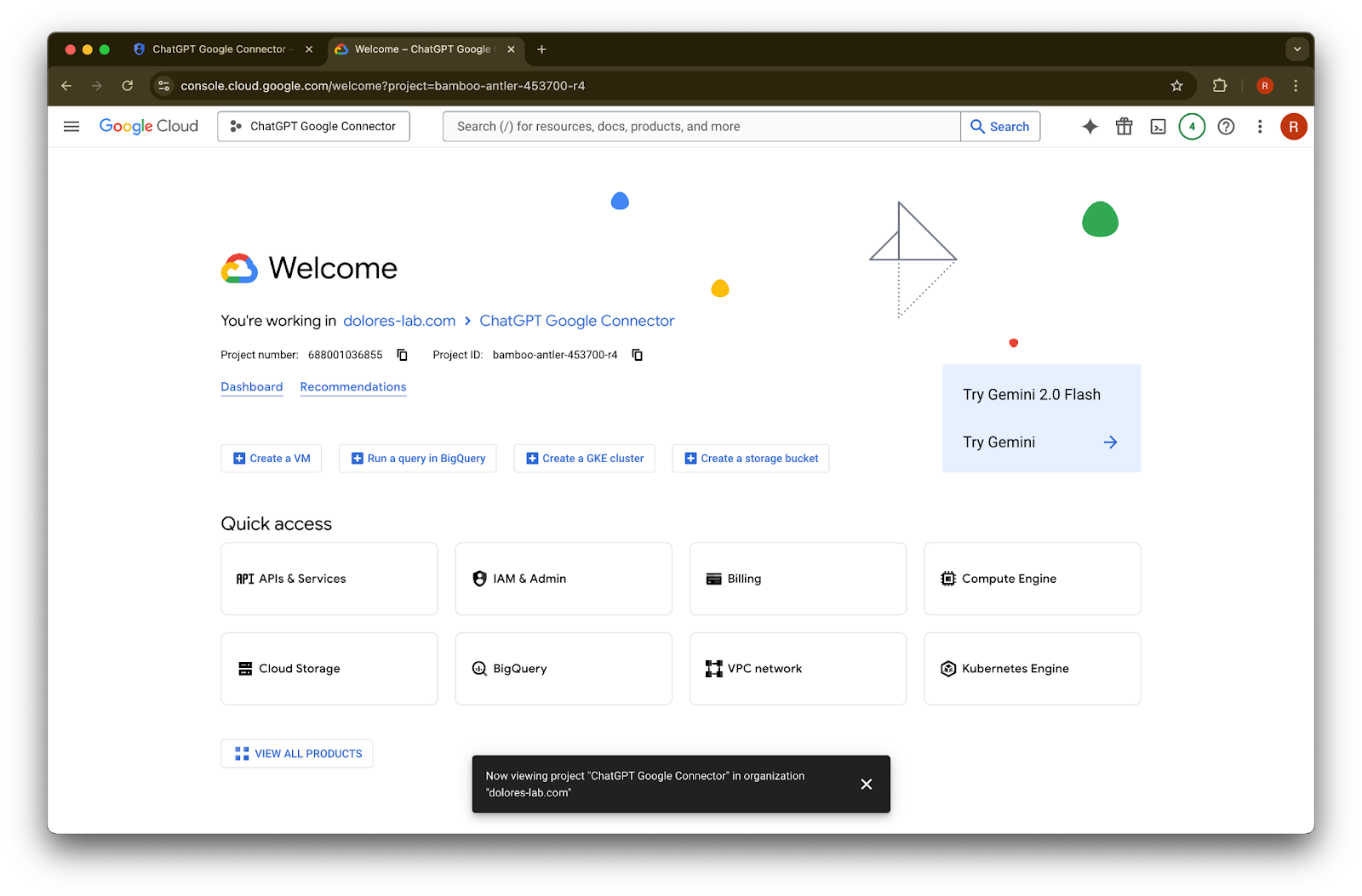
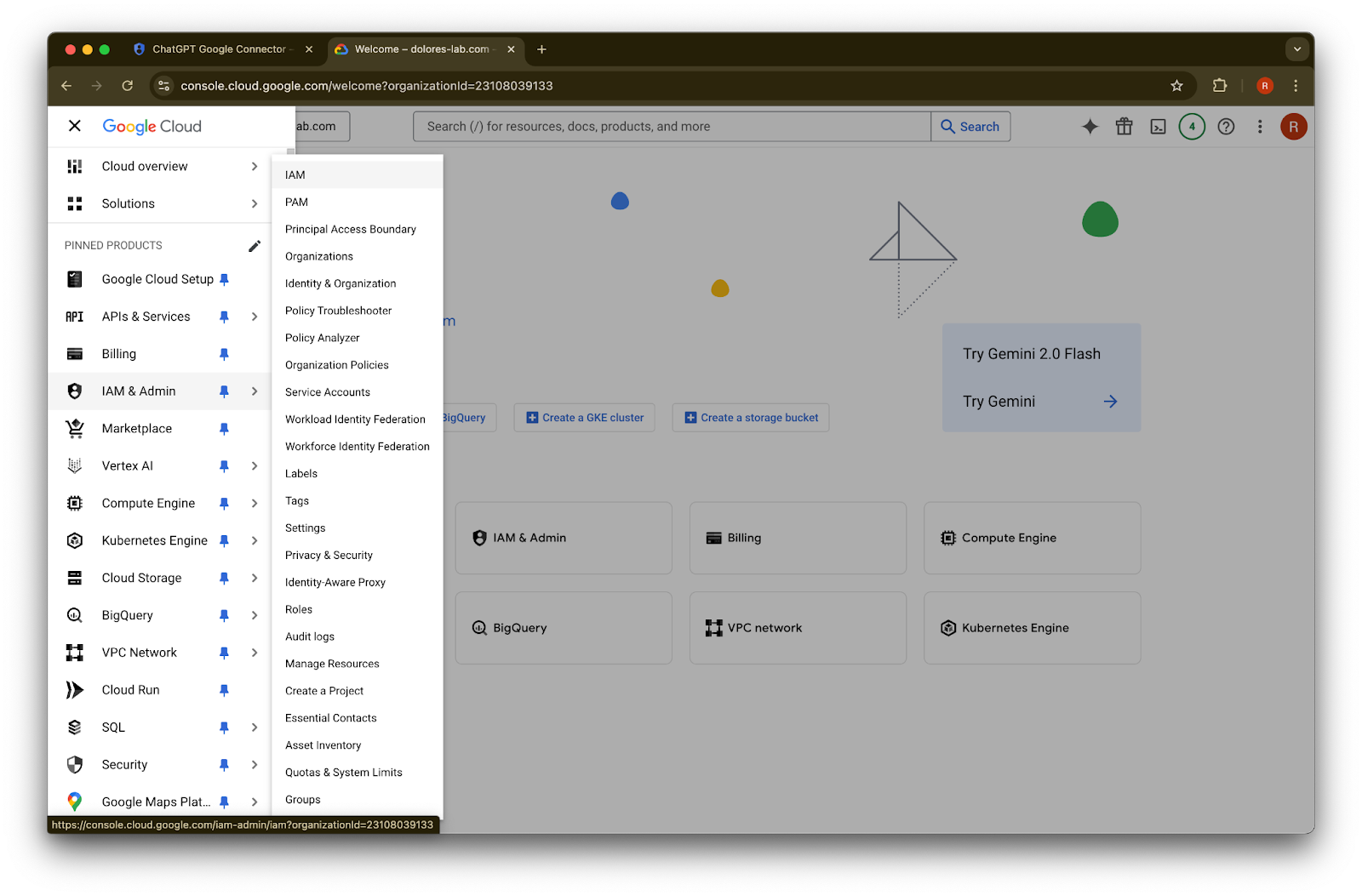
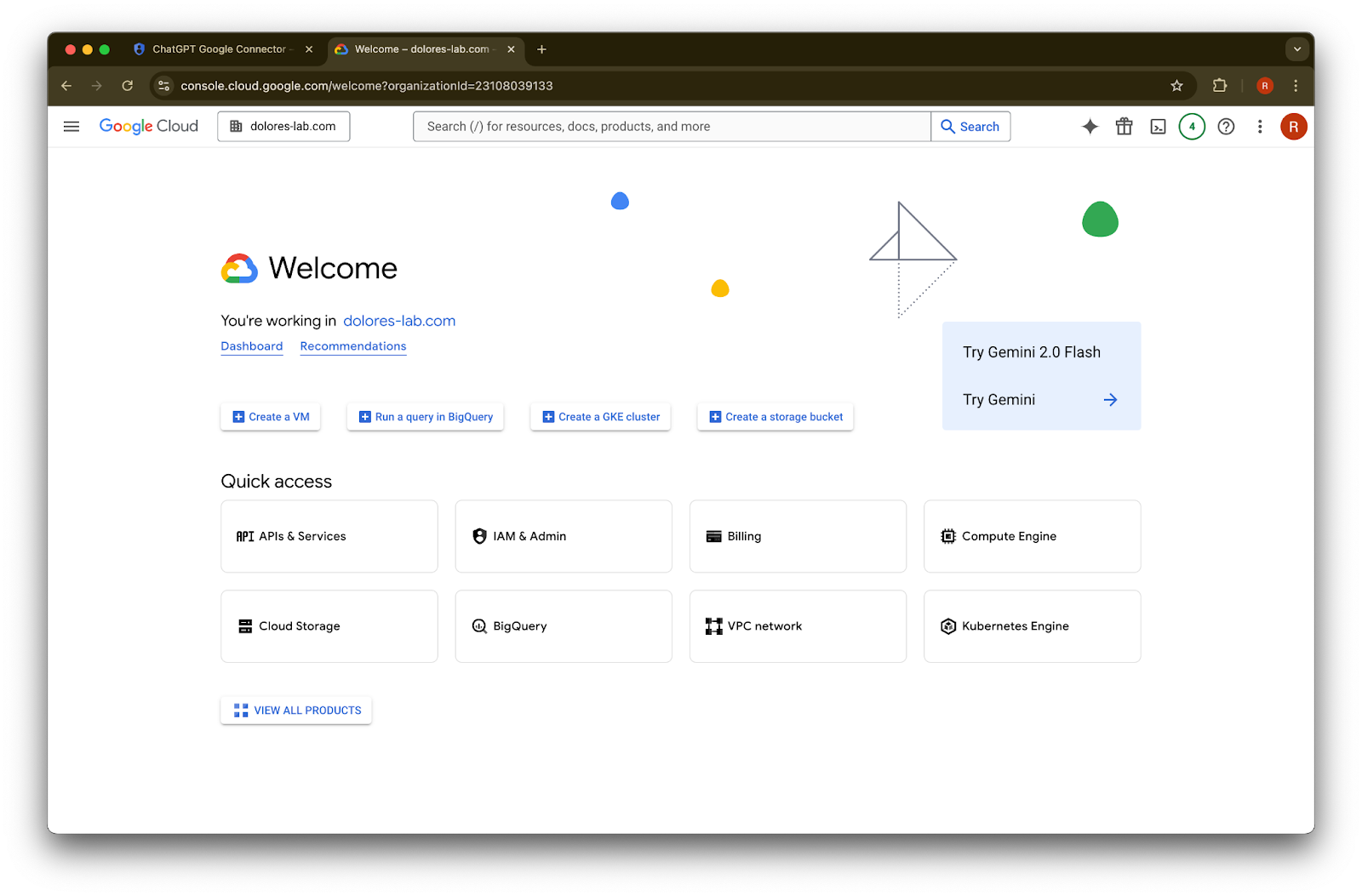
  1. 開啟新分頁並前往 console.cloud.google.com。請確認已選取的專案就是您先前選擇的那個專案。
    點擊左上角的選單圖示

    Google Cloud Console welcome page for the ChatGPT Google Connector project
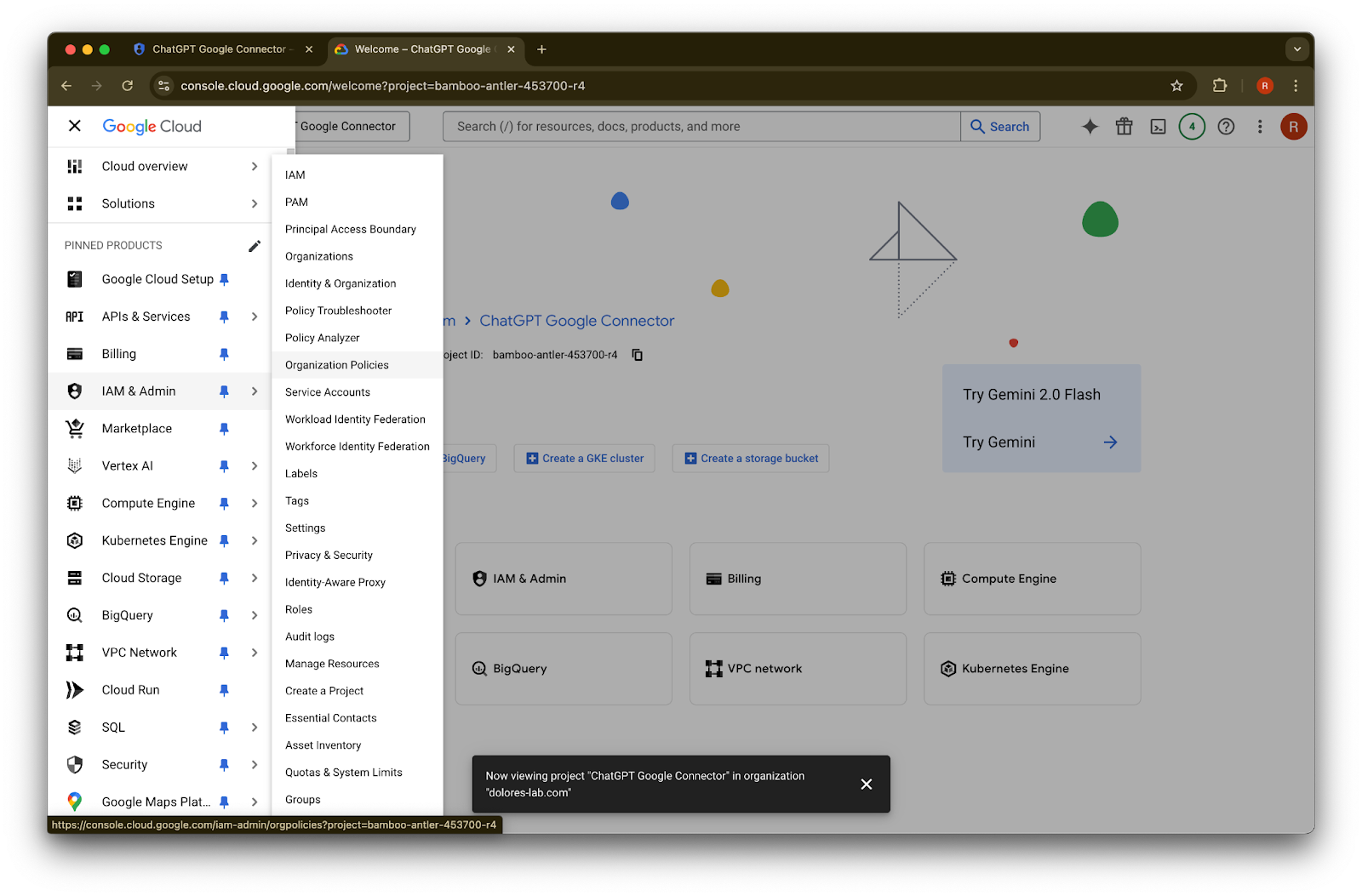
  2. 將游標移到 IAM & Admin

    Google Cloud Console navigation with IAM & Admin open and Organization Policies selected
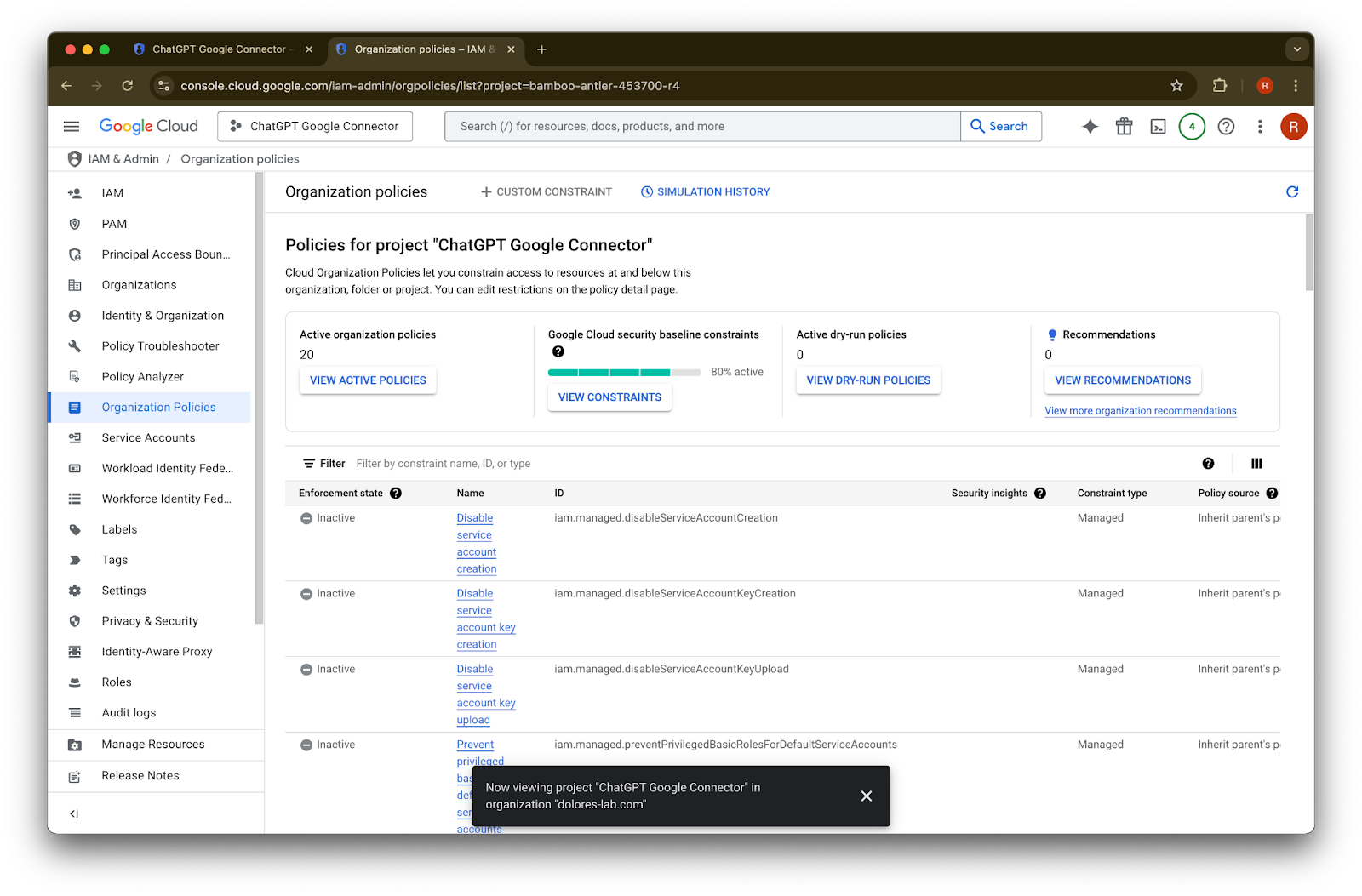
  3. 點擊 Organizational Policies

    Google Cloud Console IAM & Admin menu opened to Organization Policies
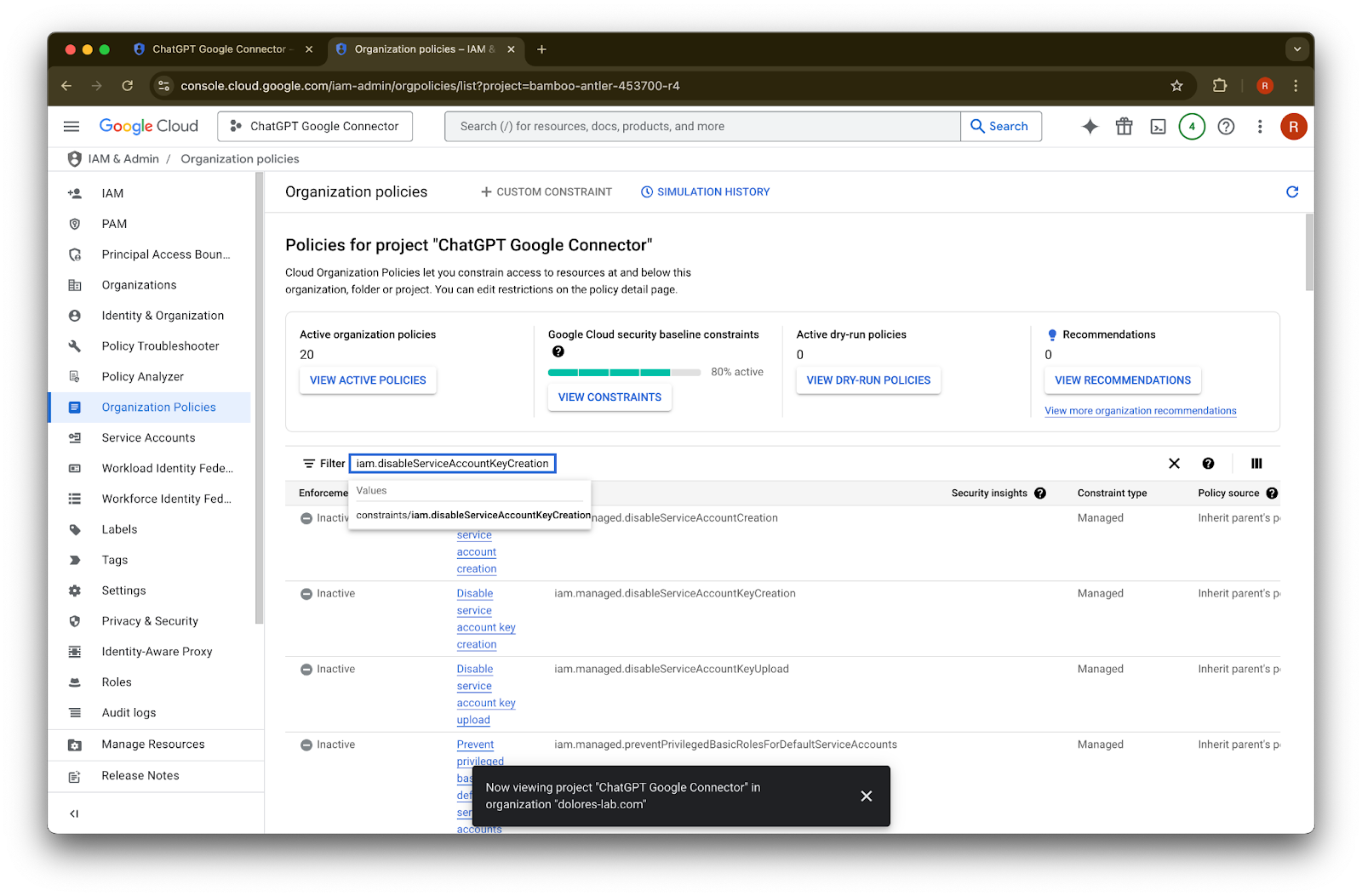
  4. 搜尋 iam.disableServiceAccountKeyCreation

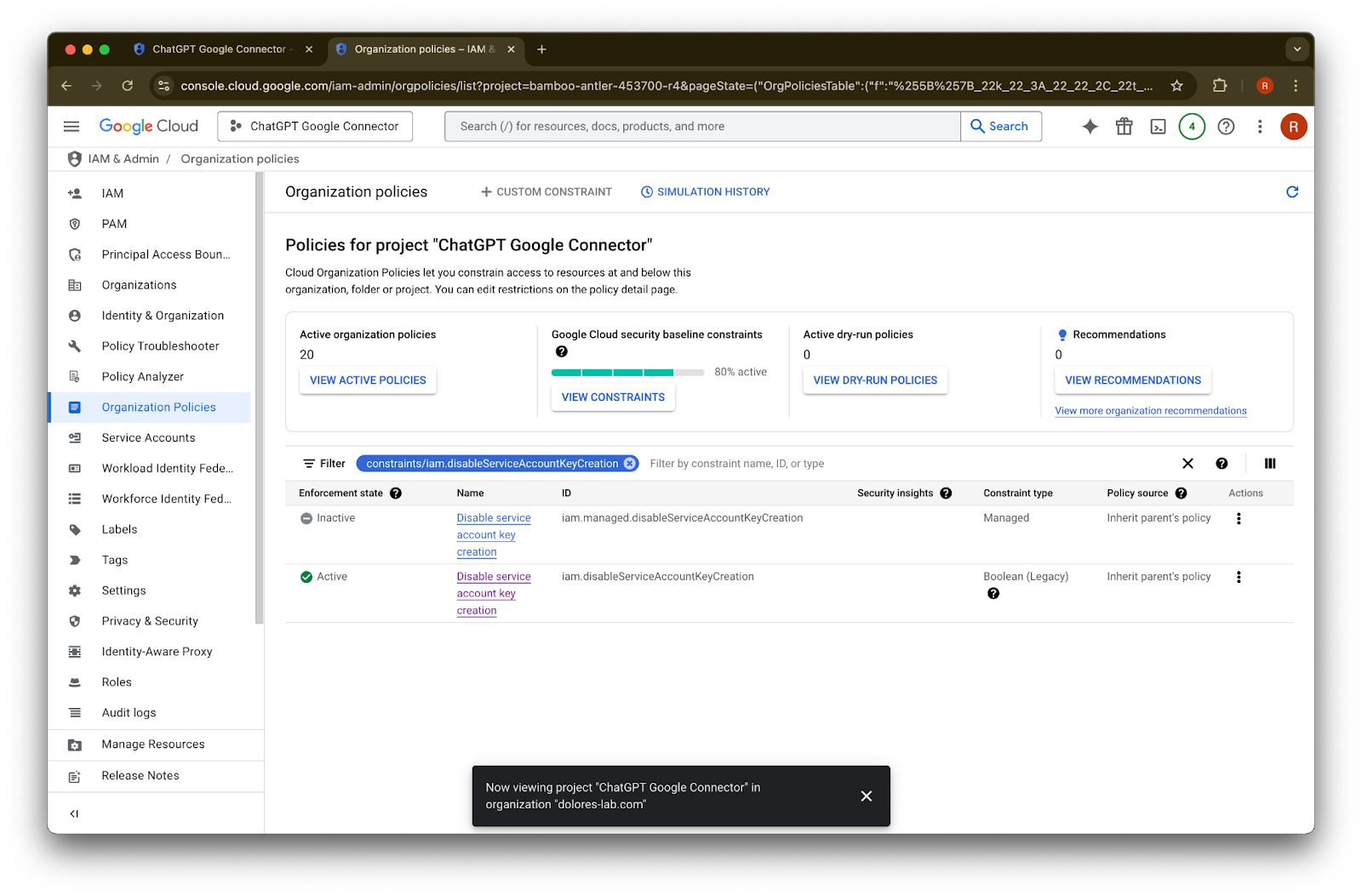
    Google Cloud organization policies for the ChatGPT Google Connector project
  5. 點擊結果中的 constraints/iam.disableServiceAccountKeyCreation

    Image
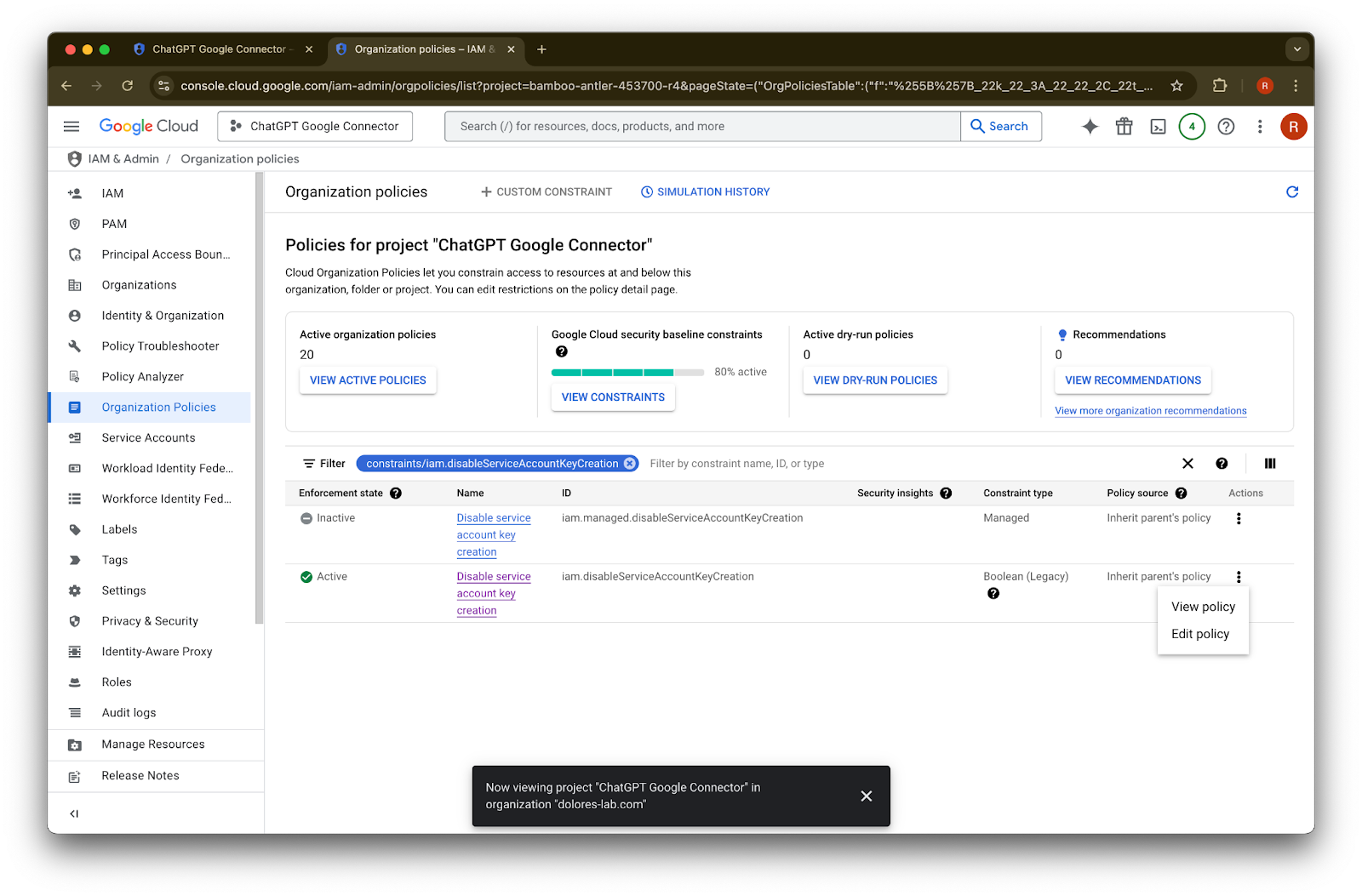
  6. 在 ID 為 iam.disableServiceAccountKeyCreation 的那一列點擊 …

    Organization policies filtered to Disable service account key creation for the ChatGPT Google Connector project
  7. 點擊 Edit policy。如果 Edit policy 已停用,您將需要成為 Organization Policy Administrator。

    Google Cloud Organization Policies filtered to Disable service account key creation with Edit policy menu open
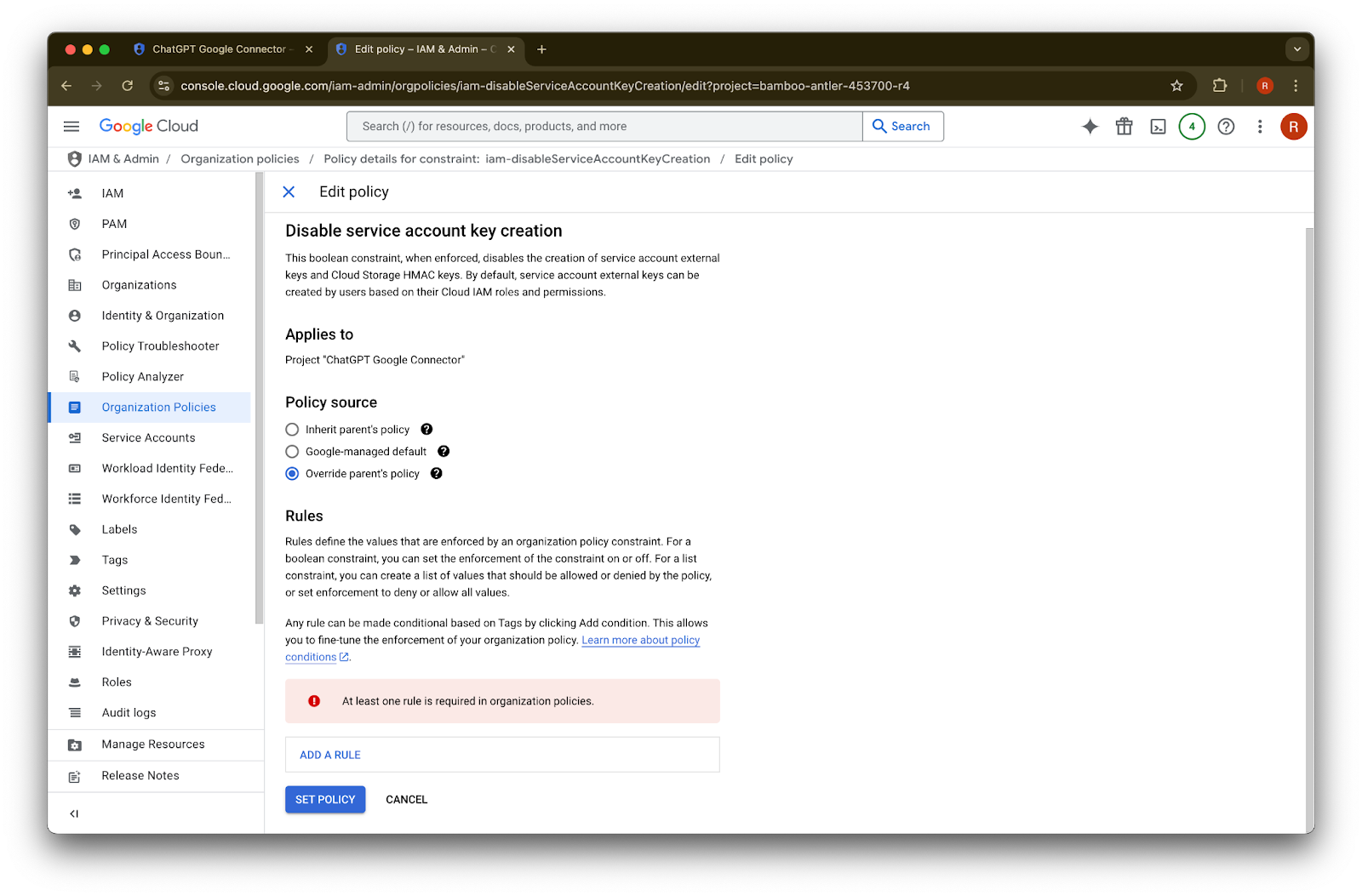
  8. 點擊 Override parent’s policy

    Image
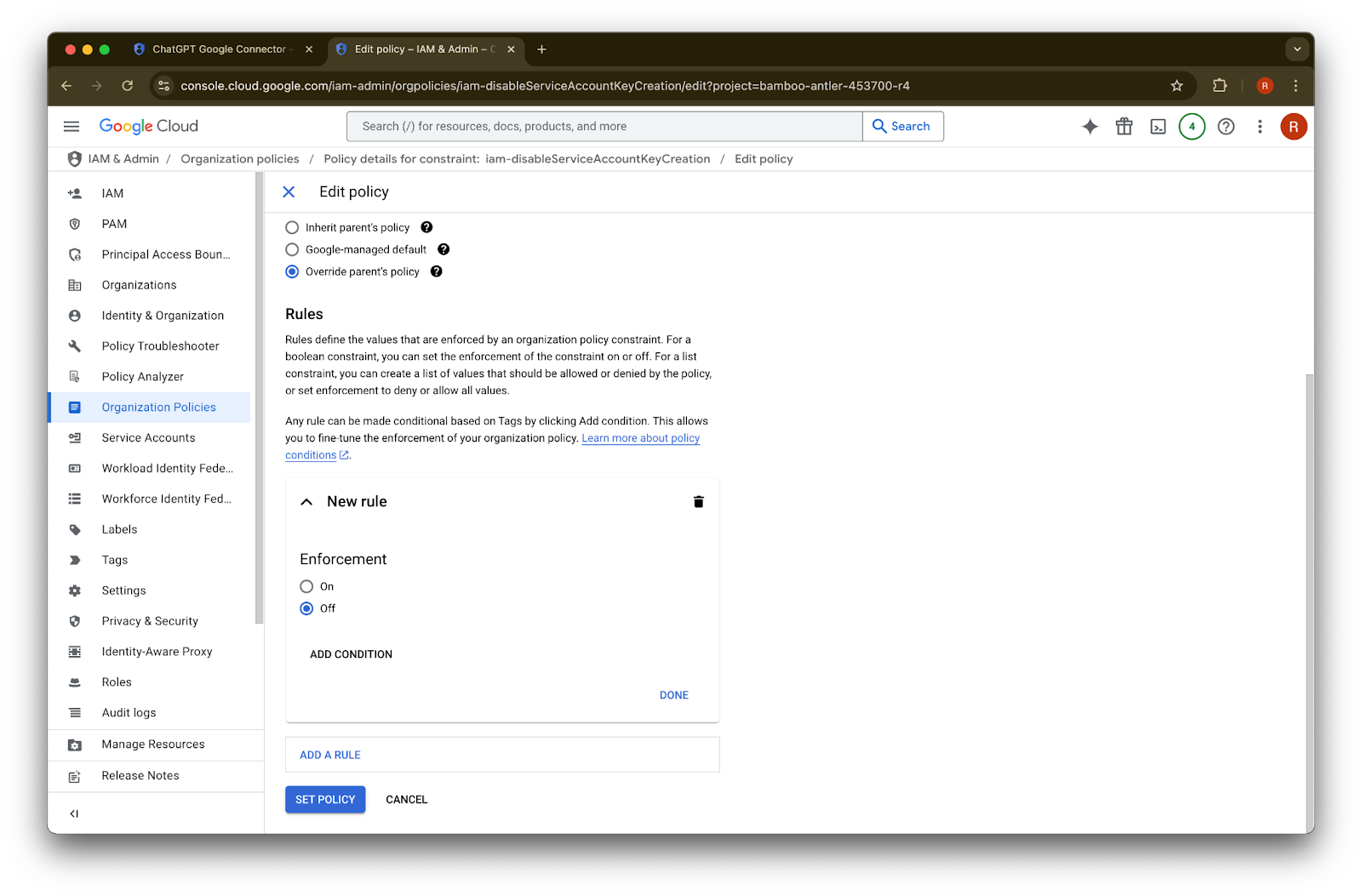
  9. 點擊 Add a rule

    Edit policy page for Disable service account key creation with Override parent's policy selected
  10. 點擊 Set Policy

    Google Cloud Edit policy page with Override parent's policy selected and enforcement set to Off
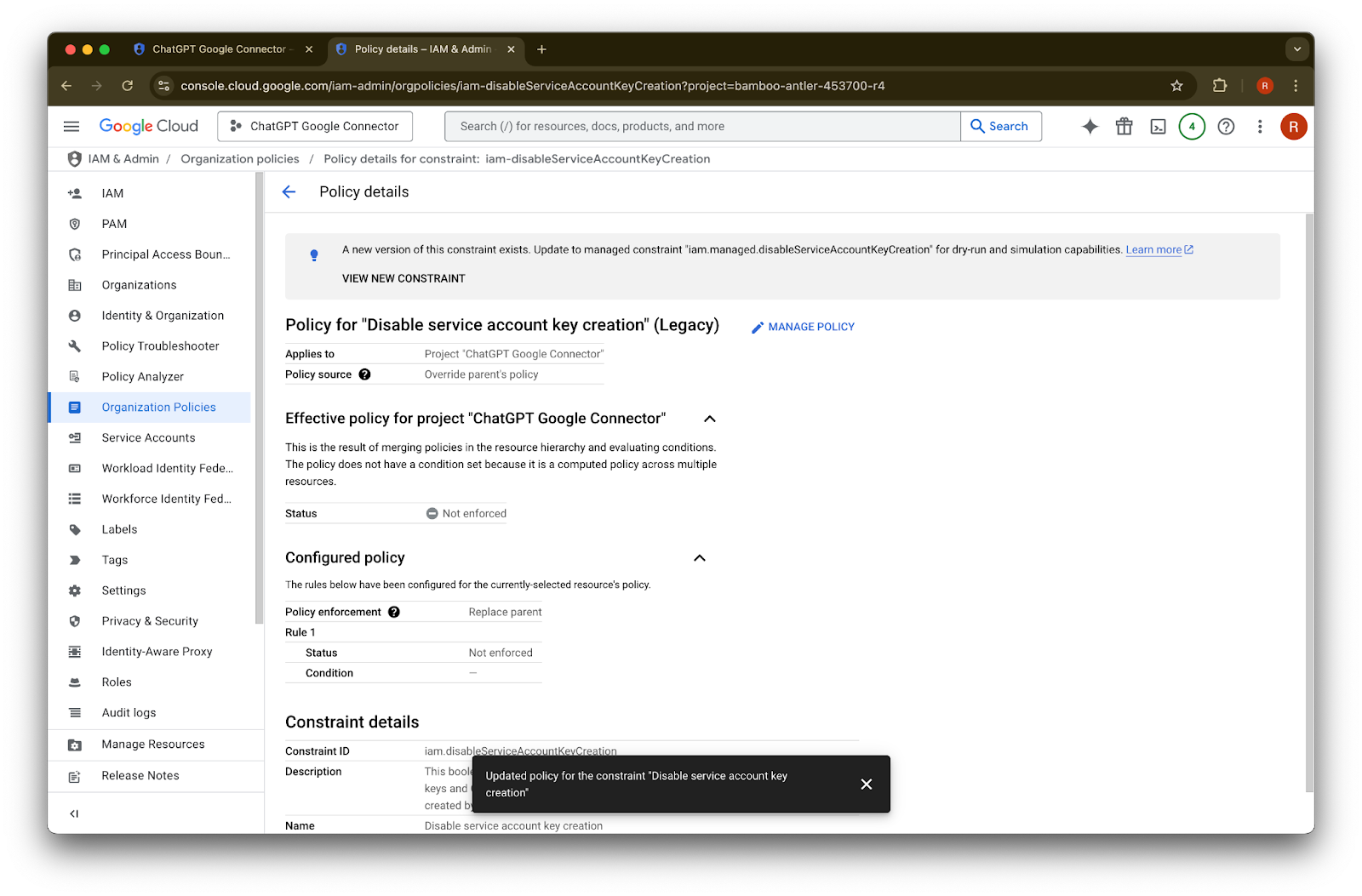
  11. 您現在可以建立服務帳戶金鑰。此啟用設定可能需要數分鐘才會生效。
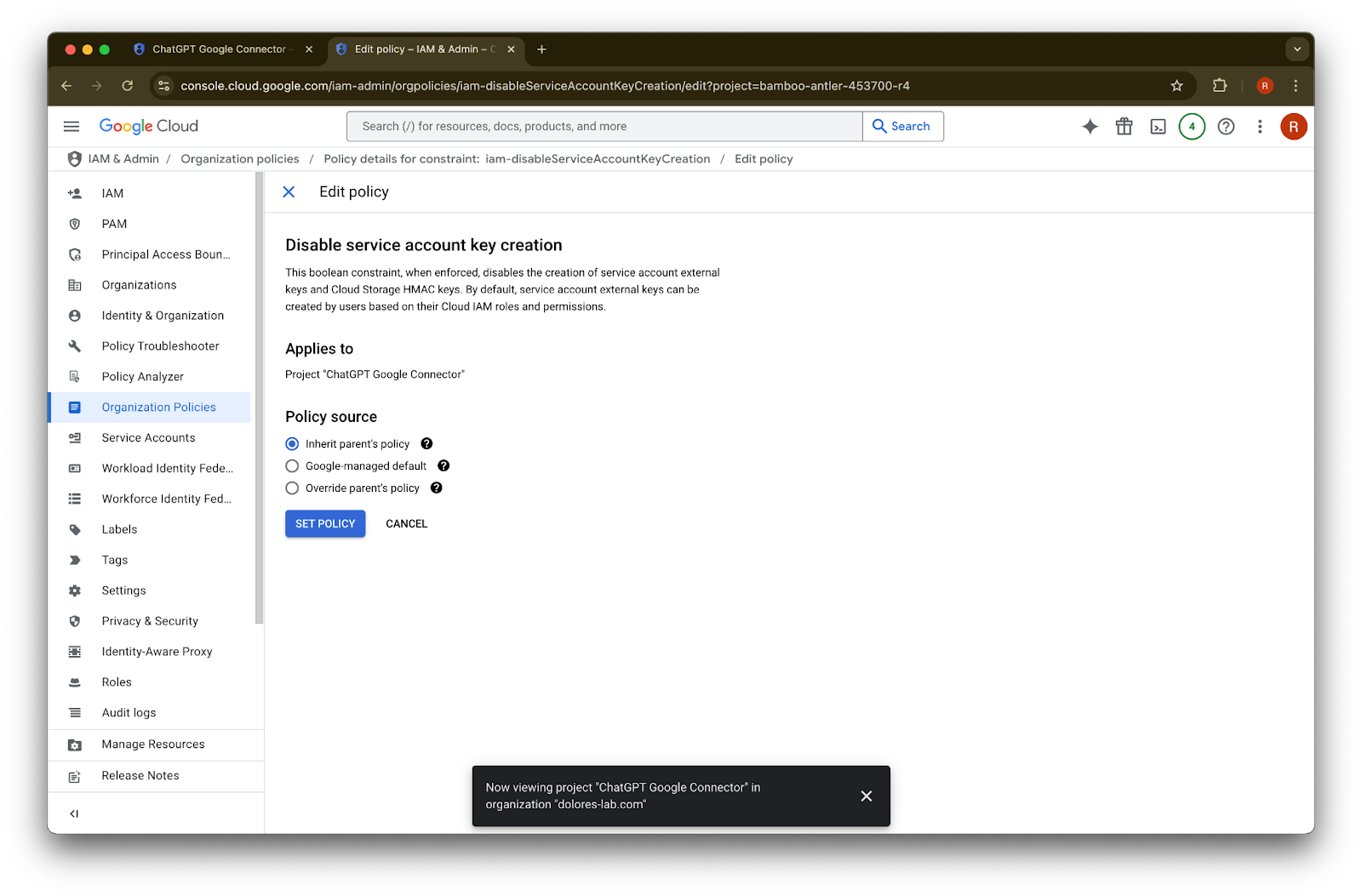
Google Cloud policy details with Disable service account key creation set to Not enforced

成為 Organization Policy Administrator

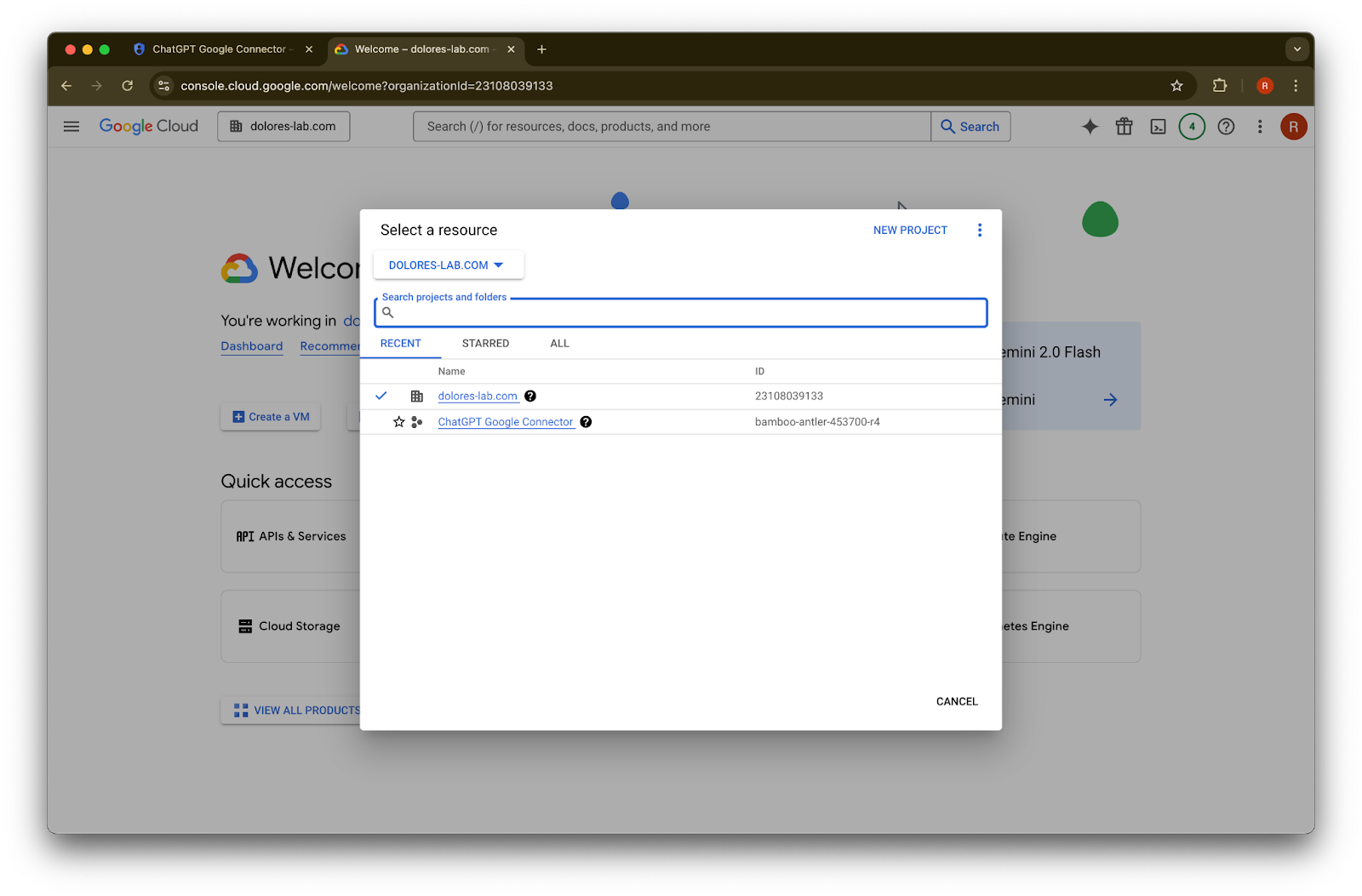
  1. 前往 console.cloud.google.com,然後點擊專案/組織選擇器

    Google Cloud welcome page for the ChatGPT Google Connector project
  2. 點擊您的組織

    Image
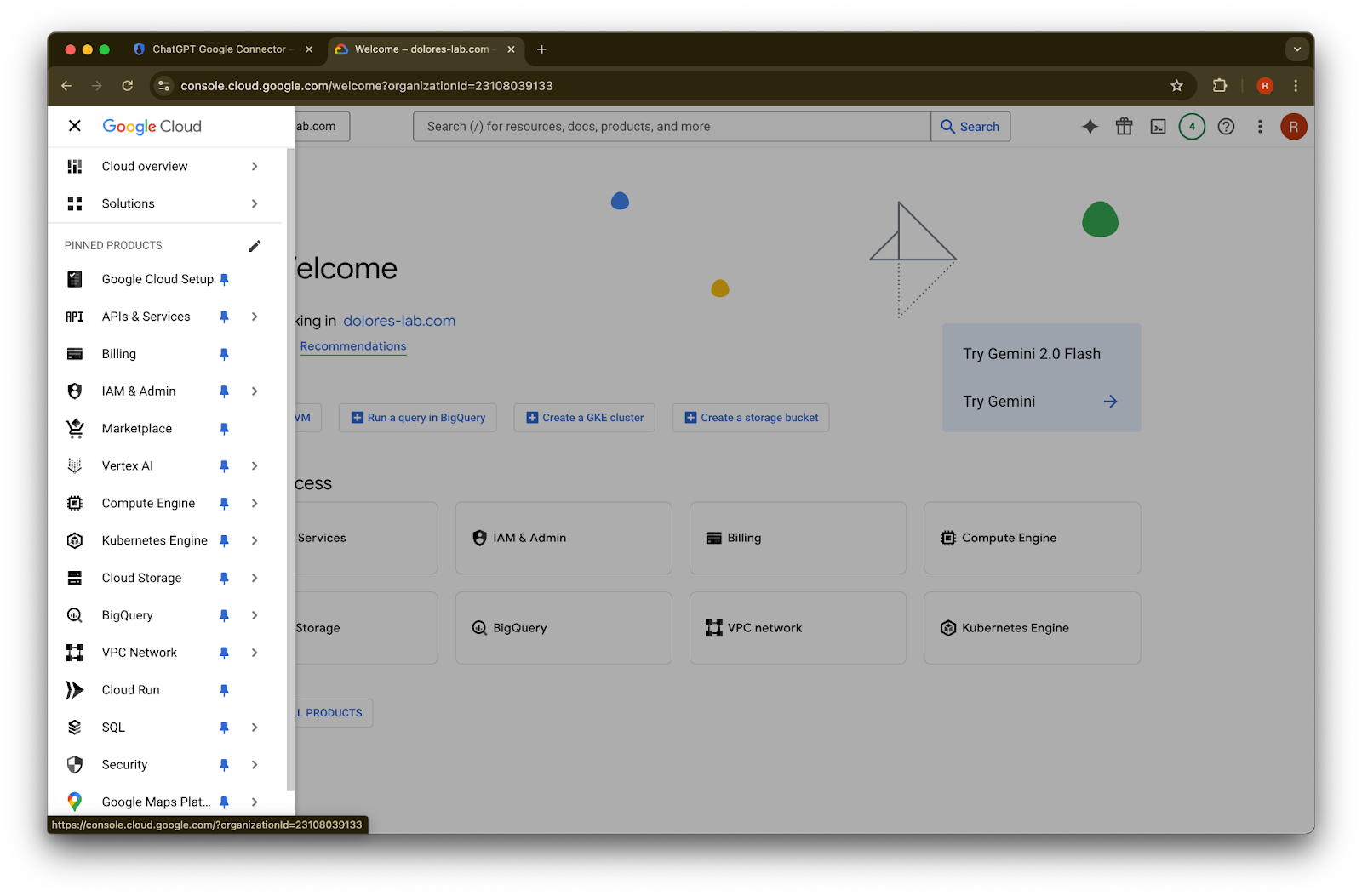
  3. 點擊左上角的選單圖示

    Image
  4. 將游標移到 IAM & Admin

    Google Cloud console navigation menu open with Google Cloud Setup pinned
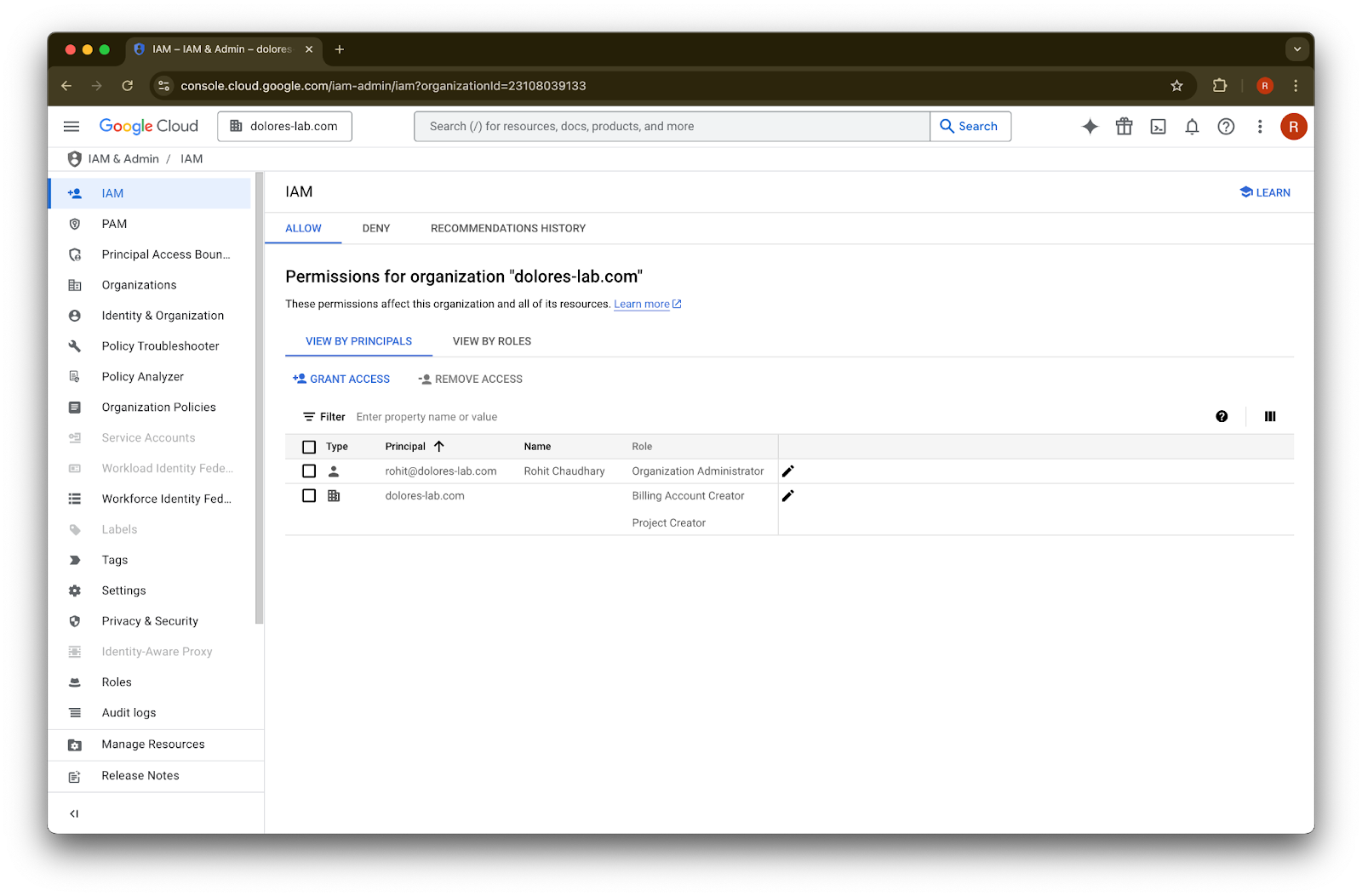
  5. 點擊 IAM

    Image
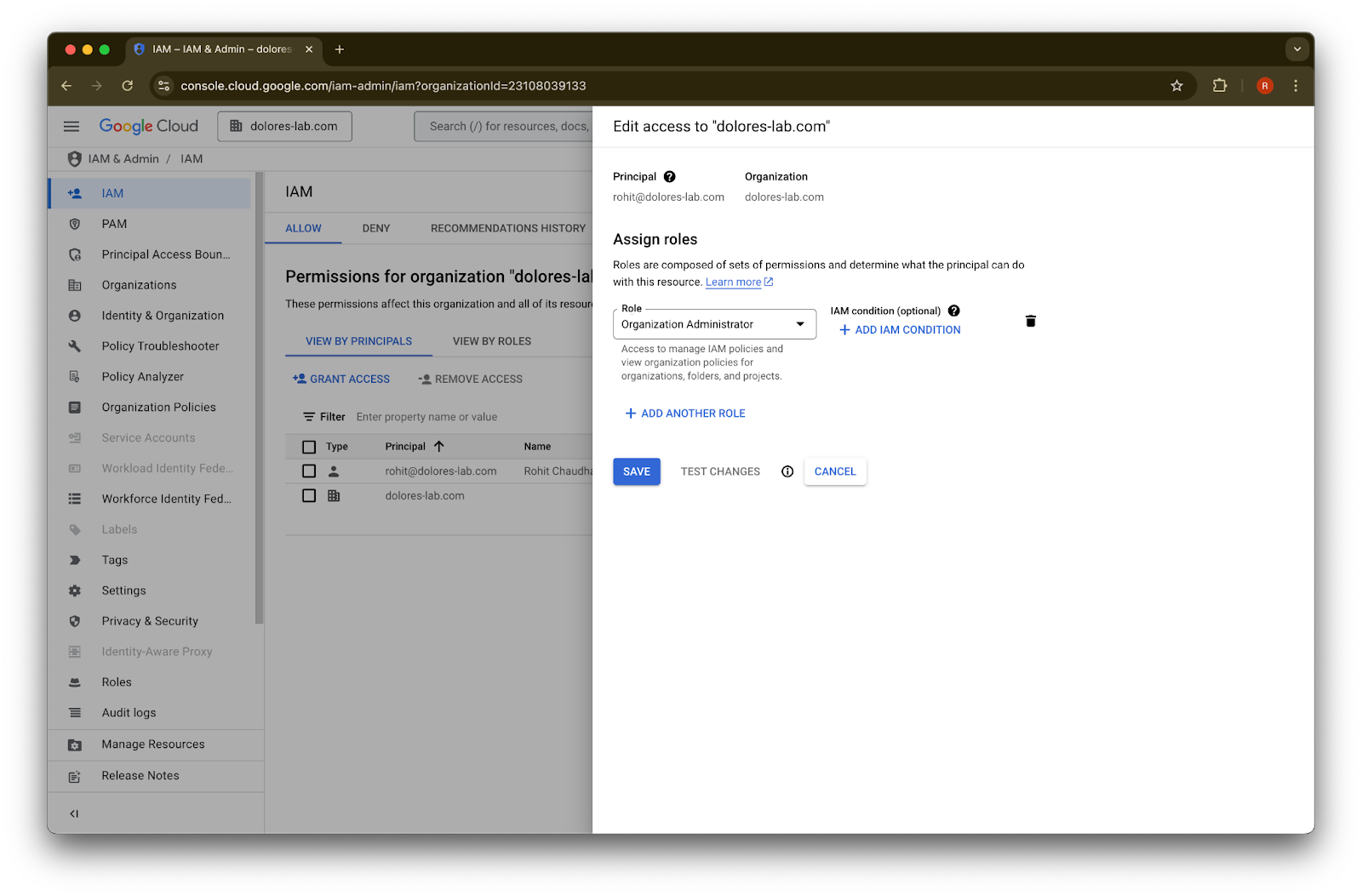
  6. 點擊您帳戶旁的鉛筆圖示

    Google Cloud IAM page for dolores-lab.com showing organization permissions and the Grant Access action
  7. 點擊 Add Another Role

    Google Cloud IAM dialog assigning the Organization Administrator role for dolores-lab.com
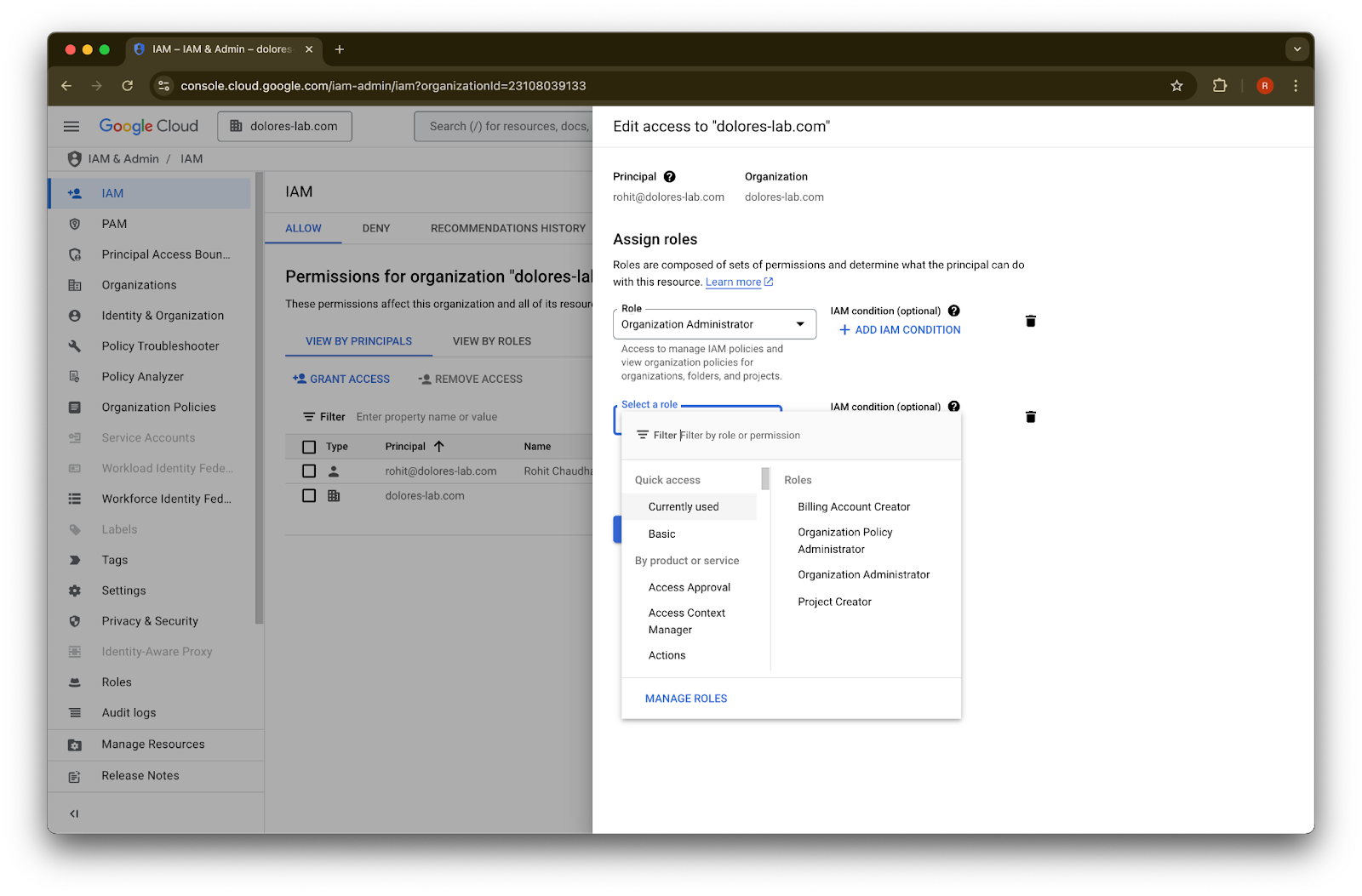
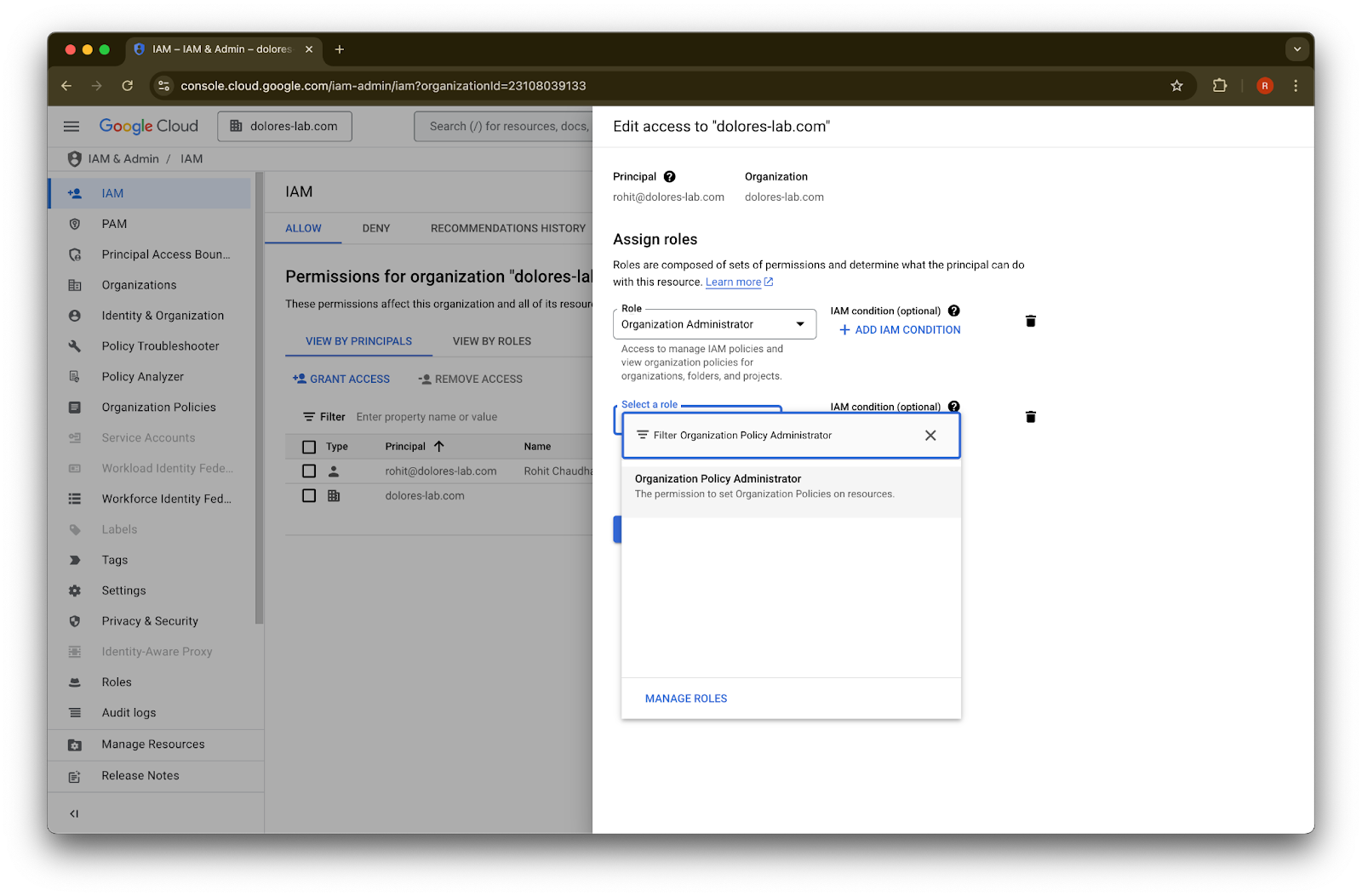
  8. 搜尋 Organization Policy Administrator

    Google Cloud IAM edit access dialog assigning the Organization Administrator role to a user
  9. 點擊 Organization Policy Administrator

    Google Cloud IAM role picker with Organization Policy Administrator selected while editing access
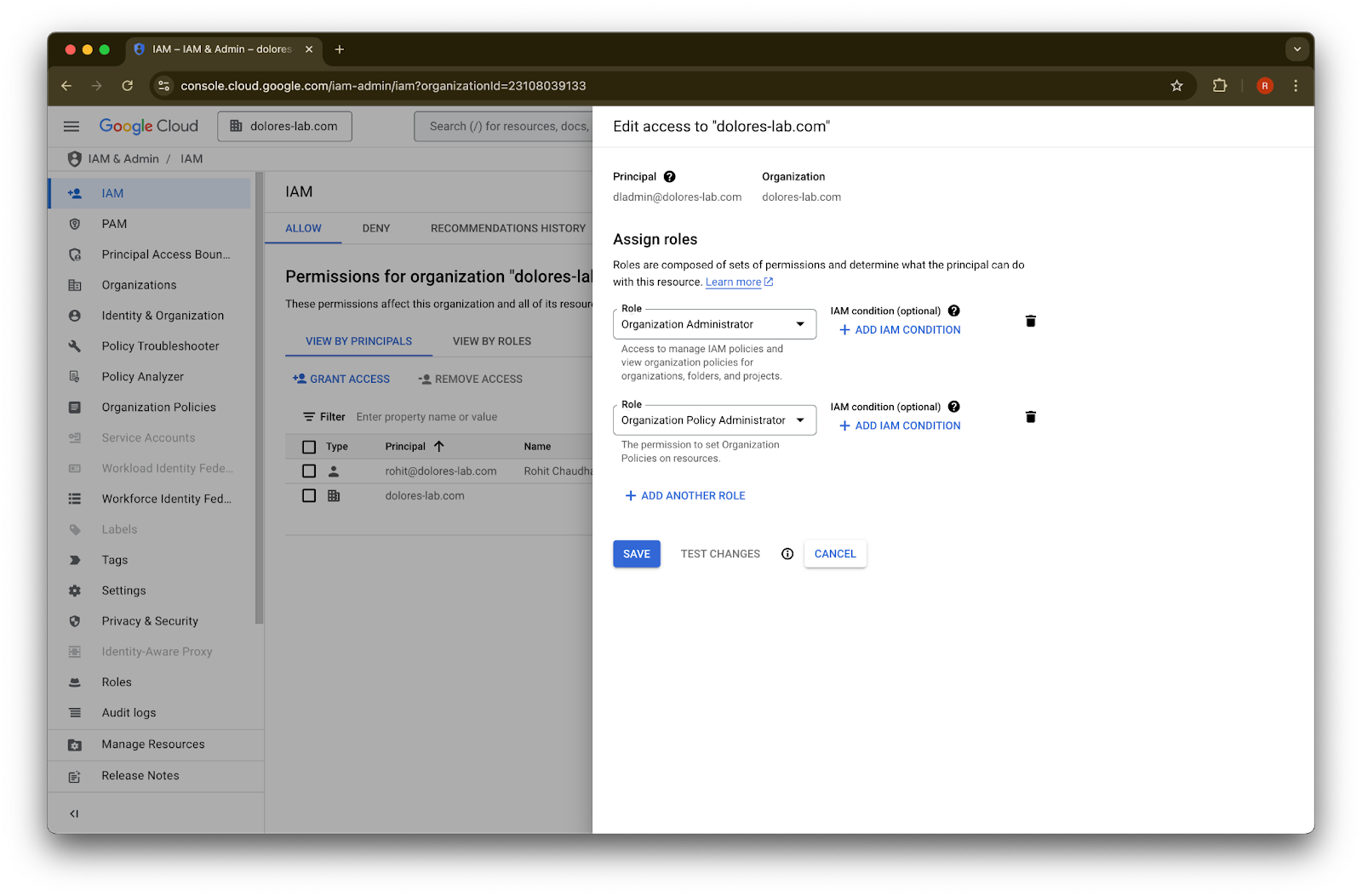
  10. 點擊 Save

    Google Cloud IAM access editor assigning Organization Administrator and Organization Policy Administrator roles
  11. 您的帳戶現在已有權限啟用服務帳戶金鑰建立功能。這可能需要數分鐘才會生效。
使用 Google 電子郵件別名,以便 Google Workspace 與 ChatGPT 維持不同的電子郵件帳戶

如果您是管理員,正在使用 Google Drive 同步連接器的管理員管理設定將 Google Workspace 連接到您的 ChatGPT 工作區,而您的組織對 ChatGPT 與 Google Workspace 使用不同的電子郵件網域,則您需要採取額外步驟,以確保使用者能順利存取 Google Drive 同步連接器。

建議:盡可能為 Google Workspace 和 ChatGPT 帳戶使用相同的主要電子郵件地址。

如果這不可行,請依照下列說明設定與 ChatGPT 登入電子郵件相符的 Google Workspace 電子郵件別名。

新增 Google Workspace 別名的步驟

請在 Google 管理主控台中依照以下步驟操作,以確保每位使用者的 ChatGPT 電子郵件都能連結至其 Google Workspace 帳戶:

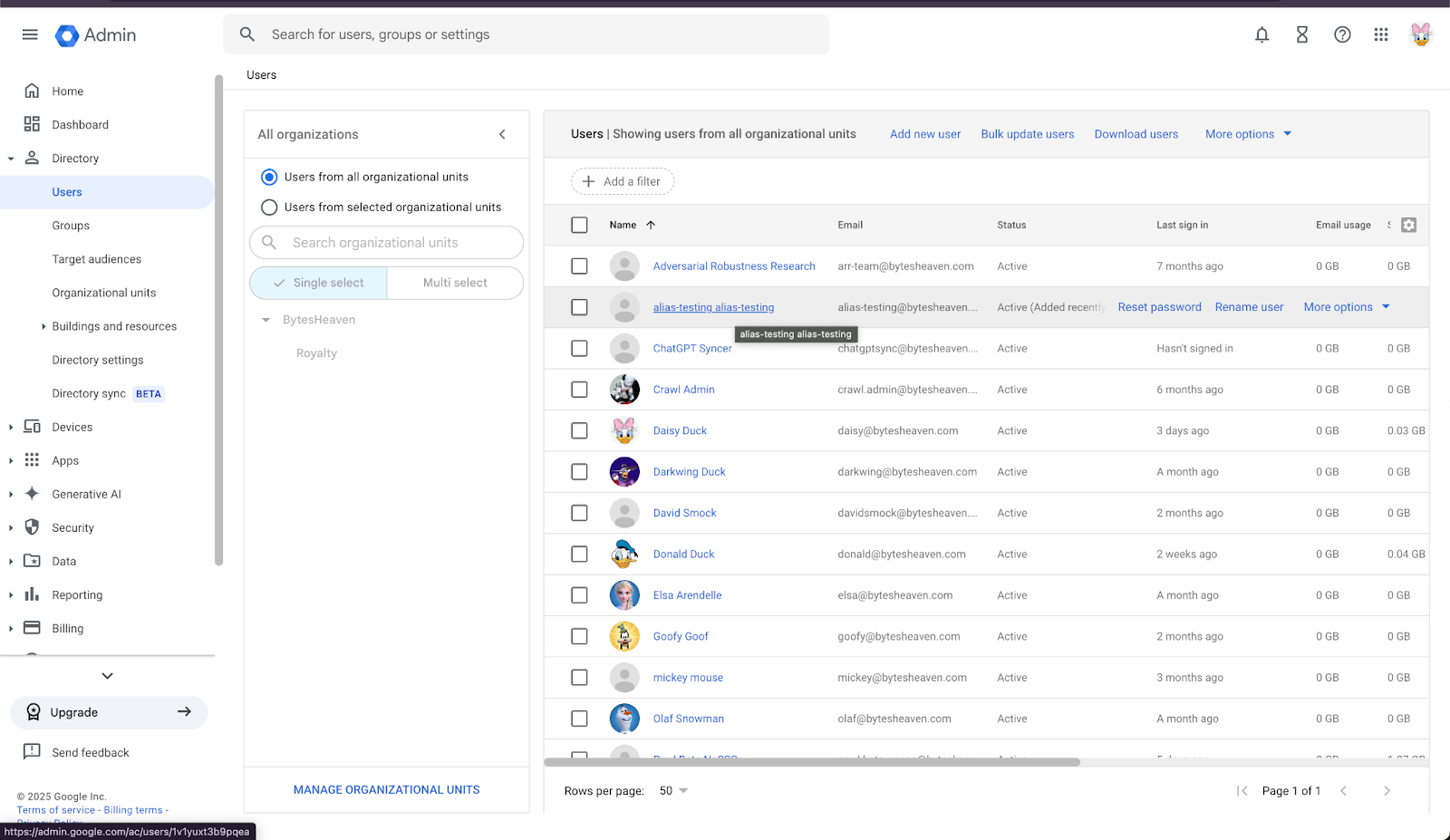
  1. 前往管理主控台。導覽至:Directory > Users

Image

2. 選取一位使用者,然後點擊「ADD ALTERNATIVE EMAILS」。
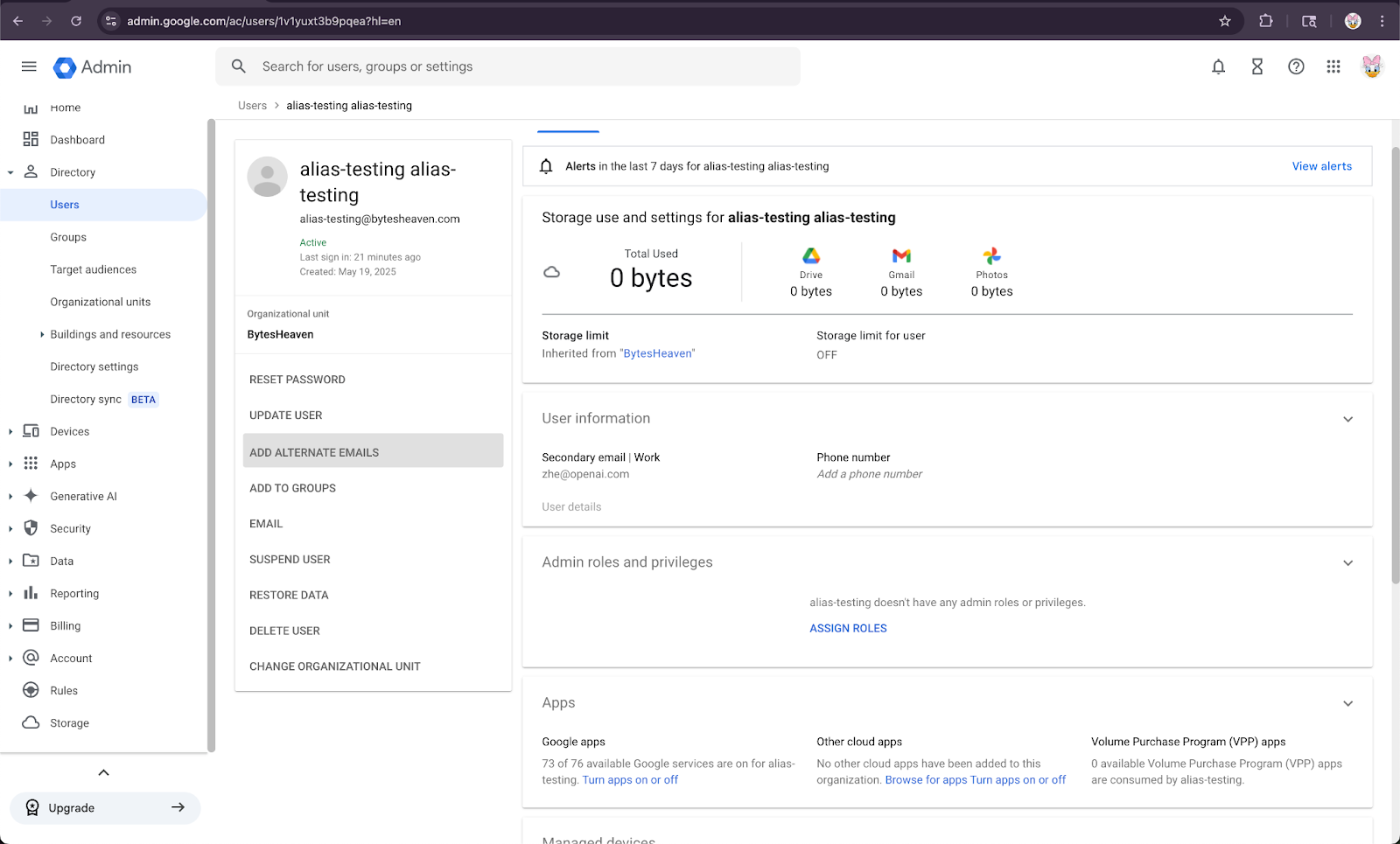
Google Admin user details page with Add alternate emails action highlighted

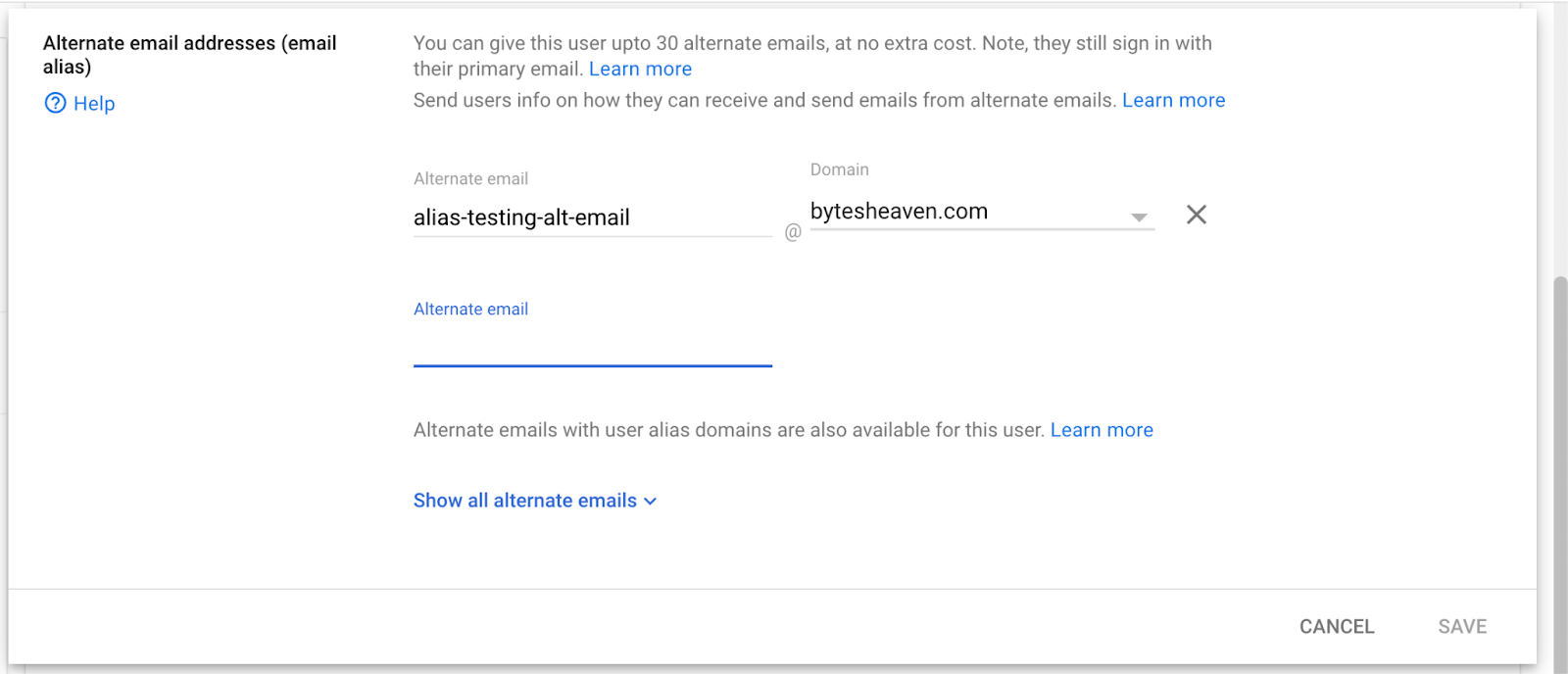
3. 新增替代電子郵件。請確認它對應到該使用者的 ChatGPT 帳戶。

Google Workspace Admin alternate email alias form with alias-testing-alt-email on bytesheaven.com

4. 選取 Save


已知限制

不支援個人電子郵件地址

使用個人地址(例如 example@gmail.com)註冊 ChatGPT 的使用者無法連接到 Google Workspace。這種設定不受支援,且會帶來安全風險,因為它可能讓組織外部存取內部資料。

不支援 Gmail「+」別名

Gmail 允許使用者在地址後附加「+」來建立別名(例如 user+alias@gmail.com)。這種類型的別名無法搭配 Google Drive 同步連接器運作。該別名必須在 Google Workspace 中明確設定。

常見錯誤訊息

如果電子郵件地址未正確連結,使用者可能會看到這則訊息:「我們無法將您的帳戶連接到 Google Drive。點擊以了解更多。」

如果使用者收到這則訊息,請檢查本文件中的步驟,並確認皆已正確執行。如需進一步協助,請聯絡我們的支援團隊

這篇文章有幫助嗎?