
نظرة عامة
يمكنك إزالة وسائل الدفع المحفوظة من إعدادات الفوترة في ChatGPT أو منصّة واجهة API. اتبع الخطوات الخاصة بالحساب أو مساحة العمل أو المؤسسة المسؤولة عن وسيلة الدفع.
إن إزالة وسيلة الدفع لا تؤدي إلى إلغاء الاشتراك أو حذف الفواتير السابقة أو عكس الرسوم المفروضة. لإيقاف تجديد اشتراك ChatGPT، راجع إلغاء اشتراكك في ChatGPT.
لتجنب انقطاع الخدمات المدفوعة، أضف وسيلة دفع بديلة قبل إزالة الوسيلة القديمة.
إزالة وسيلة الدفع
إذا كانت Apple أو Google تحصل رسوم اشتراكك، فقم بإدارة وسيلة الدفع من خلال حساب Apple أو حساب Google Play. لا تغيّر الخطوات أدناه وسيلة الدفع الخاصة بالمتجر.
ChatGPT على الويب
استخدم هذه الخطوات لحساب ChatGPT الشخصي. يمكن أن يتضمن الحساب المجاني وسيلة دفع محفوظة.
في ChatGPT على الويب، انتقل إلى الإعدادات > الفوترة.
اختر قائمة المزيد من الخيارات الخاصة بالبطاقة (•••)، ضمن وسائل الدفع.
اختر إزالة. إذا لم يكن متاحًا، فاتبع خطوات استكشاف الأخطاء وإصلاحها أدناه.
إذا لم تظهر خيارات الفوترة أو الدفع، فسجل الدخول إلى حساب ChatGPT نفسه في متصفح آخر، ثم حاول فتح إعدادات الفوترة مرة أخرى.
إذا رأيت خيار "الدفع" في إعدادات الحساب
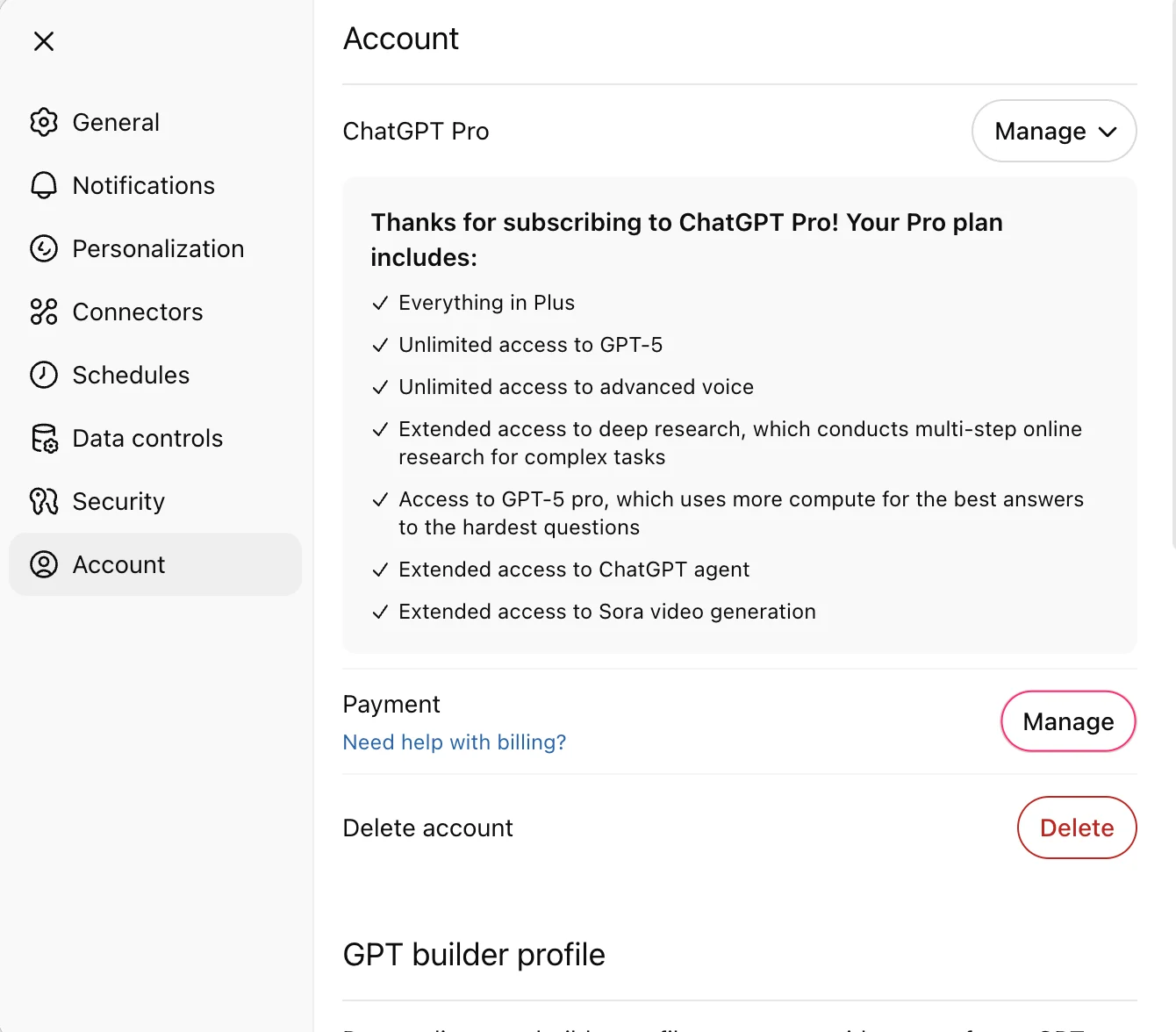
تستخدم بعض الحسابات بوابة الفوترة بدلاً من ذلك. اتبع هذه الخطوات إذا ظهر الدفع في إعدادات الحساب.
انتقل إلى الإعدادات > الحساب.
تحت خيار الدفع، حدد إدارة.
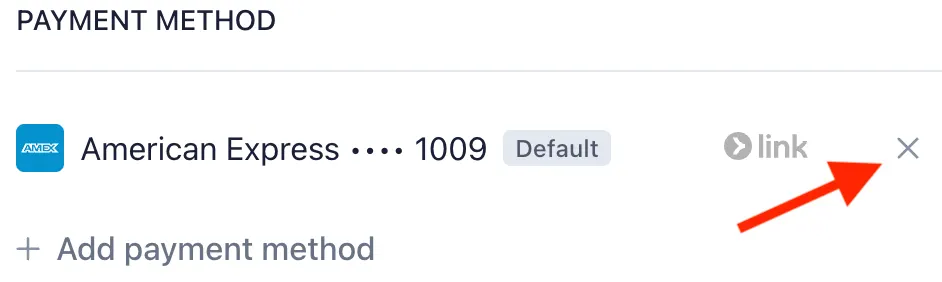
في بوابة الفوترة، حدد × بجانب وسيلة الدفع التي تريد إزالتها.
ChatGPT Business
يمكن فقط لمالكي مساحة العمل إدارة فوترة خطة Business.
انتقل إلى مساحة العمل الخاصة بخطة Business التي تستخدم وسيلة الدفع.
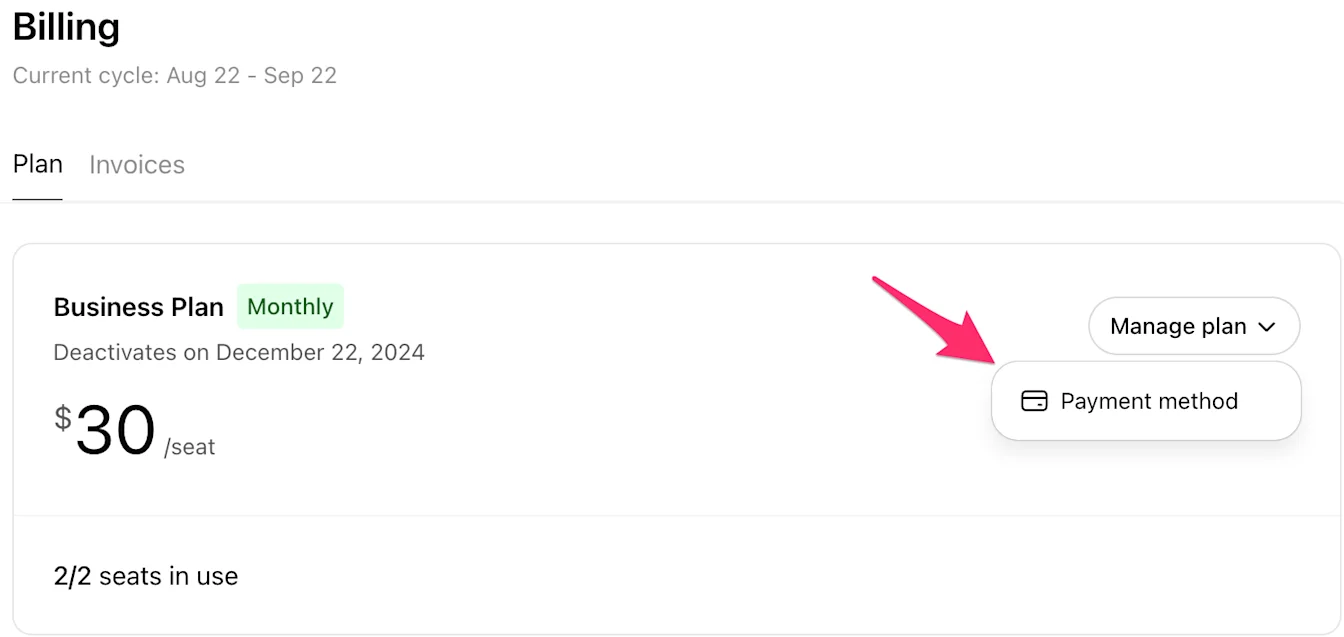
انتقل إلى إعدادات مساحة العمل، ثم حدد الفوترة > الخطة.
افتح إدارة الخطة وحدد وسيلة الدفع.
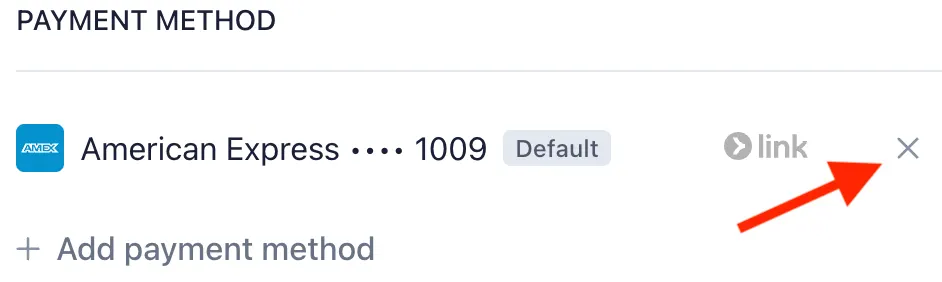
في بوابة الفوترة، حدد × بجانب وسيلة الدفع التي تريد إزالتها.
إذا كانت ملكية مساحة العمل ستتغير، فنسّق وسيلة الدفع البديلة مع المالك الجديد قبل إزالة طريقة الدفع الحالية.
منصّة الـ API
سجّل الدخول باستخدام حساب لديه صلاحية إدارة فوترة المؤسسة، ثم حدّد المؤسسة الصحيحة.
انتقل إلى الفوترة > وسائل الدفع.
حدد حذفعلى البطاقة التي تريد إزالتها.

إذا كان الخيار حذف غير متاح للبطاقة الافتراضية، فأضف وسيلة دفع أخرى وحدد تعيين كخيار افتراضي، ثم حاول حذف البطاقة القديمة مرة أخرى.
إذا لم تتمكن من إزالة وسيلة الدفع
لا يظهر خيار "تعديل" إلا للبطاقة المحفوظة
إذا تم تحديد بطاقة كخيار افتراضي في إعدادات الفوترة في ChatGPT، فقد تعرض القائمة الخاصة بها خيار تعديل دون خيار إزالة. ولاستبدالها، أضِف وسيلة دفع أخرى، وحدد تعيين كخيار افتراضي للطريقة البديلة، ثم حاول إزالة البطاقة القديمة.
إذا كنت تريد إزالة بطاقتك المحفوظة الوحيدة ولم يكن خيار الإزالة متاحًا، تواصل مع الدعم.
تظل البطاقة سارية بعد الإلغاء
قد يمنع الاشتراك النشط أو طلب الإلغاء الذي لم يدخل حيز التنفيذ بعد عملية الإزالة. تحقّق من حالة إلغاء الاشتراك ونهاية فترة الفوترة الحالية.
إذا كانت خطتك قد انتهت بالفعل أو كان حسابك على الخطة المجانية، فتواصل مع الدعم إذا لم يكن خيار الإزالة متاحًا.
تُستخدم البطاقة لإعادة الشحن التلقائي
إذا أشار ChatGPT إلى أن البطاقة مستخدمة للشحن التلقائي، فحدد إدارة الشحن التلقائي. اختر وسيلة دفع أخرى أو أوقف الشحن التلقائي، ثم حاول إزالة البطاقة مرة أخرى.
توجد فاتورة غير مدفوعة أو فشل في إتمام عملية الدفع
قد تمنع الرسوم المستحقة إتمام عملية الإزالة. إذا كانت الرسوم متوقعة، فادفع الفاتورة أو حدِّث وسيلة الدفع وفق التعليمات الواردة في إعدادات الفوترة. تواصل مع الدعم إذا لم تتمكن من حل المشكلة.
لا يمكنك فتح إعدادات الفوترة
بالنسبة إلى مساحة العمل في الخطة Business، اطلب من مالك مساحة العمل إدارة وسيلة الدفع. إذا كنت مالكًا ولكن مساحة العمل غير نشطة أو يتعذر الوصول إلى إعدادات الفوترة، فتواصل مع الدعم.
بالنسبة إلى فوترة واجهة API، تأكد من أنك حددت المؤسسة الصحيحة وأن لديك الإذن لإدارة الفوترة الخاصة بها. اطلب من مالك المؤسسة التحقق من إمكانية وصولك. إذا كنت لا تزال غير قادر على الوصول إلى الفوترة، يرجى التواصل مع الدعم.
احصل على مساعدة
تواصل مع الدعم إذا لم تحل الخطوات ذات الصلة المشكلة. يشمل:
عنوان البريد الإلكتروني الذي تستخدمه لتسجيل الدخول.
ما إذا كانت وسيلة الدفع موجودة في ChatGPT الشخصي أو في مساحة العمل الخاصة بخطة Business أو في مؤسسة واجهة API، واسم مساحة العمل أو المؤسسة إذا كان ذا صلة.
خطتك أو حالة الإلغاء، والخيار المفقود أو الخطأ الدقيق، والخطوات التي جرّبتها.
لقطة شاشة أُخفيت فيها التفاصيل الحساسة. لا تُرسل رقم البطاقة الكامل أو رمز الأمان أو كلمة المرور أو رمز التحقق.
إذا ظهرت لك رسوم لا تتعرف عليها، راجع: رسوم اشتراك ChatGPT لم يتم التعرف عليها أو شراء رصيد واجهة API غير معروف.