
Overview
Your OpenAI account is how you sign in. If you use OpenAI through a company, school, or another institution, it may manage your access to a ChatGPT workspace, an API Platform organization, or an Ads account.
You may have a personal ChatGPT workspace, a work or school workspace, or separate personal and work accounts. Access to one workspace or product does not automatically give you access to another. This article outlines how accounts, tenants, managed workspaces, and product permissions fit together, along with what to expect when joining or signing in.
Understand your account, tenant, and products
Your OpenAI account is how you sign in. A tenant is the shared administrative environment your company, school, or institution uses for OpenAI identity settings and supported products. ChatGPT workspaces, API organizations, and Ads accounts each have their own access and permissions.
| Access layer | What it controls |
|---|---|
| OpenAI account | The account you use to sign in. |
| Personal ChatGPT workspace | Your personal ChatGPT chats and settings. |
| Tenant | Shared identity settings and connected products. |
| ChatGPT workspace | Your team’s ChatGPT membership, features, and settings. |
| API organization | API access, projects, and API-specific permissions. |
| Ads account | Access to one advertising account. |
One OpenAI account can have separate personal and work ChatGPT workspaces. Access to one workspace does not include another workspace, the API Platform, or Ads.
Get started as an administrator
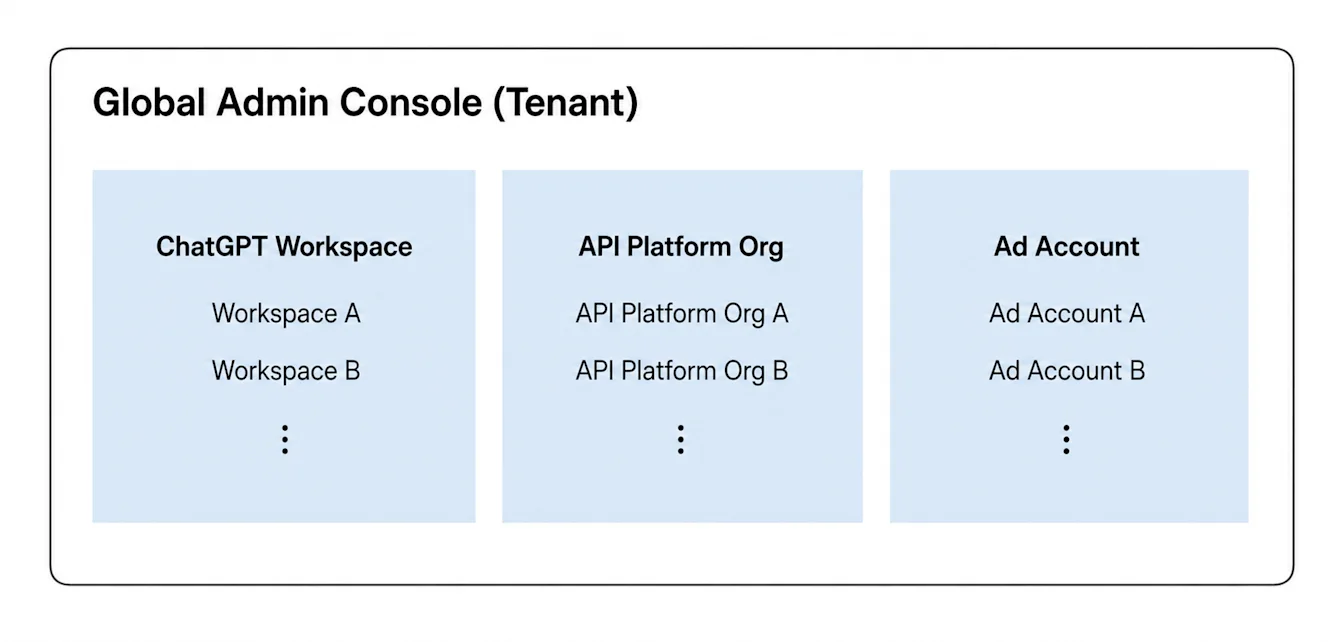
The updated Admin Console supports eligible ChatGPT Enterprise and Edu workspaces and Ads accounts. Standalone ChatGPT Business customers continue using their existing workspace and identity settings in ChatGPT.
Sign in to Admin Console with an account authorized for your tenant.
Choose the tenant you want to manage.
Select Global settings for shared identity, or choose a ChatGPT workspace or Ads account for product-specific settings.
Decide who needs access, how people will sign in, and whether existing accounts could be affected.
Before launch, identify the administrators responsible for the tenant, domain, identity provider, and product access. It is recommended to test your tenant’s sign-in with a small pilot group before inviting everyone.
The settings you can see depend on your plan and assigned role. Global admins can manage tenant-wide SCIM group product assignments in Admin Console.
Join your work or school ChatGPT workspace
Accept your workspace invitation, if you received one.
Sign in with the same email address your company or school used to invite you.
Open your profile or account menu.
Select your work or school ChatGPT workspace.
If the workspace is missing, ask a workspace owner or admin to confirm your invitation and membership.
Joining a work workspace and merging a personal workspace are different actions. Before accepting a migration prompt, review how it could affect your existing chats, GPTs, and subscription. ChatGPT Business admins cannot require you to merge or delete a personal workspace.
Understand sign-in and product access
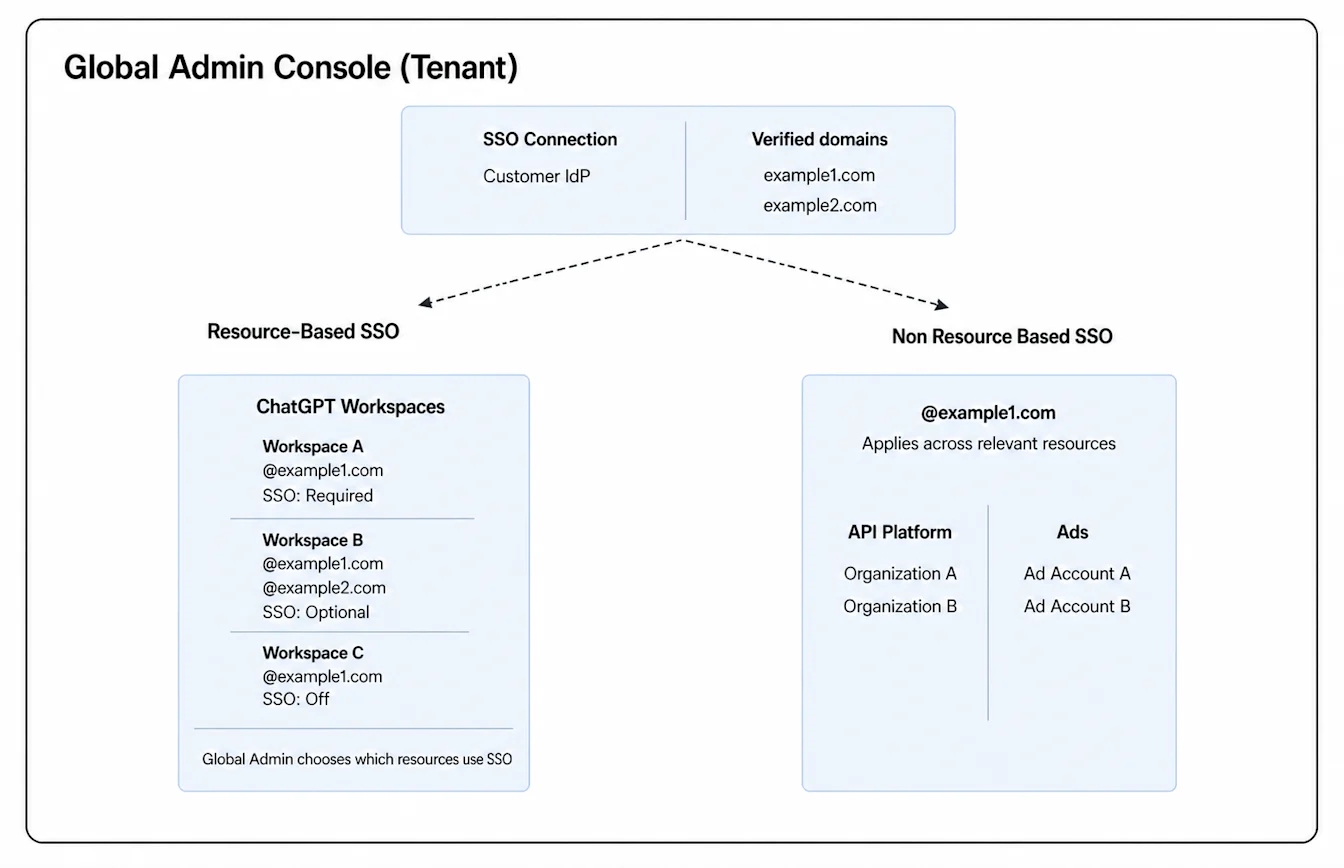
Shared identity settings can support different sign-in requirements across the products associated with your tenant.
Single sign-on (SSO) lets people sign in with the account they already use for work or school.
Directory sync, also called SCIM, lets eligible customers synchronize users or groups from an identity provider.
Invitations, synchronized product assignments, and product roles determine who can join a ChatGPT workspace, API organization, or advertising account. Tenant-wide SCIM adds users directly to assigned API organizations without invitation acceptance. Automatic account creation, where available, applies only to eligible ChatGPT workspaces. It is separate from SCIM and does not require SSO.
A successful sign-in or a matching email address does not automatically grant access to every product.
Check what your plan supports
ChatGPT Business supports SSO and invitations, and automatic account creation may also be available. A standalone Business plan does not include SCIM. A workspace owner manages its identity settings in ChatGPT unless the workspace already uses a shared tenant connection. If the same tenant also includes an eligible ChatGPT Enterprise workspace, ask a global admin whether the Business workspace is available under Product access.
Eligible ChatGPT Enterprise and Edu customers can use additional administrator and directory-sync controls. Tenant-wide SCIM can provision supported ChatGPT workspaces and Ads accounts. Enterprise and Edu tenants can also assign synchronized groups to API organizations.
ChatGPT for Teachers does not include SCIM or the Automatic Account Creation setting. A claimed school or district domain can still direct eligible users to the claimed Teachers workspace. For plan-specific eligibility and workspace guidance, see: ChatGPT for Teachers.
API Platform and Ads access require separate product eligibility, membership, and permissions.
Know who manages your access
A global admin manages supported tenant-wide identity settings. A workspace owner or admin manages a specific ChatGPT workspace. API administrators manage API organization or project access, and an ad account admin manages access to a specific advertising account.
An administrator role for one product does not automatically grant administrator permissions in another.
Find the right setup guide
To manage tenant-wide settings, see: Managing your tenant in Admin Console.
To create and manage workspace Admin keys, see: Managing Admin keys in Admin Console.
To onboard employees who already have ChatGPT accounts, see: Onboarding employees with existing ChatGPT accounts.
To verify a company or school domain, see: Verifying your domain for OpenAI identity.
To configure your tenant’s sign-in, see: Single sign-on (SSO) setup for OpenAI products.
For Business workspace sign-in and plan limits, see: Setting up single sign-on for ChatGPT Business.
To configure directory sync and provisioning, see: SCIM provisioning and management.
To manage Ads sign-in and account permissions, see: Managing identity and access for Ads Manager.
To resolve sign-in or workspace problems, see: Troubleshooting SSO, workspace access, and domain verification.